Reading view

How to Turn Off Journal “Time to Write” Reminders on iPhone & Apple Watch

Once you use the Journal app, it will send a daily notification to your iPhone and Apple Watch (yuck) with a reminder that says “Time to Write”, nudging you to create a new journal entry for the day. If you’re annoyed by the Journal “Time to Write” alerts on your iPhone or Apple Watch, you ... Read More
  •  

WatchOS 26 & tvOS 26 Updates Released with New Features

Apple has launched watchOS 26 for Apple Watch, and tvOS 26 for Apple TV. Both are major new software updates for those devices with the Liquid Glass interface update, and include a variety of new features and improvements, making them compelling updates to those in the Apple ecosystem. watchOS 26 Features, Compatibility, & How to ... Read More
  •  

26 New Features to Try in watchOS 26

Apple released watchOS 26 yesterday, and if you have a Series 9 or later or an Ultra 2 or later, there are a surprising number of useful new features. Apple could have limited new additions like Sleep Score and Hypertension notifications to the newest Apple Watch models, but now you don't need to buy a new watch to get helpful features.


Design


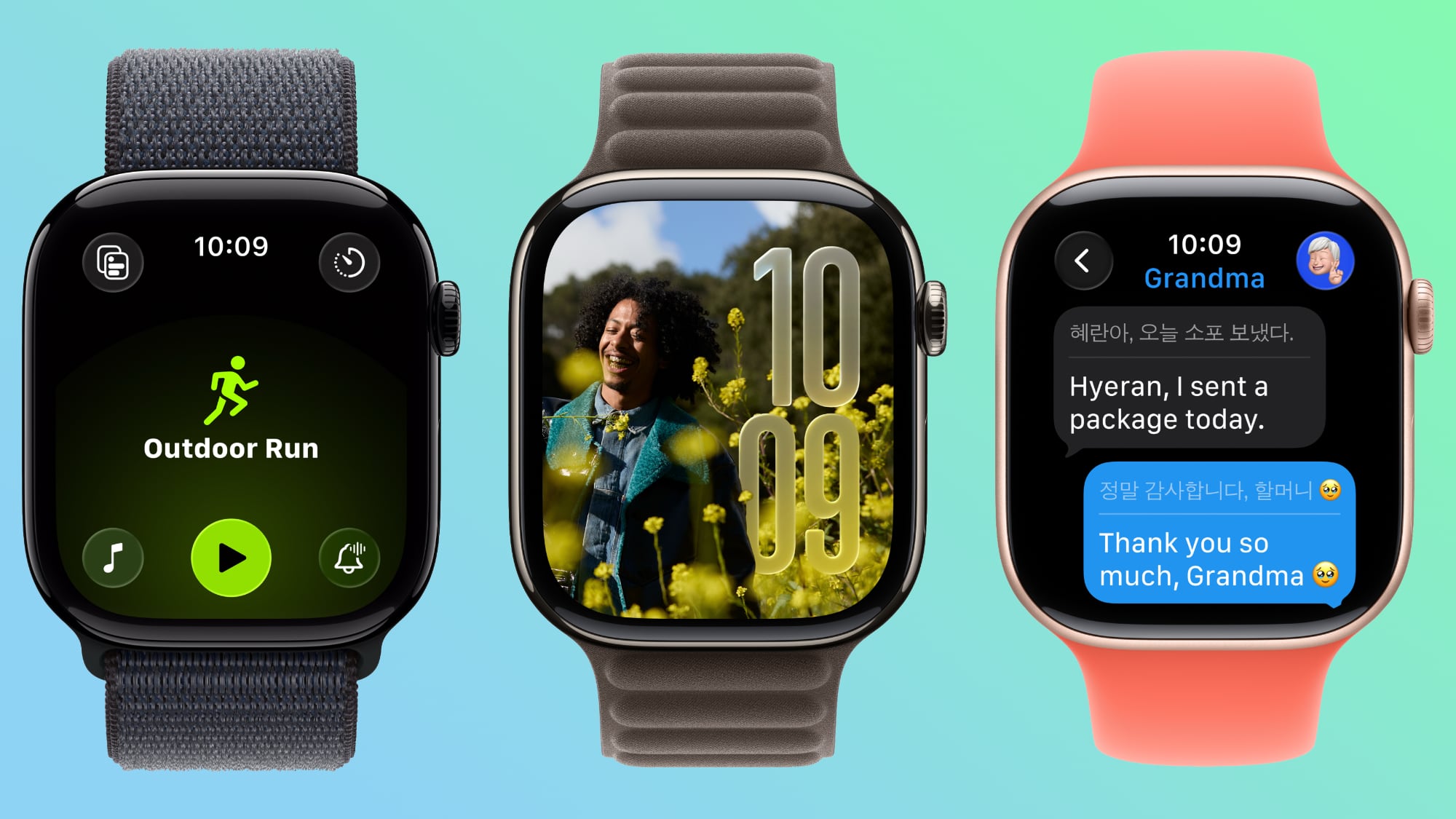
  • Liquid Glass - ‌watchOS 26‌ adopts Liquid Glass, with translucent, glass-like buttons and interface elements. It's most visible with select watch faces, the Smart Stack, and Control Center.

  • Control Center - Control Center is customizable, and you can rearrange it and add third-party app controls. If you don't like your changes, you can revert to the original design.

  • Smart Stack - The Smart Stack uses a new prediction algorithm and it will prompt you if there is a suggestion that's immediately useful.

  • Widgets - Widgets in the Smart Stack are customizable, so you can rearrange them to show what's most important to you first. Third-party apps are supported.


Gestures


  • Wrist Flick - There's a wrist flick gesture for things like silencing incoming calls and dismissing notifications one-handed.


Health


  • Hypertension Notifications - ‌watchOS 26‌ adds hypertension notifications based on heart rate, letting you know if high blood pressure is detected over time. It's available on the Series 9 and later and Apple Watch Ultra 2 and later.

  • Sleep Score - Sleep Score gives you a number-based evaluation of your sleep quality. It takes into account sleep duration, the number of times you woke up in the night, and when you went to bed.


Fitness


  • Workout Buddy - There's an AI-powered Workout Buddy that motivates you during workouts and provides helpful insights.

  • Workout app - Apple redesigned the Workout app with an updated layout that makes options like custom workout, Workout Buddy, and Pacer easier to get to.

  • Media - There's an Autoplay Media option that will automatically play music that matches your workout. You can also select your own media to have autoplay when a workout is started.


Messages


  • Smart Actions - The Messages app can suggest smart actions like location sharing, providing an address, and more based on the context of a text.

  • Smart Replies - Smart replies have been improved so you should get more relevant one-tap responses for incoming messages.

  • Live Translation - The Messages app supports Live Translation, so incoming texts in another language can be translated to your language.

  • Backgrounds - Personalized backgrounds that you create for conversations on iPhone sync to the watch.


Phone


  • Call Screening - Call Screening asks callers for more information before your phone or Apple Watch rings.

  • Hold Assist - You can use the Hold Assist feature on the Apple Watch. It waits on the line for you so you can do other things.


Watch Faces


  • Photos - The Photos watch face uses Liquid Glass for the time, and the size and location of the time adjust based on the image that's being displayed. The shuffle option also uses Featured content from ‌Photos‌.

  • Flow - Flow is a watch face designed for Liquid Glass. It features an orb of color with Liquid Glass numbers.

  • Exactograph - Exactograph has hour, minute, and second dials for precise time keeping. If you tap on the face, it zooms in on the minutes and seconds dials so you can measure in even smaller increments of time.

  • Waypoint - Waypoint is only for the Apple Watch Ultra, but it shows points of interest in relation to where you are.

  • Hermes - There's a Hermes Faubourg Party watch face for Hermes watches. It displays different animations based on the time of day.

  • Ticking Seconds - More watch faces support the 1Hz refresh rate on the Apple Watch Series 10 and later, showing a ticking second hand even when your wrist is down.

  • Gallery - The watch face gallery has a new design that groups faces into collections.


Other Features


  • Volume Adjustment - The volume of incoming calls and notifications adjusts based on the ambient sound around you. So if you're in a quiet room, your watch won't have a super loud ring.

  • Live Listen - When using Live Listen on a connected ‌iPhone‌, a transcript of what's being said is displayed on the watch.

  • Notes - The Notes app is available on the Apple Watch, so you can view existing notes and create new ones.


Read More


For more on the features available in ‌watchOS 26‌, we have a dedicated watchOS 26 roundup.
Related Roundups: watchOS 11, watchOS 26
Related Forum: Apple Watch

This article, "26 New Features to Try in watchOS 26" first appeared on MacRumors.com

Discuss this article in our forums

  •  

You Don't Need the Apple Watch Series 11 to Get Your Sleep Score

With the Apple Watch Series 11, Ultra 3, and SE 3, Apple announced support for a new Sleep Score feature that's designed to provide you with an actionable overview of your sleep quality.
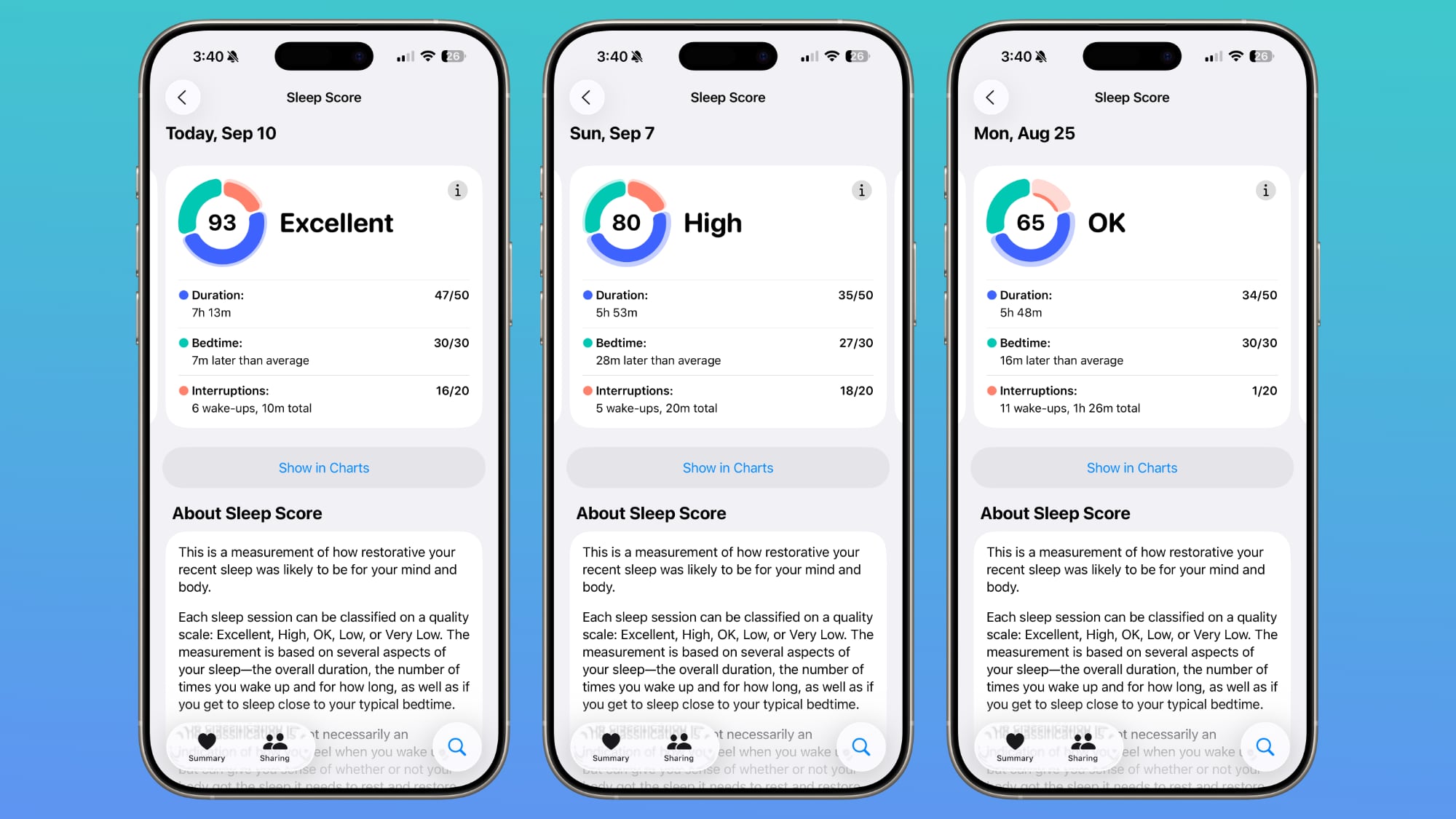

It turns out that Sleep Score is a watchOS 26 feature, so it is also available on older Apple Watch models. If you have the ‌watchOS 26‌ release candidate installed, you can see your Sleep Score in the Health app already.

Open up the Health app, choose the Sleep category from the Search interface, and tap on Sleep Score to see your personalized readout.

Apple will rate your sleep as Excellent, High, OK, Low, or Very Low. Scores are calculated based on sleep duration, the time you went to bed, and how many times your sleep was interrupted during the night. Duration is worth 50 points, bedtime is worth 30 points, and interruptions is worth 20 points. Points are deducted for low sleep times, a late bedtime, or multiple sleep interruptions.

According to Apple, an "Excellent" score means that your body and mind have received the rest and restorative sleep needed for the day. High means you got the sleep you need, even though you might not have slept perfectly. OK means you probably didn't get all the sleep you need, while Low means that you didn't get enough time to rest and restore. Very Low means you didn't get enough sleep and your rest level was low enough that it can have a mental and physical impact over time.

Sleep Score is calculated from sleep data collected by the Apple Watch during sleep, or from a third-party device that reports results to the Health app. You technically don't need an Apple Watch to get a Sleep Score, but you do need some kind of device that records sleep and logs the results in the Health app.

‌watchOS 26‌ with the Sleep Score, Liquid Glass, and other features will launch to the public on Monday, September 15.
Related Roundups: watchOS 11, watchOS 26
Related Forum: Apple Watch

This article, "You Don't Need the Apple Watch Series 11 to Get Your Sleep Score" first appeared on MacRumors.com

Discuss this article in our forums

  •  

iOS 18.6.1 & watchOS 11.6.1 Updates Return Blood Oxygen Monitoring to Apple Watch

Apple has released two updates as iOS 18.6.1 for iPhone along with watchOS 11.6.1 for Apple Watch, and the combination of the two system software updates returns the blood oxygen monitoring feature back to Apple Watch. Previously, Apple had to remove the blood oxygen monitoring feature from Apple Watch Series 9, 10, and the latest ... Read More
  •  

How to Disable Backtrack on Apple Watch Turning On Automatically

One of the more curious features of Apple Watch is how the Compass Backtrack feature automatically activates and takes over the Apple Watch screen during workouts, seemingly at random, or even every time a “Hiking” workout or sometimes any outdoor workout of any sort is selected or initiated. Given that the vast majority of hikers, ... Read More
  •  

How to Turn Off AMBER Alerts on Apple Watch & iPhone

AMBER alerts are well intentioned and aim to help locate missing children, but can also be incredibly disruptive and jarring, thus many iPhone and Apple Watch users might want to disable AMBER alerts on their devices. By turning off AMBER alerts, you will avoid the sudden screeching loud alarm sound that is disruptive to whatever ... Read More
  •