We have released version 2.11.0 of the OpenProject integration app for Nextcloud! ✨ This update brings several usability improvements and fixes to make your project collaboration experience even smoother.
We recommend updating to the latest version via your Nextcloud app center to benefit from the newest enhancements.
Changes of the release 2.11.0:
Simplified warning message for OIDC identification
Improved work package creation process
Clearer messaging in the select field during work package creation
Smoother UI in the “Create work package” modal (stable Subject field behavior)
Thanks to Nextcloud for the continued partnership!
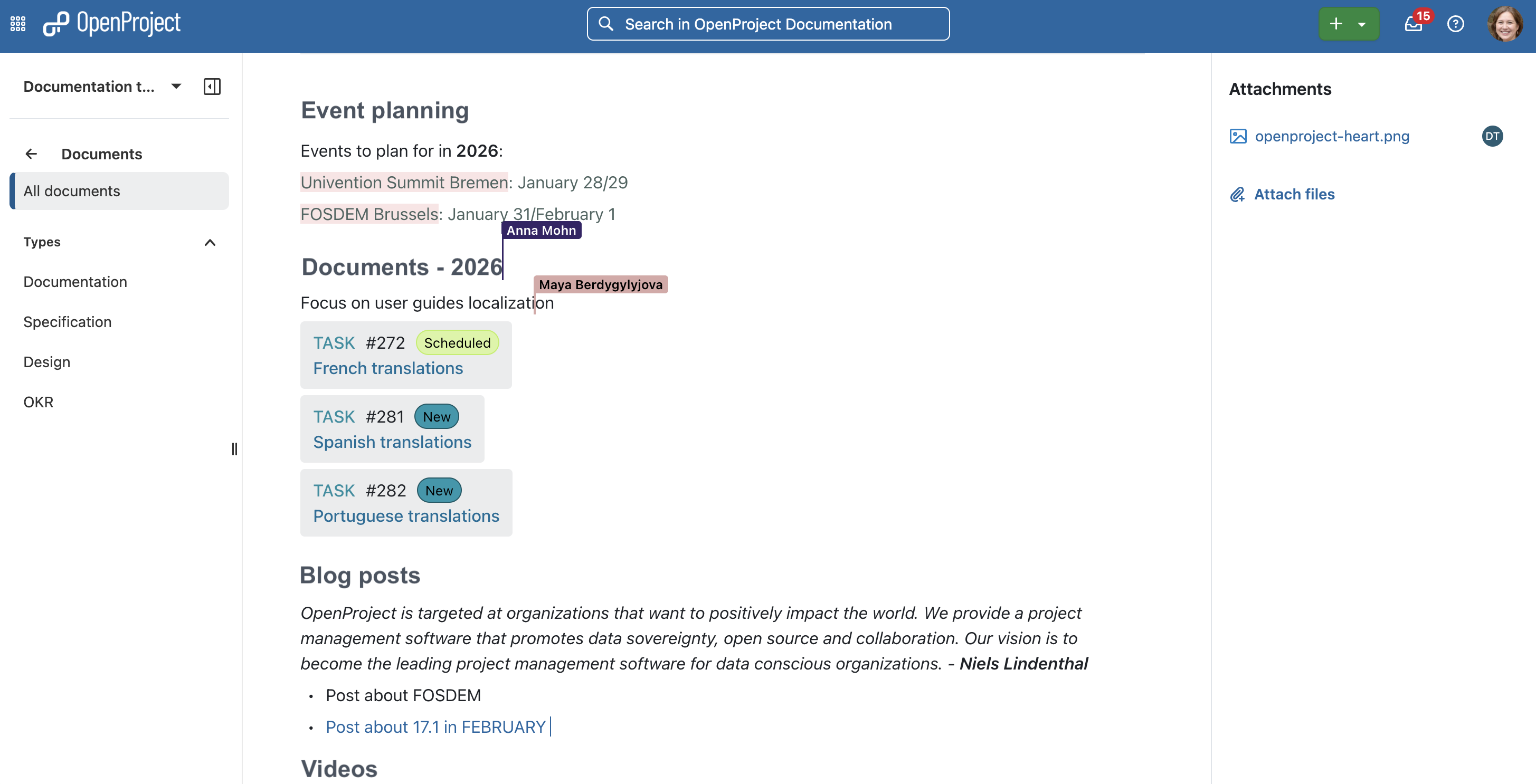
Teams collaborate on ideas, strategies, and texts every day, but when this happens outside the project tool, context gets lost and coordination takes more time than necessary. With OpenProject 17.0, real-time collaboration is now built directly into the Documents module (Cloud and Containerized installations) — but only if the module is activated in your project.
In this article, you will learn why enabling the Documents module is worth it, how live collaboration works in OpenProject, and how to get started in just a few minutes.
Get started with live collaboration
Enabling the Documents module is a small step that can have an immediate impact on how your project team collaborates. Instead of using separate tools or exchanging document versions, teams can create and edit documents together directly in OpenProject.
Typical use cases include:
Brainstorming ideas together in real time.
Aligning on strategies, concepts, or project goals.
Drafting guidelines, proposals, or internal documentation.
Collecting input and feedback from multiple stakeholders.
Important
Real-time documents collaboration is available starting with version 17.0 and is automatically enabled for Containerized and Cloud-hosted installations. Packaged installations (DEB/RPM) require additional manual setup. Please see our system administration guide for more details.
Watch this video to understand how to benefit from OpenProject Documents with live collaboration:
How to use the OpenProject Documents module for real-time editing
Imagine a marketing team that wants to align on its strategy for the year. Several people need to contribute ideas, refine wording, and agree on priorities — ideally without exchanging files or switching between tools. The Meetings module helps collect ideas and align on topics in a structured way, but sometimes teams simply need a shared document to brainstorm collaboratively, without organizing everything as a meeting.
With the Documents module enabled, the team can create a shared document in their project and start working on it together in real time. Everyone sees changes instantly, comments can be addressed on the spot, and the document evolves collaboratively instead of through multiple versions.
Below is a simple example of how project admins can get started and introduce live collaboration in just a few steps.
1. Activate the Documents module in your project
As a project admin, open the project settings and activate the Documents module. This is the only required step to make live collaboration available to your project members. Once activated, all users with the appropriate permissions can create and edit documents together in real time.
2. Create types to structure your documents
To keep documents organized, you can define document types such as Strategy, Concepts, or Internal documentation. This is especially helpful when multiple teams or topics are involved. Types make it easier for project members to find and reuse documents later on and can be adjusted as your project grows.
3. Create your first document
Create a new document and give it a clear title, for example Marketing strategy 2026. The document opens directly in the editor, and changes are saved automatically while you work. From this point on, multiple users can edit the document at the same time without any additional setup.
4. Share the document with your team
Simply share the document link with your project members. Everyone with access to the project can open the document and start contributing immediately. No separate invitations or external sharing settings are required — project permissions apply automatically.
5. Explore the editor and link work packages in the text
Use the editor to structure your content, add lists or headings, and reference relevant work packages directly in the document text. This helps connect ideas and decisions with the tasks they relate to. For more advanced editing options, you can learn more about the underlying editor technology in the BlockNote documentation.
Tip
Use the news module to spread the word and encourage project members to try out live collaboration in Documents as well.
Activate live collaboration in your team
You are already taking the time to read about live collaboration — enabling the Documents module in your project takes less than a minute. Activate the Documents module, create a first document, and invite your team to work on it together.
If you are looking for more details on specific settings or permissions, our documentation is the best place to start. The User Guide explains how to work with documents, while the System admin guide covers technical setup and configuration options.
OpenProject 17.0 has been released and introduces several major improvements across the platform. In this article, we highlight the most important changes and what they mean for your daily work.
As this is a major release with many updates, we focus on the key highlights here. For a complete overview of all features, changes, and bug fixes, please see our release notes.
Project ideas, decisions, and agreements are often formed together. At the same time, they tend to be spread across different tools and files. This makes it harder to keep context, align as a team, and connect written content to actual project work.
With OpenProject 17.0, teams can collaborate on documents in real time, directly in OpenProject. What does that mean? – Multiple users can edit a document at the same time and see each other’s changes instantly. This helps teams develop ideas together, align on content, and keep everything centrally available.
That central approach works especially well because most documents are closely connected to your tasks and projects. You can reference milestones and link work packages, making it easier to move from a shared text draft to an actionable project plan. This is especially useful for project-related documents such as concepts, contracts, specifications, or planning documents, where collaboration and traceability matter.
Good to know: The redesigned Documents module is built on BlockNote, a modern, open source text editor that is also used in other European open source projects such as LaSuite and openDesk. This creates a strong foundation for future collaboration features across OpenProject.
Important
Real-time collaboration in Documents is available out of the box for all plans using OpenProject Cloud or on-premises installations with Docker Compose, Kubernetes, or Helm. For package-based installations, real-time communication needs to be set up separately. Also relevant for on-premises installations using packages: The package source has been changed to packages.openproject.com.
If you want to learn more about the design decisions, technical background, and what’s planned next, read this blog article.
Better meetings, less overhead: Draft and presentation modes, outcomes, and iCal
Meetings are essential for coordination and decision-making — but preparing agendas, guiding discussions, and documenting results often require extra manual effort. This can make meetings feel fragmented and outcomes hard to follow up on.
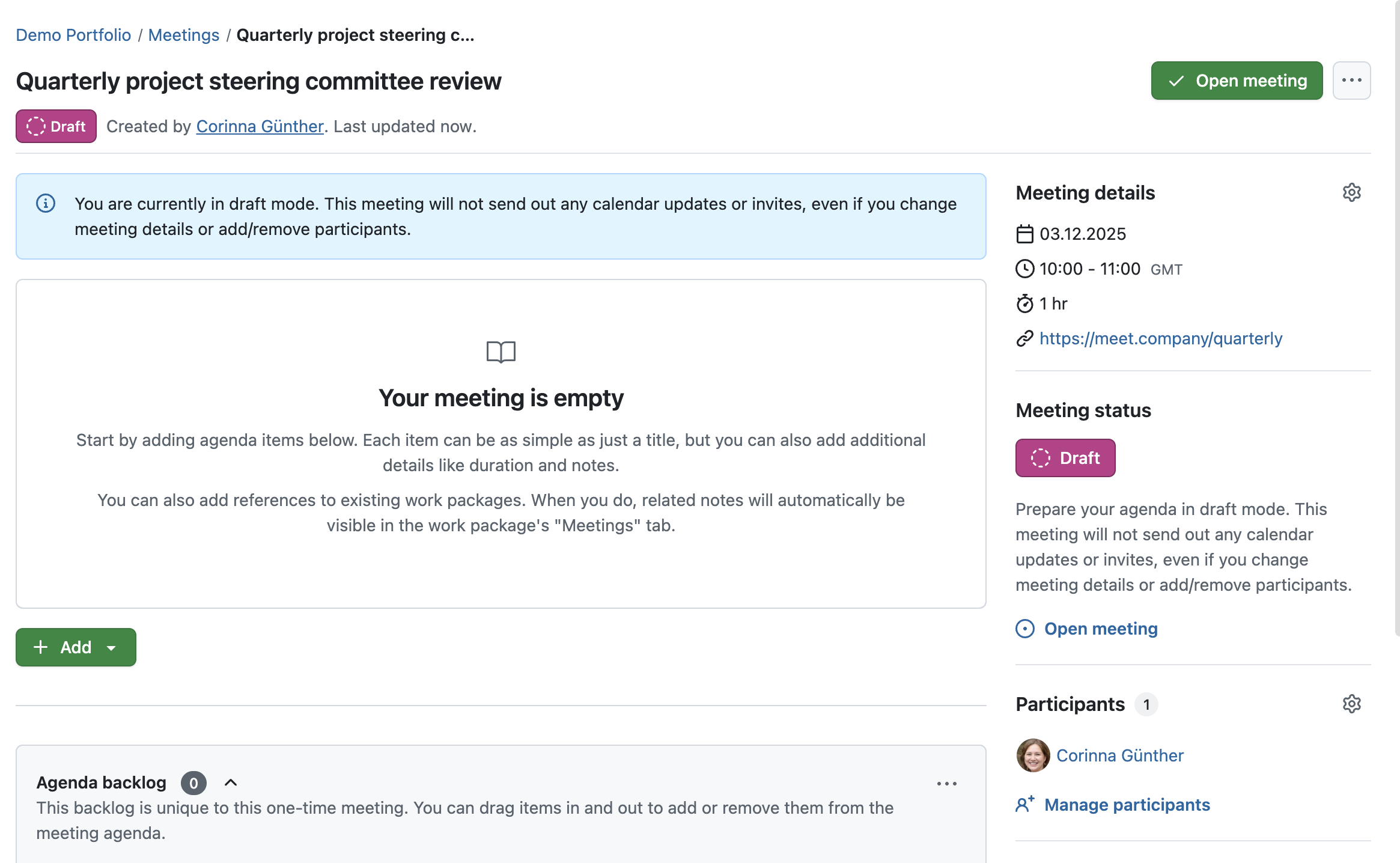
With draft mode, agendas can be created and refined collaboratively without notifying participants too early. This allows moderators to align internally before opening the meeting and sharing it with the full group.
Running a meeting: Presentation mode
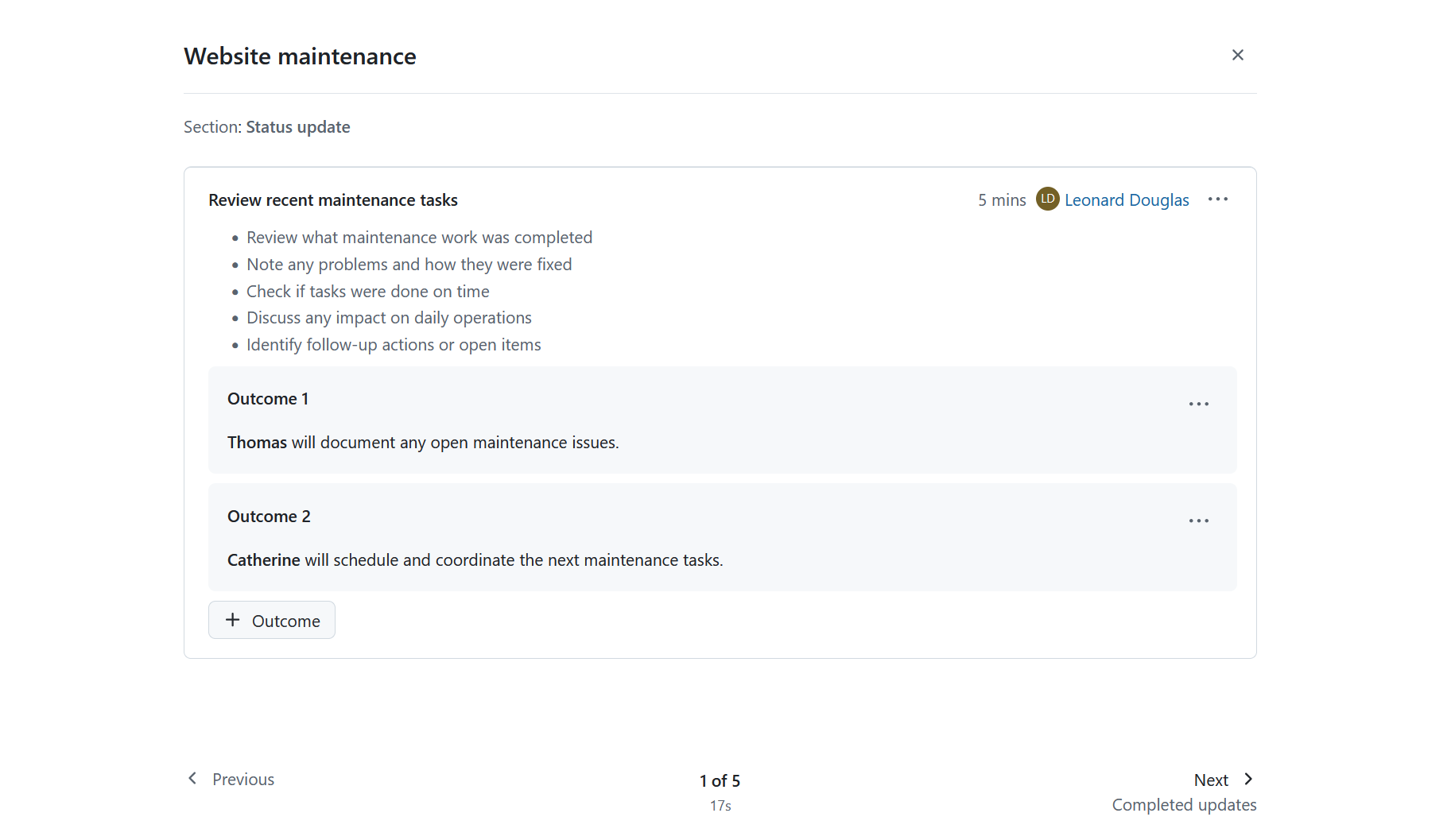
Once the meeting starts, keeping discussions focused can be challenging. Presentation mode helps moderators guide participants through the agenda step by step, making it easier to stay on topic and ensure that all items are addressed in order.
Documenting results: Multiple outcomes
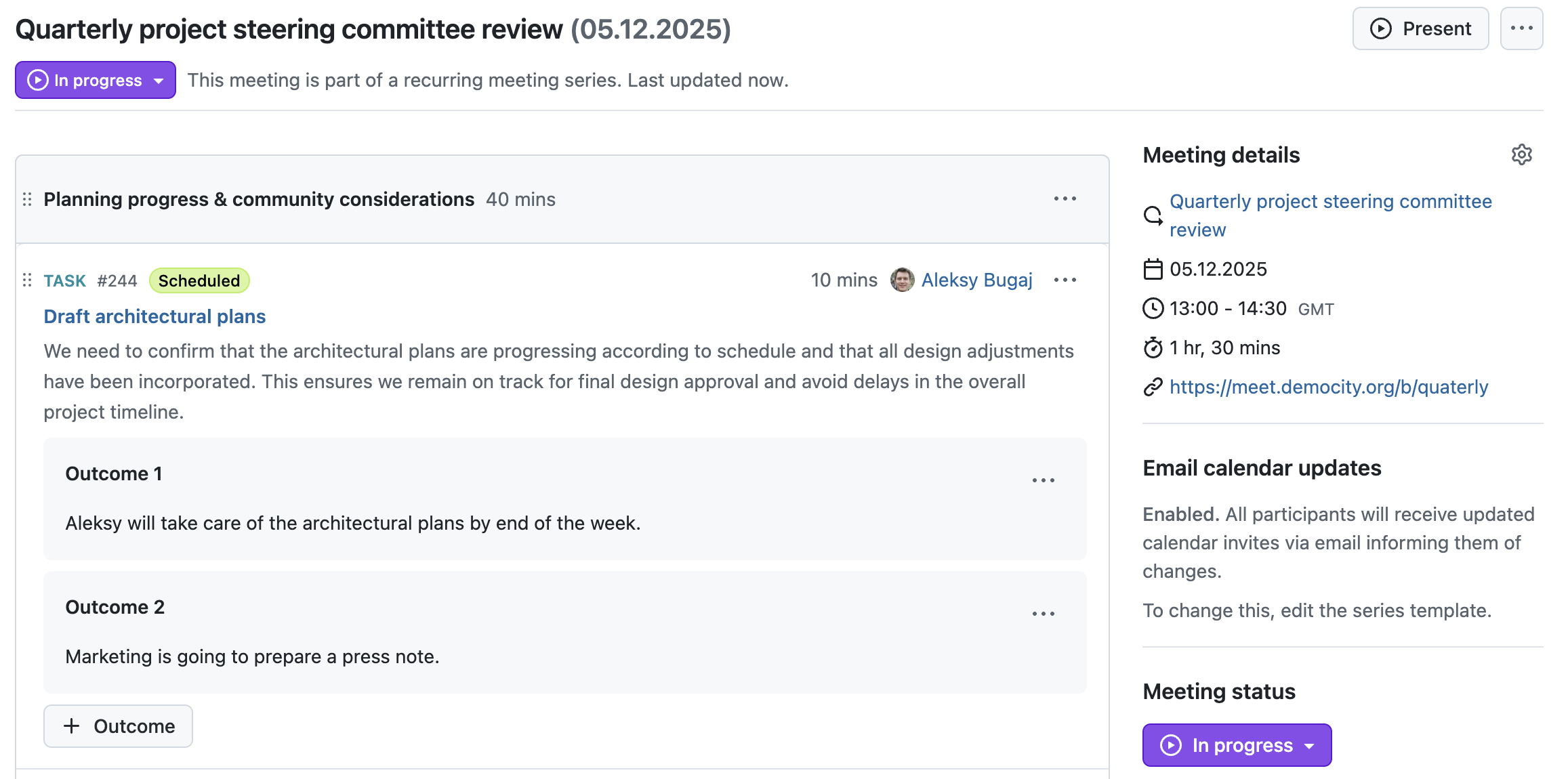
Capturing results is just as important as running the meeting itself. Meetings can now include multiple text-based outcomes, making it easier to document decisions, agreements, or next steps directly where they belong. These outcomes remain part of the meeting documentation and can be reviewed later.
Staying informed: iCal subscription
To support follow-up and planning, meetings can also be subscribed to via iCal, allowing participants to stay informed about schedules and updates in their personal calendar tools.
Together, these improvements help teams run meetings more efficiently, keep discussions structured, and ensure that results are clearly documented and accessible.
Structure projects consistently: Redesigned project home and improved template selection
Creating projects in a consistent way is essential, especially for organizations working with defined project standards such as PM² or PMflex. In practice, project information is often spread across different views, and project setup can be error-prone, particularly for non-technical administrators.
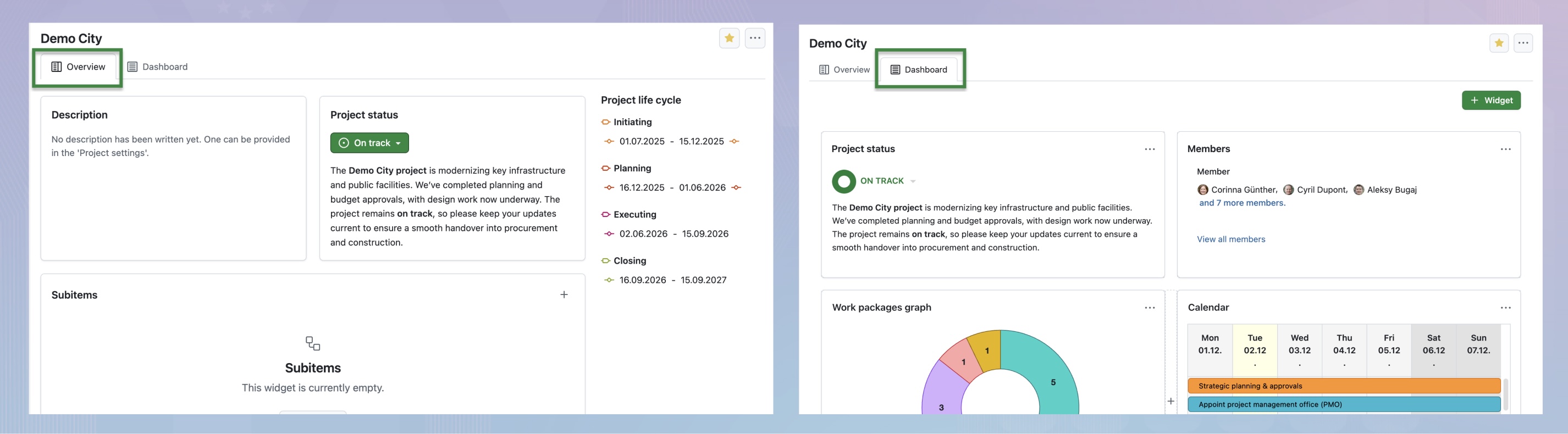
OpenProject 17.0 introduces a redesigned project home, now split into two dedicated tabs. This makes it easier to distinguish between high-level project information and operational details and helps teams understand a project’s structure at a glance. Please note that in addition to the redesign, the project overview page has been renamed to project home.
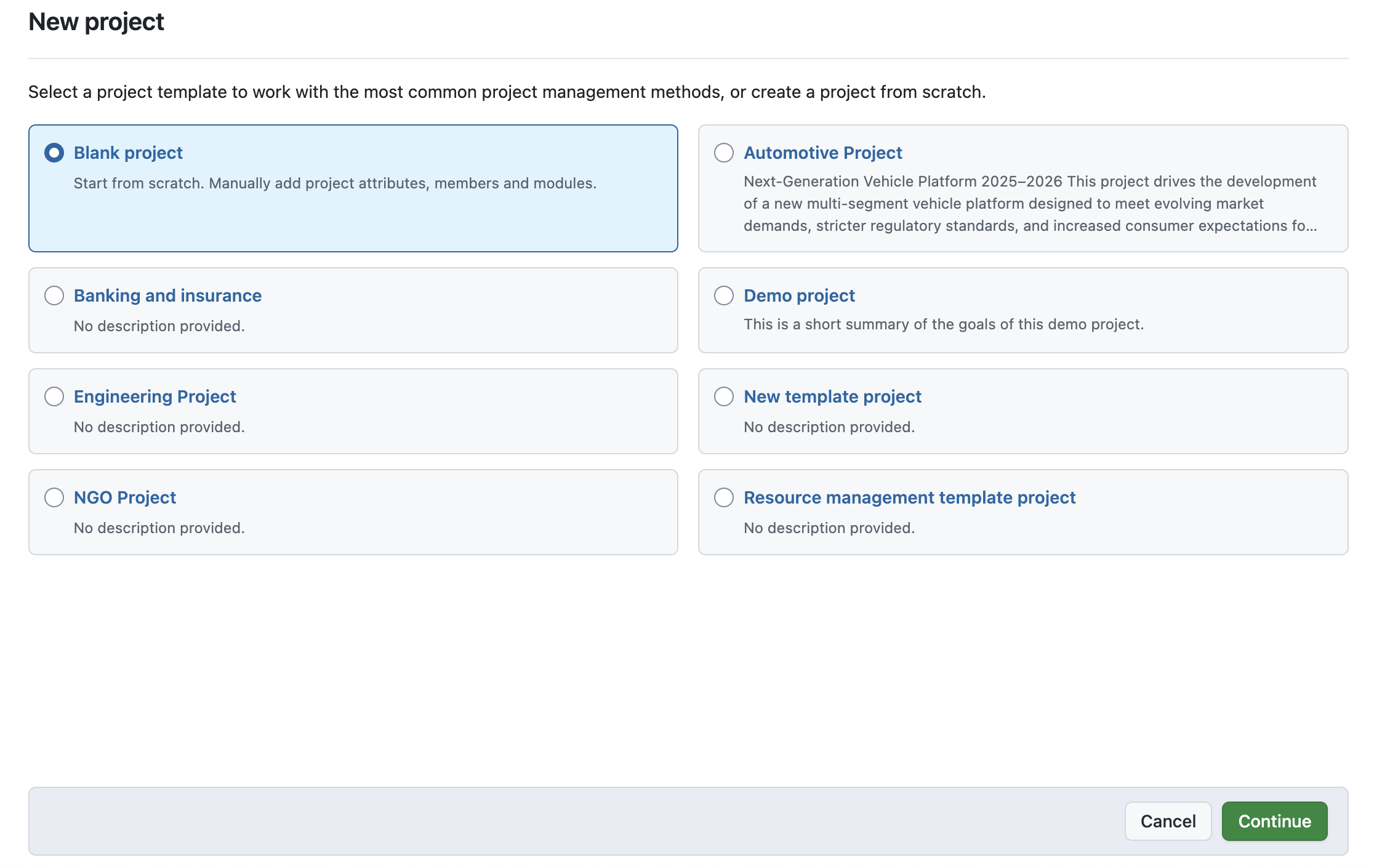
Project creation has also been improved. A clearer template selection guides users through the setup process and helps avoid common mistakes, even when projects are created by users without deep technical knowledge.
Note
These improvements lay the foundation for a planned multi-step project creation wizard in one of the next releases. The upcoming wizard aims to support the creation and processing of PM² / PMflex artifacts in a guided and user-friendly way. We plan to publish a preview article about this feature on our blog soon.
Manage projects at a strategic level: Programs and portfolios (Enterprise add-on)
As organizations grow, managing projects individually is often no longer enough. Strategic goals, dependencies, and priorities need to be visible across multiple projects — not just within them.
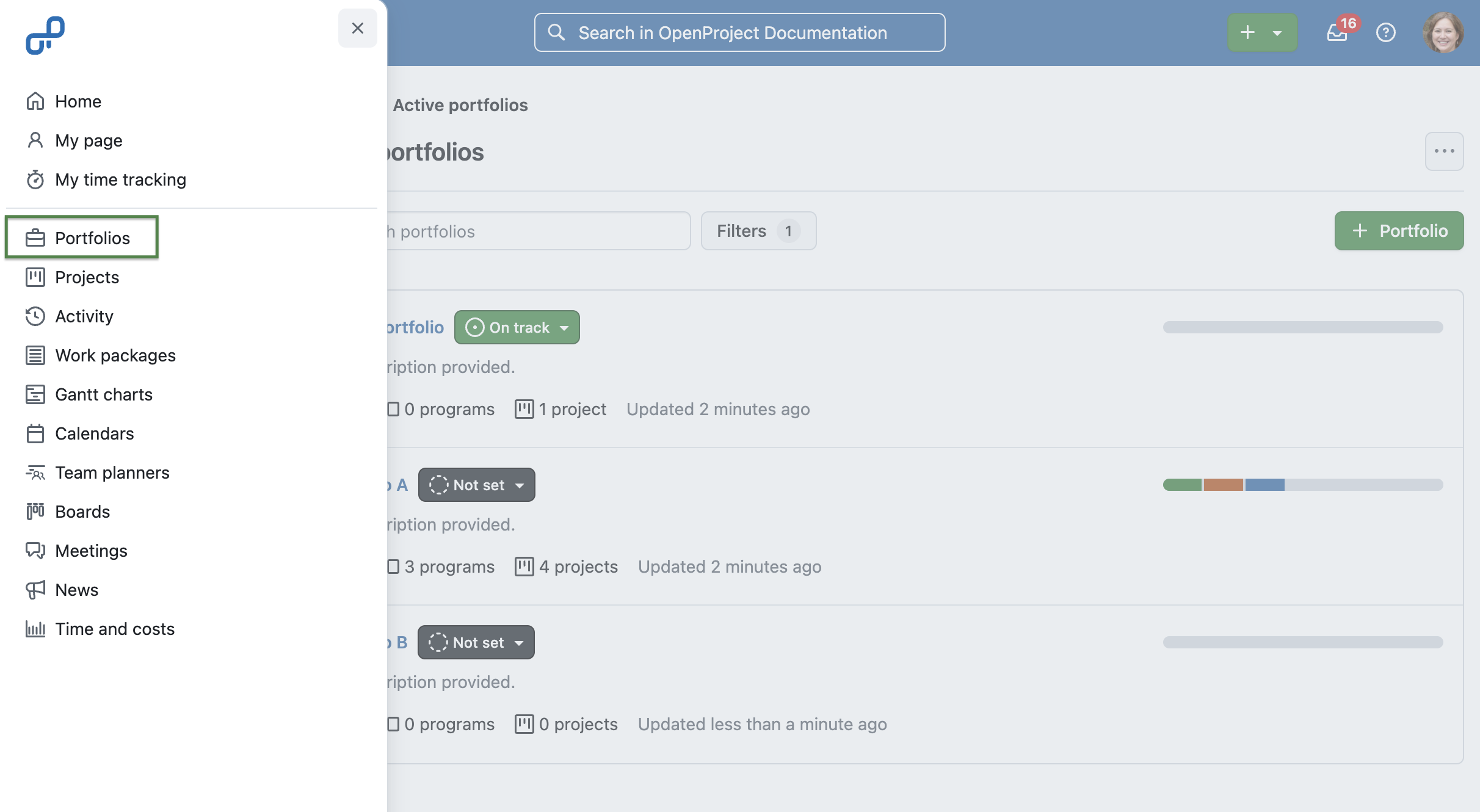
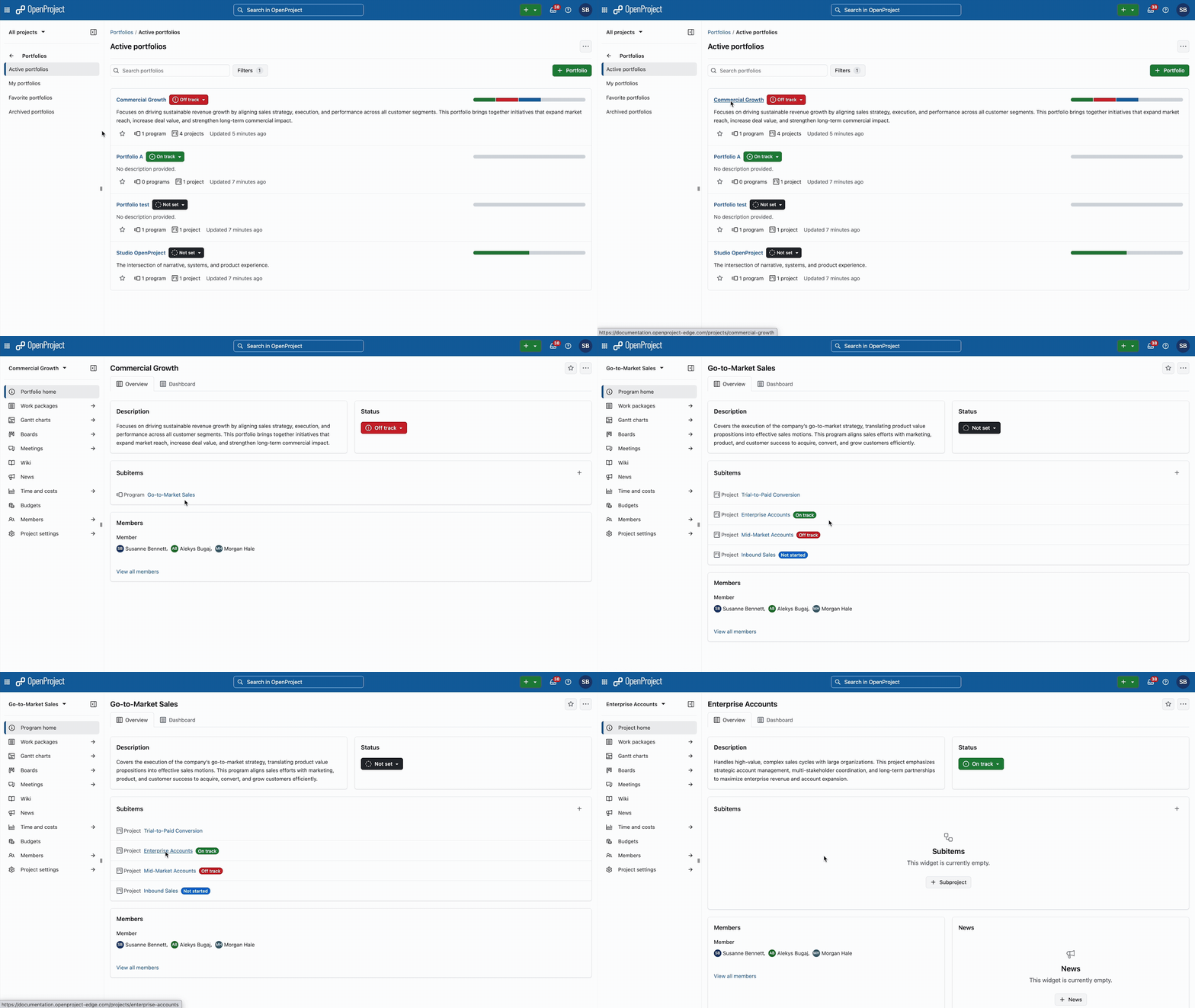
With programs and portfolios, OpenProject 17.0 helps organizations structure projects at a higher level. Related projects can be grouped into programs and portfolios to provide an overview of all ongoing initiatives. This makes it easier to align work with strategic goals, track progress across projects, and support informed decision-making.
This is particularly helpful for organizations working with PM² or PMflex, where projects are embedded in a broader strategic context and need to be managed consistently across portfolios and programs. PMOs, management teams, and public sector organizations benefit from increased transparency without adding complexity to day-to-day project work.
More control when connecting SharePoint: Updated SharePoint integration (Enterprise add-on)
Sharing and collaborating on documents across systems is common in many organizations — but it also raises questions around access control and data protection. Especially in regulated environments, it is important to clearly define who can see and edit which content.
With OpenProject 17.0, the existing SharePoint/OneDrive integration has been split into two separate integrations. This allows for more restrictive and clearer permission handling when connecting SharePoint content to OpenProject.
The updated SharePoint and OneDrive integrations are available as Enterprise add-ons in the Professional plan, just like before version 17.0. See our system admin guide to learn more about the SharePoint integration and now separate OneDrive integration for OpenProject.
Other great improvements
OpenProject 17.0 is a packed release. To keep this article concise, here is a quick look at some additional improvements worth highlighting:
You will find more information about all new features and changes in our Release notes or in the OpenProject Documentation.
If you need support, you can post your questions in the Community Forum, or if you are eligible for Enterprise support, please contact us and we will be happy to support you personally.
New to OpenProject? To test all features of OpenProject 17.0 right away, create a 14 days free trial instance for our OpenProject Enterprise cloud.
Prefer to run OpenProject 17.0 in your own infrastructure? Here you can find the Installation guidelines for OpenProject.
A very special thank you goes to Helmholtz-Zentrum Berlin, City of Cologne, Deutsche Bahn and ZenDiS for sponsoring released or upcoming features. Your support, alongside the efforts of our amazing Community, helps drive these innovations. Also a big thanks to our Community members for reporting bugs and helping us identify and provide fixes. Special thanks for reporting and finding bugs go to Alexander Aleschenko, Stefan Weiberg, and Markus Preisinger.
Last but not least, we are very grateful for our very engaged translation contributors on Crowdin, who translated quite a few OpenProject strings! This release we would like to particularly thank the following users:
stenberg.thomas, for a great number of translations into Swedish.
Sharmin, for a great number of translations into Persian.
Would you like to help out with translations yourself? Then take a look at our translation guide and find out exactly how you can contribute. It is very much appreciated!
As always, we welcome any feedback on this release.
Open source security is a shared responsibility. OpenProject is proud to take this responsibility seriously. As part of an initiative funded by the European Commission, we at OpenProject have partnered with the YesWeHack bug bounty platform to make our open source project management software even more secure.
Security researchers are invited to test the latest stable version and report any vulnerabilities – with financial rewards for valid reports.
What is the bug bounty about?
OpenProject is currently listed as a public program on YesWeHack. Security researchers can analyze the latest stable release of OpenProject as published on our GitHub repository, and report any findings through the platform.
The program is sponsored by the European Commission, under its initiative to strengthen the digital security of open source tools used by public institutions. It’s part of a broader strategy to foster digital sovereignty and secure open infrastructure in Europe.
Note
About YesWeHack: The bug bounty and vulnerability management platform is “built by hackers for hackers”, connecting organizations and ethical hackers worldwide to uncover and patch vulnerabilities. Read more on their website.
Submit valid vulnerabilities through the platform.
Receive your reward if your report is accepted and in scope.
FAQ
Who can participate?
Anyone with a YesWeHack account and a passion for security can participate. You don’t need to be part of an organization — individual researchers are welcome.
The rewards range from €100 to €5,000, depending on the severity of the vulnerability. Rewards are based on the CVSS severity score and follow a structured grid.
How do I submit a report?
You can submit a report through the YesWeHack platform. Reports must include clear reproduction steps and follow the responsible disclosure policy.
What happens after submission?
Submissions are reviewed by OpenProject and triaged based on impact. Eligible reports will be rewarded and fixed as appropriate.
Join the effort — hack for the public good
Help us make OpenProject even more secure. Whether you’re a seasoned researcher or just starting out, your contributions make a difference.

 Login
Login