Reading view

Apple Provides Fix for iMessage Activation Bug in iOS 26

Apple this week provided troubleshooting steps for iPhone owners who are unable to activate iMessage with a phone number in iOS 26.

According to Apple, some customers might not be able to activate iMessage with a phone number if there is an inactive SIM or eSIM with the same phone number as an active SIM on the ‌iPhone‌.

Customers who are experiencing this problem will see a "Not Delivered" alert for sent iMessages, and iMessages won't be able to be received. Messages will be sent and received via RCS or SMS, and will have green bubbles instead of blue bubbles. Alternatively, iMessages might be sent using an email address instead of a phone number.

To get iMessage to work in that situation, users should remove the inactive SIM and attempt to reactivate iMessage. Deleting a SIM that's not in use can be done by going to the Cellular section of the Settings app, and deleting the inactive SIM if there are two displayed with the same phone number.

If the inactive SIM is a physical SIM, it should be removed from the ‌iPhone‌. If the inactive SIM is an eSIM, it can be deleted from the Cellular interface. After the inactive SIM has been removed, iMessage can be activated by going to Messages, tapping on Send and Receive, and tapping on the displayed phone number.
Related Roundups: iOS 26, iPadOS 26
Related Forum: iOS 26

This article, "Apple Provides Fix for iMessage Activation Bug in iOS 26" first appeared on MacRumors.com

Discuss this article in our forums
  •  

iPadOS 26 Multitasking Tips and Tricks

iPadOS 26 introduces a whole new multitasking system that provides a Mac-like experience on the iPad. You can open multiple app windows at once, arrange them how you like, and even use Mac-style buttons and features to get work done.


There are several useful tips that might be helpful if you're new to ‌iPadOS 26‌ and aren't sure where to start.

Opt-In or Opt-Out


When you first install ‌iPadOS 26‌, you can choose how you want your ‌iPad‌ to work. You can continue to use full screen apps as the default if you don't need to have more than one app open at a time, or you can choose the new Windowed Apps option.

If you prefer Stage Manager, you can also select that option to arrange your windows across multiple groups.

Quick Swapping


You can swap between Windowed Apps and ‌Stage Manager‌ mode by opening up the Control Center and long pressing on the multitasking Control Center button.

Resizing and Repositioning Windows


In Windowed Apps mode, an app will open at full size when you first tap it. You can grab the little handle in the right hand corner of the window and use drag gestures to adjust its size.

Drag at the top of the app to reposition a window. Windows will remember where they were placed even when you close an app.

Flick Arranging


When you have an app window open, if you give it a quick flick to the right or the left, it will neatly arrange itself to one side of the display. You can stack multiple app windows on top of one another this way.

Button Controls


‌iPad‌ windows use Mac-like "traffic" buttons that work just like Mac apps. Red closes a window, green expands a window to full screen, and yellow collapses it down to the dock.

Split Your Screen


If you long press on the traffic light buttons, you'll bring up options for arranging your windows. You can choose an arrangement that tiles two, three, or four app windows on the display, or use Move and Resize to move your window to the bottom, top, right, or left of the screen.

Exposé


If you swipe up and hold from the bottom of the ‌iPad‌'s display, you can get into an Exposé view that shows all of your open apps or app groups if you're also using Center Stage.

Swipe up without holding to get to your desktop. At your desktop, swipe down from the top to get to the search interface if you need it.

Menu Bar


‌iPad‌ apps have a menu bar in ‌iPadOS 26‌. It's hidden, but you can get to it if you swipe down from the top when an app is in full screen mode. Alternatively, you can hover the mouse over it if you're using a mouse or trackpad with your ‌iPad‌.

Menu bar options vary by app, but include controls for window management, closing a window, accessing tools, and getting to app settings.

No More Split View and Slide Over


The ‌iPadOS 26‌ multitasking changes replace Split View and Slide Over, so that functionality is no longer available.

Dock Visibility


The option to have the Dock automatically be hidden when you're using apps is on automatically, but if you want to turn it off, you can do so in the Multitasking section of the Settings app.

Close All Windows


If you want to be able to close all of your open windows when you swipe to the Home screen, you can toggle that on in the Settings app under Multitasking. The option is not turned on by default.
Related Roundups: iOS 26, iPadOS 26
Related Forum: iOS 26

This article, "iPadOS 26 Multitasking Tips and Tricks" first appeared on MacRumors.com

Discuss this article in our forums
  •  

Apple Details iOS 26 Features Like Call Screening, Live Translation, AutoMix, and More

Apple has updated its iPhone User Guide, and published a series of support documents, with more details about a wide range of new iOS 26 features.


Here are some of those guides and support documents:


Make sure to check out our ultimate iOS 26 guide for an in-depth overview of everything you need to know about the software update, released on Monday.
Related Roundups: iOS 26, iPadOS 26
Related Forum: iOS 26

This article, "Apple Details iOS 26 Features Like Call Screening, Live Translation, AutoMix, and More" first appeared on MacRumors.com

Discuss this article in our forums
  •  

Here's When iOS 26 Rolls Out Today in Every Time Zone

Today's the day. Apple is about to release iOS 26, which will deliver the biggest redesign since iOS 7 and bring a range of new features and improvements to iPhones worldwide. It's Apple's biggest software update of the year, and Apple announced at last week's iPhone event that it will be releasing iOS 26 sometime today – Monday, September 15.


Based on past releases, the update is likely to drop at around 10:00 a.m. Pacific Time/1:00 p.m. Eastern Time. Apple's own websites for countries around the world also suggest a 10:00 a.m. Pacific Time release, with Apple's site for India listing a September 15 launch while the company's Indonesian page lists a September 16 release, pointing to a narrow window around 10:00 a.m. Pacific to line up with time zone differences.

To give iPhone users globally an idea of when iOS 26 should become available as an over-the-air update, we've compiled the below list of time zone conversions for several countries. This list isn't exhaustive, so please verify the exact time for your specific location, and bear in mind that there could always be a delay as Apple prepares its servers for rollout.


  • Australia West - 1:00 a.m. AWST (Tues)

  • Australia East - 3:00 a.m. AEST (Tues)

  • Austria - 7:00 p.m. CEST

  • Belgium - 7:00 p.m. CEST

  • Brazil East - 2:00 p.m. BRT

  • Canada West - 10:00 a.m. PDT

  • Canada East - 1:00 p.m. EDT

  • China - 1:00 a.m. CST (Tues)

  • Denmark - 7:00 p.m. CEST

  • Finland - 8:00 p.m. EEST

  • France - 7:00 p.m. CEST

  • Germany - 7:00 p.m. CEST

  • Guernsey - 6:00 p.m. BST

  • Hong Kong - 1:00 a.m. HKT (Tues)

  • India - 10:30 p.m. IST

  • Indonesia West - midnight WIB (Tues)

  • Ireland - 6:00 p.m. IST

  • Isle of Man - 6:00 p.m. BST

  • Italy - 7:00 p.m. CEST

  • Japan - 2:00 a.m. JST (Tues)

  • Jersey - 6:00 p.m. BST


  • Luxembourg - 7:00 p.m. CEST

  • Netherlands - 7:00 p.m. CEST

  • New Zealand - 5:00 a.m. NZST (Tues)

  • Norway - 7:00 p.m. CEST

  • Portugal - 6:00 p.m. WEST

  • Puerto Rico - 1:00 p.m. AST

  • Saudi Arabia - 8:00 p.m. AST

  • Singapore - 1:00 a.m. SGT (Tues)

  • South Korea - 2:00 a.m. KST (Tues)

  • Spain - 7:00 p.m. CEST

  • Sweden - 7:00 p.m. CEST

  • Switzerland - 7:00 p.m. CEST

  • Taiwan - 1:00 a.m. CST (Tues)

  • UAE - 9:00 p.m. GST

  • United Kingdom - 6:00 p.m. BST

  • United States West - 10:00 a.m. PDT

  • United States Mountain - 11:00 a.m. MDT

  • United States Central - noon CDT

  • United States East - 1:00 p.m. EDT

  • US Virgin Islands - 1:00 p.m. AST


Be Prepared to Wait


When iOS 26 and iPadOS 26 become available as an over-the-air update, make sure your device is fully charged before you start the process over Wi-Fi, as it may take some time to complete. To check that the update is available, go to Settings ➝ General ➝ Software Update, and wait a moment for your device to contact Apple's servers. If you're in no rush, you can wait for iOS 26 to be delivered to your iPhone when you next plug it into your computer.

On that note, a word of caution: During the initial rollout of major software updates like iOS 26, Apple users may experience slower download speeds and sluggish performance when trying to update their devices. This is largely due to the high demand on Apple's servers, as millions of users worldwide attempt to download the update simultaneously.

The surge in traffic can overwhelm network capacity, leading to delays in downloading or installing the update. To avoid these potential issues, you may want to wait a day or two before installing the update, allowing server congestion to subside and ensuring a smoother upgrade experience.
Related Roundups: iOS 26, iPadOS 26
Related Forum: iOS 26

This article, "Here's When iOS 26 Rolls Out Today in Every Time Zone" first appeared on MacRumors.com

Discuss this article in our forums
  •  

Apple's Weather via Satellite Feature in iOS 26 Beta Code is Still Missing

A little more than three months ago, MacRumors contributor Aaron Perris discovered references to an unreleased "Weather via satellite" feature in the code for the first iOS 26 developer beta. However, just one day before iOS 26 is set to be widely released, the feature has yet to be released or even announced by Apple.


The references have not been removed from the code, as of the iOS 26 Release Candidate, so it is possible that Apple will introduce the feature eventually. Perhaps the feature will be added in a follow-up update, such as iOS 26.1 or iOS 26.2.

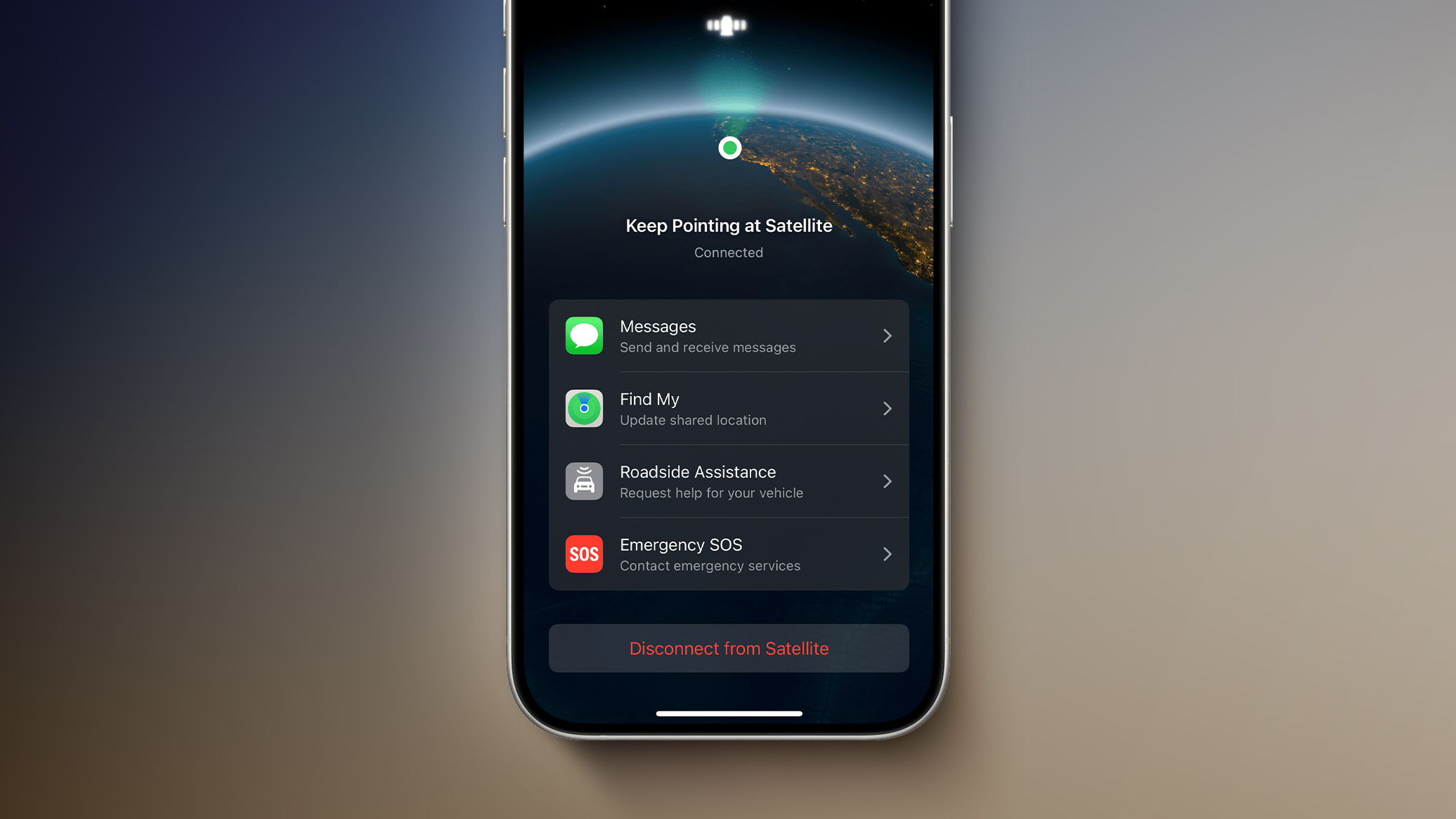
The feature would let you view the forecast and other weather information in the Weather app, in supported areas without Wi-Fi and cellular range. Apple's other satellite features include Emergency SOS via satellite, Messages via satellite, Find My via satellite, and Roadside Assistance via satellite, with availability varying by country.

Apple has yet to charge a fee for any of its satellite features. Last week, the company announced it is providing existing iPhone 14 and iPhone 15 users with an additional year of free access to the entire suite of satellite features on those devices.
Related Roundups: iOS 26, iPadOS 26
Related Forum: iOS 26

This article, "Apple's Weather via Satellite Feature in iOS 26 Beta Code is Still Missing" first appeared on MacRumors.com

Discuss this article in our forums
  •  

iOS 26's New U.S. Passport Feature is Still Not Available

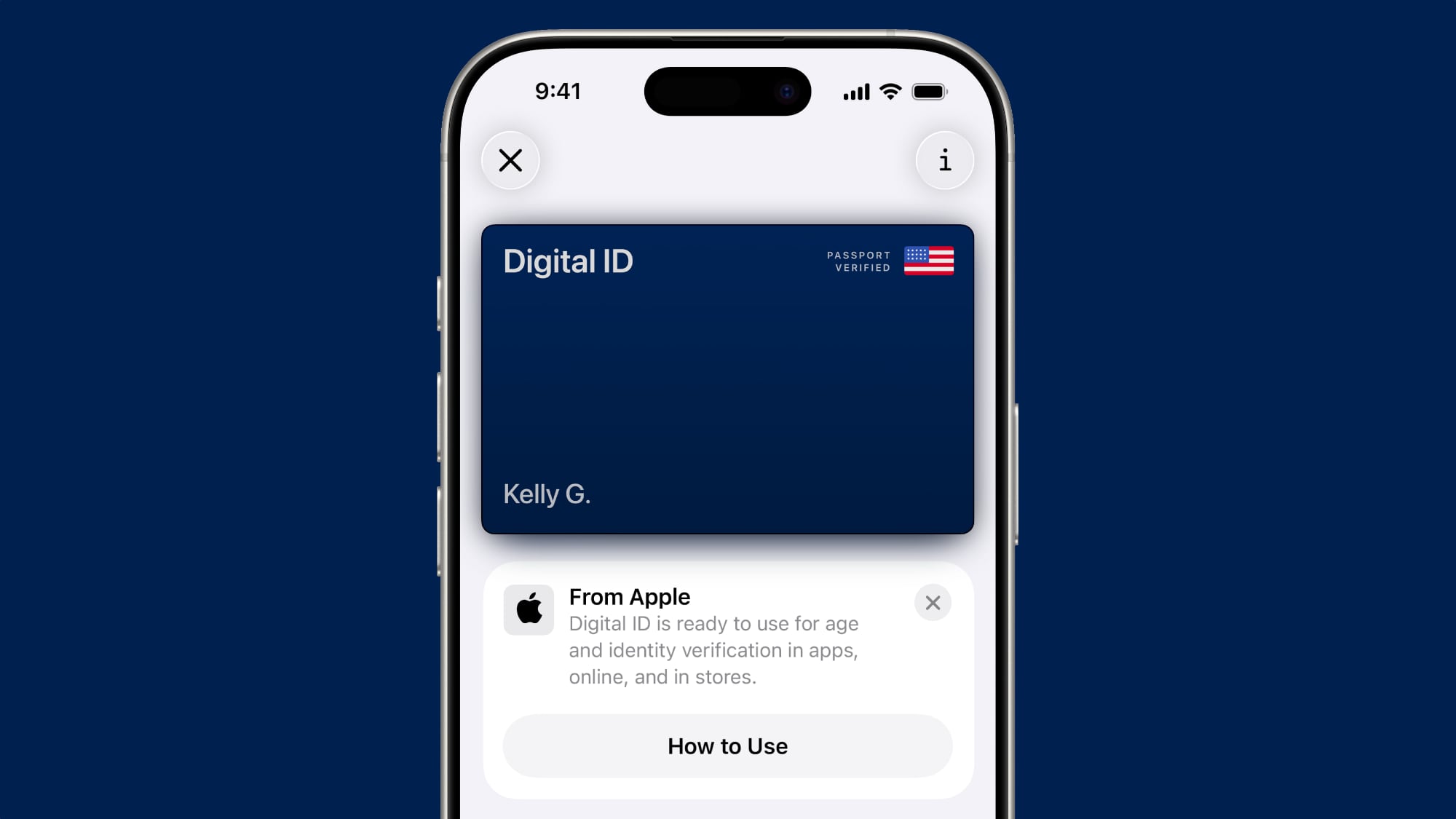
iOS 26 will be widely released tomorrow, but the new feature that lets you add a digital version of your U.S. passport to Apple's Wallet app is still not available.


The "Digital ID" feature is not functional in the iOS 26 Release Candidate, which is typically the final beta version, despite being listed on the iOS 26 features page in the present tense. Hopefully, it is either enabled with a server-side update when iOS 26 is released tomorrow, or Apple provides an update on when it will be available.

Apple did not immediately respond to our request for comment.

After creating a Digital ID in the Wallet app, you will be able to present it in person at TSA checkpoints in select U.S. airports for identity verification purposes during domestic travel. However, Apple says it is not a replacement for a physical passport, and it cannot be used for international travel and border crossing purposes.

Apple says the Digital ID feature is secure, private, and compliant with REAL ID.

The passport-based Digital ID can also be used for age and identity verification in apps, online, and in stores, according to Apple.

Apple said the feature would also be available on the Apple Watch, starting with watchOS 26.
Related Roundups: iOS 26, iPadOS 26
Related Forum: iOS 26

This article, "iOS 26's New U.S. Passport Feature is Still Not Available" first appeared on MacRumors.com

Discuss this article in our forums
  •  

iOS 26 Available Tomorrow With These 8 New Features

Following three months of beta testing, iOS 26 will be released this Monday, September 15. The update is compatible with the iPhone 11 series and newer, and it will be available to install via the Settings app, under General → Software Update.


Below, we have highlighted eight new features included in iOS 26. Even more new features and changes are outlined in Apple's release notes for the update.

Some of the features are only available on newer iPhone models.

Liquid Glass


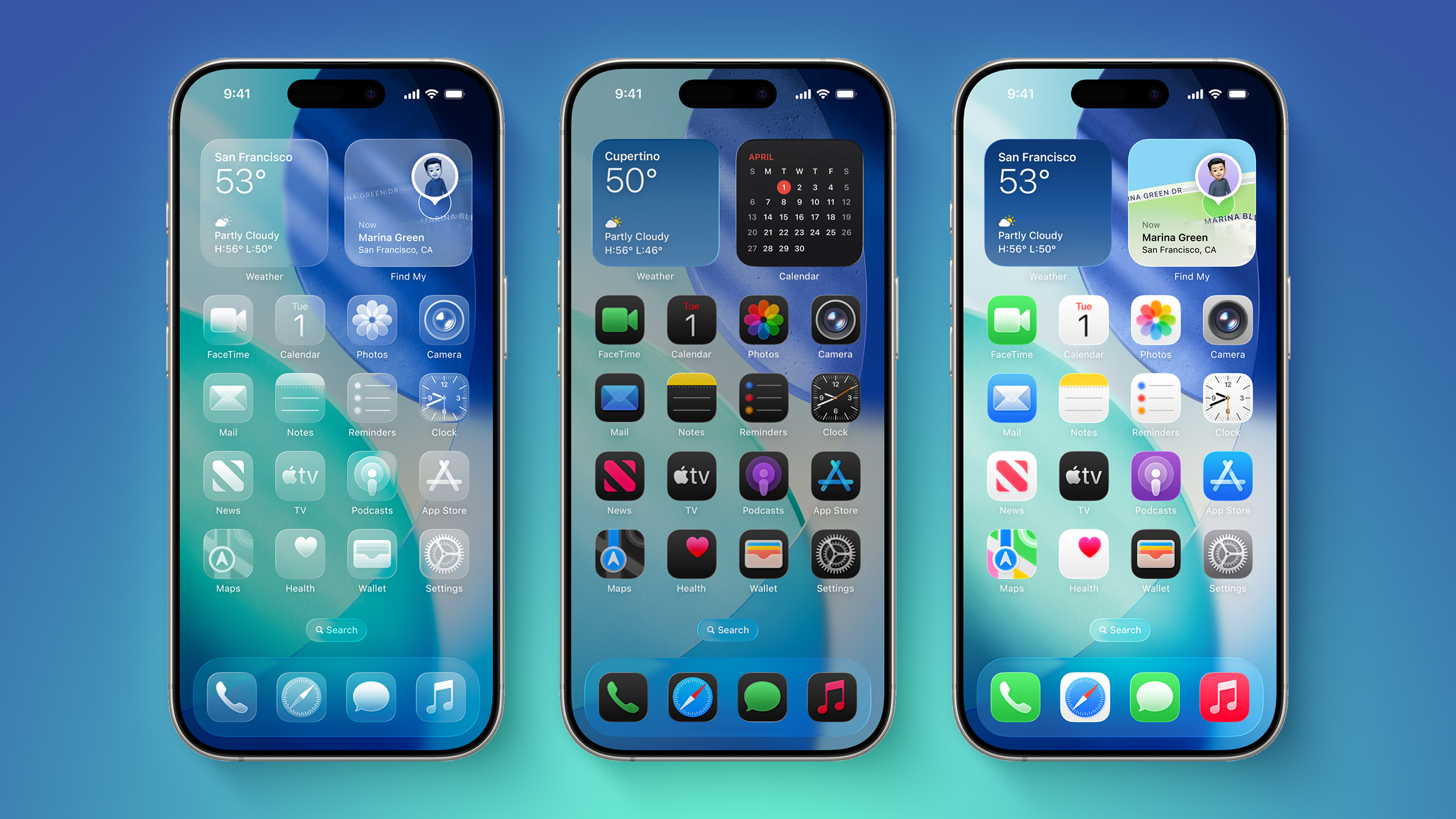
iOS 26 introduces an all-new Liquid Glass design with translucent menus, buttons, and icons.

Apple describes Liquid Glass as "a new translucent material that reflects and refracts its surroundings, bringing greater focus to content, and delivering a new level of vitality across controls, navigation, app icons, widgets, and more."

Lock Screen Enhancements


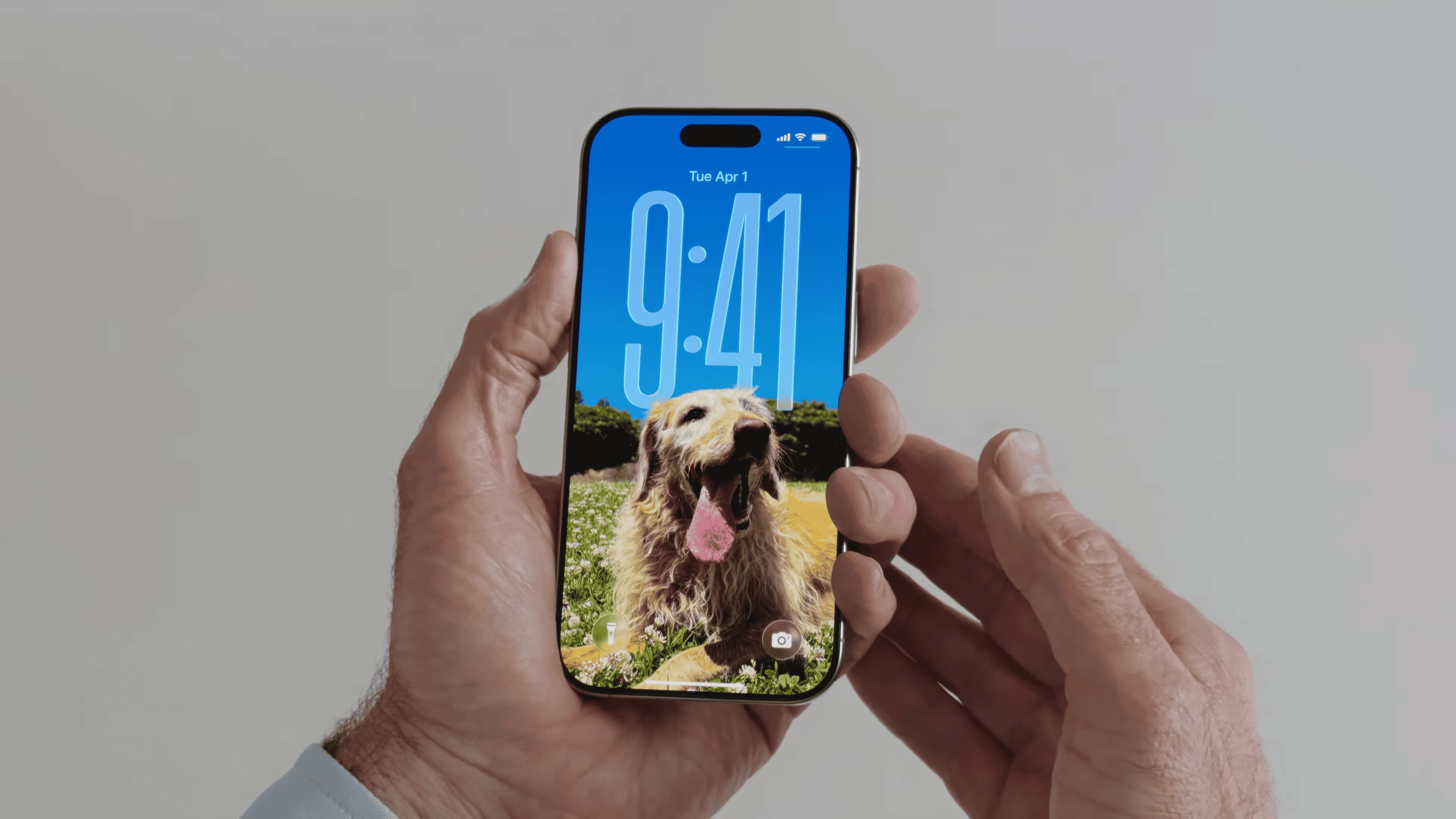
On iOS 26, the Lock Screen's clock automatically adapts to fill the empty space, and you can view full-screen animated album art for supported Apple Music songs.

New iMessage Features


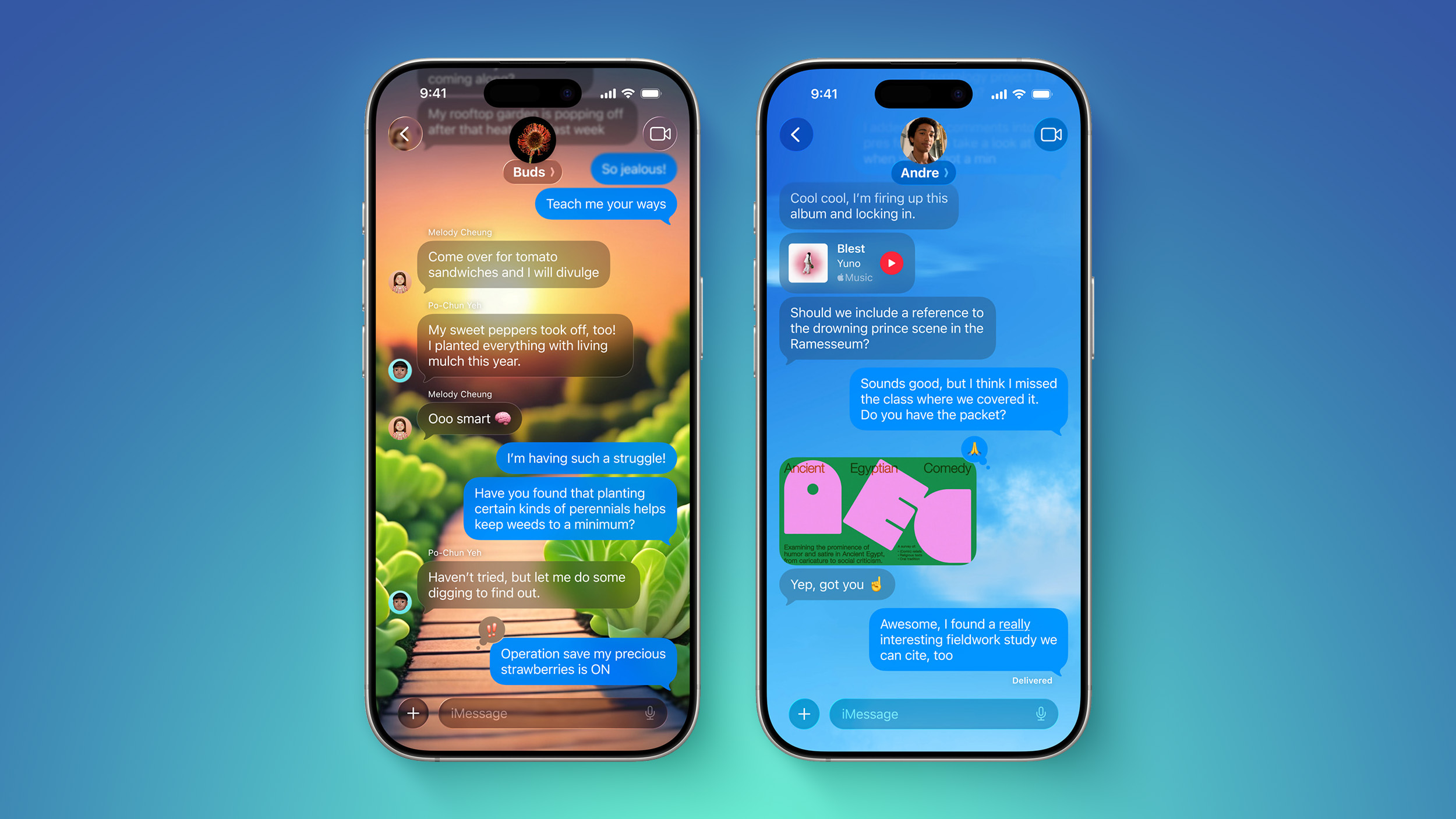
Here are some of the key new features and changes in the Messages app on iOS 26:

  • Backgrounds: You can now add a background to any conversation, and all participants will see it. You can choose from Apple's selection of backgrounds, or you can set any of your own photos as a background. You can turn off conversation backgrounds in the Settings app if desired.

  • Polls: You can now create polls in group chats, allowing people to vote on topics or questions, such as which restaurant to go to. Apple Intelligence can detect when a poll might come in handy and suggest one.

  • Apple Cash in group chats: You can now send and receive Apple Cash in group chats.

  • Typing indicators in group chats: You can now see who is typing in group chats.

  • "Add Contact" button in group chats: This button makes it easier to add people to the Contacts app in group chats.

  • "Select" option: When you tap and hold on a message bubble, a new "Select" option appears. Tapping on it allows you to select a portion of text in a message, whereas you could previously only copy an entire message.

  • Unknown sender screening: When turned on, this setting automatically moves messages from unknown senders to the Unknown Senders folder, and hides notifications for them until you accept them.


Call Screening and Hold Assist


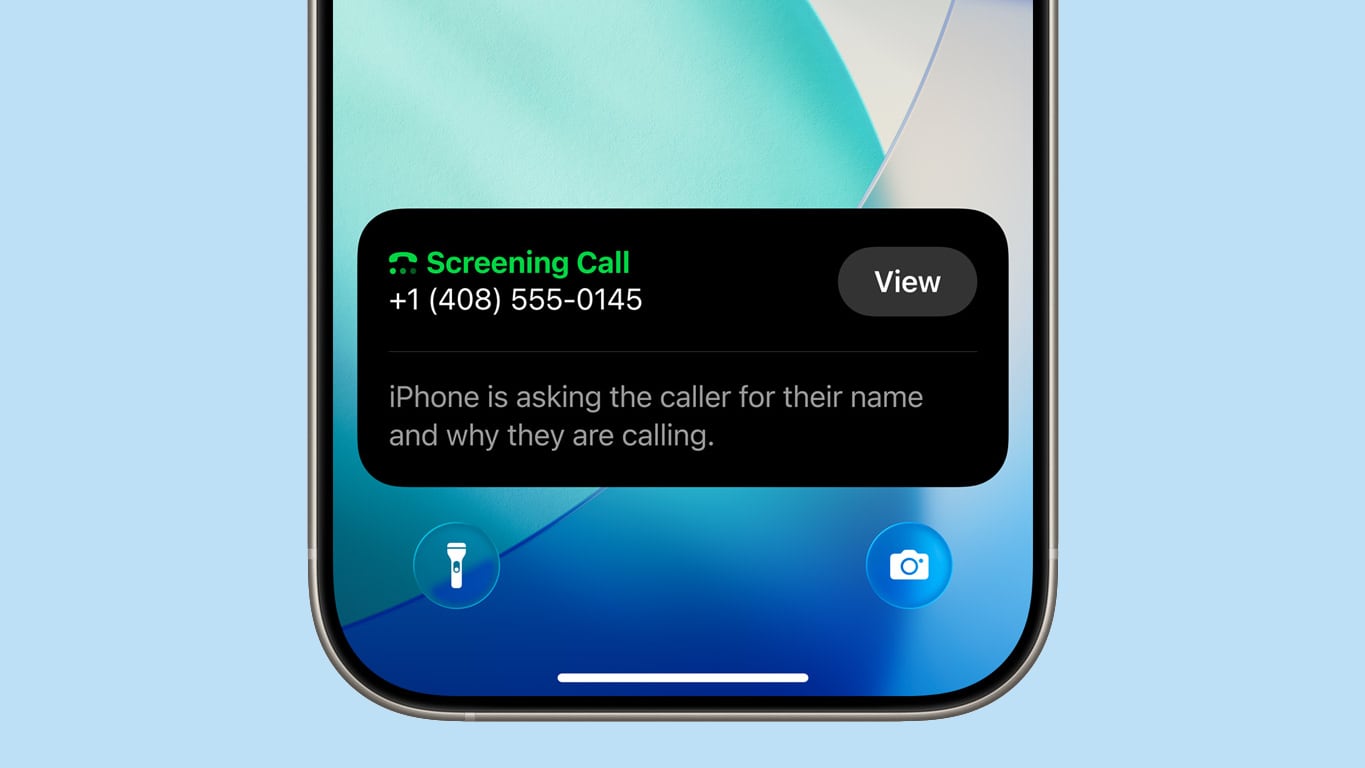
iOS 26 adds a couple of useful features to the Phone app: Call Screening and Hold Assist.

Call Screening is an opt-in setting that asks unknown callers for their name, and the reason why they are calling. And with Hold Assist, your iPhone can automatically wait on hold for you during a call, and notify you when the agent on the other line is ready.

Adaptive Power Mode


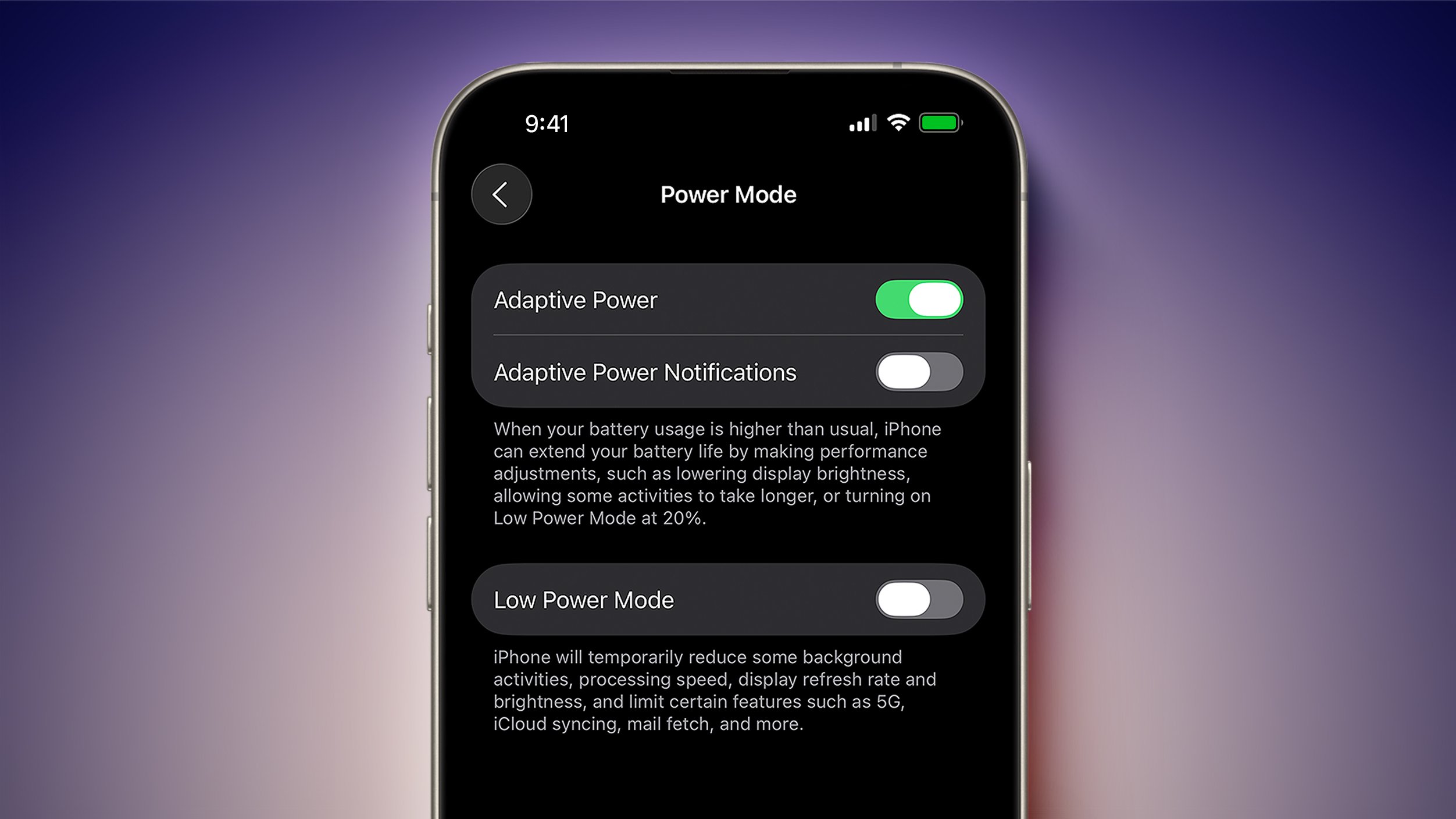
iOS 26 introduces an Adaptive Power Mode on the iPhone, alongside the existing Low Power Mode.

Apple says Adaptive Power Mode can make "performance adjustments" when necessary to extend an iPhone's battery life, including slightly lowering the display brightness, allowing some activities to "take longer," and automatically turning on Low Power Mode when the iPhone's remaining battery life reaches the 20% mark.

Adaptive Power Mode is only available on the iPhone 15 Pro models and newer. The setting can be turned on in the Settings app, under Battery → Power Mode.

AutoMix


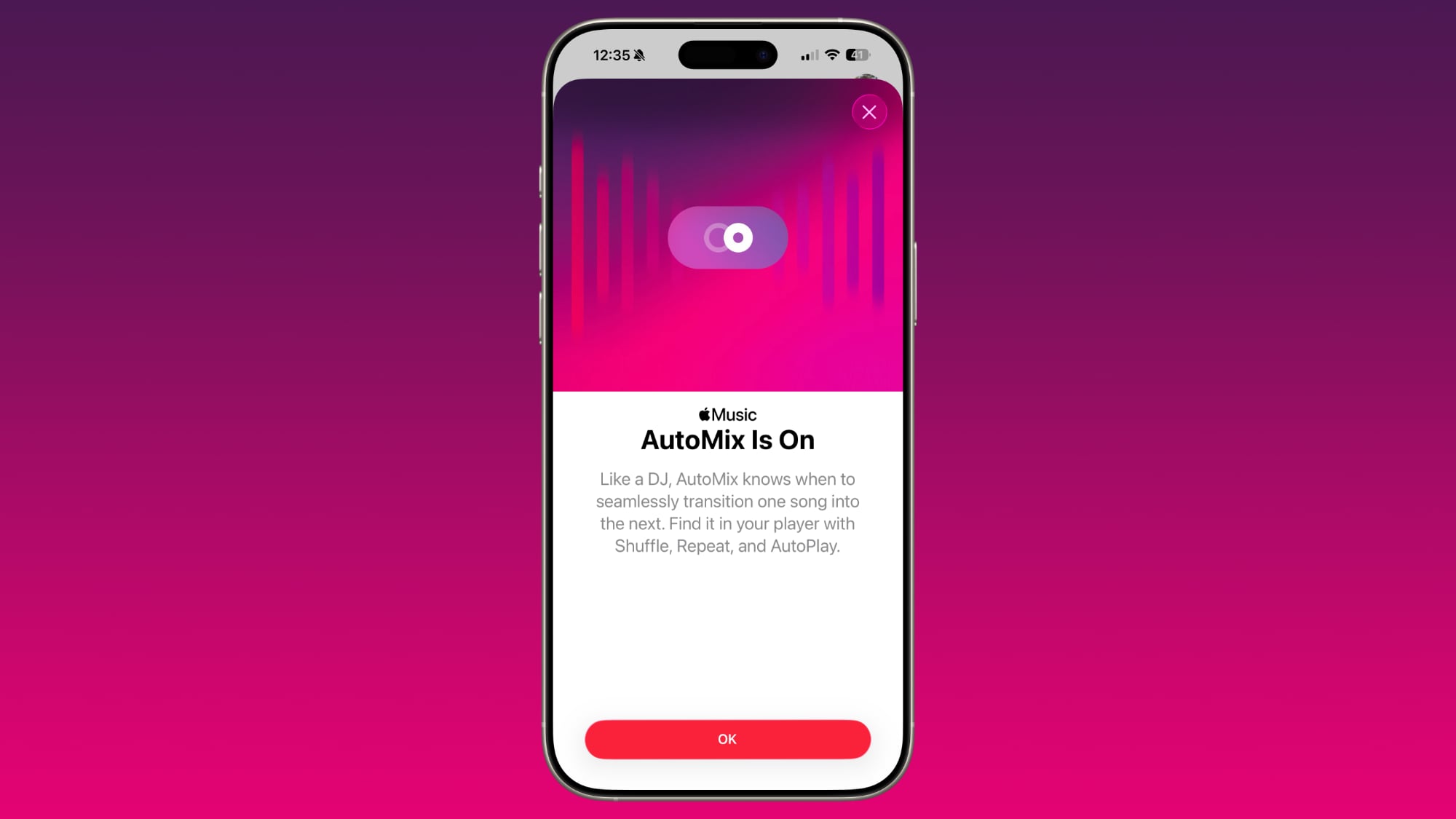
A new AutoMix feature in the Apple Music app can seamlessly transition from one song to the next, like a DJ would. AutoMix replaces the previous Crossfade feature.

Preview App


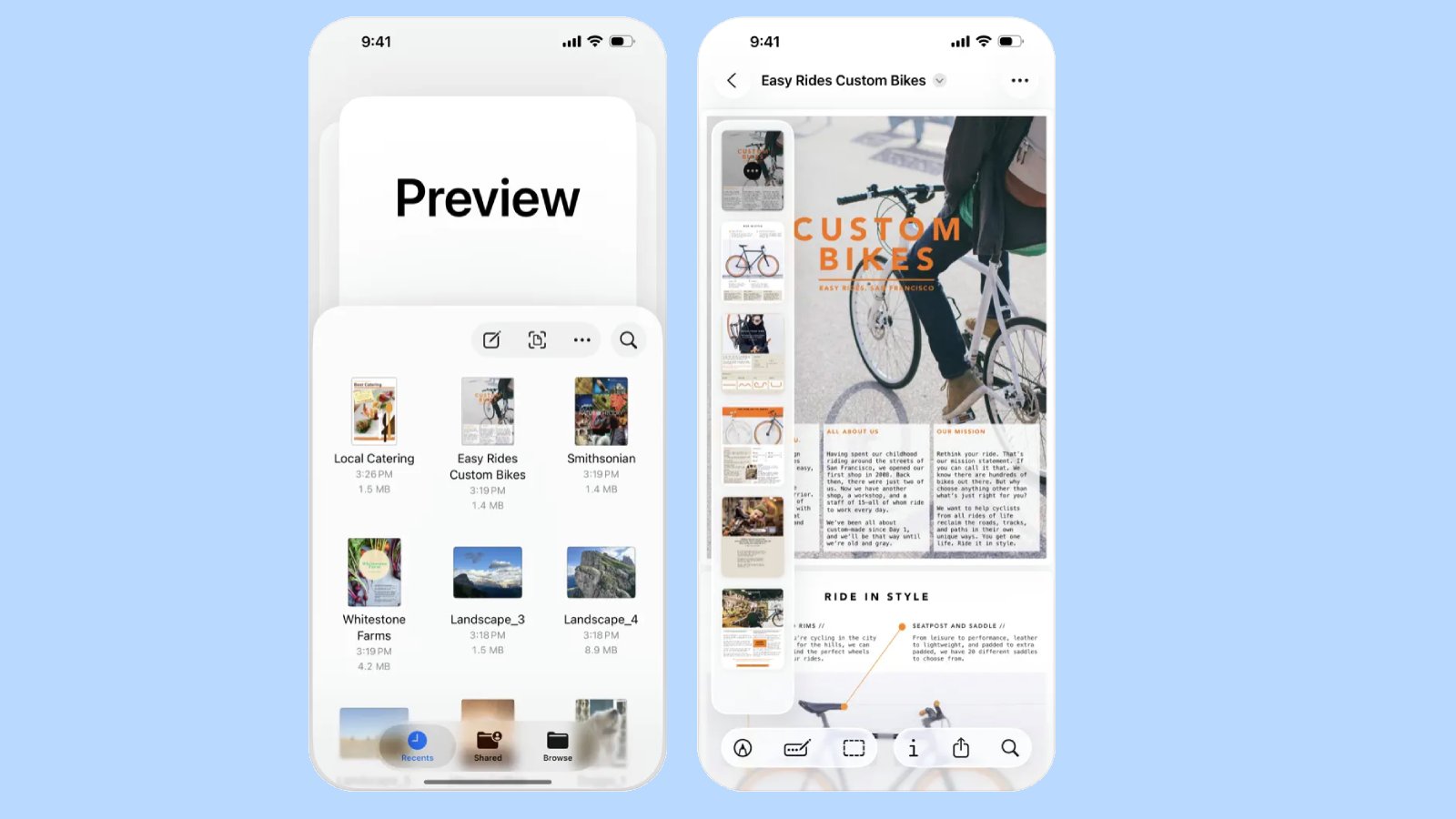
iOS 26 extends a version of the Apple's Preview app from the Mac to the iPhone, providing you with a built-in app to edit and mark up PDFs and images.

CarPlay Upgrades


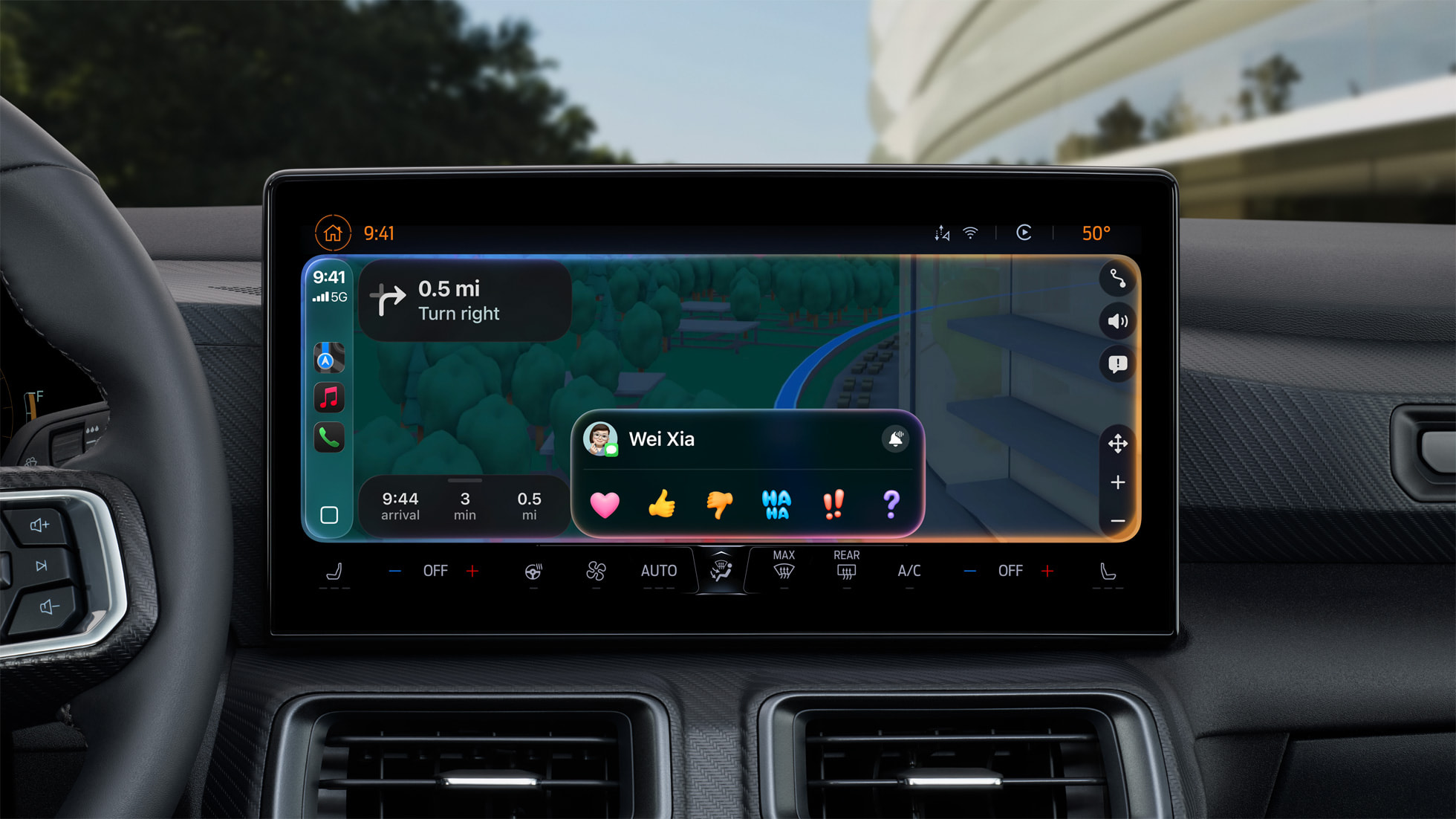
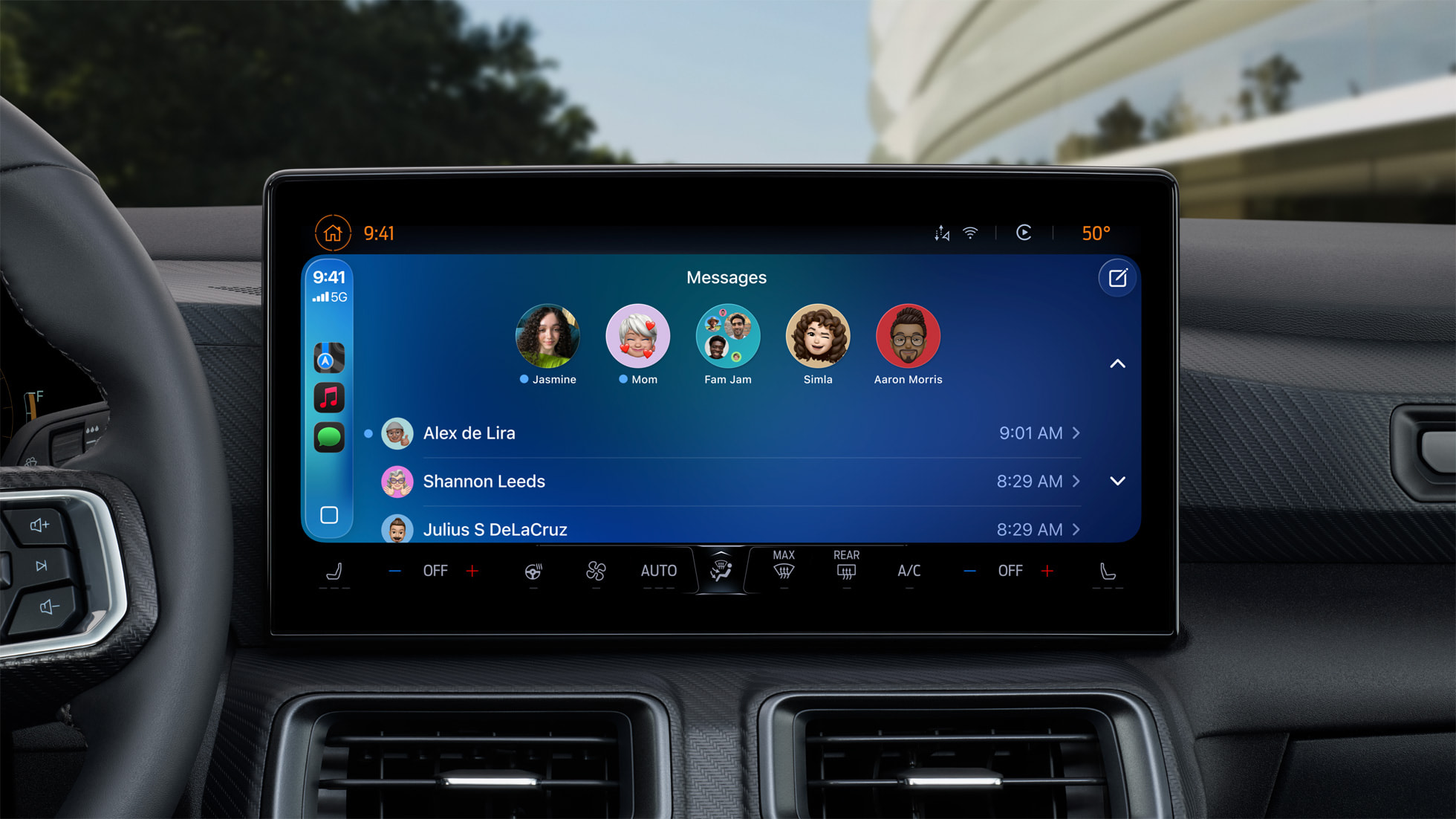
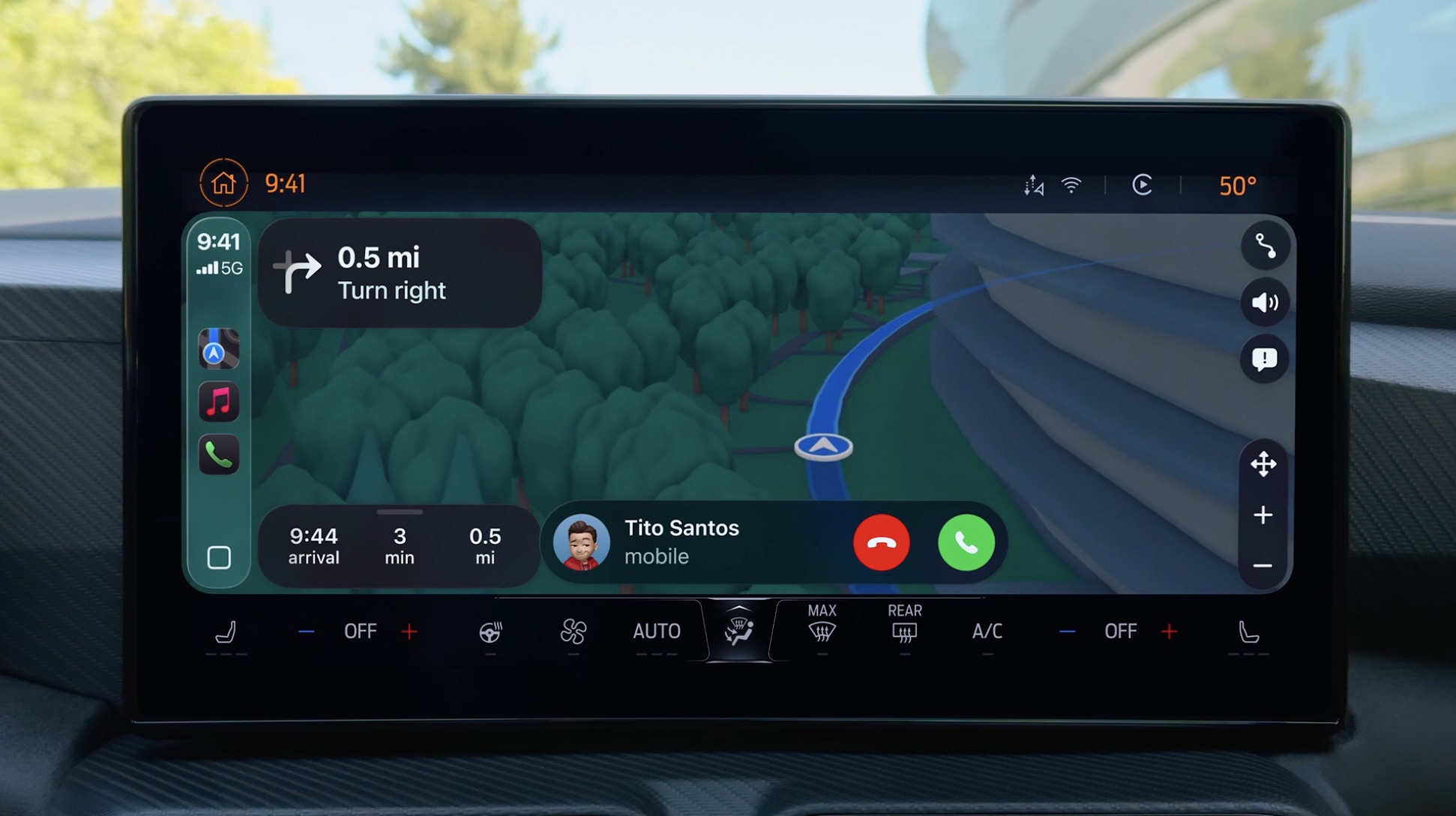
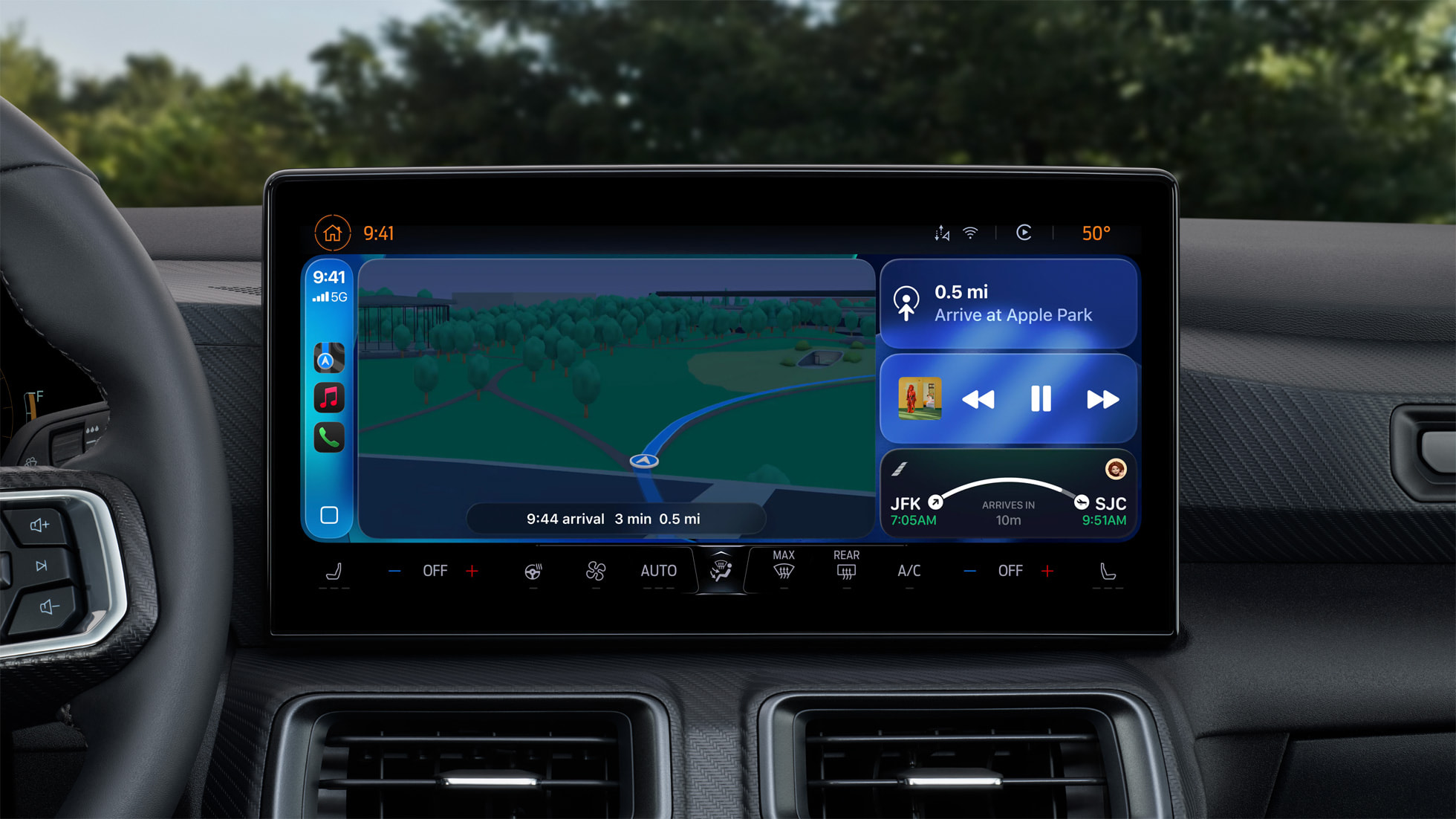
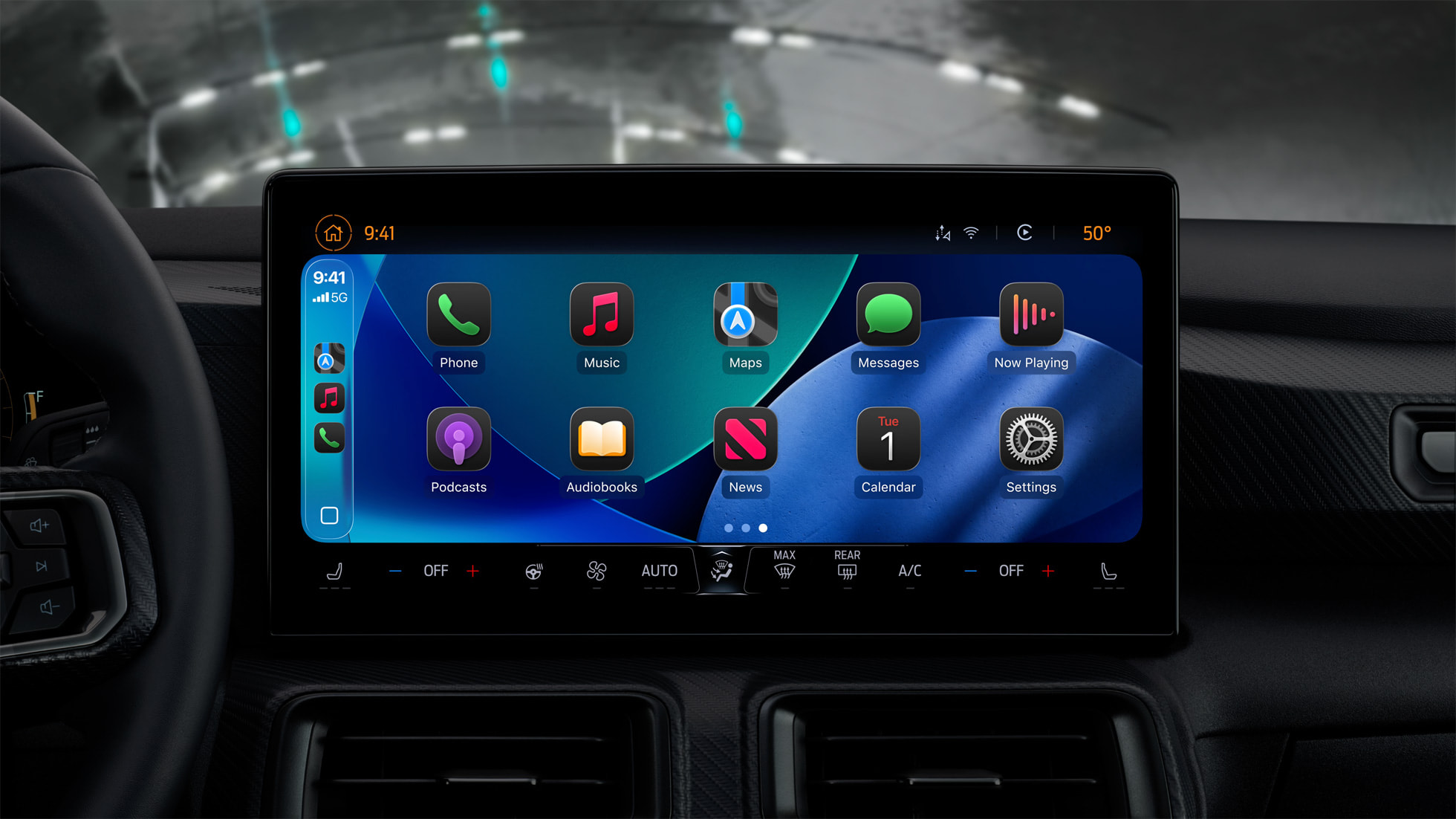
When you are using CarPlay with an iPhone running iOS 26, the new Liquid Glass design extends to the CarPlay interface. Like on the iPhone, the new look includes more shimmery app icons and translucent user interface elements.

Starting with iOS 26, you can respond to messages with standard Tapbacks like a heart, thumbs up, or exclamation marks directly through CarPlay.


You can now view your pinned conversations in the Messages app on CarPlay.


CarPlay has a new compact view for incoming phone calls, so that you can still see other information on the screen, such as turn-by-turn directions.

CarPlay's Dashboard screen can now show Live Activities, letting you keep track of things like a flight's arrival time at a glance.


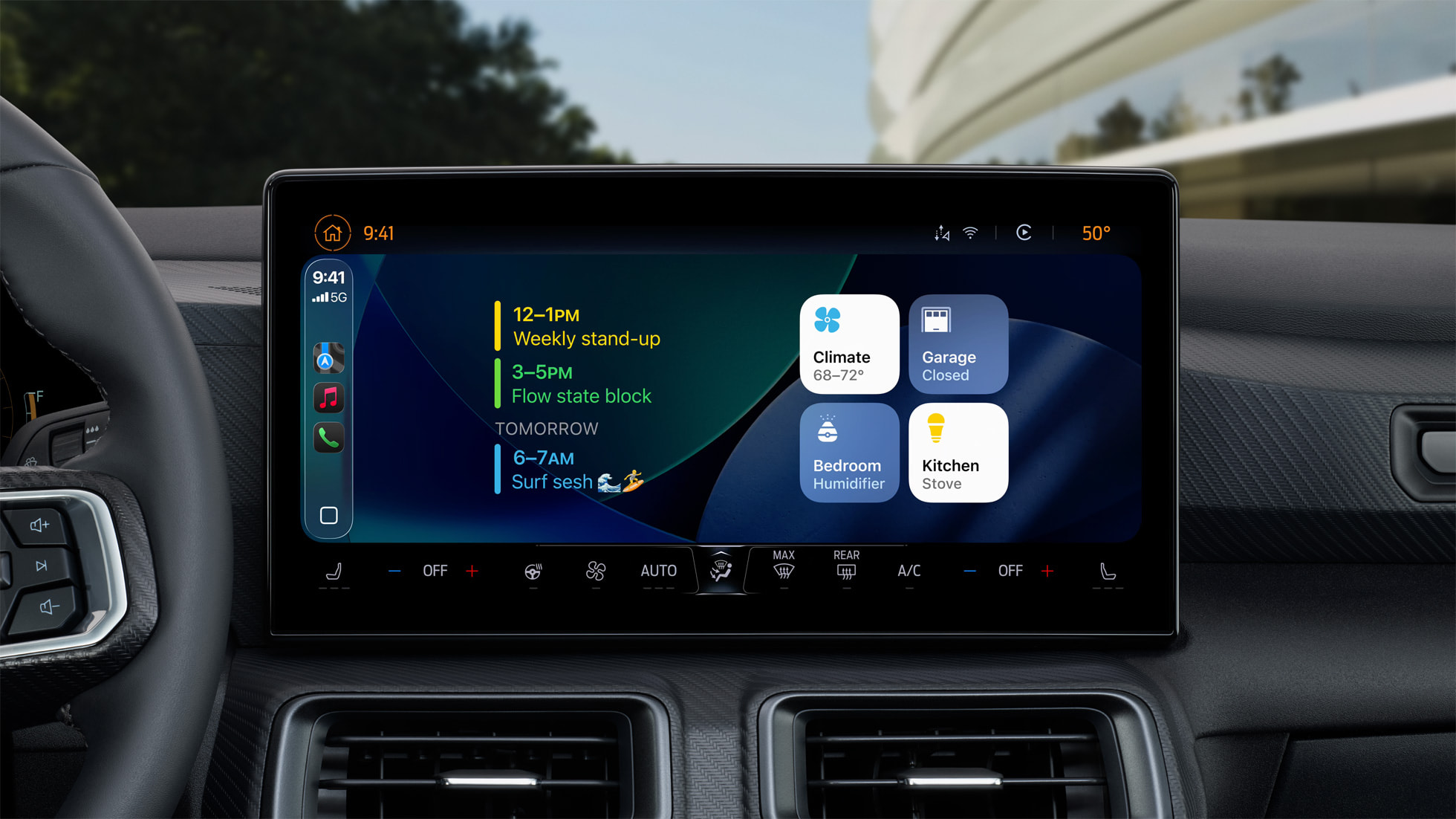
The regular version of CarPlay now has a widgets screen, for things like calendar appointments and HomeKit accessory controls.


iPhone users will be able to wirelessly stream videos to the CarPlay screen using AirPlay, according to Apple. For safety reasons, video playback will only be available when the vehicle is parked, to prevent distracted driving. The connected iPhone will be able to detect when the vehicle is in motion and end playback.

Automakers need to add support for this feature, so it might be limited to newer vehicles and take some time to roll out.

More


Read our iOS 26 roundup linked below to learn more about the update.
Related Roundups: iOS 26, iPadOS 26
Related Forum: iOS 26

This article, "iOS 26 Available Tomorrow With These 8 New Features" first appeared on MacRumors.com

Discuss this article in our forums
  •  

Three Days Until iOS 26 Launch: What Are You Most Looking Forward To?

iOS 26 is coming in just three days, and it brings a new Liquid Glass design with translucent UI elements, rounded menu bars, simplified navigation, pop out menus, and more.


Liquid Glass has been contentious during the beta testing period. Some people don't feel like there's enough translucency, and others think Apple has gone too far, impacting readability. Where do you fall on the spectrum? Let us know in the comments below.

The new design is the big ‌iOS 26‌ talking point, but the update also has a bunch of new features, both big and small. Are you looking forward to screening your phone calls? Setting a custom snooze duration? Making Genmoji? Using Live Translation?

For a recap on all of the features that are coming next week, make sure to check out our iOS 26 roundup. We also have overviews of iPadOS 26 and macOS Tahoe, both of which have some exciting new additions.
Related Roundups: iOS 26, iPadOS 26
Related Forum: iOS 26

This article, "Three Days Until iOS 26 Launch: What Are You Most Looking Forward To?" first appeared on MacRumors.com

Discuss this article in our forums
  •  

Apple Reveals Upcoming Liquid Glass Icons for Additional iOS Apps

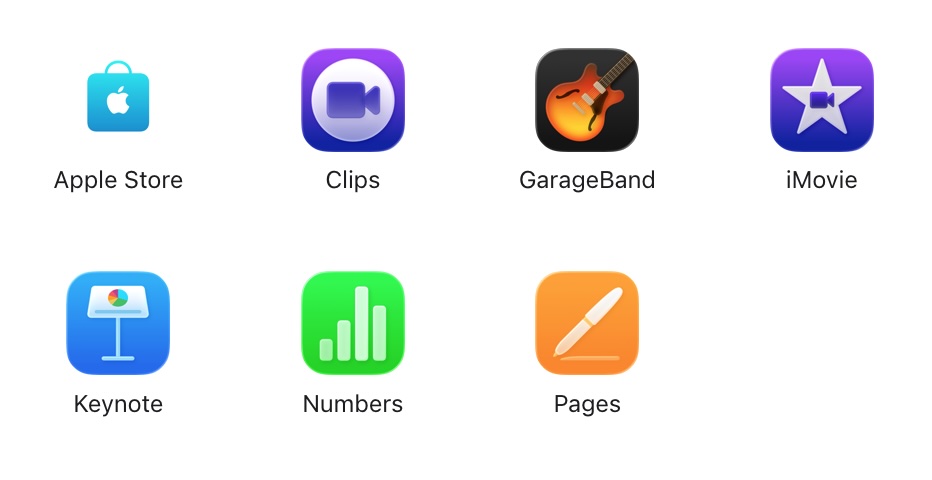
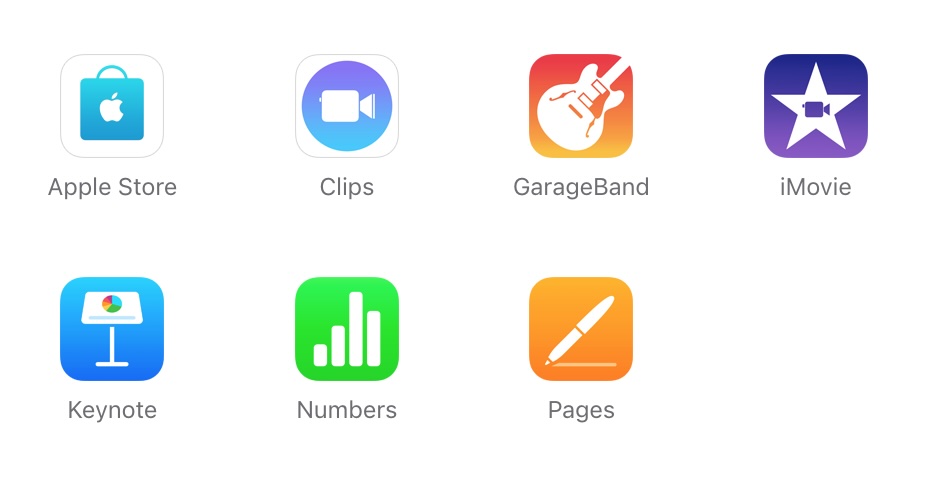
Following Tuesday's event, new Liquid Glass icons for Apple Store, Clips, GarageBand, iMovie, Keynote, Numbers, and Pages have surfaced on Apple's iPhone tech spec pages. The new icons appear on the iPhone 16 tech specs page despite that model having no hardware changes, and existing users will presumably see the new icons in app updates that will roll out on Monday alongside iOS 26.

‌iOS 26‌ icons

These apps come preinstalled on new iPhones but they were not included in the ‌iOS 26‌ betas and release candidate because they are updated through the App Store. While the spec sheets themselves don't reveal changes beyond the usual pre-installed and downloadable apps, the iconography is unmistakably updated to the latest iOS design set based around Liquid Glass.

Most of the updates are relatively subtle with changes largely limited to the glassiness of the design elements, while a few like Clips and GarageBand have a bit more substantial changes.

iOS 18 icons

Perhaps notably, there is inconsistency across Apple's product pages. While every ‌iPhone‌ model page displays these new icons, all Mac product pages continue to show the current macOS versions of these app icons.

We are not expecting Mac hardware updates until later this year, or more likely early 2026, but with macOS Tahoe being released alongside ‌iOS 26‌ on Monday, we should see the Liquid Glass app icons coming to Apple's ‌App Store‌ apps for Mac as well.
Related Roundups: iOS 26, iPadOS 26
Related Forum: iOS 26

This article, "Apple Reveals Upcoming Liquid Glass Icons for Additional iOS Apps" first appeared on MacRumors.com

Discuss this article in our forums
  •  

iOS 26: What's New With the Podcasts App

The Podcasts app didn't get as many iOS 26 updates as some of Apple's other apps, but there are some design changes and feature tweaks that are worth knowing about.


Liquid Glass


Like all of Apple's apps, the Podcasts app adopts the new Liquid Glass design language. UI elements have a glass-like, translucent look that let the background art shine through.


Buttons have a more rounded design and the navigation bar no longer takes up the entire bottom of the app. The Browse tab is now the New tab, and the Search tab has the search bar at the bottom of the display.

There's also an updated Liquid Glass icon that looks like several stacked layers of glass.

Updated Speed Controls


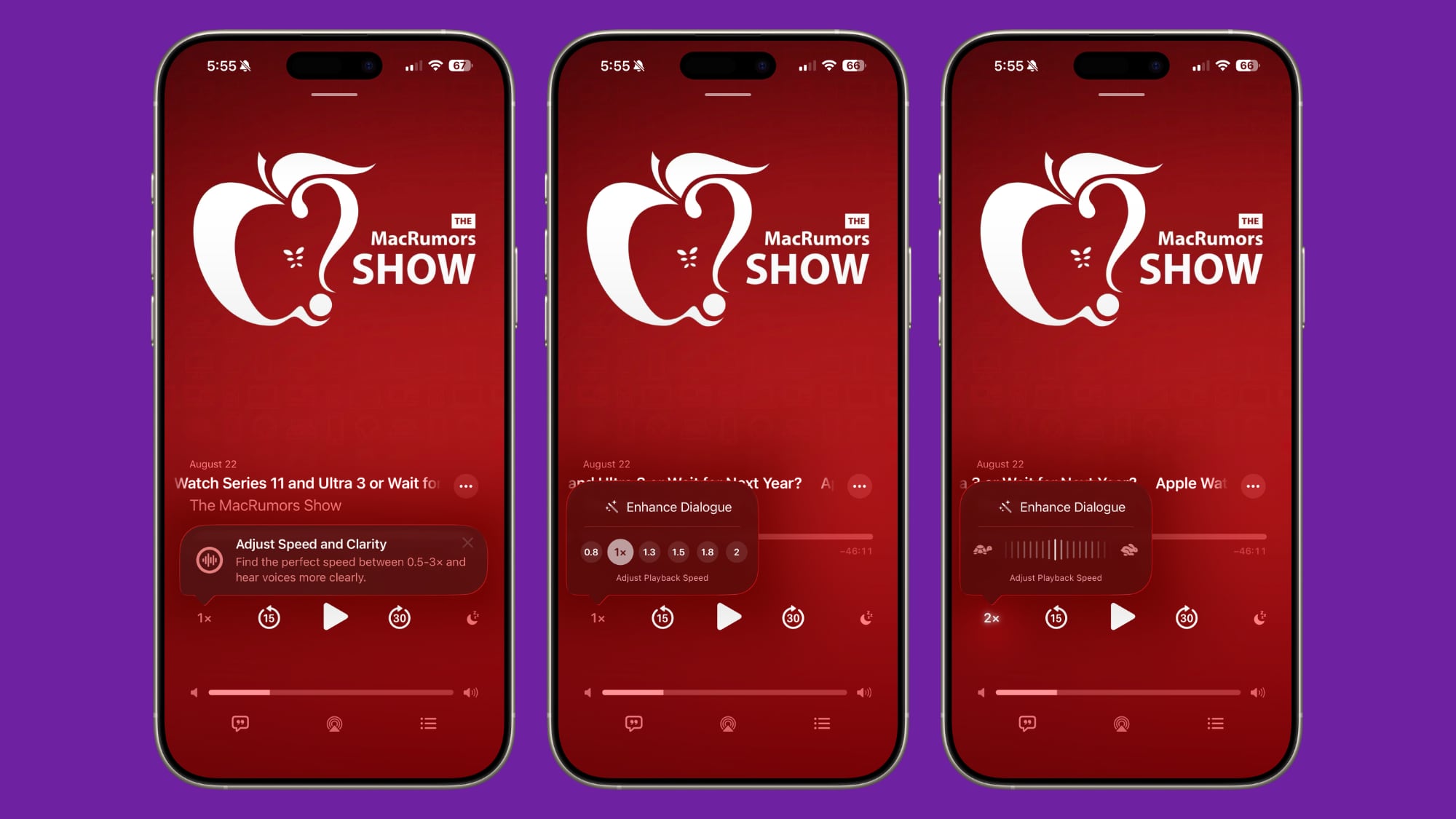
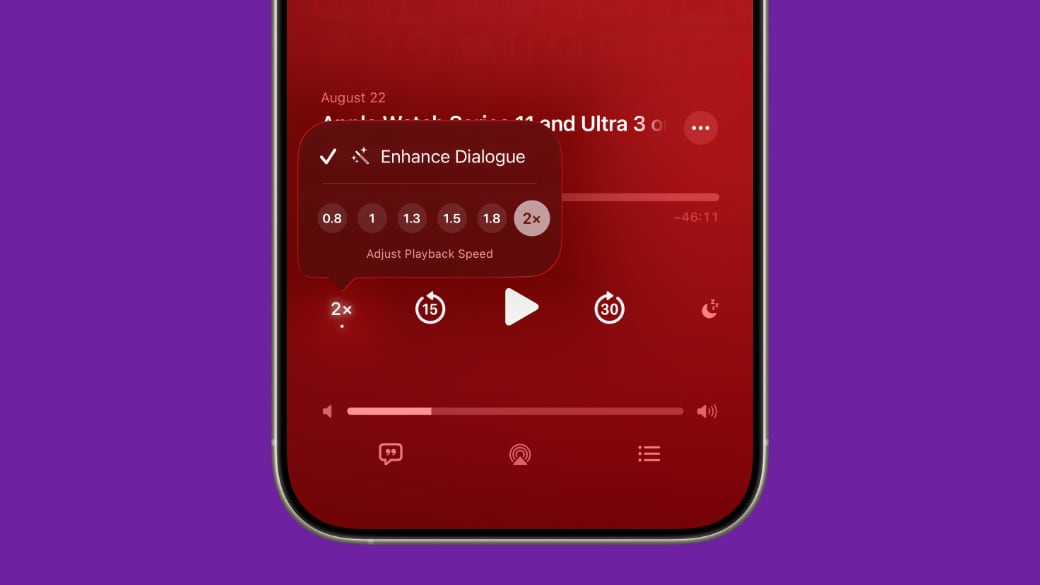
‌iOS 26‌ includes options to change the playback speed of a podcast. When you're playing a show, tap on the "1x" button in the corner and you'll be able to change the speed. Apple offers multiple playback speeds ranging from 0.5x to 3x. In iOS 18, you could only select from four fixed speed options: 1.25x, 1.5x, 1.75, and 2x.


To change the playback speed, tap one of the preset options or drag a finger over one of the options to bring up a dial that allows for more granular 0.1x adjustments.

Enhance Dialogue


The Podcasts app includes an Enhance Dialogue feature that is designed to isolate voices so they sound clearer amid any background noise.


To use Enhance Dialogue, play a show in the Podcasts app. From there, open up the fullscreen playback controls, tap the "1x" playback speed button, and choose the Enhance Dialogue option.

Per-Show Settings


The Podcasts app will remember your Enhance Dialogue and playback speed preference for each individual podcast, so it doesn't need to be turned on every time you listen and settings won't affect other podcasts.

Read More


More on the features that are available in ‌iOS 26‌ can be found in our iOS 26 roundup.
Related Roundups: iOS 26, iPadOS 26
Related Forum: iOS 26

This article, "iOS 26: What's New With the Podcasts App" first appeared on MacRumors.com

Discuss this article in our forums
  •  

Apple Seeds Eighth Developer Betas of iOS 26 and iPadOS 26

Apple today provided developers with the eighth betas of iOS 26 and iPadOS 26 for testing purposes, with the updates coming a week after Apple seeded the seventh betas.


Registered developers can download the new beta software using the Software Update section of the Settings app.

‌iOS 26‌ and ‌iPadOS 26‌ feature Apple's new Liquid Glass design aesthetic, with a focus on translucency and glass-like interface elements. The design extends to the Lock Screen, Home Screen, and Control Center, along with menus and buttons in apps.

Apple's software includes features for apps like Messages, Phone, Shortcuts, and Apple Music, along with new Apple Intelligence features, a revamp for CarPlay, and more. In ‌iPadOS 26‌, there's a whole new multitasking system that supports multiple app windows for a more Mac-like experience.

For more on the features in ‌iOS 26‌, we have a dedicated iOS 26 roundup and a separate iPadOS 26 roundup. New features have been found in each of the betas, and you can get a recap here: beta 2, for beta 3, beta 4, beta 5, beta 6, and beta 7.
Related Roundups: iOS 26, iPadOS 26
Related Forum: iOS 26

This article, "Apple Seeds Eighth Developer Betas of iOS 26 and iPadOS 26" first appeared on MacRumors.com

Discuss this article in our forums
  •  

iOS 26: Eight New Features in Apple Music

Apple has made several updates to the Apple Music app in iOS 26, and it has AutoMix, which has become one of the most popular additions. ‌Apple Music‌ also features the Liquid Glass redesign like the rest of Apple's apps, along with new translation features and other quality of life improvements.


AutoMix


AutoMix is an upgrade to the crossfade feature in ‌Apple Music‌, and it is designed to provide more seamless song transitions. It transitions from one song to another as the song that's playing ends, using time stretching and beat matching for an undetectable shift.


Apple says that AutoMix is meant to work like a DJ, with songs transitioning at the "perfect moment" based on an on-device analysis of the key and tempo of the music.

AutoMix can be enabled when opening up the ‌Apple Music‌ app for the first time after installing ‌iOS 26‌.

The feature isn't perfect and it works better with some genres than others, but it is a work in progress that Apple is improving over time. AutoMix is not an Apple Intelligence feature, but it does require an ‌Apple Music‌ subscription.

Lyric Translation


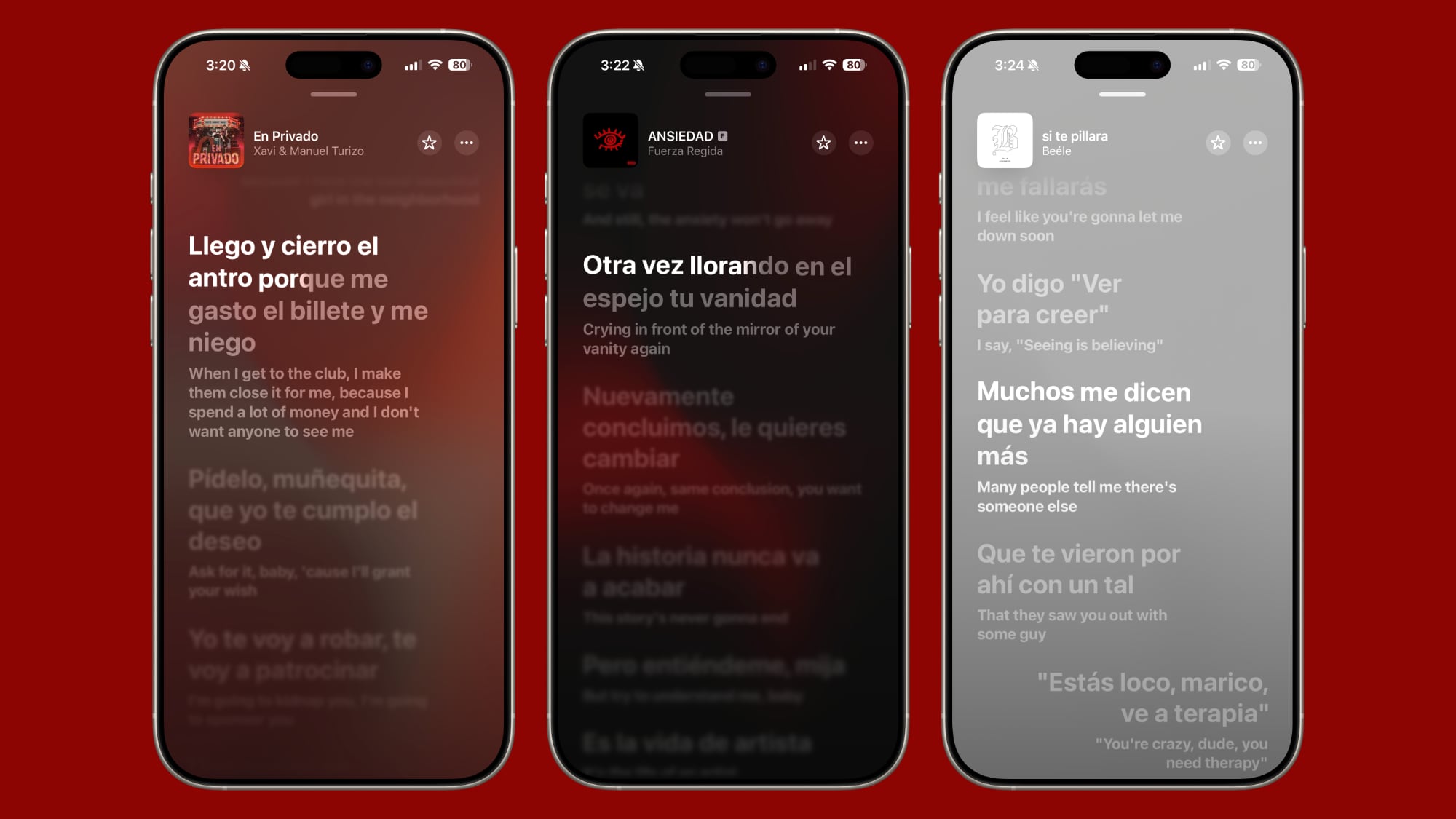
If you're listening to a song in a different language, you can now open up the lyrics and get a real-time translation so you know what it's about. The translated lyrics are displayed alongside the original lyrics.


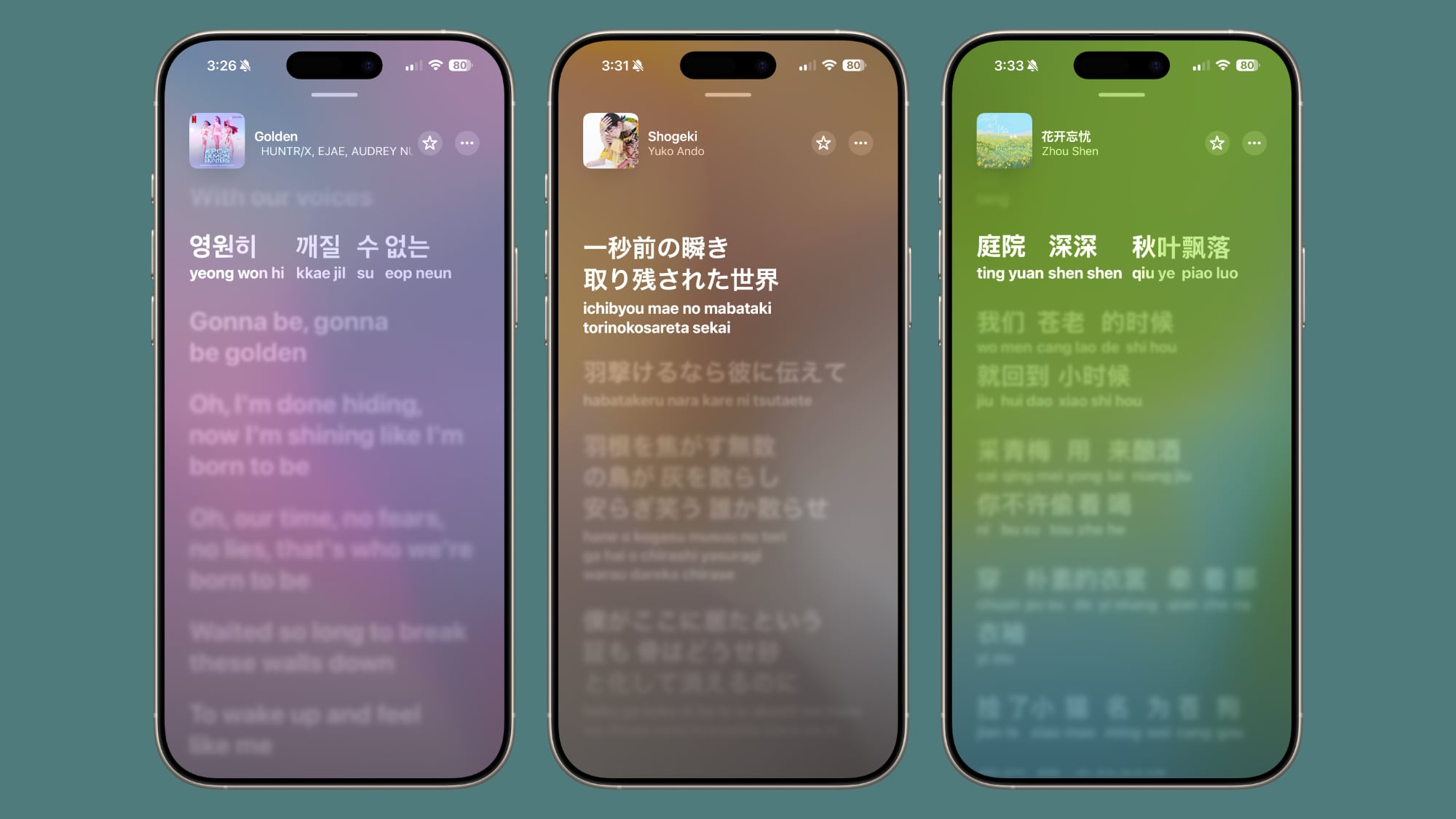
Lyric Pronunciation


For songs in another language, you can also get a phonetic pronunciation guide for singing them aloud, which is useful when taking advantage of the ‌Apple Music‌ Sing karaoke feature.


Pinned Favorites


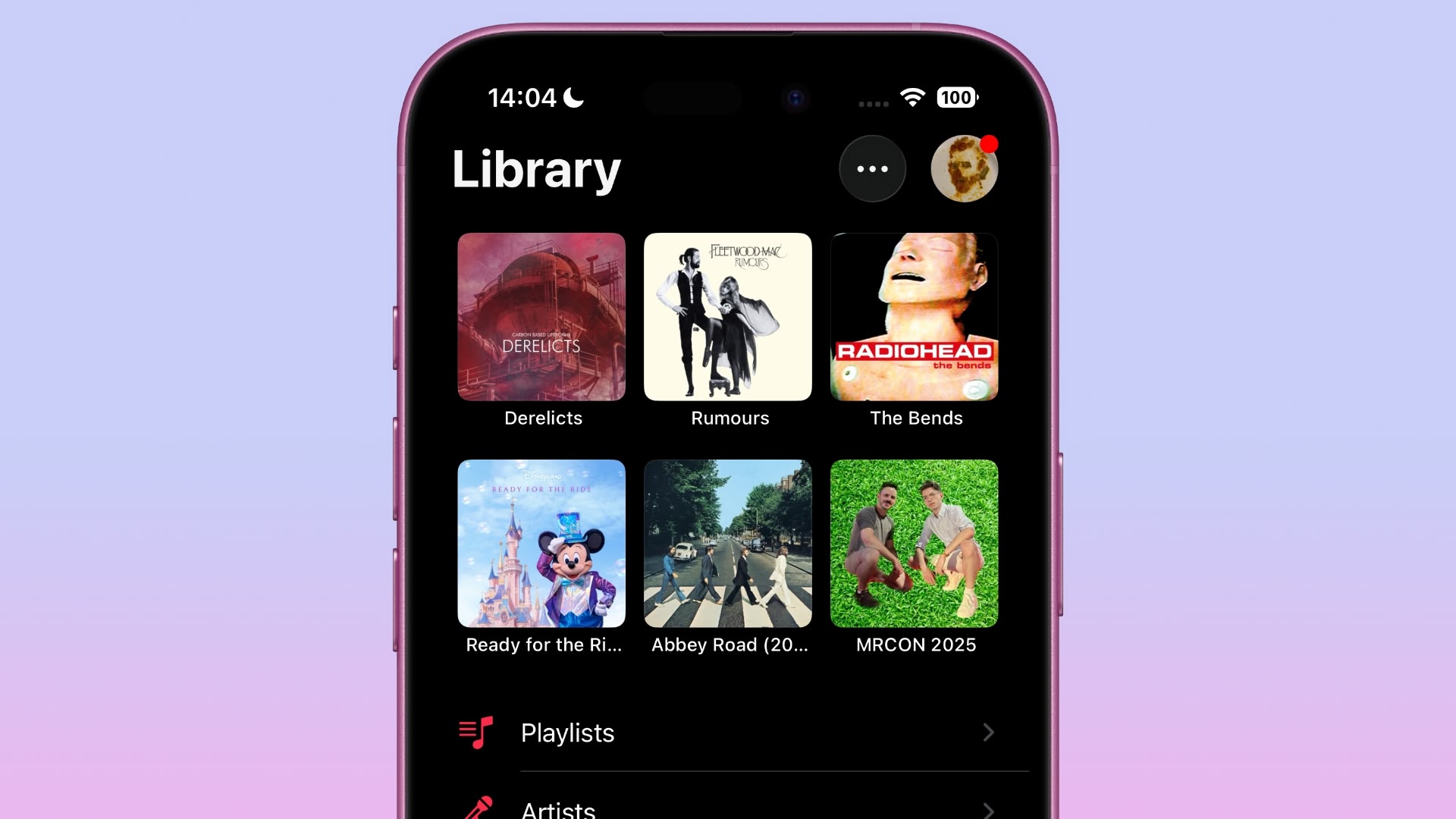
There's now an option to pin up to six playlists, albums, artists, or songs to the top of the ‌Apple Music‌ library.


Playlist Folders


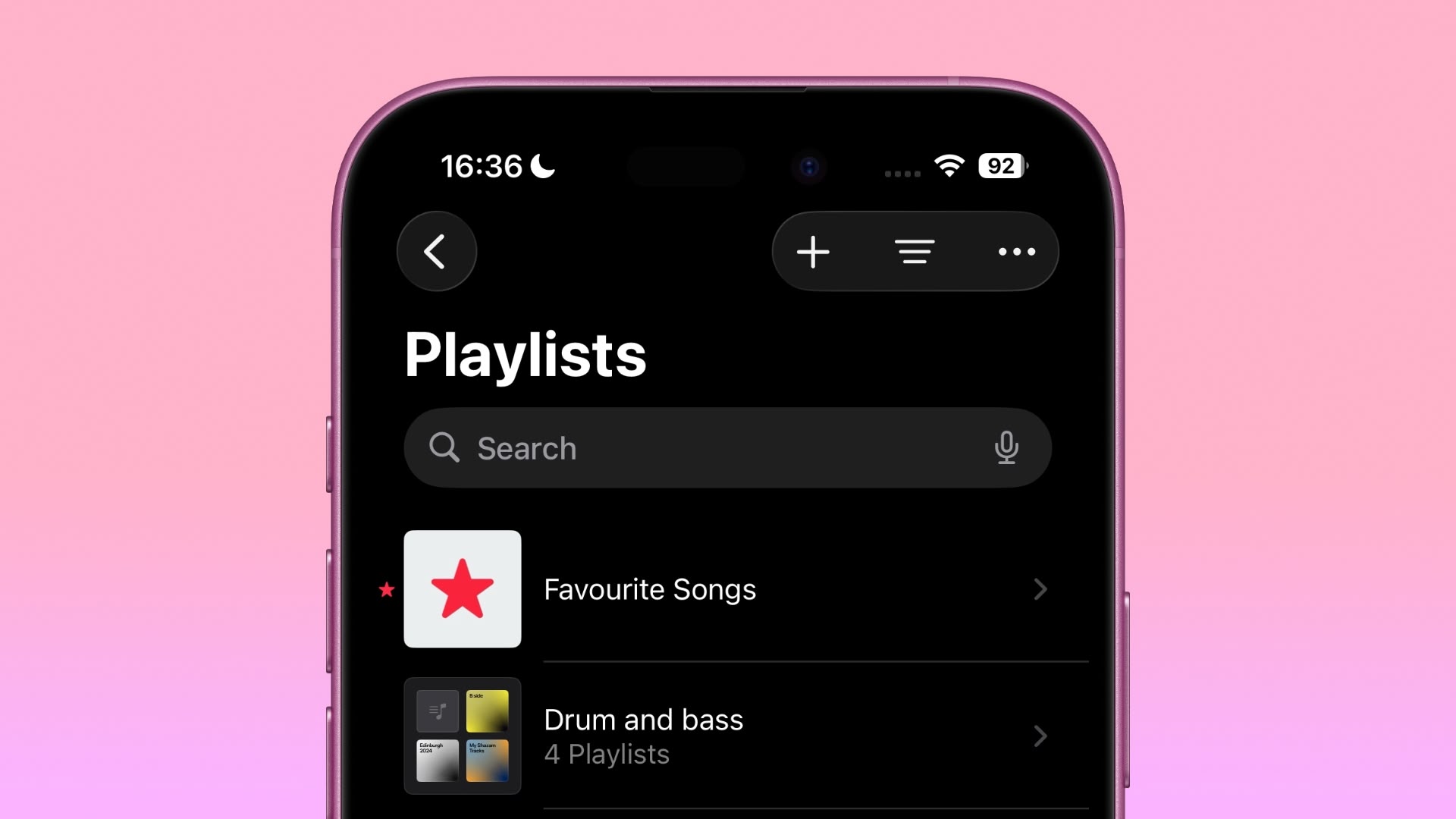
Playlists can be organized into folders in the iOS ‌Apple Music‌ app, a feature that has previously been limited to the Mac.


Home Screen Widgets


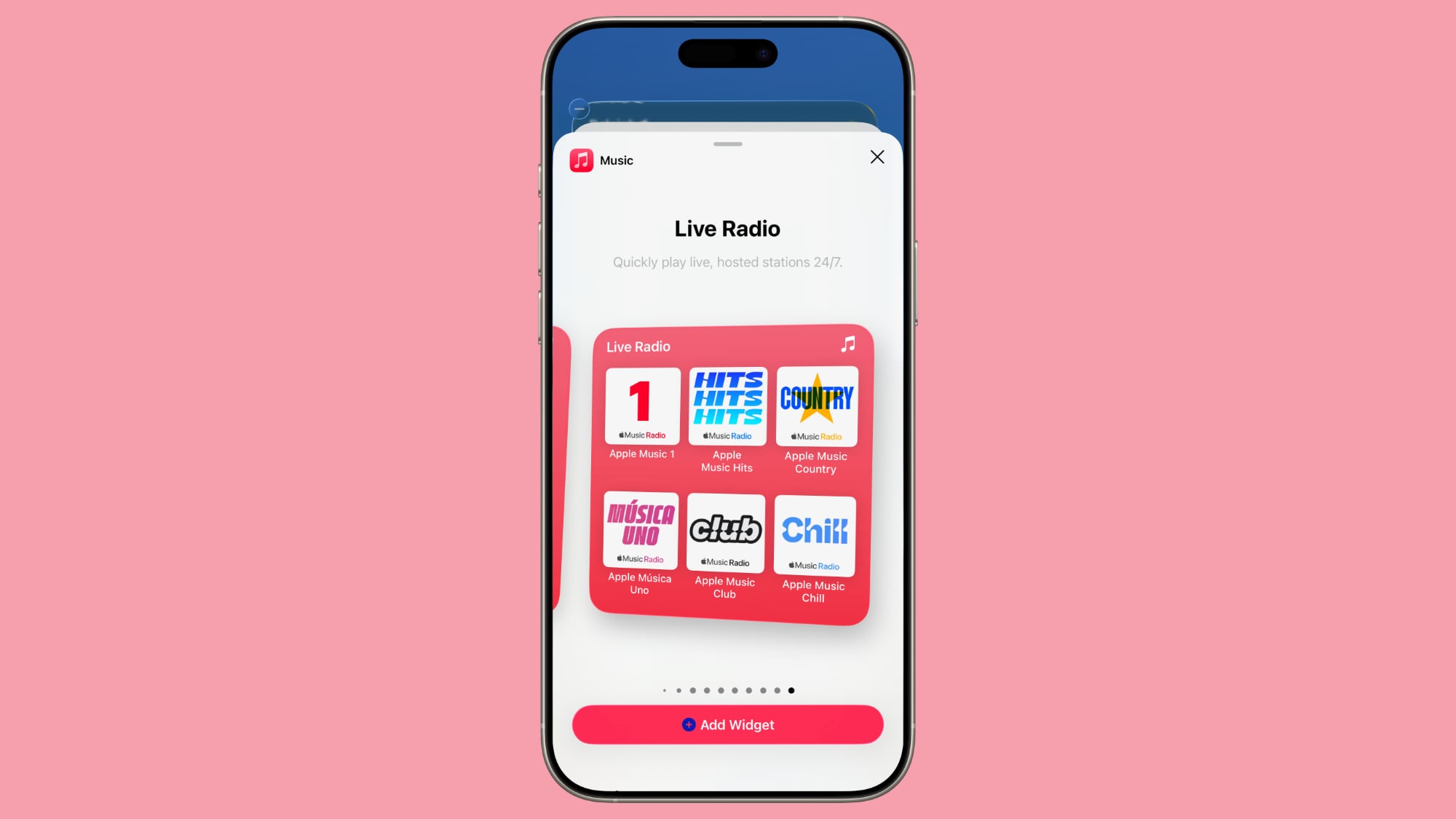
There are new Home Screen widgets that show your pinned ‌Apple Music‌ content. There's a medium-sized widget and a larger widget for pins, along with a new large Live Radio widget.


Animated Lock Screen Artwork


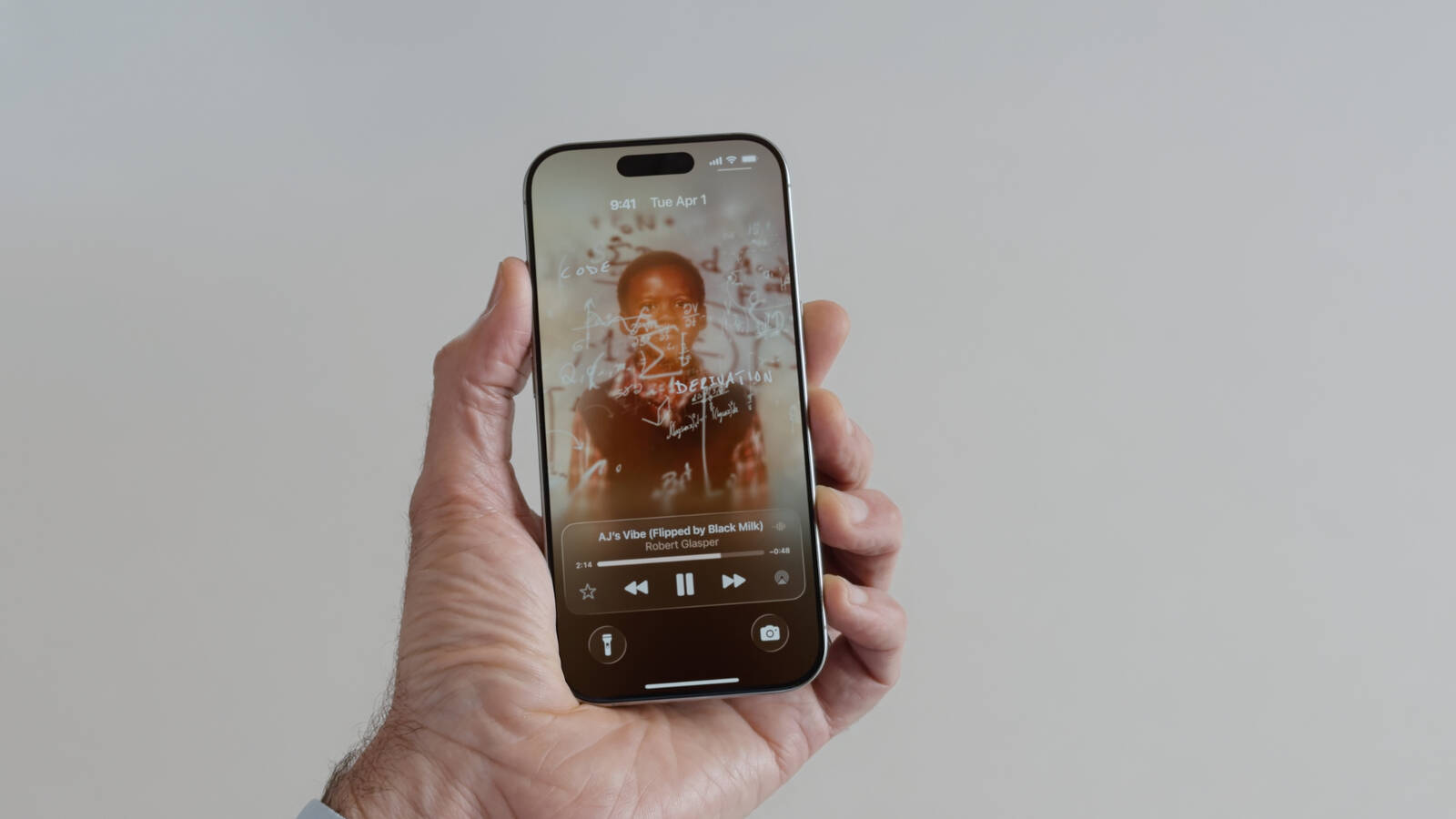
The Lock Screen now features full-screen animated art for the Now Playing widget while music is playing.


Karaoke Microphone


tvOS 26 and ‌iOS 26‌ turn the iPhone into a wireless microphone for karaoke on the Apple TV. When using ‌Apple Music‌ Sing, each participant can sing through their ‌iPhone‌, queue songs up, and send emoji reactions.


Read More


More on the features that are available in ‌iOS 26‌ can be found in our iOS 26 roundup. ‌iOS 26‌ will launch in September.
Related Roundups: iOS 26, iPadOS 26
Related Forum: iOS 26

This article, "iOS 26: Eight New Features in Apple Music" first appeared on MacRumors.com

Discuss this article in our forums
  •  
❌