❌

Reading view

Restart Spotlight on Mac with an Unorthodox Easy Method

Restarting and relaunching Spotlight on the Mac have been helpful troubleshooting tricks since the debut of the search engine to the MacOS platform. Often if you restart Spotlight, rebuild the index, or kill specific Spotlight processes, you can typically resolve many common issues with the MacOS search engine. Given the utility of relaunching the Spotlight ... Read More
  •  

iOS 26.4 Highlights Your Personal Hotspot Data Usage More Prominently

iOS 26.4 moves the feature to show how much mobile data connected devices have used via Personal Hotspot to a more prominent and easily accessible location.


Now available in Personal Hotspot settings below the "Maximize Compatibility" toggle, the functionality breaks down data usage by device, with non-Apple devices simply showing up as a group of "Other Devices." Total Personal Hotspot Data usage is also displayed.

Previously, the feature was buried in cellular settings. It may be particularly helpful to those with a data limit on their carrier plan.

iOS 26.4 is now available in beta to developers. A public beta will be released in the near future. Apple plans to release the update in the spring.
This article, "iOS 26.4 Highlights Your Personal Hotspot Data Usage More Prominently" first appeared on MacRumors.com

Discuss this article in our forums

  •  

Reduce Transparency Works Again in macOS Tahoe 26.3

The freshly released macOS Tahoe 26.3 update has resolved an accessibility issue where the β€œReduce Transparency” feature was not working properly on the Mac. Before macOS Tahoe 26.3, toggling the switch on would leave considerable transparent effects, including in sidebars, headers, titlebars, search boxes, and more, leading to situations where text would overlap and interface ... Read More
  •  

macOS Tahoe Finder Bug Underscores Apple's Slipping UI Polish

Apple released macOS Tahoe last September, but despite two point updates since then, it is still struggling to resolve an embarrassing interface issue in Finder that appears to have been introduced with its Liquid Glass redesign.


If you updated your Mac to macOS Tahoe and you prefer to work in Finder's column view, there's a good chance you've been frustrated by the glitch, which developer Jeff Johnson has been admirably tracking over on his blog.
finder
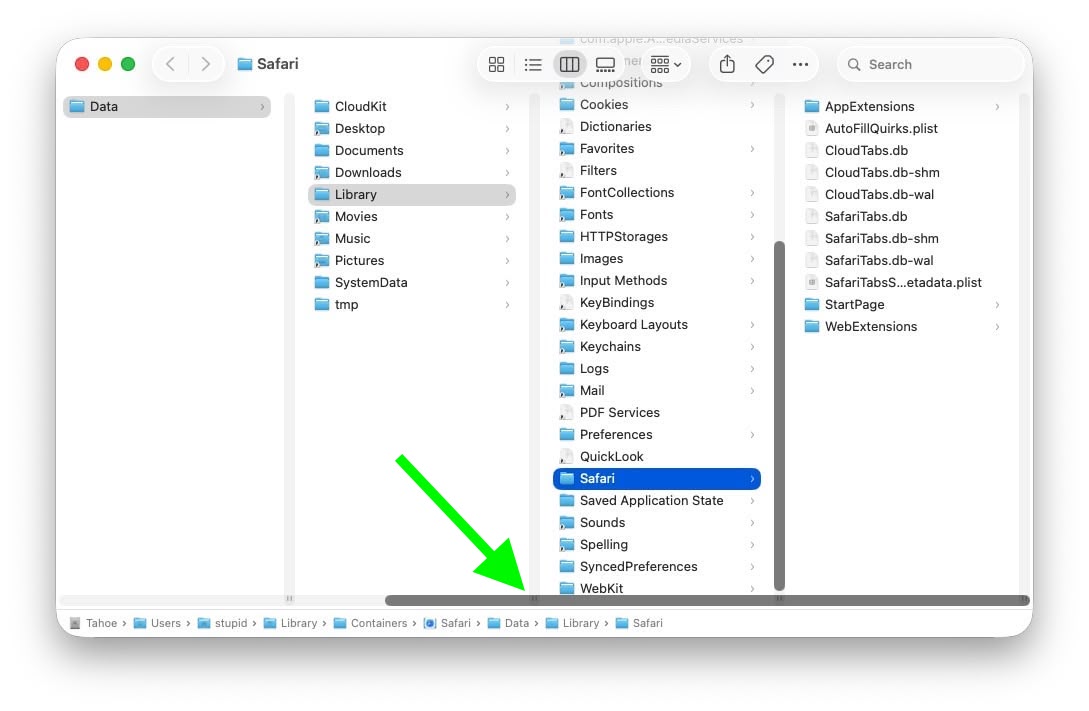
Scroll bar blocking column resize handles (Original image: Jeff Johnson)

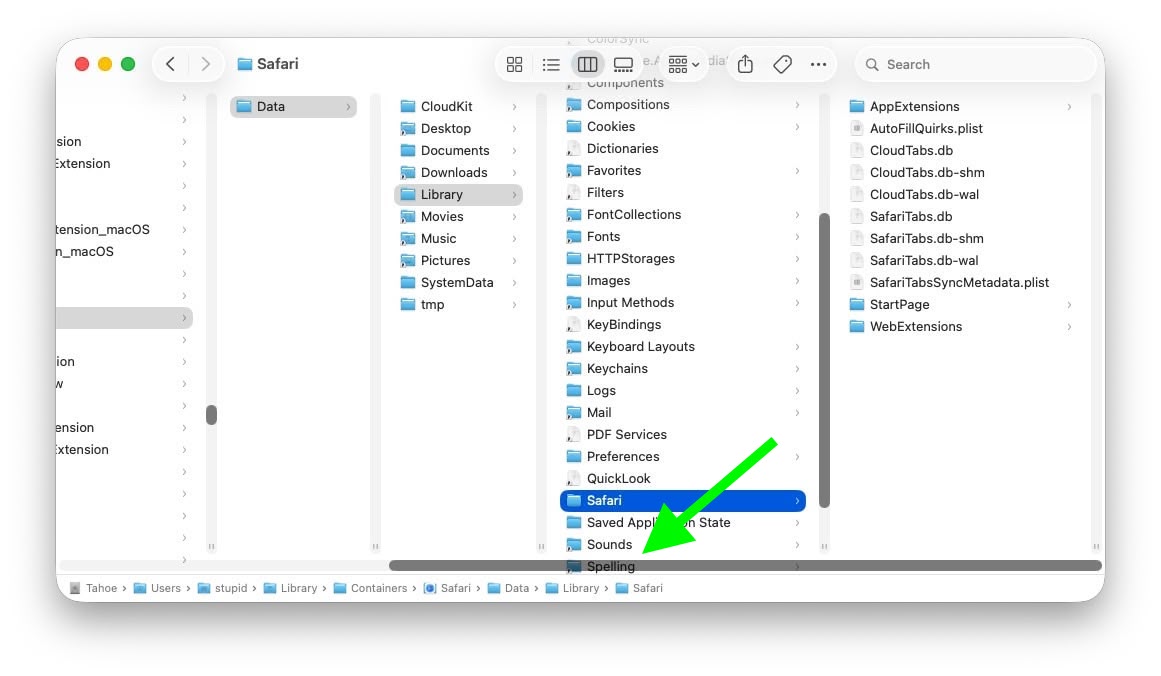
At the bottom of each Finder column are handy little resize handles allowing you to expand or reduce each column as you see fit. But in macOS 26 and macOS 26.2, when scroll bars are set to "always show," the horizontal scroll bar at the bottom overlaps and covers those handles, so you can't click them to adjust column widths the way you could in earlier macOS versions like Sequoia.
finder
Scroll bar occluding column content (Original image: Jeff Johnson)

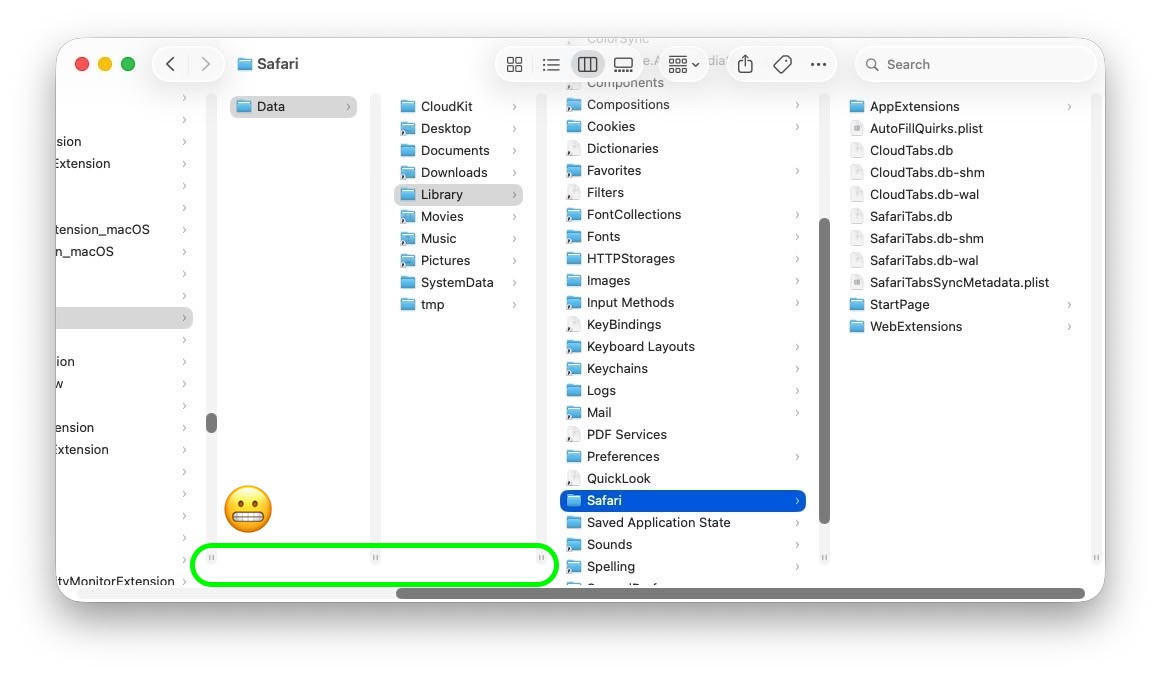
With the recent release of macOS 26.3, Apple attempted a fix. The vertical scrollers were shortened so the resizing widgets now sit above the horizontal bar and are technically clickable again. Unfortunately though, as Johnson points out, the horizontal scroll bar still overlaps file names in the view, causing it to regularly obscure content. Moreover, if you hide the path bar and status bar, the layout leaves a weird amount of empty space below the scrollers, making the whole thing look unfinished (see image below).
finder
Column resize handles suspended in mid-air (Original image: Jeff Johnson)

Johnson's take is basically that while the most disruptive bug is less bad now, the overall column view layout still feels half-baked – especially for anyone who keeps scroll bars always visible.

As Daring Fireball's John Gruber points out, it's an embarrassing fudge for a company that used to pride itself on pixel-perfect settings across its Mac operating system.

At this point, it's unclear when Apple will manage to iron out the UI irregularities introduced by Liquid Glass. macOS Tahoeβ€Œ 26.4 is likely to be released in March or April, and could introduce some new Siri features, though at least some of the capabilities that we were expecting may have been delayed, depending on who you believe. The update is also expected to introduce new emoji characters.
This article, "macOS Tahoe Finder Bug Underscores Apple's Slipping UI Polish" first appeared on MacRumors.com

Discuss this article in our forums

  •  

MacOS Sequoia 15.7.4 & MacOS Sonoma 14.8.4 Security Updates Released

Apple has released MacOS Sequoia 15.7.4 and MacOS Sonoma 14.8.4 as system software updates for the Sonoma and Sequoia operating systems, focusing on security patches for Mac users who are not running macOS Tahoe. Separately, macOS Tahoe 26.3, iOS 26.4, ipadOS 26.3, watchOS 26.3, tvOS 26.3, along with iOS 18 updates, are also available for ... Read More
  •  

Live Activities Taking Over Your Apple Watch? Here's the Fix

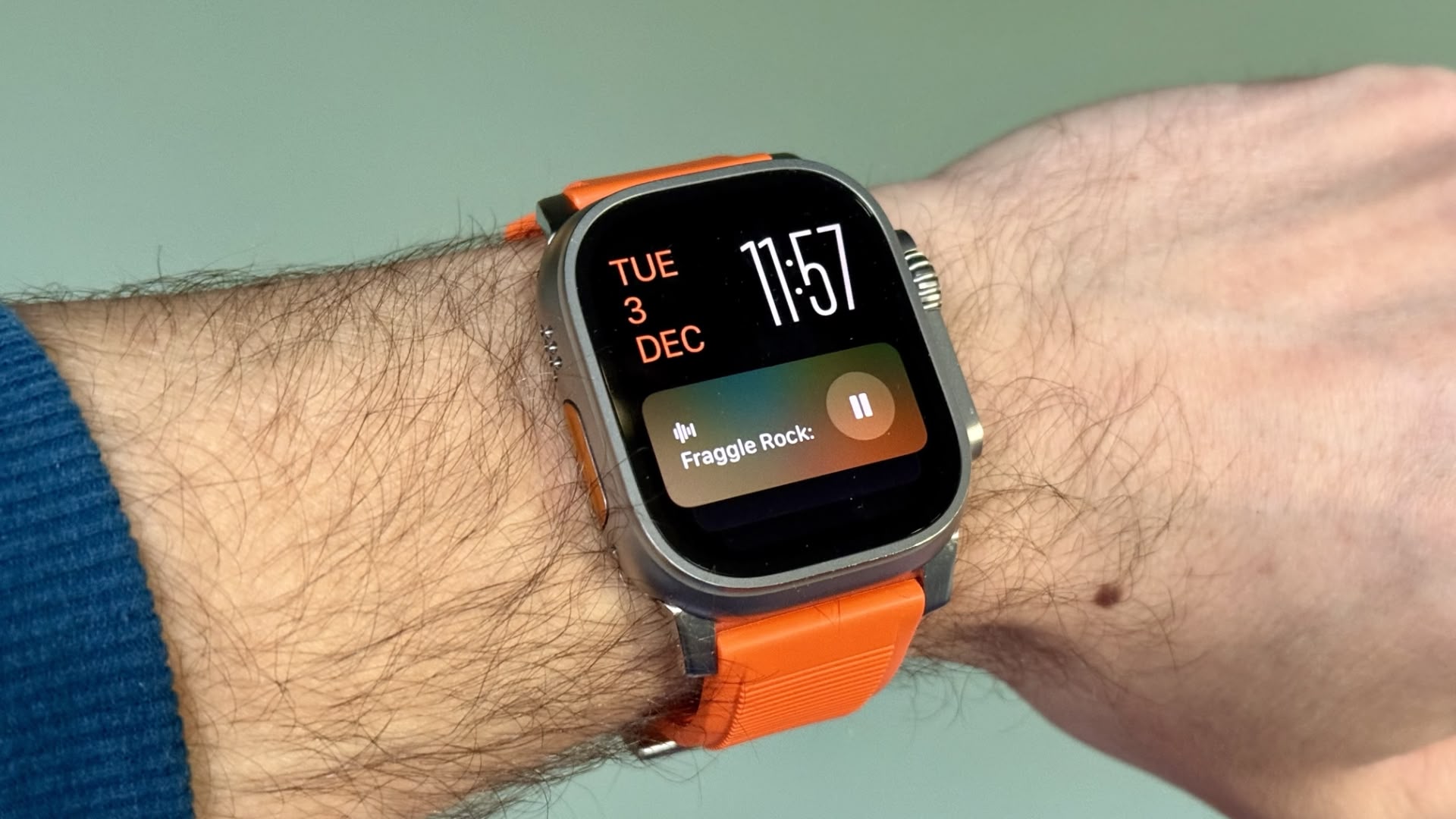
In watchOS 26, the Smart Stack for your Apple Watch is pretty clever. The collection of widgets can be pulled up with a scroll of the Digital Crown, and shows you relevant information throughout your day. But sometimes, its eagerness to help can be a bit much, especially when it comes to Live Activities.


You're probably familiar with this scenario: You raise your wrist expecting to see your customized watch face, but it's been replaced by media playback controls because someone's watching your Apple TV, or a timer you set earlier for cooking that still has ages left to run. Live Activities in the Smart Stack can clearly be useful, but having them automatically take over your display isn't always ideal. Here's how to take back control:

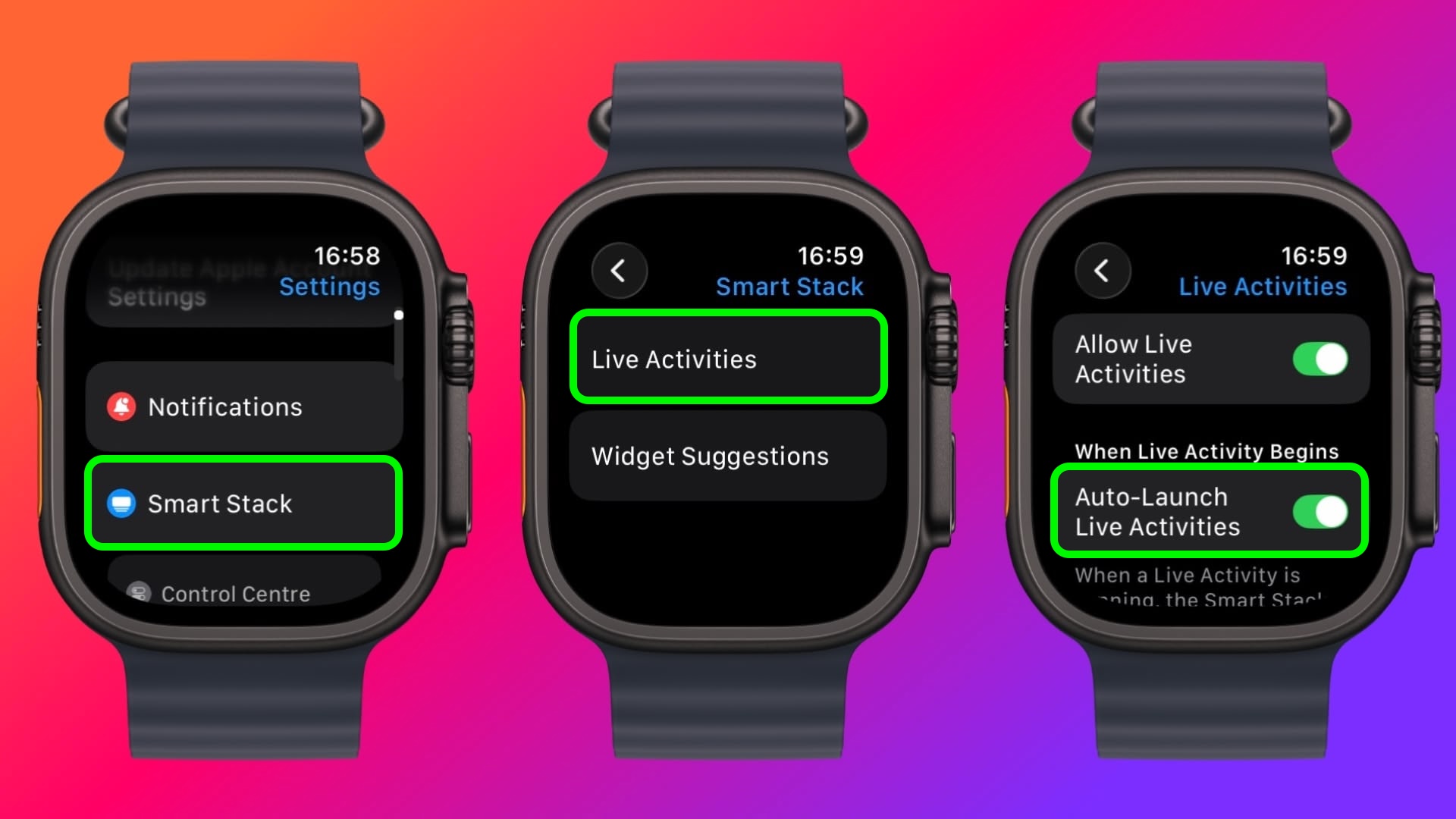
  1. Open Settings on your Apple Watch.

  2. Tap Smart Stack.

  3. Select Live Activities.

  4. Toggle off the switch next to Auto-Launch Live Activities.

settings

After disabling auto-launch, Live Activities will still be available in your Smart Stack when you want them – you'll just need to manually scroll to see them instead of having them pop up automatically.

If you want more granular control, you're in luck. From the same settings screen you can control which Apple apps display Live Activities. Using the Watch app on your iPhone, you can also manage Live Activities settings for third-party apps. This lets you keep the notifications you find useful while preventing the less important ones from interrupting your watch face.

Pro Tip: If it's just those persistent media controls that bug you, head to Media Apps in the same settings menu and turn off Live Activities completely, or alternatively under "Auto-Launch," select Off or Smart Stack for a more focused watch face experience.
This article, "Live Activities Taking Over Your Apple Watch? Here's the Fix" first appeared on MacRumors.com

Discuss this article in our forums

  •  

macOS Tahoe 26.3 Update Released

Apple has released macOS Tahoe 26.3 for all Mac users to install as a software update. macOS Tahoe 26.3 focuses on bug fixes and security enhancements, and are recommended to install for all Tahoe users. Mac users who are running Sequoia or Sonoma will find smaller security patch oriented updates available for those system software ... Read More
  •  

Apple Releases watchOS 26.3, tvOS 26.3 and visionOS 26.3 Release Candidates

Apple today provided developers with the release candidate versions of upcoming watchOS 26.3, tvOS 26.3, and visionOS 26.3 updates for testing purposes. The software comes a week after Apple provided the third betas. The release candidates are the final version of the updates that will be provided to the public as long as no bugs are found.


The software updates are available through the Settings app on each device, and because these are developer betas, a free developer account is required.

We don't know what new features might be added in watchOS 26.3, visionOS 26.3, and tvOS 26.3, and nothing new has been discovered so far. Apple doesn't typically provide release notes for betas, so we might not know what's new until the software updates see a public launch unless there are outward-facing changes.

The software updates will likely launch next week now that RCs are available.
This article, "Apple Releases watchOS 26.3, tvOS 26.3 and visionOS 26.3 Release Candidates" first appeared on MacRumors.com

Discuss this article in our forums

  •  

Apple Stops Signing iOS 26.2, Blocking Downgrades From iOS 26.2.1

Apple today stopped signing iOS 26.2, which means that iPhone users who have updated to iOS 26.2.1 are no longer able to downgrade to the earlier version of iOS. Apple released iOS 26.2.1 last week with support for the AirTags 2.


Software "signing" means that it has passed the server-side verification check that Apple performs when a user downloads a new version of iOS on an β€ŒiPhoneβ€Œ. An update can't be installed unless it passes the verification check.

Apple does not show users earlier versions of iOS once an upgrade has come out, but when software is still signed, it is possible to downgrade using the macOS Finder on a Mac or the Apple Devices app on a Windows PC. Until today, users would have been able to downgrade from iOS 26.2.1 to iOS 26.2 if desired for some reason.

Unsigning software prevents Apple customers from installing outdated, less secure versions of iOS, and Apple typically stops signing an update a week or so after new software comes out.

Apple has also stopped signing several older versions of iOS provided for devices unable to update to iOS 26, including iOS 12.5.7, iOS 15.8.5, iOS 16.7.12, and iOS 18.7.3. iOS 12.5.8, iOS 15.8.6, and iOS 18.7.4 were released last week, while an updated version of iOS 16 came out today.
This article, "Apple Stops Signing iOS 26.2, Blocking Downgrades From iOS 26.2.1" first appeared on MacRumors.com

Discuss this article in our forums

  •  

Apple Releases macOS 11, watchOS 10, and watchOS 9 Updates to Keep iMessage and FaceTime Working on Older Devices

Apple today released macOS 11.7.11, watchOS 10.6.2, and watchOS 9.6.4 for older Macs and Apple Watches that are not able to run the current watchOS and macOS 26.


According to Apple's release notes, the updates extend the certificate that features like device activation, iMessage, and FaceTime use. The certificate update ensures that these functions will continue to work after January 2027.

On the Mac, the update can be installed through the Settings app, while on the Apple Watch, the updates can be installed through the Apple Watch app on iPhone.

watchOS 9.6.4 and the update that preceded it are the final versions of watchOS that support devices like the β€ŒiPhoneβ€Œ 8, β€ŒiPhoneβ€Œ 8 Plus, and β€ŒiPhoneβ€Œ X, which are limited to iOS 16 and cannot be updated to iOS 17. watchOS 10.6.2 is available for the Apple Watch Series 4, Apple Watch Series 5, and the original Apple Watch SE.

Update: Apple has also released macOS Catalina Security Update 2026-001 and watchOS 6.3.1 for older devices.


This article, "Apple Releases macOS 11, watchOS 10, and watchOS 9 Updates to Keep iMessage and FaceTime Working on Older Devices" first appeared on MacRumors.com

Discuss this article in our forums

  •  

iPhone Disconnected from Image Capture While Importing? Try This Fix

Image Capture has long been a preferred method of getting photos from an iPhone to a computer or external drive, but something I have run into fairly often over the last several years is that Image Capture occasionally randomly disconnects the iPhone during an image transfer. This obviously ends the image transfer in a failure, ... Read More
  •  

How to Change the Folder Icon Color on MacOS Tahoe

With macOS Tahoe 26 and newer, you can change and customize the color of your folders as seen within the Finder. This is a fun way to customize the look and feel of using your Mac, and yet it’s simple to implement. There are a variety of interesting ways to customize the Liquid Glass appearance ... Read More
  •  

Public Mobile Offering 60GB of 5G Data for $20/Month in Canada

Canadian cell phone plans have historically been very expensive compared to other countries, so we want to highlight a really good deal that has popped up.


In Canada, the carrier Public Mobile has launched a limited-time flash sale that offers 50% off its 5G Canada β€”Β U.S. β€”Β Mexico plans for a two-year period.

Here are the discounted plans available to new customers through January 26, with each also including unlimited calling and text messaging:
  • 60GB of 5G data for $20 per month (regularly $40 per month)

  • 80GB of 5G data for $25 per month (regularly $50 per month)

  • 100GB of 5G data for $30 per month (regularly $60 per month)
Public Mobile says these discounted plans are available for new activations only, and the promotion will expire 24 months after it is applied. Existing customers were briefly able to switch to a 100GB plan for just $20 per month (down from $40 per month) in the Public Mobile app, but this is no longer possible as of writing.

You can use your allotted data while roaming in the U.S. and Mexico at no additional cost, but note that Public Mobile limits 5G speeds to up to 250 Mbps. And after the allotted amount, data speeds are reduced to a maximum of just 512 Kbps.

Public Mobile is a prepaid carrier, meaning that you pay upfront for your monthly plan, with no credit check required. You can cancel your subscription at any time.

As a Telus subsidiary, Public Mobile uses the Telus network in Canada. However, Public Mobile customers may be deprioritized in busy areas if necessary, and cellular coverage can vary based on your location. All in all, service might not always be comparable to a major carrier like Bell or Rogers, but your mileage may vary.

Update: Existing customers were briefly able to switch to a 100GB plan for just $20 per month (down from $40 per month), but this is no longer possible. Still, the 60GB for $20 per month offer for new customers is a great deal by Canadian standards.
This article, "Public Mobile Offering 60GB of 5G Data for $20/Month in Canada" first appeared on MacRumors.com

Discuss this article in our forums

  •  

Apple Hosting LA Event for Creators on January 27-29 That Could Coincide With MacBook Pro Announcement

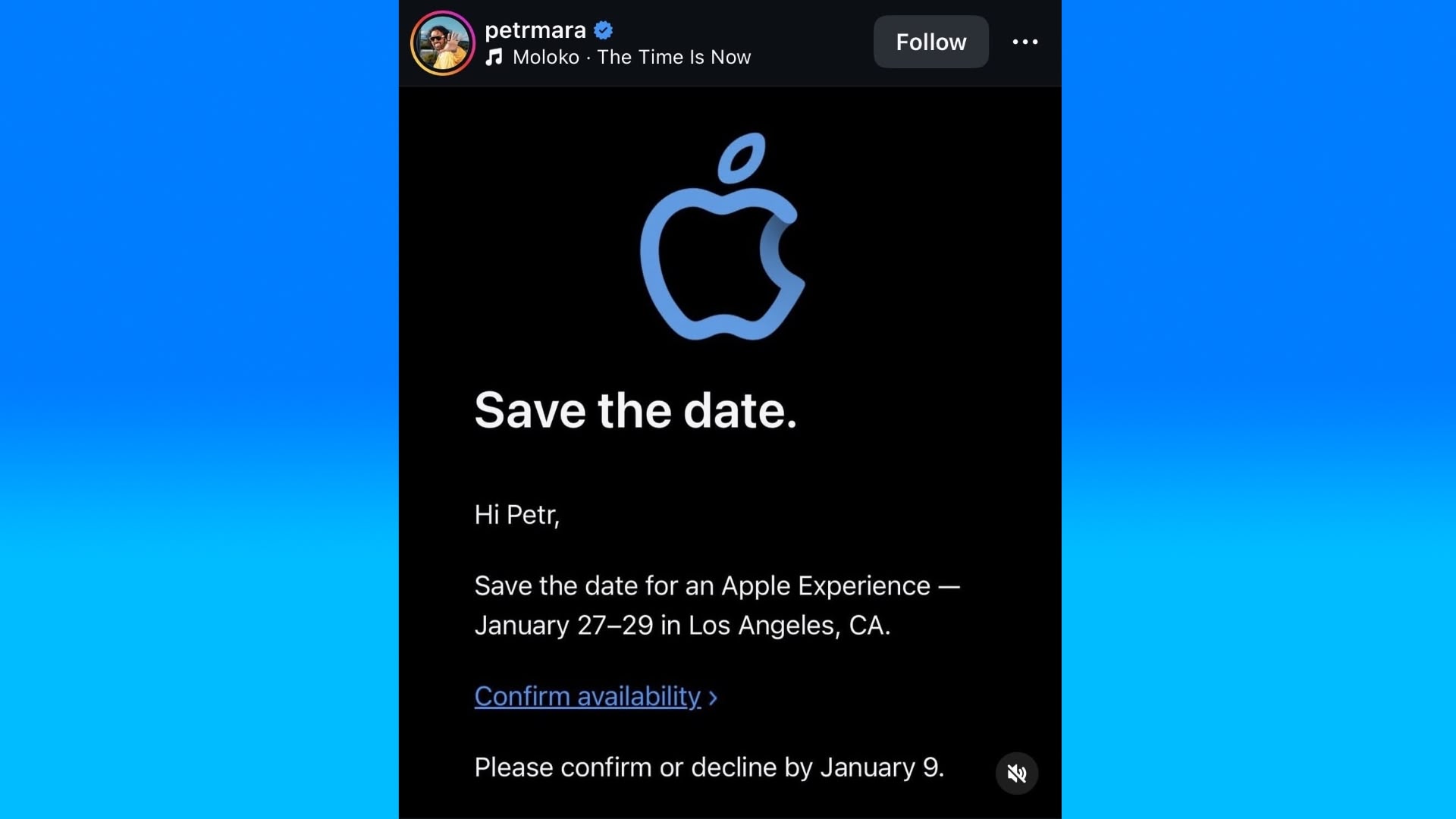
Apple has sent out invites to select creators for an "Apple Experience" in Los Angeles, California, scheduled for January 27 to 29. The event has sparked speculation that Apple will also announce new MacBook Pro models with M5 Pro and M5 Max chips.


Creator Petr Mara shared an image of his invite on Instagram on January 7, but it appears to have only now gained significant traction on social media platforms. Mara was also invited to an Apple event in September to test out the latest iPhone 17 Pro models.

Apple's new Creator Studio bundle of creative apps, announced last week, launches on Wednesday, January 28, so this event is surely related. Given the bundle includes several professional Mac apps, such as Final Cut Pro, Logic Pro, and Pixelmator Pro, there's a good chance that Apple will use the coinciding event as an opportunity to release new MacBook Pro models too.

Also, Apple's next quarterly earnings call is scheduled for Thursday, January 29, and the company has introduced new products shortly before these calls on several occasions.

Apple in October updated the base 14-inch MacBook Pro with an M5 chip, so the higher-end models are due an upgrade. Beyond the processor, the only other notable change to the base model was PCIe 5.0 storage. According to Apple, this delivers up to twice the SSD read and write speeds of the previous generation.
This article, "Apple Hosting LA Event for Creators on January 27-29 That Could Coincide With MacBook Pro Announcement" first appeared on MacRumors.com

Discuss this article in our forums

  •  

btop for MacOS is an Excellent Terminal System Resource Monitor

If you’re a command line enthusiast and you’re the type of Mac user who likes to keep an eye on your system resources and resource utilization, you’ll likely enjoy checking out the btop command. btop offers real-time visualization of CPU usage, memory use, processes, network activity, and disk activity. You can even use btop as ... Read More
  •  

Apple's Annual Shareholders Meeting Will Take Place on February 24

Apple's 2026 shareholders meeting will be held on Tuesday, February 24, at 8:00 a.m. Pacific Time, according to an SEC filing that was released today.


Apple shareholders of record as of January 2, 2026, can attend, vote, and submit questions during the meeting by logging in to Apple's virtual meeting website 15 minutes before it kicks off. A control number included in the Notice of Internet Availability of Proxy Materials that's provided to shareholders is required to join.

At the meeting, shareholders will vote to re-elect the company's board of directors, approve executive compensation, and ratify Ernst & Young LLP as Apple's public accounting firm. There will also be votes on shareholder proposals.

Notably, both board chairman Art Levinson (age 75) and board member Ron Sugar (age 77) are up for re-election, despite a company guideline stating that directors may generally not stand for re-election once they have reached the age of 75. Apple provided the following justification in its proxy statement:
Over the past four years, the Board has added three new members, representing over one-third of its membership, and two other, long-serving members retired. In the context of this year’s Annual Meeting nominations, the Board determined that it would be in the best interests of Apple and its shareholders to ask Art Levinson, the Chair of the Board, and Ron Sugar, the Chair of the Audit Committee, to stand for re-election, and to waive for each of them its guideline under which directors generally may not stand for re-election after attaining age 75. In making this determination, the Board considered several factors, including the significant experience and expertise that each of Dr. Levinson and Dr. Sugar brings to the Board, their deep insight into the Company’s business and operations, and their individual contributions as highly engaged members of the Board. The Board also considered the benefits of continuity among the Board’s leadership positions.
Levinson's re-nomination as chairman is notable due to recent speculation around Tim Cook's potential retirement as Apple CEO, a move that would likely see him shift into the board chairman position. It is possible that Levinson's continuation in the role beyond age 75 is intended to also serve as bridge to such time that Cook is ready to assume the chairman role, rather than selecting a new chairman for only a relatively brief time until Cook steps down as CEO.
This article, "Apple's Annual Shareholders Meeting Will Take Place on February 24" first appeared on MacRumors.com

Discuss this article in our forums

  •  

Apple Again Tests Background Security Updates in iOS 26.3 and macOS Tahoe 26.3

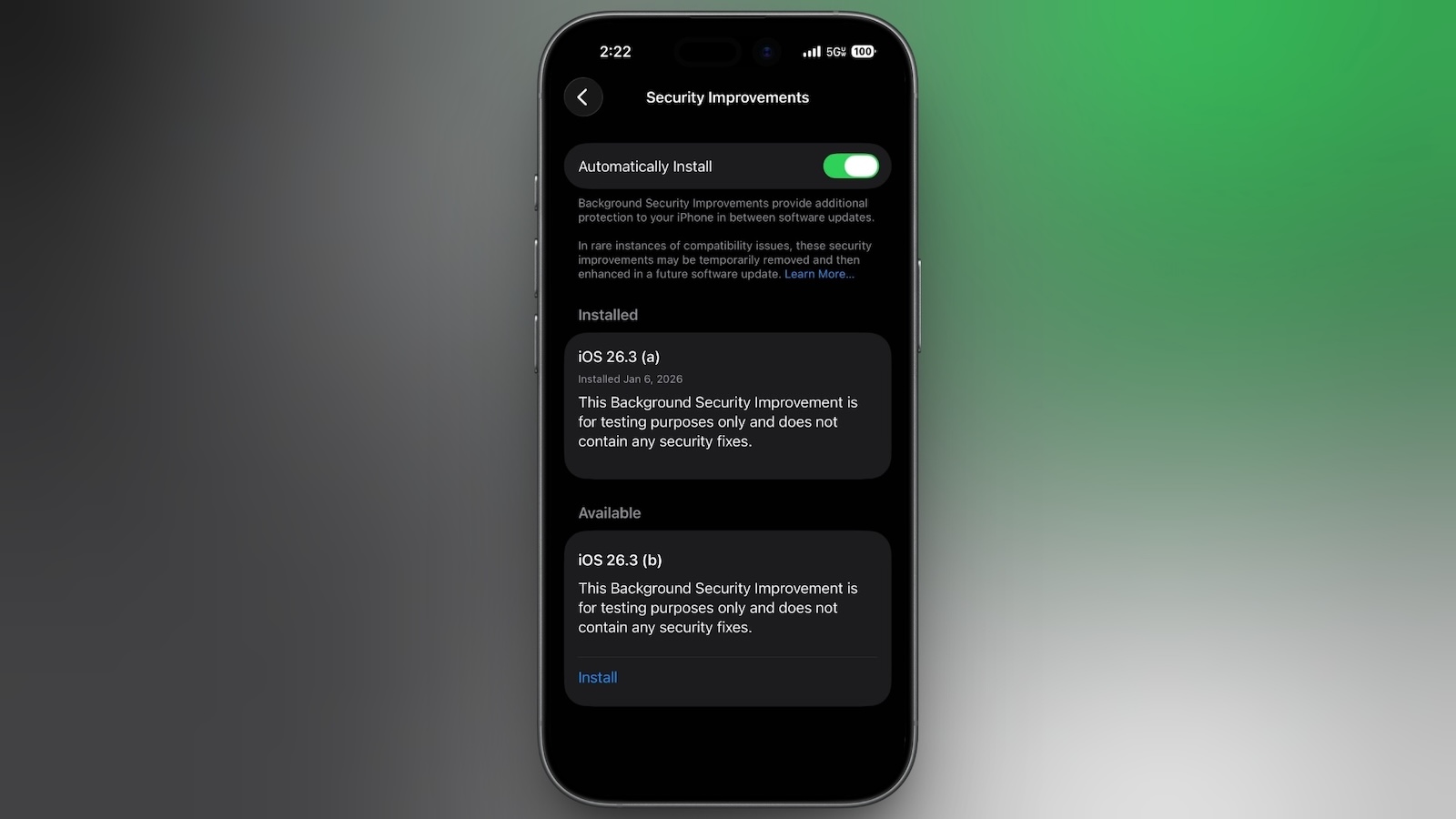
Apple is once again testing its new Background Security Improvement feature that first rolled out in iOS 26.1, iPadOS 26.1, and macOS Tahoe 26.1. Following a previous test earlier this week, developers and public beta testers who are running iOS 26.3, iPadOS 26.3, or β€ŒmacOS Tahoeβ€Œ 26.3 can now install a second Background Security Improvement update for testing purposes.


Apple says Background Security Improvements provide additional security protections between software updates for Safari, WebKit, and other system libraries.

Background Security Improvements can be installed by going to the Privacy and Security section of the Settings app, scrolling down to Background Security Improvements, and selecting the "Install" option. If "Automatically Install" is toggled on, Background Security Improvements will be automatically installed when they come out with no need to manually install them.

Apple says that users who opt not to install the Background Security Improvements will receive the updates in a standard software update.

Apple previously had a Rapid Security Response update feature for delivering security improvements, but it wasn't used often after it was introduced in iOS 16, and was ultimately phased out in favor of Background Security Improvements. At one point in 2023, there was a Rapid Security Response bug that prevented some websites from displaying properly.

Apple warns that Background Security Updates can result in "rare instances of compatibility issues." Should that occur, the updates may be temporarily removed and enhanced in a subsequent software update.
This article, "Apple Again Tests Background Security Updates in iOS 26.3 and macOS Tahoe 26.3" first appeared on MacRumors.com

Discuss this article in our forums

  •  

Logitech Mouse or Keyboards Break on Mac After Expired Certificate, But it’s an Easy Fix

If you’re a Mac user who has recently discovered their Logitech mouse or keyboard is not working suddenly, or not working properly with missing customizations and functionality, it might be because of an issue with an expired security certificate with Logitech devices on the Mac. Specifically, if you use Logi Options+ or G HUB with ... Read More
  •  

Duolingo Used iPhone's Dynamic Island to Display Ads, Violating Apple Design Guidelines

Language learning app Duolingo has apparently been using the iPhone's Live Activity feature to display ads on the Lock Screen and the Dynamic Island, which violates Apple's design guidelines.


According to multiple reports on Reddit, the Duolingo app has been displaying an ad for a "Super offer," which is Duolingo's paid subscription option.

Apple's guidelines for Live Activity state that the feature cannot be used to display ads or promotions. From Apple's developer website:
Don't use a Live Activity to display ads or promotions. Live Activities help people stay informed about ongoing events and tasks, so it's important to display only information that's related to those events and tasks.

Apps that violate Apple's interface guidelines can be pulled from the App Store.

We were not able to replicate the Live Activity ad, so it's possible that Duolingo stopped displaying it after user complaints.
This article, "Duolingo Used iPhone's Dynamic Island to Display Ads, Violating Apple Design Guidelines" first appeared on MacRumors.com

Discuss this article in our forums

  •  

Tidy Up Messages by Auto-Deleting Verification Codes on iPhone, Mac, iPad

Many services use two-factor authentication nowadays, where your phone or email address gets sent a code that you must enter as part of the login process into an online service. These codes are one time use only and therefore don’t make a lot of sense to keep around forever, but manually going through and deleting ... Read More
  •  
❌