We've been focusing on deals on physical products over the past few weeks, but Black Friday is also a great time of year to purchase a streaming membership. Some of the biggest services have great discounts for new and select returning members this week, including Apple TV, Disney+, Hulu, Paramount+, Peacock, and more.
Note: MacRumors is an affiliate partner with some of these vendors. When you click a link and make a purchase, we may receive a small payment, which helps us keep the site running.
Disney has introduced a new promotion on its streaming service, offering a bundle of Disney+ (with ads) and Hulu (with ads) for $4.99 per month for 12 months, down from $12.99 per month. After your first year ends it will return to the then-current monthly price unless cancelled.
To get the deal, head to the promotion landing page on the Disney+ website and click on the Disney+/Hulu bundle option. This offer is valid only for new and eligible returning subscribers.
Audible
Audible's holiday deal takes the service down to only $0.99 per month for your first three months, plus $20 in Audible credit. This is more than 90 percent off the regular $14.95 monthly price of the service.
Amazon Music Unlimited offers 100 million songs ad-free, podcasts, Audible audiobooks, spatial audio, and more.
Paramount+
The best Paramount+ offer for this Black Friday is a nice discount tied into Walmart+ and its rewards system. If you sign up for Walmart+ at its new discounted rate of $49.00 for your first year (regular $98/year), you'll find multiple streaming service discounts at your disposal.
One of these includes the option to activate a subscription to the Paramount+ Essential plan at no extra cost, so long as you have an active Walmart+ account. This is Paramount's ad-supported tier, and you can upgrade to Paramount+ Premium for an additional monthly or yearly fee.
Peacock
Similar to Paramount+, the best Peacock discount you can find this Black Friday season is bundled with Walmart+. If you take advantage of the 50 percent off Walmart+ offer, you'll gain access to Peacock Premium at no extra cost.
Peacock Premium is the ad-supported tier of the streaming service, and this does not include access to Peacock Premium Plus. It's also worth noting that Walmart+ members have the option to switch between Peacock and Paramount+ once every 90 days.
You can find all the Apple Black Friday Deals currently available in our dedicated post. For everything else, we're keeping track of the season's best Apple-related deals in our Black Friday roundup, so be sure to check back throughout the month for an updated list of all the most notable discounts you'll find for Black Friday 2025.
Deals Newsletter
Interested in hearing more about the best deals you can find this holiday season? Sign up for our Deals Newsletter and we'll keep you updated so you don't miss the biggest deals of the season!
Black Friday is finally here, and as always this will be the best time of the year to shop for great deals, including popular Apple products like AirPods, iPad, Apple Watch, and more. In this article, the majority of the discounts will be found on Amazon.
Note: MacRumors is an affiliate partner with some of these vendors. When you click a link and make a purchase, we may receive a small payment, which helps us keep the site running.
Specifically, we're sharing all of the Apple products that currently have all-time low prices, or discounts that are at least very close to their record-low prices. Now that Black Friday is here, we expect these to be the best prices of the season, so if you've been holding off on purchasing any of the products listed below, now is definitely the time to do so.
Table of Contents
You can use the links below to jump directly to the section you're shopping for today.
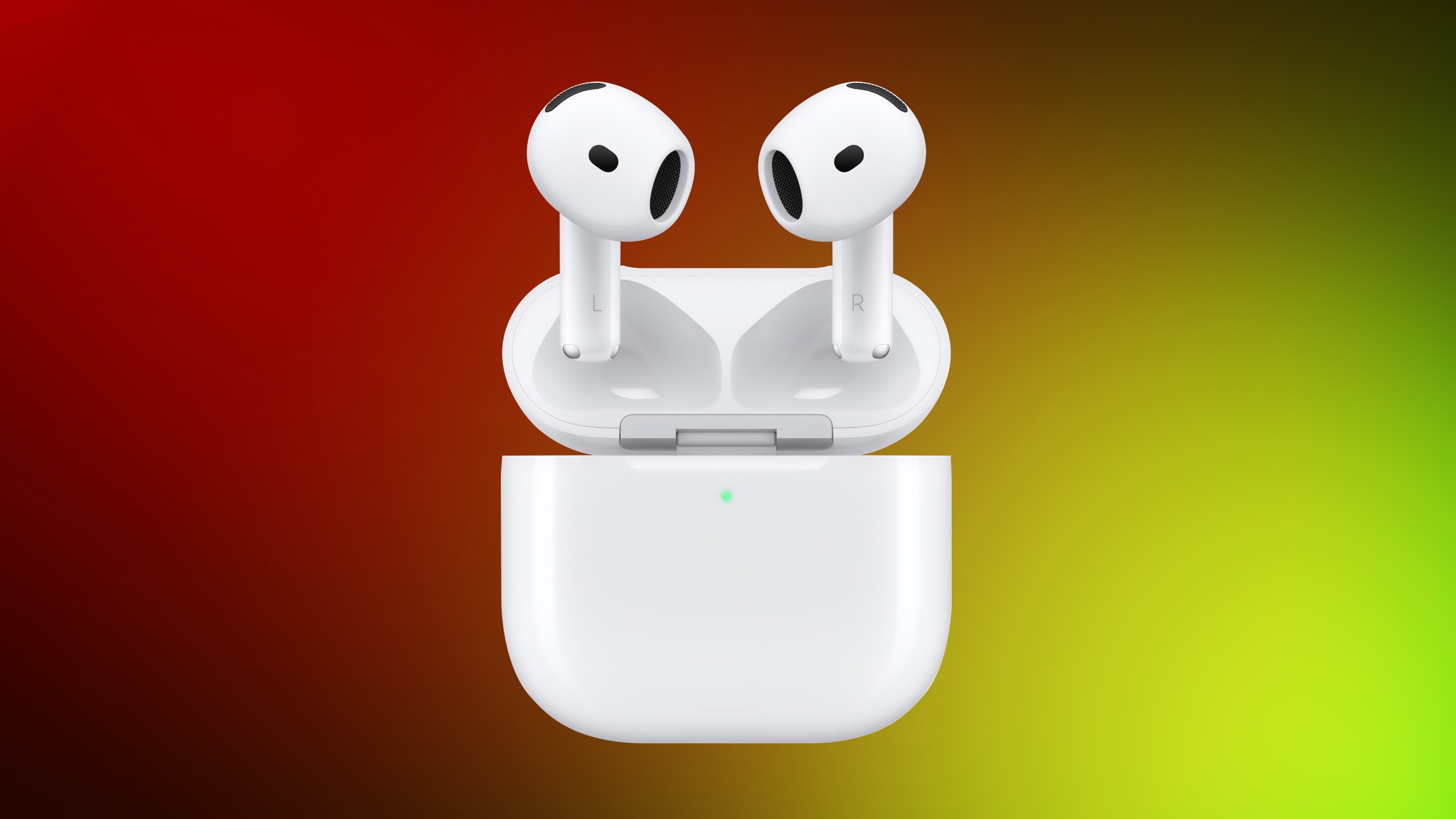
AirPods deals are in abundance this Black Friday season, with best-ever prices on AirPods 4, AirPods 4 with Active Noise Cancellation, and AirPods Pro 3. You can also find a steep $119 discount on AirPods Max right now, and all of these discounts are available on Amazon.
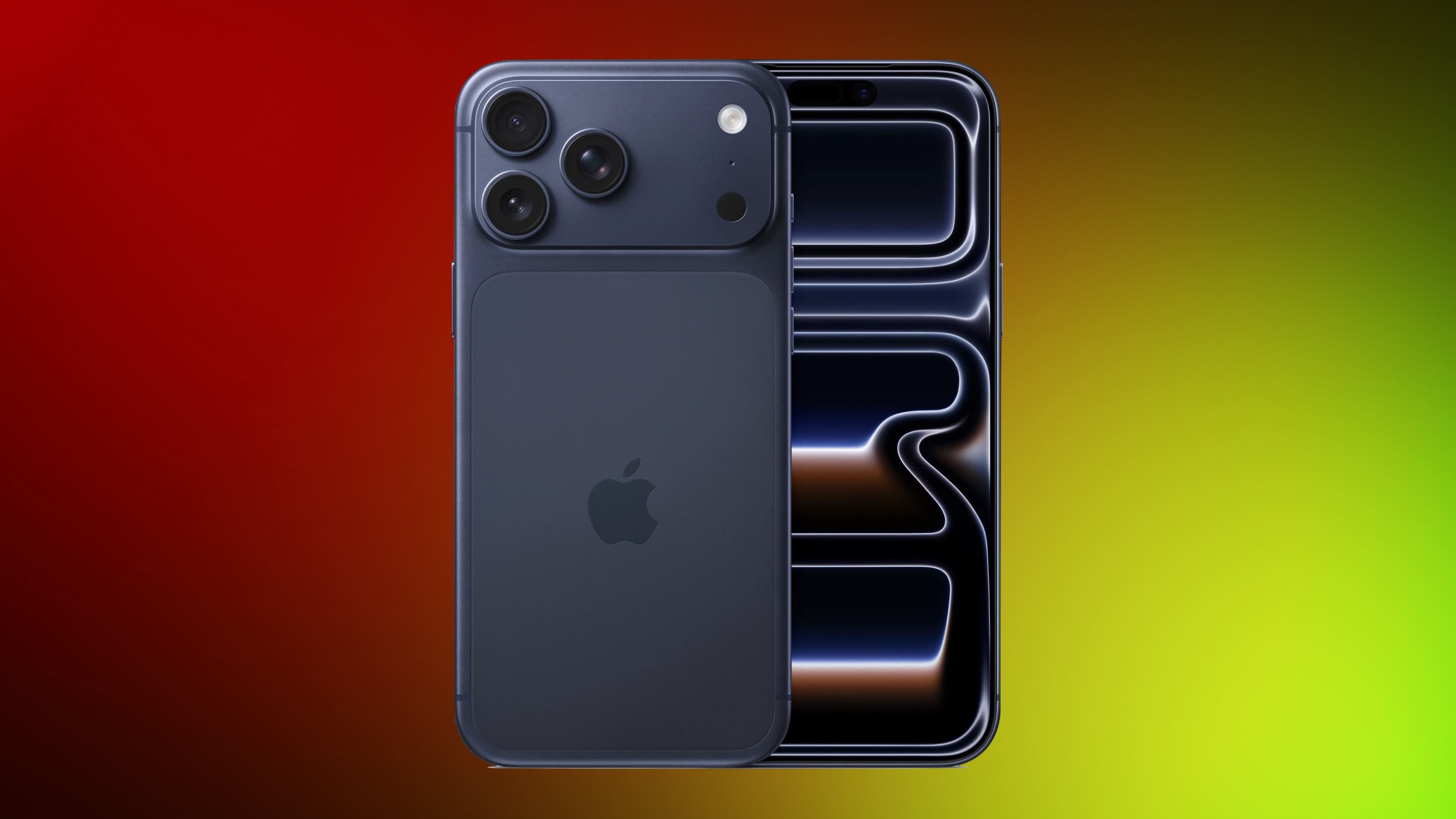
Cellular carriers have always offered big savings on the newest iPhone models during the holidays, and Black Friday 2025 sales have kicked off at AT&T, Verizon, T-Mobile, and more. Right now we're tracking notable offers on the iPhone 17, iPhone 17 Pro, iPhone 17 Pro Max, and iPhone Air. For even more savings, keep an eye on older models during the holiday shopping season.
Starting with AT&T, you can get the iPhone 17 Pro at no cost with eligible trade-in, and the iPhone Air for up to $700 off with eligible trade-in. Finally, the iPhone 17 Pro Max will be available at up to $1,100 off with eligible trade-in.
If you switch to AT&T from a different carrier, AT&T will pay off your phone balance at up to $800 off per line. AT&T also has the Apple Watch Series 11, Apple Watch SE 3, and Apple Watch Ultra 3 available with an offer. If you buy one, you can get $300 off the second.
Verizon
iPhone 17 Pro: No cost with new line on Unlimited Ultimate
New and existing Verizon customers on the Unlimited Ultimate plan can get the iPhone 17 and iPhone 17 Pro at no cost this Black Friday season. For the iPhone 17, no trade-in is required but you must add a new line to Verizon's MyPlan.
T-Mobile's offers are nearly identical to AT&T's. You can get the iPhone 17 or iPhone 17 Pro at no cost when you trade in an old device and purchase the new device on an eligible unlimited plan. Otherwise, you can get the iPhone 17 Pro Max for up to $1,100 off with eligible trade-in on unlimited plans.
For Apple Watches at T-Mobile, you can get the Apple Watch SE 3 for $99.00 when adding a new watch line on select Unlimited plans. If you plan on buying two models, you can get up to $300 off the second when adding a new watch line on select Unlimited plans.
Visible
Visible is offering 50 percent off its Visible+ Pro plan this season, with the code BLACKFRIDAY50 at checkout. After entering this deal, you can get the plan for $225/year, down from $450/year.
For Apple specific offers, if you purchase any iPhone this holiday season, you can get the 40mm Apple Watch SE at no cost. To get this deal, you will need to be a new Visible member joining on the Visible+ Pro annual plan and purchase any new iPhone, then enter the code APPLEWATCH at checkout.
Mac
M5 MacBook Pro
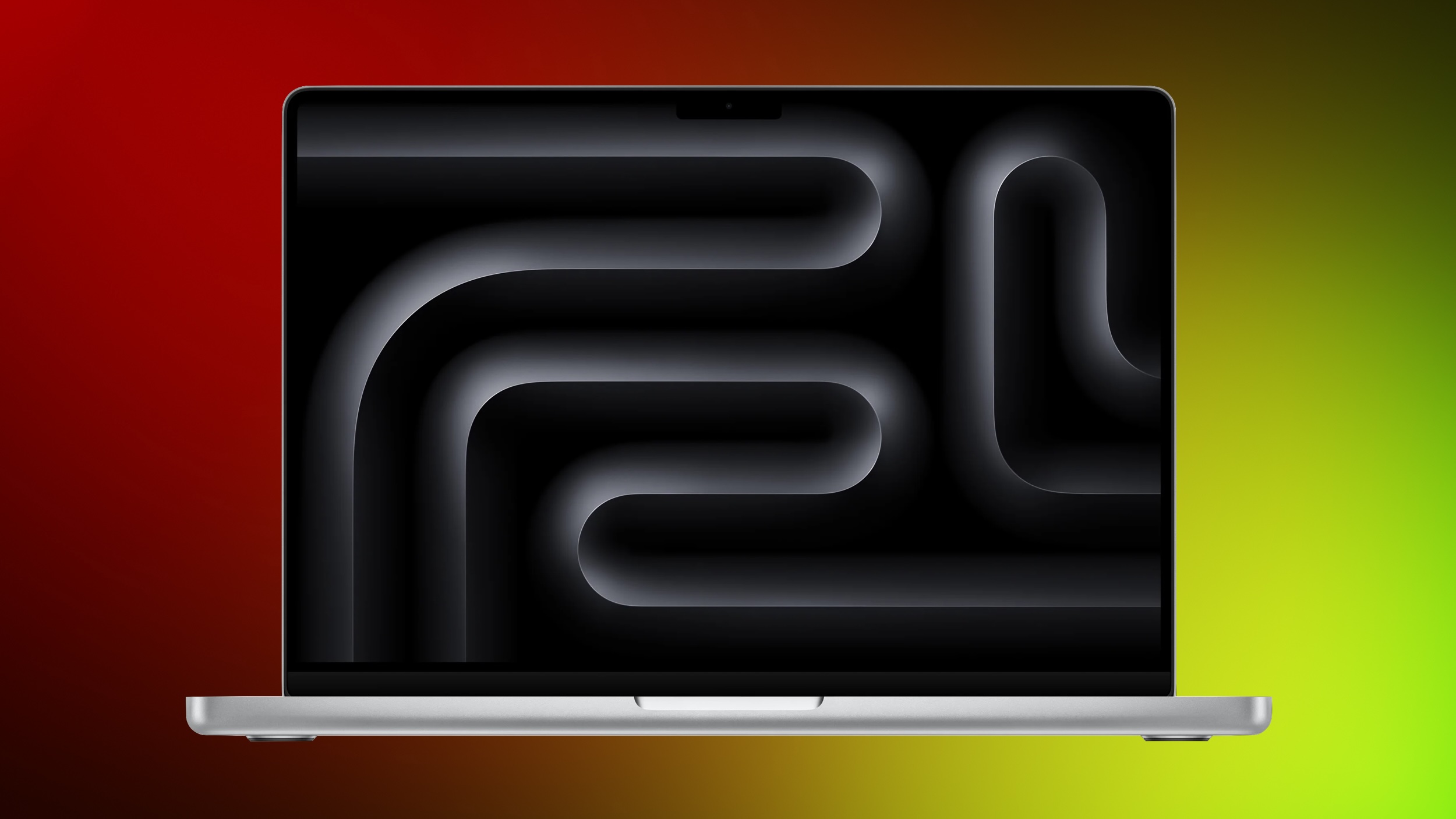
Amazon has dropped the price of the new M5 MacBook Pro to $1,399.00, down from $1,599.00. This is the 10-Core model with 16GB RAM and 512GB SSD in Space Black, and it's a new all-time low price on the M5 MacBook Pro.
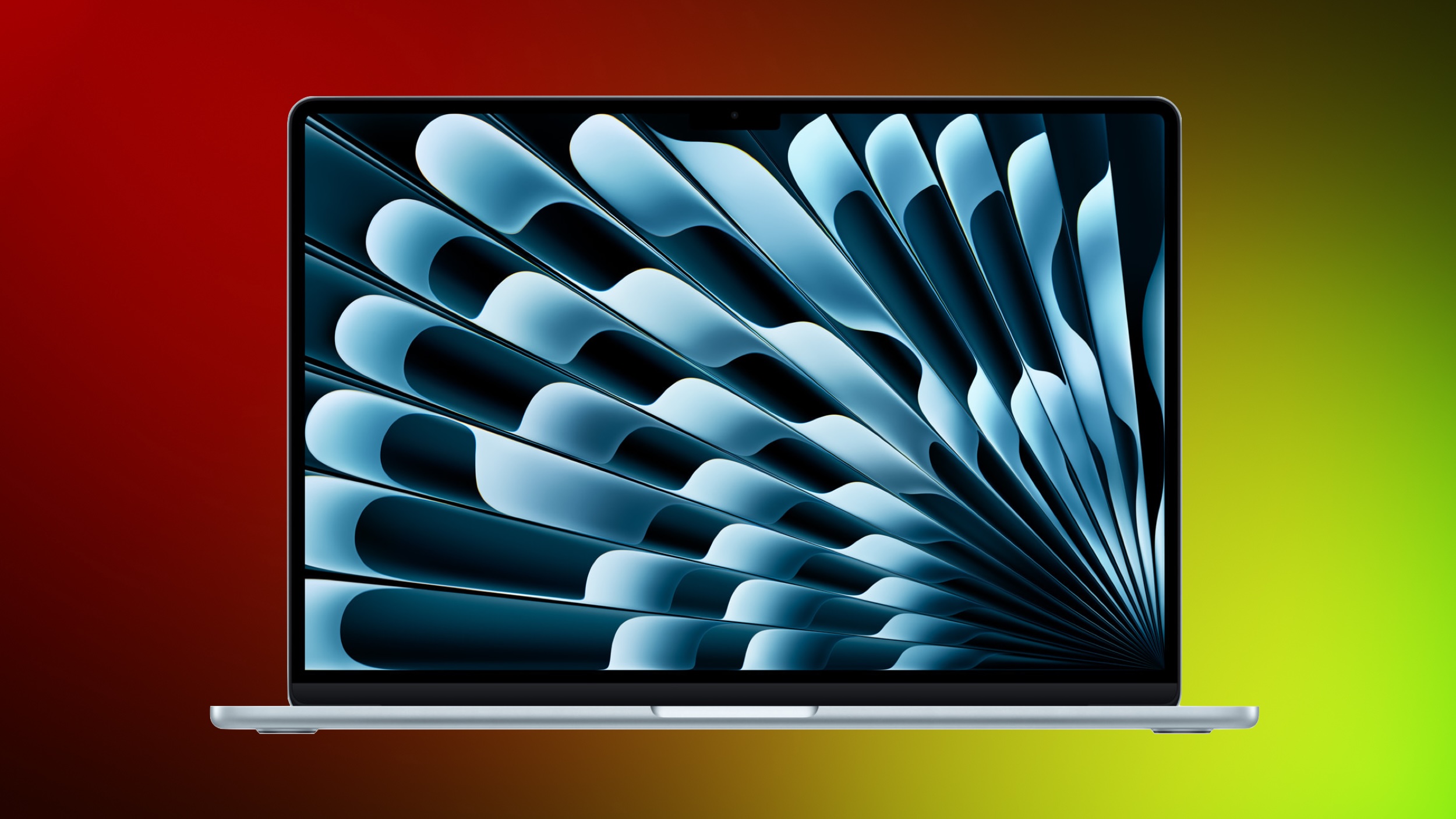
You can get the 13-inch M4 MacBook Air (256GB) for $749.00, down from $999.00, a new all-time low price on the computer that beats the previous low by about $50. You'll also find many of the 512GB models of the 13-inch and 15-inch M4 MacBook Air on sale this week.
Amazon has introduced the first big discounts on a few Apple Watch Series 11 models, including both GPS and cellular devices. You can get the 42mm GPS Apple Watch Series 11 for $339.00, down from $399.00, and the 46mm GPS model for $369.00, down from $429.00.
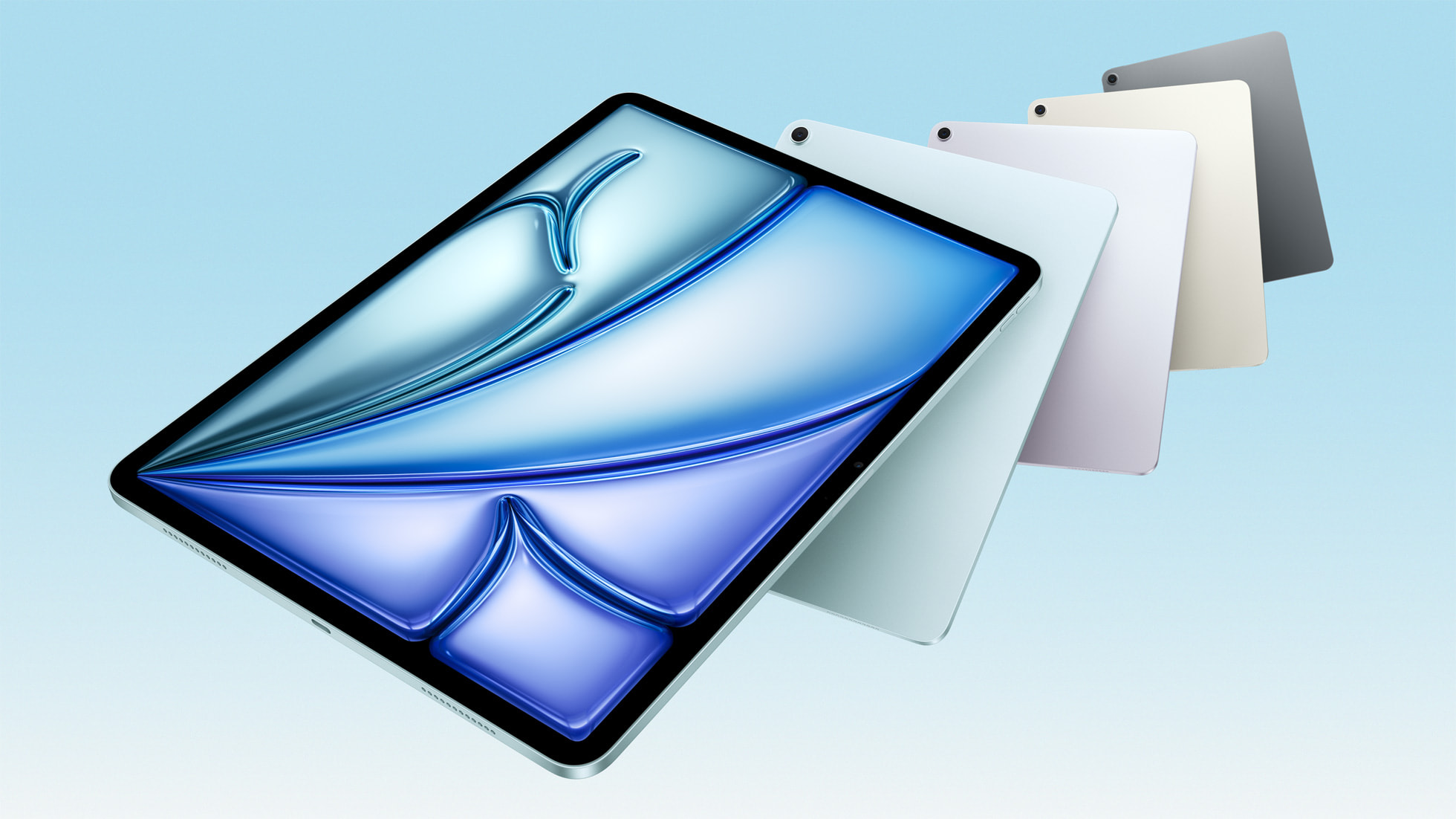
We're tracking record low prices across the entire M3 iPad Air lineup for Black Friday, with discounts available at both Amazon and Best Buy. This sale includes savings on both Wi-Fi and cellular models of the tablet, and it's been a few weeks since we last saw these all-time low prices.
Prices start at $449.00 for the 128GB Wi-Fi 11-inch M3 iPad Air, down from $599.00. Across the board these are all $150 discounts on the M3 iPad Air, and each one is a match for the best-ever price seen on these tablets.
Our list below focuses on Wi-Fi models, but you'll also find many cellular models on sale at $150 off right now. The 128GB cellular 11-inch iPad Air is available for $599.00 and the 128GB cellular 13-inch iPad Air is available for $799.00, both representing record low prices.
For the larger models, you can save up to $170 on the 13-inch M5 iPad Pro on Amazon this week. If you're shopping for the 2TB Nano-Texture Glass Wi-Fi model, Amazon has this tablet for $2,229.00, down from $2,399.00, as well as a few other 13-inch models between $50 and $151 off.
Amazon this week has low prices on nearly every Wi-Fi model of the iPad mini 7, starting at $399.00 for the 128GB Wi-Fi tablet, down from $499.00. You'll also find a few deals on cellular models during this sale.
Amazon this week is taking $75 off Wi-Fi models of Apple's 11th generation iPad. Prices start at $274.00 for the 128GB Wi-Fi iPad, down from $349.00, an all-time low price on this model.
If you're shopping for just one AirTag, Amazon has the AirTag 1-Pack for $17.97, which is another all-time low price.
iPhone 17 Cases
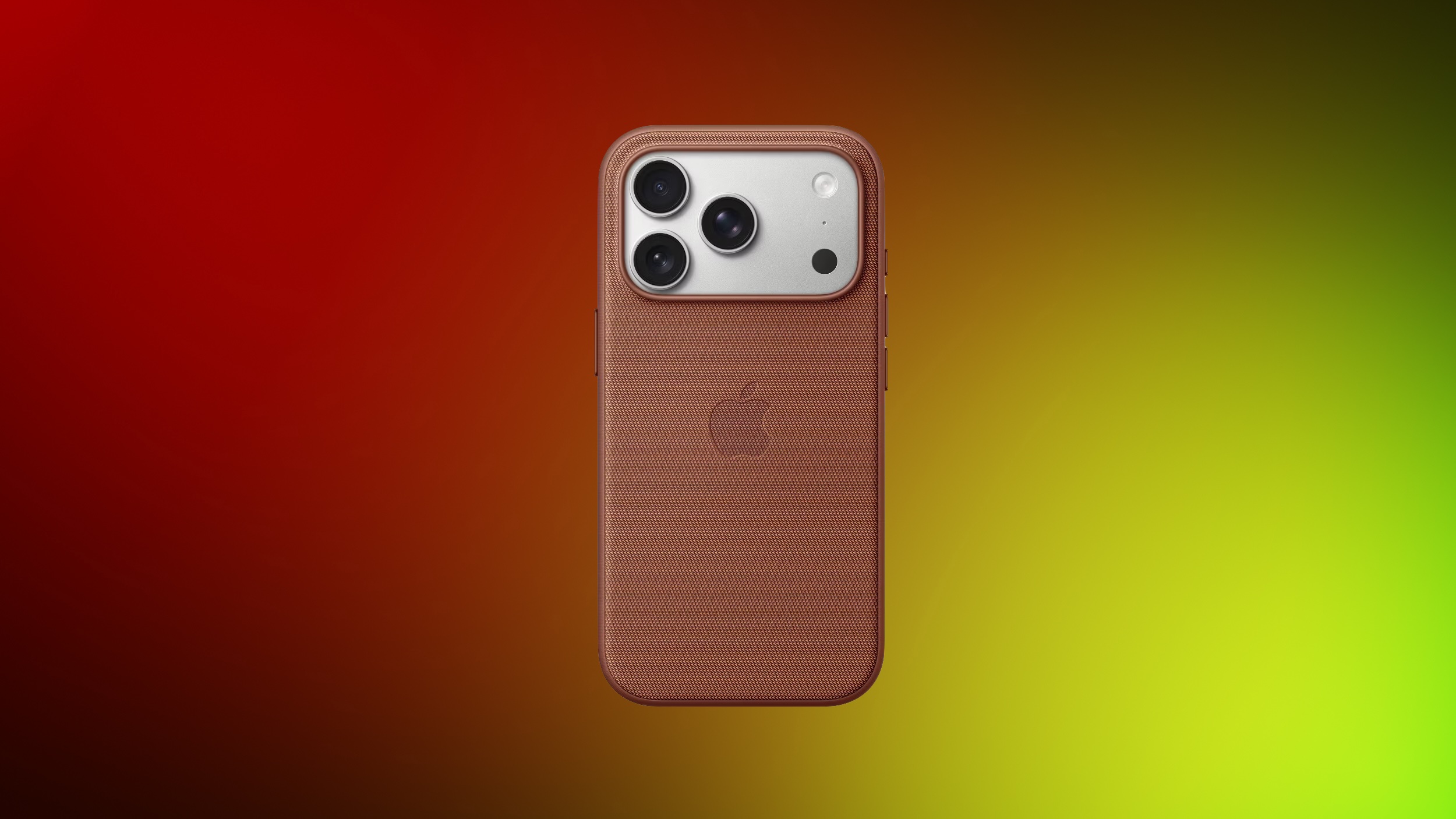
Amazon this week brought back big discounts across Apple's Clear, Silicone, and TechWoven Cases for the iPhone 17 and iPhone Air lineup. Items on sale include Clear, Silicone, and TechWoven Cases for the iPhone 17, iPhone 17 Pro, iPhone 17 Pro Max, and iPhone Air. We're also tracking a few discounts on other accessories like the FineWoven Wallet with MagSafe.
We're keeping track of the season's best Apple-related deals in our Black Friday roundup, so be sure to check back throughout the month for an updated list of all the most notable discounts you'll find for Black Friday 2025.
Deals Newsletter
Interested in hearing more about the best deals you can find this holiday season? Sign up for our Deals Newsletter and we'll keep you updated so you don't miss the biggest deals of the season!
Apple recently added iPad Air models with the M3 chip to its refurbished store in the United States and many European countries, including the United Kingdom, France, Germany, Italy, Spain, Belgium, the Netherlands, and others.
This is the first time the iPad Air with the M3 chip has been available in Apple's refurbished store since the device was released in March this year.
As usual, the refurbished models are discounted by approximately 15% compared to new models. In the United States, for example, the 11-inch iPad Air with the M3 chip, 128GB of storage, and Wi-Fi only is available for $509, compared to $599 new.
Apple says its refurbished iPads include a new battery and outer shell, a new box, and all accessories, including a 20W USB-C power adapter and/or a USB-C charging cable depending on the country. Apple says it puts refurbished devices through a "thorough cleaning process and inspection," resulting in a like-new condition.
All refurbished iPads are covered by Apple's one-year warranty. AppleCare+ is available.
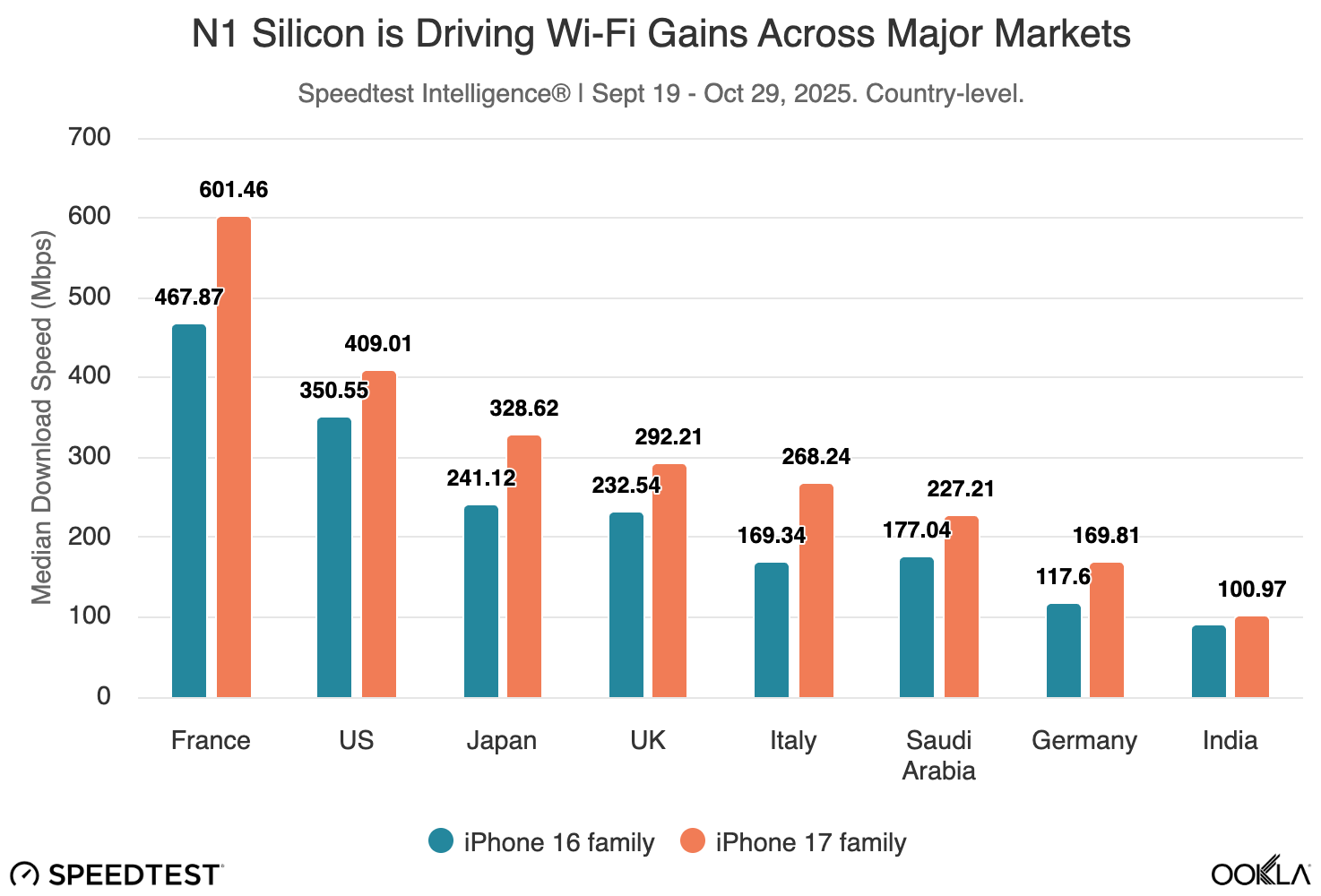
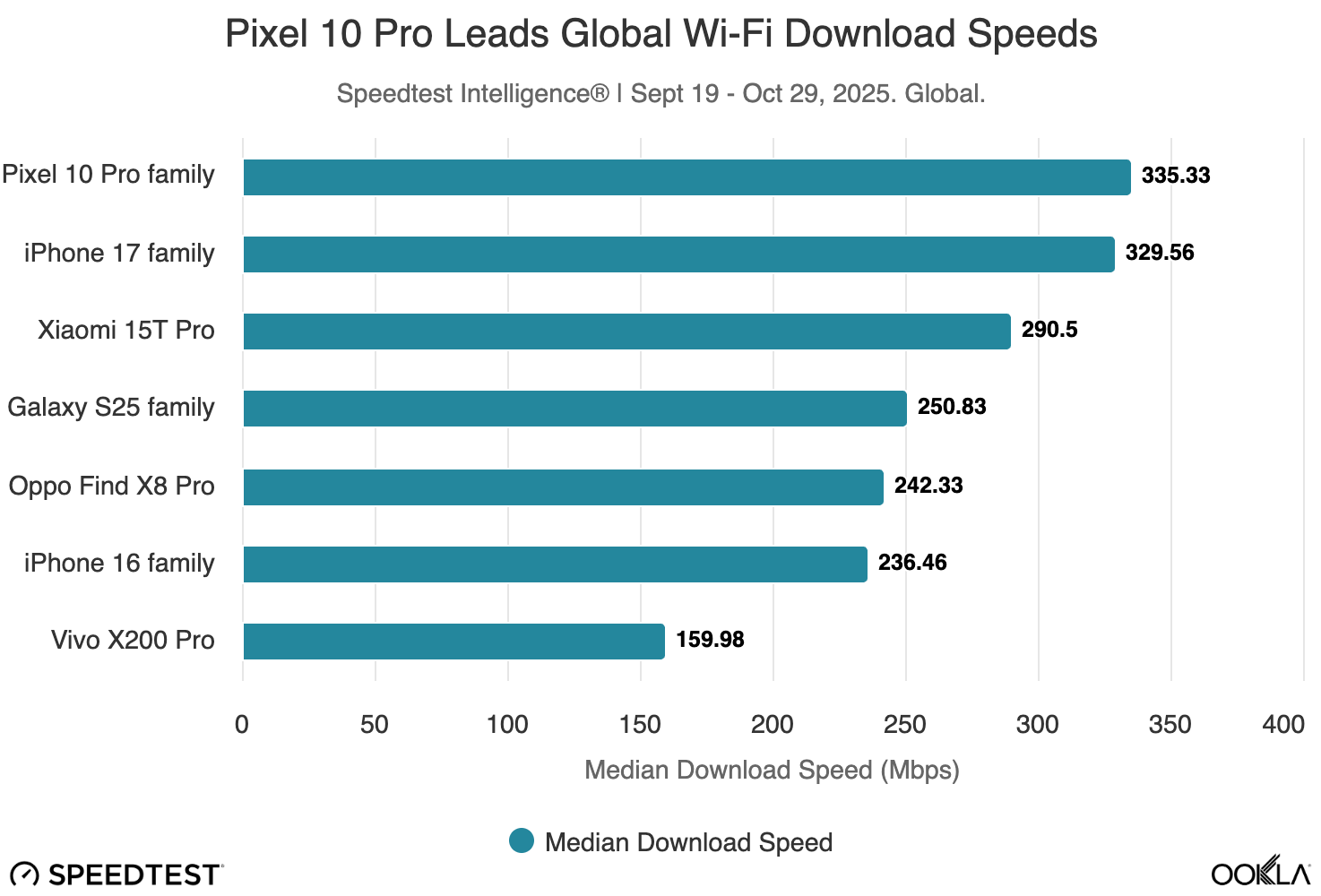
A new study has revealed that the iPhone 17, iPhone 17 Pro, iPhone 17 Pro Max, and iPhone Air achieve significantly faster average Wi-Fi speeds compared to the iPhone 16 series, thanks to Apple's custom-designed N1 chip.
The study was conducted by Ookla, the company behind the popular Speedtest website and app. It said the results are based on global, crowdsourced Speedtest user data collected from September 19 to October 29 of this year.
Ookla said Apple's N1 chip is a "substantial upgrade," with up to 40% faster average download and upload speeds compared to Broadcom's Wi-Fi chip in the iPhone 16 series. The study found that speeds were faster across every country it analyzed, including the United States, France, Italy, the United Kingdom, India, Japan, and others.
The study found that the N1 chip "lifts the floor" for Wi-Fi performance, more than "raising the ceiling." Based on the results, Ookla said the N1 chip often delivers more consistent performance in challenging Wi-Fi conditions.
In the United States in particular, Ookla said the iPhone 17 and iPhone Air series achieved a median average Wi-Fi download speed of 409 Mbps, compared to 350 Mbps for the iPhone 16 series. That is a nearly 17% increase.
A few months ago, we reported that the N1 chip supports up to 160 MHz channel bandwidth for Wi-Fi 7, short of the standard's 320 MHz maximum. This limitation means the devices cannot achieve the peak theoretical speeds possible with Wi-Fi 7, but we said this was a non-issue for most customers, and the study backs that up.
Ookla said the results show the 160 MHz limitation "does not materially affect performance in real world use for most people."
While the study found the iPhone 17 and iPhone Air series tops the iPhone 16 series in terms of average global Wi-Fi download speeds, Ookla said the Google's Pixel 10 Pro series was even faster, but only by a slim margin.
The Pixel 10 Pro came in at 335 Mbps, edging out the iPhone 17 series at 329 Mbps.
All in all, the study reveals that the N1 chip is an upgrade, not a downgrade. If you are considering purchasing any of the iPhone 17 or iPhone Air models, it looks like you can be confident that Wi-Fi performance will not be an issue.
Managing goals in form of Objectives and Key Results (OKRs) is a proven framework used by companies of all sizes to align strategy and execution. To successfully work with OKRs, teams need a flexible and transparent OKR software that supports both high-level strategic planning and day-to-day task management. OpenProject is perfectly suited as an OKR software to meet this goal.
Read the following guide to learn how you and your organization can use the OpenProject software to manage your OKRs in three steps.
Insights: Our experience with OpenProject as OKR software
OpenProject is known as top project management and task software. What many people don’t yet realize is that the tool can also be used wonderfully for the OKR methodology. In other words, for strategic goal setting with Objectives and Key Results. The OpenProject team is a good example of how OpenProject works in practice as OKR software. Since Q1 2025, we have been using OpenProject to plan and track our corporate Strategic Initiatives, Objectives, and corresponding Key Results.
Today, we share our experience and learnings, so that you can benefit from our test runs and use these instructions to get started with your own OKRs right away.
Note
We will show some screenshots in this article. Please note that some of them actually show our real company OKR project while others are based on demo data. Nevertheless, the process and structure reflects the way we work with Objectives and Key Results internally.
Learning 1: OKR masters and regular check-ins
To start with OKRs in our company, we selected and trained two so-called OKR masters. They are experts in the OKR framework and know best how to handle Objectives and Key Results, e.g. when it comes to phrasing or questions like “What do I do with OKRs that we didn’t finish in this quarter?”.
To do so, they also attend our regular OKR check-ins – to answer questions and stay informed on how the different OKR teams proceed. In the first quarters, we scheduled these check-ins weekly. Now that everyone is more experienced in working with OKRs, some teams changed the frequency to bi-weekly or even monthly check-in meetings.
Learning 2: Dedicated OKR teams in a dedicated project
As we use the OpenProject software for many different projects, it was quite clear that we needed a dedicated OKR project for all our Objectives and Key Results. Nevertheless, this OKR project is not time-limited. New OKRs are added every quarter, and at the same time, we can view past quarters at any time.
What we have learned: Creating dedicated OKR teams is very helpful. Not only because the composition of OKR teams can differ from our usual team structure, but also because OKR teams may require different permissions.
In addition, we created an OKR wiki right at the beginning, which the OKR masters keep up to date. In it, employees can find all the information they need for internal work with OKRs.
Guide: How to use OpenProject as OKR software in 3 steps
These were our most important learnings after three quarters working with OKRs in OpenProject. Now, let’s see how exactly you can use the tool for OKRs, step by step.
For an OKR project, you’ll need specific work package types like:
Strategic Initiative
Objective
Key Result
Task
These are the work package types we use to manage our OKRs at OpenProject.
For statuses, we rely on the same ones we typically use, e.g. “new”, “in progress” or “closed”. Additionally we added the status “moved to next quarter”, which is very helpful if you want to continue on an Objective or Key Result in the following months. This way, accountables just need to update the status and change the version, e.g. from “Objectives 2025 Q3” to “Objectives 2025 Q4”.
As mentioned above, we advise to set up OKR groups for different teams so that everyone, e.g. the OKR master, can assign work packages to the specific teams. This allows individual teams to see at a glance which OKRs belong to them and decide among themselves who is accountable for which Objective or assigned to which task.
Tip
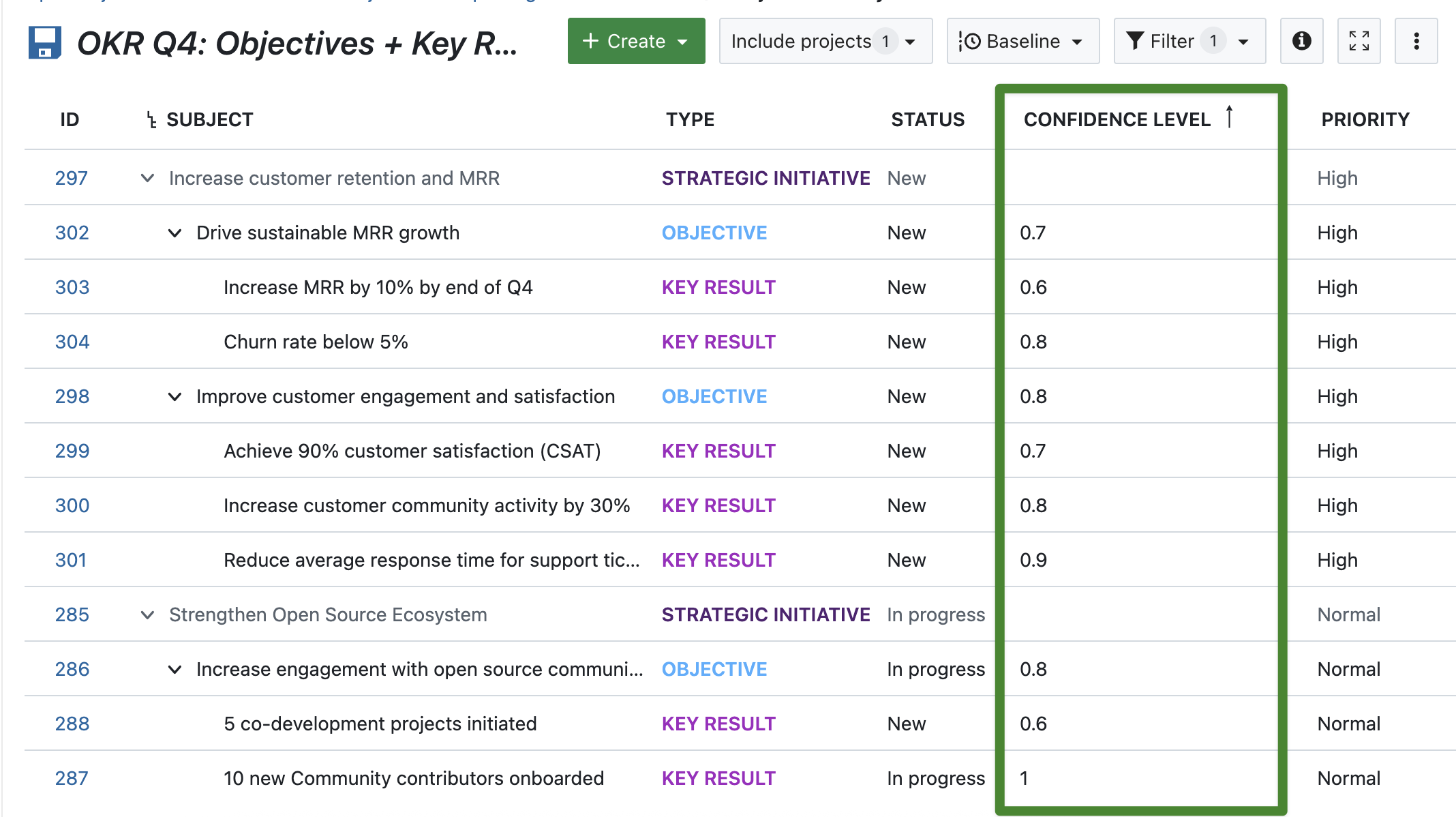
We’re still experimenting with custom fields for OKR work packages. One idea is to set up a custom field for the Confidence Level, on Objective and on Key Result level. Accountables can then update the Confidence Level regularly to track how certain they are that the Objective or Key Result will be achieved by the end of the quarter – for example, by setting it to 0.7 if they estimate the probability to be 70%.
Step 2: Start Strategic Initiatives, Objectives and Key Results for the next quarter
Now that everything is preset, step 2 can start: defining quarter-specific Strategic Initiatives, Objectives and Key Results. This step builds on the company’s vision, mission, and annual goals — ensuring that each new OKR directly contributes to the overall strategy. Typically, the Strategic Initiatives and Objectives are defined and approved at the management level, while the corresponding Key Results and related tasks are then discussed and refined collaboratively within each team.
Work package relations
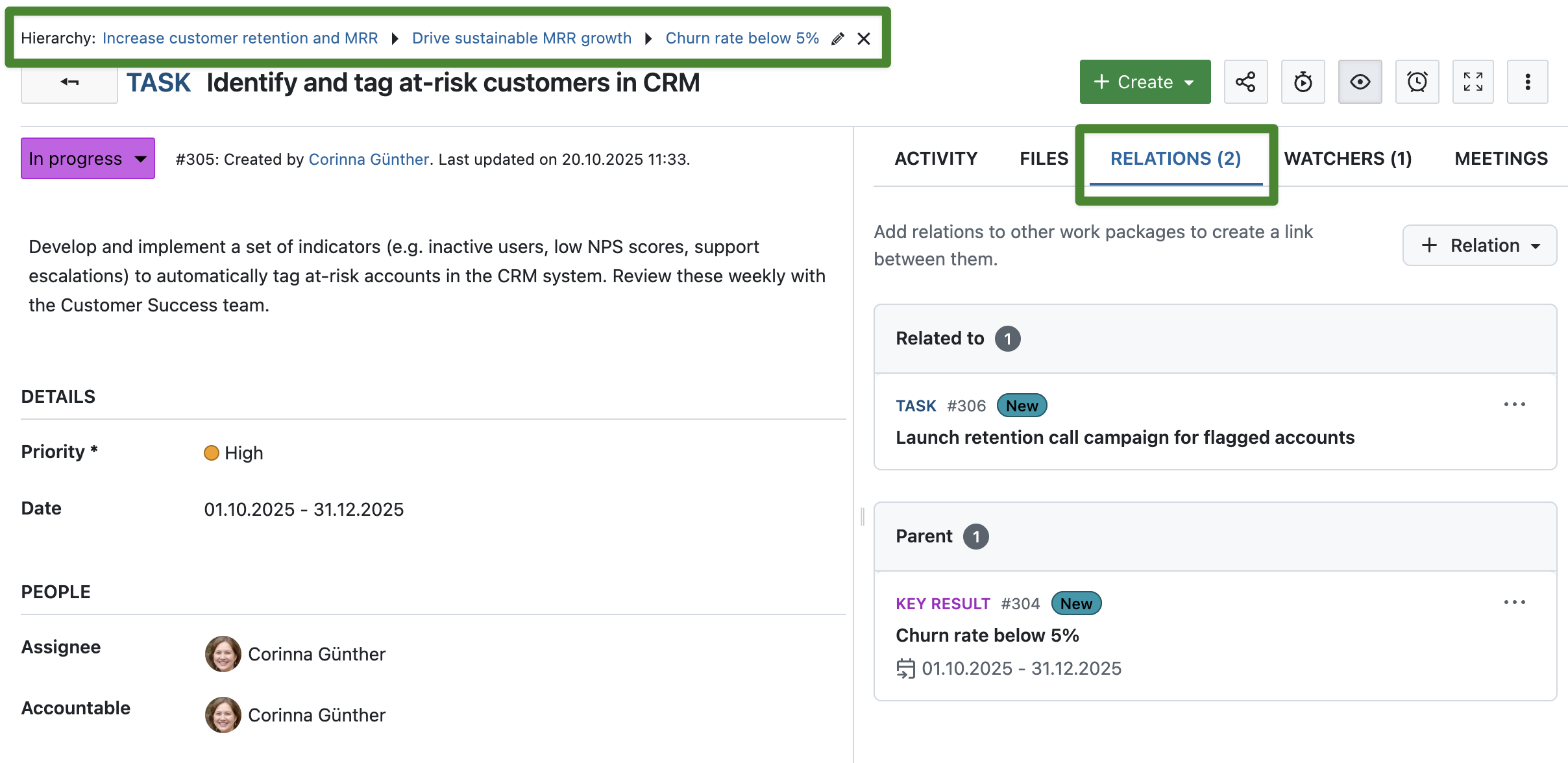
Of course, these work packages should all be linked in a smart way. In OpenProject, simply use parent-child relations to display dependencies between a Strategic Initiative, its Objectives and Key Results:
Once you have created all relevant work packages for the quarter and have set up all relations, it might be helpful to bulk edit them to add more information:
Set the start and finish date to the start and end of the quarter.
Set the version e.g. to Q4 2025, so that you can filter for that.
Adjust priorities if necessary.
Apart from these general attributes, it is always helpful to add work package descriptions and if you work with estimates and progress, fill out the fields for Work – depending on your progress reporting mode (which is defined on an instance level).
Step 3: Monitor and schedule regular OKR meetings
Once everything is set up in OpenProject, the real work can start. To keep track of your OKR progress, you can filter and save Work package tables, Boards or Gantt charts.
Work package tables
Here’s a real screenshot of our internal OKR work package tables:
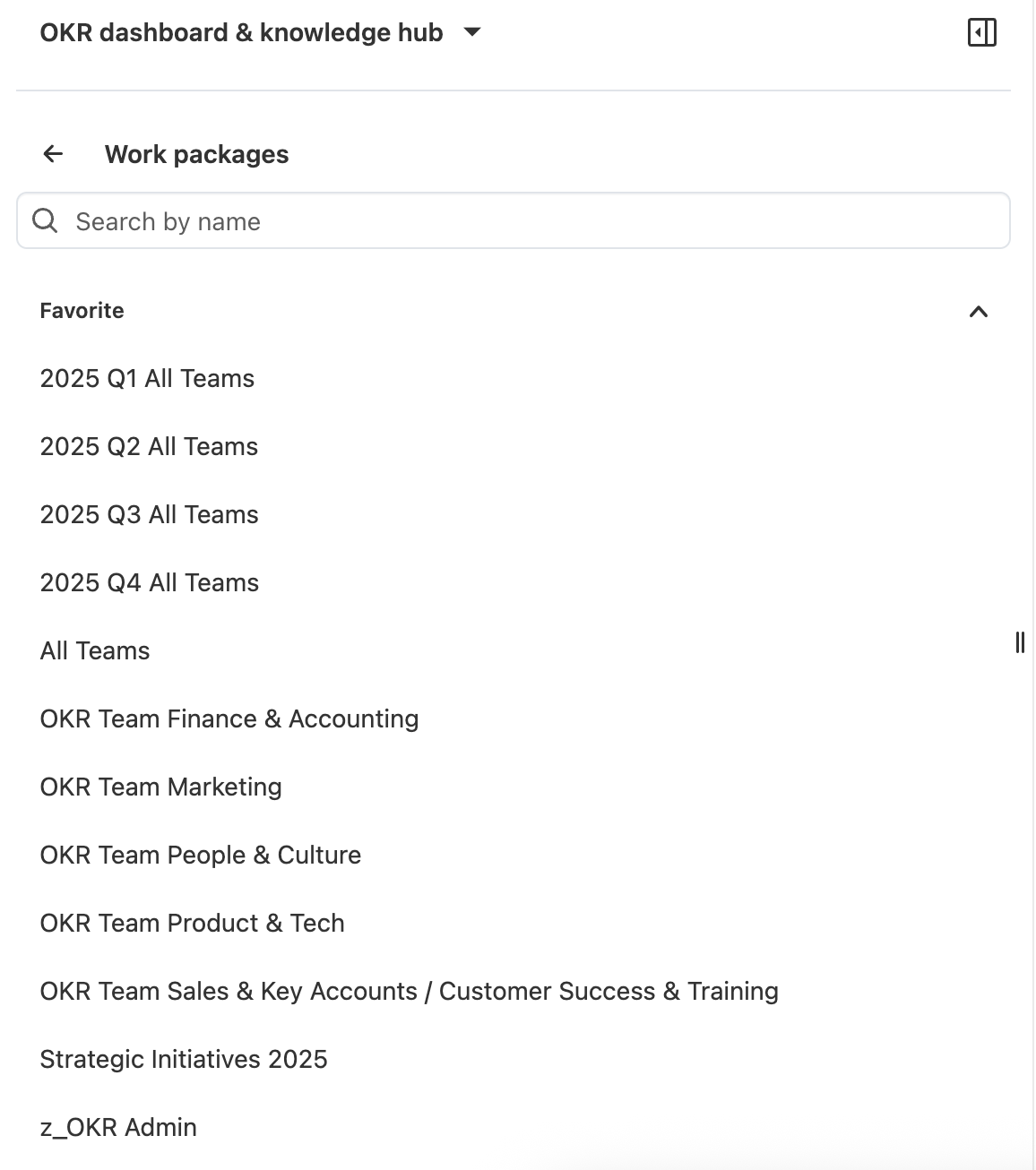
You can see saved work package tables for all teams for different quarters as well as team-specific tables. Helpful on a management level is a filtered view for all Strategic Initiatives across quarters.
Boards
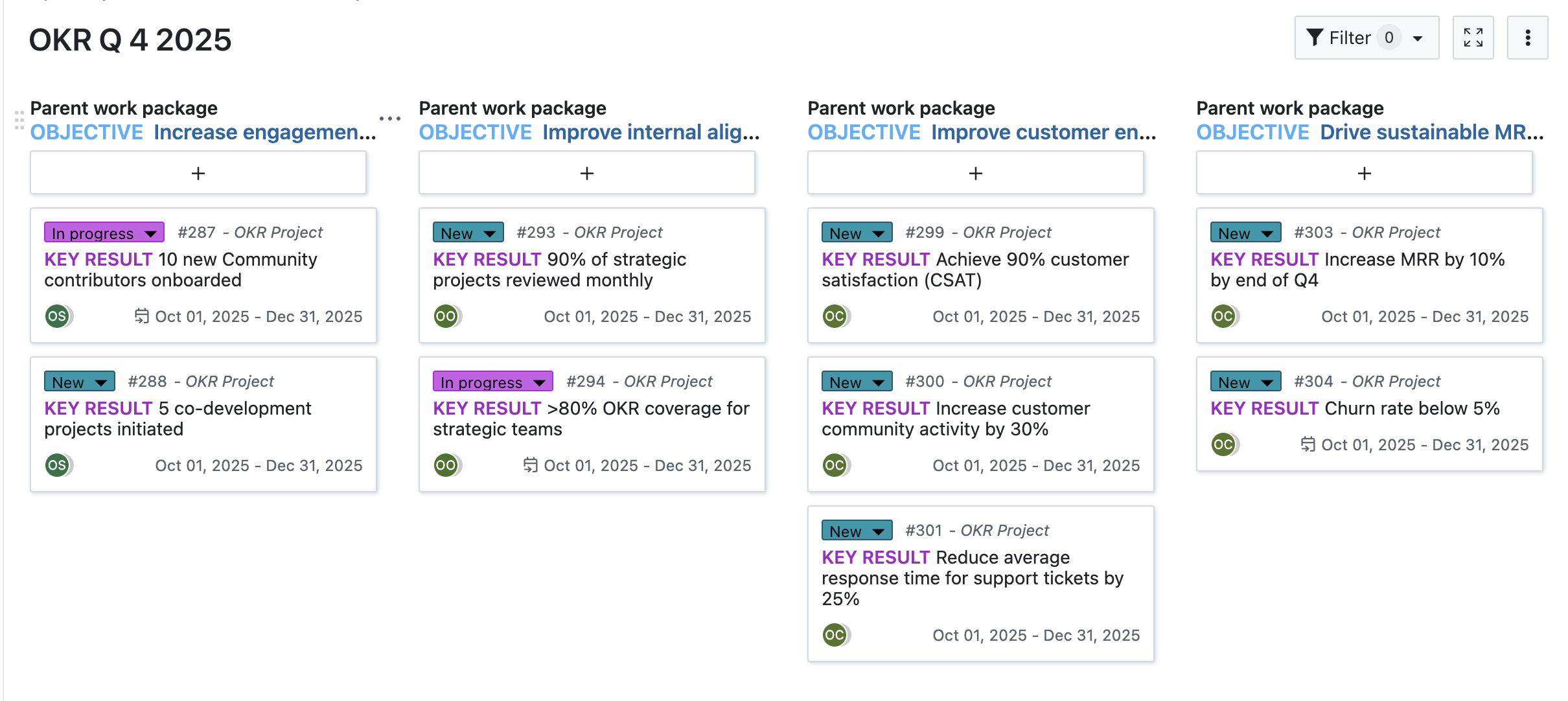
Some teams prefer working with boards instead of table views. For OKRs, a parent-child board is helpful to display Objectives and their corresponding Key Results:
This type of board view works well for (bi)weekly OKR check-ins to monitor and discuss progress for each Objective.
Meetings
When it comes to OKR, regular check-ins are essential not only for the team but also on a management or OKR master level. Here’s where one of OpenProject’s most popular features comes into play: the Meetings module. Set up a recurring meeting series based on a template, and you’ll have a dedicated space to regularly review the progress of your Objectives and Key Results.
With just a few clicks, you can add them to the agenda, include comments, and record an outcome during the meeting. It couldn’t be more convenient — everything is presented at a glance, with direct links to the work packages and email invitations sent to participants. Done.
Overview and statistics
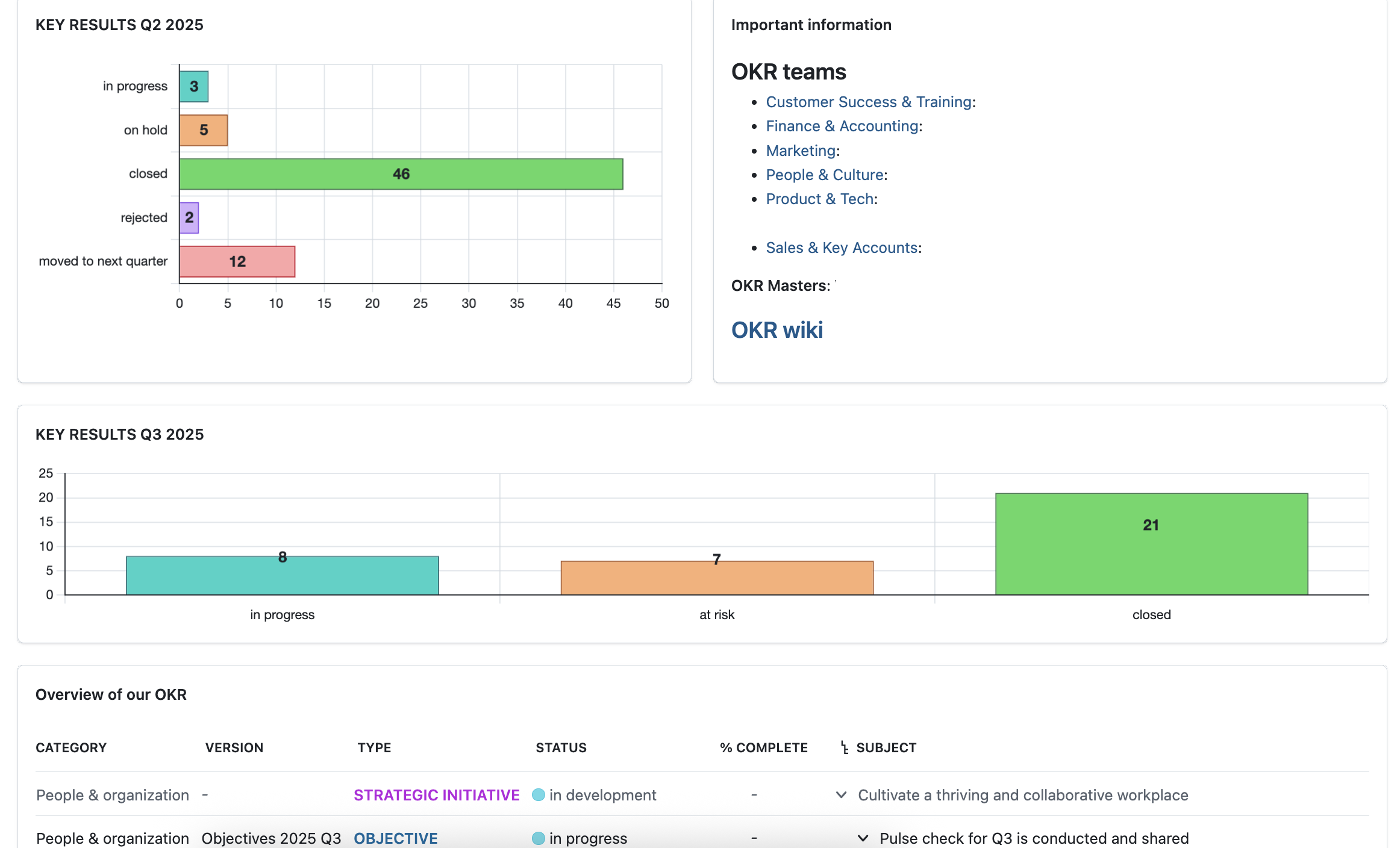
Use the project overview page to see at a glance which Key Results are at risk, closed or moved to the next quarter. Here’s an example of the OpenProject company OKR overview page:
Note
OpenProject is an OKR software that is frequently updated, with new releases every month. Looking ahead, we plan to improve our setup by experimenting with even more detailed dashboards and further automation. Take a look at our roadmap to see what we plan to release next!
Start a trial to test OpenProject for your OKRs
With everything set up, your team can now fully leverage OpenProject as OKR software to align goals, track results, and stay accountable.
OpenProject helps teams implement OKRs without switching tools. With flexible work package types and intuitive tracking, you can align strategy and execution in one place. Are you and your team working with OKRs as well? Try OpenProject now and see how OKR software built on open source can streamline your strategic alignment.
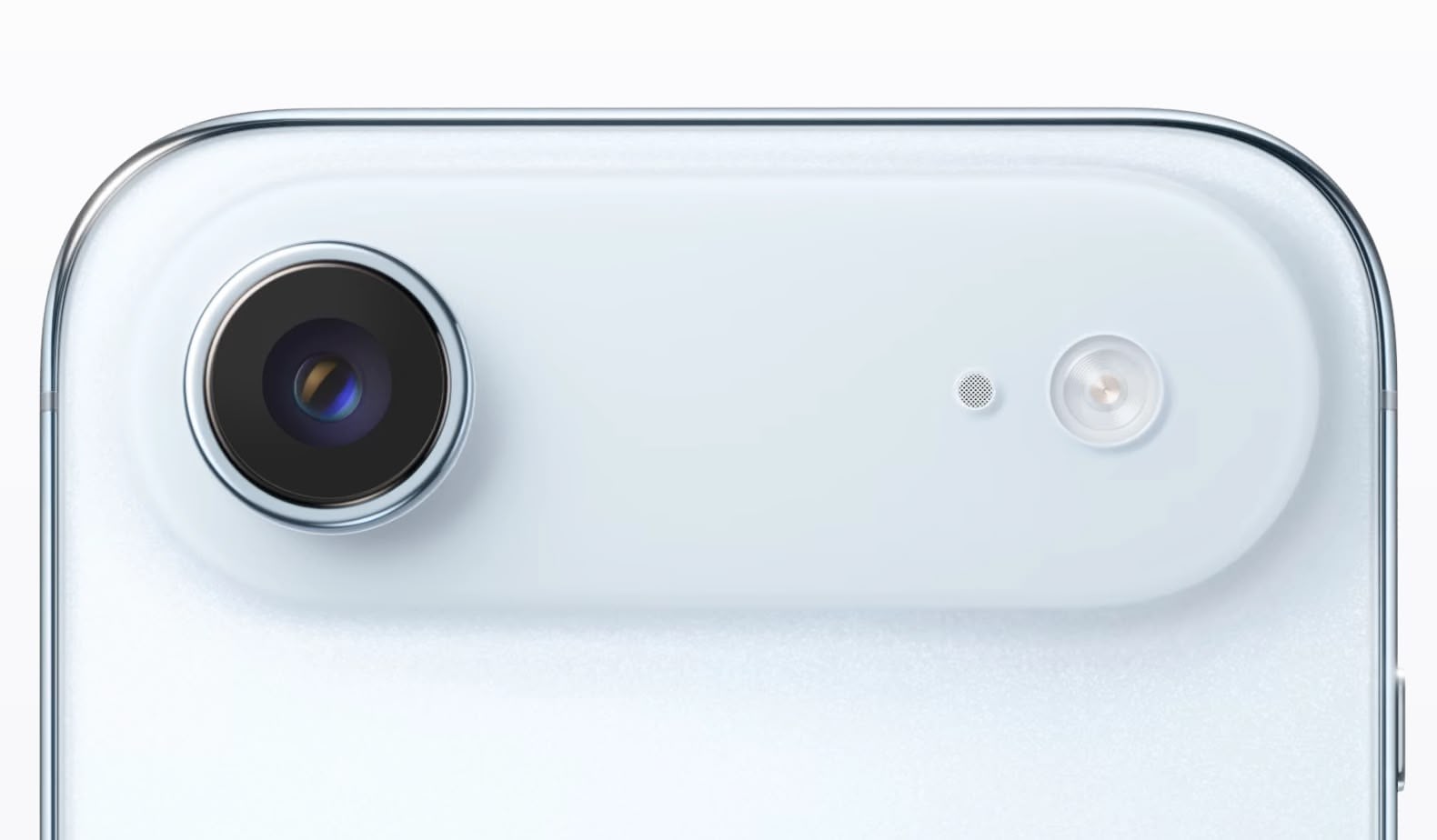
Apple's reported delay of the second-generation iPhone Air will be used to work on a redesign of the device that could include a second rear camera, according to a news brief from The Information.
A redesign that includes a second camera is said to be one way that Apple thinks it can address user complaints that the iPhone Air, while an impressive design feat, has led to too many hardware compromises, especially given the high price tag.
Apple priced it starting at $999, and that appears to have put off customers, leading to reports of poor sales and manufacturing cuts. The iPhone Air is only $100 cheaper than the $1,099 iPhone 17 Pro, which has a triple-lens rear camera and much better battery life. Adding a second camera to the ultra-slim device would also make it look more feature-equivalent to the standard iPhone 18 and therefore more appealing to consumers.
Citing people with knowledge of the matter, the report claims that some Apple engineers want to release the redesigned version with a second camera in spring 2027, which is when Apple is expected to release the regular iPhone 18 and iPhone 18e, as part of a new split launch cycle. The iPhone 18 Pro, iPhone 18 Pro Max, and an all-new foldable iPhone are expected to launch in fall 2026, which was when the iPhone Air 2 was originally expected. The Information reported on the delay earlier this week.
The report seemingly corroborates a leak out of China last week that claimed Apple's second iPhone Air model is in development and could feature two rear cameras instead of one, with a 48MP Fusion Ultra Wide camera joining the existing 48MP Fusion Main camera. Multiple technologies are housed in the plateau of the iPhone Air to maximize space for the battery, so Apple would presumably need to redesign the internals considerably to fit in another camera.
Previous reports have said Apple's work on a second-generation version of the iPhone Air is aimed at reducing the weight, adding vapor chamber cooling, and improving the battery capacity.
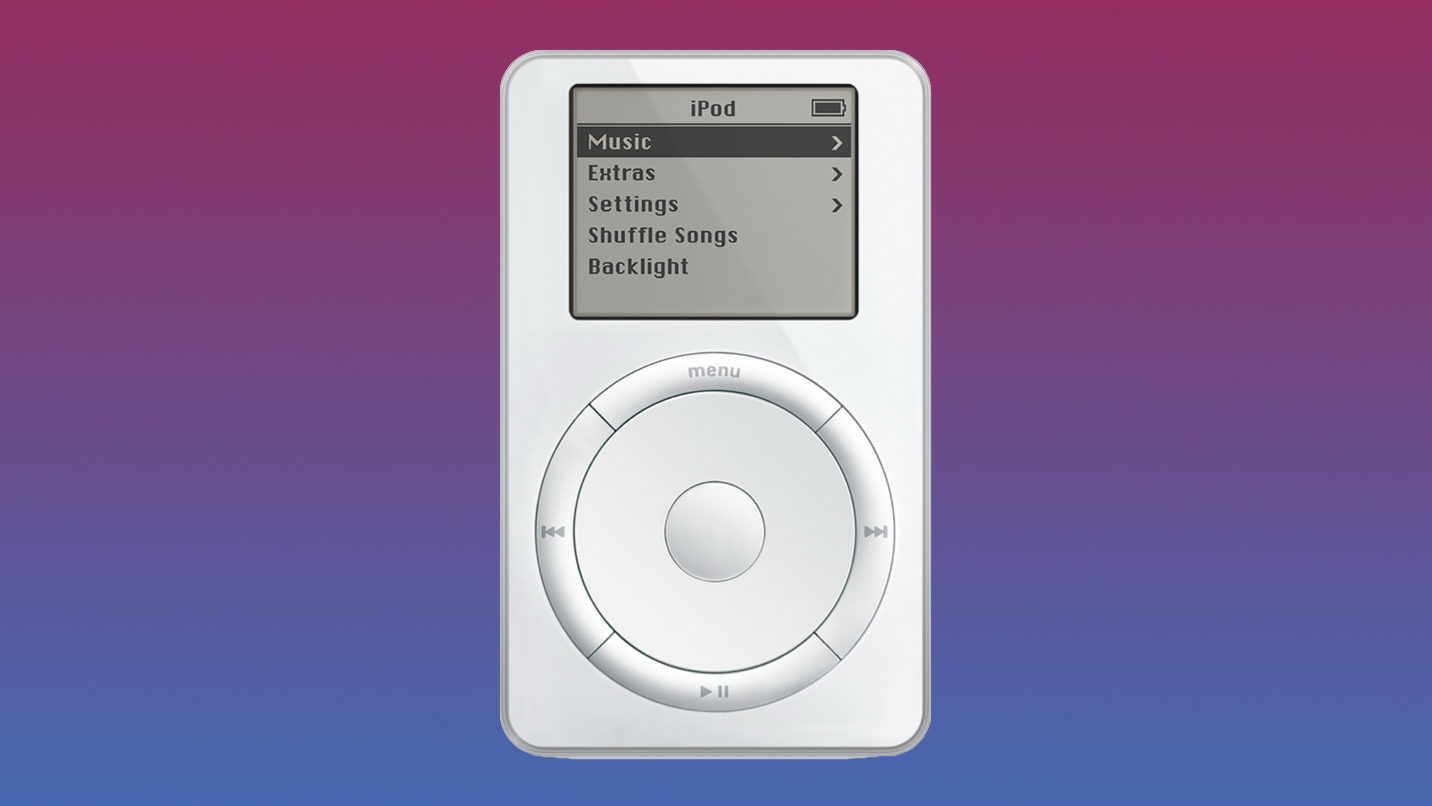
The first-generation iPod came out on November 10, 2001, making today the 24th anniversary of the device's launch. Apple announced it in late October, but November 10 was the first day customers were able to get their hands on it.
Even way back in 2001, there were leaks and fake leaks before the iPod launched. In one rumor article, Apple's upcoming device was dubbed the "iWalk" and described as a PDA with a high-color TFT-screen with handwriting recognition, which did not prove to be true. CNET suggested that it was too sophisticated to be an MP3 player, and was instead a component for a home digital stereo system, while a German website said it was "like a standalone CD-writer" that looks like "a Hifi component." The site did accurately predict that it would make it possible to "have all the music in the house stored on one place," but described it as a sort of AirPlay-enabled speaker.
More reliable rumors accurately pegged it as a digital music device able to sync with a computer, and in the days leading up to the launch, the iPod name leaked. Even with the info that came out, much of the iPod's introduction was a surprise because 2001 leaks were much less detailed than 2025 leaks.
Some MacRumors readers lined up to buy one on launch day, kicking off a tradition of long lines at Apple Stores that continued well into the iPhone launch days. As with any Apple product launch, there were some mixed reactions to the iPod, and of course a slew of early complaints. Here's what the forums had to say:
There were plenty of MacRumors readers thrilled with the iPod, and as we well know, it was a wildly popular device that spurred several subsequent models and eventually led to the launch of the iPhone.
It was impressive to be able to have a 5GB FireWire drive in your pocket at the time, and iPod owners used it as a hard drive for file transfers. MP3 players existed, but nothing with the storage capacity and design of the iPod.
With the iPhone that does everything an iPod does, there's no longer a need for the iPod. The very last iPod was the iPod touch, which Apple updated sporadically and then didn't touch after 2019. It was officially discontinued in 2022, marking the end of the iPod line. Apple almost never announces when a product has been discontinued, but the iPod was an exception given its history.
In a statement, Apple's marketing chief Greg Joswiak said that the "Spirit of the iPod lives on" across all of the company's products, from the iPhone to Apple Watch to HomePod.
The iPod will celebrate its 25th anniversary next year. Apple has revived old products in the past, but people have little use for a music-only device in 2025. Apple is, however, working on a home hub that can play music, run apps, and control smart home products, and it's described as a small, square device with a display. It's possible Apple could reference the iPod when unveiling the device, or even borrow a part of its name like it did when naming the HomePod. This article, "Happy 24th Anniversary, iPod" first appeared on MacRumors.com
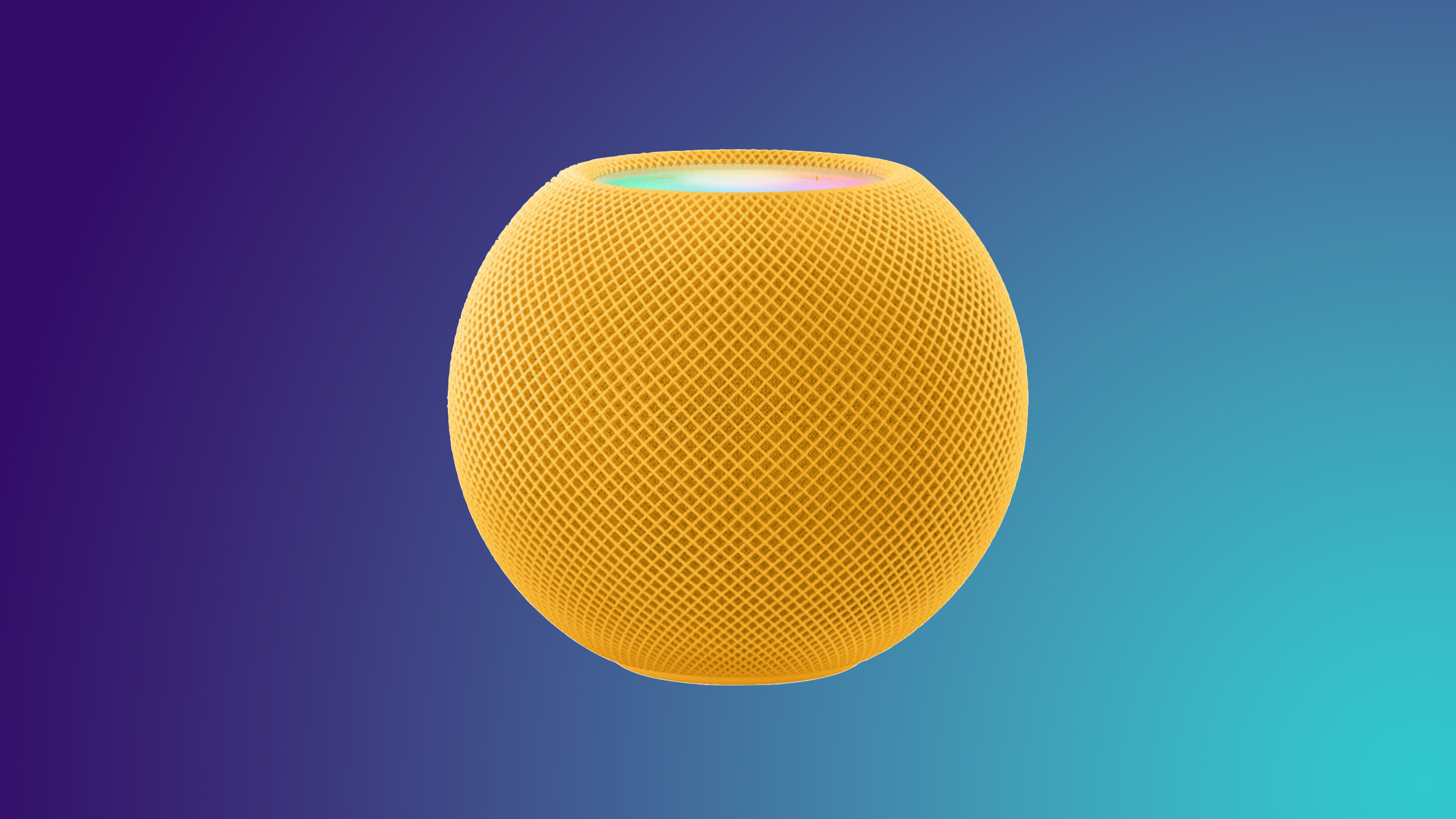
Apple product retailer B&H is listing all HomePod mini models as discontinued, and no longer offering them for sale. Some other retailers are also listing the HomePod mini as out of stock or on backorder, which suggests that an update isn't too far off.
Adorama lists the HomePod mini as backordered, and select colors are out of stock at Target. Walmart doesn't have any stock that's not from resellers, Staples has no HomePod minis available online, and at least one color is sold out from Verizon. The Midnight color option is unavailable for shipping from Best Buy, though other colors are in stock. Apple is still selling all colors of the speaker, with options available for both immediate shipping and pick up.
Apple is rumored to be working on a new version of the HomePod mini, and Bloomberg said it could come as soon as this month. It's possible that the waning stock at third-party retailers is a sign that we'll get a new version of the HomePod mini before the end of 2025.
Apple held an event in September and did a series of product releases in October, casting some doubt that a new model is still on the immediate horizon.
The next HomePod mini is expected to have an upgraded S-series chip inside and Apple's N1 networking chip, but there are no design changes rumored except for refreshed color options. This article, "B&H Lists HomePod Mini as Discontinued Amid Refresh Rumors" first appeared on MacRumors.com
The thin, light iPhone Air sold so poorly that Apple has decided to delay the launch of the next-generation iPhone Air that was scheduled to come out alongside the iPhone 18 Pro, reportsThe Information.
Apple initially planned to release a new iPhone Air in fall 2026, but now that's not going to happen.
Since the iPhone Air launched in September, there have been reports of poor sales and manufacturing cuts. Apple's supply chain has scaled back shipments and production. Apple supplier Foxconn has reportedly dismantled all but one and a half of its production lines for the iPhone Air, and all production is expected to be stopped at the end of the month. Luxshare, another supplier, stopped production at the end of October.
Apple was counting on the novel look of the device to spark interest, because it features the first substantial design update that we've seen to the iPhone lineup since the iPhone X added Face ID and an all-display design in 2017. Creating a super thin 5.6mm iPhone required compromises, so the iPhone Air has a smaller battery and a single-lens rear camera, but it still has a high price tag. Apple priced it starting at $999, and that appears to be more than customers are willing to pay for style without substance. The iPhone Air is only $100 cheaper than the $1,099 iPhone 17 Pro, which has a triple-lens rear camera and much better battery life.
Apple has not been able to land on a fourth iPhone that will sell well alongside the standard iPhone and Pro iPhone models. Apple experimented with a smaller 5.4-inch iPhone mini that suffered from disappointing sales, then moved on to the larger "Plus" iPhone that served as a more affordable version of the Pro Max. Plus models also failed, leading to the iPhone Air.
Apple has already been planning for a split launch for the iPhone starting with the iPhone 18 models. The iPhone 18 Pro, iPhone 18 Pro Max, and foldable iPhone are planned for fall 2026, while the iPhone 18 and iPhone 18e will be held until early 2027. It's possible that the next-generation iPhone Air will come out alongside the iPhone 18 in the spring.
Apple has been working on a second-generation version of the iPhone Air with a lighter weight, vapor chamber cooling, and a larger battery capacity, but Apple could rethink the design.
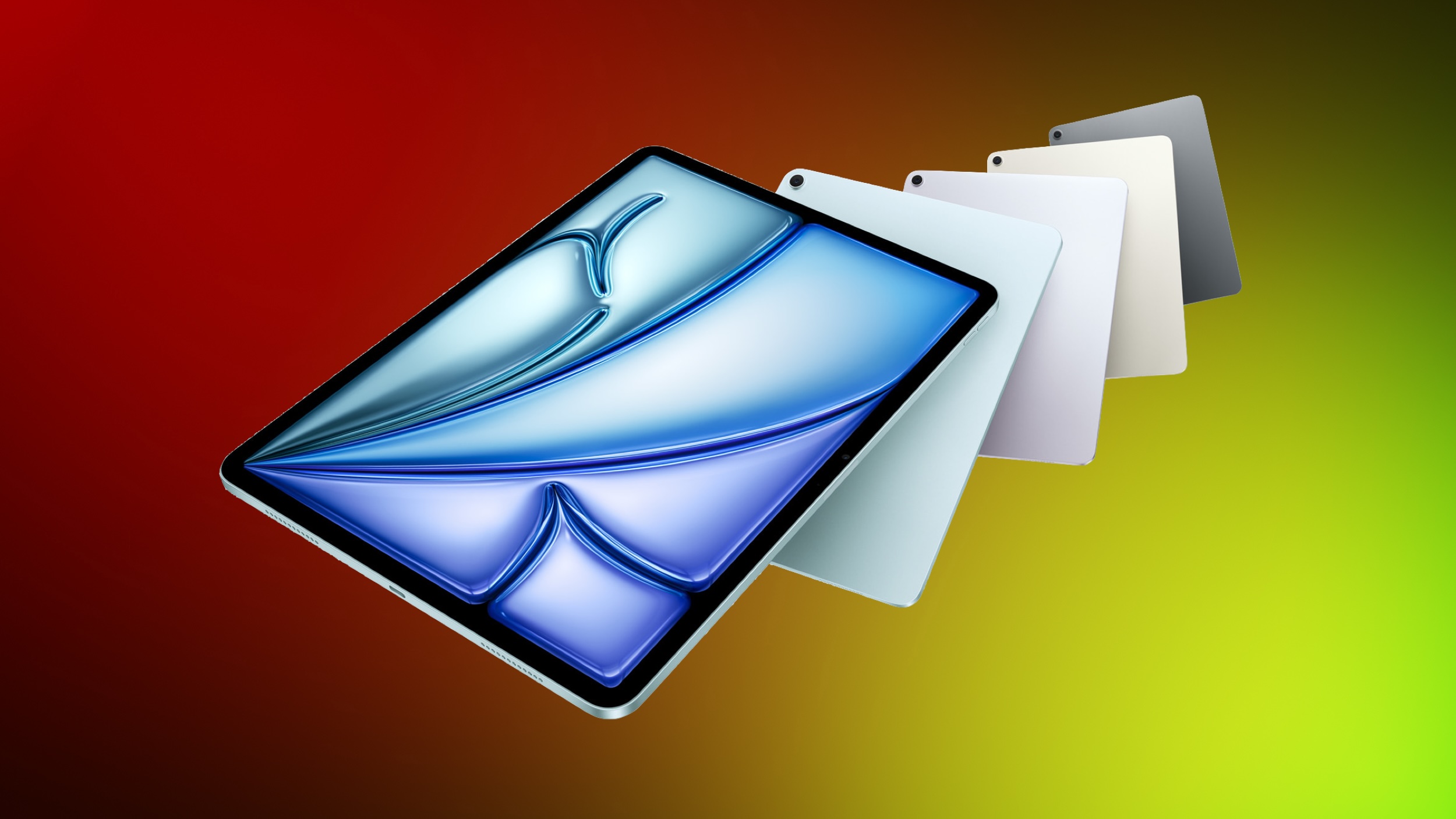
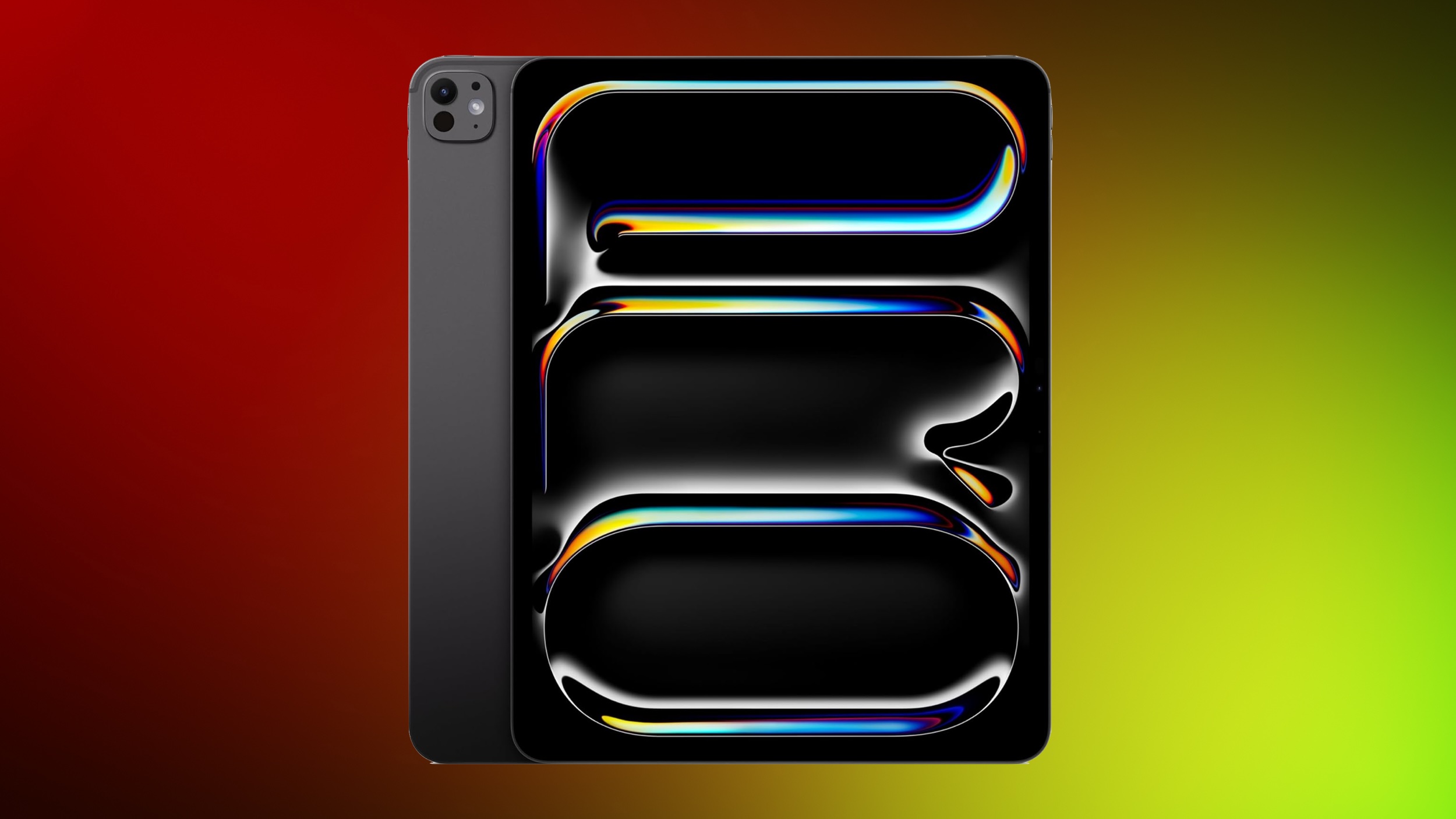
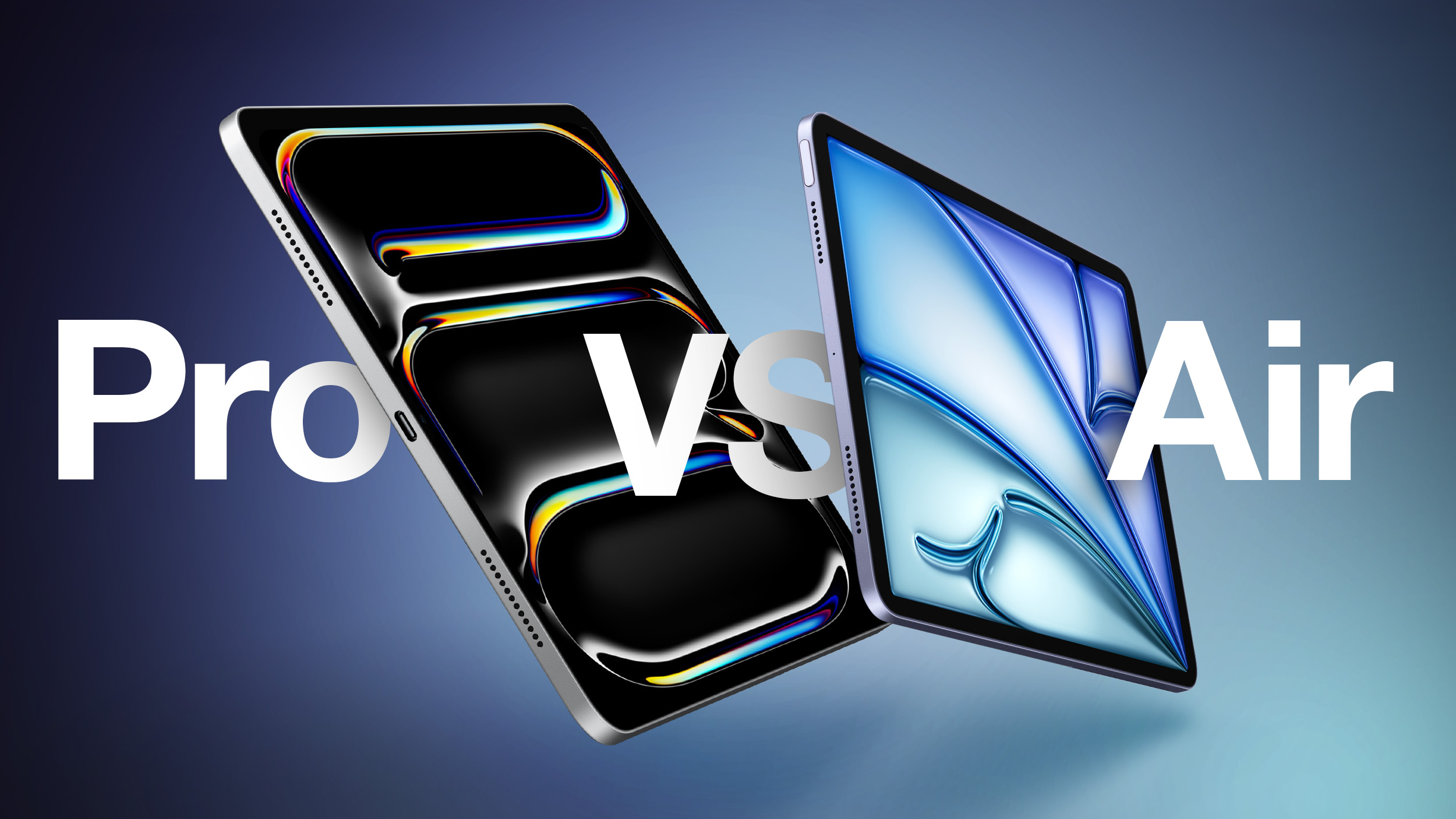
Apple recently updated the iPad Pro, widening the gap with the iPad Air, but how different are the two product lines and which should you buy?
Earlier this year, Apple refreshed the iPad Air with the M3 chip—a minor update over the previous model from 2024 which added the M2 chip and Apple Pencil hover. The latest iPad Pro models introduced the M5 chip alongside a small number of changes after last year's major redesign, which saw the debut of a thinner design with OLED displays.
Should you consider purchasing the iPad Air to save money, or do you need the high-end features of the iPad Pro? Our guide answers the question of how to decide which of these two iPads is best for you.
iPad Air (M3, 2025)
iPad Pro (M5, 2025)
Liquid Retina display (LED backlit display with IPS technology)
Ultra Retina XDR display (Tandem OLED)
ProMotion technology for refresh rates up to 120Hz
11-inch model SDR brightness: 500 nits max
13-inch model SDR brightness: 600 nits max
SDR brightness: 1,000 nits max
XDR brightness: 1,000 nits max full screen, 1,600 nits peak (HDR content only)
Nano-texture display glass option on 1TB and 2TB models
Drive external displays at 60Hz
Drive external displays at up to 120Hz
Adaptive Sync support
M3 chip
M5 chip
Made using TSMC's first-generation 3nm technology (N3)
Made using TSMC's third-generation 3nm process (N3P)
Portrait mode with advanced bokeh and Depth Control
Portrait Lighting with six effects (Natural, Studio, Contour, Stage, Stage Mono, High-Key Mono)
Animoji and Memoji
LiDAR scanner
Adaptive True Tone flash
Rear ambient light sensor
ProRes video recording up to 4K at 30 fps (1080p at 30 fps for 256GB capacity)
ProRes video recording up to 4K at 60 fps with external recording
Two microphones
Four studio-quality microphones
Audio zoom
Stereo recording
Landscape stereo speakers
Four speaker audio
Weight: 462 grams or 617 grams
Weight 444 grams or 579 grams
Depth: 6.1 mm
Depth: 5.3 mm or 5.1 mm
Fast-charge capable (Up to 50% charge using a 60W adapter or higher in 30 minutes with the 11-inch model or 35 minutes with the 13-inch model)
USB‑C connector
USB‑C connector with support for Thunderbolt/USB 4
Supports Magic Keyboard for iPad Air
Supports Magic Keyboard for iPad Pro
128GB, 256GB, 512GB, or 1TB storage
256GB, 512GB, 1TB, or 2TB storage
Up to 2× faster SSD read and write speeds
Available in Space Gray, Starlight, Purple, and Blue
Available in Space Black and Silver
Price starting at $599
Price starting at $999
Overall, the iPad Air is the better option for the majority of users, simply on the basis of value for money. For most people, the additional $400+ needed to buy the iPad Pro is not justified to get the likes of Face ID, a thinner design, four-speaker audio, and a ProMotion OLED display with refresh rates up to 120Hz.
Some iPad Pro features, such as LiDAR, up to 16GB of memory, and Thunderbolt connectivity are only practically useful to a small niche of users and most will never use some of these high-end capabilities. Many features, such as Adaptive Sync and Audio zoom, will not be meaningfully utilized by many users.
Professionals who have a clear use case for needing larger amounts of RAM and storage, a matte display, Thunderbolt connectivity, and OLED for HDR content will clearly benefit from buying the iPad Pro. That being said, "prosumer"-style customers who simply want the best iPad will enjoy features such as 120Hz ProMotion for smoother scrolling and gaming, a thinner design, deeper blacks and more vivid colors with the OLED display, and the Adaptive True Tone flash for document scanning, even if they are not necessary.
Beyond these individual circumstances, the iPad Air is the best value for money and will be more than ample for most users' needs. With the iPad Air, users can get a modern all-screen design, the M3 chip, practical features like USB-C and 5G connectivity, and compatibility with the core Apple accessories for a price well below that of the iPad Pro.
A new iPad Air with the M4 chip is in development and will likely launch in the first half of 2026, which may be worth bearing in mind if you aren't in a hurry to make a purchase. The new chip is expected to be the main upgrade, with few other new features or enhancements expected.
 Login
Login


 Note: MacRumors is an affiliate partner with some of these vendors. When you click a link and make a purchase, we may receive a small payment, which helps us keep the site running.
 Note: MacRumors is an affiliate partner with some of these vendors. When you click a link and make a purchase, we may receive a small payment, which helps us keep the site running.