Apple recently added iPad Air models with the M3 chip to its refurbished store in the United States and many European countries, including the United Kingdom, France, Germany, Italy, Spain, Belgium, the Netherlands, and others.
This is the first time the iPad Air with the M3 chip has been available in Apple's refurbished store since the device was released in March this year.
As usual, the refurbished models are discounted by approximately 15% compared to new models. In the United States, for example, the 11-inch iPad Air with the M3 chip, 128GB of storage, and Wi-Fi only is available for $509, compared to $599 new.
Apple says its refurbished iPads include a new battery and outer shell, a new box, and all accessories, including a 20W USB-C power adapter and/or a USB-C charging cable depending on the country. Apple says it puts refurbished devices through a "thorough cleaning process and inspection," resulting in a like-new condition.
All refurbished iPads are covered by Apple's one-year warranty. AppleCare+ is available.
A new study has revealed that the iPhone 17, iPhone 17 Pro, iPhone 17 Pro Max, and iPhone Air achieve significantly faster average Wi-Fi speeds compared to the iPhone 16 series, thanks to Apple's custom-designed N1 chip.
The study was conducted by Ookla, the company behind the popular Speedtest website and app. It said the results are based on global, crowdsourced Speedtest user data collected from September 19 to October 29 of this year.
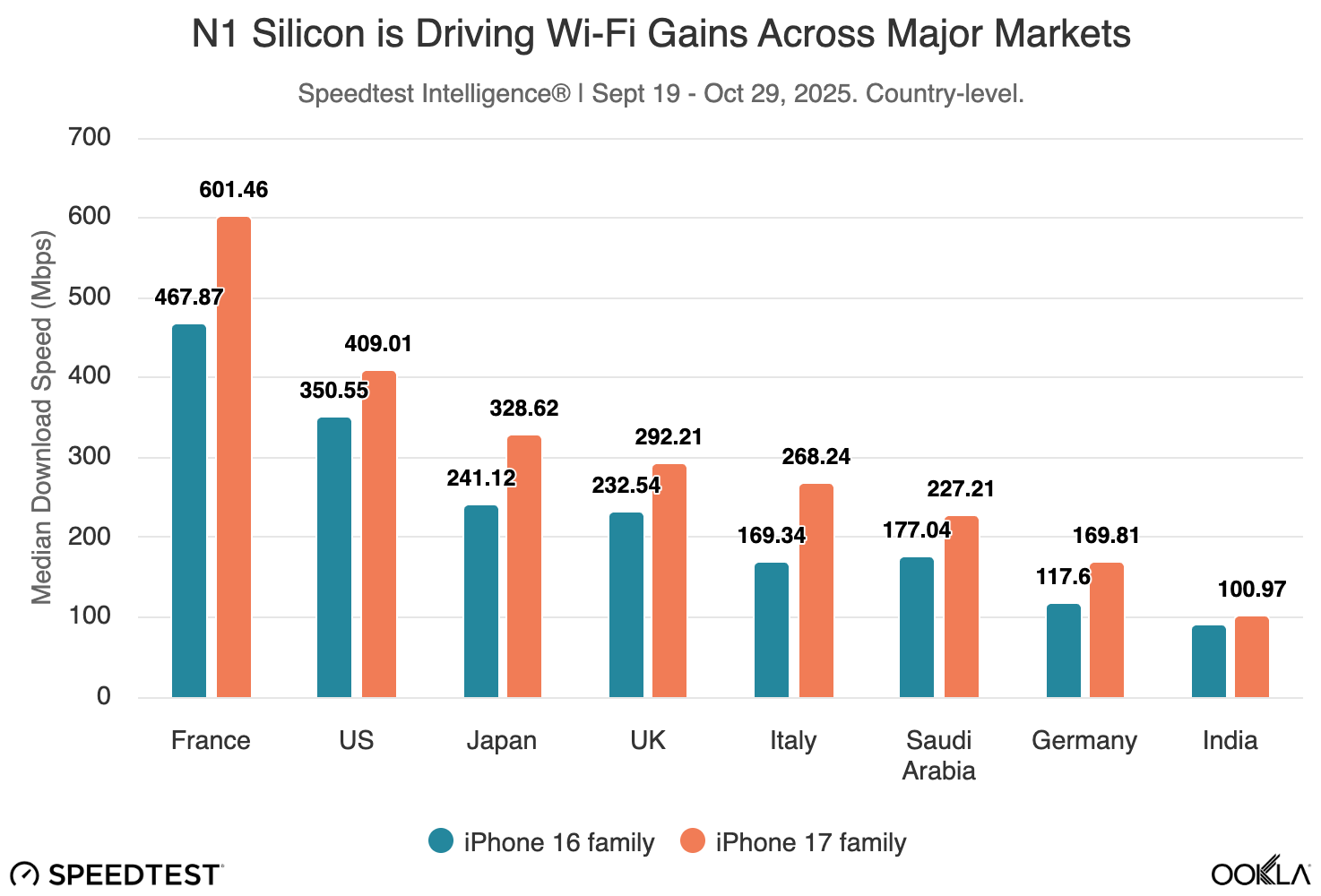
Ookla said Apple's N1 chip is a "substantial upgrade," with up to 40% faster average download and upload speeds compared to Broadcom's Wi-Fi chip in the iPhone 16 series. The study found that speeds were faster across every country it analyzed, including the United States, France, Italy, the United Kingdom, India, Japan, and others.
The study found that the N1 chip "lifts the floor" for Wi-Fi performance, more than "raising the ceiling." Based on the results, Ookla said the N1 chip often delivers more consistent performance in challenging Wi-Fi conditions.
In the United States in particular, Ookla said the iPhone 17 and iPhone Air series achieved a median average Wi-Fi download speed of 409 Mbps, compared to 350 Mbps for the iPhone 16 series. That is a nearly 17% increase.
A few months ago, we reported that the N1 chip supports up to 160 MHz channel bandwidth for Wi-Fi 7, short of the standard's 320 MHz maximum. This limitation means the devices cannot achieve the peak theoretical speeds possible with Wi-Fi 7, but we said this was a non-issue for most customers, and the study backs that up.
Ookla said the results show the 160 MHz limitation "does not materially affect performance in real world use for most people."
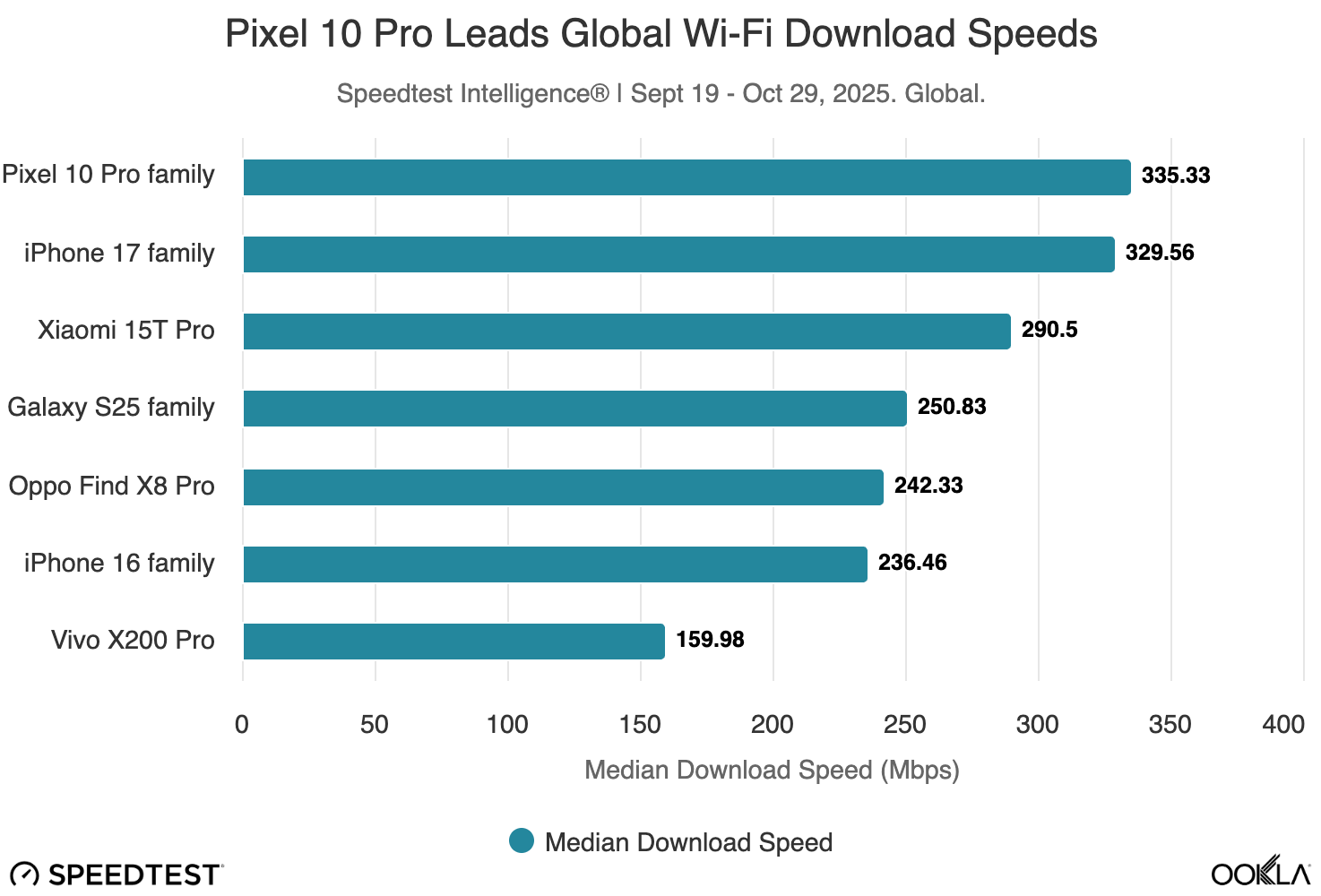
While the study found the iPhone 17 and iPhone Air series tops the iPhone 16 series in terms of average global Wi-Fi download speeds, Ookla said the Google's Pixel 10 Pro series was even faster, but only by a slim margin.
The Pixel 10 Pro came in at 335 Mbps, edging out the iPhone 17 series at 329 Mbps.
All in all, the study reveals that the N1 chip is an upgrade, not a downgrade. If you are considering purchasing any of the iPhone 17 or iPhone Air models, it looks like you can be confident that Wi-Fi performance will not be an issue.
Managing goals in form of Objectives and Key Results (OKRs) is a proven framework used by companies of all sizes to align strategy and execution. To successfully work with OKRs, teams need a flexible and transparent OKR software that supports both high-level strategic planning and day-to-day task management. OpenProject is perfectly suited as an OKR software to meet this goal.
Read the following guide to learn how you and your organization can use the OpenProject software to manage your OKRs in three steps.
Insights: Our experience with OpenProject as OKR software
OpenProject is known as top project management and task software. What many people don’t yet realize is that the tool can also be used wonderfully for the OKR methodology. In other words, for strategic goal setting with Objectives and Key Results. The OpenProject team is a good example of how OpenProject works in practice as OKR software. Since Q1 2025, we have been using OpenProject to plan and track our corporate Strategic Initiatives, Objectives, and corresponding Key Results.
Today, we share our experience and learnings, so that you can benefit from our test runs and use these instructions to get started with your own OKRs right away.
Note
We will show some screenshots in this article. Please note that some of them actually show our real company OKR project while others are based on demo data. Nevertheless, the process and structure reflects the way we work with Objectives and Key Results internally.
Learning 1: OKR masters and regular check-ins
To start with OKRs in our company, we selected and trained two so-called OKR masters. They are experts in the OKR framework and know best how to handle Objectives and Key Results, e.g. when it comes to phrasing or questions like “What do I do with OKRs that we didn’t finish in this quarter?”.
To do so, they also attend our regular OKR check-ins – to answer questions and stay informed on how the different OKR teams proceed. In the first quarters, we scheduled these check-ins weekly. Now that everyone is more experienced in working with OKRs, some teams changed the frequency to bi-weekly or even monthly check-in meetings.
Learning 2: Dedicated OKR teams in a dedicated project
As we use the OpenProject software for many different projects, it was quite clear that we needed a dedicated OKR project for all our Objectives and Key Results. Nevertheless, this OKR project is not time-limited. New OKRs are added every quarter, and at the same time, we can view past quarters at any time.
What we have learned: Creating dedicated OKR teams is very helpful. Not only because the composition of OKR teams can differ from our usual team structure, but also because OKR teams may require different permissions.
In addition, we created an OKR wiki right at the beginning, which the OKR masters keep up to date. In it, employees can find all the information they need for internal work with OKRs.
Guide: How to use OpenProject as OKR software in 3 steps
These were our most important learnings after three quarters working with OKRs in OpenProject. Now, let’s see how exactly you can use the tool for OKRs, step by step.
For an OKR project, you’ll need specific work package types like:
Strategic Initiative
Objective
Key Result
Task
These are the work package types we use to manage our OKRs at OpenProject.
For statuses, we rely on the same ones we typically use, e.g. “new”, “in progress” or “closed”. Additionally we added the status “moved to next quarter”, which is very helpful if you want to continue on an Objective or Key Result in the following months. This way, accountables just need to update the status and change the version, e.g. from “Objectives 2025 Q3” to “Objectives 2025 Q4”.
As mentioned above, we advise to set up OKR groups for different teams so that everyone, e.g. the OKR master, can assign work packages to the specific teams. This allows individual teams to see at a glance which OKRs belong to them and decide among themselves who is accountable for which Objective or assigned to which task.
Tip
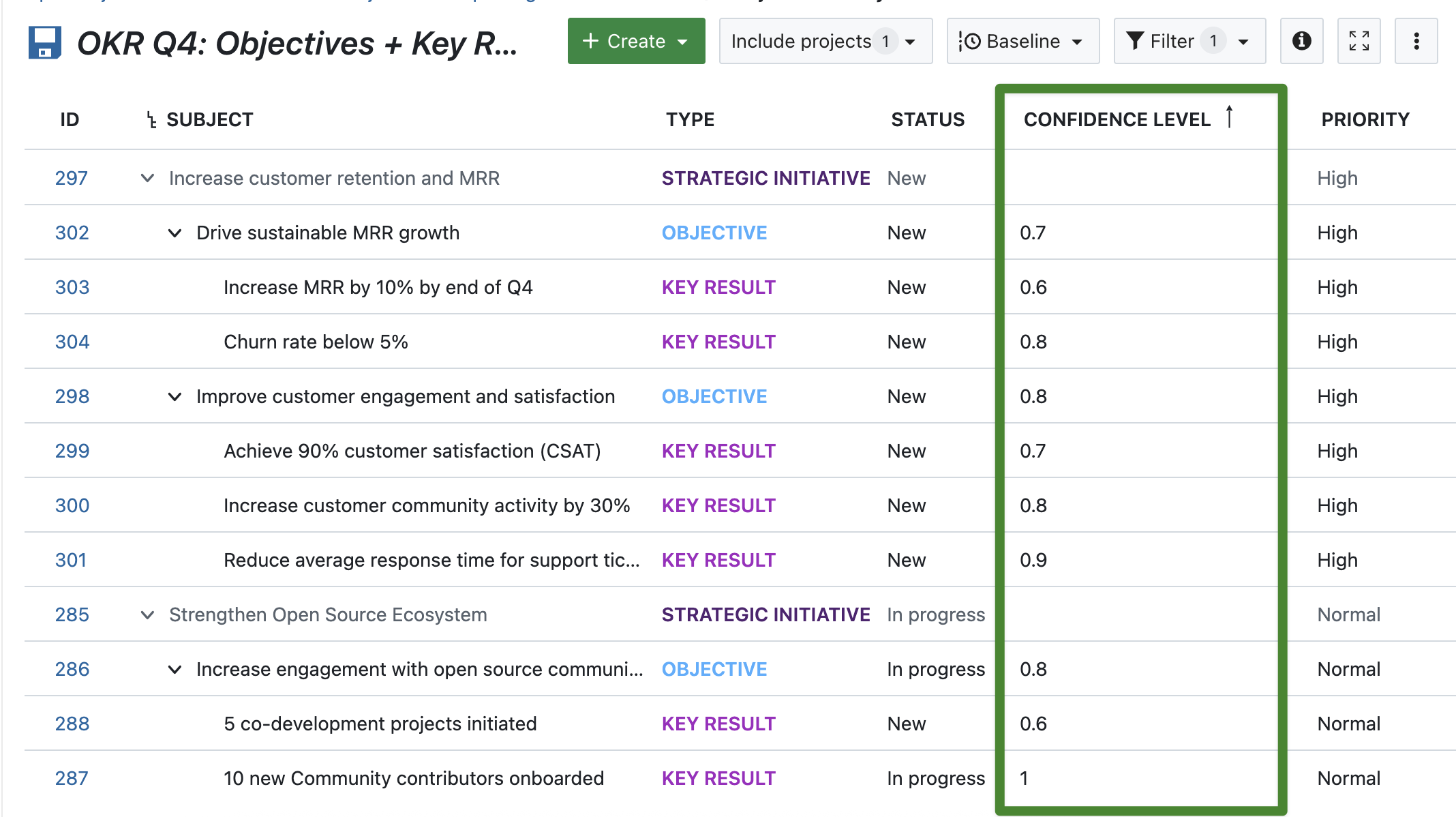
We’re still experimenting with custom fields for OKR work packages. One idea is to set up a custom field for the Confidence Level, on Objective and on Key Result level. Accountables can then update the Confidence Level regularly to track how certain they are that the Objective or Key Result will be achieved by the end of the quarter – for example, by setting it to 0.7 if they estimate the probability to be 70%.
Step 2: Start Strategic Initiatives, Objectives and Key Results for the next quarter
Now that everything is preset, step 2 can start: defining quarter-specific Strategic Initiatives, Objectives and Key Results. This step builds on the company’s vision, mission, and annual goals — ensuring that each new OKR directly contributes to the overall strategy. Typically, the Strategic Initiatives and Objectives are defined and approved at the management level, while the corresponding Key Results and related tasks are then discussed and refined collaboratively within each team.
Work package relations
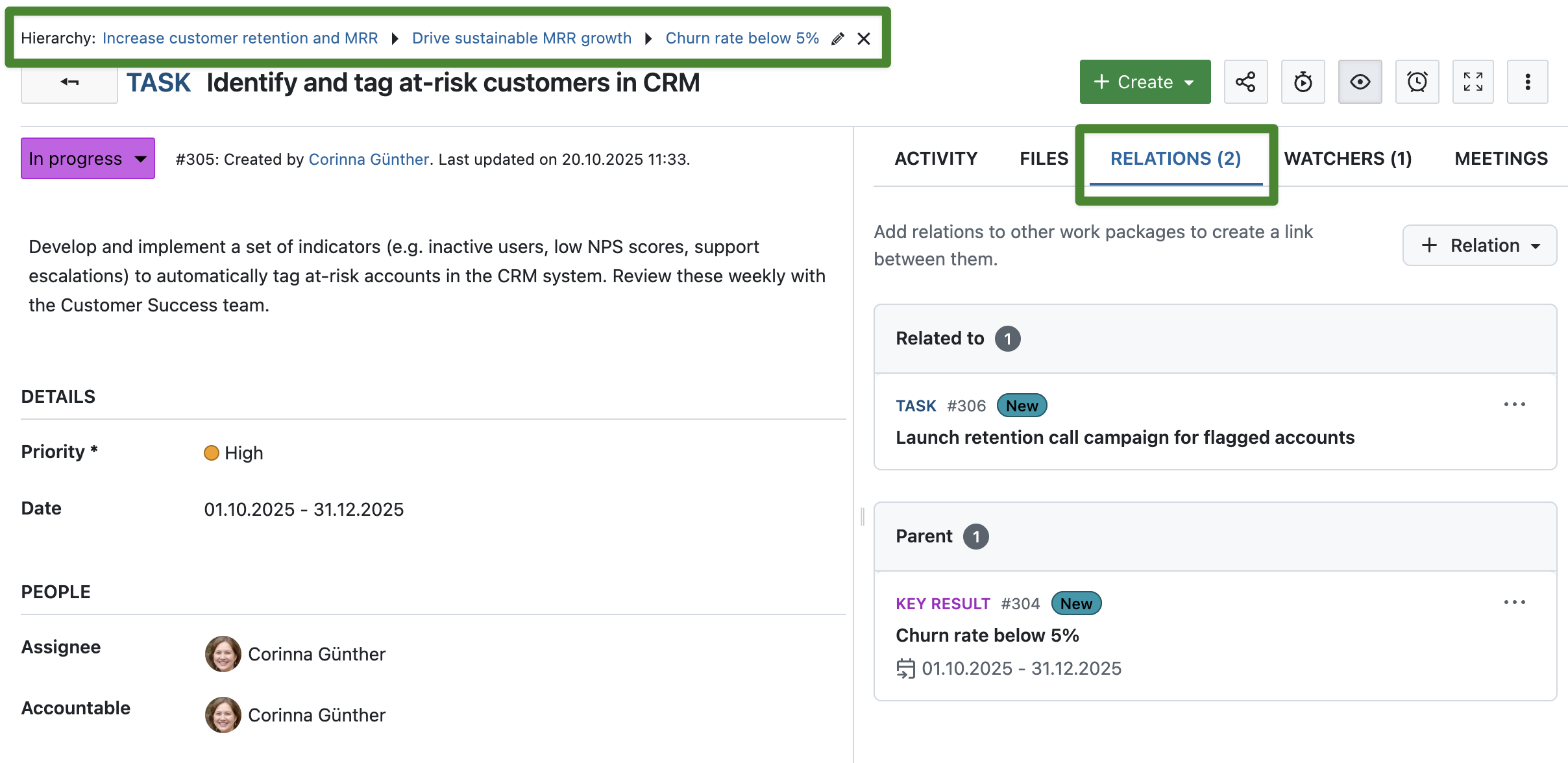
Of course, these work packages should all be linked in a smart way. In OpenProject, simply use parent-child relations to display dependencies between a Strategic Initiative, its Objectives and Key Results:
Once you have created all relevant work packages for the quarter and have set up all relations, it might be helpful to bulk edit them to add more information:
Set the start and finish date to the start and end of the quarter.
Set the version e.g. to Q4 2025, so that you can filter for that.
Adjust priorities if necessary.
Apart from these general attributes, it is always helpful to add work package descriptions and if you work with estimates and progress, fill out the fields for Work – depending on your progress reporting mode (which is defined on an instance level).
Step 3: Monitor and schedule regular OKR meetings
Once everything is set up in OpenProject, the real work can start. To keep track of your OKR progress, you can filter and save Work package tables, Boards or Gantt charts.
Work package tables
Here’s a real screenshot of our internal OKR work package tables:
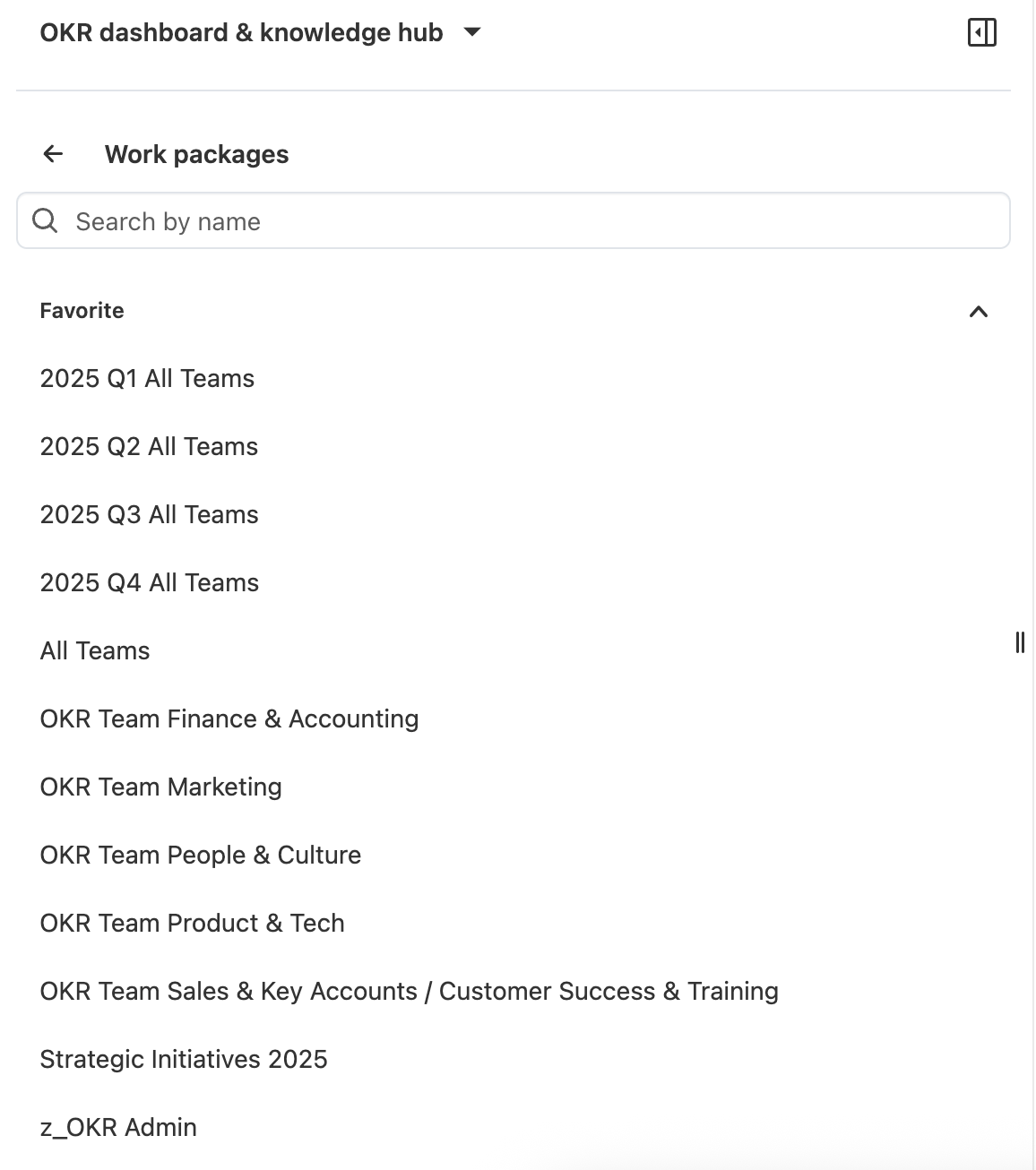
You can see saved work package tables for all teams for different quarters as well as team-specific tables. Helpful on a management level is a filtered view for all Strategic Initiatives across quarters.
Boards
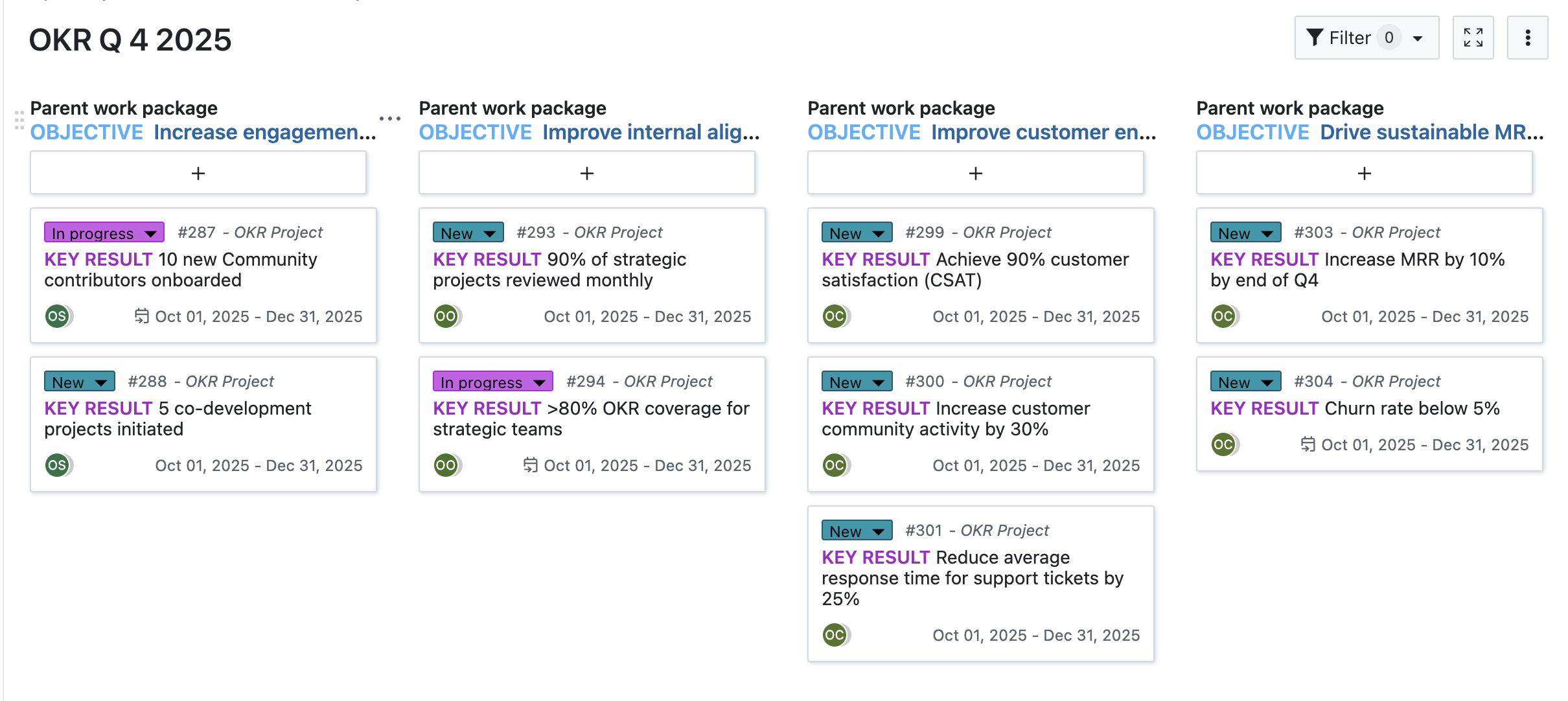
Some teams prefer working with boards instead of table views. For OKRs, a parent-child board is helpful to display Objectives and their corresponding Key Results:
This type of board view works well for (bi)weekly OKR check-ins to monitor and discuss progress for each Objective.
Meetings
When it comes to OKR, regular check-ins are essential not only for the team but also on a management or OKR master level. Here’s where one of OpenProject’s most popular features comes into play: the Meetings module. Set up a recurring meeting series based on a template, and you’ll have a dedicated space to regularly review the progress of your Objectives and Key Results.
With just a few clicks, you can add them to the agenda, include comments, and record an outcome during the meeting. It couldn’t be more convenient — everything is presented at a glance, with direct links to the work packages and email invitations sent to participants. Done.
Overview and statistics
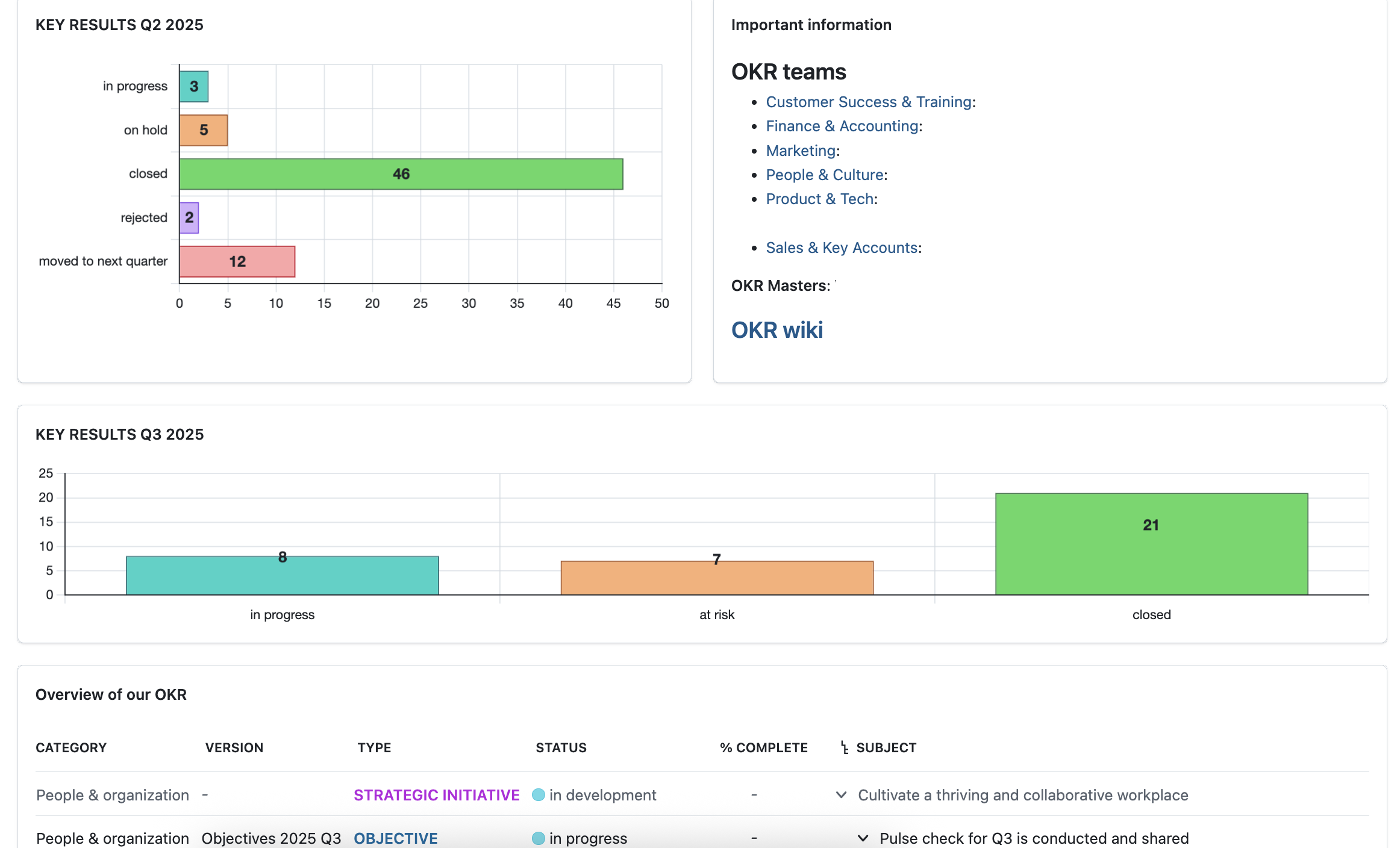
Use the project overview page to see at a glance which Key Results are at risk, closed or moved to the next quarter. Here’s an example of the OpenProject company OKR overview page:
Note
OpenProject is an OKR software that is frequently updated, with new releases every month. Looking ahead, we plan to improve our setup by experimenting with even more detailed dashboards and further automation. Take a look at our roadmap to see what we plan to release next!
Start a trial to test OpenProject for your OKRs
With everything set up, your team can now fully leverage OpenProject as OKR software to align goals, track results, and stay accountable.
OpenProject helps teams implement OKRs without switching tools. With flexible work package types and intuitive tracking, you can align strategy and execution in one place. Are you and your team working with OKRs as well? Try OpenProject now and see how OKR software built on open source can streamline your strategic alignment.

 Login
Login