Login
Login
OpenProject 16.5: Better planning and accessibility
OpenProject 16.5 has been released and this version introduces new features and improvements again. Please take a few minutes to learn what changes for you. We will summarize the most important changes in this blog article and, as always, please see our release notes that contain all changes, features and bug fixes.
- Add work packages to a meeting section in the Meetings tab
- Choose color mode more conveniently with “Increase contrast” checkboxes
- Filter projects by last update
- Jump to highlighted target elements from deep links
- Confirm critical actions with more accessible danger dialogs
- Better access to helpful information
Add work packages to a meeting section in the Meetings tab
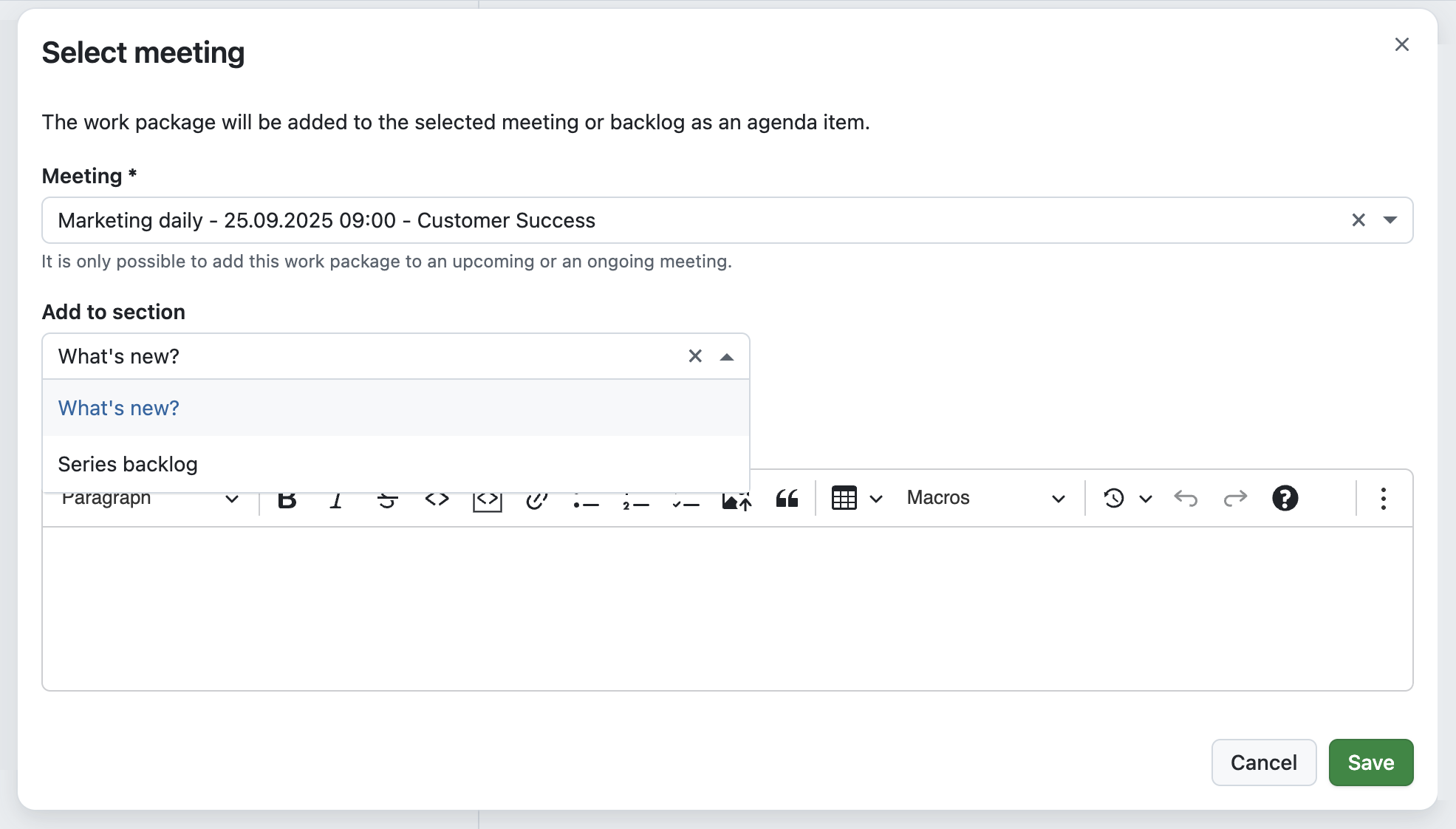
When preparing for a meeting, it’s often the small details that make a big difference. Until now, adding a work package to a meeting from the Meetings tab was already possible, but it always landed at the end of the agenda. Teams then had to manually move it to the right section — an extra step that sometimes led to confusion.
With 16.5, this process becomes much smoother. When you add a work package to a meeting, you can now add it directly to the right section or choose the backlog. The improved meeting selector also makes it easier to find the right meeting, whether it’s one of your upcoming appointments or part of a recurring series.
This means less manual work, a clearer agenda from the start, and more efficient meeting preparation. See our user guide to learn more about how to add work packages to meetings.
Choose color mode more conveniently with “Increase contrast” checkboxes
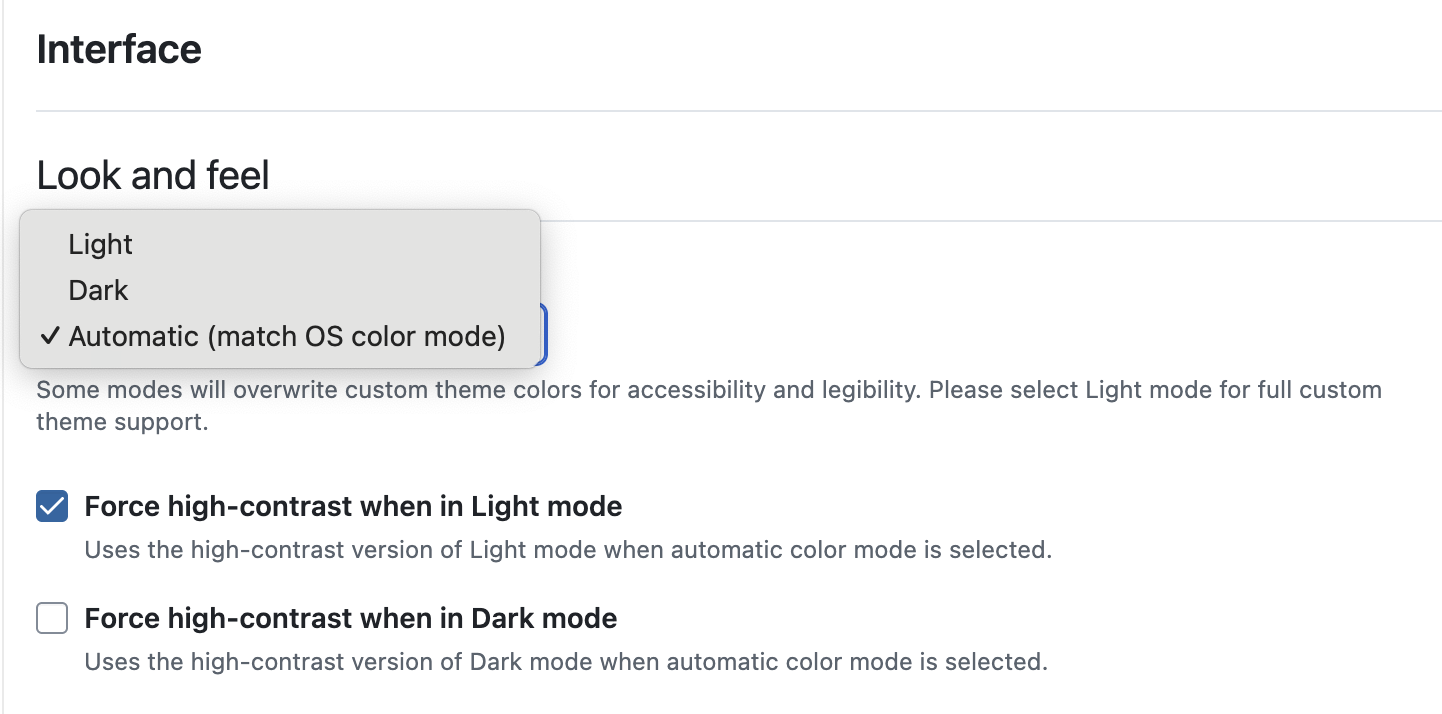
Over the last releases, we have steadily improved how you can adapt OpenProject’s appearance to your needs. In 16.4, we introduced the option to automatically sync the color mode with your operating system, as well as a dark high-contrast mode alongside the existing light one.
With 16.5, we are making these settings even more practical. Instead of switching between multiple predefined modes, you can now simply choose Light, Dark, or Automatic, and then enable an “Increase contrast” checkbox for the selected mode.
This makes it easier to personalize OpenProject’s interface with just one click and improves accessibility. Learn more about the Look and feel options in OpenProject.
Filter projects by last update
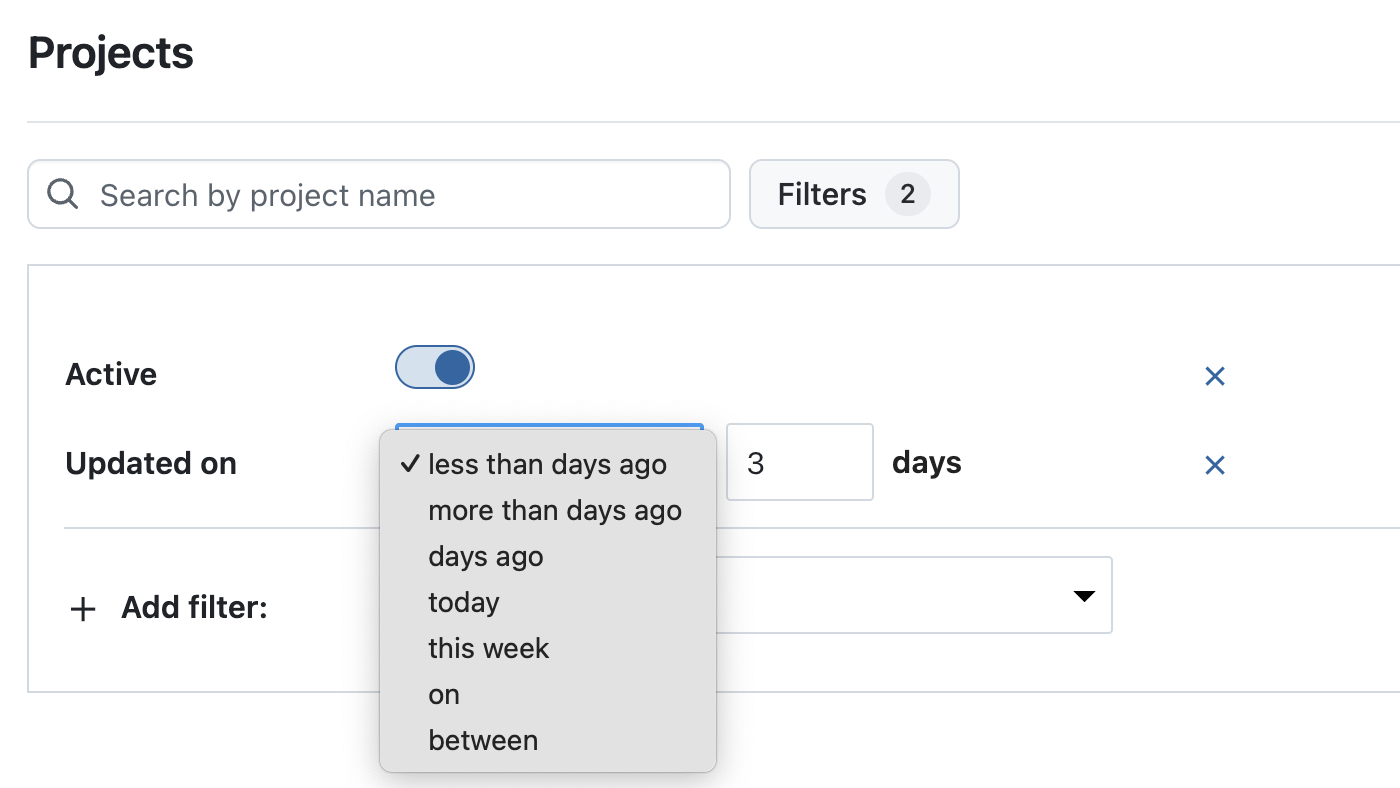
When you manage many projects, you often just want to see what changed recently. In 16.5, project lists include an “Updated on” filter and a sortable “Updated on” column. Sort by this column (newest first) or combine the filter with other criteria to focus on the projects that were modified most recently.
For integrations and automation, the API now supports an updated_at filter on the /api/v3/projects endpoint. This lets you request only projects changed since a given timestamp — useful for delta syncs that reduce waiting time and server load.
Note
Updated on reflects direct changes to the project itself (for example, a new custom field or a renamed project). Latest activity at is much broader and includes activity within the project, such as attribute changes to work packages.
Jump to highlighted target elements from deep links
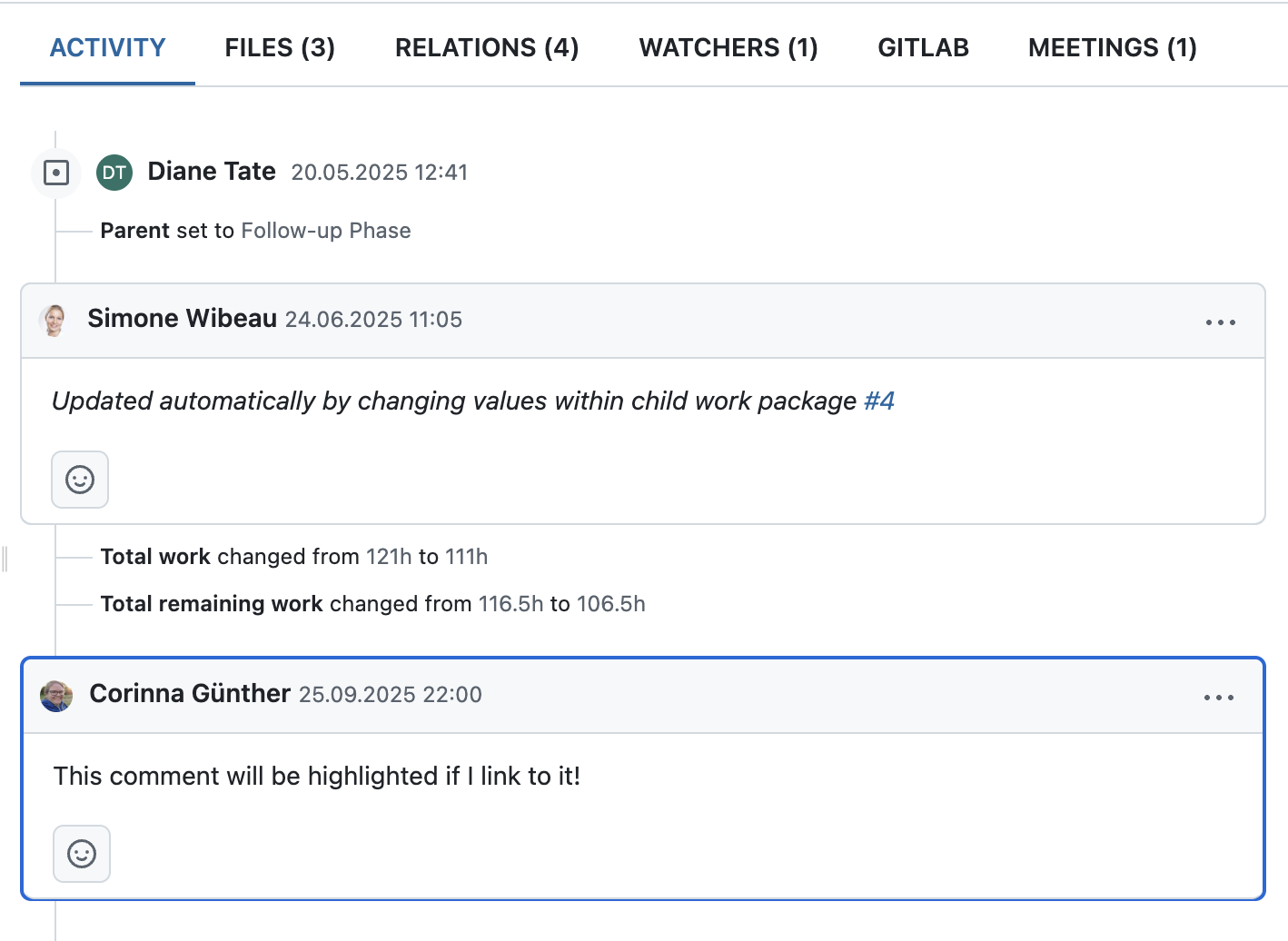
Deep links are especially useful when you want to point colleagues directly to a specific item in OpenProject. With 16.5, these links now do more than just open the right page — they also scroll to the exact position and highlight the target element.
For example, when sharing a link to a comment in the Activity tab or to an item in a meeting agenda, the element is automatically displayed near the top of the page and temporarily marked with a blue outline. This makes it clear what the link refers to, helping teams save time and avoid misunderstandings.
Confirm critical actions with more accessible danger dialogs
Accessibility is an ongoing priority for us, and with 16.5 we have improved how danger dialogs work for users of assistive technologies. These dialogs are shown when potentially destructive actions require an extra confirmation step.
In this release, we added ARIA semantics so that screen readers announce the relationship between the confirmation checkbox and the action button. When the checkbox is checked, users hear that the button to proceed is now active; when it is unchecked, they are informed that the button is inactive and that they need to tick the checkbox to continue.
Better access to helpful information
Finding the right information quickly is essential, especially when you are just getting started or want to dive deeper into specific features. With 16.5, we have updated the help menu in the header navigation (the ? icon on the right). The entries have been restructured, links refreshed, and localizations added to make it easier to find what you are looking for.
We also included a new Getting started video right inside the menu, giving new users a simple introduction to OpenProject and offering a helpful refresher for experienced teams. These changes are also reflected in the Community widget that is displayed on the home page of every new instance, so guidance is available right from the start.
OpenProject 16.5: Migration, installation, updates and support
Follow the upgrade guide for the packaged installation or Docker installation to update your OpenProject installation to OpenProject 16.5. We update your hosted OpenProject environments (Enterprise cloud) today, October 8, 2025.
You will find more information about all new features and changes in our Release notes or in the OpenProject Documentation.
If you need support, you can post your questions in the Community Forum, or if you are eligible for Enterprise support, please contact us and we are happy to support you personally.
- New to OpenProject? To test all features of OpenProject 16.5 right away, create a 14 days free trial instance for our OpenProject Enterprise cloud.
- Prefer to run OpenProject 16.5 in your own infrastructure? Here you can find the Installation guidelines for OpenProject.
- Want to upgrade from a Community version to try out the Enterprise add-ons? Get a 14 days free trial token to test the Enterprise add-ons (all plans).
Credits
A very special thank you goes to Helmholtz-Zentrum Berlin, City of Cologne, Deutsche Bahn and ZenDiS for sponsoring released or upcoming features. Your support, alongside the efforts of our amazing Community, helps drive these innovations. Also a big thanks to our Community members for reporting bugs and helping us identify and provide fixes. Special thanks for reporting and finding bugs go to Alexander Aleschenko, Lars Tiedemann, Akihiko Fujikawa, and Johannes Baumgarten.
Last but not least, we are very grateful for our very engaged translation contributors on Crowdin, who translated quite a few OpenProject strings! This release we would like to particularly thank the following users:
- Haura Nabila Rinaldi, for a great number of translations into Indonesian.
- Samo, for a great number of translations into Turkish.
- Kuma Yamashita, for a great number of translations into Japanese.
Would you like to help out with translations yourself? Then take a look at our translation guide and find out exactly how you can contribute. It is very much appreciated!
As always, we welcome any feedback on this release. 💙