Update May 2025: Internal comments have been released with version 16.0, and are included in our Enterprise professional plan.
With OpenProject 16.0, scheduled for May 21, 2025, we will introduce a new way to communicate with your team: internal comments in the work package Activity tab. This blog post will talk about why we developed this feature, how you can use it and how it might evolve in the future.
Why do we need internal comments?
OpenProject is as much a tool for team communication as it is for project management. In public offices, hospitals, universities and small and large companies, teams use OpenProject to manage the exchange of information.
Most of this information is contained within individual projects and our users sometimes work across multiple projects, each with a limited set of users with different roles. Each of these roles comes with a different set of permissions. For example, project admins generally have full, unrestricted access to the project, project members might have the ability to create only certain types of work packages or execute certain status changes, while external (non-project) collaborators might only be able to read and write comments. This approach allows for fine-grained access control.
In version 13.1 of OpenProject, we introduced work package sharing. This made it possible to invite users who are not project members to individual work packages in a limited capacity, with rights to only view, view and comment, or even modify the shared work package.
Sharing is especially useful when you need to involve people in very specific, small scopes. They might be external collaborators, clients, suppliers or observers. However, until now, anyone who could view a work package could also view all the comments in the Activity tab. This might not always be ideal. There might be times when a core team might want to discuss things related to a work package confidentially amongst themselves and keep that conversation separate from what is visible to all other stakeholders.
That’s where internal comments come in.
Internal communication
Internal comments lets core project members limit the visibility of certain comments to a select group that is a smaller subset of project members.
To use this feature, a project admin will be able to enable internal comments for their project. By default, these internal comments are only visible to the project admin role. To expand who can view these comments, instance administrators can grant a new set of permissions (to view, write and edit internal comments) to any number of roles.
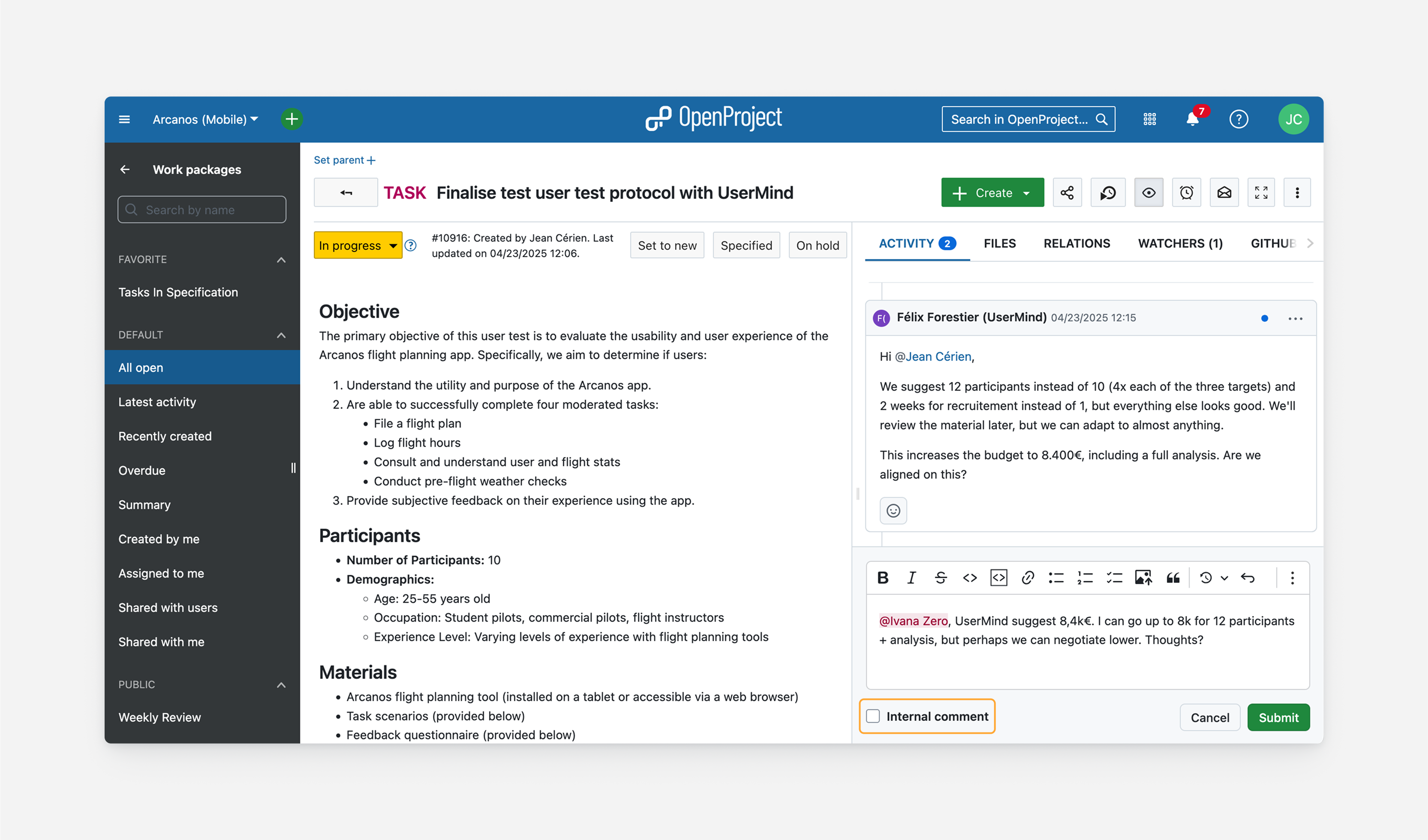
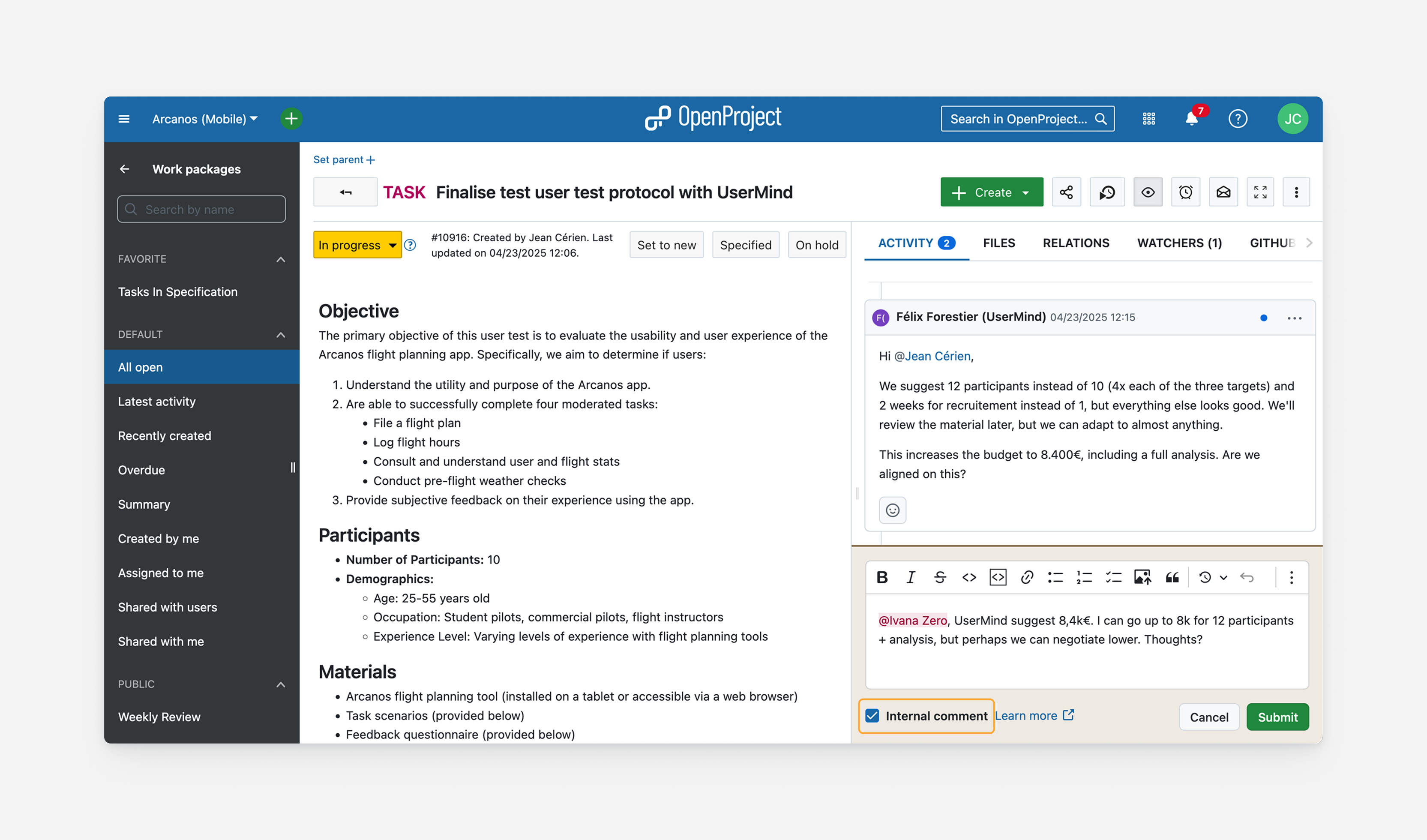
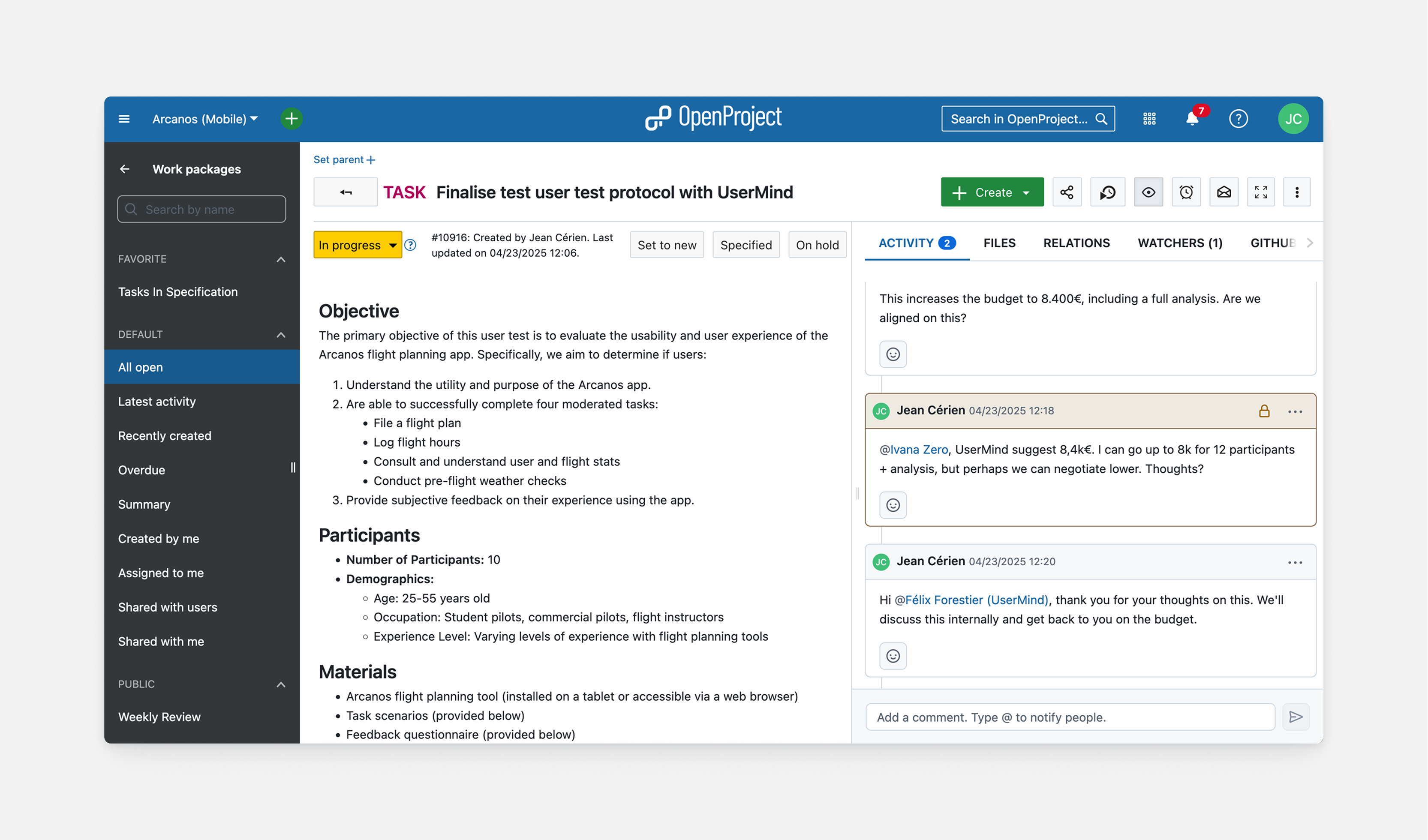
Users who have these roles within their project will then see a checkbox under the comment box labeled “Internal comment”:
Checking this will turn that comment into an internal comment. The background color of the comment box will change to indicate this.
Once posted, the comment will also be marked in the same color, along with a lock icon, to distinguish it from regular comments.
Users without the necessary permissions will not be able to see these comments, nor that new comments were posted. They will not be visible in neither the Activity tab nor the other places where user activity is reported, like the user activity and project activity pages.
A project can include a number of different stakeholders and not all stakeholders should be privy to all information. Ideally, all discussion around a single topic or work package should happen in the same place but because there are currently no visibility controls, confidential conversations need to currently happen elsewhere. This is often a separate work package (in a different project), a Matrix chat room or email. All of these introduce inefficiencies by introducing information duplication and blind spots.
With internal comments, all information and stakeholders can be gathered in one work package that is considered the single source of truth and core project members are nevertheless able to communicate amongst only themselves.
Collaborate with an external client or supplier
Projects often involve external clients or suppliers. They can be invited to a project or an individual work package with specific, limited roles. This reduces the need to organize outside the project context using different incompatible tools.
However, the core project team might want to keep some of their conversation private and limited to a smaller group, for example when discussing rates, negotiations, sensitive financial information or contextual information. With restricted visibility comments, the core team can have a meta-level conversation within work packages that external clients or suppliers cannot access.
Use OpenProject as a helpdesk tool
Implementing internal comments is also a step towards making OpenProject a capable helpdesk tool. Customer support teams can write internal notes only they can view, along with public comments and responses the customer can read and react to.
This will be supplemented in the future with other important helpdesk features such as the ability to set up OpenProject to automatically create work packages based on incoming emails to certain addresses and allow responding to comments via email.
Your feedback
We are excited to release internal comments this May with version 16.0.
As an open source software company, we value the ideas and feedback of our user Community. If you have opinions about these changes or have feature requests, feel free to join our Community instance and share your thoughts.
We would like to thank ZenDiS for sponsoring this feature. We hope you are looking forward to this update as much as we are looking forward to releasing it.
How to choose the best project management software?
Finding the best project management software suited for your organization is a challenging task. We have put together the important criteria to help you make that choice. As an open source software, we of course advocate for choosing an open source project management software.
We prepared a latest overview of the top 5 open source project management software in 2025 for you to compare and see which one could enable you to tackle your challenges best. Take a look at the feature sets, hosting options, prices, security of the open source project management solutions to make an informed decision for your organization.
Please also make sure to check your potential project management software provider’s privacy policy and data security strategy in detail. In a project management software, confidential data is being processed so you have to make sure your data is in the right hands and being protected.
Here are our 5 best open source project management tools in 2025 with different advantages:
OpenProject is the leading open source project management software, licensed under GNU GPL v3.
Free and open source software
The software code is freely available on GitHub and the changes to the source code are transparently traceable any time. With OpenProject there is no vendor lock-in.
As self-hosted versions, the Community and Enterprise on-premises editions provide users with data sovereignty. You will benefit from a set-up with ultimate control over your data and with your preferred technical set up.
If you don’t have the capacity or knowledge to host OpenProject in your environment, we offer the Enterprise cloud edition with secure hosting in the EU or on request in Germany. With the OpenProject Enterprise cloud, you will benefit from a data center and network architecture built to meet the requirements of the most security-sensitive organizations. You can rely on hosting in a high security data center and redundant infrastructure, built for high availability and performance. Continuous encrypted data backups in separate locations, regular data privacy assessment and certification by external auditor are part of the security strategy.
Extensive project management features
OpenProject maps the entire project lifecycle, from project planning, execution and project controlling, to project closure. The software supports classic, agile and hybrid project management. The software includes extensive project management functions, such as project and milestone planning (Gantt charts), task recording, agile boards, project wiki, pre- and post-processing of deadlines, forums, time and cost recording, budgets.
Also, UX and UI play an important role at OpenProject. We invest heavily into our interface design team so that the use of OpenProject is as intuitive as possible and users don’t need much training or a documentation quest before jumping right in.
Configuration
The software is flexibly configurable, can be adapted to individual requirements and is suitable for the respective company processes. With a powerful API, additional systems can be connected if required.
Part of openDesk
OpenProject is one of the software solutions that are used for openDesk – the Sovereign Workplace. The vision of the Sovereign Workplace is to offer a true open source alternative to Microsoft and Google throughout Europe. And OpenProject is ‘openDesk’ ready, which means the current version (and upwards, of course) can be used as part of openDesk.
Active maintenance and development
OpenProject is continuously developed and maintained by an active developer community. New functions, improvements and updates are released regularly. This also allows a quick reaction to possible security gaps.
Professional support and training
OpenProject offers professional support and training. This ensures that users receive both technical and functional support in order to work with the software in the best possible way.
Pricing
The OpenProject Community edition covers a wide range of features and plugins and is free of charge. This is an on-premises version that requires you to host it in your own environment.
The Enterprise cloud and on-premises editions offer you professional support as well as additional premium and security features. Consequently, these are paid plans. Pricing starts from €5.95 per month per user, long-term subscriptions though are cheaper.
OpenProject offers a 14 days free trial which you can extend on request.
GitLab
GitLab is a source code management and DevOps platform that can also be used for project management, licensed under MIT open source license. It has a clear focus on software development. The users benefit from fast deployments, standardization, automation and increased security of the software development process.
GitLab has a vast feature set to allow the mapping of the entire software delivery lifecycle. It offers many specific features targeted at software developers, such as DevOps Reports. Both agile and traditional project management methodologies are supported by GitLab as it also includes timelines, task management and workflows. However, time tracking or budget and costs are features missing in GitLab’s offer.
Overall, one can say that GitLab has a more technical user interface due to the fact that the main target group is software engineers. It might not be as intuitive as other open source project management software in 2025.
Exciting: If you are not entirely convinced by the GitLab offering in terms of project management, but like its feature set, you can use OpenProject with its GitLab integration.
GitLab is available in the cloud and on-premises. The self-installed version provides full data control. GitLab’s cloud version, the GitLab.com core infrastructure, is primarily hosted in Google Cloud Platform’s (GCP) US-East1 region.
The location where your data is stored is important as it determines which regulations and data privacy measures apply (in the EU e.g. the providers have to adhere to GDPR). Feel free to read up more about cloud security.
GitLab Pricing
While there is a free version available (with limited storage, users and features), the paid versions start from $19 per user per month. To test the paid version, GitLab offers a 30 days free trial.
Tuleap
Tuleap is an open source project management software for agile project management, licensed under GNU GPL.
Tuleap comprises all agile project management features like task board, backlog, Kanban boards, burnup and burndown charts, dashboard. It allows you to execute software development, test management, project tracking and agile planning in specific.
If you are an agile or software development team, Tuleap’s clear focus on the agile methodology might work very well for you. For a broader project management approach, you might miss traditional project management features like a Gantt chart or a Wiki, and options to track time, budget and costs. Working in Tuleap, its interface seems very intuitive.
Tuleap is available in the cloud and on-premises. The premium cloud version gives you a hosting choice among providers in France, Switzerland, USA, UK, Korea. There is no information on the basic cloud hosting.
Tuleap Pricing
There is no free version of Tuleap available. The cheapest option is the basic cloud version that starts from 6€ per user per month. However, Tuleap offers a free trial if you contact them.
Taiga
Taiga is an open source project management software whose beginnings date back to a Kaleidos hackathon in 2013. It is licensed under MPL 2.0.
Taiga’s vision was to create an intuitive and visually appealing agile project management tool for developers and designers. Accordingly, Taiga offers a comprehensive feature set for agile project management. It includes Kanban boards, backlog, estimation tool, issue tracking, dashboard and more.
Consequently, classic project management features are not part of Taiga, limiting its use cases to agile methodologies only. Taiga has a very intuitive interface, which makes it easy for users to start working with the software.
Taiga is available in the cloud and on-premises. The cloud version is hosted in the EU by AWS, which means it complies with GDPR in this regard.
Taiga Pricing
There is a free cloud and free on-premises version available. The paid Taiga cloud edition comes with premium support and is at $70 per month (unlimited users).
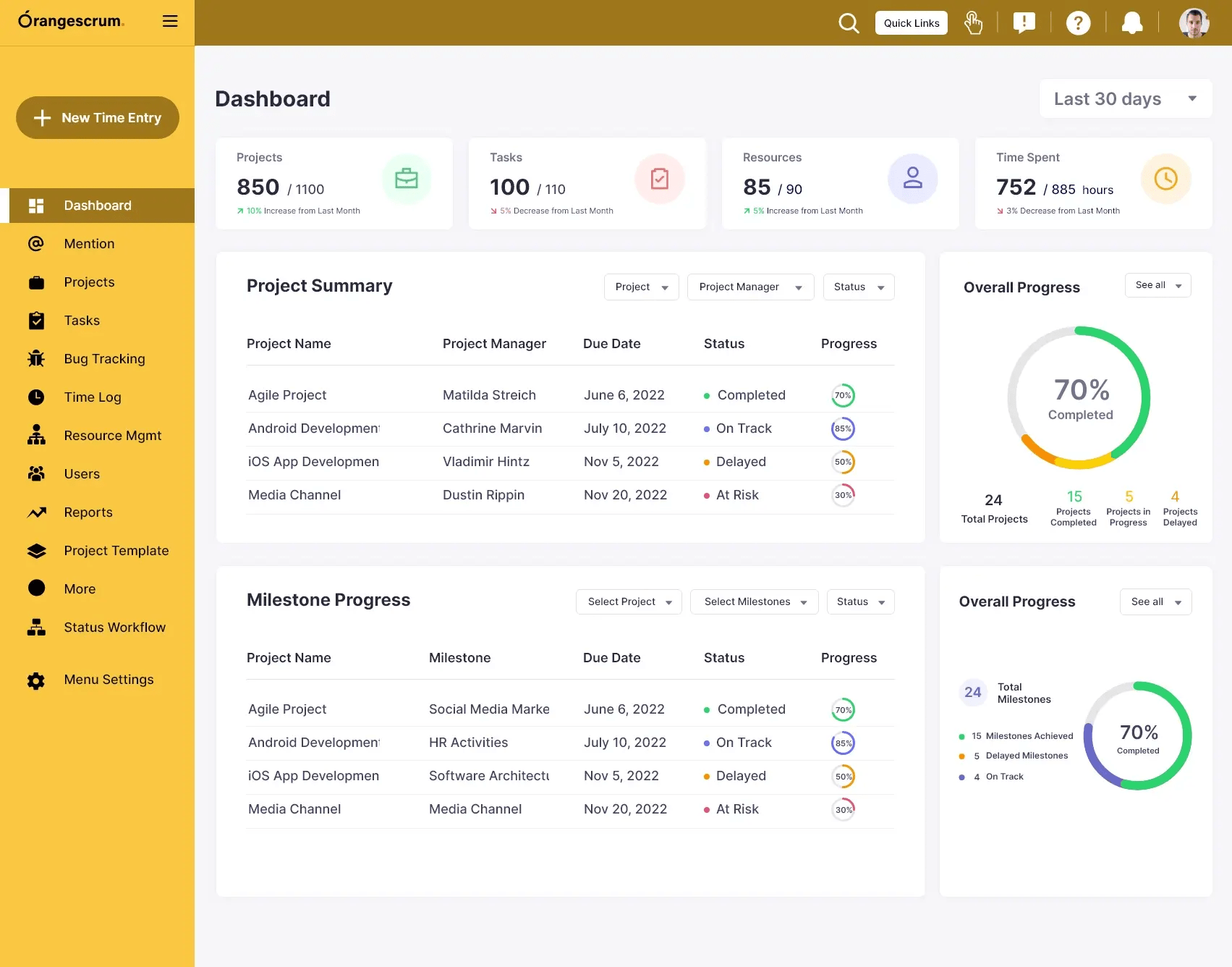
Orangescrum offers classic as well as agile project management features. Resource management, schedule management (Gantt charts), budget and cost management, issue tracking, time tracking, workflow management as well as backlogs are available.
The on-premises and cloud version include even more features (burndown chart, project overview, task labels, custom task types, recurring tasks, invoicing etc.). Those are premium features and are part of paid plans.
Orangescrum is available in the cloud and self-hosted. The cloud version is hosted with AWS (location not mentioned).
Orangescrum’s privacy policy states that they are taking many steps across the entire company to ensure they will be ready for the GDPR.
Orangescrum Pricing
The Orangescrum open source edition can be downloaded for free. You can add paid support plans to it, from $299 per month. You can try Orangescrum for 15 days for free.
There is a free Orangescrum cloud edition for 3 users and limited storage, paid plans are starting from $8 per user per month. The on-premises version with premium features and support is charged as a once-off (from $4,425), with potential support subscriptions for following years.
Compare the top 5 open source project management software
Choosing the best project management software that fits your organization depends on a variety of criteria, including the features and use cases you want, the size of your team, and hosting preferences. All listed top 5 open source project management software have their advantages.
If you are looking for an open source project management software in 2025, we recommend to have a look at OpenProject, GitLab, Tuleap, Taiga, and Orangescrum.
To give you a quick summary:
OpenProject offers traditional, classic and hybrid project management features with a very intuitive interface. It is available in the cloud and on-premises and focuses on data security and privacy, protecting your confidential data. Therefore, the cloud version is securely hosted in the EU or on request in Germany. The OpenProject Community edition (on-premises) includes a comprehensive feature set and is free of charge.
GitLab has an elaborate feature set that is mainly targeted at software development teams and has a more techy interface. It is available in the cloud and on-premises. The cloud is hosted in the US. They offer a free on-premises version for a maximum of 5 users with limited storage and essential features only.
Tuleap is only for agile project management teams. It offers an intuitive interface. It comes both as on-premises and cloud version. Only for the premium cloud version you can choose the location of the host provider. Tuleap does not offer a free version.
Taiga also only offers agile project management features, though with a very appealing interface. It is available as cloud and on-premises version and the cloud version is hosted in the EU. Taiga offers a free cloud and free on-premises version.
Orangescrum has a big feature set for traditional as well as agile project management with an intuitive interface. There are on-premises and cloud versions, the latter is hosted by AWS but it seems Orangescrum might not comply fully with GDPR. The open source version with reduced feature set is free of charge and there is a free cloud version for a maximum of 3 users.
Regarding the pricing of all top 5 open source project management software, we recommend you visit the individual websites to input your team size and other requirements to find out the detailed pricing as there are many variables that may change the pricing.
Ever wondered what all these project management terms actually mean? Understanding key project management terminology is essential for effective collaboration and successful project execution. In this article, we’ll walk you through fundamental concepts and terms.
If you’re looking for OpenProject-specific definitions, see our Glossary, where we define the most commonly used terms in OpenProject.
Waterfall
Waterfall is sometimes referred to as classic or traditional project management. It is characterized by a sequential flow of tasks. One task is completed before the next can begin. This linear structure gave the method its name — Waterfall.
Because of this sequential nature, careful planning and precise timing are essential. Delays can lead to significant setbacks. A Gantt chart is a typical way to visualize a waterfall project.
Agile
Agile project management recognizes the complexity and uncertainty of many projects. It uses an adaptive approach: a large project is broken into smaller pieces that are handled by cross-functional teams.
Work is done in short cycles, known as iterations or sprints, and customer feedback is integrated regularly. Agile allows for greater flexibility and continuous improvement during the development process.
Scrum
Scrum is a framework used within agile project management. Originally developed in software, it can be applied in many industries. Scrum divides work into small, manageable tasks and emphasizes collaboration, progress tracking, and regular adjustment.
Scrum teams deliver value incrementally. A task board helps visualize the current status.
Sprint
A sprint is a fixed-length iteration in agile development — often lasting one or two weeks. During each sprint, the team works on selected tasks from the backlog. After each sprint, results are reviewed, and the backlog is adjusted based on feedback and progress.
Board
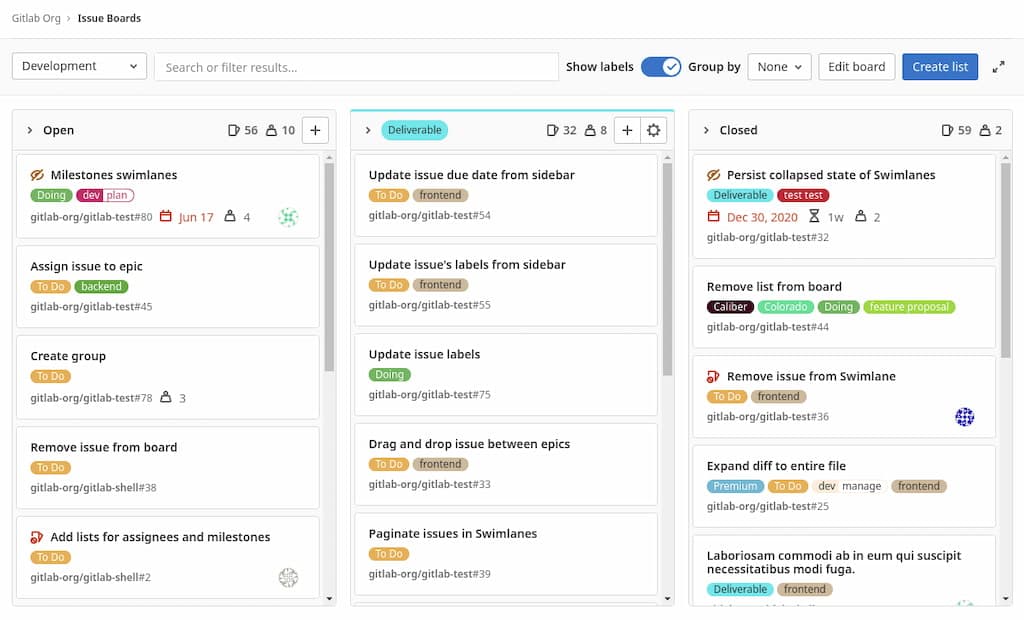
A board is a visual tool used to manage and track tasks in a project. In OpenProject, boards help teams stay organized and collaborate effectively by showing tasks (work packages) in columns such as To Do, In Progress, or Done. This makes boards ideal for agile workflows like Scrum or Kanban, but they are just as useful for managing general task lists, team priorities, or feedback rounds.
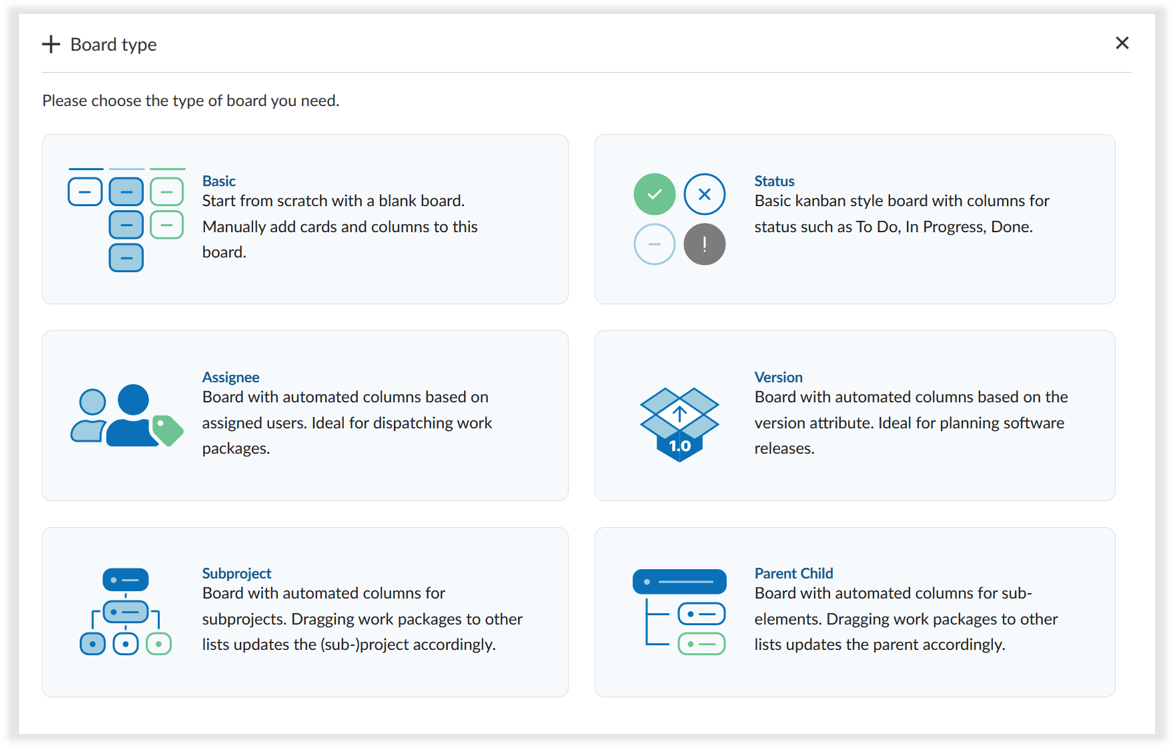
In OpenProject, there are basic boards for all users and action boards (with automatic sorting e.g. by status or version) available as Enterprise add-on:
Tip
To learn more about how boards work in OpenProject and which board types are available, read our blog article on Agile Boards.
Kanban
Kanban is a visual approach to agile project management. It focuses on transparency and continuous delivery. A Kanban board shows tasks in columns (e.g., To do, In progress, Done) and helps teams limit work in progress.
Backlog
The backlog is a list of all items that need to be completed to achieve a project goal. Tasks are typically prioritized, and the most important ones are selected for the next sprint. A backlog serves as the central source of truth for the team.
User story
A user story represents a piece of functionality from the user’s perspective — something they want to achieve. Stories should be small enough to complete within a sprint and usually follow a standard format like: “As a [user], I want to [goal] so that [benefit].”
Epic
An epic is a large body of work that represents a big objective or need. It’s typically too large to complete in a single sprint, so it is broken down into smaller user stories that can be tackled incrementally.
Milestone
A milestone marks a significant point in a project — such as deadlines, delivery dates, or decision gates. It helps monitor progress and often represents a non-working task with a specific target date but no duration.
Bug
A bug is an unintended error or issue in the software that affects functionality or performance. Bug tracking is an essential part of product development.
Feature
A feature is a specific piece of functionality that delivers value to the user. In agile teams, features are often driven by user stories and linked to requirements in the backlog.
Story points
Story points are used to estimate the effort required to complete a task, feature, or user story. They are typically assigned using a predefined scale and help teams plan and track sprint velocity.
Burndown chart
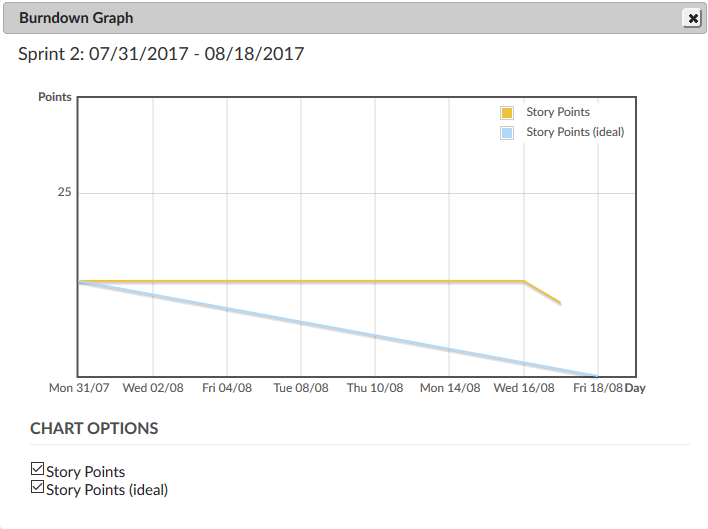
A burndown chart is a tool mostly used in Scrum. It is a two-dimensional graph that shows the amount of work remaining (usually measured in story points) versus the time left in a sprint or project. This visual representation helps teams track their progress and stay focused on their goals.
Work package
A work package is a group of related tasks that can be managed and delivered together. In OpenProject, a work package can represent a task, feature, user story, bug, phase, or milestone.
Wiki
A wiki is a collection of collaborative, editable pages where teams can document knowledge, processes, or project information. In OpenProject, each project can have its own wiki, helping centralize documentation.
Dependencies
Dependencies, also known as relations, define how tasks are connected. For example, one task may need to finish before another starts. Managing dependencies helps create realistic timelines and avoid bottlenecks.
Project
A project is a temporary endeavor with a defined goal, timeline, and scope. It can range from small internal improvements to complex product releases. Even though the term is widely used, it’s not always clearly defined. Taking time to align on what constitutes a “project” in your context helps ensure consistent planning and execution.
We are happy to announce the release of OpenProject 15.5. Among other changes, users now can filter for descendants of work packages, which includes children, grandchildren, and deeper levels in the hierarchy. This makes it easier to focus on specific parts of a project hierarchy.
In this blog article, we will take a closer look at these feature updates:
And there are more great updates in this version again. For more details on other changes, features and bug fixes in 15.5, please check out our release notes.
Tip
The next version is already on the horizon: In May 2025, we plan to release OpenProject 16.0 with major feature changes. One change will be the ‘sunsetting’ of classic meetings, meaning users will only be able to create one-time and recurring meetings then. With the release of 15.5, you already see a hint in the application that classic meetings are unsupported. We recommend switching to the newer meeting types now to benefit from recent improvements and to ensure a smooth transition. Read this article to learn more: Classic meetings will be replaced: What changes with OpenProject 16.0
Filter for descendants of work packages
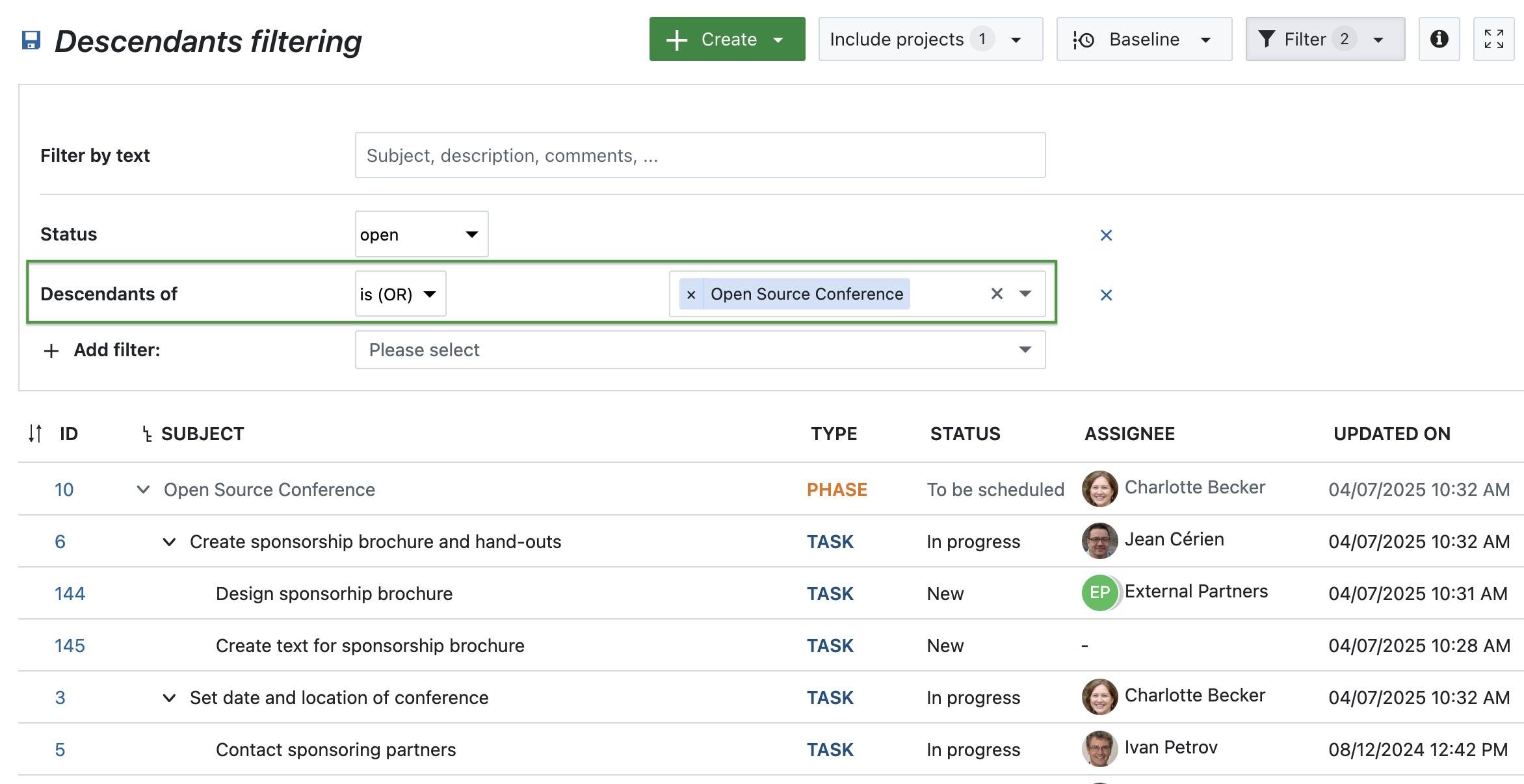
OpenProject 15.5 introduces a helpful new filter to better navigate complex project structures. The Descendants of filter allows you to display all related work packages beneath a selected parent — including its children, grandchildren, and deeper levels.
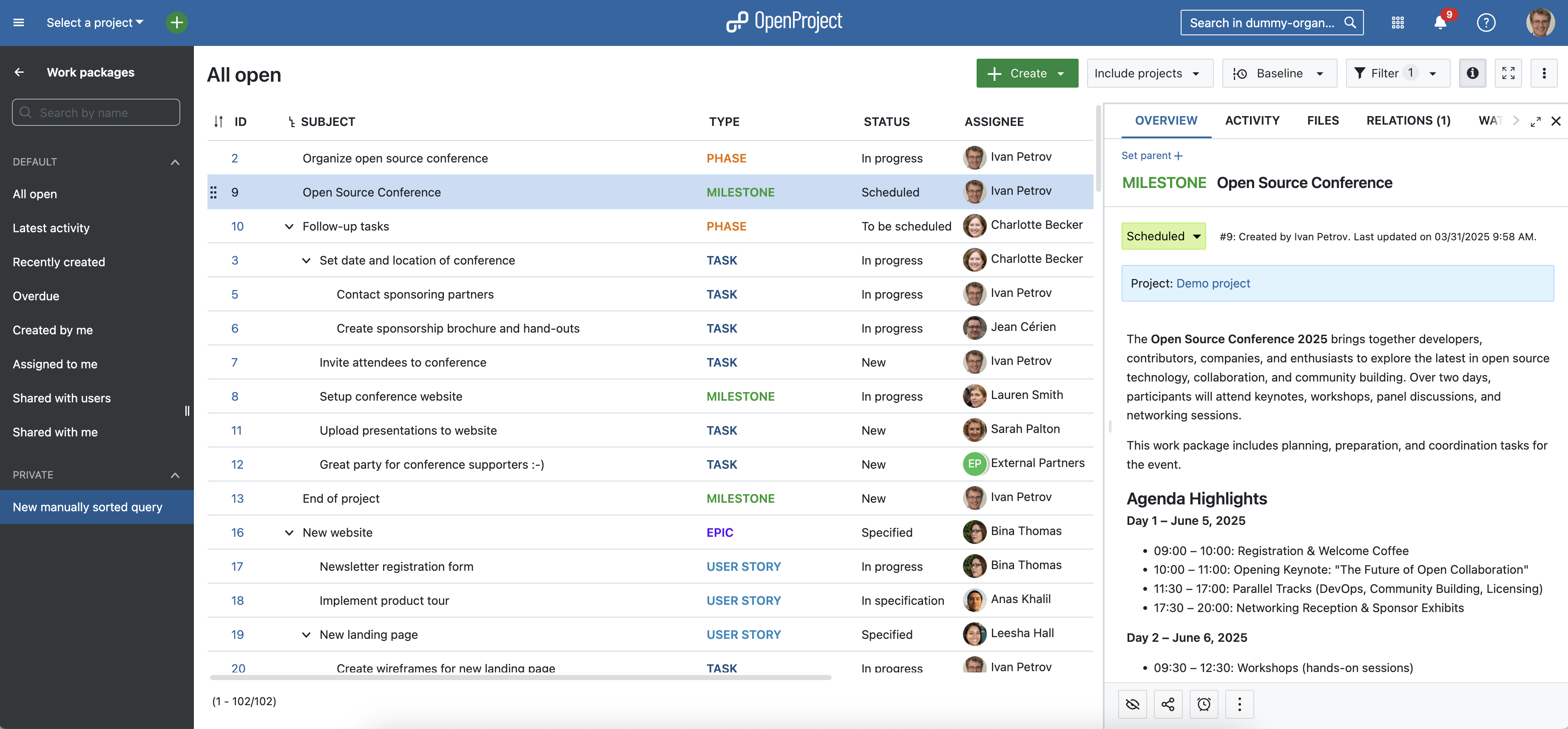
For example, if you apply the filter “Descendants of” is (OR) “Open Source Conference”, the view will include:
Two direct children: Create sponsorship brochure and hand-outs and Set date and location of conference
Two children of the brochure task — in other words, grandchildren of the main phase: Design brochure and Write brochure text
One grandchild under the location task: Contact sponsoring partners
This filter is available wherever filters are supported, such as work package tables or agile boards. Until now, it was only possible to filter for parent work packages — this new option lets you see the full hierarchy below a selected item, making it easier to focus on a specific part of your project and understand its structure at a glance.
Column for children in work package tables (Enterprise add-on)
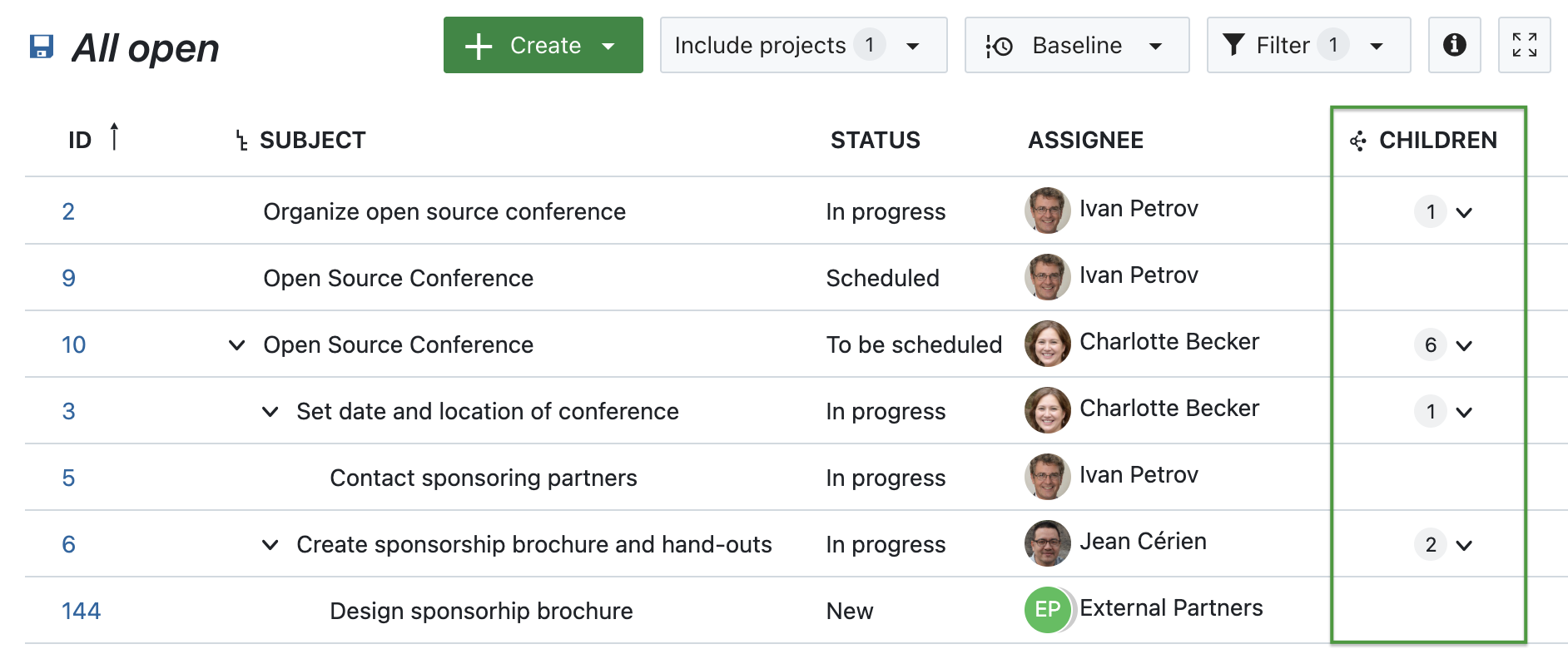
OpenProject 15.5 adds a new Children column to work package tables — giving you a faster and more structured way to view hierarchical relationships without needing to apply filters or switch views.
This column shows a clickable dropdown icon alongside the number of child work packages linked to each parent. With one click, you can expand the parent directly in the table to get an immediate overview of its structure. Each child is clearly marked with a Child label, helping you stay oriented even in complex project hierarchies.
This feature is especially useful when working with large datasets or focused views, where quickly understanding relationships between work packages is key.
For example, in a project phase like Open Source Conference, the Children column shows how many related work packages are connected to that phase — helping teams assess scope and progress without leaving the table view.
Note
All relationship columns, including the new Children column, are part of the Enterprise add-ons.
% Complete included in work package table sums
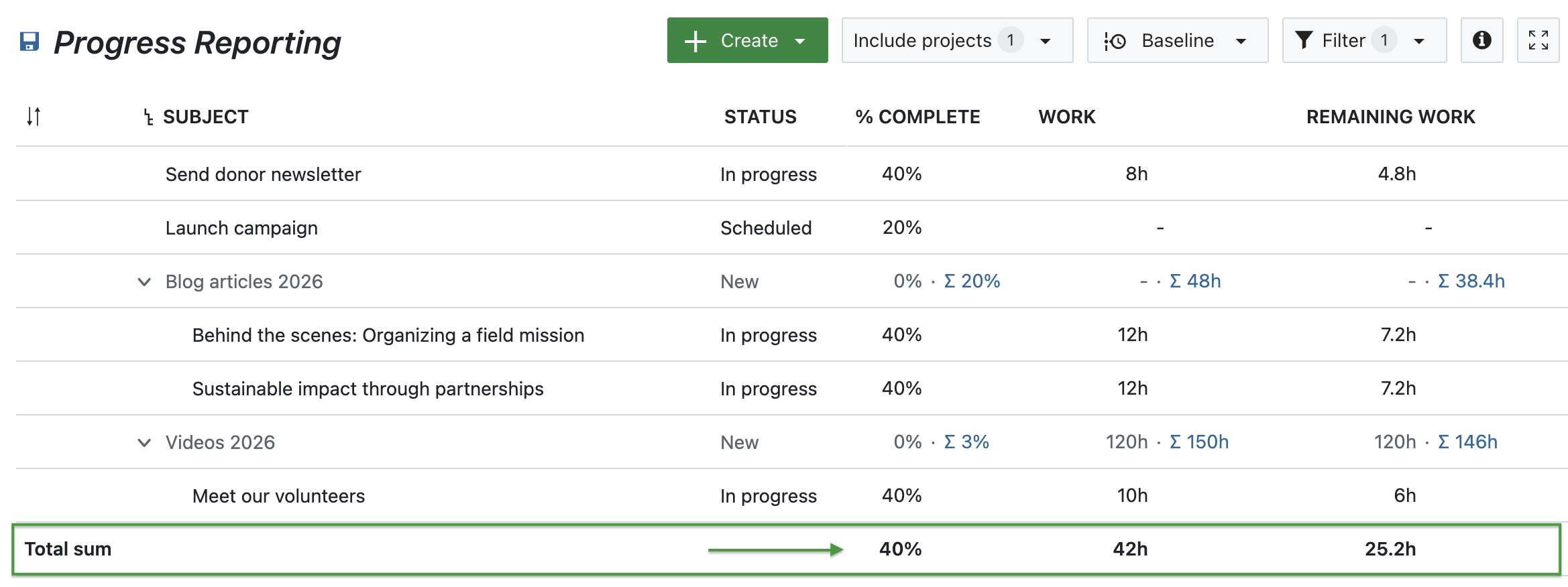
Imagine you’re part of an NGO marketing team planning newsletters, blog articles, and videos for the upcoming year. Each campaign includes several tasks — like writing a blog post titled Behind the scenes: Organizing a field mission or producing the video Meet our volunteers. Both are in progress and marked as 40% complete.
With OpenProject 15.5, it’s now easier to get an overview of your content pipeline: the % Complete value is included in the sum row of work package tables. Alongside Work and Remaining work, this provides a quick snapshot of overall progress — in this case, 42 hours of work planned, 25.2 hours remaining, and an overall completion rate of 40%.
All three values are calculated based on the selected progress tracking mode, giving you accurate insights tailored to your team’s workflow — whether you’re tracking effort manually or automatically.
Advanced accessibility
Accessibility is not just a feature — it’s a fundamental part of building inclusive software. With version 15.5, we’ve taken another step forward in making OpenProject more accessible, especially for users who rely on screen readers or keyboard navigation.
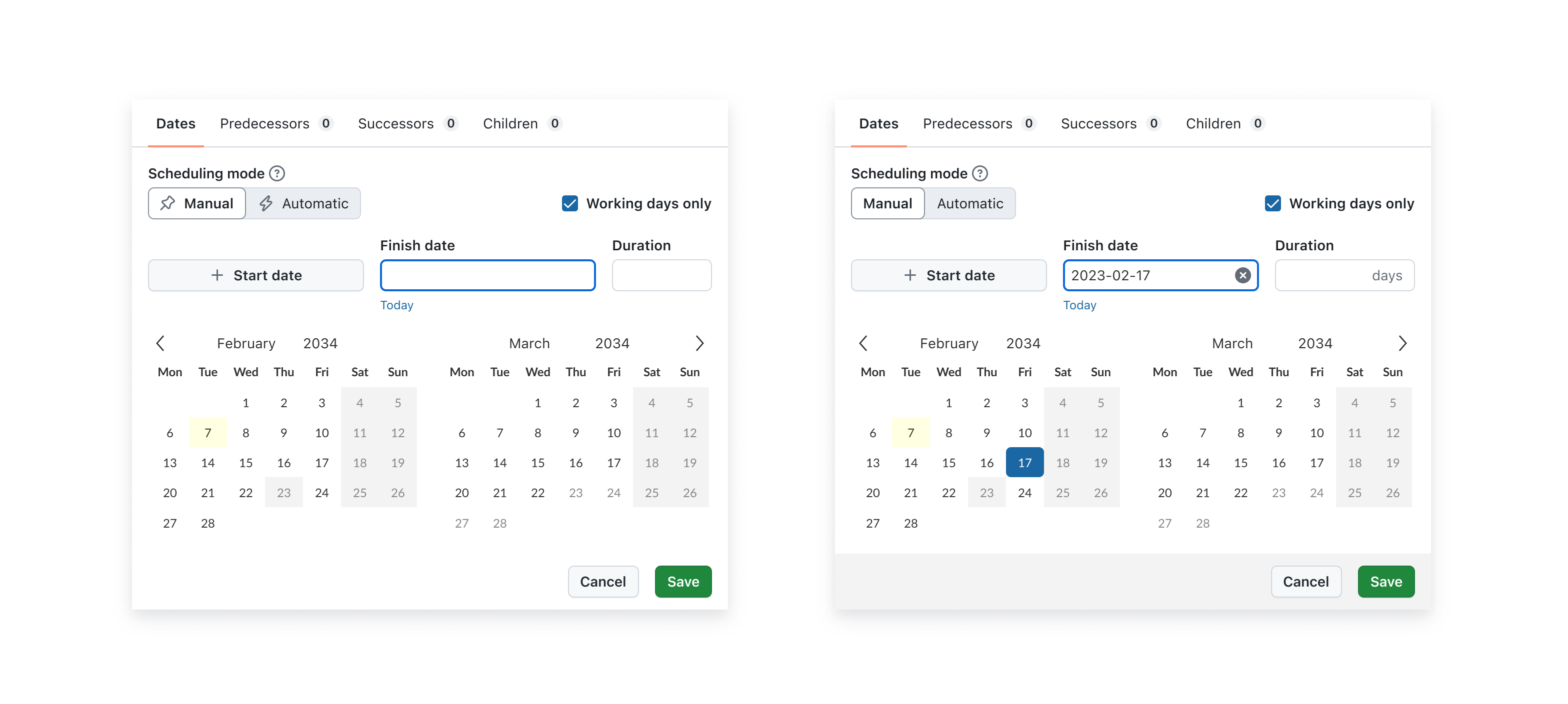
The date picker now provides clearer, more meaningful feedback during manual input, ensuring that everyone can interact with project timelines confidently and independently. This means that screen readers now announce when switching between manual and automatic scheduling modes. Changes to one field, such as the Start date or Duration, are immediately announced when they affect related fields. The “Today” shortcuts come with ARIA labels that give users helpful context — for example, “Select today as start date.”
You will find more information about all new features and changes in our Release notes or in the OpenProject Documentation.
If you need support, you can post your questions in the Community Forum, or if you are eligible for Enterprise support, please contact us and we are happy to support you personally.
New to OpenProject? To test all features of OpenProject 15.5 right away, create a 14 days free trial instance for our OpenProject Enterprise cloud.
Prefer to run OpenProject 15.5 in your own infrastructure? Here you can find the Installation guidelines for OpenProject.
A very special thank you goes to the City of Cologne, Deutsche Bahn and ZenDiS for sponsoring released or upcoming features. Your support, alongside the efforts of our amazing Community, helps drive these innovations.
Also, a big thanks to our Community members for reporting bugs and helping us identify and provide fixes. Special thanks for reporting and finding bugs go to Abhiyan Paudyal, Andreas H., Paul Kernstock, Patrick Stapf, and Stefan Weiberg.
Last but not least, we are very grateful for our very engaged translation contributors on Crowdin, who translated quite a few OpenProject strings! This release we would like to particularly thank the following users:
Yuliia Pavliuk, for a great number of translations into Ukrainian.
Adam Siemienski, for a great number of translations into Polish.
NCAA, for a great number of translations into Danish.
greench, for a great number of translations into Turkish.
Would you like to help out with translations yourself? Then take a look at our translation guide and find out exactly how you can contribute. It is very much appreciated!
As always, we welcome any feedback on this release. 💙
Whether you’re a team of five or fifty — as your organization grows, so does the number of projects, tasks, and priorities. At some point, work packages that once fit on one board become a sea of cards, and keeping focus becomes a challenge.
That’s why we created the Attribute highlighting feature: it helps you immediately see what needs your attention most. In this article, we’ll walk you through a relatable scenario and show how this feature can support you in staying focused and scaling successfully.
Important
Before February 2026, Attribute highlighting was part of the Enterprise edition in OpenProject. With the release of version 17.1, it is part of the free Community edition, because we value our Community a lot and aim to give “back” Enterprise add-ons to all users every few releases. You can find more information about this feature in our documentation.
You’ve grown — now it’s time to change how you work
Things might be going well. Your organization is growing. More clients, more projects, more team members. But with growth comes complexity. What used to be a simple backlog is now a multi-project list of dozens — maybe hundreds — of open tasks. And suddenly, you’re no longer sure what’s urgent, what’s blocked, or what’s been waiting for weeks.
Your system hasn’t changed, but your needs have. And that’s a good thing — because it means it’s time to invest in new ways to keep your growing team aligned.
Clean up your work package table by highlighting priority, status or finish date
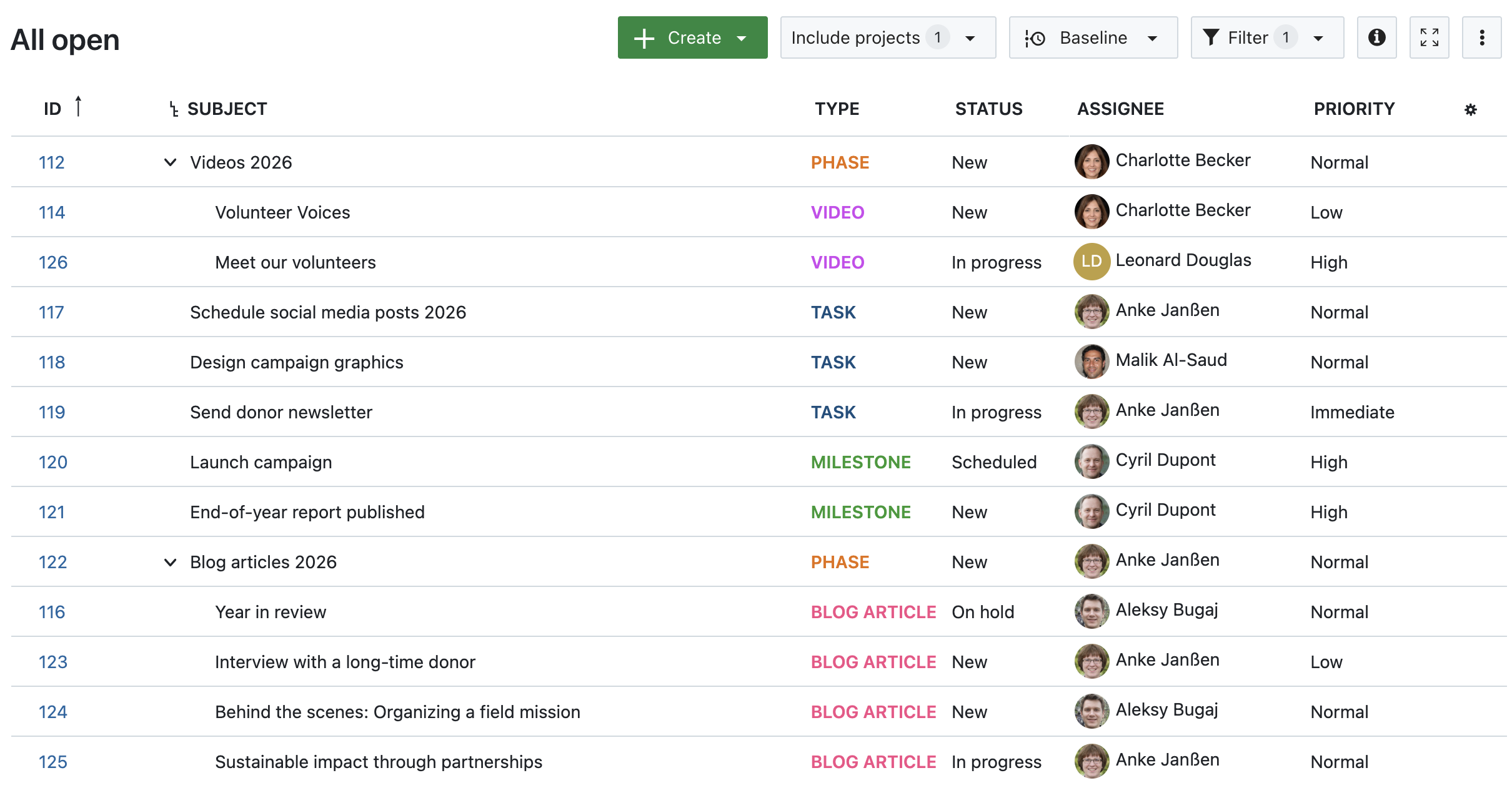
Let’s take your team’s work package table as an example. Imagine you’ve filtered for this month’s deliverables — but the list is still long. You spot tasks with due dates coming up, some that are marked high priority, and one that was updated just now. But it takes a few minutes of scrolling and reading to get the full picture.
That’s where Attribute highlighting comes in. This feature allows you to visually emphasize specific values in your work package table using color: overdue tasks can turn red, high-priority items might stand out in orange, and different status values can appear in clearly distinguishable shades.
With just a glance, your team can now immediately see:
What’s overdue,
What’s marked as high or urgent priority,
What’s resolved or in progress.
How Attribute highlighting works
Let’s say your team uses the Priority attribute and a custom status workflow. You can highlight individual attributes inline (Status, Priority, Finish date) or apply full-row highlighting based on Status, Type, or Priority.
Once you’ve set this up in the work package table view, your team sees these visual cues automatically — without needing to open each task individually.
Tip
You can configure which colors are used for each priority and status in the System administration. Learn how to adjust them for priorities and for statuses.
Let’s look at an example work package table and how it looks with different attributes highlighted. Please note that you can change the colors for work package attributes and that they might look different in dark mode or light mode.
1. No attribute highlighting
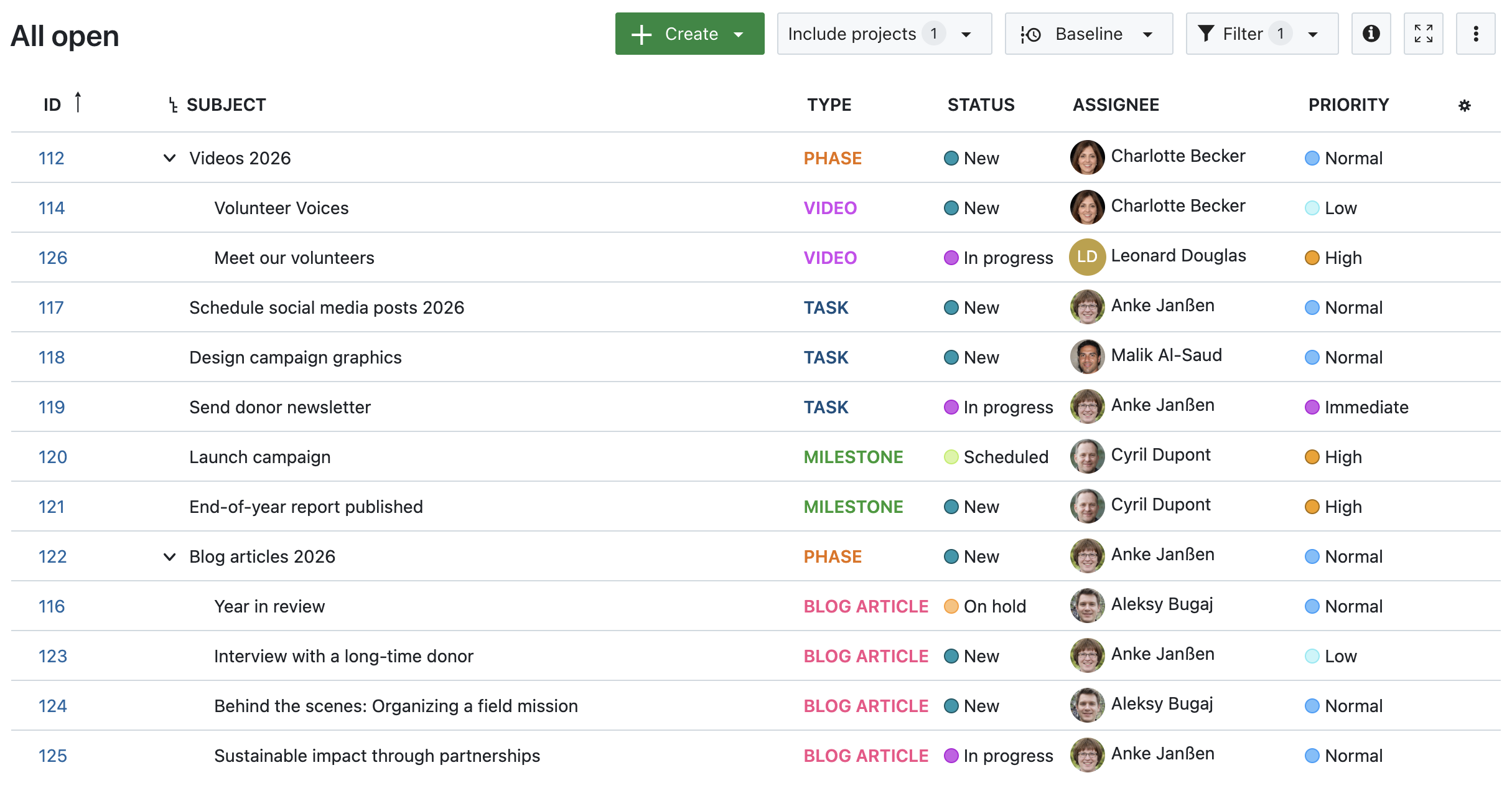
Image 1: A work package table in OpenProject, no attributes highlighted.
2. Status, Priority and Finish date highlighted inline
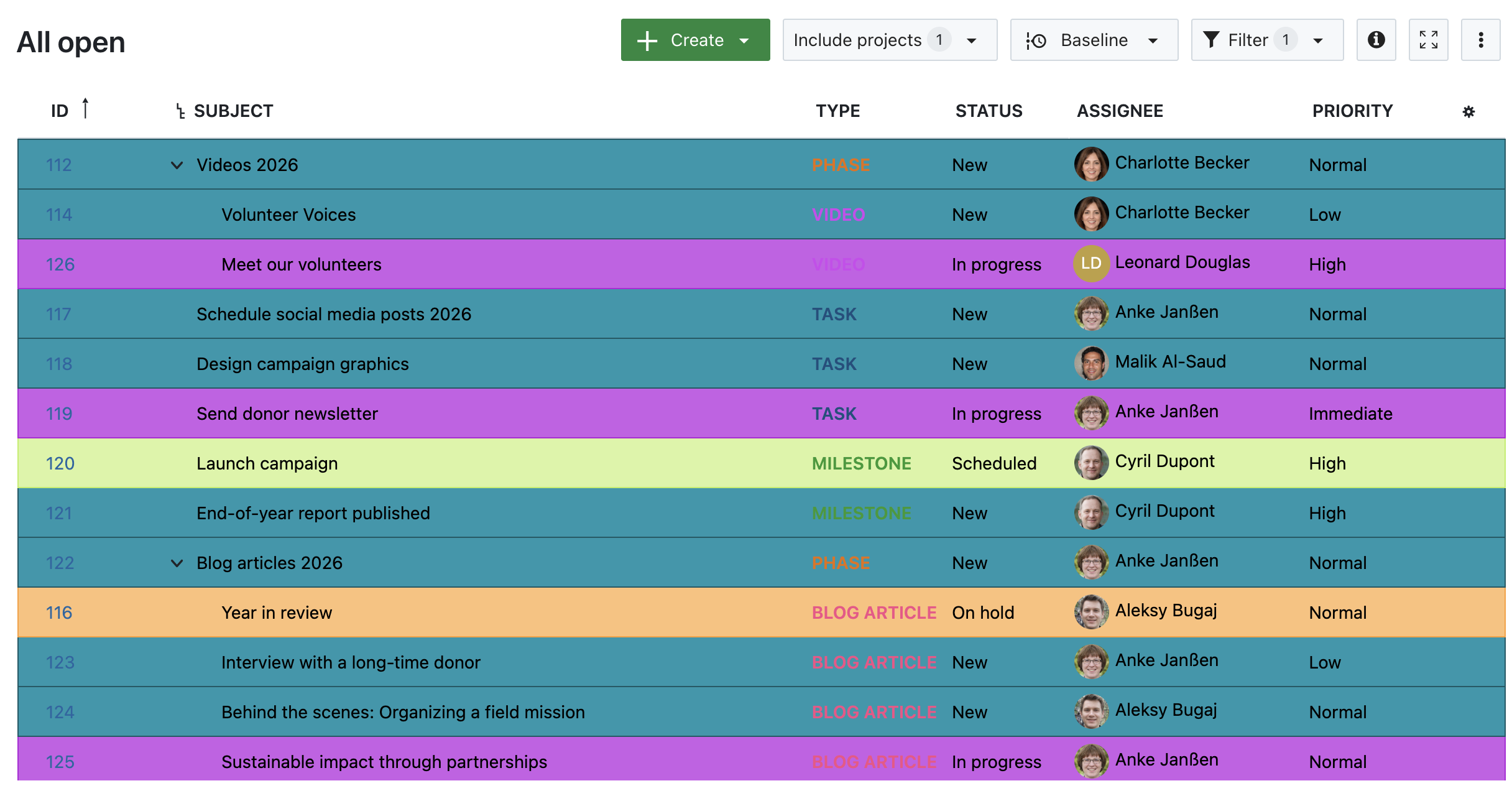
Image 2: A work package table in OpenProject, with inline-highlighted Status, Priority and Finish date.
3. Highlighted by Status
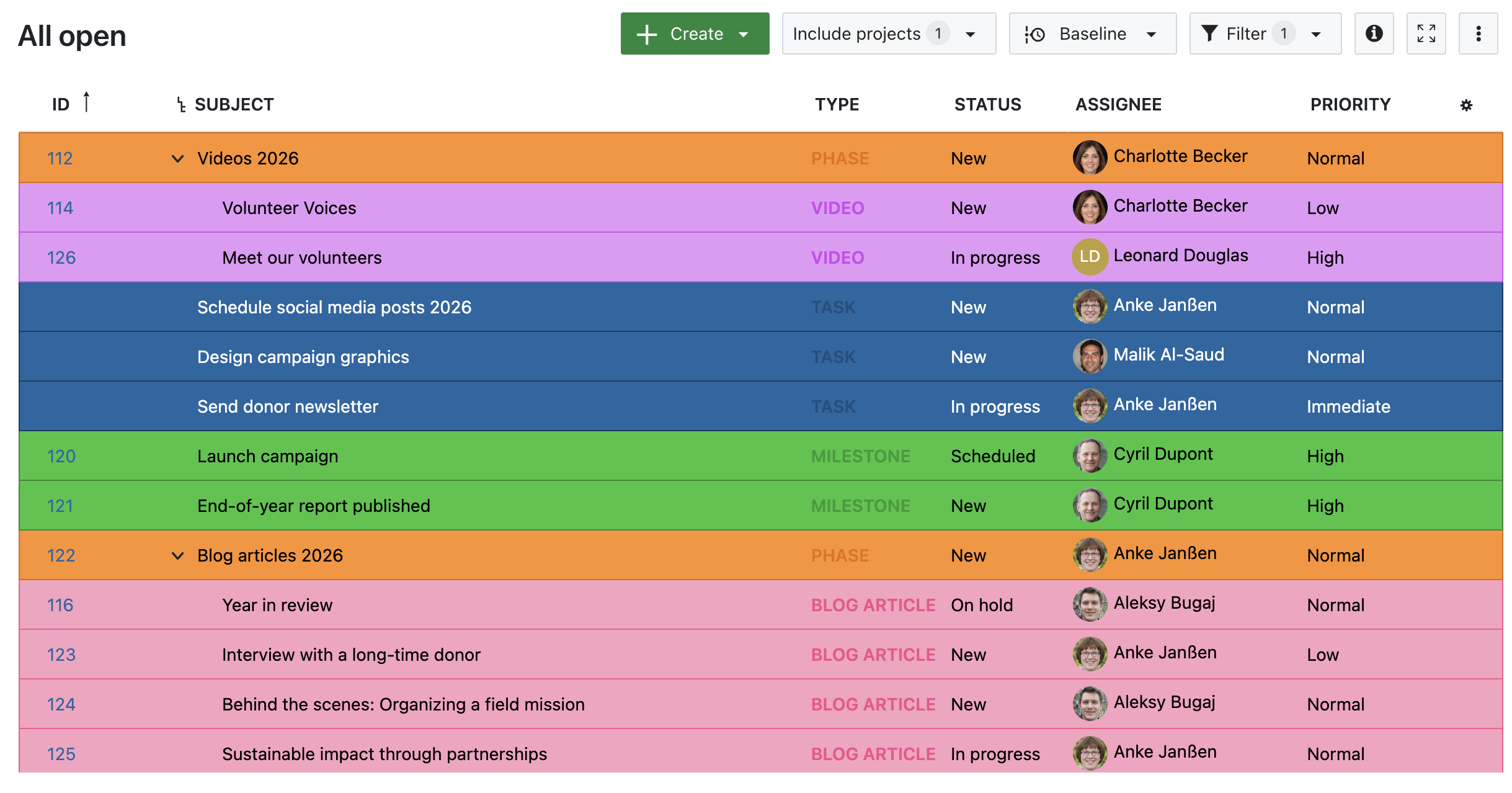
Image 3: A work package table in OpenProject, highlighted by Status.
4. Highlighted by Type
Image 4: A work package table in OpenProject, highlighted by Type.
5. Highlighted by Priority
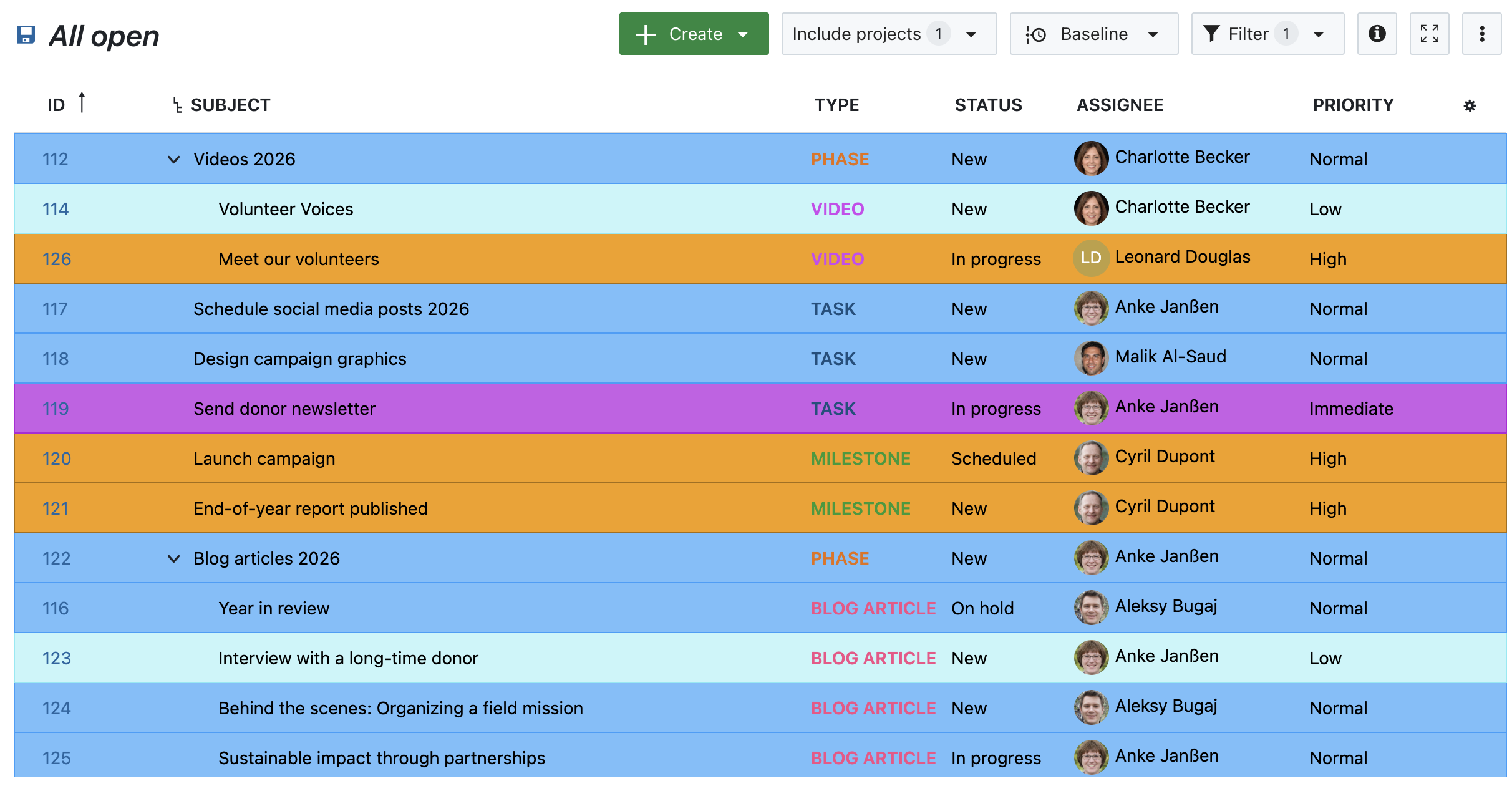
Image 5: A work package table in OpenProject, highlighted by Priority.
Other helpful features for prioritizing work packages
Attribute highlighting works best in combination with other prioritization features. Here are a few tools to support your growing team:
Status workflows
Define which status transitions are possible and by whom, helping structure review and approval processes.
Date alerts and reminders
Automatically notify assignees or watchers when a due date is approaching.
Versions
Group work packages under a common version to align delivery and deadlines across tasks.
Custom fields
Add structured information to work packages that you can then use for filtering, highlighting, or grouping.
Each of these features helps you bring structure to complexity — and together, they make it easier to stay focused.
Stay focused as you scale
Growth is exciting — but only sustainable if your tools grow with you. Features like Attribute highlighting can make a real difference: not by changing how you work, but by making it easier to see what matters.
With a growing team and more responsibilities, the ability to focus at a glance isn’t just a nice-to-have — it’s essential. Let OpenProject help you take that next step.
When we released dynamic meetings in version 13.1 of OpenProject, it was the start of a larger redesign of the Meetings module. Since, we have continued to improve it by adding new features and optimizing the design based on user feedback.
Until now, the new ‘dynamic’ meetings lived alongside the ‘classic’ meetings with the goal of eventually replacing it entirely. We are excited to announce that this May, we will be able to completely remove classic meetings and fully transition to the more modern and versatile dynamic meetings.
With version 15.5 (coming April 2025), classic meetings will still be available but we strongly advise against using it. You can create one-time and recurring meetings instead.
What is changing regarding classic meetings
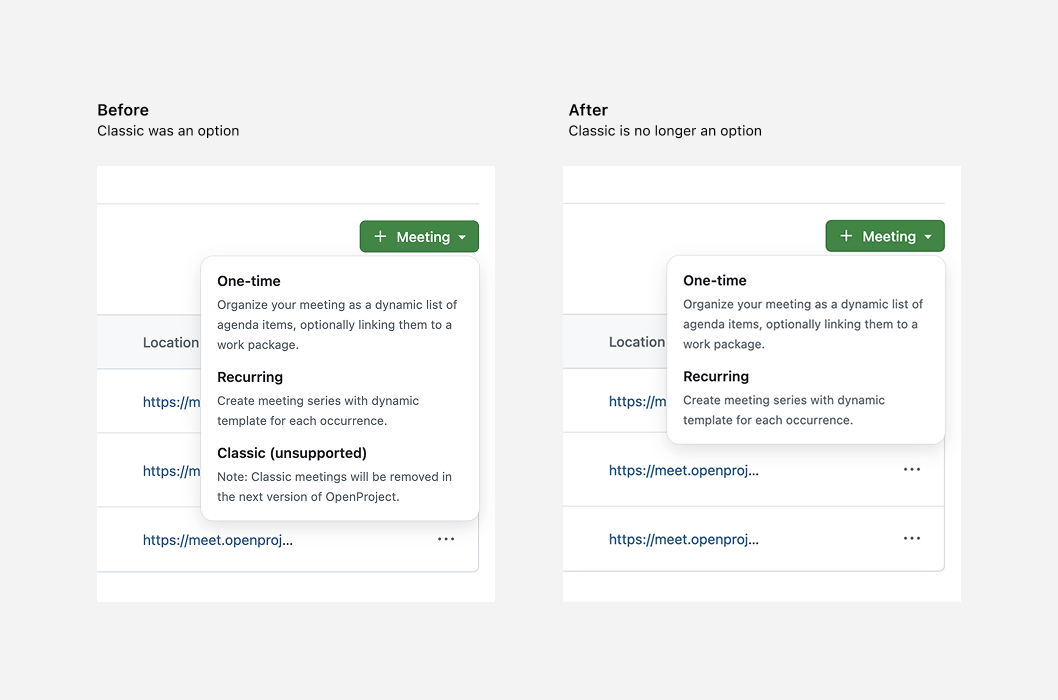
When you create a new meeting in OpenProject in version 15.4, you have three choices: one-time, recurring and classic. Starting with 16.0, the third ‘classic’ option will no longer be offered.
To further prepare our users, it will already be marked as ‘unsupported’ in the upcoming version (15.5) this April, 2025. The actual removal will happen in May 2025, with the release of OpenProject 16.0.
Why we are removing classic meetings
Ever since 13.1, our goal has been to replace classic meetings with an entirely new, more modern and versatile Meetings module. Since the first release of dynamic meetings in version 13.1, we have added a number of new features and improvements, including:
the ability to document outcomes for each agenda item when a meeting is in progress
To completely replace classic meetings, we had to ensure that all existing features in the old module were available in the new one and that we had a clear migration strategy.
With the release of meeting outcomes in OpenProject 15.4, we now meet both conditions. Our users have also had a chance to get used the new Meetings module over the past year.
Migration to 16.0: What happens to your existing classic meetings
All existing classic meetings will be converted to dynamic (one-time) meetings when migrating to OpenProject 16.0.
How will former classic meetings be displayed?
Since classic meetings did not support individual agenda items, your older meetings will simply contain a single agenda item with the content of the ‘Agenda’ tab. This will have a single outcome, with the content of the ‘Minutes’ tab.
Can I still edit my former classic meetings?
All past classic meetings will be set to a ‘Closed’ state, which makes them read-only. However, roles that have the permission to manage the agenda item will nevertheless be able to modify the meeting status and thereby re-open the meeting to change the content.
What happens with already-created upcoming classic meetings?
Upcoming classic meetings will also be converted to dynamic meetings but with an ‘Open’ meeting state.
What happens to other information and data in my classic meetings?
All existing meeting details, participant list and attachments will be retained unchanged. All information concerning the agenda, the minutes and meetings data will be preserved. Meeting modification history will, however, not be available.
Continuous improvement
Although sunsetting classic meetings marks the completion of a planned transition to the new Meetings module, we will continue to add new features and optimize the design based on user feedback.
Very soon, we will be adding meeting backlogs, allowing you to “park” agenda items in a separate space for more efficient meeting planning. This includes a ‘series’ backlog that is shared with all occurrences of a meeting, enabling you to move things in and out of the backlog to particular occurrences.
We will also update the admin permissions model related to meetings to make them easier to understand and better adapted to new features.
Your feedback
Our motivation for all these changes is to enable teams to have more efficient, better-organized meetings. We extensively use the Meetings module internally at OpenProject and have received positive feedback from a number of our users.
Your feedback helps us know if we’re going in the right direction, if there are things we can improve on and what our users are missing.
As an open source software company, we value the ideas and feedback of our user Community. If you have opinions about these changes or have feature requests, feel free to join our Community instance and share your thoughts on upcoming features related to meetings.
Thank you for your continued support and for being a part of the OpenProject Community.
At OpenProject, we are continuously working to make our platform as accessible as possible for all users. A big part of that is offering our content in multiple languages. We are excited to announce that our website and user guides are now available in Portuguese!
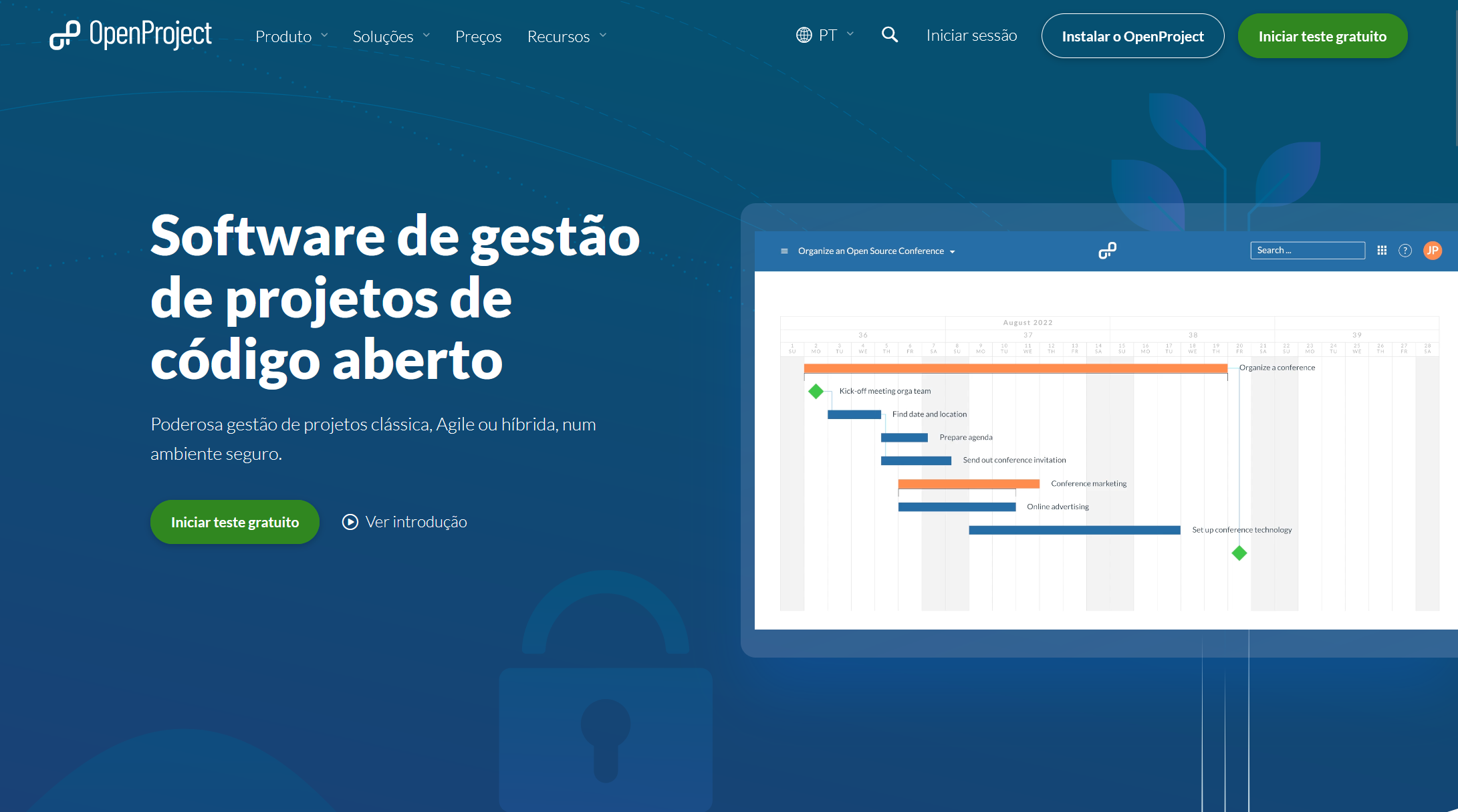
OpenProject website in Portuguese
We’re happy to offer our Portuguese-speaking community a fully translated version of our website. While not all past blog articles will be translated, relevant new content will be published in Portuguese moving forward.
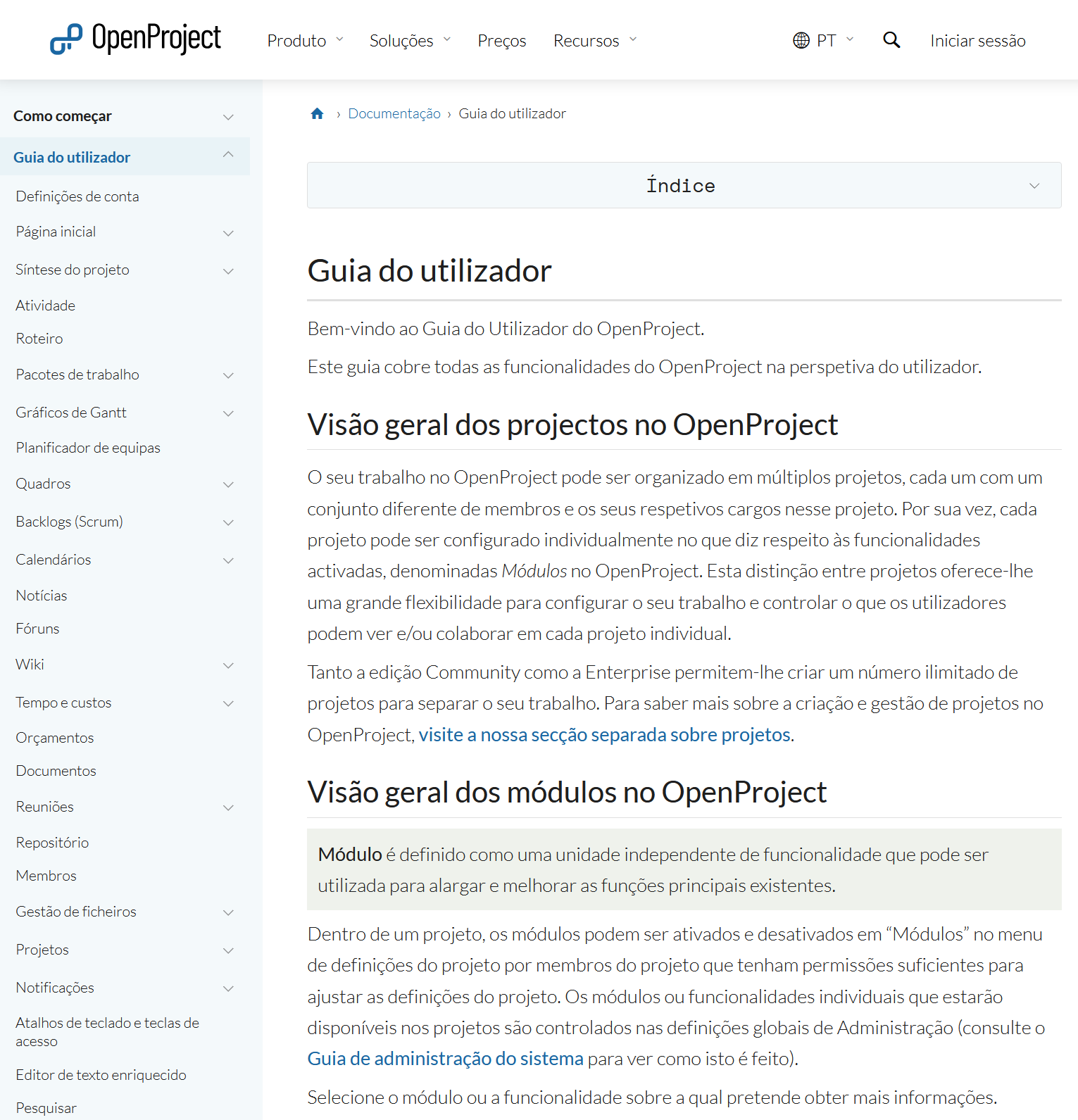
OpenProject user guide in Portuguese
Also, we have translated the OpenProject getting started guide as well as the user guide to Portuguese. These resources explain OpenProject’s features and functionality in detail, helping new and experienced users alike.
Documentation in other languages
In addition to Portuguese, OpenProject user guides are also available in:
OpenProject translations are managed publicly via Crowdin, and we welcome contributions from our global Community! You can help translate both the OpenProject application and the documentation.
We love seeing our community get involved — thank you for helping make OpenProject accessible to everyone!
You decided to take your project management to the next level and chose OpenProject as your open source project management software? You might be excited to get started. But as usual with a new tool: where to start? We put together an overview of the first steps to manage your projects in OpenProject. Please note that all steps described in this article require a project admin status.
Here’s an overview of this article for your quick navigation:
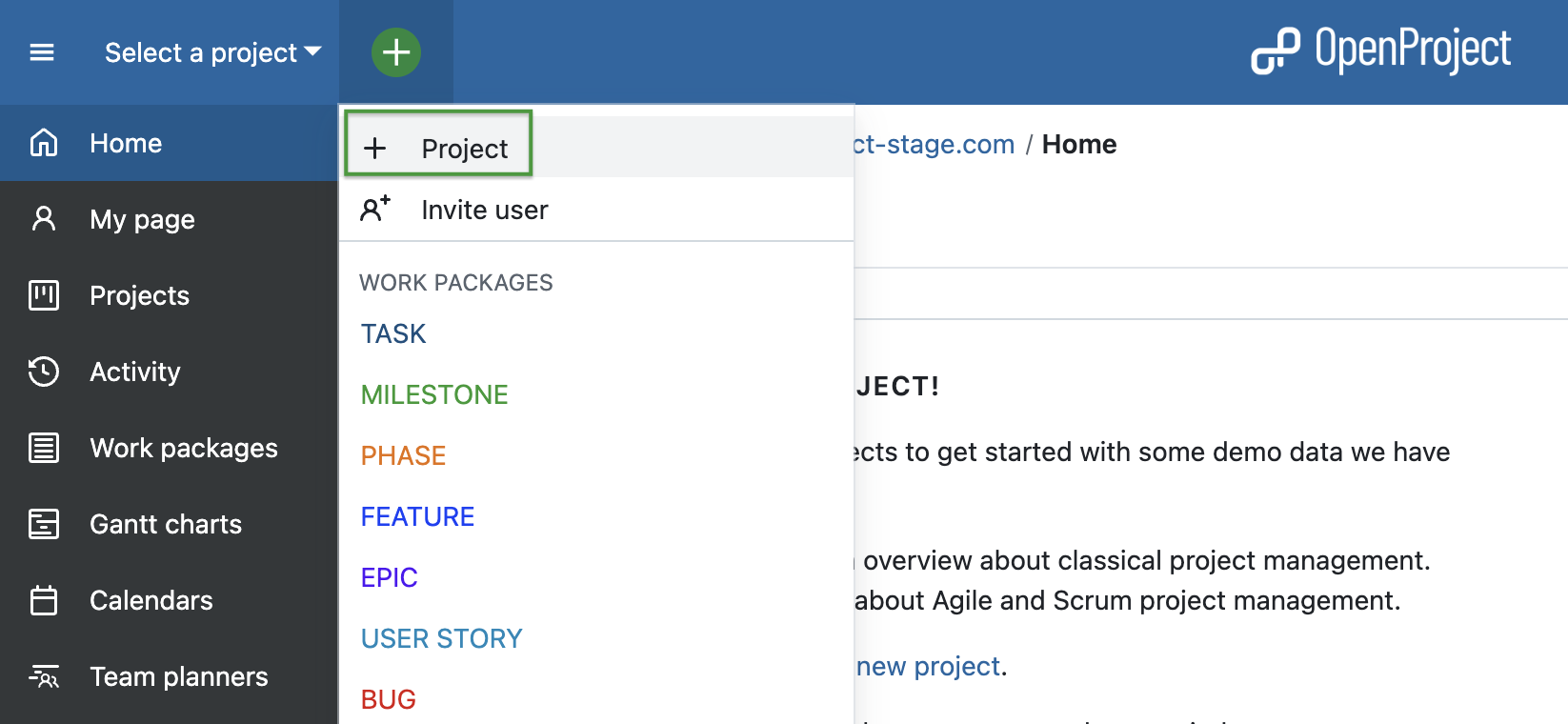
First of all, you would want to create a project. Log in to OpenProject and on the first page in the top left corner under Select a Project you can create a new project by clicking + Project.
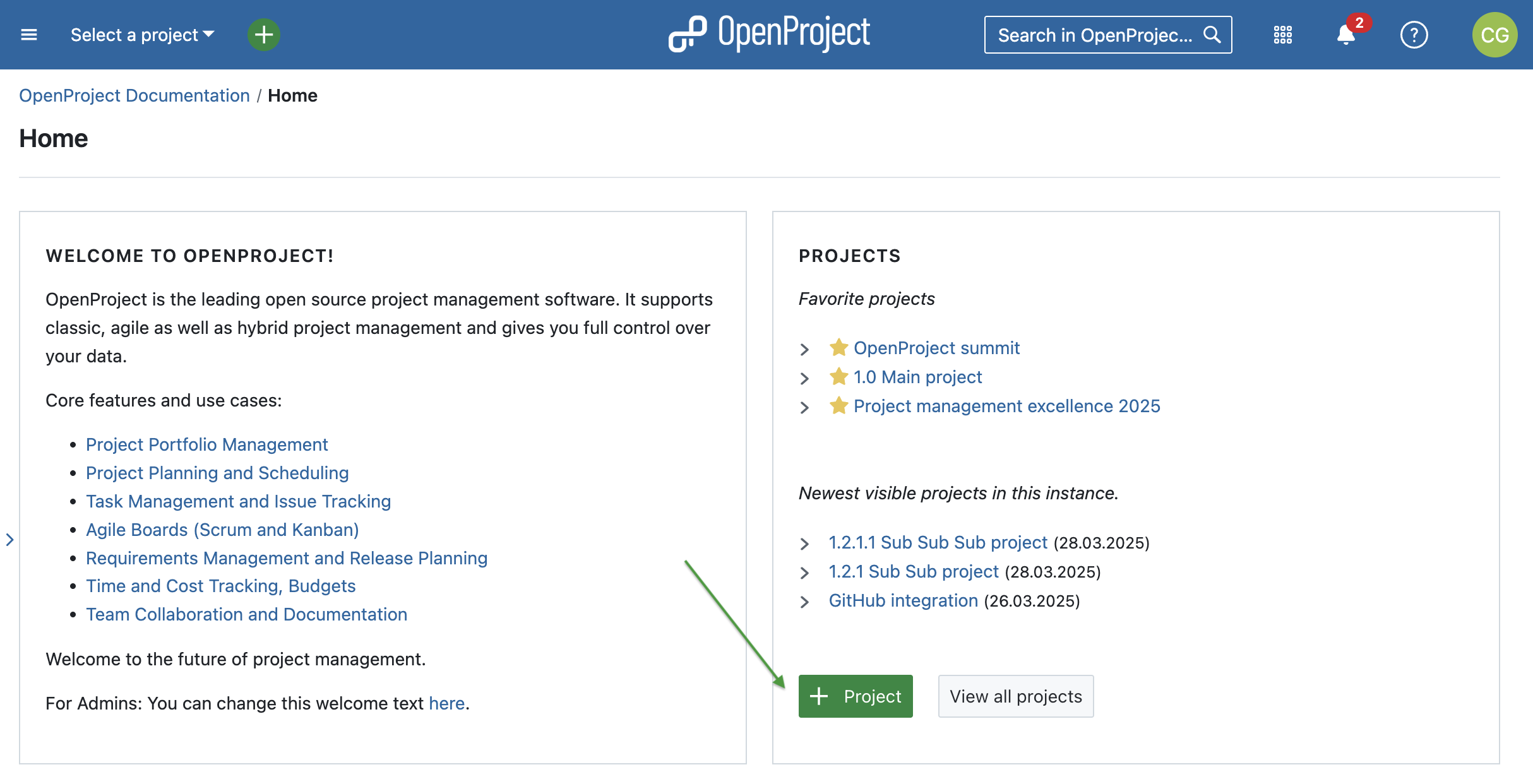
Alternatively, on the same start page, in the Projects widget you can create a new project by clicking on the green + Project button. Please note that you can remove, add and change position of widgets on your project overview page.
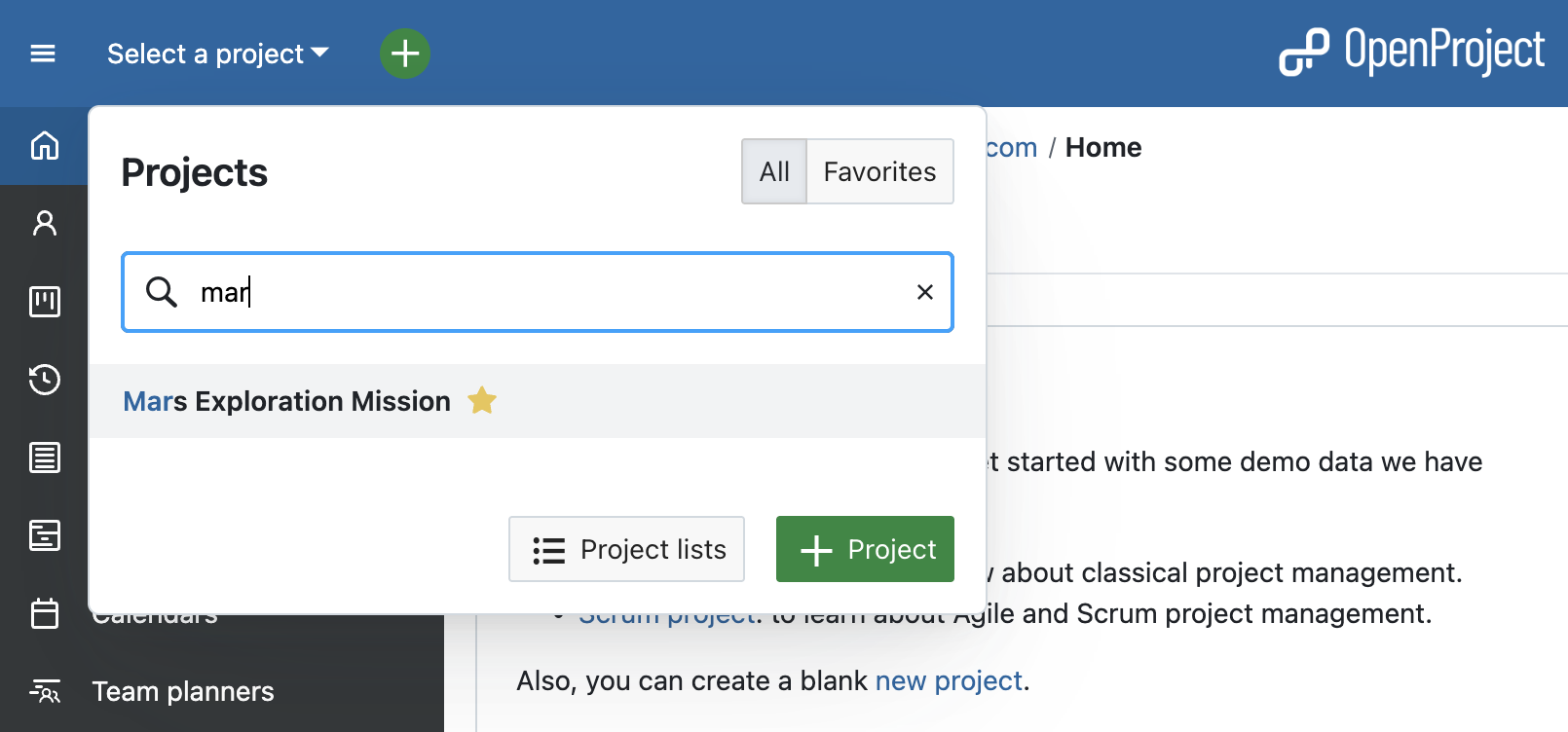
Once you or other team members created some projects in OpenProject, you can log in and choose a project to open. In order to open an existing project, click the Select a project drop-down menu in the upper left corner of the header and select the project you want to open. You can also start by typing in a project name to filter by the project’s title.
Please note that you have to be a member of a project to be able to see and select it.
[!TIP]
You will also see a project if a work package from this project was shared with you, but in this case only the Work packages module and the shared work package will be visible to you within the project.
Project hierarchy
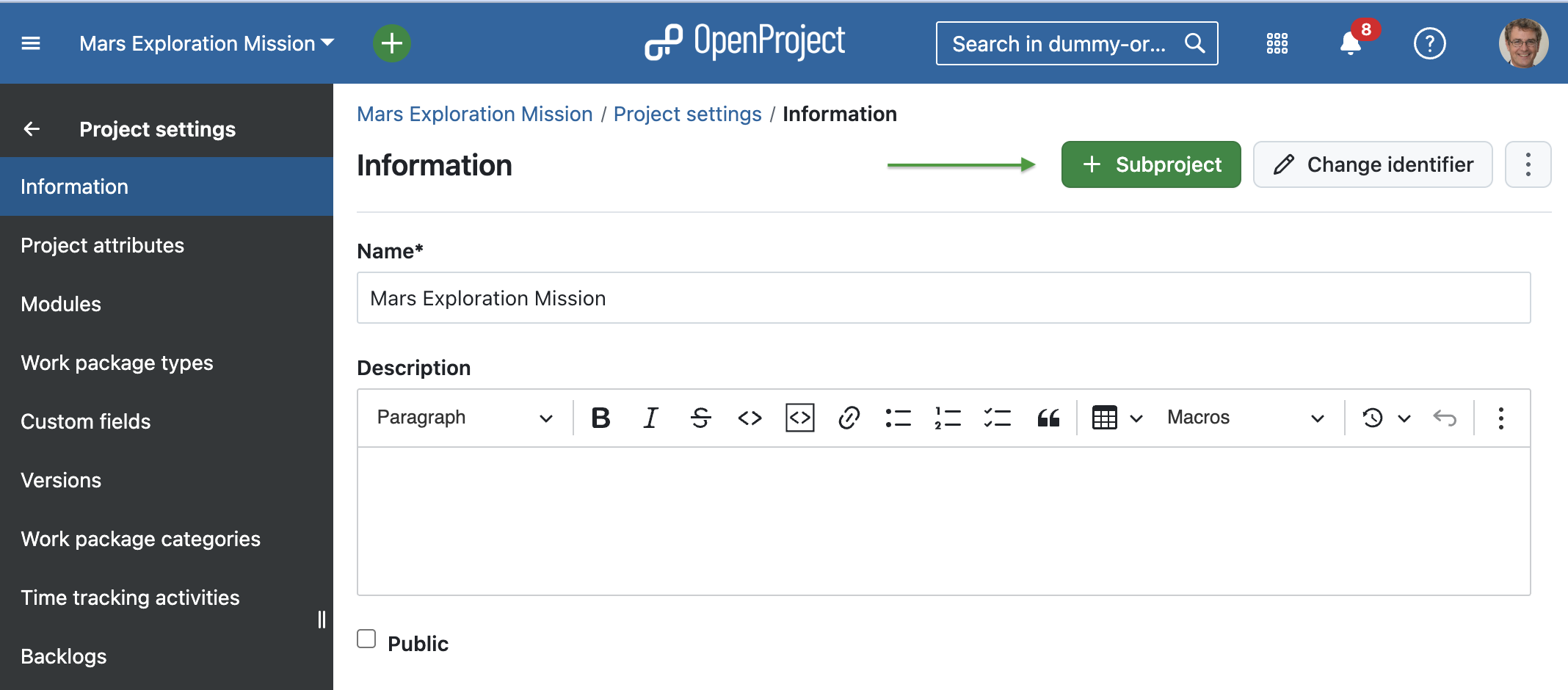
OpenProject allows you to organize your projects in a hierarchy by creating projects with subprojects. In order to create a subproject, you can do so in the project setting of the main project.
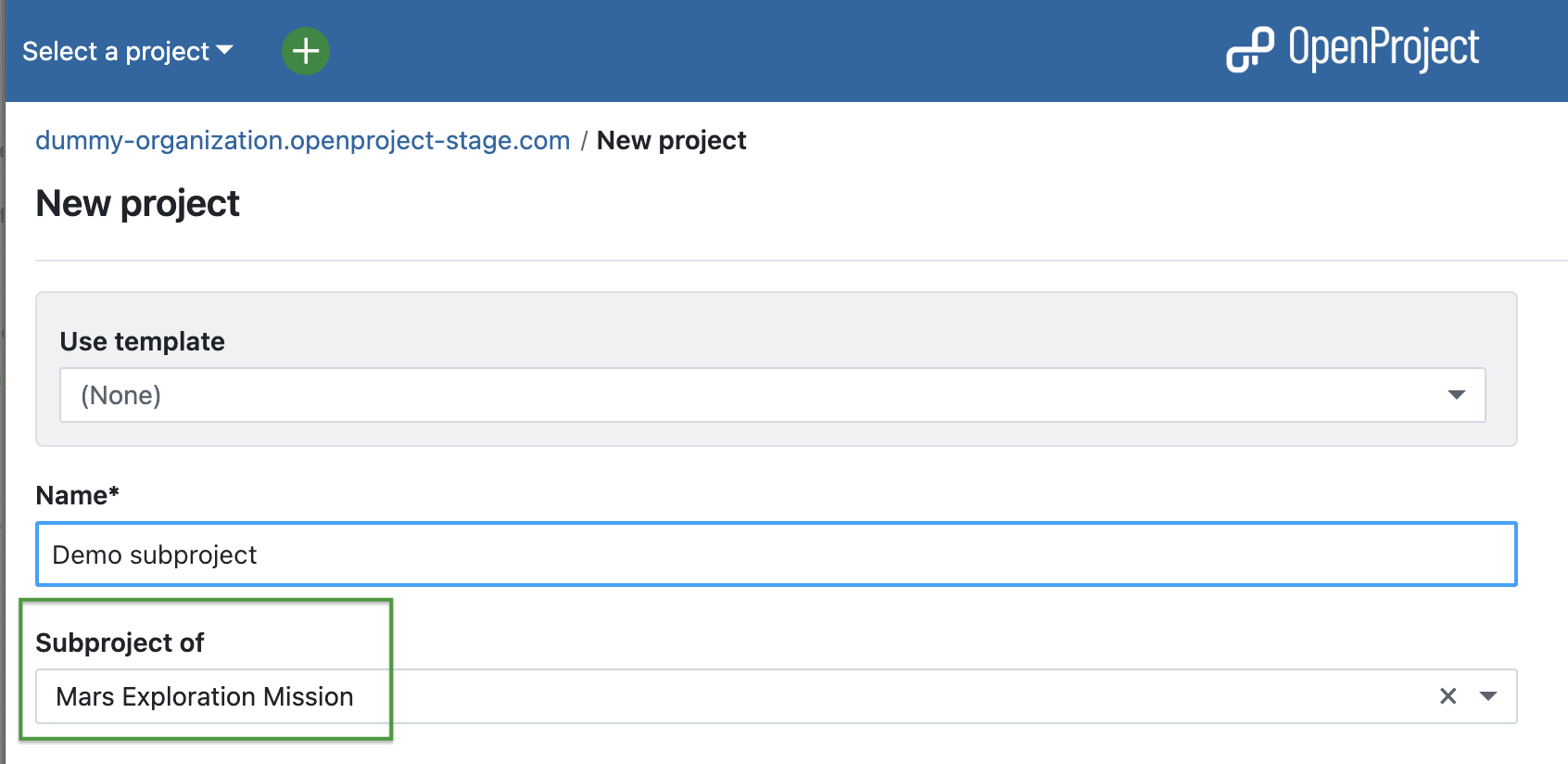
You can also create a project and define its parent project in the settings when creating a new project.
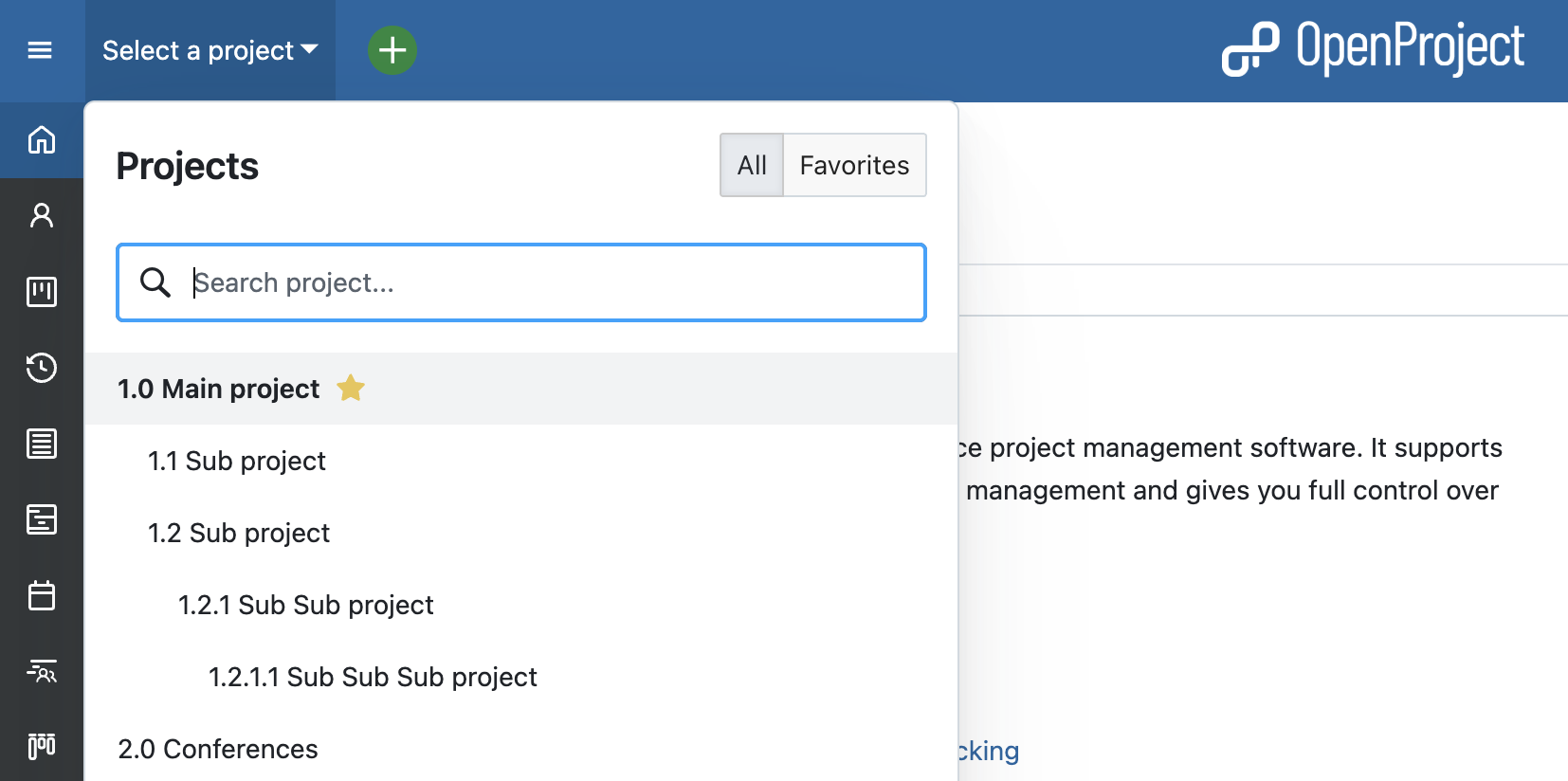
Projects and subprojects are displayed according to their hierarchy in the Select a project drop-down menu.
Project dashboard
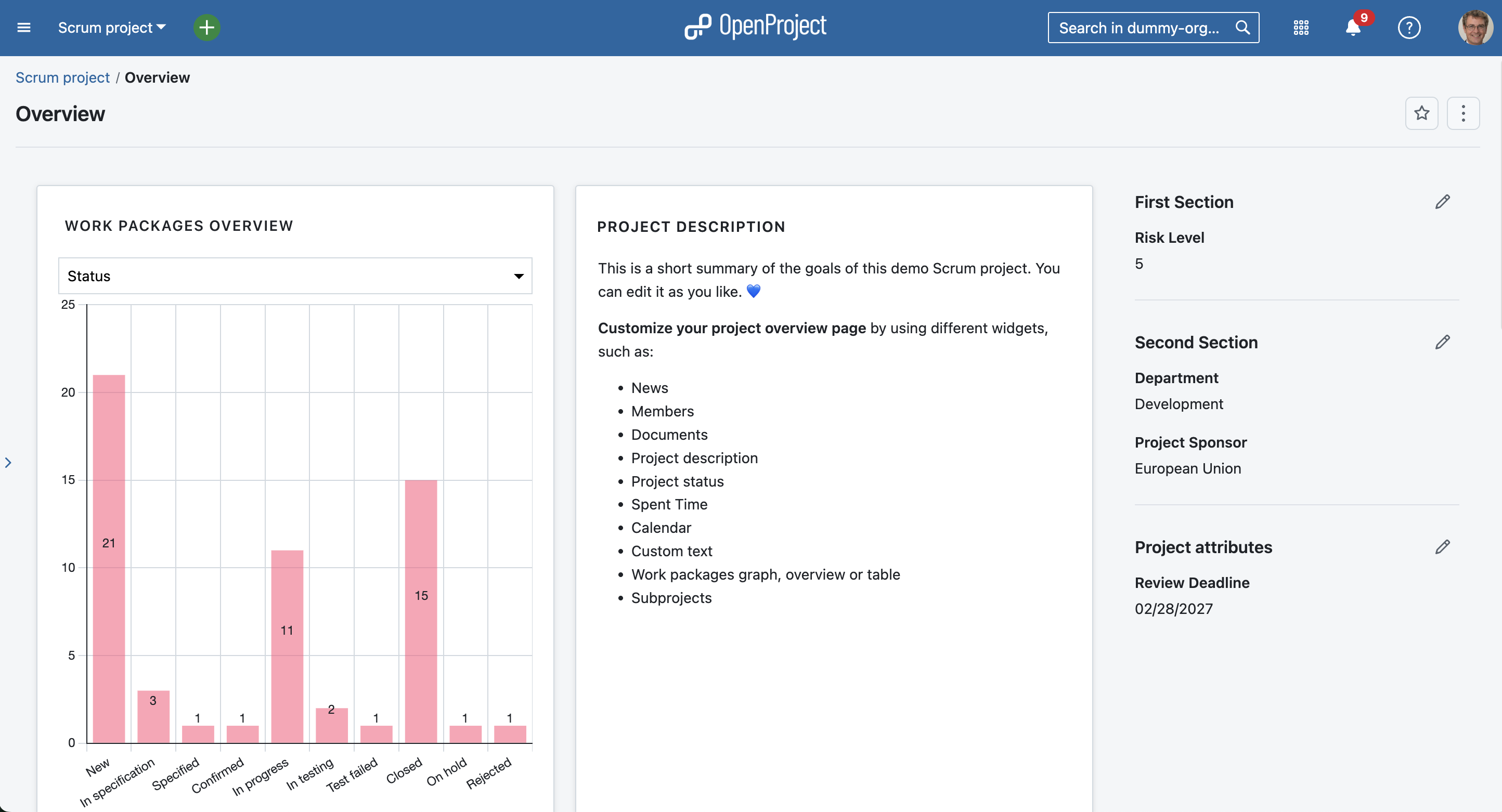
In order to manage your projects successfully, you should make sure to be up to date about the status at all times. This allows you to keep the project on track and readjust quickly if needed. OpenProject’s project overview is a single dashboard page with important project information.
You can display relevant information for your team, such as members, news, project description, work package reports, or a project status. Remove or add project information as widgets to the dashboard, and order and re-size the widgets according to your needs.
There are several widgets to choose from, such as:
News,
Members,
Documents,
Project description,
Project status,
Spent time,
Calendar,
Subprojects,
Work packages graph, overview or table,
Custom text.
Project portfolio
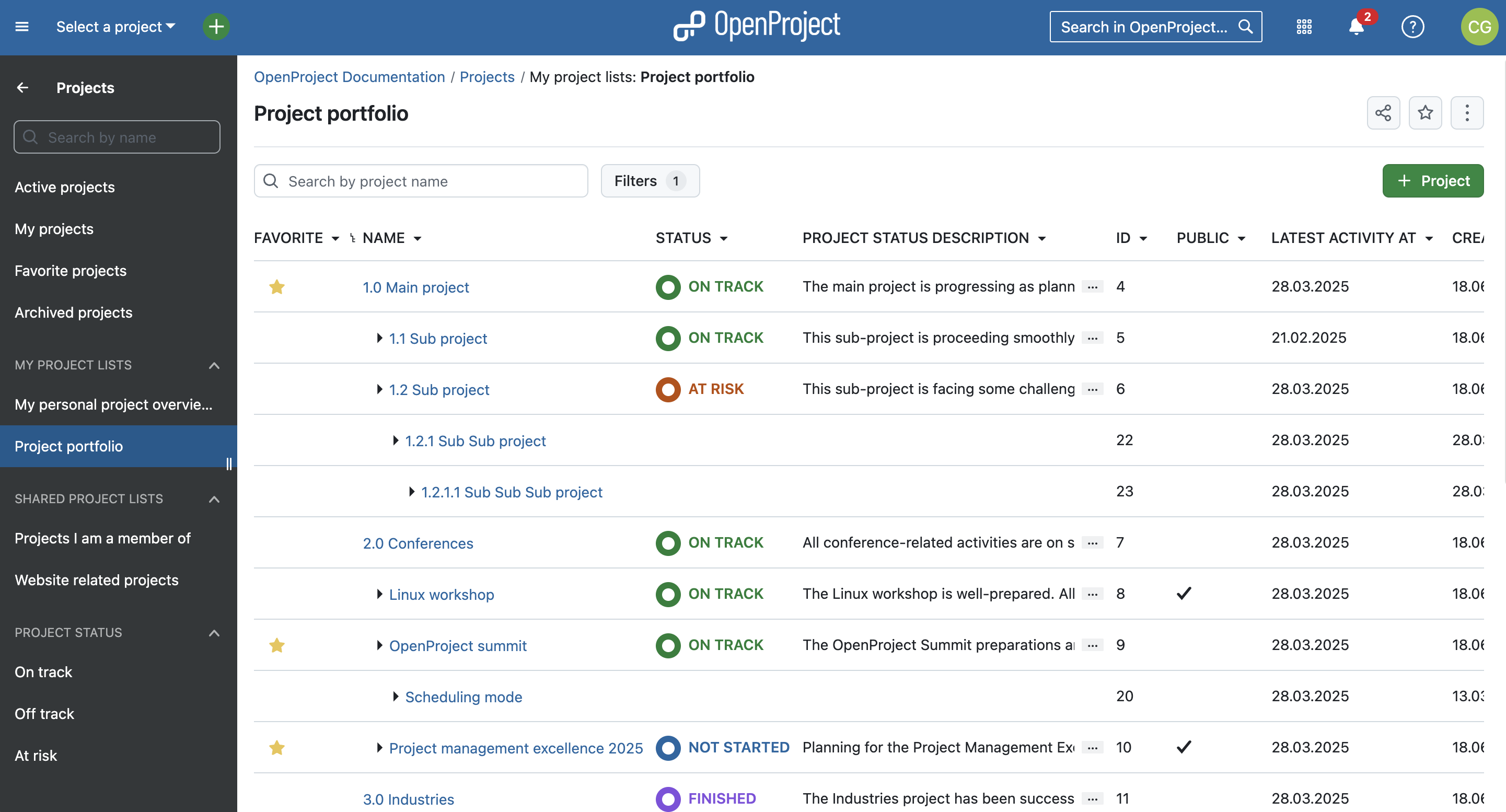
To get an overview of all projects that you are involved in, you can check the status and more details under Project lists in the top left corner underneath Select a project. This overview shows you all projects with attributes such as status, latest activity and description. Use filters to customize the view and show the information you need. You can also create custom fields to add any custom information you want.
You might have noticed the yellow stars next to some projects in the screenshots above. These are favorite projects. Users can add projects to their favorites by either clicking the star icon in the project list (first column). Or by navigating to the project overview page and activating the star on the right upper corner. Favorites are personal and you don’t have to be an admin to use this feature.
Project templates
In order to save time and be coherent across projects, use the project templates in OpenProject. You just create a new project and then save it as a template. You can also make a project you are already working with a project template by changing the project settings to Set as a template. With a project template, you set up everything you want available for future projects, such as:
Project members,
Modules,
Default project structure in the Gantt chart,
Work package templates
and more.
Import tasks to OpenProject
In case you are managing your projects in Excel or any other project management software, OpenProject offers you an Excel Sync to upload your tasks into the OpenProject application. First export your tasks from the legacy project management system and then use the Excel Sync to upload them to OpenProject.
Organize and visualize your project
Projects vary and require a different view by project. Depending on what type of projects you are managing, you might want to use a work package table view, Agile Boards, Gantt charts, Backlogs, Task Board or a Roadmap. OpenProject offers both traditional and agile project management and allows you to combine both to a hybrid project management approach.
We would like to show you the major OpenProject modules that offer different project views. However, as mentioned, you can also combine them.
Work packages
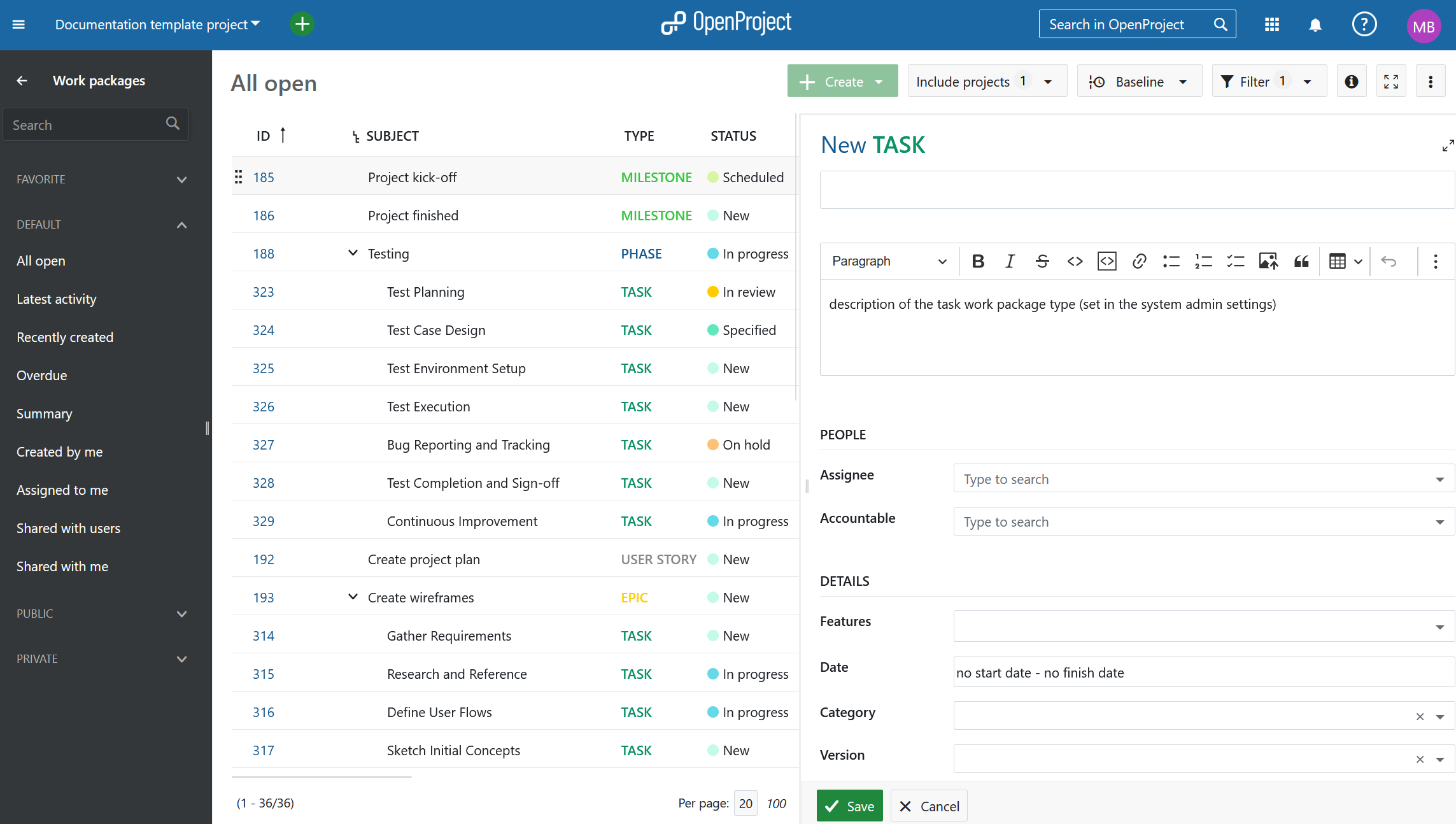
Work packages are the base for your project collaboration in OpenProject. They are items in a project (such as tasks, features, risks, user stories, bugs, change requests – and any other type you want to create) and capture various additional attributes, such as status, assignee, priority, or due date. The work package table view shows all work packages as a list with selected attributes in the columns. You can customize the view by filtering by attributes and choosing the attributes shown in the columns, and then save your customized view.
Gantt charts
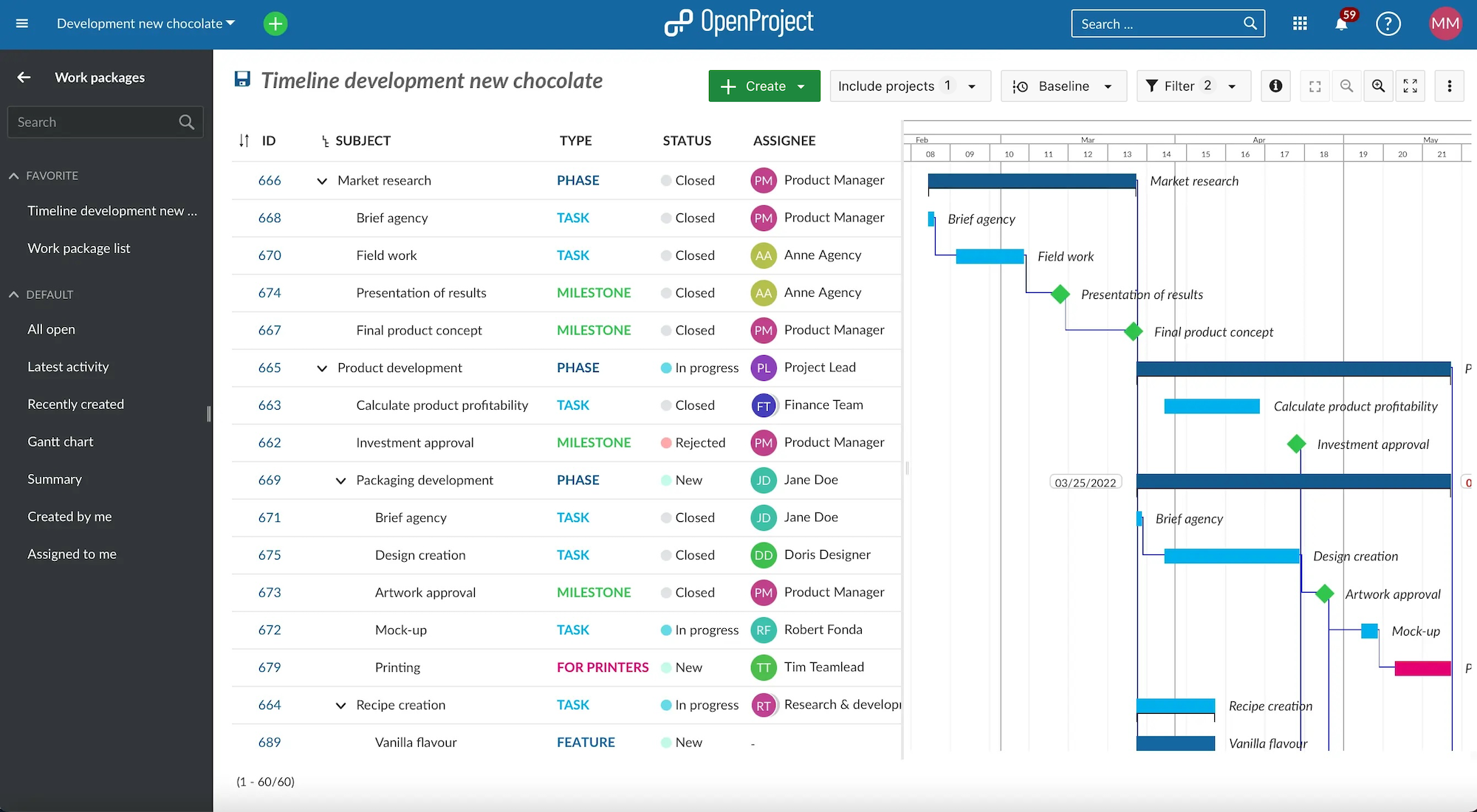
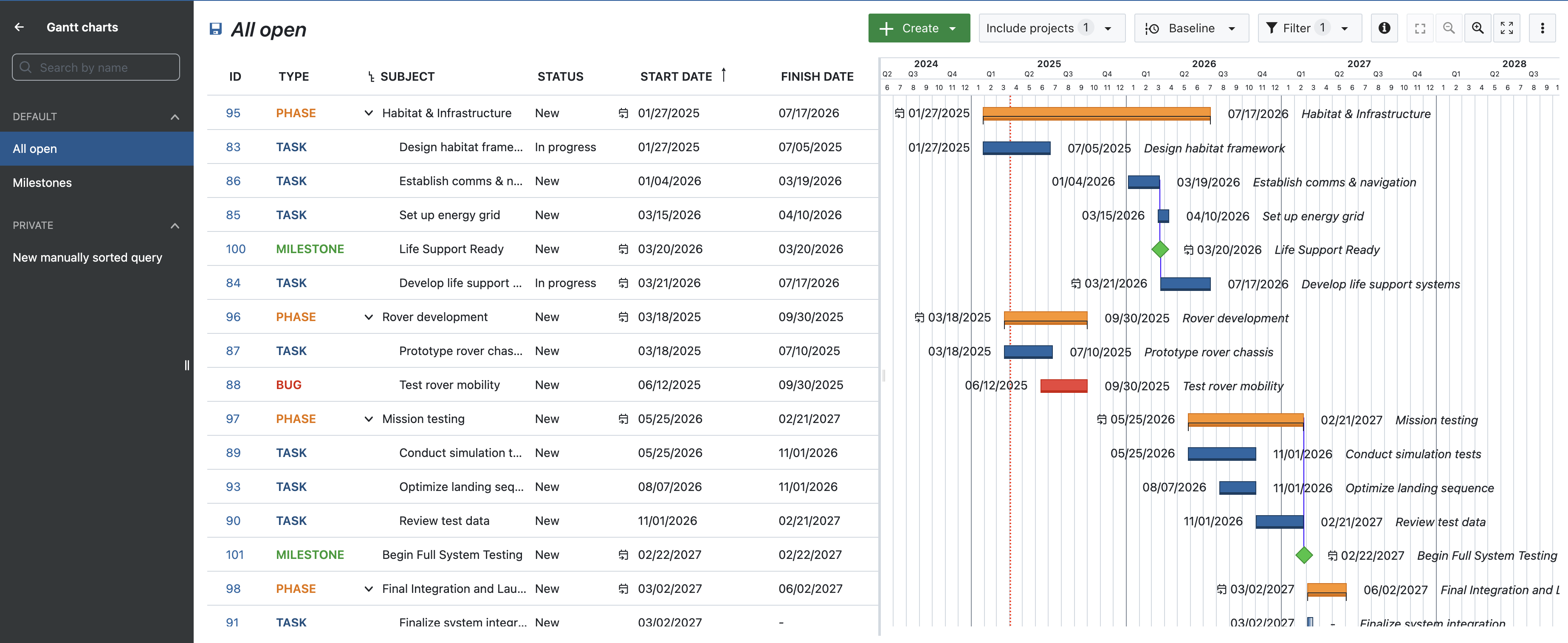
The Gantt charts module in OpenProject displays the work packages in a timeline. You can collaboratively create and manage your project plan. Have your project timelines available for all team members and share up-to-date information with stakeholders. You can add start and finish date and adapt it with drag and drop in the Gantt chart. Also, you can add dependencies, predecessor or successors within the Gantt chart.
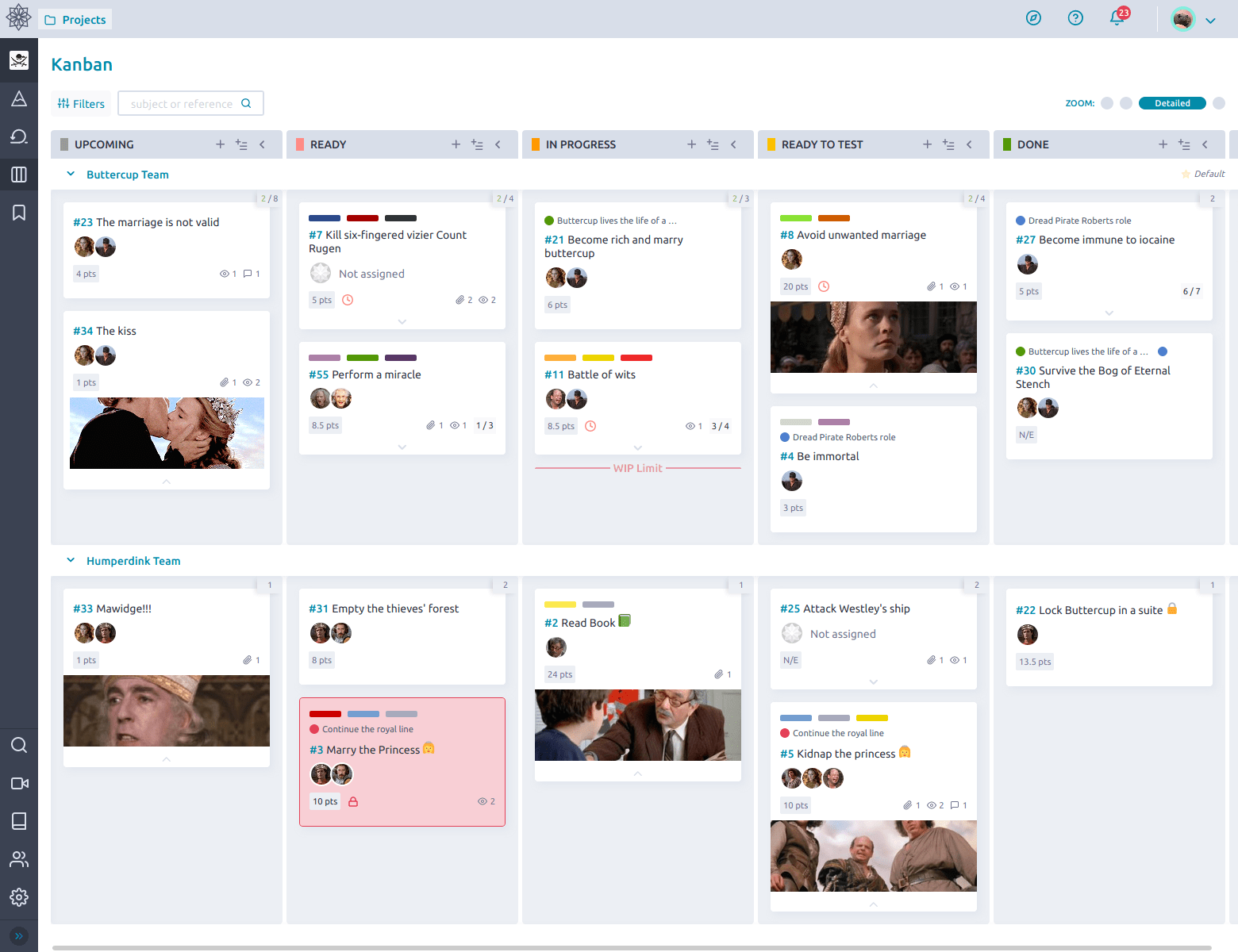
Boards support agile project management methodologies, such as Scrum or Kanban. Our agile boards can be for anything you would like to keep track of within your projects: Tasks to be done, Bugs to be fixed, Articles to be reviewed, Features to be developed, Risks to be monitored, Ideas to be spread, anything! The boards consist of lists (columns) and cards.
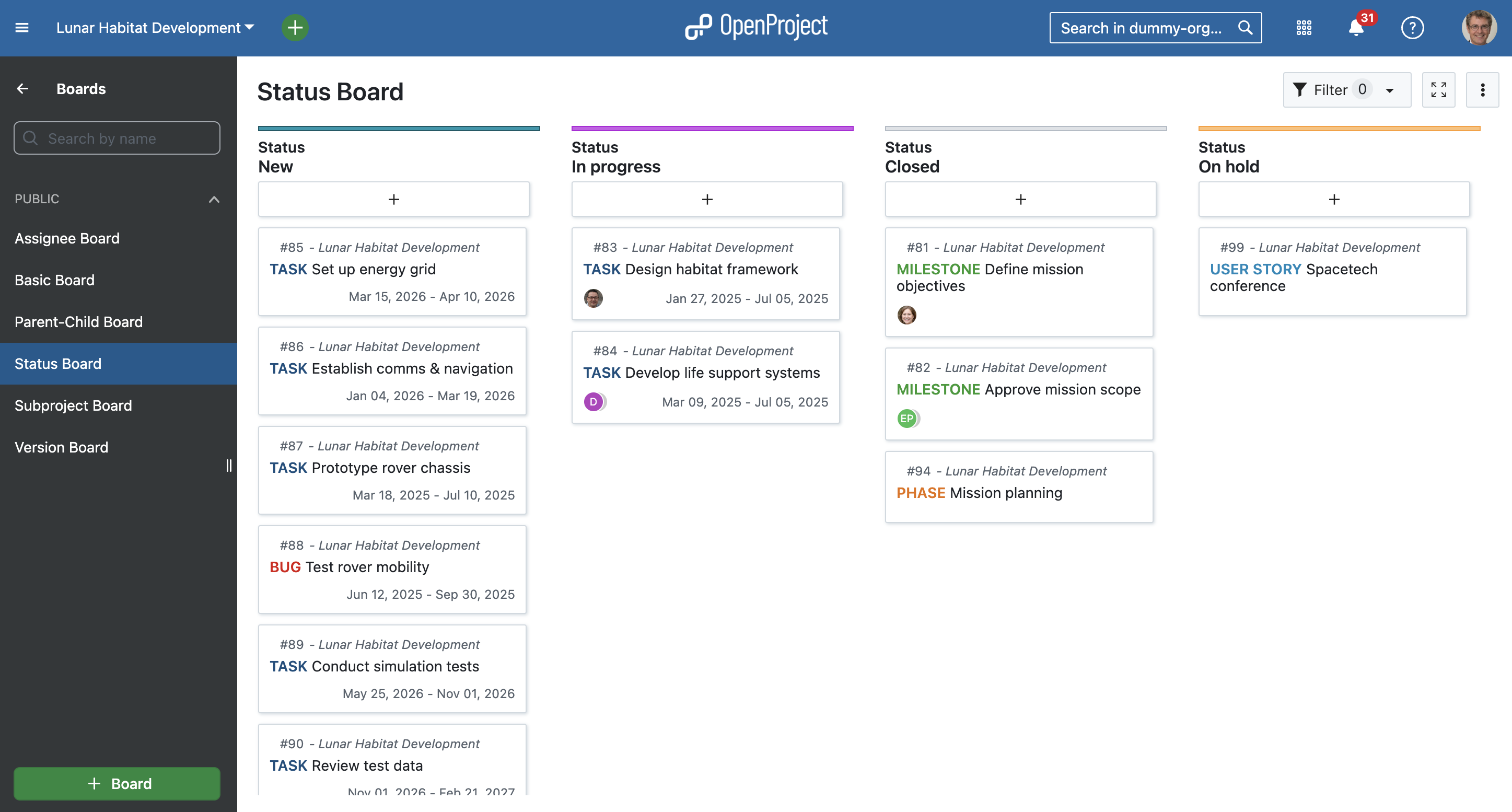
You can choose between a Basic board (Community feature) and various Action boards (Enterprise add-on). The following board shows a Kanban example where you move your work packages from one status to the next. If you want to find out more about the different agile boards, please click here.
Backlogs
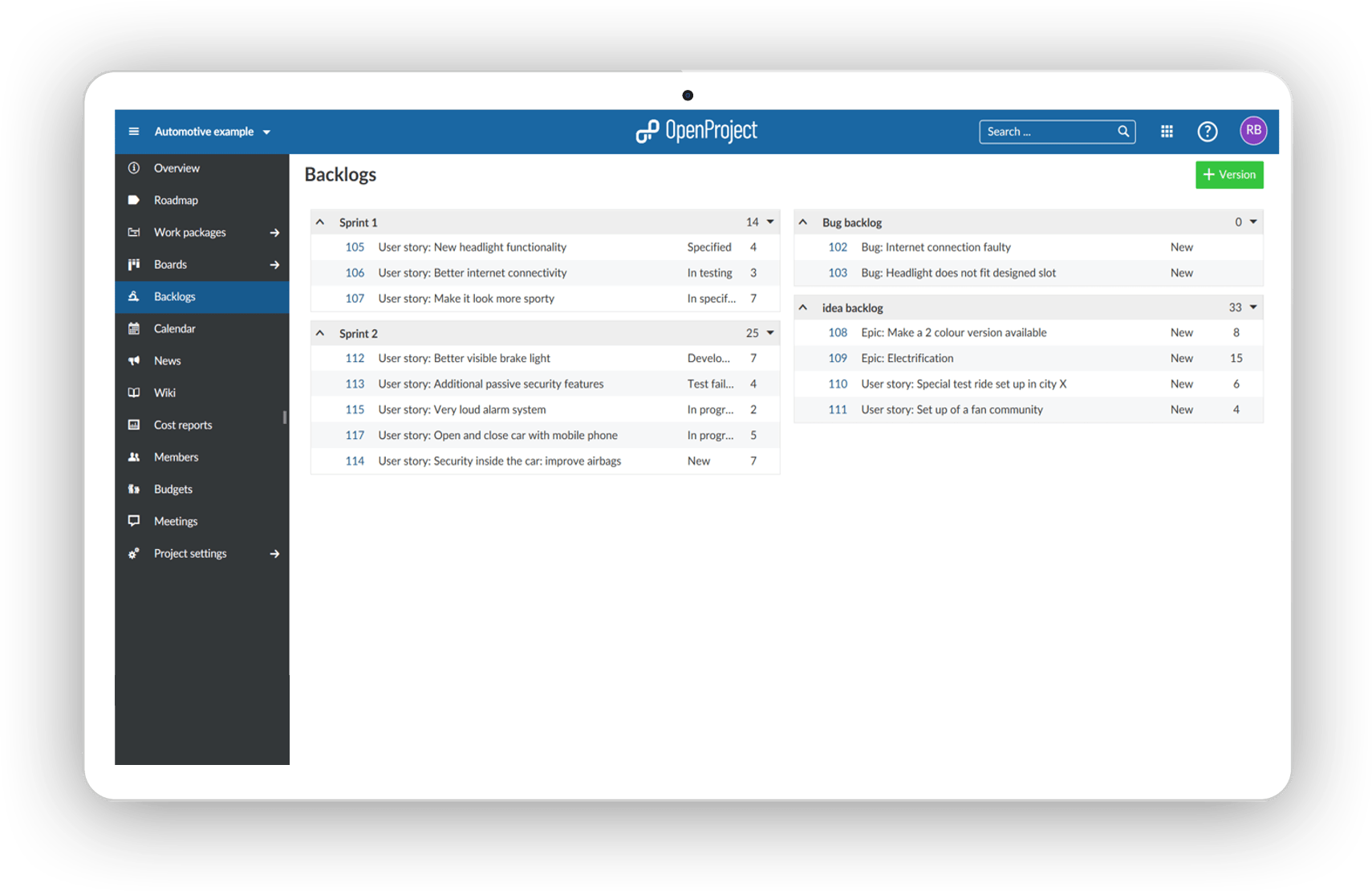
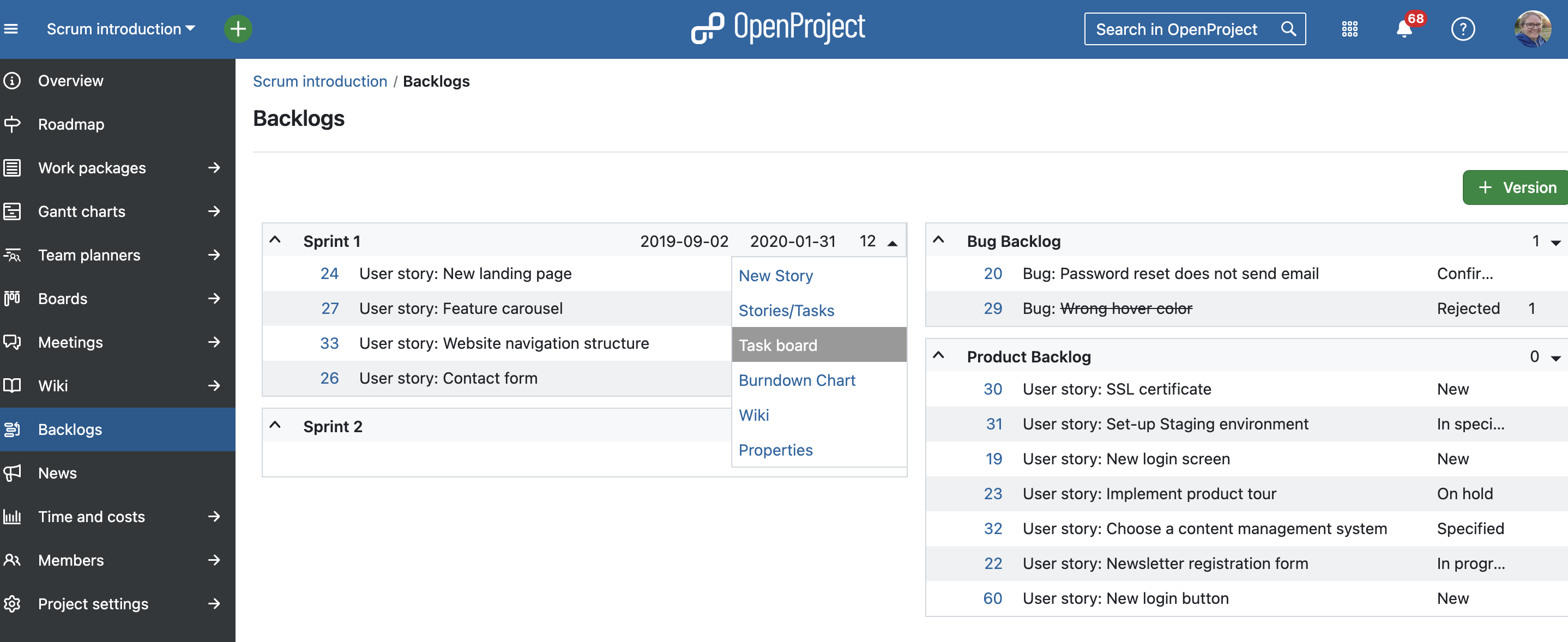
The starting point for effective work in Scrum teams is a well-maintained and prioritized product backlog as well as the creation of sprint backlogs. In OpenProject, you can easily record and specify requirements represented by user stories. Moreover, you can respond to inquiries and sort them by priority for implementation.
Task boards for Scrum meetings (Backlogs)
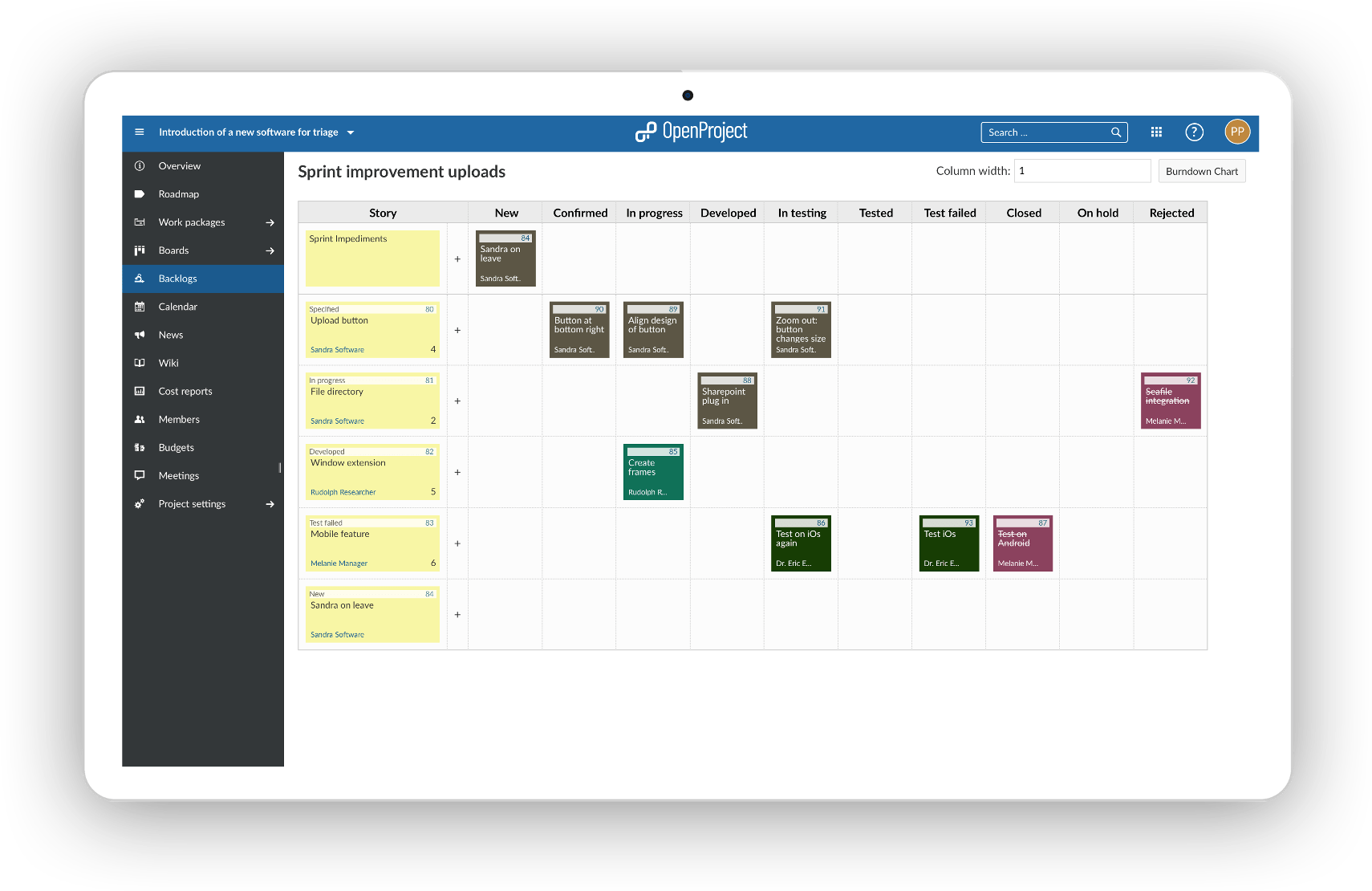
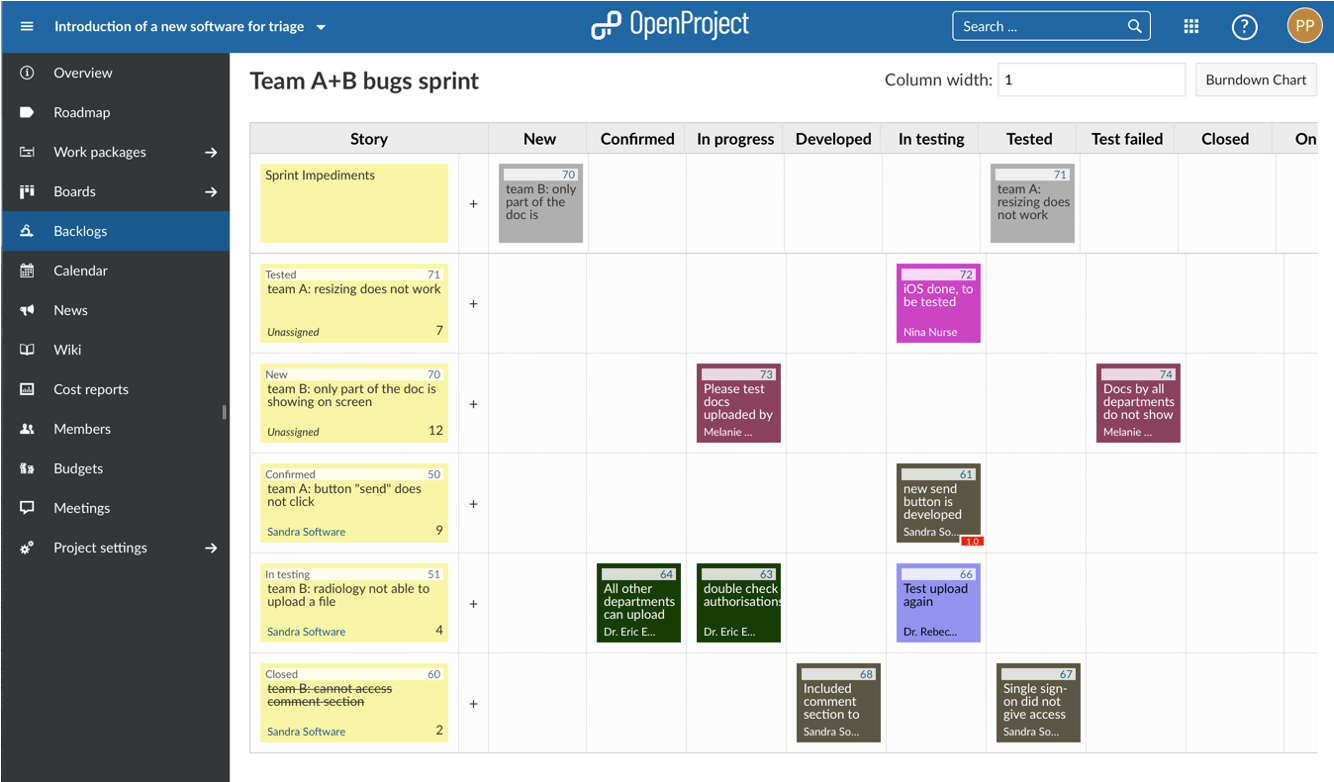
To support daily scrum meetings, all of a team’s tasks and sprint impediments are recorded in a digital task board. The digital task board thus allows team members to get a fast overview of the current state of a sprint.
Roadmap
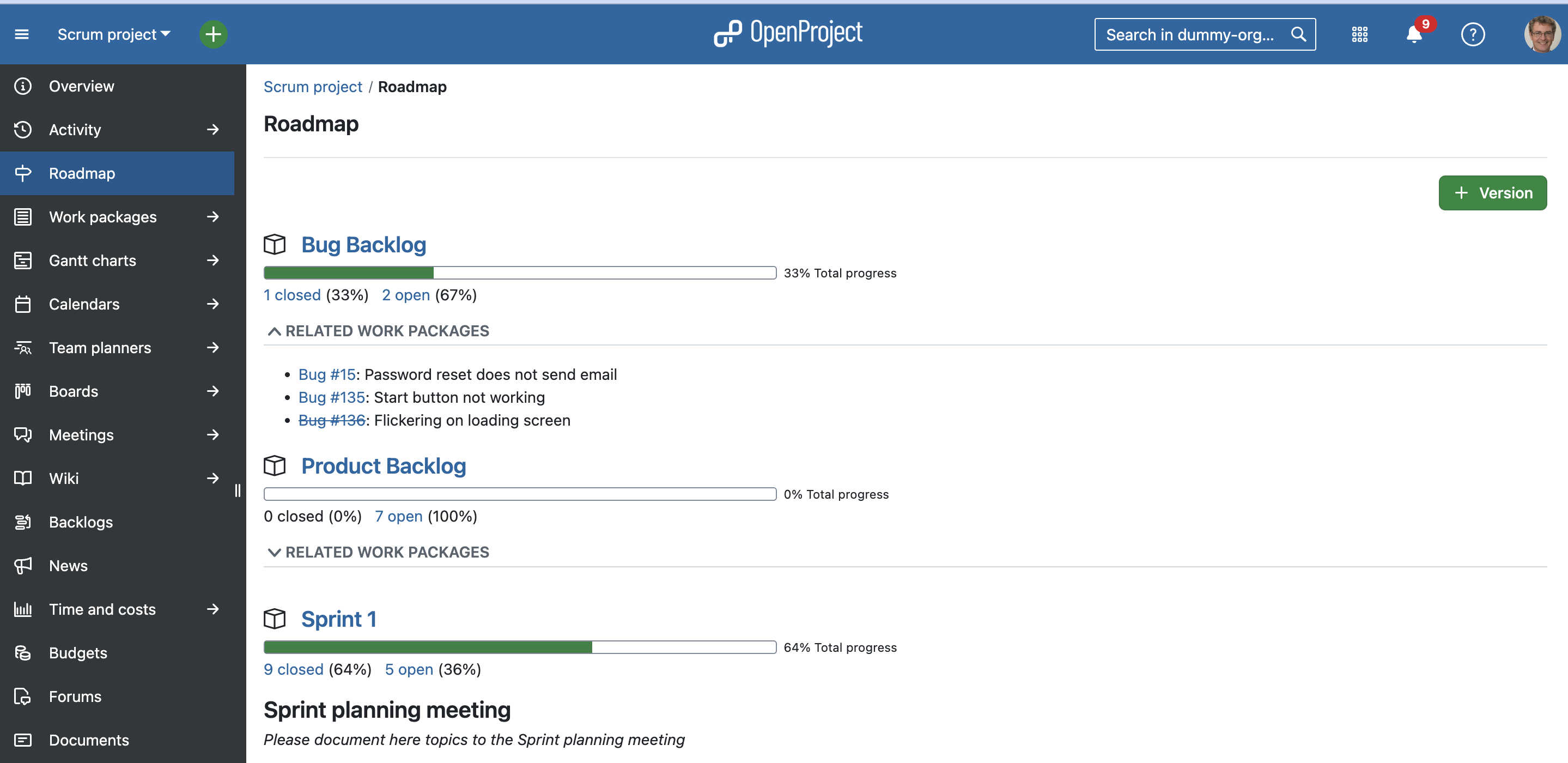
Share your product roadmap with your stakeholders, get feedback about your ideas and break it down into a detailed release plan. In the roadmap, you can see all work packages and their status listed by versions at a glance. For each version, the related work package can be assessed from the list displayed in the roadmap view. Subjects which are crossed out represent closed work packages.
More support and information
We included quite a few links to our documentation in this article which also entails videos to make to easier for you to discover how to use OpenProject. If you would like to discover more videos, please check out the OpenProject YouTube channel.
Other guides and articles that might be helpful for you:
Whether you’re moving from Docker to a package-based installation, changing databases, or upgrading an older setup, migrating your OpenProject installation can raise important questions. To help you navigate the process, we’ve compiled an overview of supported migration paths, key considerations, and links to detailed documentation. This article gives you the big picture. For in-depth instructions, please refer to our documentation.
OpenProject supports several installation methods: Docker, DEB/RPM packages, Helm Charts for Kubernetes, and manual installations. Depending on your infrastructure and technical requirements, one setup may suit you better than another.
For most users, we recommend the Docker-based installation. It’s the easiest to set up, requires minimal system configuration, and is simple to maintain — especially when updating to new OpenProject versions. This makes Docker the most future-proof option.
Important
We will not build packages for new Linux versions (such as Ubuntu 24.04). We will, however, keep releasing new package versions for the currently supported Linux versions until their EOL (end of life). Learn more in our packaged installation documentation.
Migration between Docker and packaged installations
It is possible to migrate between Docker and packaged (DEB/RPM) installations in both directions. In both cases, the process involves:
Exporting the PostgreSQL database,
Copying attachments and configuration files,
Re-importing the data in the new environment.
You might consider migrating to a packaged installation if your IT environment requires tight system-level integration, custom deployment configurations, or traditional OS-based monitoring tools. In this case, please follow this detailed guide in our documentation: Migrating your packaged OpenProject installation to another environment.
On the other hand, migrating from a packaged installation to Docker is a future-proof choice. It simplifies upgrades and deployments — especially since OpenProject will no longer release packages for newer OS versions such as Ubuntu 24.04, and recommends Docker-based installations for long-term use. To switch from packaged to Docker installation, please see this detailed guide in our documentation.
Migration to Kubernetes (Helm)
Migrating to Kubernetes using Helm charts is a powerful option for teams that need to scale OpenProject in dynamic environments or integrate it into an existing Kubernetes infrastructure. This setup is especially relevant for DevOps teams managing multiple services in containers.
Helm-based deployments are ideal for teams with Kubernetes experience. If you’re new to Kubernetes, consider evaluating Docker first — it provides a more accessible starting point with fewer moving parts.
OpenProject uses PostgreSQL as its database backend. If you’re upgrading PostgreSQL (for example, from version 10 to version 13), you’ll need to migrate the database using a controlled process to avoid data loss or compatibility issues.
We provide specific documentation depending on how OpenProject was installed:
Make sure to create a full backup before performing any PostgreSQL migration.
Tip
Instead of upgrading the database in place, we recommend doing a backup of OpenProject and restoring it on a newly installed database with the newer version where possible.
Migration from an old MySQL database
If you’re using a much older version of OpenProject, you may not be able to directly upgrade to the current version. In that case, we recommend a fresh installation of the latest version and a manual migration of your data.
Most migrations between installation types are technically straightforward — especially with a clear plan and the right tools. Always make sure to consult our installation documentation and follow our backup and restore guide before making changes.
If you have questions or want to exchange with other users, feel free to ask in the Community forum.
We are happy to announce the release of OpenProject 15.4. Among other changes, users now benefit from automatic scheduling, in addition to manual scheduling. Other great new features are agenda item outcomes for our Meetings module and exciting updates regarding generating professional PDF documents based on your work packages.
In this blog article, we will take a closer look at these major three feature updates:
And there are many more great updates in this version again! For more details on other changes, features and bug fixes in 15.4, please check out our release notes.
Enable automatic scheduling mode - to start as soon as possible
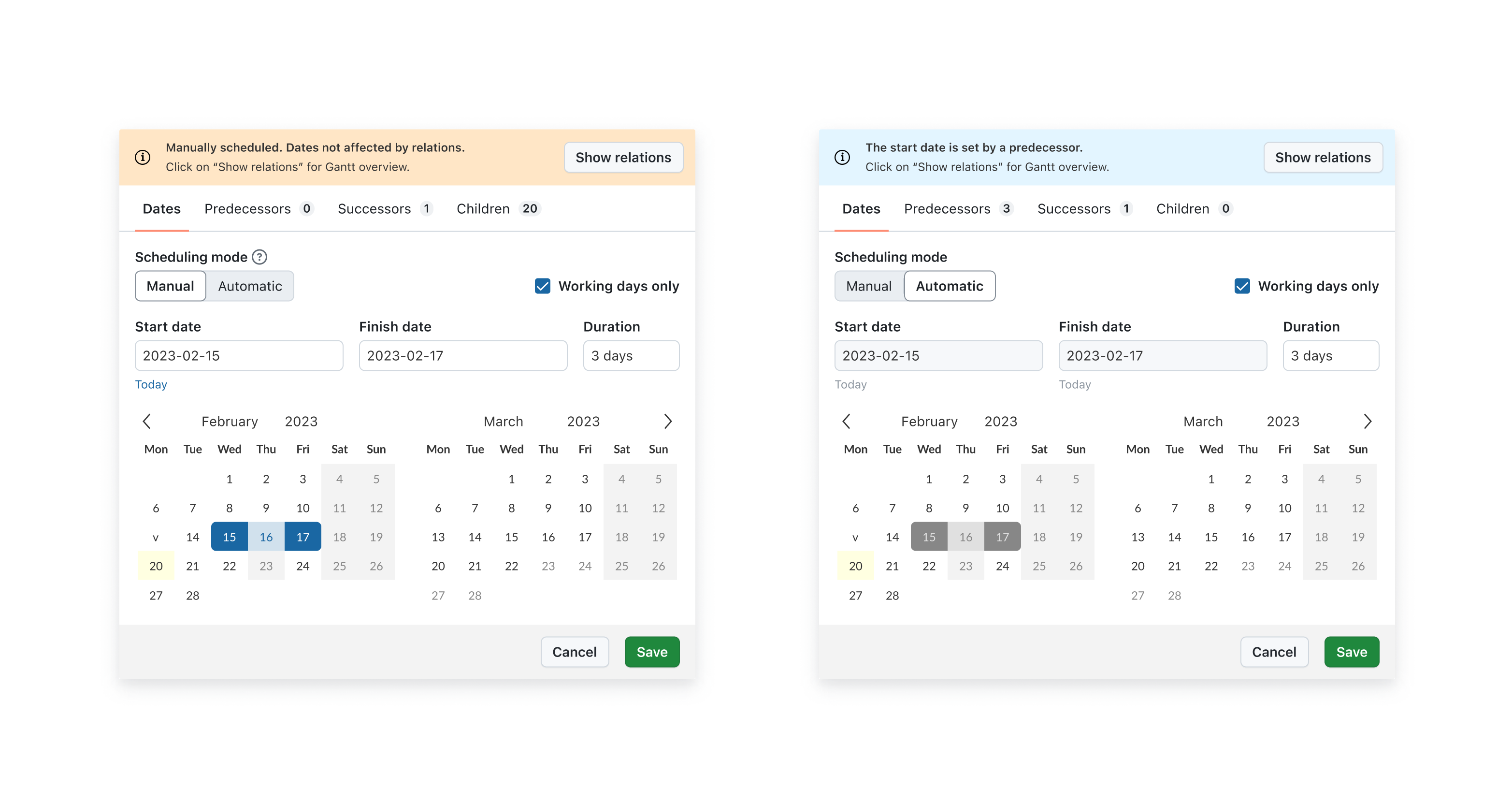
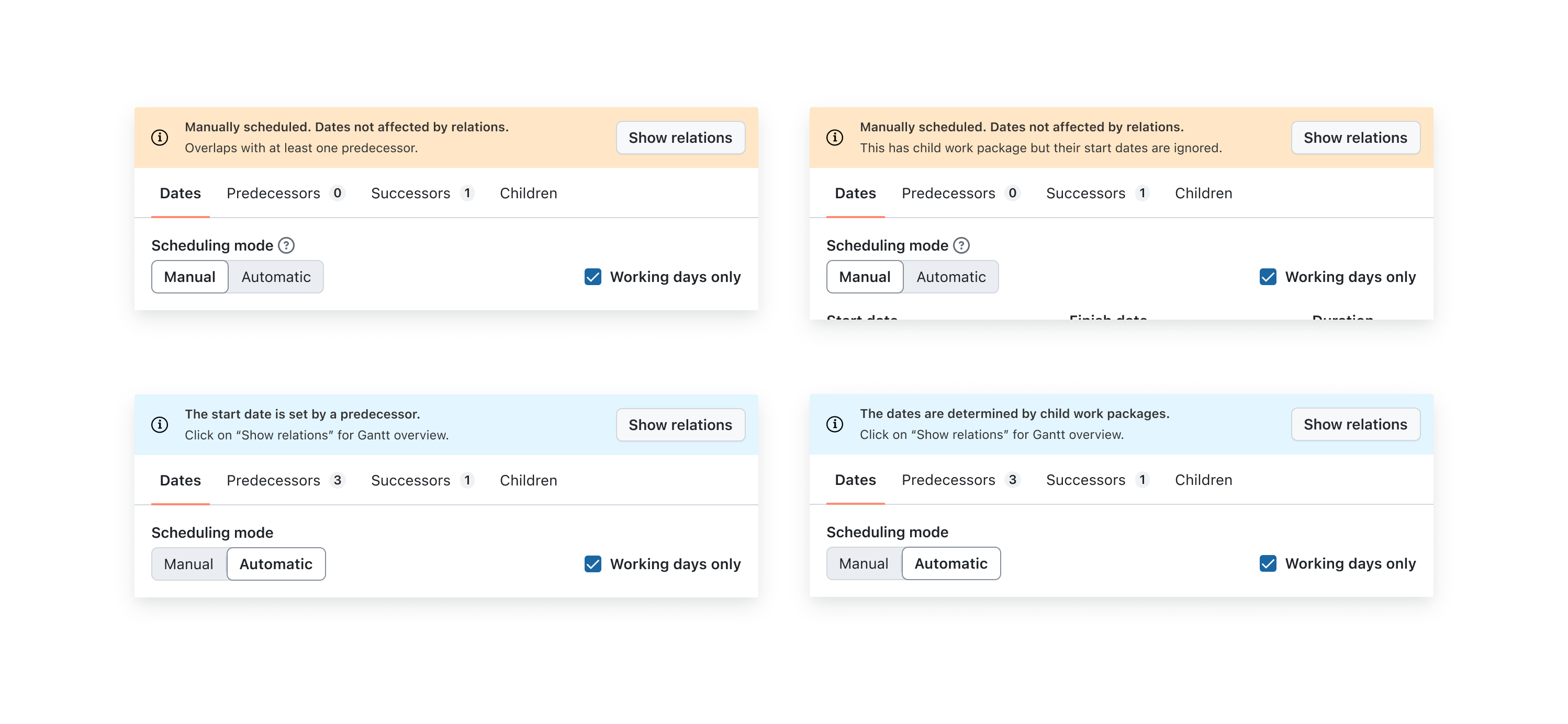
At OpenProject, we are passionate about automation. Our software should take over whenever possible – but without limiting users in their options. This is no easy goal and sometimes there is a fine line between both. With our new scheduling mode, we are exactly on this line: New work packages start with the manual scheduling mode, which means no change to earlier versions. In this mode, users can freely choose start and end dates.
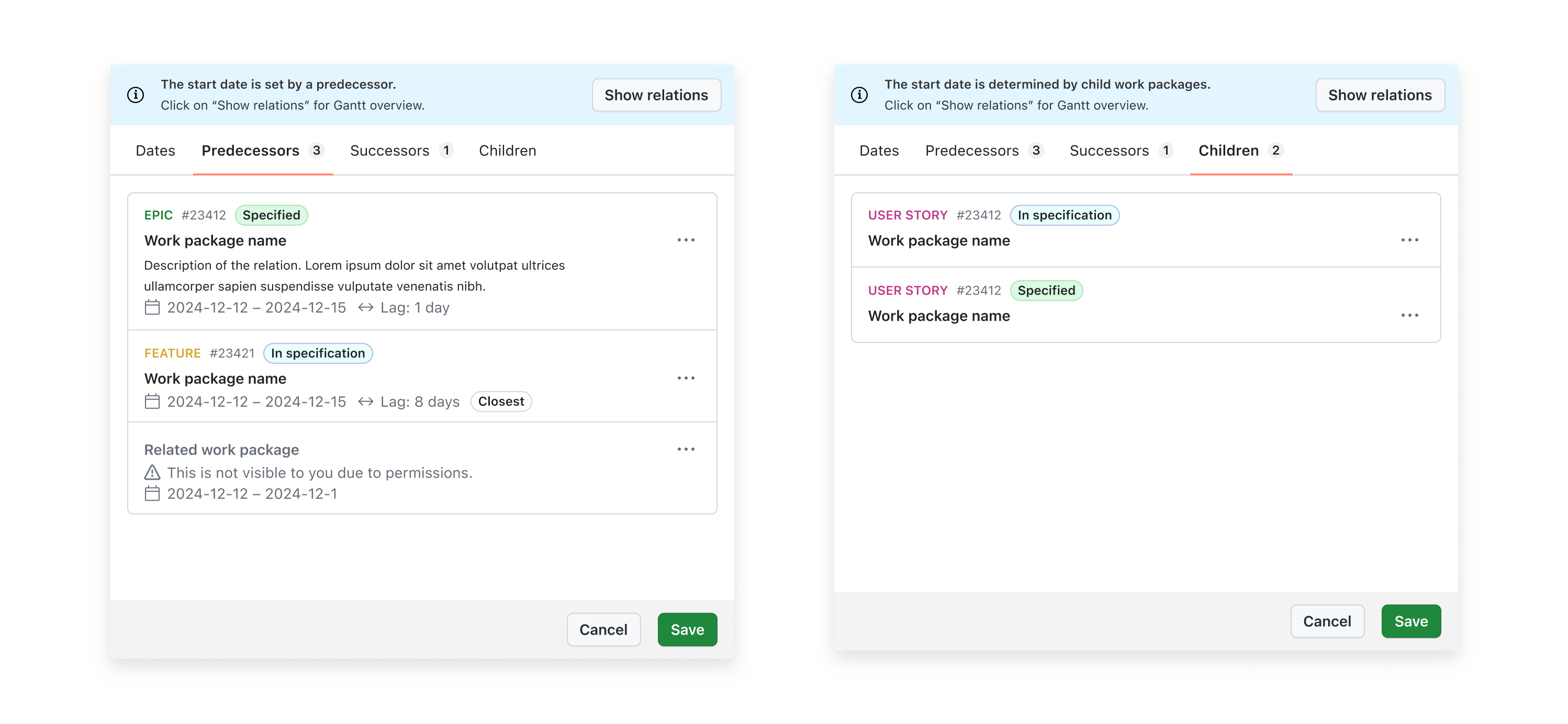
But if the automatic scheduling is enabled, OpenProject takes over and schedules the work packages to the earliest date possible, based on predecessor or child relations.
See the difference of both scheduling modes in Gantt view:
Single date mode
Another great feature that comes together with the new scheduling modes is the single date mode: Previously, all work packages (except milestones) included both start and finish date fields, even when only one was necessary. Now, new work packages default to having only a finish date, streamlining workflows for teams that don’t require a date range.
The OpenProject Meetings module has been once again enhanced with great features in version 15.4. Just last month, we released recurring meetings that help many users manage their weeklies, dailies and other regular appointments – again with the help of automation.
With the new release, users can set outcomes for agenda items, making it much easier to document what was decided in the meeting. If an outcome is set for a work package in a meeting, the respective work package will automatically update as well and show the outcome on the Meetings tab.
Example: Meeting outcomes for a weekly project discussion
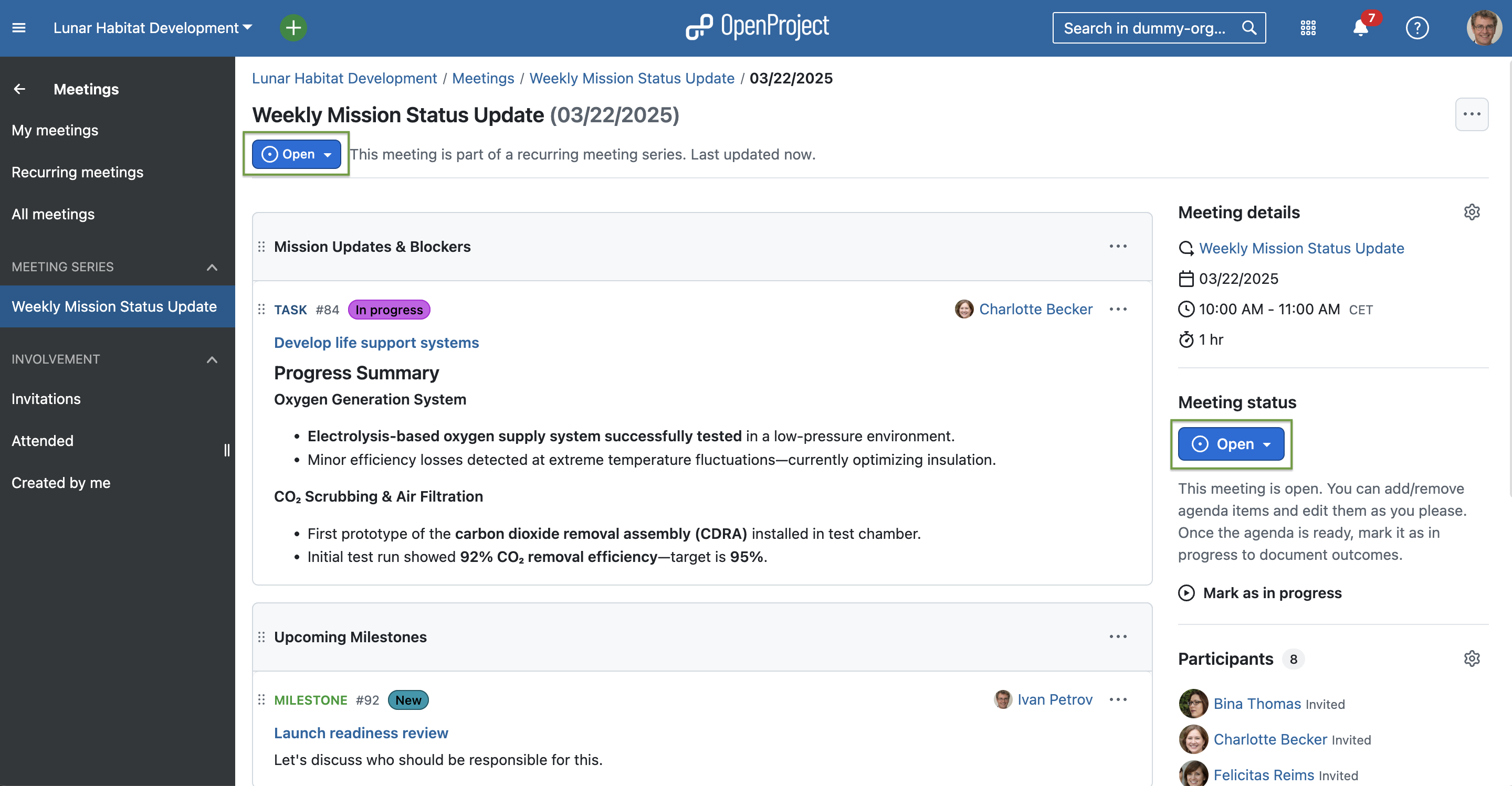
Let’s imagine you are part of a scientific team that collaborates on an aerospace project and has weekly mission status update meetings. Participants may work in very different areas and this meeting is a core opportunity to exchange updates. However, as is natural with such larger meetings, not everyone can always attend. Good documentation of the meeting is therefore essential to keep all project members on the same page – while also saving valuable time and avoiding the need to send follow-up emails with questions about meeting proceedings.
So how does such a meeting look like in OpenProject?
1. When the meeting is open
As this would be a recurring meeting, OpenProject will automatically create the following weekly. All invited users can add, edit and assign agenda items before and during the meeting. If there is the need to talk about a specific work package, users can easily add this work package, which automatically creates a link between the meeting and the work package, on both sides. By default, the status is open:
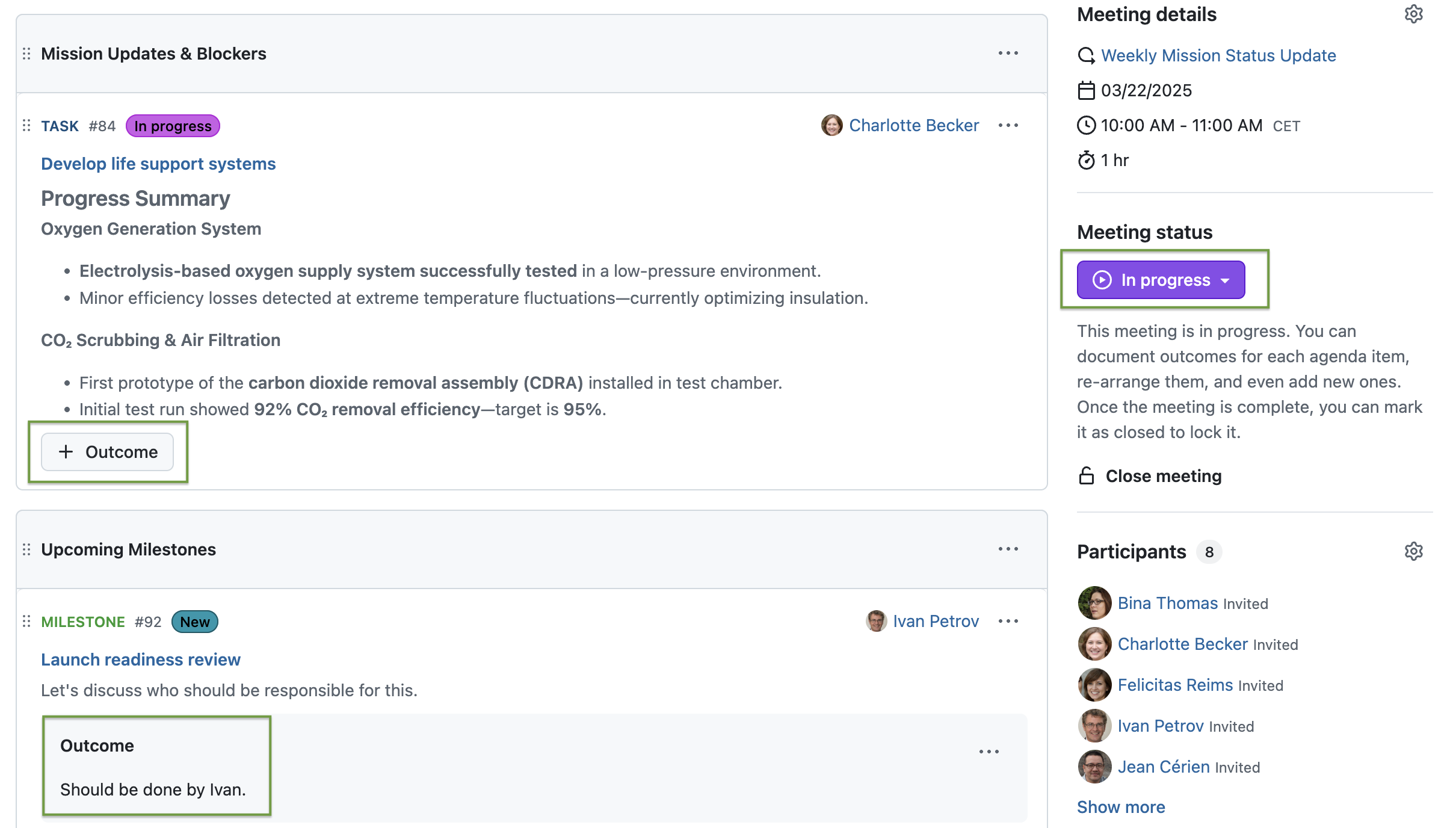
2. When the meeting is in progress
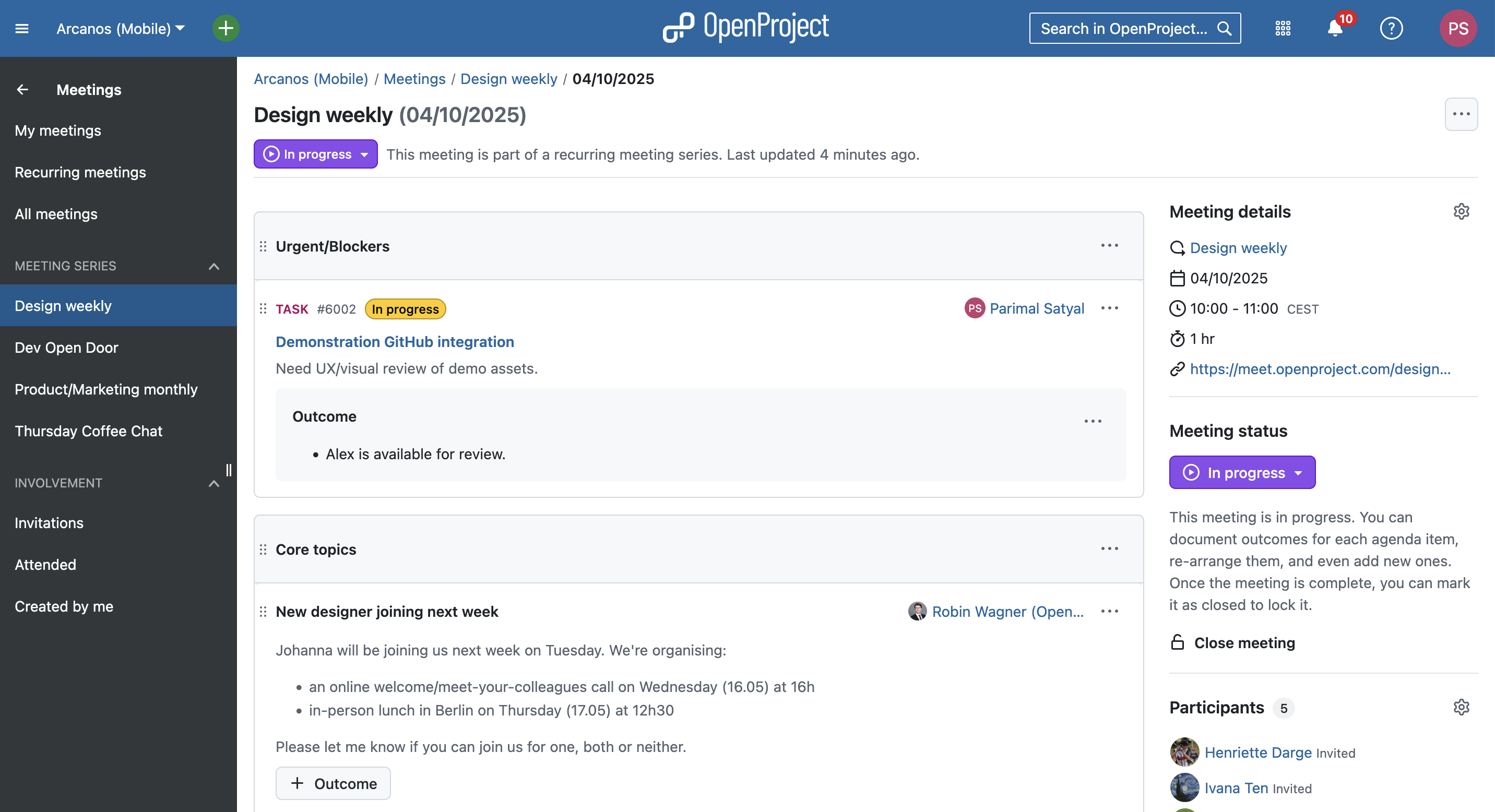
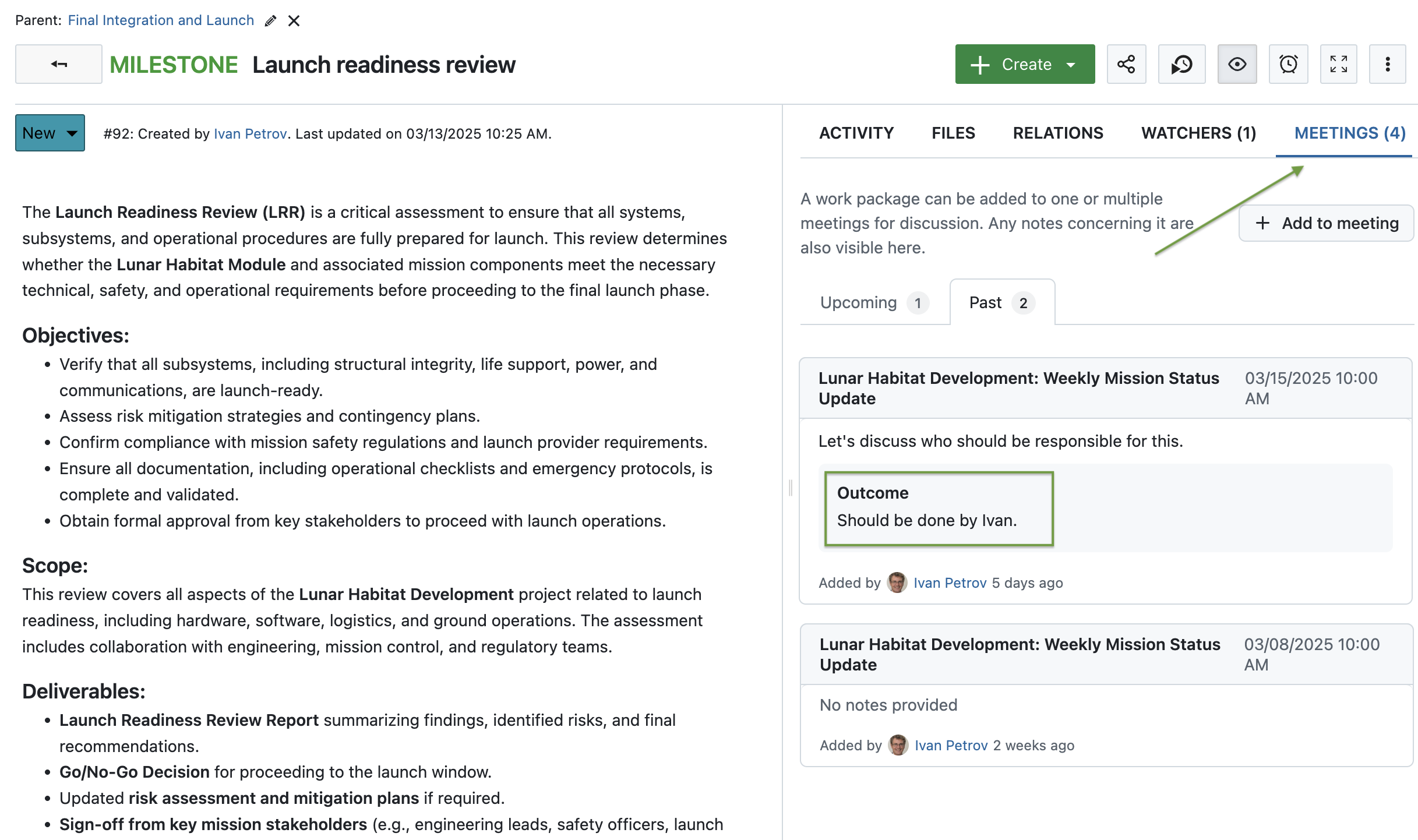
When the meeting starts, participants can set the meeting status to in progress. This adds a + Outcome button on each agenda item or work package listed. By clicking it, users can document what was discussed or decided during the meeting. In this example, the scientific group decided that Ivan should be responsible for the Milestone to launch the readiness review:
As mentioned above, adding an outcome to a work package in a meeting automatically adds it to the Meetings tab on the work package as well:
3. When the meeting is closed
With the release of version 15.4, users can now click on an agenda item and move it to the next meeting, as long as it is part of a meeting series like in our example. This is very helpful for teams working with recurring meetings. For example, if Ivan – the person responsible for the work package – is not participating at that meeting, their colleagues can move this work package to the next meeting, when Ivan will be back.
When the meeting is over, the status can be set to “closed”. Currently, this has no further impact except that, like with the “open” status, no outcome can be added. Please note that a meeting can be re-opened again, so no harm will be done if you accidentally close a meeting too early.
Tip
We continue developing updates for the Meetings module. In a future release, participants of recurring meetings will also be able to move all agenda items without outcomes to the next meeting(see this feature). Also, a meeting agenda items backlog for recurring meetings is planned (see this feature).
Generate PDF documents from a work package description
The third great feature we want to highlight in this article is an improvement to PDF exports. Previously, you could only generate PDFs that included the entire work package, including attributes like the assignee in a table format at the beginning of the document. Now, you can also export only the work package description — formatted specifically for use in German contracts. While this is a very specific use case that is appreciated by our German customers, e.g. in the public sector, it can also be helpful for other users.
The main aspect here is, again, automating tasks that used to cost a lot of time and nerves when done manually. With OpenProject, we aim to provide users with work packages that include all important information for all stakeholders at all times. This way, we also want to give users the possibility to create beautifully styled PDF files for contracts, approval notices, project orders and other formal documents.
To do so, the “Download PDF” option on work packages has now been renamed to Generate PDF and offers expanded customization options. Clicking it opens an interface where you can tailor your document — for example, by enabling hyphenation or adding a footer text.
Most importantly, you can now choose between two templates:
Attributes and description: This template creates a document similar to the one used before version 15.4, including a table showing the work package’s attributes, along with the description.
Contract: Choosing this template creates a PDF designed in the style of a German contract, and includes only the work package description.
We will continue working on this feature and plan to add other templates.
You will find more information about all new features and changes in our Release notes or in the OpenProject Documentation.
If you need support, you can post your questions in the Community Forum, or if you are eligible for Enterprise support, please contact us and we are happy to support you personally.
New to OpenProject? To test all features of OpenProject 15.4 right away, create a 14 days free trial instance for our OpenProject Enterprise cloud.
Prefer to run OpenProject 15.4 in your own infrastructure? Here you can find the Installation guidelines for OpenProject.
A very special thank you goes to the City of Cologne, Deutsche Bahn and ZenDiS for sponsoring released or upcoming features. Your support, alongside the efforts of our amazing Community, helps drive these innovations. We also thank Klinikum Chemnitz for their active and enthusiastic feedback during the design process of the new automatic scheduling mode.
Also, a big thanks to our Community members for reporting bugs and helping us identify and provide fixes. Special thanks for reporting and finding bugs go to René Schodder, Abhiyan Paudyal, Gunter Ohrner and Markus K..
Last but not least, we are very grateful for our very engaged translation contributors on Crowdin, who translated quite a few OpenProject strings! This release we would like to particularly thank user greench, for an outstanding number of translations into Turkish.
Would you like to help out with translations yourself? Then take a look at our translation guide and find out exactly how you can contribute. It is very much appreciated!
As always, we welcome any feedback on this release. 💙
Jira is a well-known agile project management tool. For many, Jira is a household name for issue tracking software. However, Jira is not open source. OpenProject is - and offers quite similar features. On top of that, OpenProject provides both a cloud or on-premises edition. Jira has chosen to focus on the cloud side of things and has terminated the self-hosted option. Let’s compare Jira and OpenProject.
Hosting
Jira shifted its focus to the cloud edition and has discontinued the on-premises offer. This move marks a shift in focus towards the cloud edition. Jira users who self-host their software had been requested to make plans to move to the cloud or data center, as support for self-hosted Jira is no longer available since spring 2024. Since then, many Jira customers already migrated to an alternative or are still looking for an easy way to do so.
OpenProject continues offering both the cloud and on-premises editions. OpenProject Enterprise on-premises edition enables companies to install OpenProject on their own servers and offers additional Enterprise add-ons and security features, as well as support. It provides the flexibility of self-hosting while ensuring a high level of security and extensibility with additional features.
OpenProject is an open source software and as such provides independence and complete autonomy. Its source code is publicly available on GitHub. It allows users to modify code and create new plug-ins for maximum flexibility. Being open source means that users can customize and tailor it to their needs, making it an attractive option for businesses looking for a flexible and adaptable project management solution. With OpenProject, users can take full control of their project management process and make it fit their unique workflows.
Jira is a proprietary software, which means that the software code cannot be reviewed, so the users are dependent on the vendor for reliability, code adjustments and upgrades. This also means that certain features require third-party plugins and can significantly increase maintenance costs.
Data security
Data security is an important aspect when choosing a project management tool. Both OpenProject and Jira treat the subject with the seriousness it requires.
Large companies often have strong data privacy and data security guidelines which might prohibit the use of web-based solutions, making use of Jira cloud solutions potentially problematic. Furthermore, the location of data storage must be considered. Jira uses AWS storage services. While storing customer data in the European AWS region is possible, it must be actively requested.
For OpenProject data security is a top priority, our processes meet all requirements of the EU General Data Protection Regulation. Whether you decide to use the cloud or a self-hosted edition, you can be sure that your data is safe. All our customer data for the cloud edition is hosted and kept in the EU. For the self-hosted edition, you have absolute control over your data.
Features
OpenProject and Jira both offer comprehensive and customizable project management tools that offer a range of features to support agile, classic, and hybrid project management. They both provide similar capabilities for issue tracking, backlog maintenance, reporting, user management and more. It should be noted that with Jira, some of the functionalities or more advanced versions of such functionalities come through integrating one or more plugins. This can mean additional maintenance efforts, not to mention additional costs.
Let’s take a look at how some of the features compare.
Issue & task tracking
Both Jira and OpenProject offer sophisticated issue tracking with custom fields and workflow customization.
Jira
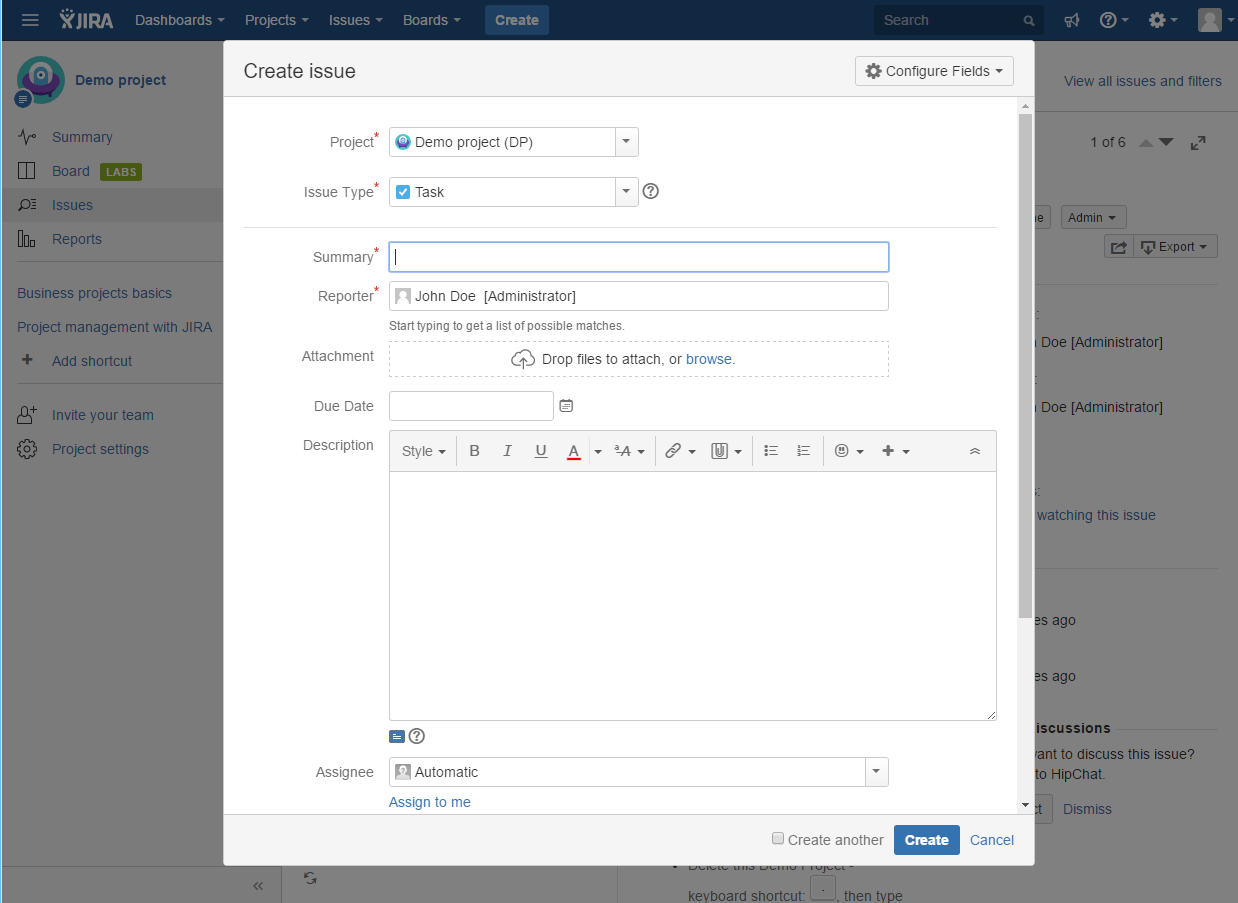
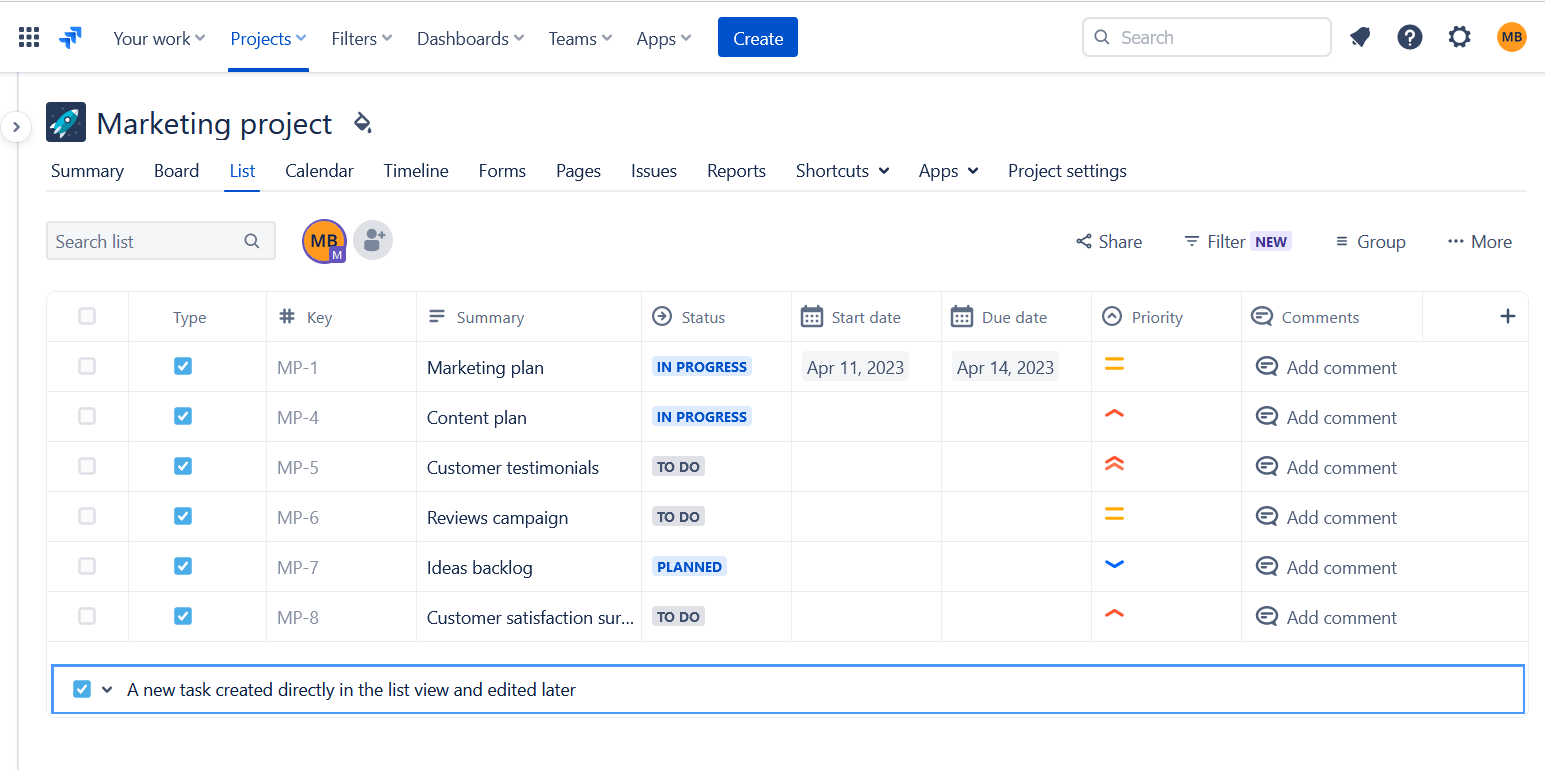
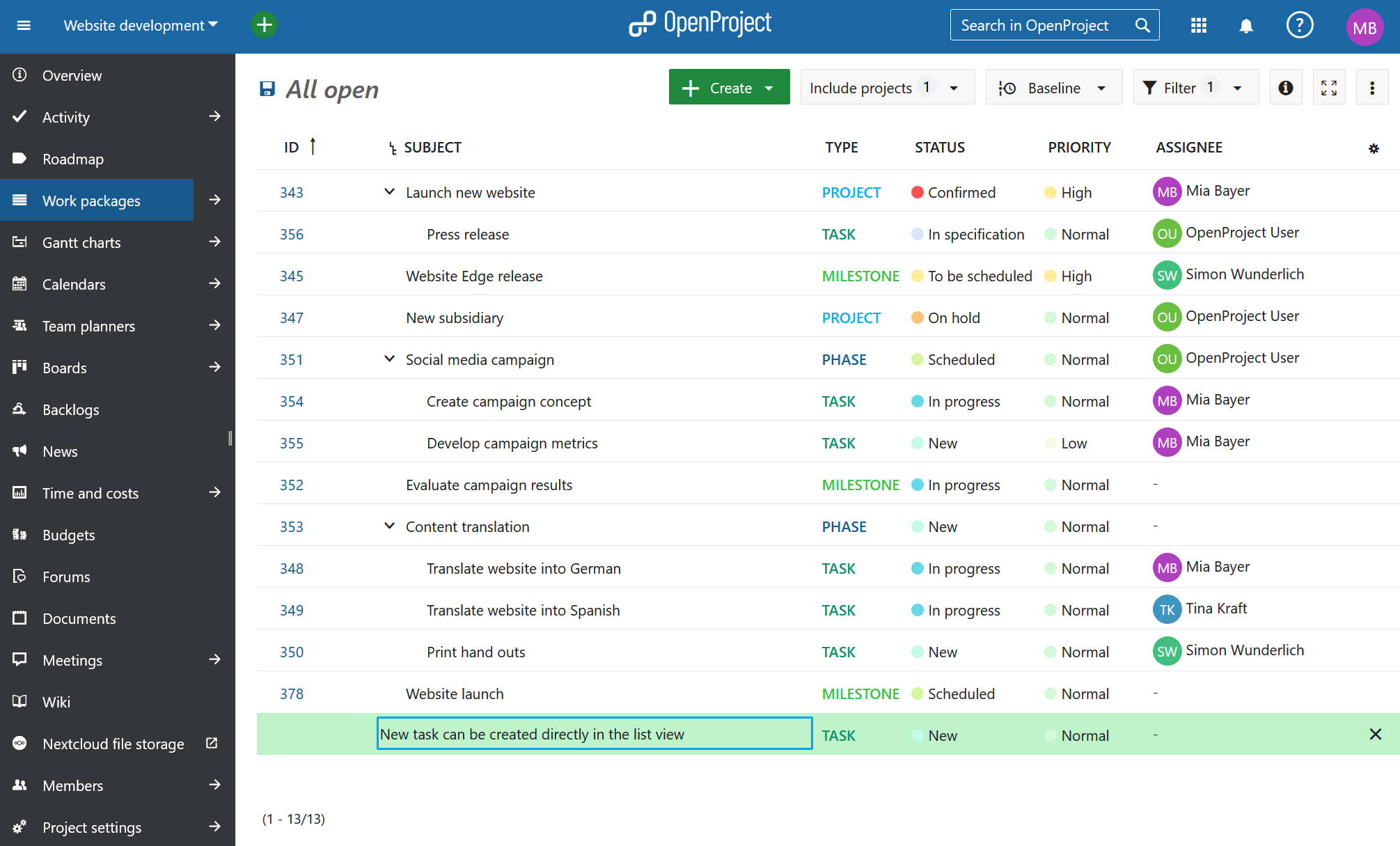
In Jira users can create new issues either directly in the list view of the existing issues or in a popup window. The displayed fields can be configured, and the view can be customized to users’ needs. It is possible to specify workflows for different issue types.
Image: Issue tracking in JiraImage: A list view of issues in Jira.
OpenProject
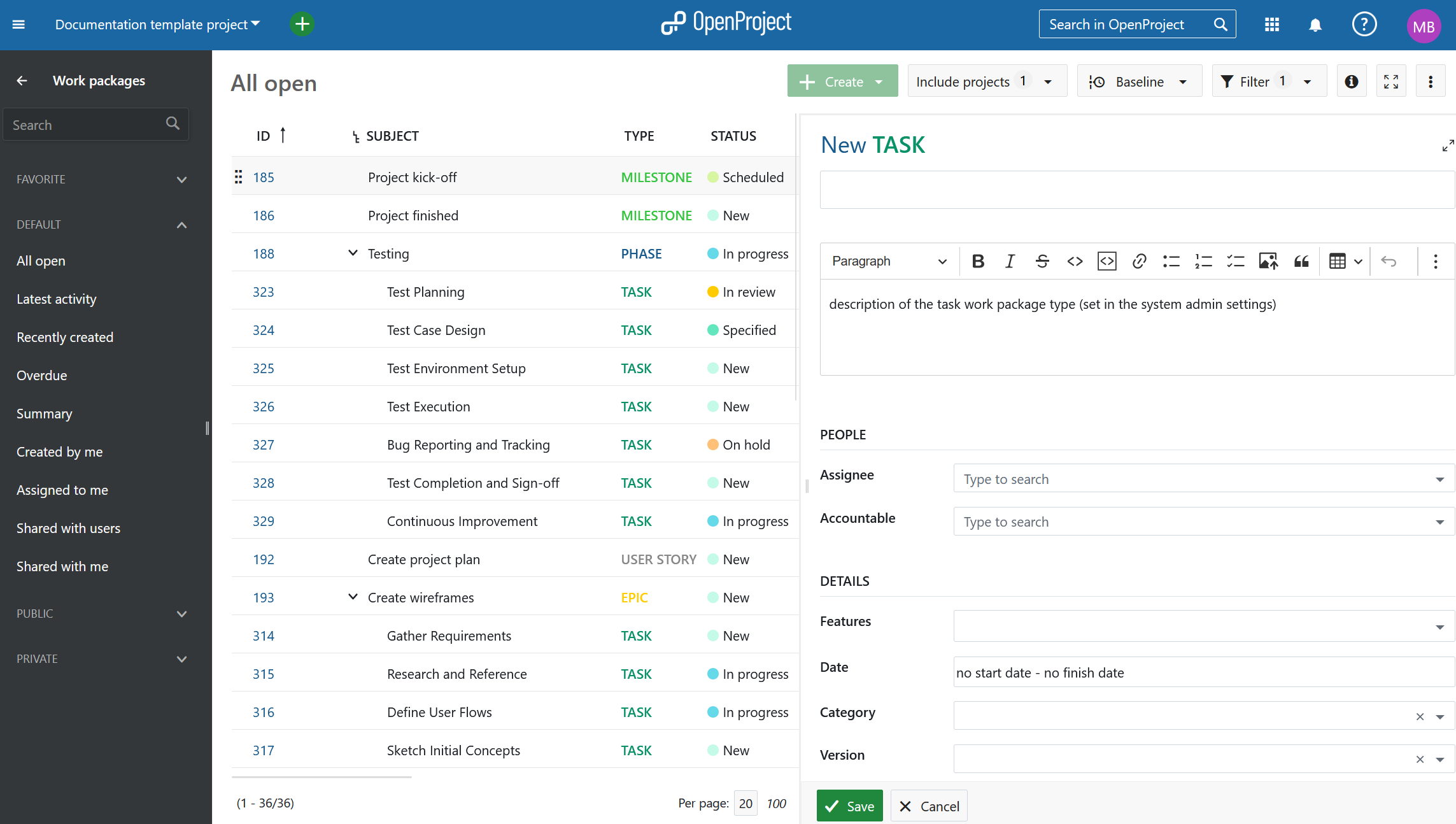
In OpenProject you can create new issues from the work package table. Similar to Jira, the displayed attributes can be configured for each issue type. On top of this, you can display help texts to assist users in setting the correct attribute values. You can adjust the workflow for each issue type, as well as for the author and assignee of a work package.
Image: Create a work package in OpenProject.Image: A list view of work packages in OpenProject.
Project planning with Gantt charts
Managing a project plan is a critical component for successful project management.
Jira
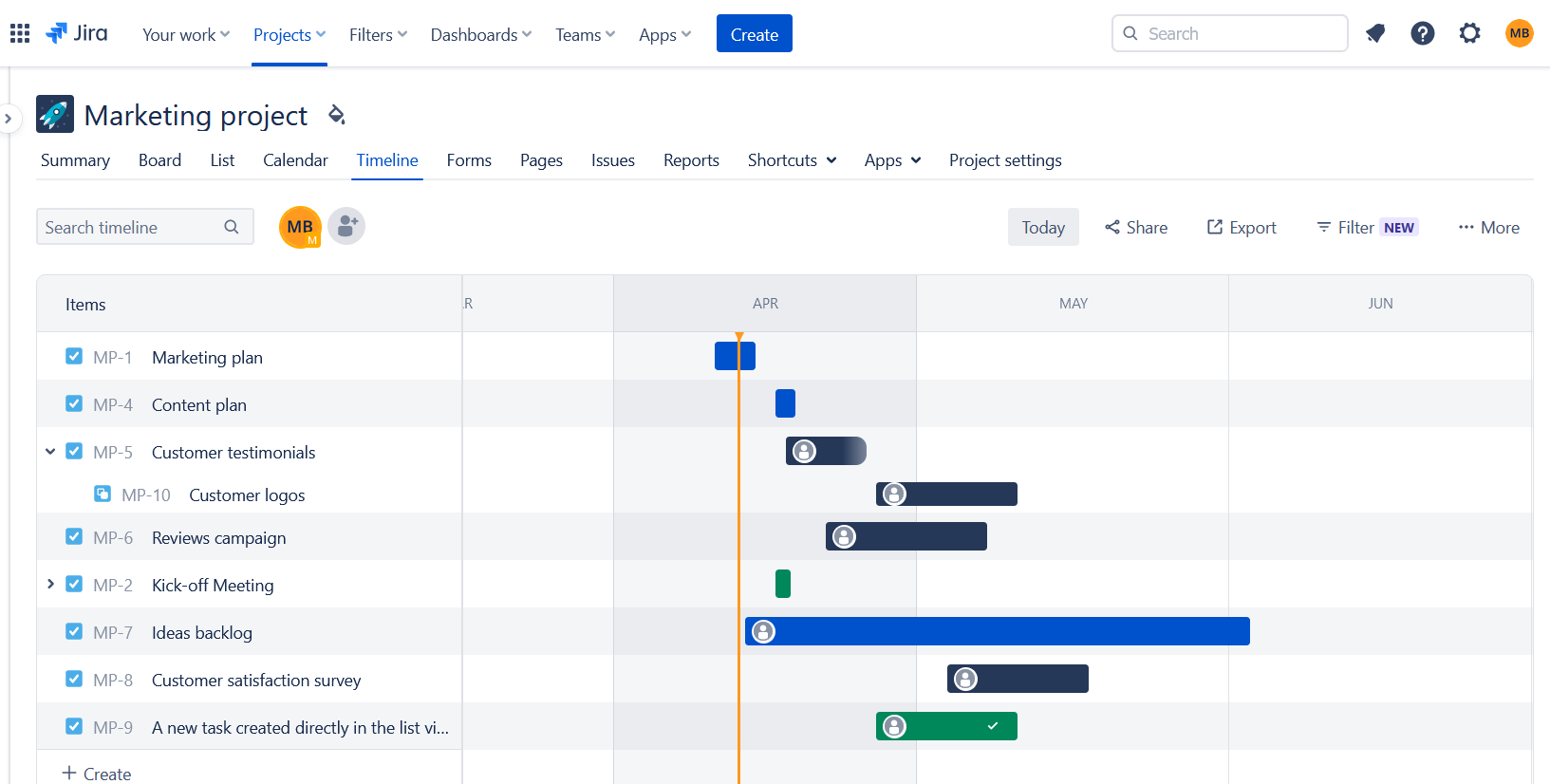
The core version of Jira previously did not include a Gantt chart. This has now been compensated be the timeline function that displays the project time plan. Sophisticated Gantt chart options are available via installing additional plugins.
Image: A time plan in Jira.
OpenProject
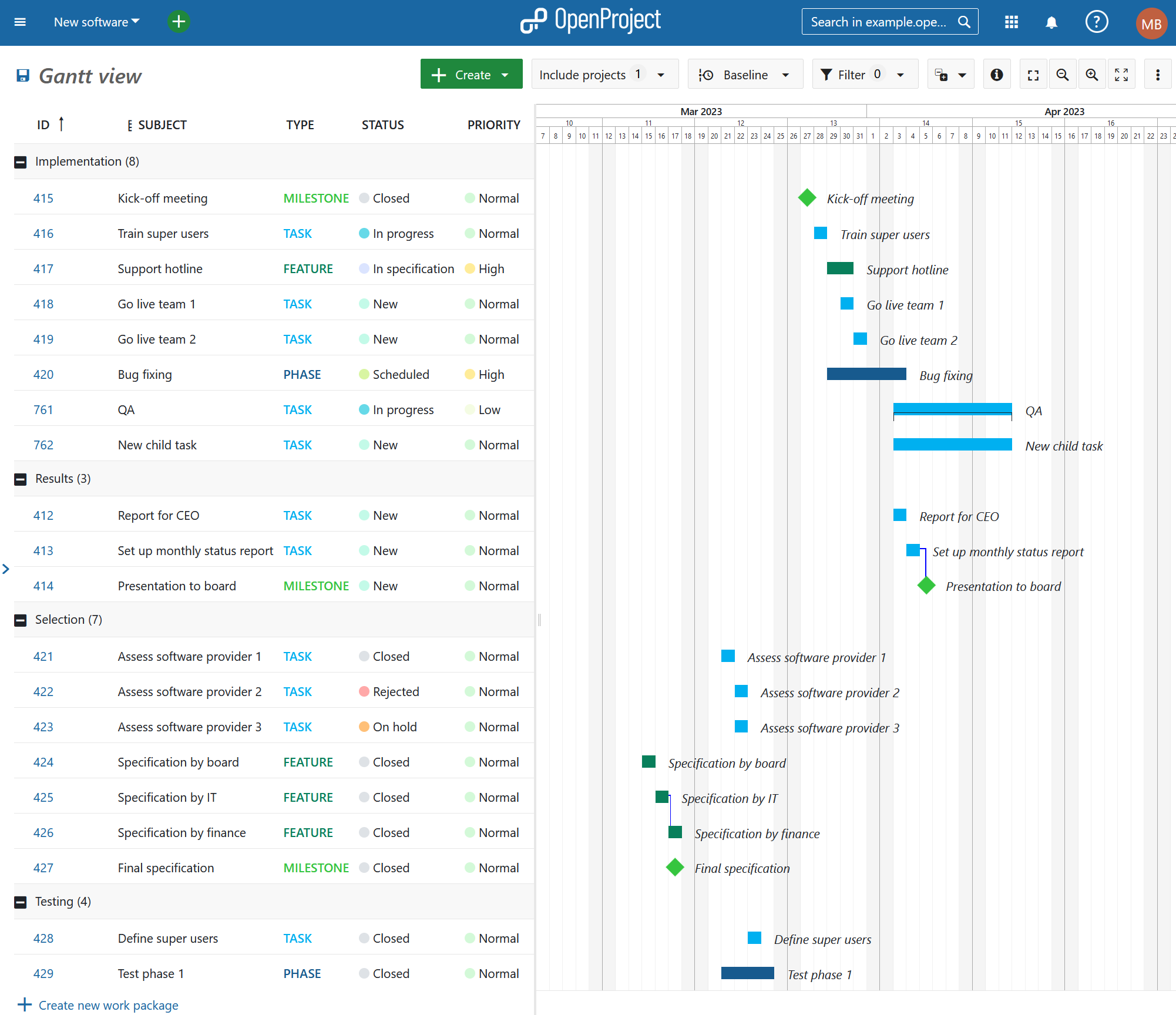
OpenProject enables creating and managing project plans using Gantt charts, both for single projects, as well as multi-hierarchy projects. The dynamic and interactive Gantt chart in OpenProject can be displayed on the work package table. This allows a seamless transition from the list view to the Gantt chart view. Start and due dates can be easily updated by either setting the dates in the list view or using drag & drop in the Gantt chart. Thereby, you can choose between top-down and bottom-up planning. You can also create and visualize dependencies in the Gantt chart. Project managers can create and visualize the progress, even for complex Gantt charts which span multiple projects. It is also possible to add a baseline comparison to also display planning changes.
Image: A Gantt chart time plan in OpenProject.
Time and cost tracking
An essential feature for any larger project is the ability to track the time, as well as the costs spent on a project.
Jira
Jira supports time tracking, including the detailed specification of working times and hours. In the basic version, the time spent on an issue can be logged in the detailed view of a task but is not displayed in the list of all the tasks. More advanced time tracking options are available through various add-ins. Jira does not support cost tracking in the basic version. However, it is possible to download add-ins in the Atlassian marketplace for cost tracking.
OpenProject
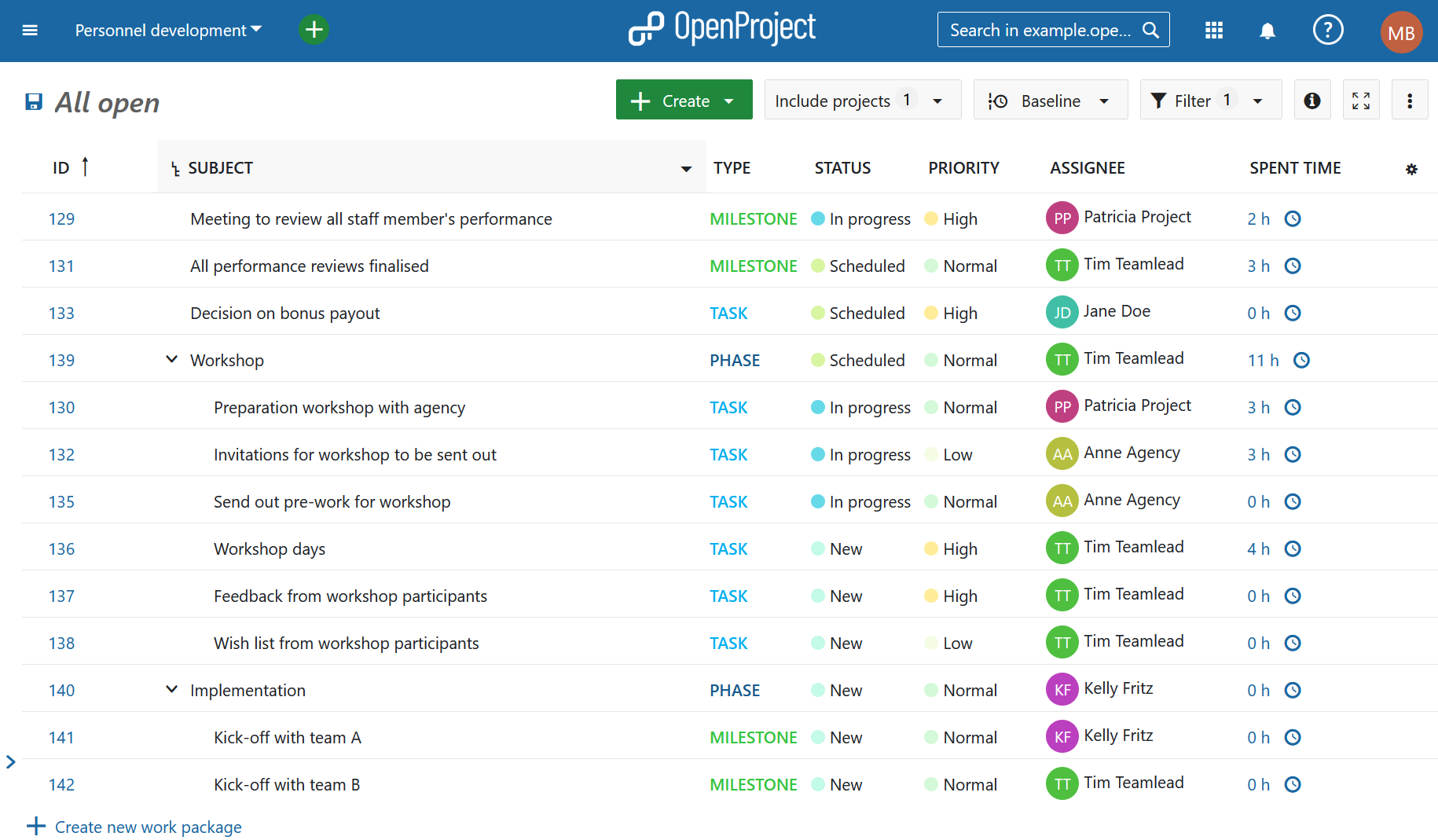
You can enable time and cost tracking for each project separately within OpenProject. Additionally, OpenProject allows users to track costs - both personnel costs as well as unit costs. Furthermore, you can create budgets within projects to compare planned and realized costs. You can create and save detailed time and costs reports filtered and grouped based on your needs. A sophisticated permission model allows users to restrict the data that users can see. This includes for example whether a user can only see and edit own tracked time.
Image: A time tracking overview in OpenProject.
Conclusion: OpenProject vs Jira
In conclusion: Jira is a very powerful application with more than 2,000 add-ons and a large following. It is highly customizable. However, this flexibility comes at a price: Many add-ons come with a significant price tag which adds up. Also, going forward, Jira is putting its cloud version first, deprioritizing server products.
OpenProject is open source, it offers very similar features all from the same source without additional expense. The decision between the cloud or on-premises editions is entirely up to you. OpenProject is the best open source Jira alternative.
If you consider moving from Jira to OpenProject, there is a way to import tickets from Jira to OpenProject. First, you can export your tasks from Jira into an Excel file and then import these tasks via an Excel plugin into OpenProject. Additionally, there is the user-built OpenProject Jira importer, as mentioned in the beginning of the article. If you would like to discuss your specific case, you can always get in touch with us.
Agile methods make administrations more effective - but without the right software, good ideas often remain good ideas. Modern task management makes it possible to control processes efficiently and react flexibly to changes. OpenProject offers exactly this possibility: a customizable open source solution that ensures full control over data with a high level of functionality. Cost-effectively.
Making digital administration work: Cutting complexity, boosting efficiency
Endless Excel lists, lost emails, and overflowing inboxes—does that sound familiar? Many administrative teams struggle with outdated tools and rigid workflows that slow down rather than support their daily work. Digitalization is supposed to help, but too often it brings complicated, expensive, and impractical solutions.
We understand—many people don’t want to hear about digitization anymore. Too many initiatives have promised improvement but ended up adding more complexity instead. The real question is: How can digital tools actually simplify work in administration — without creating new obstacles?
OpenProject offers a pragmatic approach here. The open source project and task management software helps to clearly structure tasks and make processes more efficient. Without burdening employees with unnecessary complexity. Freedom of design for administrators, simple and perfectly tailored application for employees.
Introducing agile processes with efficient task management
Digital task management is a key building block on the path to greater agility in administration. Every day, numerous tasks, approvals and processes are created in public administrations that need to be coordinated. Without a clear structure, this leads to lags, extra work and a lack of transparency. Professional task management ensures that:
responsibilities are clearly defined,
all tasks can be tracked at all times,
work processes run efficiently and transparently.
Agile working does not mean chaos, but flexibility with a basic structure at the same time. Administrative staff can react more quickly to changes and adapt their work to current requirements. Instead of constantly adapting rigid processes, agile structures can create more efficient workflows that grow dynamically. This enables a sustainable, future-proof way of working in administration.
What features does task management software need in administration?
For task management in administration to function simply and efficiently, the software must have the following features:
Easy to use: Only administrators have to deal with technical details - for everyone else, operation is uncomplicated and intuitive.
Flexible methods: Personalized composition of agile and classic methods - in a modular system, suitable for the working methods of the respective administration.
Tasks in work packages: All information collected in one place, with clear responsibilities and traceable progress.
Data protection and compliance: Security and GDPR compliance must of course be guaranteed.
No vendor lock-in: Public administrations must retain full control over their data at all times.
Five stars for OpenProject - perfect for task management in administration
The demands on modern administrations are increasing at every turn: More tasks, more regulations - and more digitalization. OpenProject is a solution that was developed precisely for these challenges. No more Excel spreadsheets like “xxx_new-2”, just centralized task management supported by agile processes.
Let’s put OpenProject to the test and take a closer look at the five requirements mentioned above:
Feature
Description
⭐ Easy to use for all employees
- Administrators can set up the instance with the help of extensive configuration options, so that it is easy to use for users.
⭐ Structured workflows with clear responsibilities
- Tasks are assigned transparently, so everyone knows who is responsible for what. - Status updates and automatic notifications ensure that the entire workflow remains traceable.
⭐ Flexibility with agile and traditional methods
- Whether Kanban, Scrum, or Gantt charts – OpenProject supports various ways of working. - Government teams can use hybrid methods and gradually introduce agile processes.
⭐ Data protection and digital sovereignty
- OpenProject is open source, giving public administrations full control over their data. - GDPR compliance and secure hosting options ensure maximum security.
⭐ Future-proof and sustainable solution
- No dependency on proprietary vendors, as OpenProject is open, extensible, and customizable. - Regular updates and an active community drive continuous development.
Tip
openDesk - your secure office and collaboration suite: Do you already know openDesk? The office and collaboration suite bundles proven open source tools explicitly for digital administrative work - including OpenProject for efficient task management and agile processes. Learn more about openDesk.
Features for agile administration with OpenProject - an overview
Successful digital administrative work requires more than just task management. OpenProject offers a wide range of features that are specially tailored to the needs of public administrations, such as:
Agile Boards - Manage tasks and processes visually, prioritize them flexibly and maintain an overview.
Meetings - Plan meetings in a structured way, link them to work packages and thus easily integrate agile methods such as dailies.
Time and cost tracking - Track working hours and budgets accurately to manage projects and resources optimally.
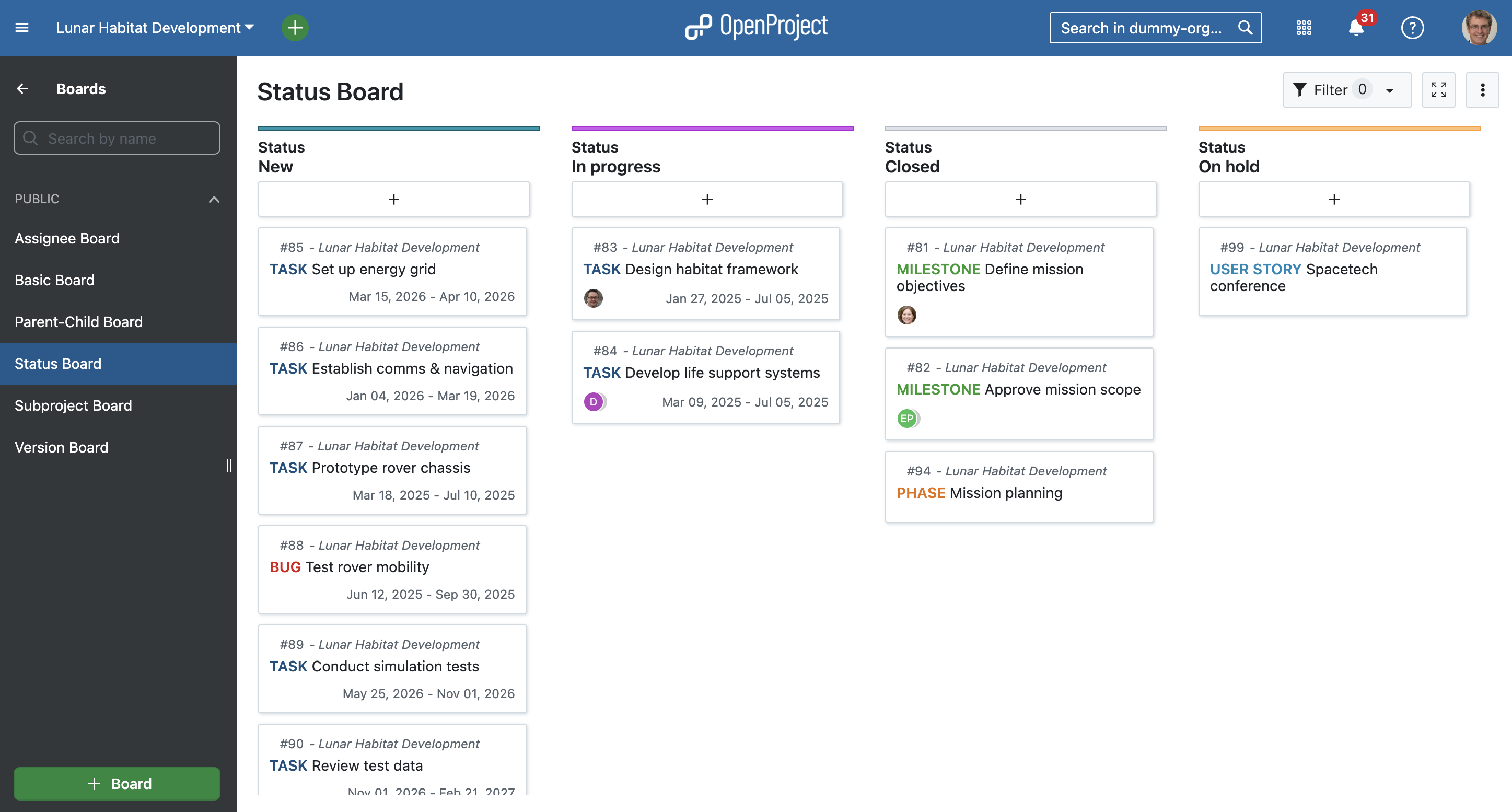
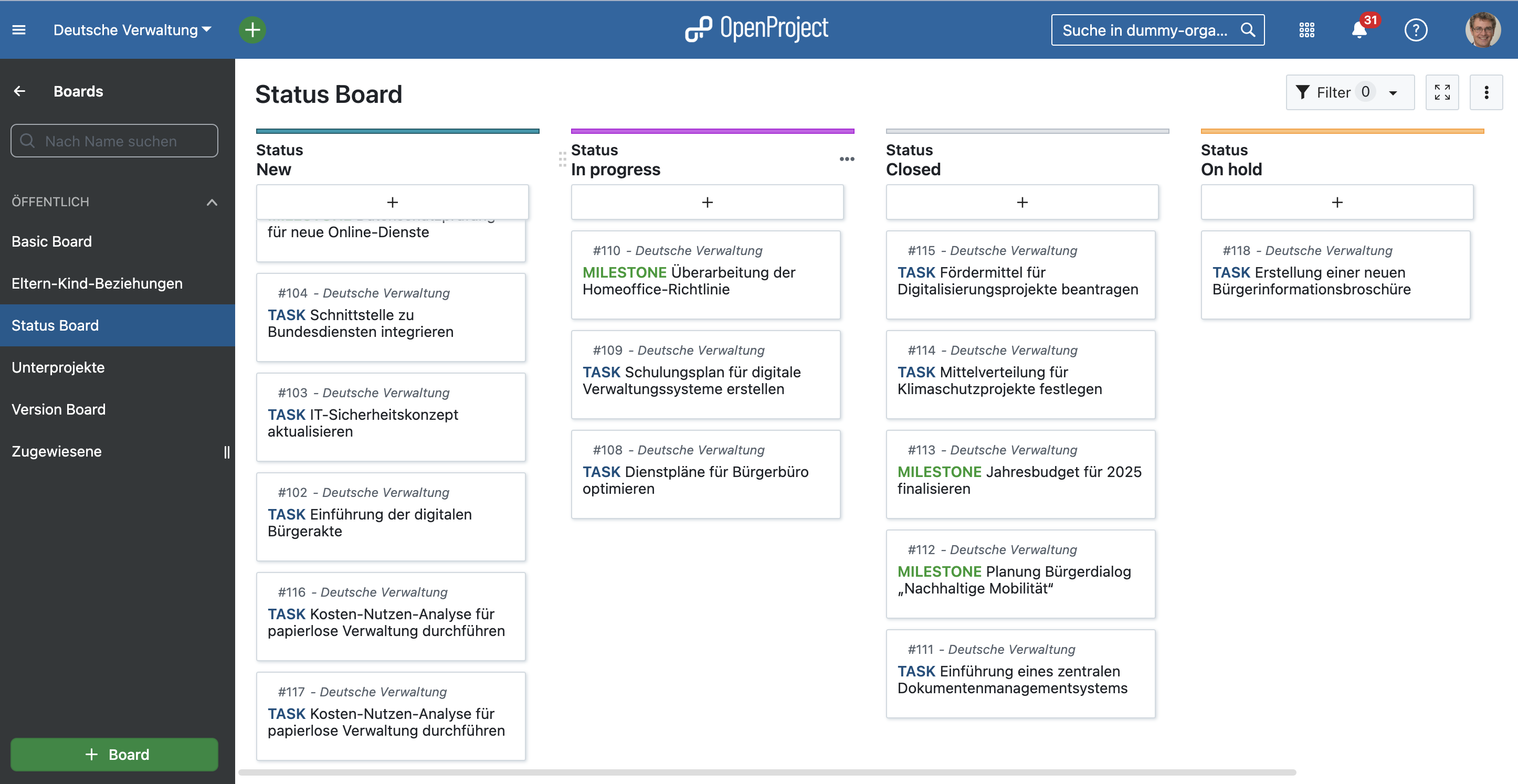
Here’s an example status board created in OpenProject:
Tip
Did you know? OpenProject is your best choice, if you do not exclusively use either agile or classic project management features. It offers a high range of customization and flexible administration. Read about your best mix with hybrid project management here.
European public administrations successfully work with OpenProject
OpenProject has been a popular choice for project and task management in the public sector long before the launch of openDesk. We’ve already outlined several reasons for this. Now, take a look at concrete real-world examples. We’ve spoken with customers and created case studies to provide transparency on the typical challenges faced by public administrations and how exactly OpenProject – and its key features – offers a solution.
How do public institutions in Germany use OpenProject?
“With OpenProject as part of openDesk, we have a centralized, flexible platform that greatly facilitates our work as the office of the Federal IT Standardization Board – from meeting planning, execution, and documentation to the centralized management of federal IT standards. The software supports us in collaboration and the coordination of our initiatives.”
Tobias Schuh, IT Standards Coordinator at FITKO (Federal IT Cooperation)
FITKO faces the significant challenge of coordinating and streamlining numerous tasks and stakeholders. With the introduction of openDesk, FITKO members now have access to a centralized and secure office and collaboration suite that enables just that. Read more in FITKO’s case study with OpenProject.
City of Ravensburg
“OpenProject enables us to plan long-term and reliably without overburdening our staff. As a municipality, OpenProject has finally given us the opportunity to properly manage our resource planning. The platform provides high reliability and transparency regarding workload distribution.”
Eric Fischer, former Process and Project Manager in Digitalization at the City of Ravensburg
The City of Ravensburg is just one of many municipalities relying on OpenProject. Since 2023, Ravensburg has been using OpenProject primarily for traditional project management, utilizing features like Gantt charts and the time and cost module. One major challenge before introducing OpenProject was making employees’ workloads visible at all. Now, it is possible to track workloads precisely and, most importantly, in time to redistribute tasks when necessary. Read more in the case study on City of Ravensburg and OpenProject.
Conclusion: Start agile now - at your own pace
The best way to get to know OpenProject? Just give it a try! You can test OpenProject free of charge for 14 days - no strings attached. Discover for yourself how intuitive and powerful digital task management can be for your administration.
Would you like an individual introduction or in-depth training? No problem! We offer customized training and consulting to provide you and your team with the best possible support.
An upcoming version of OpenProject will introduce automatic scheduling for work packages. This highly-requested feature will make the process of setting up complex predecessor/successor relations a lot more practical for users who rely on OpenProject for complex project setups.
This blog post describes the upcoming changes and how they might affect you.
Note
The upcoming changes will not overwrite existing dates for any existing work packages but can change the scheduling mode. Please read on more more details. Don’t have much time? Skip directly to the summary.
Why we need this change
Especially in large projects with many assignees and stakeholders, scheduling can be a complex task. In the current version of OpenProject (15.3), there are two ways to schedule: a manual mode in which you can freely enter fixed dates which are never affected by relations, and a default mode where the dates are sometimes automatically adjusted, derived or constrained by relations. Whilst the current approach is functional, it is not always consistent.
For example, in default (non-manual) mode, a predecessor is able to push a successor to the future but unable to pull a successor earlier in time. This means that if, for example, a predecessor ends later than initially planned, it will push the follower back by as many days. However, if the predecessor ends earlier than initially planned, the follower stays where it was. Users rightly reported that this behaviour was inconsistent.
This behaviour does not affect work packages that are manually scheduled: users are already able to make the successor’s dates unaffected by those of the predecessor by choosing manual scheduling for the successor.
The upcoming changes will address this inconsistency and make scheduling more dependable.
Two scheduling modes: Manual and automatic
An upcoming version of OpenProject will introduce two distinct scheduling modes for work packages: manual and automatic.
Manual Mode: In this mode, users have the freedom to select dates at their discretion. This flexibility allows project managers to set timelines based on specific needs, deadlines, or external factors that may influence project delivery. Manually scheduled work packages behave as they do today: they can still have predecessor, successor, parent or child relations but these relations will not affect the manually input dates.
Automatic Mode: In automatic mode, it is not possible to manually enter a start date. This means that when a task is scheduled, the date picker will automatically calculate the appropriate start date based on the nearest predecessor. You can still enter a duration (and effectively change the finish date). This makes it possible to create a dependable chain of automatically scheduled work packages that automatically adjust to planning changes.
Note
Automatic scheduling mode will only be available to work package that have predecessors or have children.
Enhanced context in automatic mode
The work package date picker in OpenProject already gave you helpful context. With the upcoming release, they will provide even more precise context in both automatic and manual modes:
The context includes information about the task’s scheduling, such as:
Which related work package is determining the start date in automatic mode (predecessors or children)
If there is a significant gap between the predecessor and successor when the successor is in manual mode
If there is an overlap of dates with the predecessor and successor in manual mode
This improvement is designed to enhance user understanding and confidence in the scheduling process by making things more transparent.
Improved navigation with tabs
Another enhancement is the introduction of tabs within the date picker.
There will be three new tabs that display existing relations in addition to the default Date tab:
Predecessors: Tasks that must be completed before the current one can begin. In automatic mode, the closest predecessor from which the current work package derives its dates is marked with a “closest” label.
Successors: Tasks that will commence after the current one is finished. In automatic mode, the start dates of these are affected by the current work package’s finish date.
Children: Sub-tasks that fall under the current work package. If a work package has children, it will by default be in automatic scheduling mode. The start and finish dates of the parent will cover the dates of all containing children.
This structure allows users to quickly navigate through related tasks, making it simpler to understand project dependencies and manage timelines effectively.
Default setting for new work packages
By default, new work packages will be set to manual scheduling. This change allows users to begin by setting their own dates, which can be particularly beneficial in the initial planning stages of a project. It ensures that project managers have the flexibility to establish timelines that best suit their workflow from the outset. Switching to automatic mode remains a one-click operation in the date picker.
Single date mode
Along with automatic scheduling, an upcoming version of OpenProject will bring another feature to the date picker: single date mode.
Currently, all work packages except milestones have two date fields: start date and finish date. In other words, the date field is always a range. Of course, you do not always have set both dates, and you can also set the two dates to be the same. But in many cases, you don’t need two fields; a simple finish date is enough to signal a deadline or a delivery date.
To enable this, the date field for work packages in an upcoming version will by default only ask for the finish date. This simplifies things for users who don’t need both, but this is just the default; the user can in a single click go from single date mode to range mode (like today) by clicking on the + Start date button or adding a duration. The date picker will then behave as is does today. Of course, if the user wants single date mode with just a Start date instead of a Finish date, this is possible too.
Work packages in single date mode work exactly like work packages do today when only one date is entered and the other left empty. This will therefore not involve a change in behaviour and scheduling, simply a change in the default behaviour and UI of the date picker.
In summary
Here is a summary of changes coming in an upcoming version:
The date picker now offers two scheduling modes: manual and automatic scheduling.
Dates can be selected freely in manual mode and will not be affected by relations.
The start date is automatically derived in automatic mode based on predecessors or children; the duration can still be manually input.
In automatic mode, the date picker banners will give more helpful context about what the start date is derived from.
The date picker will include tabs that list predecessors, followers and children.
Scheduling mode for new work packages will be manual by default.
New work packages will default to a single date mode with finish date only; users can easily switch to range mode by adding a start date or duration.
Your feedback
As an open source software company, we value the ideas and feedback of our user Community. This upcoming changes are directly a result of user feedback. If you have opinions about these changes or have feature requests, feel free to join our Community instance and share your thoughts on this feature. We hope you’re looking forward to this improvement as much as we are looking forward to releasing it.
The OpenProject integration app for Nextcloud reached version 2.7.2 earlier and was updated to version 2.8 today! ✨ This update ensures full support for the latest Nextcloud version 31, which was also released today.
This release requires OpenProject version 13.2 or newer. Update to the newest version of the app through your Nextcloud app center to take advantage of the latest enhancements and fixes.
Changes of the release 2.7.2:
Fixed fatal error related to group folders
UI/UX improvement: consistent element sizes in Create work package modal
UI/UX improvement: accomodate long subject of a work package
Changes of the release 2.8.0:
Support Nextcloud 31
Correct encoding of the avatar url
Expose OpenProject API endpoints as OCS endpoints
Thanks, Nextcloud, for our continued partnership! 💙
In this release, we have restarted to focus on features. A long-awaited feature has been added, namely sorting articles by various criteria: received date (existing, default), publication date, title, link, random.
A few highlights ✨:
Add order-by options to sort articles by received date (existing, default), publication date, title, link, random
Allow searching in all feeds, also feeds only visible at category level with &get=A, and also those archived with &get=Z
Today, we have released OpenProject 15.3. Among other changes, you can now create meeting series. This is a major update to our meetings module and a big improvement for organizing your recurring appointments within OpenProject. With this blog article, we will take a little tour to see how exactly you can do that.
Let’s take a quick look at the most important feature changes first:
This blog post explores recurring meetings, highlighting key improvements and how they can help teams stay organized. For more details on other changes, features and bug fixes in 15.3, check out our release notes.
Recurring meetings: Overview of changes in OpenProject 15.3
OpenProject 15.3 introduces over 20 improvements to the Meetings module. The most notable change is the Recurring meeting option, now available alongside One-time meetings and Classic meetings. So what was previously called Dynamic Meetings is now split into Recurring and One-time Meetings.
Image: The OpenProject Meetings module, with a dropdown menu for creating a new meeting: One-time, Recurring, and Classic.
In the past, if you wanted to set up regular meetings in OpenProject, you had to manually copy existing meetings for each new occurrence. This process was time-consuming and made it harder to keep track of recurring discussions.
With OpenProject 15.3, this changes: You can now schedule recurring meetings using templates. Instead of copying meetings manually, you set up a template once, define the schedule (e.g., every day, every working day, weekly), and OpenProject automatically creates future meetings for you.
Most important updates regarding Meetings:
When creating a new meeting, you now have the option to choose a Recurring Meeting (or a One-time Meeting).
The Classic Meeting still exists, but we will sunset that option once it becomes fully obsolete.
The sidebar on the left has changed. It now shows existing meeting series, in addition to preset filters like My meetings or Recurring meetings.
To switch between upcoming and past meetings, you now find buttons on top of each meeting overview page.
Here’s an example overview page of the updated Meetings module, filtered for ‘My meetings’:
Image: The OpenProject Meetings module, filtered for ‘My meetings’, showing upcoming meetings structured into Today, Tomorrow, and Next week or later. An additional section that is not shown in this example would be Later this week.
Example: Scheduling a monthly team meeting on Thursdays at 10:00
Let’s say your team holds a team meeting every four weeks on Thursday at 10:00 AM.
Previously:
You had to manually copy the meeting for each new meeting.
Setting up a consistent structure (agenda, participants) required manual effort.
It was difficult to track and manage recurring meetings in a clear overview.
Now with recurring meetings:
Create a new meeting and select Recurring meeting.
Set the recurrence to Weekly.
Adjust the Interval to 4 – this means the meeting repeats every 4 weeks.
OpenProject will display: Every 4 weeks on Thursday at 10:00.
Choose when the meetings series ends:
Never
After a specific date
After a set number of occurrences
Tip
Please note that you can create flexible meeting schedules by combining a frequency (daily or weekly) with an interval (e.g., 4, meaning every 4 days or every 4 weeks). More advanced monthly options are currently not available yet. If you want to cast your vote on this feature, please see https://community.openproject.org/work_packages/61522.
Image: Your options when creating a new recurring meeting – Project, Title, Location, Dates, Duration, Frequency, Interval and End of the series.
Meeting templates
Use templates to prefill each recurring meeting occurrence with some general agenda items and sections. We at OpenProject for example structure our weekly all-hands meeting in sections for each department, a “Good News” section, one for customer and user feedback, and so on. This way, the meeting is always structured in the same way and, for a specific date, attendants only have to add their agenda items or work packages to the respective sections.
Of course, you can adjust the template anytime and also edit each meeting occurrence so that it differs from the template.
Image: The OpenProject Meetings module, showing an empty template agenda and a note that you are editing a template that every new occurrence of a meeting in the series will use.
Meeting series
Once you created a recurring meeting, it will be displayed in the left side menu under Meeting series. Here, you can switch again between upcoming and past, while the default view is upcoming meeting occurrences, divided into Open and Planned. OpenProject opens the agenda of the next meeting for you as soon as the previous has started. This way, you can already start adding agenda items to the next meeting during your appointment, which can be quite helpful. Additionally, you can open any planned meeting by clicking on the Open button in the list. This action moves the occurrence up and lists it under Open. Open meetings are clickable, so that you can change the agenda.
Here is a screenshot showing the team meeting series from our example above:
Image: Example meeting series: Marketing monthly, two occurrences are displayed under Open, three under the section Planned.
More to come: Agenda item outcomes (Meeting minutes)
While Recurring meetings improve scheduling, we’re already working on the next major enhancement: Agenda item outcomes (Feature work package).
With this update, you’ll be able to take minutes, note decisions, and create follow-up work packages from agenda items in meetings. Regarding recurring meetings, agenda items without outcomes might be transferred to an upcoming meeting. This will be another major improvement to provide users with a structured and efficient meetings module.
OpenProject 15.3: Migration, installation, updates and support
You will find more information about all new features and changes in our Release notes or in the OpenProject Documentation.
If you need support, you can post your questions in the Community Forum, or if you are eligible for Enterprise support, please contact us and we are happy to support you personally.
New to OpenProject? To test all features of OpenProject 15.3 right away, create a 14 days free trial instance for our OpenProject Enterprise cloud.
Prefer to run OpenProject 15.3 in your own infrastructure? Here you can find the Installation guidelines for OpenProject.
A very special thank you goes to the City of Cologne, Deutsche Bahn and ZenDiS for sponsoring released or upcoming features. Your support, alongside the efforts of our amazing Community, helps drive these innovations.
Also, a big thanks to our Community members for reporting bugs and helping us identify and provide fixes. Special thanks for reporting and finding bugs go to Luka Bradesko, Max Mutzge, Lars Geiger, Rudi B., Alexander Aleschenko, Alex Fantini, and Peter Wafzig.
Last but not least, we are very grateful for our very engaged translation contributors on Crowdin, who translated quite a few OpenProject strings! This release we would like to highlight
greench, for an outstanding number of translations into Turkish.
Kuma Yamashita, for a great number of translations into Japanese.
Willers-ICT, for a great number of translations into Dutch.
Would you like to help out with translations yourself? Then take a look at our translation guide and find out exactly how you can contribute. It is very much appreciated!
As always, we welcome any feedback on this release. 💙
Transparency is a cornerstone of OpenProject’s open source values. By sharing our roadmap openly, we invite you to see where the software is heading, align your workflows with upcoming features, and actively contribute to the development process. At openproject.org/roadmap, you can continuously track which features are planned for which dates — while keeping in mind that plans may evolve.
This article provides a focused summary of our current priorities for 2025, looking beyond individual features to highlight overarching goals. Discover what’s planned for OpenProject in 2025!
Overview: Current focus topics for developing OpenProject
Here is a brief overview of the key areas we’re focusing on to make OpenProject even more valuable in 2025:
Let’s take a closer look at each of these topics, highlighting exemplary features and why they’re planned for this year.
OpenProject’s focus on project portfolio management
Managing multiple projects efficiently is a critical challenge for many organizations. Our focus on project portfolio management in 2025 is planned to help you maintain clarity, prioritize effectively, and make strategic decisions across your portfolio.
Roadmap 2025: Planned portfolio management features
One of the exciting upcoming features regarding project portfolio management is the project lifecycle with stages and gates. These represent specific phases (stages) and critical decision points (gates) in a project lifecycle. By integrating these into the system, project portfolio managers will be able to better track and manage projects as they progress through different stages.
Image: Preview OpenProject 2025 – Project lifecycle with stages and gates - administration. Please note that the feature is still in development and this is just a preview.
OpenProject’s focus on team collaboration
Collaboration is the foundation of successful project management. In 2025, we’re planning enhancements to help teams communicate, coordinate, and work together seamlessly.
Meetings play an essential role in project collaboration – for companies of all sizes. That’s why we’re excited to continue improving our dynamic meetings module this year. Some key features will be the ability to take meeting minutes during the meeting as well as recurring meetings.
Image: Preview OpenProject 2025 – Recurring meetings. Please note that the feature is still in development and this is just a preview.
OpenProject’s focus on integrations and API solutions
Integrations and API solutions remain a priority to ensure OpenProject works seamlessly with other tools in your ecosystem. These planned improvements aim to make workflows smoother and more connected.
The Nextcloud integration for OpenProject has played a central role in file management for years. We are very happy about this collaboration and look forward to developing further integrations with valued open source partners such as Element and XWiki soon.
OpenProject’s focus on user experience and accessibility
Making OpenProject more intuitive and accessible is an ongoing goal. We aim to ensure that every user, regardless of their technical background or abilities, can benefit from the software. In 2023, we started introducing the Primer design system and continued applying it last year. In 2025, we will continue applying standardized components to missing pages and improving accessibility, with a special focus on the Scrum module. Learn more about the Primer design system for OpenProject.
Mobile app
In 2025, we continue developing our mobile app, which is not yet publicly available. While most of our developers are focused on the web app, we are excited about the progress of our mobile app. Stay tuned for updates as we work toward delivering a powerful mobile experience.
Image: The OpenProject mobile app Home screen in an alpha version. Please note that the app is still in development and this is just a preview.
Your feedback, ideas, and wishes for our roadmap
Your opinion matters: Are these planned features useful to you? Is anything missing that you really wish for? We would love to hear from you.
As an open source company, we work in the open. So if you would like to participate in OpenProject, join our Community instance to request features, report bugs, and get early access to upcoming releases. See this guide to our Community instance to learn how exactly you can contribute.
Stay connected
Apart from using our Community instance, there are other ways to stay informed about OpenProject:
 Login
Login