Reading view

OpenProject 15.5: Filter for descendants of work packages

We are happy to announce the release of OpenProject 15.5. Among other changes, users now can filter for descendants of work packages, which includes children, grandchildren, and deeper levels in the hierarchy. This makes it easier to focus on specific parts of a project hierarchy.

In this blog article, we will take a closer look at these feature updates:

And there are more great updates in this version again. For more details on other changes, features and bug fixes in 15.5, please check out our release notes.

Tip

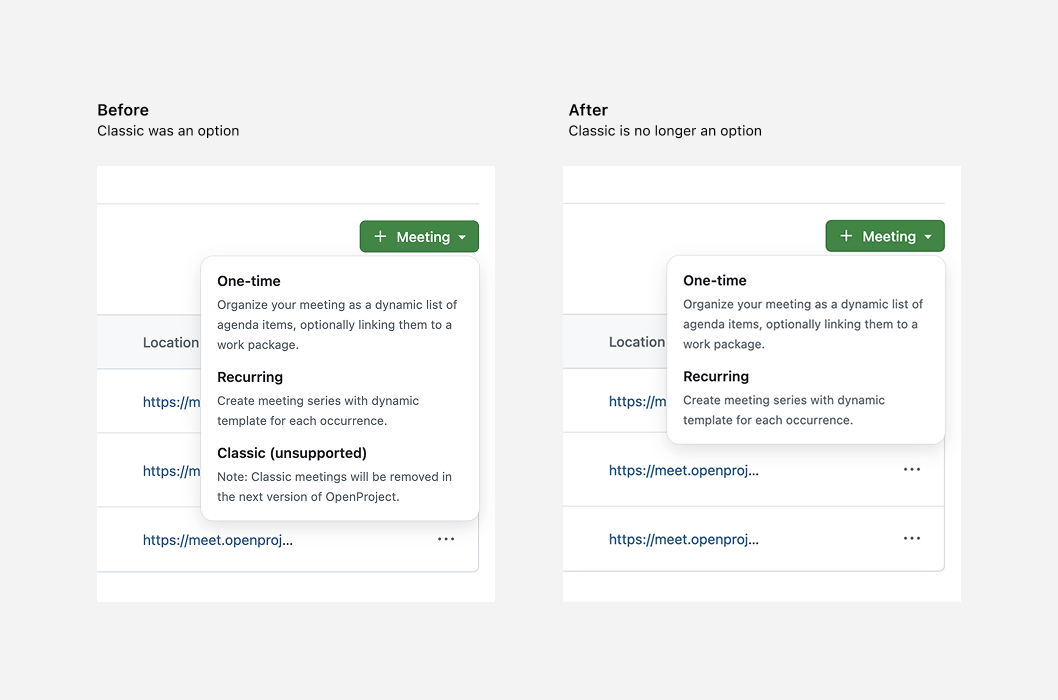
The next version is already on the horizon: In May 2025, we plan to release OpenProject 16.0 with major feature changes. One change will be the ‘sunsetting’ of classic meetings, meaning users will only be able to create one-time and recurring meetings then. With the release of 15.5, you already see a hint in the application that classic meetings are unsupported. We recommend switching to the newer meeting types now to benefit from recent improvements and to ensure a smooth transition. Read this article to learn more: Classic meetings will be replaced: What changes with OpenProject 16.0

Filter for descendants of work packages

OpenProject 15.5 introduces a helpful new filter to better navigate complex project structures. The Descendants of filter allows you to display all related work packages beneath a selected parent — including its children, grandchildren, and deeper levels.

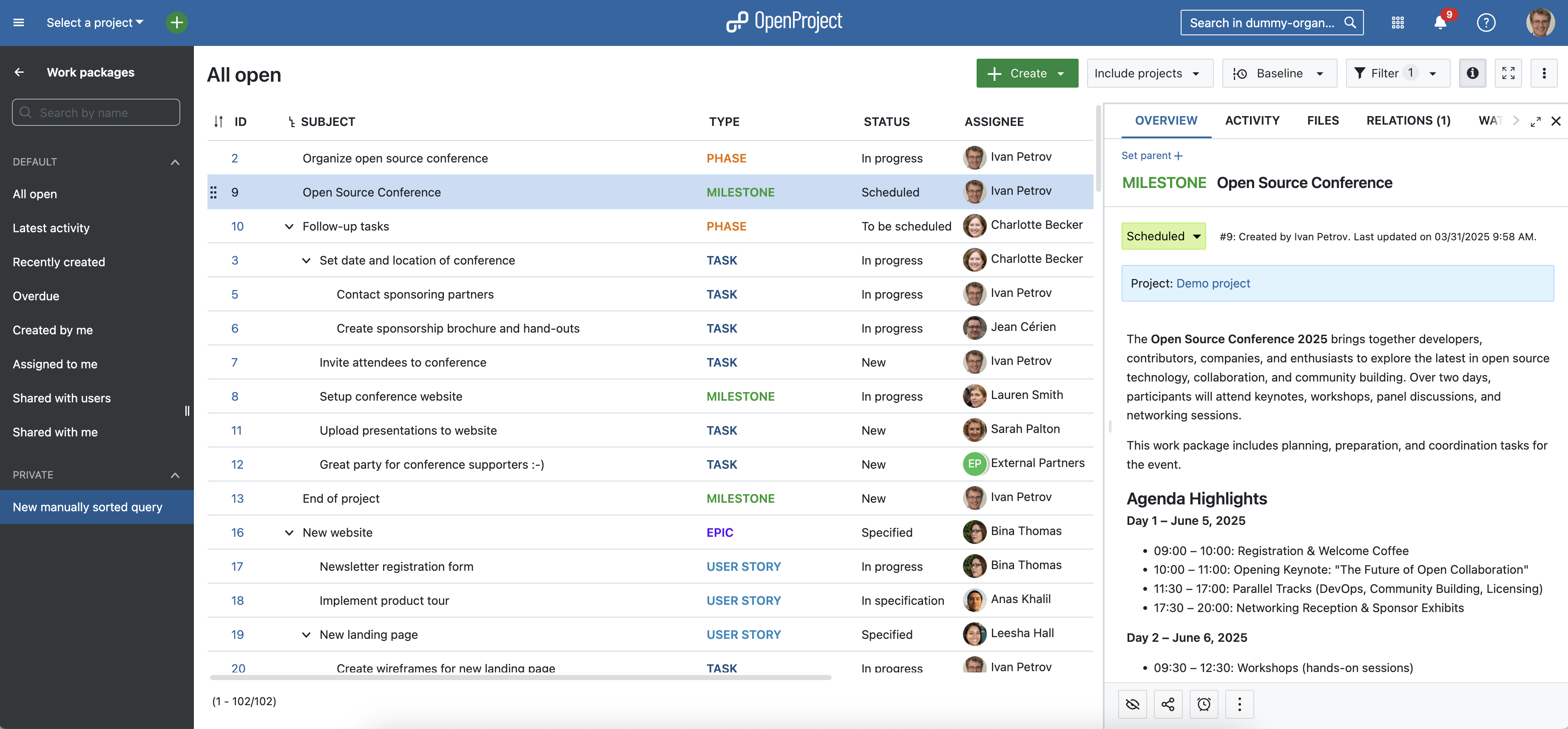
For example, if you apply the filter “Descendants of” is (OR) “Open Source Conference”, the view will include:

  • Two direct children: Create sponsorship brochure and hand-outs and Set date and location of conference
  • Two children of the brochure task — in other words, grandchildren of the main phase: Design brochure and Write brochure text
  • One grandchild under the location task: Contact sponsoring partners

This filter is available wherever filters are supported, such as work package tables or agile boards. Until now, it was only possible to filter for parent work packages — this new option lets you see the full hierarchy below a selected item, making it easier to focus on a specific part of your project and understand its structure at a glance.
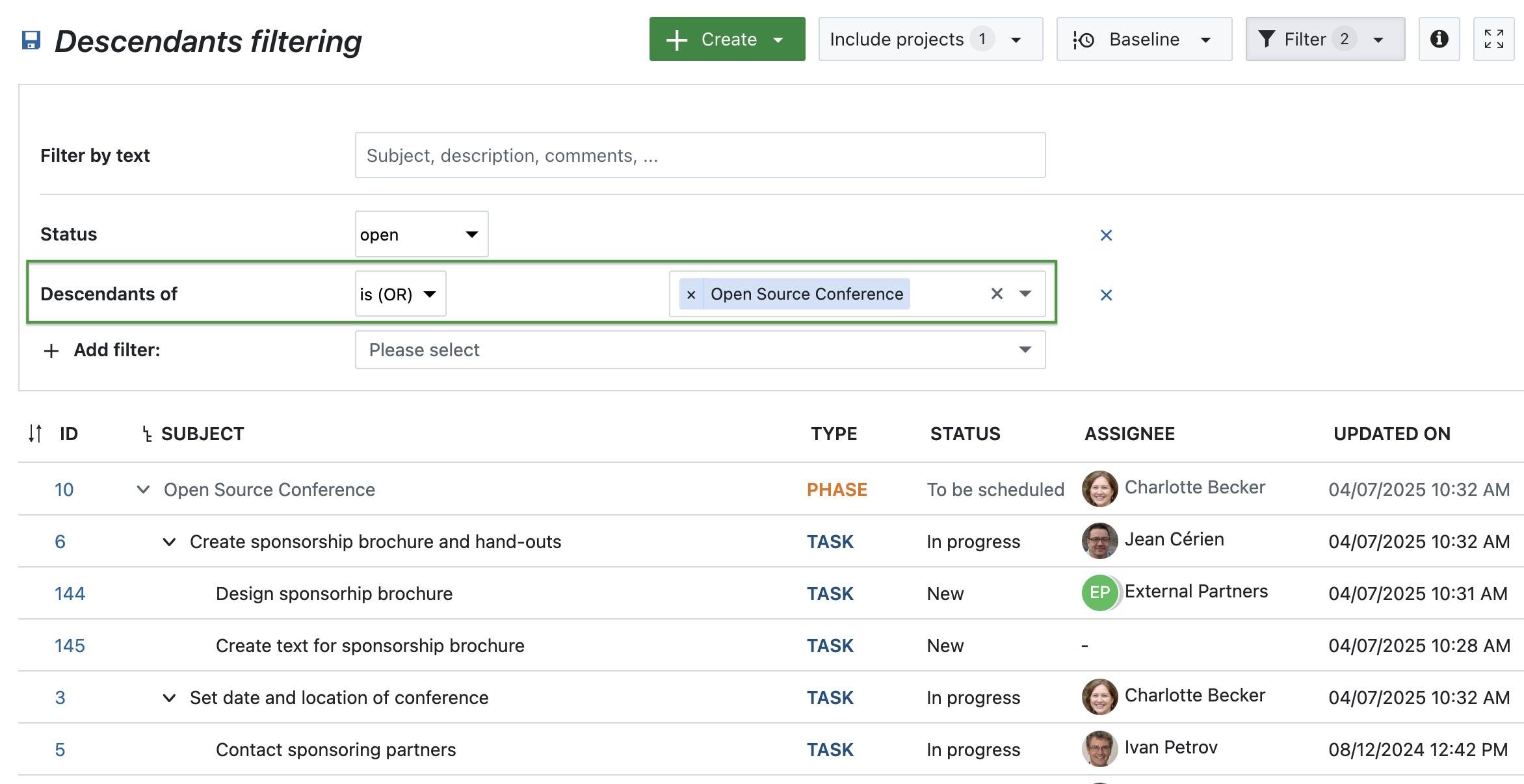
Work package table filtered for descendants of a phase

Column for children in work package tables (Enterprise add-on)

OpenProject 15.5 adds a new Children column to work package tables — giving you a faster and more structured way to view hierarchical relationships without needing to apply filters or switch views.

This column shows a clickable dropdown icon alongside the number of child work packages linked to each parent. With one click, you can expand the parent directly in the table to get an immediate overview of its structure. Each child is clearly marked with a Child label, helping you stay oriented even in complex project hierarchies.

This feature is especially useful when working with large datasets or focused views, where quickly understanding relationships between work packages is key.

For example, in a project phase like Open Source Conference, the Children column shows how many related work packages are connected to that phase — helping teams assess scope and progress without leaving the table view.
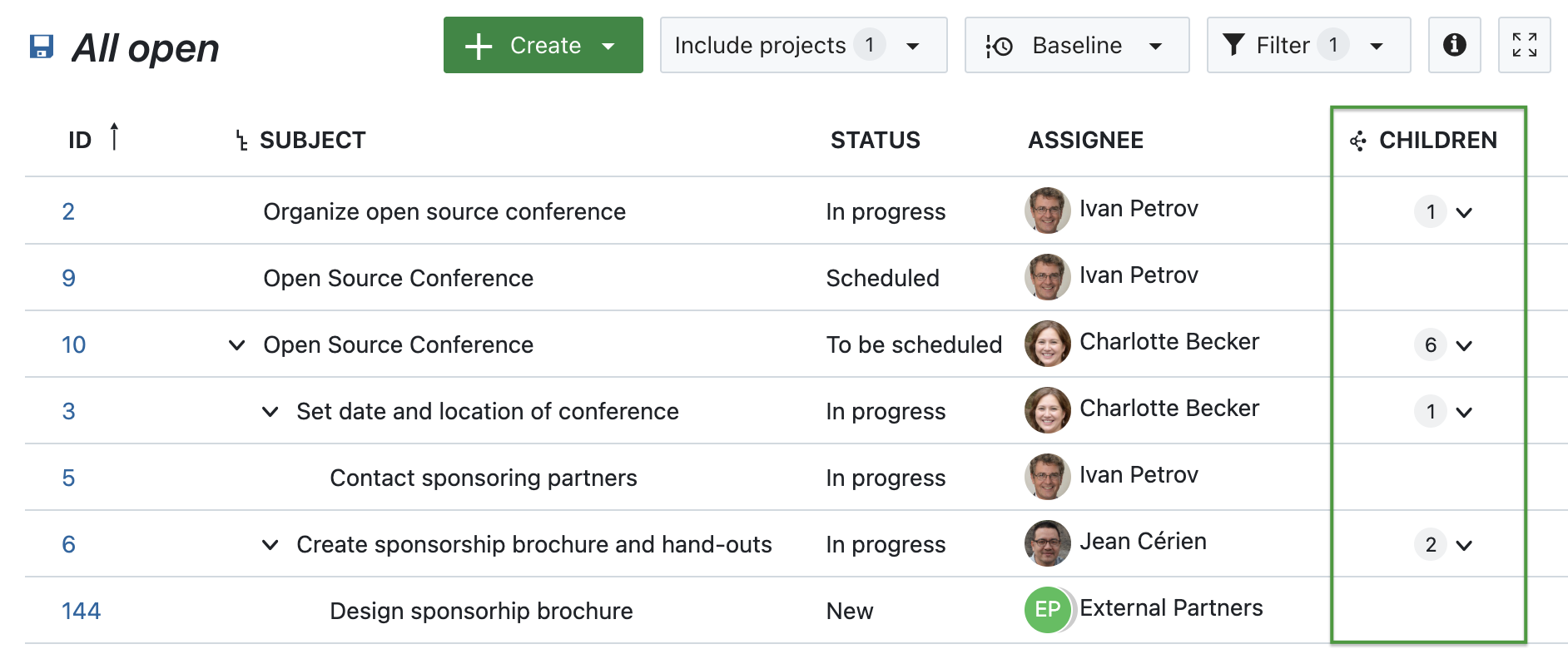
Work package table with a highlighted ‘Children’ column - the number of children being displayed next to each parent, along with a dropdown-symbol

Note

All relationship columns, including the new Children column, are part of the Enterprise add-ons.

% Complete included in work package table sums

Imagine you’re part of an NGO marketing team planning newsletters, blog articles, and videos for the upcoming year. Each campaign includes several tasks — like writing a blog post titled Behind the scenes: Organizing a field mission or producing the video Meet our volunteers. Both are in progress and marked as 40% complete.

With OpenProject 15.5, it’s now easier to get an overview of your content pipeline: the % Complete value is included in the sum row of work package tables. Alongside Work and Remaining work, this provides a quick snapshot of overall progress — in this case, 42 hours of work planned, 25.2 hours remaining, and an overall completion rate of 40%.

All three values are calculated based on the selected progress tracking mode, giving you accurate insights tailored to your team’s workflow — whether you’re tracking effort manually or automatically.
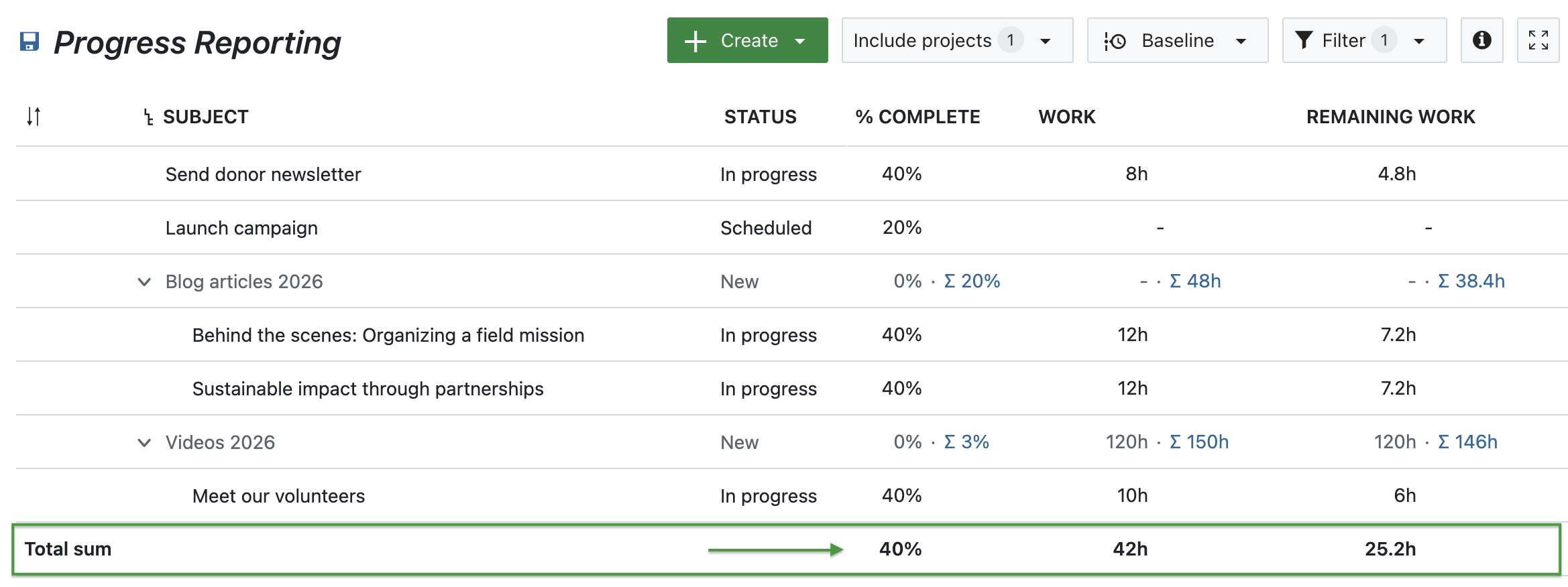
Work package table showing % Complete, Work and Remaining work – with highlighted sums

Advanced accessibility

Accessibility is not just a feature — it’s a fundamental part of building inclusive software. With version 15.5, we’ve taken another step forward in making OpenProject more accessible, especially for users who rely on screen readers or keyboard navigation.

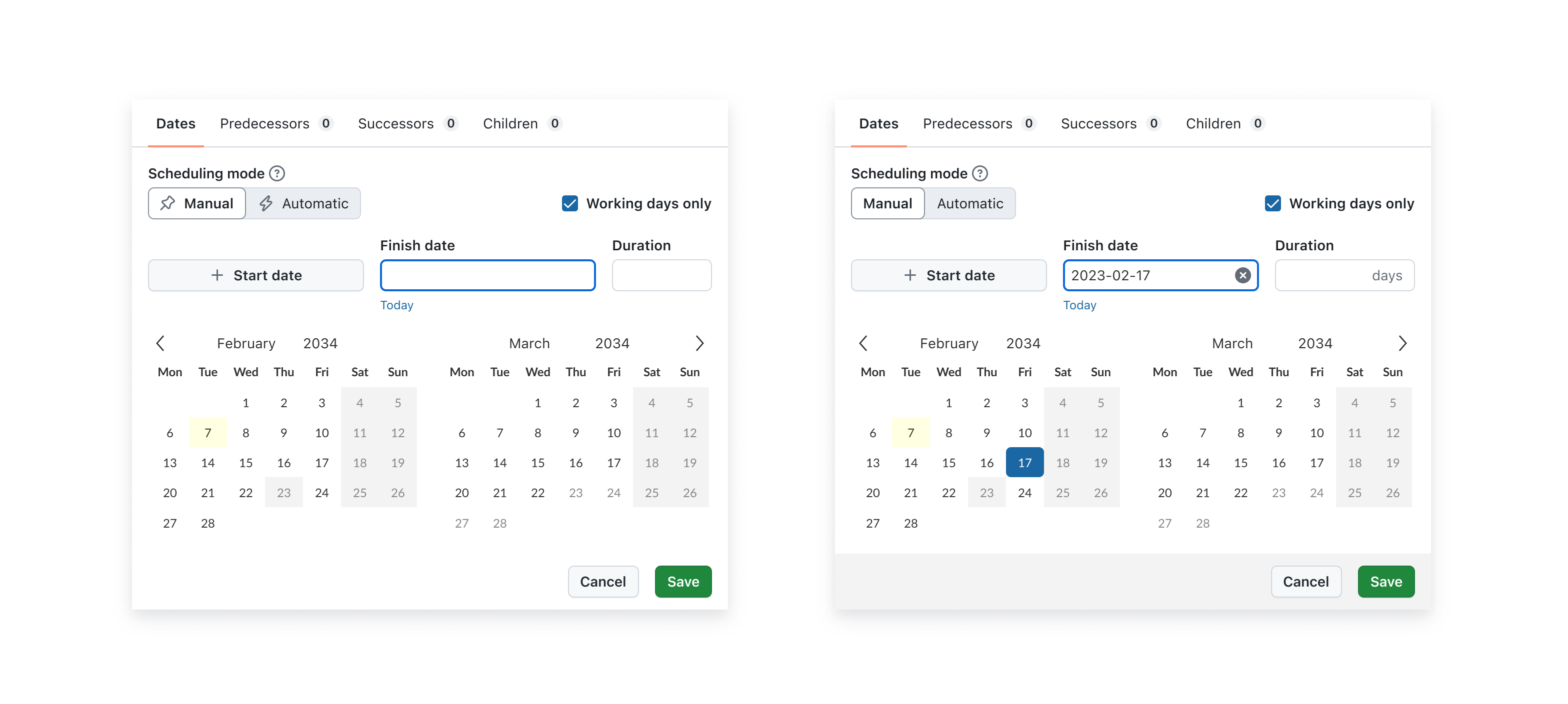
The date picker now provides clearer, more meaningful feedback during manual input, ensuring that everyone can interact with project timelines confidently and independently. This means that screen readers now announce when switching between manual and automatic scheduling modes. Changes to one field, such as the Start date or Duration, are immediately announced when they affect related fields. The “Today” shortcuts come with ARIA labels that give users helpful context — for example, “Select today as start date.”

These improvements are part of our ongoing ARIA implementation strategy to ensure that OpenProject is usable by as many people as possible. Further accessibility enhancements are planned for upcoming versions.


OpenProject 15.5: Migration, installation, updates and support

Follow the upgrade guide for the packaged installation or Docker installation to update your OpenProject installation to OpenProject 15.5. We update your hosted OpenProject environments (Enterprise cloud) today, April 16, 2025.

You will find more information about all new features and changes in our Release notes or in the OpenProject Documentation.

If you need support, you can post your questions in the Community Forum, or if you are eligible for Enterprise support, please contact us and we are happy to support you personally.

Credits

A very special thank you goes to the City of Cologne, Deutsche Bahn and ZenDiS for sponsoring released or upcoming features. Your support, alongside the efforts of our amazing Community, helps drive these innovations.

Also, a big thanks to our Community members for reporting bugs and helping us identify and provide fixes. Special thanks for reporting and finding bugs go to Abhiyan Paudyal, Andreas H., Paul Kernstock, Patrick Stapf, and Stefan Weiberg.

Last but not least, we are very grateful for our very engaged translation contributors on Crowdin, who translated quite a few OpenProject strings! This release we would like to particularly thank the following users:

  • Yuliia Pavliuk, for a great number of translations into Ukrainian.
  • Adam Siemienski, for a great number of translations into Polish.
  • NCAA, for a great number of translations into Danish.
  • greench, for a great number of translations into Turkish.

Would you like to help out with translations yourself? Then take a look at our translation guide and find out exactly how you can contribute. It is very much appreciated!

As always, we welcome any feedback on this release. 💙
  •  

Prioritize what matters: How Attribute highlighting helps growing teams stay focused

Whether you’re a team of five or fifty — as your organization grows, so does the number of projects, tasks, and priorities. At some point, work packages that once fit on one board become a sea of cards, and keeping focus becomes a challenge.

That’s why we created the Attribute highlighting feature: it helps you immediately see what needs your attention most. In this article, we’ll walk you through a relatable scenario and show how this feature can support you in staying focused and scaling successfully.

Important

Before February 2026, Attribute highlighting was part of the Enterprise edition in OpenProject. With the release of version 17.1, it is part of the free Community edition, because we value our Community a lot and aim to give “back” Enterprise add-ons to all users every few releases. You can find more information about this feature in our documentation.


You’ve grown — now it’s time to change how you work

Things might be going well. Your organization is growing. More clients, more projects, more team members. But with growth comes complexity. What used to be a simple backlog is now a multi-project list of dozens — maybe hundreds — of open tasks. And suddenly, you’re no longer sure what’s urgent, what’s blocked, or what’s been waiting for weeks.

Your system hasn’t changed, but your needs have. And that’s a good thing — because it means it’s time to invest in new ways to keep your growing team aligned.

Clean up your work package table by highlighting priority, status or finish date

Let’s take your team’s work package table as an example. Imagine you’ve filtered for this month’s deliverables — but the list is still long. You spot tasks with due dates coming up, some that are marked high priority, and one that was updated just now. But it takes a few minutes of scrolling and reading to get the full picture.

That’s where Attribute highlighting comes in. This feature allows you to visually emphasize specific values in your work package table using color: overdue tasks can turn red, high-priority items might stand out in orange, and different status values can appear in clearly distinguishable shades.

With just a glance, your team can now immediately see:

  • What’s overdue,
  • What’s marked as high or urgent priority,
  • What’s resolved or in progress.

How Attribute highlighting works

Let’s say your team uses the Priority attribute and a custom status workflow. You can highlight individual attributes inline (Status, Priority, Finish date) or apply full-row highlighting based on Status, Type, or Priority.

Once you’ve set this up in the work package table view, your team sees these visual cues automatically — without needing to open each task individually.

Tip

You can configure which colors are used for each priority and status in the System administration. Learn how to adjust them for priorities and for statuses.

Let’s look at an example work package table and how it looks with different attributes highlighted. Please note that you can change the colors for work package attributes and that they might look different in dark mode or light mode.

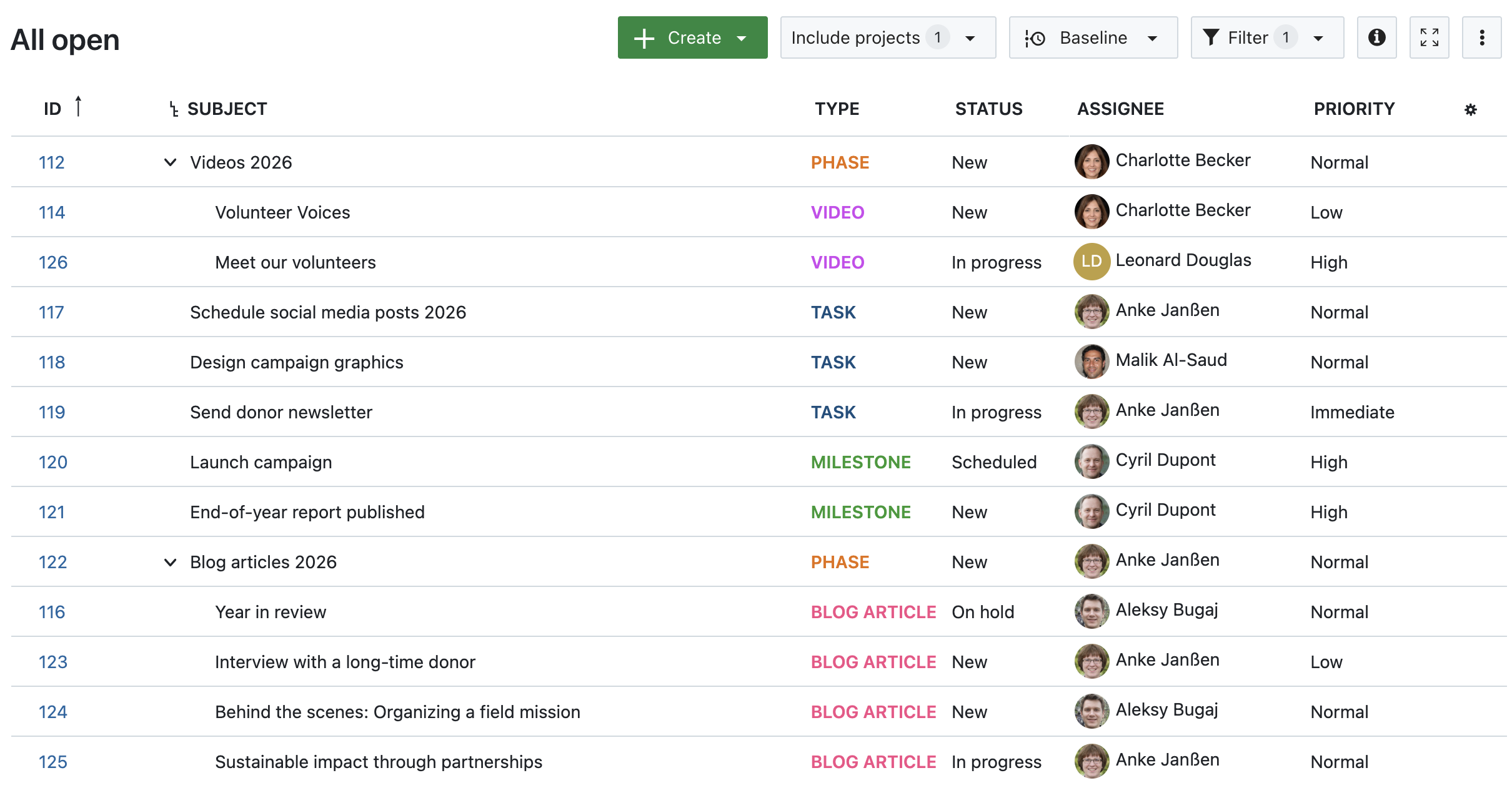
1. No attribute highlighting

Work package table in OpenProject, no attributes highlighted

Image 1: A work package table in OpenProject, no attributes highlighted.

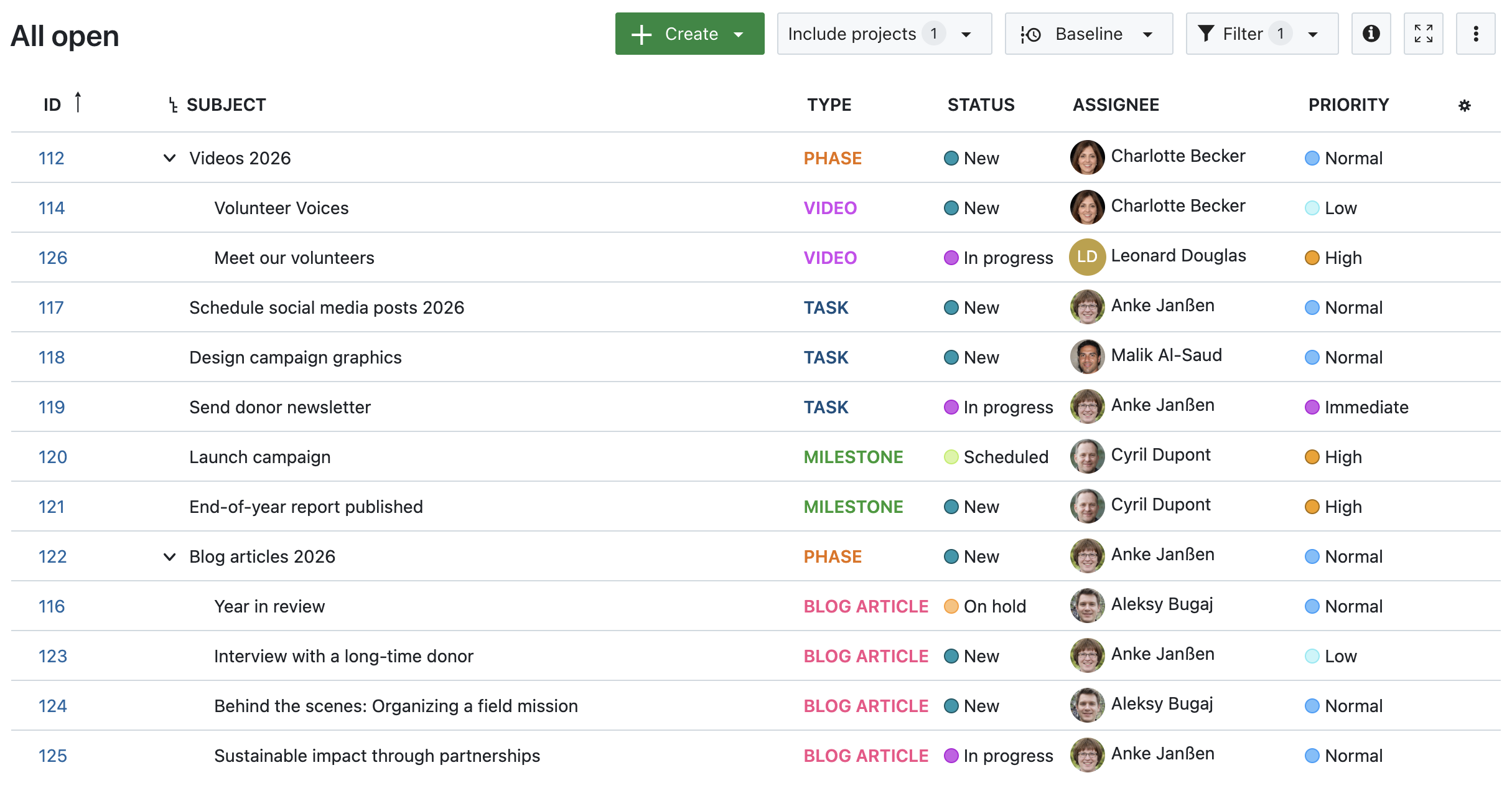
2. Status, Priority and Finish date highlighted inline

Work package table in OpenProject, inline-highlighted Status, Priority and Finish date

Image 2: A work package table in OpenProject, with inline-highlighted Status, Priority and Finish date.

3. Highlighted by Status

Work package table in OpenProject, highlighted by Status

Image 3: A work package table in OpenProject, highlighted by Status.

4. Highlighted by Type

Work package table in OpenProject, highlighted by Type

Image 4: A work package table in OpenProject, highlighted by Type.

5. Highlighted by Priority

Work package table in OpenProject, highlighted by Priority

Image 5: A work package table in OpenProject, highlighted by Priority.


Other helpful features for prioritizing work packages

Attribute highlighting works best in combination with other prioritization features. Here are a few tools to support your growing team:

  • Work package priorities
    Assign Low, Normal, or High to indicate importance.

  • Status workflows
    Define which status transitions are possible and by whom, helping structure review and approval processes.

  • Date alerts and reminders
    Automatically notify assignees or watchers when a due date is approaching.

  • Versions
    Group work packages under a common version to align delivery and deadlines across tasks.

  • Custom fields
    Add structured information to work packages that you can then use for filtering, highlighting, or grouping.

Each of these features helps you bring structure to complexity — and together, they make it easier to stay focused.


Stay focused as you scale

Growth is exciting — but only sustainable if your tools grow with you. Features like Attribute highlighting can make a real difference: not by changing how you work, but by making it easier to see what matters.

With a growing team and more responsibilities, the ability to focus at a glance isn’t just a nice-to-have — it’s essential. Let OpenProject help you take that next step.

  •  

Classic meetings will be replaced: What changes with OpenProject 16.0

When we released dynamic meetings in version 13.1 of OpenProject, it was the start of a larger redesign of the Meetings module. Since, we have continued to improve it by adding new features and optimizing the design based on user feedback.

Until now, the new ‘dynamic’ meetings lived alongside the ‘classic’ meetings with the goal of eventually replacing it entirely. We are excited to announce that this May, we will be able to completely remove classic meetings and fully transition to the more modern and versatile dynamic meetings.

This blog article explains why we’re making this change, what it means for your existing classic meetings and what you can expect for the Meetings module in upcoming versions of OpenProject.

Important

With version 15.5 (coming April 2025), classic meetings will still be available but we strongly advise against using it. You can create one-time and recurring meetings instead.

What is changing regarding classic meetings

When you create a new meeting in OpenProject in version 15.4, you have three choices: one-time, recurring and classic. Starting with 16.0, the third ‘classic’ option will no longer be offered.

To further prepare our users, it will already be marked as ‘unsupported’ in the upcoming version (15.5) this April, 2025. The actual removal will happen in May 2025, with the release of OpenProject 16.0.

Classic meetings will no longer be a choice in the create meeting dropdown

Why we are removing classic meetings

Ever since 13.1, our goal has been to replace classic meetings with an entirely new, more modern and versatile Meetings module. Since the first release of dynamic meetings in version 13.1, we have added a number of new features and improvements, including:

  • grouping agenda items into sections
  • creating meeting series for recurring meetings
  • an iCal integration
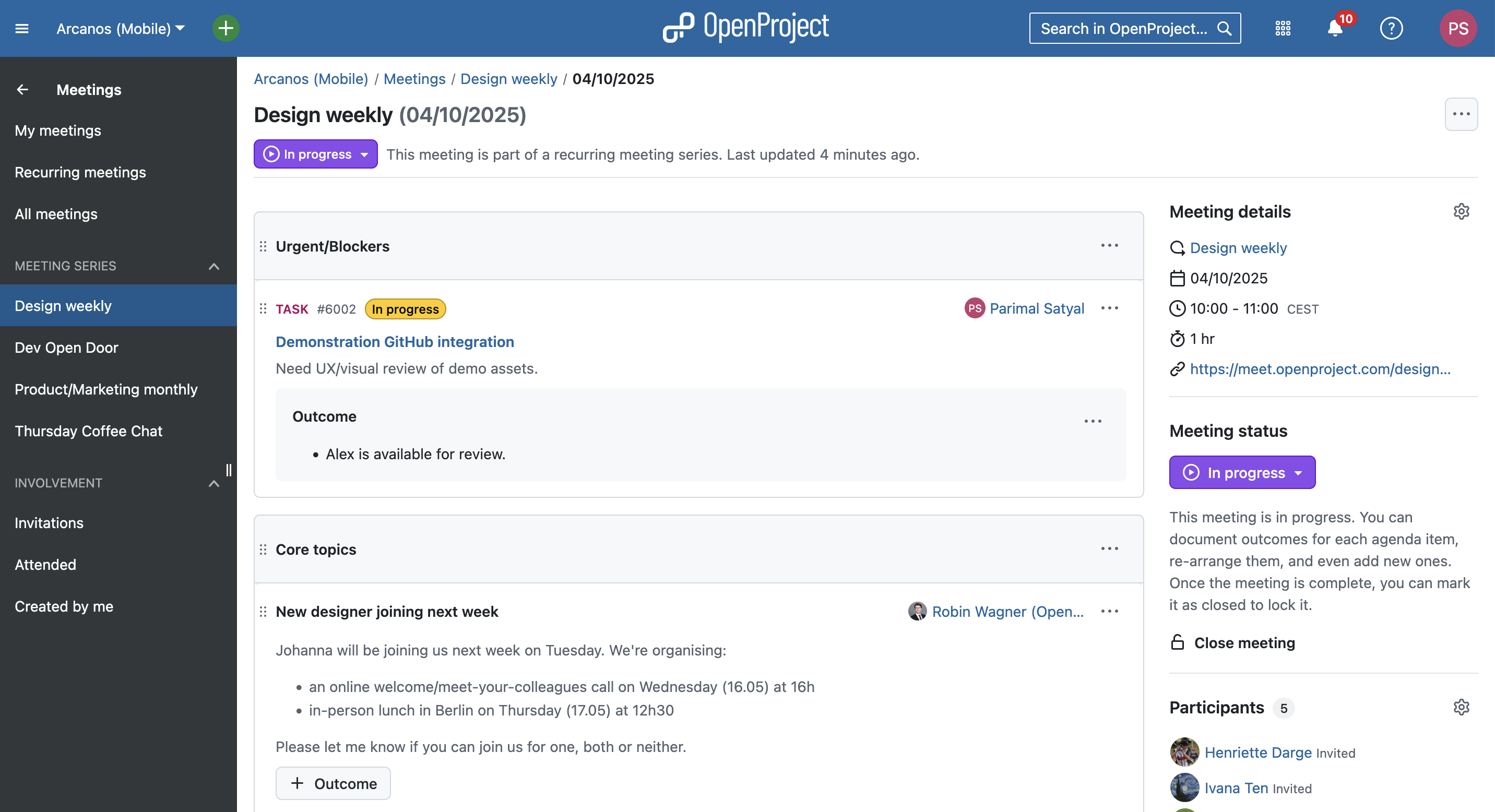
  • the ability to document outcomes for each agenda item when a meeting is in progress

An example meeting in progress with work packages, sections, meeting notes and outcomes

To completely replace classic meetings, we had to ensure that all existing features in the old module were available in the new one and that we had a clear migration strategy.

With the release of meeting outcomes in OpenProject 15.4, we now meet both conditions. Our users have also had a chance to get used the new Meetings module over the past year.

Migration to 16.0: What happens to your existing classic meetings

All existing classic meetings will be converted to dynamic (one-time) meetings when migrating to OpenProject 16.0.

How will former classic meetings be displayed?

Since classic meetings did not support individual agenda items, your older meetings will simply contain a single agenda item with the content of the ‘Agenda’ tab. This will have a single outcome, with the content of the ‘Minutes’ tab.

Can I still edit my former classic meetings?

All past classic meetings will be set to a ‘Closed’ state, which makes them read-only. However, roles that have the permission to manage the agenda item will nevertheless be able to modify the meeting status and thereby re-open the meeting to change the content.

What happens with already-created upcoming classic meetings?

Upcoming classic meetings will also be converted to dynamic meetings but with an ‘Open’ meeting state.

What happens to other information and data in my classic meetings?

All existing meeting details, participant list and attachments will be retained unchanged. All information concerning the agenda, the minutes and meetings data will be preserved. Meeting modification history will, however, not be available.

Continuous improvement

Although sunsetting classic meetings marks the completion of a planned transition to the new Meetings module, we will continue to add new features and optimize the design based on user feedback.

Very soon, we will be adding meeting backlogs, allowing you to “park” agenda items in a separate space for more efficient meeting planning. This includes a ‘series’ backlog that is shared with all occurrences of a meeting, enabling you to move things in and out of the backlog to particular occurrences.

We will also update the admin permissions model related to meetings to make them easier to understand and better adapted to new features.

Your feedback

Our motivation for all these changes is to enable teams to have more efficient, better-organized meetings. We extensively use the Meetings module internally at OpenProject and have received positive feedback from a number of our users.

Your feedback helps us know if we’re going in the right direction, if there are things we can improve on and what our users are missing.

As an open source software company, we value the ideas and feedback of our user Community. If you have opinions about these changes or have feature requests, feel free to join our Community instance and share your thoughts on upcoming features related to meetings.

Thank you for your continued support and for being a part of the OpenProject Community.

  •  

Portuguese OpenProject website and user guides now available

At OpenProject, we are continuously working to make our platform as accessible as possible for all users. A big part of that is offering our content in multiple languages. We are excited to announce that our website and user guides are now available in Portuguese!

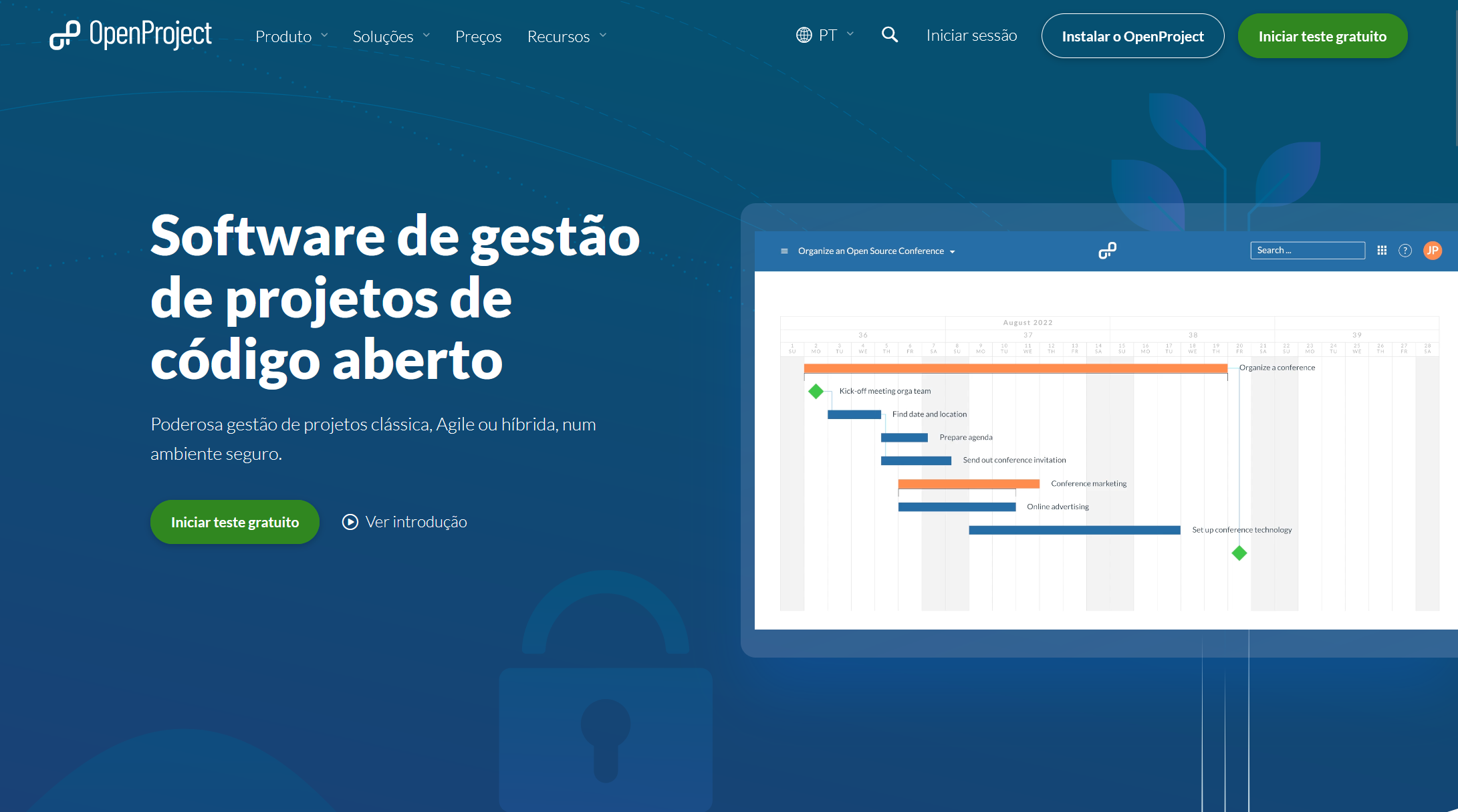
OpenProject website in Portuguese

We’re happy to offer our Portuguese-speaking community a fully translated version of our website. While not all past blog articles will be translated, relevant new content will be published in Portuguese moving forward.

Screenshot OpenProject Portuguese website

OpenProject user guide in Portuguese

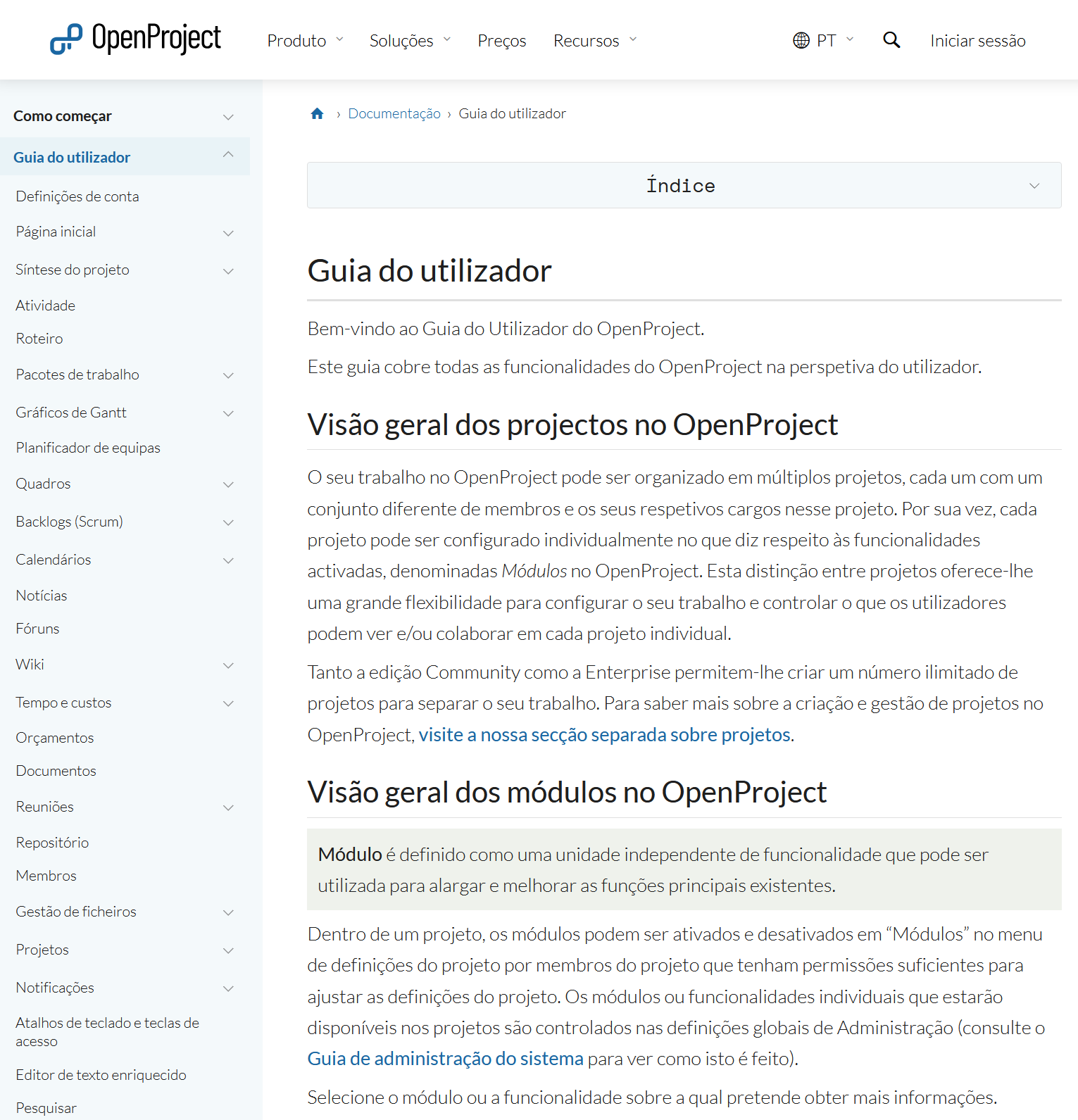
Also, we have translated the OpenProject getting started guide as well as the user guide to Portuguese. These resources explain OpenProject’s features and functionality in detail, helping new and experienced users alike.

Screenshot of OpenProject user guide in Portuguese

Documentation in other languages

In addition to Portuguese, OpenProject user guides are also available in:

Help us translate OpenProject

OpenProject translations are managed publicly via Crowdin, and we welcome contributions from our global Community! You can help translate both the OpenProject application and the documentation.

We love seeing our community get involved — thank you for helping make OpenProject accessible to everyone!

  •  

How to create, configure and manage your projects with OpenProject

You decided to take your project management to the next level and chose OpenProject as your open source project management software? You might be excited to get started. But as usual with a new tool: where to start? We put together an overview of the first steps to manage your projects in OpenProject. Please note that all steps described in this article require a project admin status.

Here’s an overview of this article for your quick navigation:

Start your projects

Create and open projects

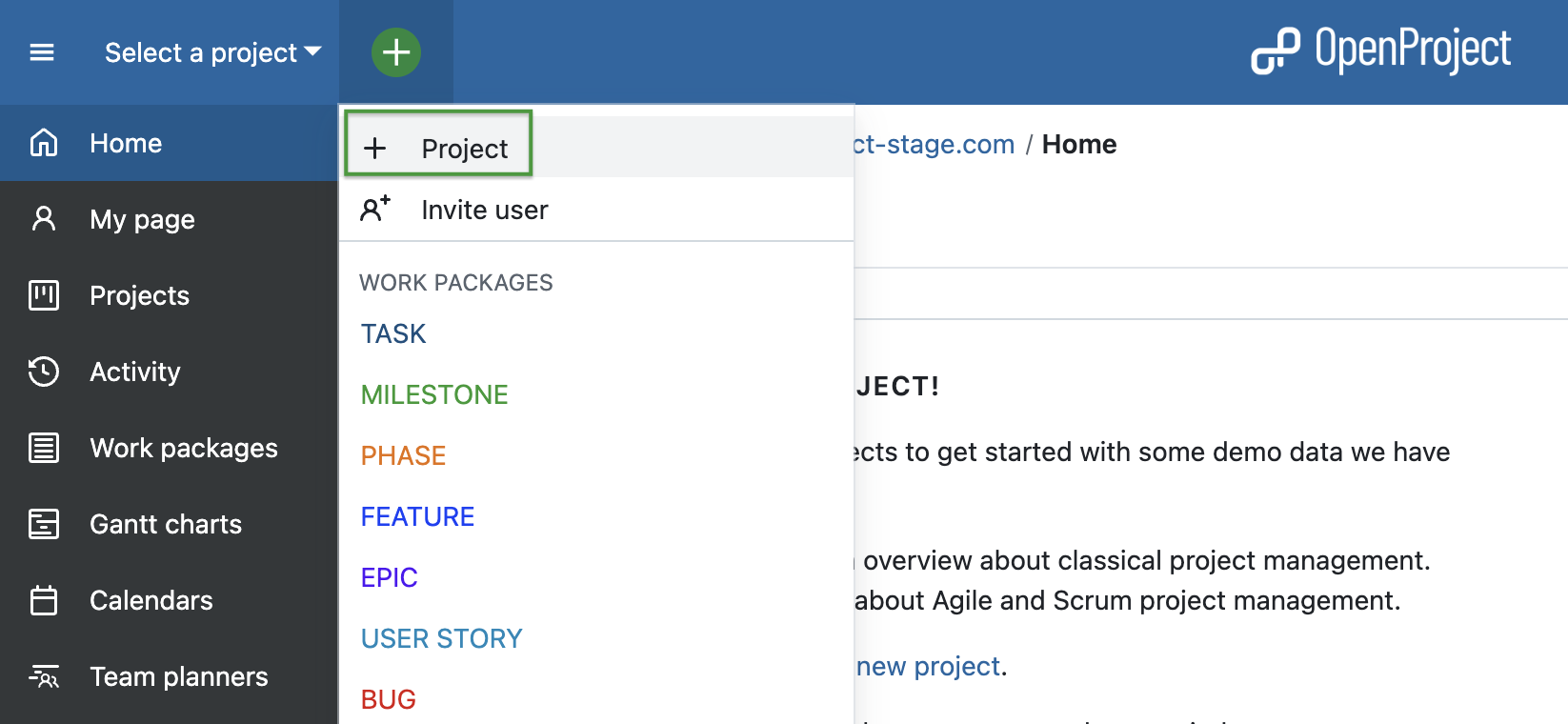
First of all, you would want to create a project. Log in to OpenProject and on the first page in the top left corner under Select a Project you can create a new project by clicking + Project.

Add new project in OpenProject - via project lists dropdown menu

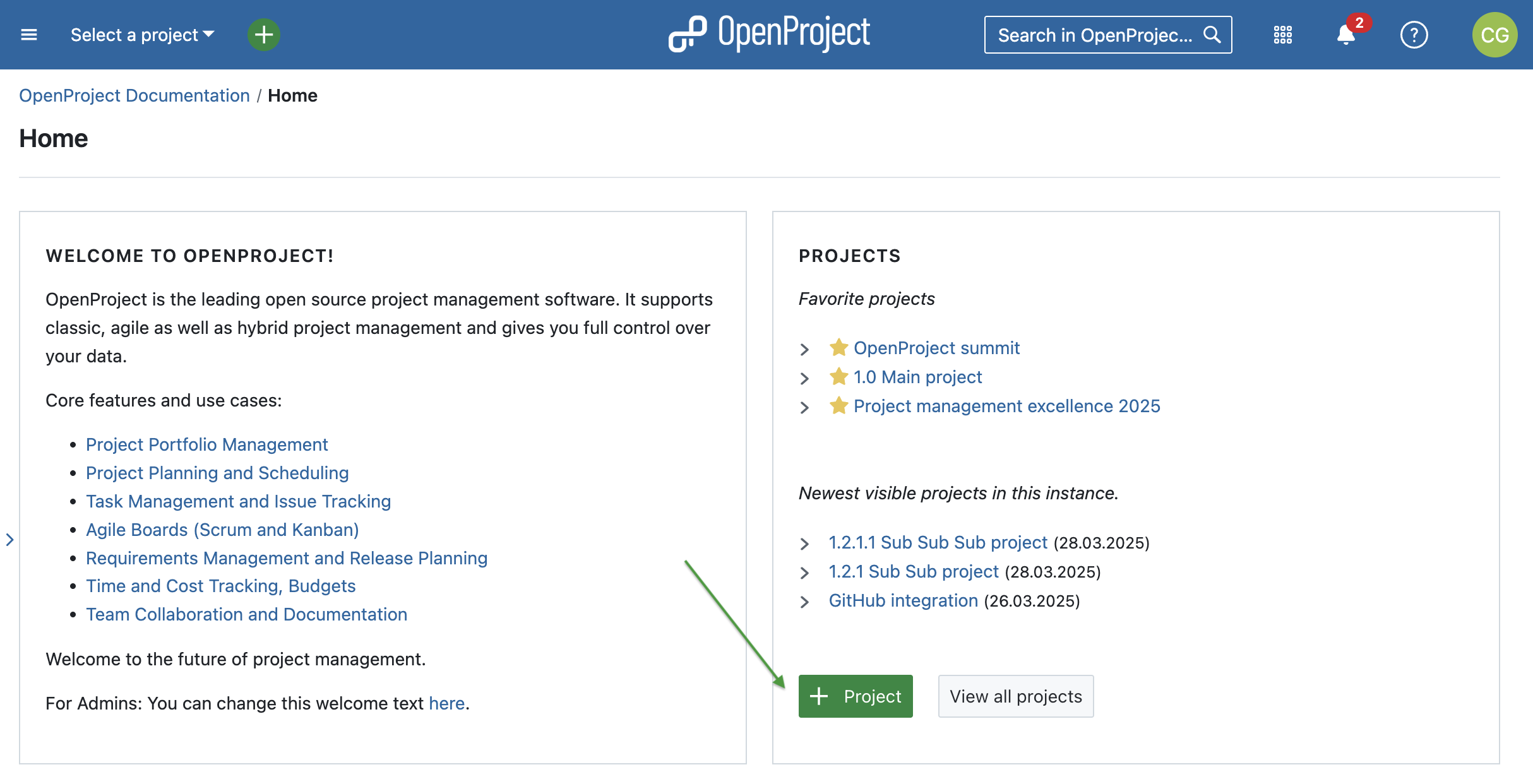
Alternatively, on the same start page, in the Projects widget you can create a new project by clicking on the green + Project button. Please note that you can remove, add and change position of widgets on your project overview page.

Add new project in OpenProject - via project overview page

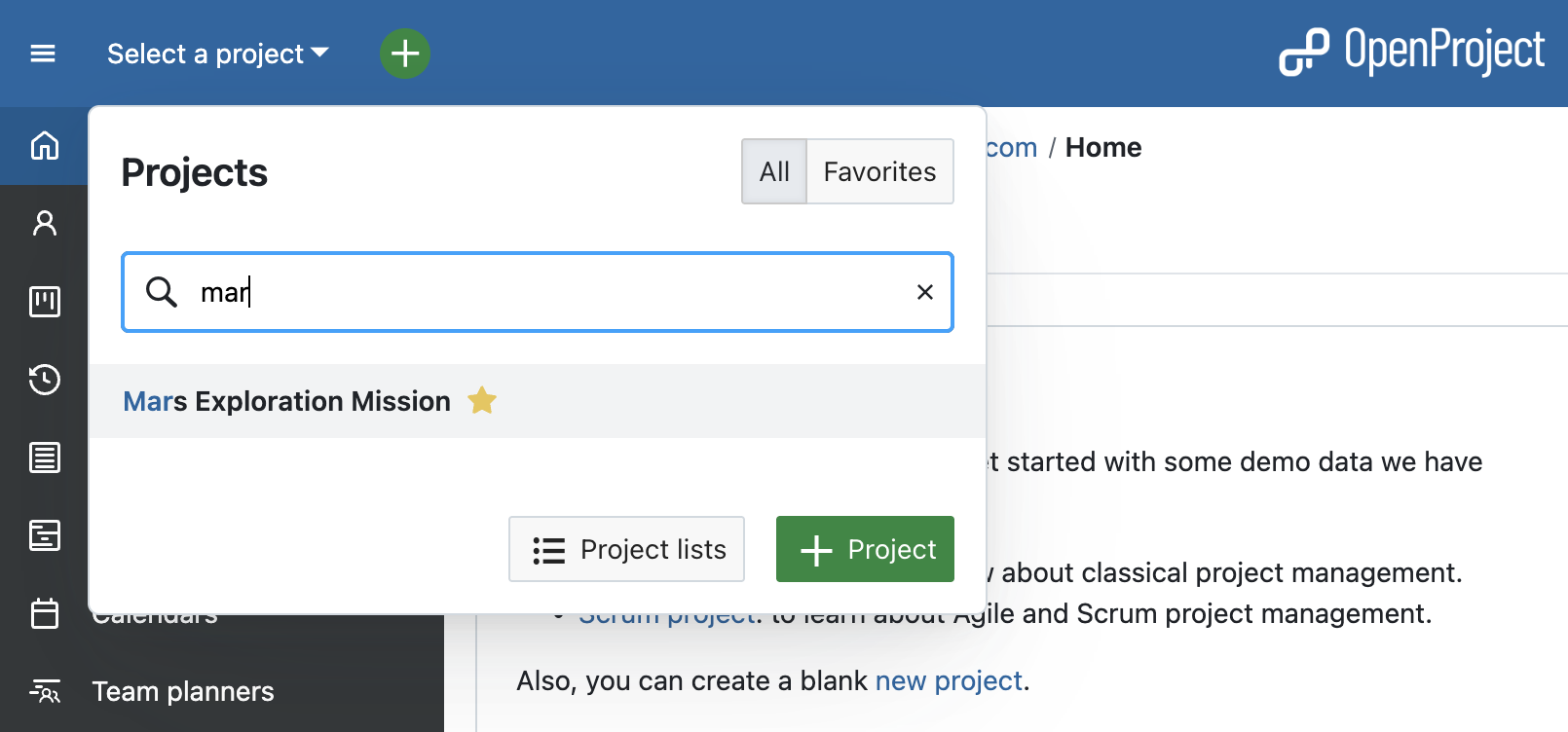
Once you or other team members created some projects in OpenProject, you can log in and choose a project to open. In order to open an existing project, click the Select a project drop-down menu in the upper left corner of the header and select the project you want to open. You can also start by typing in a project name to filter by the project’s title.

Search for a project in OpenProject

Please note that you have to be a member of a project to be able to see and select it.

[!TIP] You will also see a project if a work package from this project was shared with you, but in this case only the Work packages module and the shared work package will be visible to you within the project.

Project hierarchy

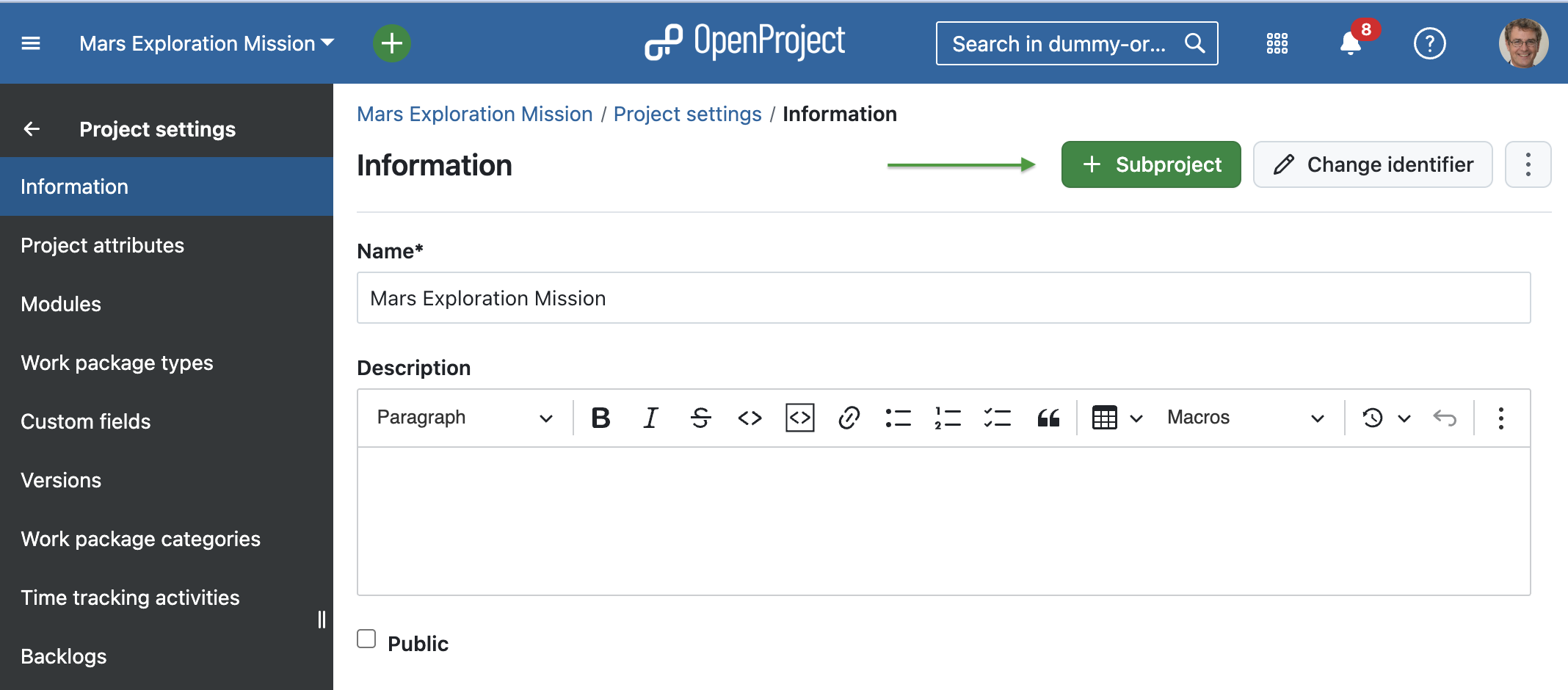
OpenProject allows you to organize your projects in a hierarchy by creating projects with subprojects. In order to create a subproject, you can do so in the project setting of the main project.

OpenProject screenshot: create subprojects in the project setting of the main project

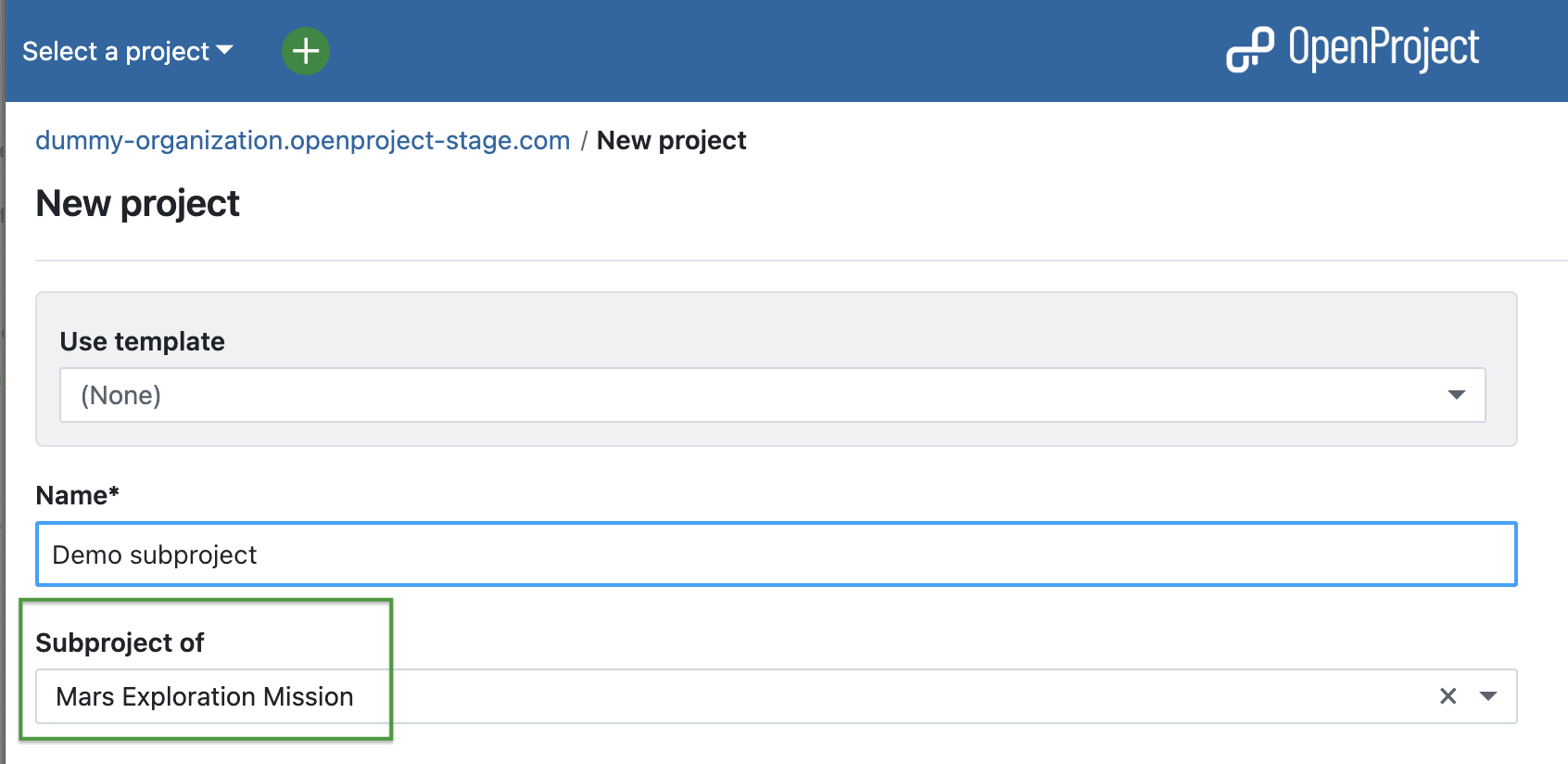
You can also create a project and define its parent project in the settings when creating a new project.

OpenProject screenshot: Define parent when creating a new project

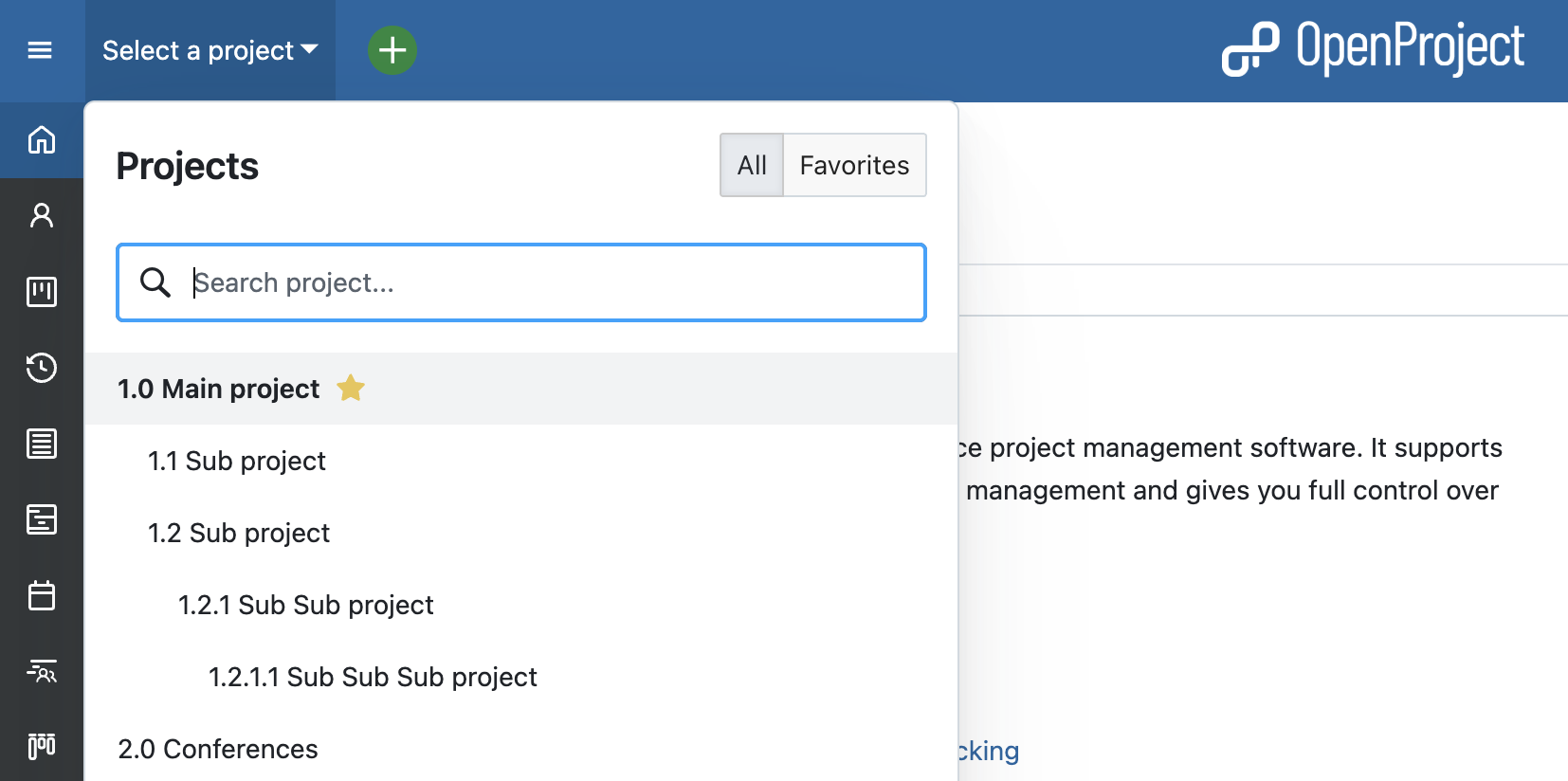
Projects and subprojects are displayed according to their hierarchy in the Select a project drop-down menu.

OpenProject screenshot: create subprojects in the dropdown menu

Project dashboard

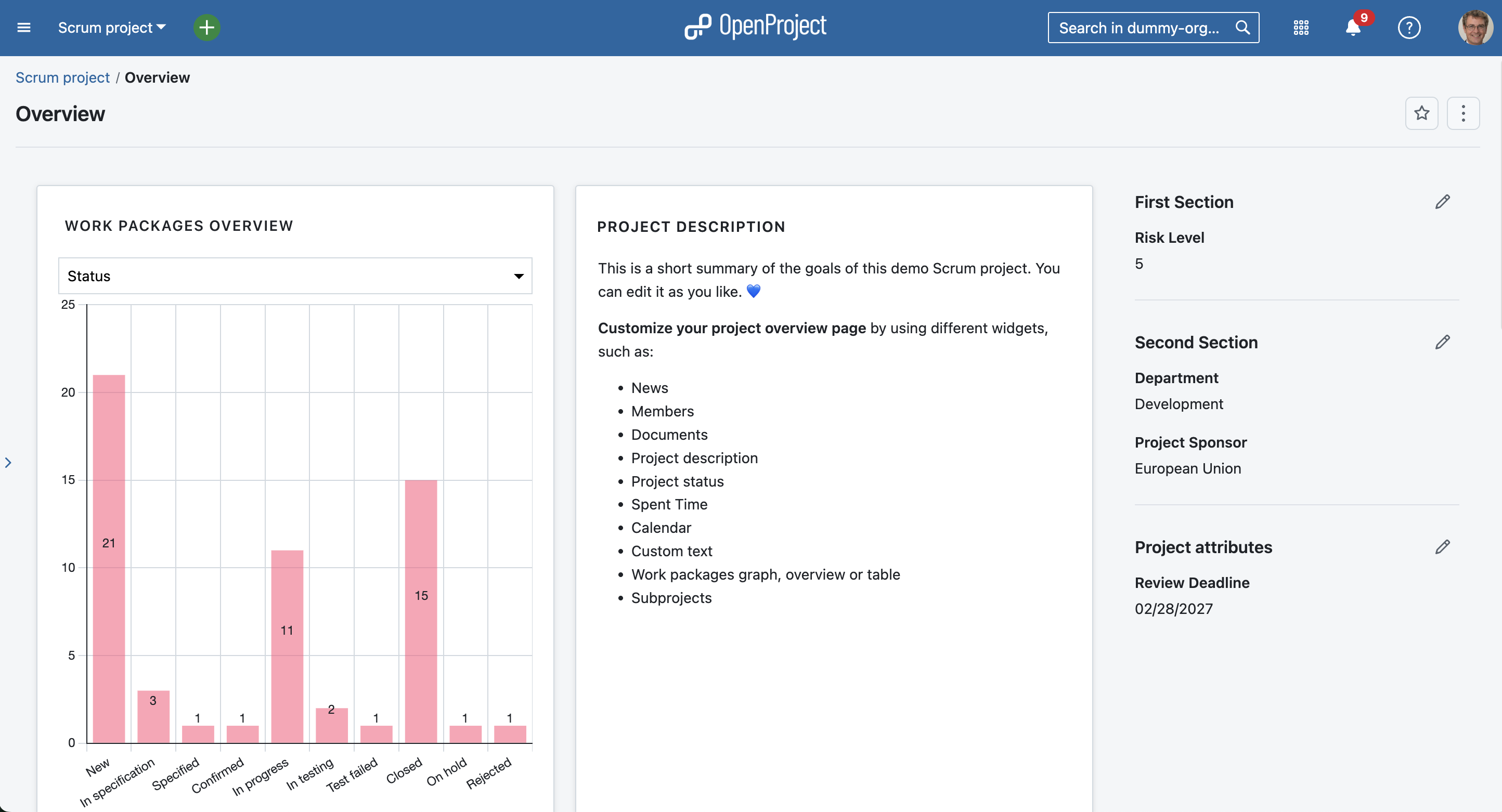
In order to manage your projects successfully, you should make sure to be up to date about the status at all times. This allows you to keep the project on track and readjust quickly if needed. OpenProject’s project overview is a single dashboard page with important project information.

You can display relevant information for your team, such as members, news, project description, work package reports, or a project status. Remove or add project information as widgets to the dashboard, and order and re-size the widgets according to your needs.

OpenProject overview page which functions as a project dashboard

There are several widgets to choose from, such as:

  • News,
  • Members,
  • Documents,
  • Project description,
  • Project status,
  • Spent time,
  • Calendar,
  • Subprojects,
  • Work packages graph, overview or table,
  • Custom text.

Project portfolio

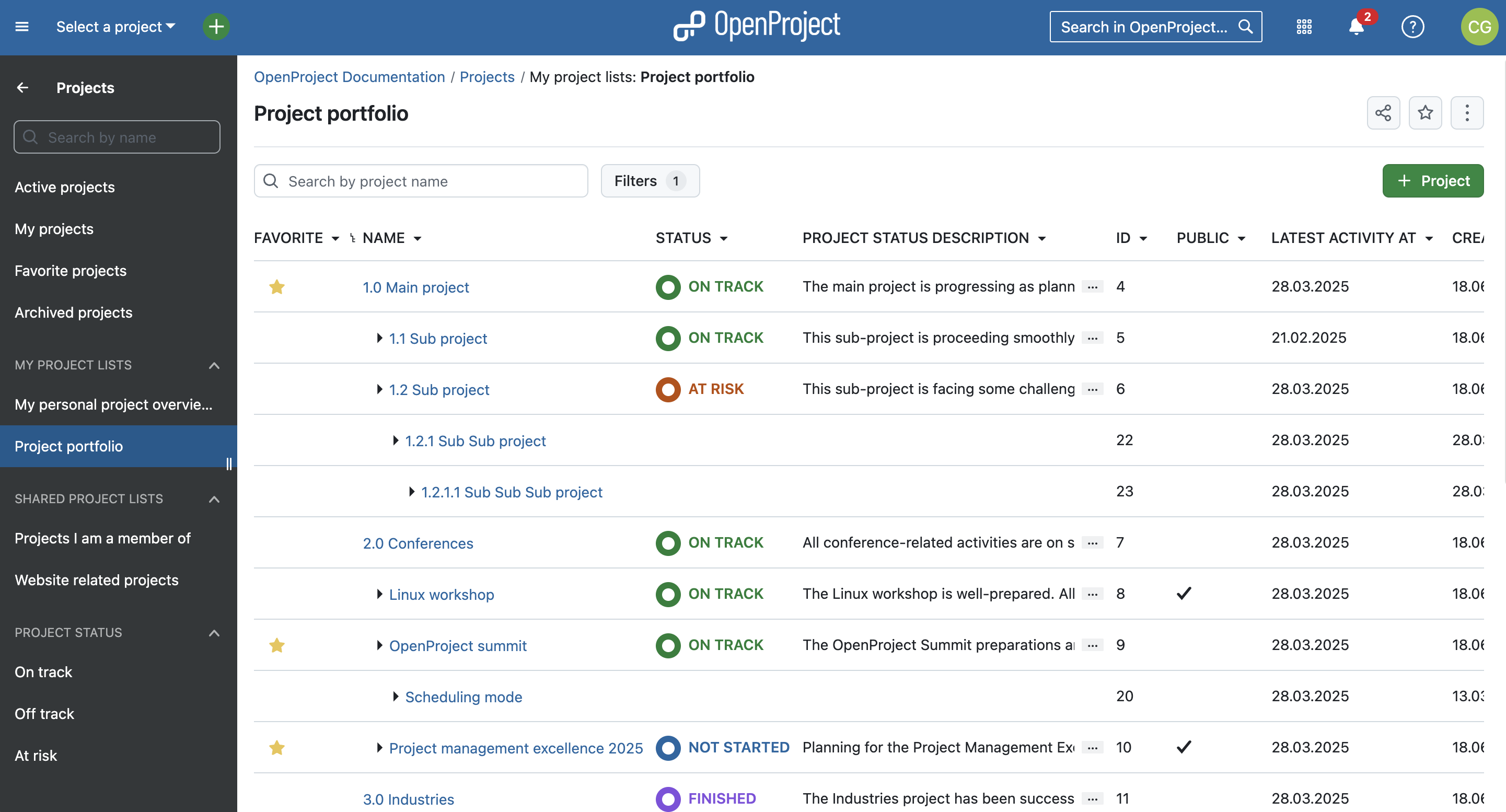
To get an overview of all projects that you are involved in, you can check the status and more details under Project lists in the top left corner underneath Select a project. This overview shows you all projects with attributes such as status, latest activity and description. Use filters to customize the view and show the information you need. You can also create custom fields to add any custom information you want.

As with work packages, you can customize your project list, save it as a new view and also add it to your favorites. Read more in our documentation on project lists.

OpenProject project lists that function as a project portfolio

Add projects to your favorites

You might have noticed the yellow stars next to some projects in the screenshots above. These are favorite projects. Users can add projects to their favorites by either clicking the star icon in the project list (first column). Or by navigating to the project overview page and activating the star on the right upper corner. Favorites are personal and you don’t have to be an admin to use this feature.

Project templates

In order to save time and be coherent across projects, use the project templates in OpenProject. You just create a new project and then save it as a template. You can also make a project you are already working with a project template by changing the project settings to Set as a template. With a project template, you set up everything you want available for future projects, such as:

  • Project members,
  • Modules,
  • Default project structure in the Gantt chart,
  • Work package templates and more.

Import tasks to OpenProject

In case you are managing your projects in Excel or any other project management software, OpenProject offers you an Excel Sync to upload your tasks into the OpenProject application. First export your tasks from the legacy project management system and then use the Excel Sync to upload them to OpenProject.

Organize and visualize your project

Projects vary and require a different view by project. Depending on what type of projects you are managing, you might want to use a work package table view, Agile Boards, Gantt charts, Backlogs, Task Board or a Roadmap. OpenProject offers both traditional and agile project management and allows you to combine both to a hybrid project management approach.

We would like to show you the major OpenProject modules that offer different project views. However, as mentioned, you can also combine them.

Work packages

Work packages are the base for your project collaboration in OpenProject. They are items in a project (such as tasks, features, risks, user stories, bugs, change requests – and any other type you want to create) and capture various additional attributes, such as status, assignee, priority, or due date. The work package table view shows all work packages as a list with selected attributes in the columns. You can customize the view by filtering by attributes and choosing the attributes shown in the columns, and then save your customized view.

OpenProject work packages table view

Gantt charts

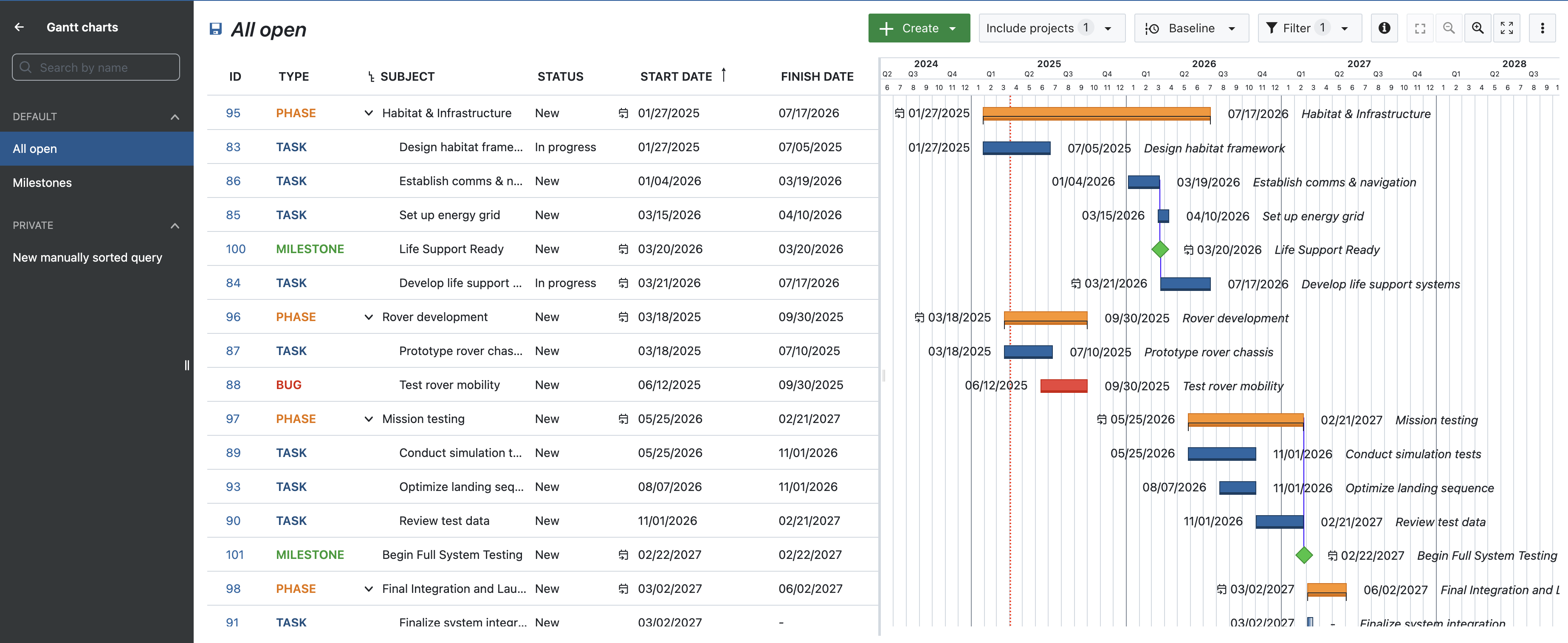
The Gantt charts module in OpenProject displays the work packages in a timeline. You can collaboratively create and manage your project plan. Have your project timelines available for all team members and share up-to-date information with stakeholders. You can add start and finish date and adapt it with drag and drop in the Gantt chart. Also, you can add dependencies, predecessor or successors within the Gantt chart.

Tip

In March 2025, we added an automatic scheduling mode which simplifies managing complex project setups. Read more about automatic and manual scheduling modes in our user guide.

OpenProject gantt chart

Agile boards

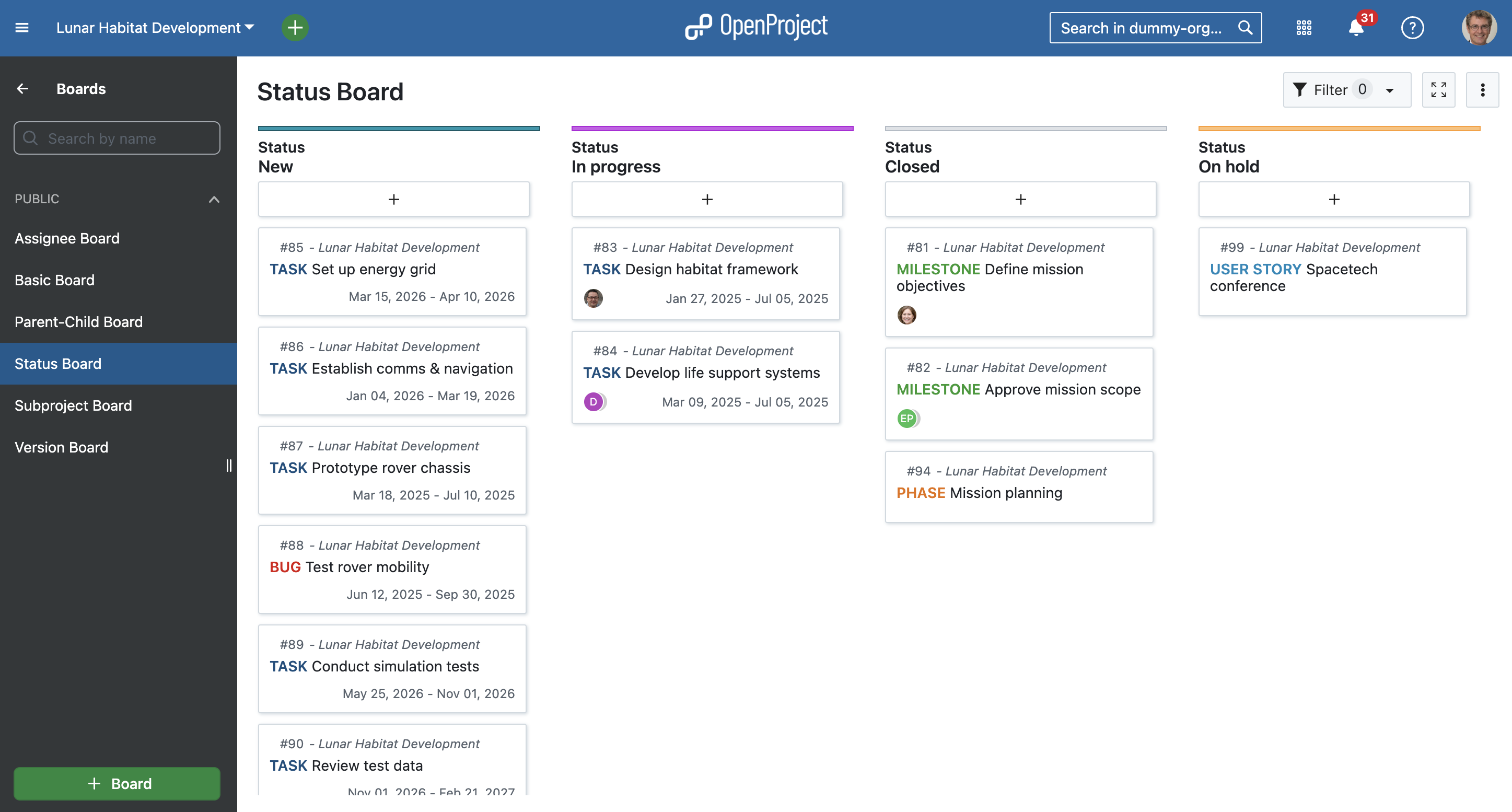
Boards support agile project management methodologies, such as Scrum or Kanban. Our agile boards can be for anything you would like to keep track of within your projects: Tasks to be done, Bugs to be fixed, Articles to be reviewed, Features to be developed, Risks to be monitored, Ideas to be spread, anything! The boards consist of lists (columns) and cards.

You can choose between a Basic board (Community feature) and various Action boards (Enterprise add-on). The following board shows a Kanban example where you move your work packages from one status to the next. If you want to find out more about the different agile boards, please click here.

OpenProject agile kanban board

Backlogs

The starting point for effective work in Scrum teams is a well-maintained and prioritized product backlog as well as the creation of sprint backlogs. In OpenProject, you can easily record and specify requirements represented by user stories. Moreover, you can respond to inquiries and sort them by priority for implementation.

Product backlog

Task boards for Scrum meetings (Backlogs)

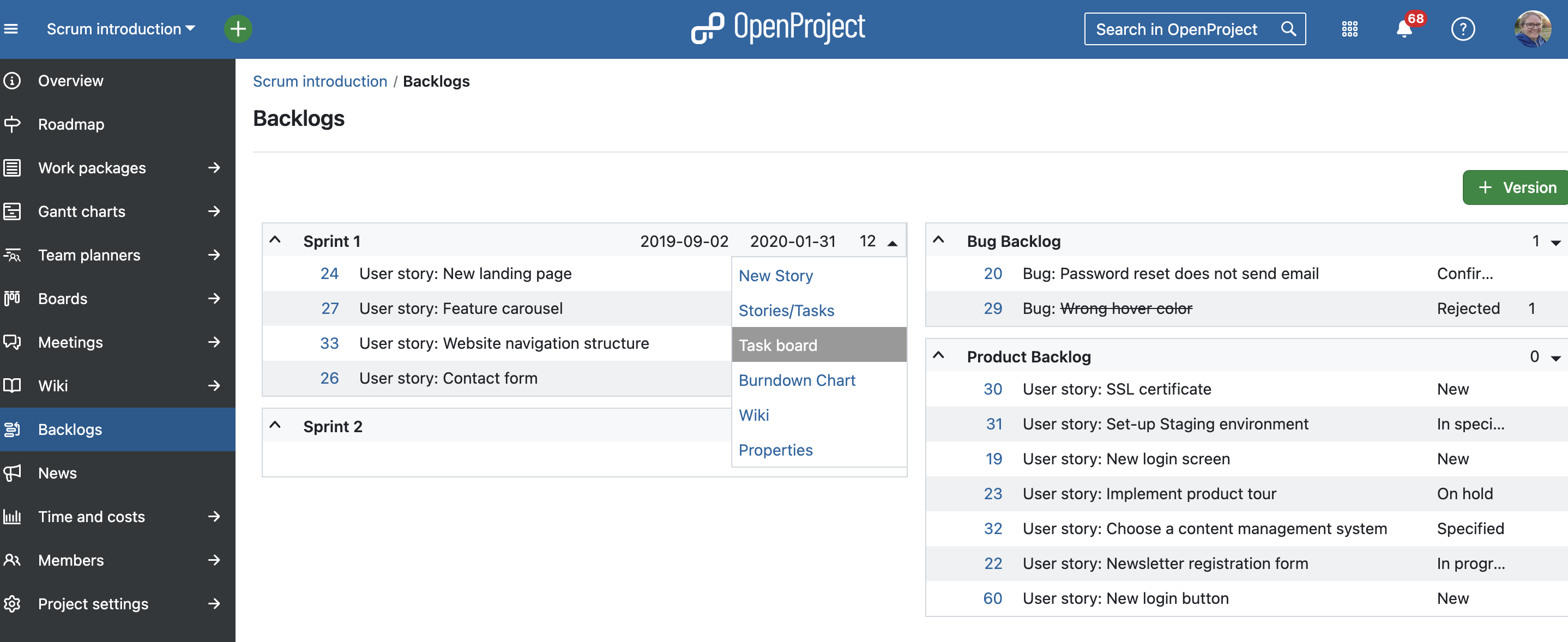
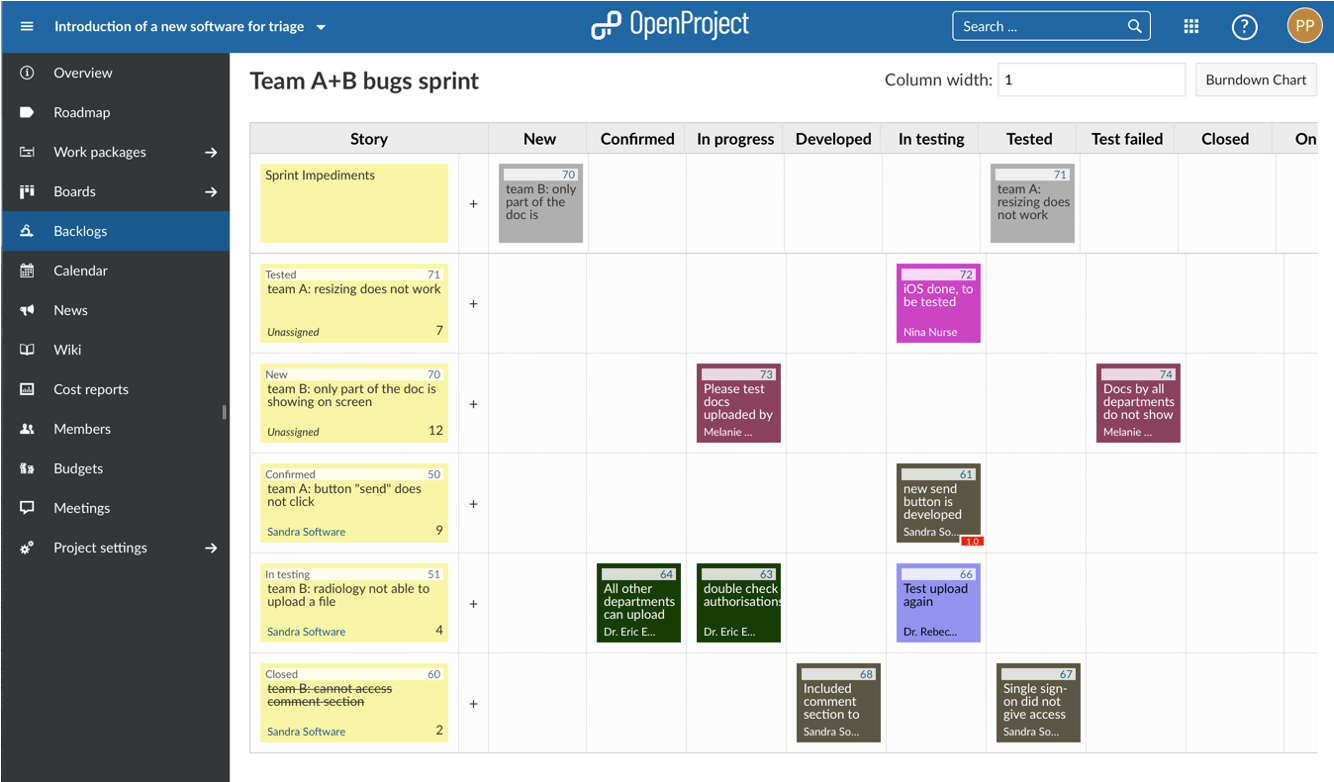
To support daily scrum meetings, all of a team’s tasks and sprint impediments are recorded in a digital task board. The digital task board thus allows team members to get a fast overview of the current state of a sprint.

OpenProject task board for backlogs in scrum projects

Roadmap

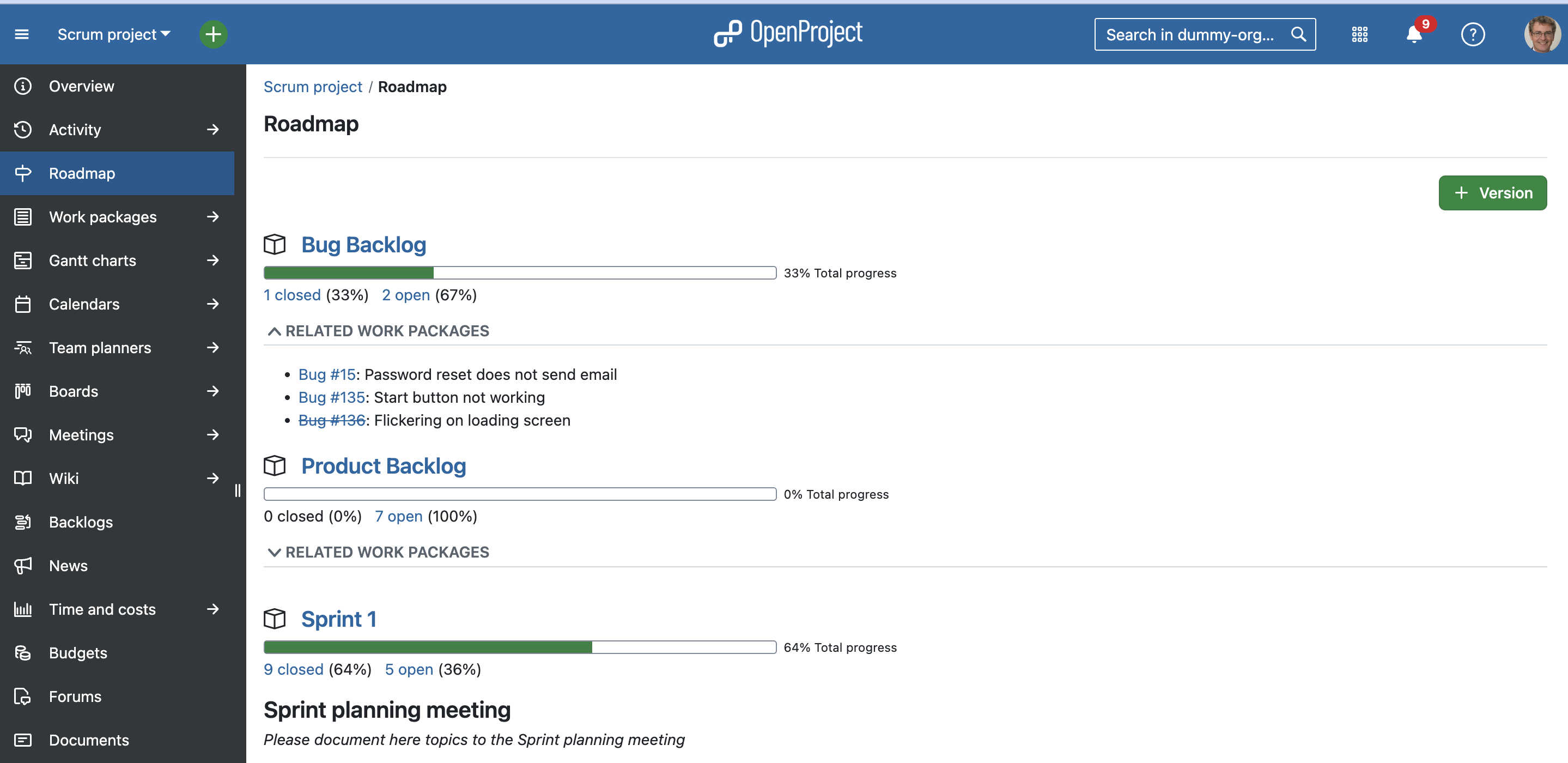
Share your product roadmap with your stakeholders, get feedback about your ideas and break it down into a detailed release plan. In the roadmap, you can see all work packages and their status listed by versions at a glance. For each version, the related work package can be assessed from the list displayed in the roadmap view. Subjects which are crossed out represent closed work packages.

OpenProject Roadmap


More support and information

We included quite a few links to our documentation in this article which also entails videos to make to easier for you to discover how to use OpenProject. If you would like to discover more videos, please check out the OpenProject YouTube channel.

Other guides and articles that might be helpful for you:

  •  

Migrating between installation types: What to consider when switching OpenProject setups

Whether you’re moving from Docker to a package-based installation, changing databases, or upgrading an older setup, migrating your OpenProject installation can raise important questions. To help you navigate the process, we’ve compiled an overview of supported migration paths, key considerations, and links to detailed documentation. This article gives you the big picture. For in-depth instructions, please refer to our documentation.

Quick navigation overview:

Why switch installations — our recommendation

OpenProject supports several installation methods: Docker, DEB/RPM packages, Helm Charts for Kubernetes, and manual installations. Depending on your infrastructure and technical requirements, one setup may suit you better than another.

For most users, we recommend the Docker-based installation. It’s the easiest to set up, requires minimal system configuration, and is simple to maintain — especially when updating to new OpenProject versions. This makes Docker the most future-proof option.

Important

We will not build packages for new Linux versions (such as Ubuntu 24.04). We will, however, keep releasing new package versions for the currently supported Linux versions until their EOL (end of life). Learn more in our packaged installation documentation.

Migration between Docker and packaged installations

It is possible to migrate between Docker and packaged (DEB/RPM) installations in both directions. In both cases, the process involves:

  • Exporting the PostgreSQL database,
  • Copying attachments and configuration files,
  • Re-importing the data in the new environment.

You might consider migrating to a packaged installation if your IT environment requires tight system-level integration, custom deployment configurations, or traditional OS-based monitoring tools. In this case, please follow this detailed guide in our documentation: Migrating your packaged OpenProject installation to another environment.

On the other hand, migrating from a packaged installation to Docker is a future-proof choice. It simplifies upgrades and deployments — especially since OpenProject will no longer release packages for newer OS versions such as Ubuntu 24.04, and recommends Docker-based installations for long-term use. To switch from packaged to Docker installation, please see this detailed guide in our documentation.

Migration to Kubernetes (Helm)

Migrating to Kubernetes using Helm charts is a powerful option for teams that need to scale OpenProject in dynamic environments or integrate it into an existing Kubernetes infrastructure. This setup is especially relevant for DevOps teams managing multiple services in containers.

While we don’t provide a step-by-step migration guide at this point, the Helm-based deployment is well-documented and maintained. Please note that this path requires advanced Kubernetes and Helm knowledge.

Tip

Helm-based deployments are ideal for teams with Kubernetes experience. If you’re new to Kubernetes, consider evaluating Docker first — it provides a more accessible starting point with fewer moving parts.

To learn more about the benefits and setup, see this article that compares different OpenProject installation types, with a focus on Helm charts.

Migration between PostgreSQL versions

OpenProject uses PostgreSQL as its database backend. If you’re upgrading PostgreSQL (for example, from version 10 to version 13), you’ll need to migrate the database using a controlled process to avoid data loss or compatibility issues.

We provide specific documentation depending on how OpenProject was installed:

Make sure to create a full backup before performing any PostgreSQL migration.

Tip

Instead of upgrading the database in place, we recommend doing a backup of OpenProject and restoring it on a newly installed database with the newer version where possible.

Migration from an old MySQL database

If you’re using a much older version of OpenProject, you may not be able to directly upgrade to the current version. In that case, we recommend a fresh installation of the latest version and a manual migration of your data.

This method is especially relevant if you’re switching from an unsupported OS or an outdated setup. Please read our documentation on upgrading older OpenProject versions.


Conclusion: Migrations are manageable

Most migrations between installation types are technically straightforward — especially with a clear plan and the right tools. Always make sure to consult our installation documentation and follow our backup and restore guide before making changes.

If you have questions or want to exchange with other users, feel free to ask in the Community forum.

  •  

OpenProject 15.4: Automatic scheduling mode, meeting outcomes and more

We are happy to announce the release of OpenProject 15.4. Among other changes, users now benefit from automatic scheduling, in addition to manual scheduling. Other great new features are agenda item outcomes for our Meetings module and exciting updates regarding generating professional PDF documents based on your work packages.

In this blog article, we will take a closer look at these major three feature updates:

And there are many more great updates in this version again! For more details on other changes, features and bug fixes in 15.4, please check out our release notes.

Enable automatic scheduling mode - to start as soon as possible

At OpenProject, we are passionate about automation. Our software should take over whenever possible – but without limiting users in their options. This is no easy goal and sometimes there is a fine line between both. With our new scheduling mode, we are exactly on this line: New work packages start with the manual scheduling mode, which means no change to earlier versions. In this mode, users can freely choose start and end dates.

But if the automatic scheduling is enabled, OpenProject takes over and schedules the work packages to the earliest date possible, based on predecessor or child relations.

See the difference of both scheduling modes in Gantt view:

Single date mode

Another great feature that comes together with the new scheduling modes is the single date mode: Previously, all work packages (except milestones) included both start and finish date fields, even when only one was necessary. Now, new work packages default to having only a finish date, streamlining workflows for teams that don’t require a date range.

For more information, see this blog article that our product team recently published, explaining the changes to scheduling. And, as always, check our documentation to learn how to use the new scheduling mode.

Set agenda item outcomes for meetings

The OpenProject Meetings module has been once again enhanced with great features in version 15.4. Just last month, we released recurring meetings that help many users manage their weeklies, dailies and other regular appointments – again with the help of automation.

With the new release, users can set outcomes for agenda items, making it much easier to document what was decided in the meeting. If an outcome is set for a work package in a meeting, the respective work package will automatically update as well and show the outcome on the Meetings tab.

Example: Meeting outcomes for a weekly project discussion

Let’s imagine you are part of a scientific team that collaborates on an aerospace project and has weekly mission status update meetings. Participants may work in very different areas and this meeting is a core opportunity to exchange updates. However, as is natural with such larger meetings, not everyone can always attend. Good documentation of the meeting is therefore essential to keep all project members on the same page – while also saving valuable time and avoiding the need to send follow-up emails with questions about meeting proceedings.

So how does such a meeting look like in OpenProject?

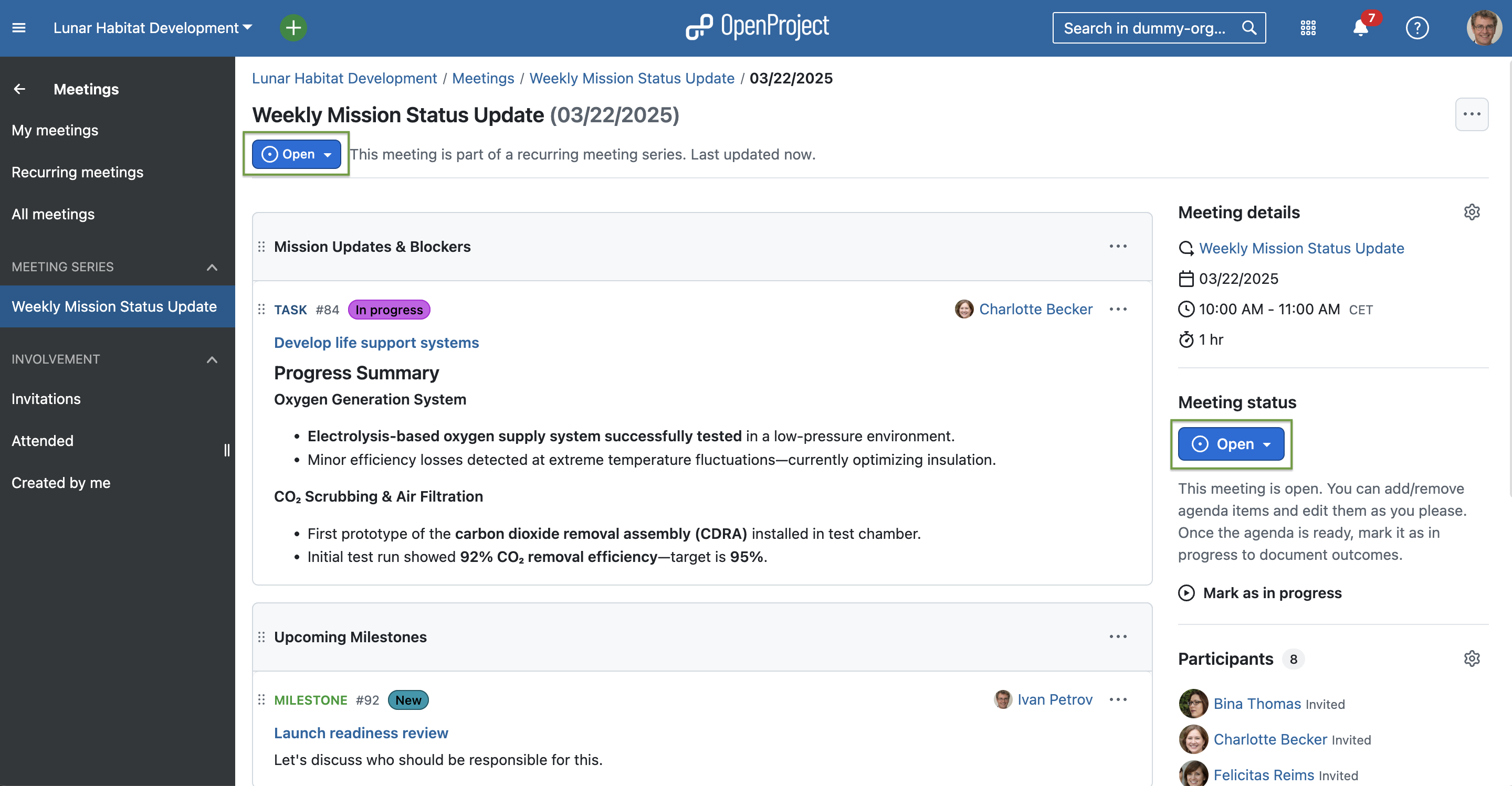
1. When the meeting is open

As this would be a recurring meeting, OpenProject will automatically create the following weekly. All invited users can add, edit and assign agenda items before and during the meeting. If there is the need to talk about a specific work package, users can easily add this work package, which automatically creates a link between the meeting and the work package, on both sides. By default, the status is open:

Screenshot showing a meeting in OpenProject, with added work packages and the status being open.

2. When the meeting is in progress

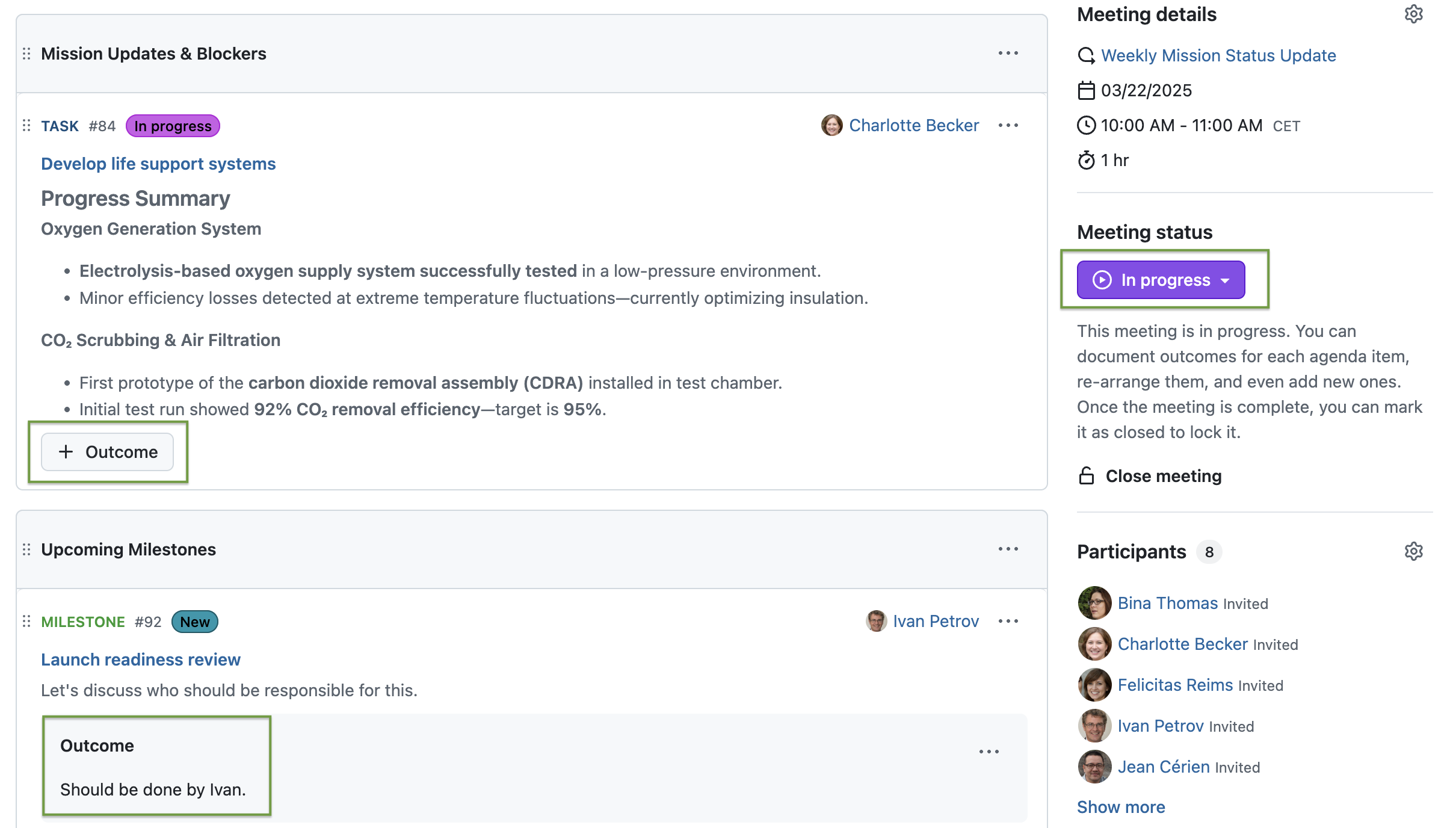
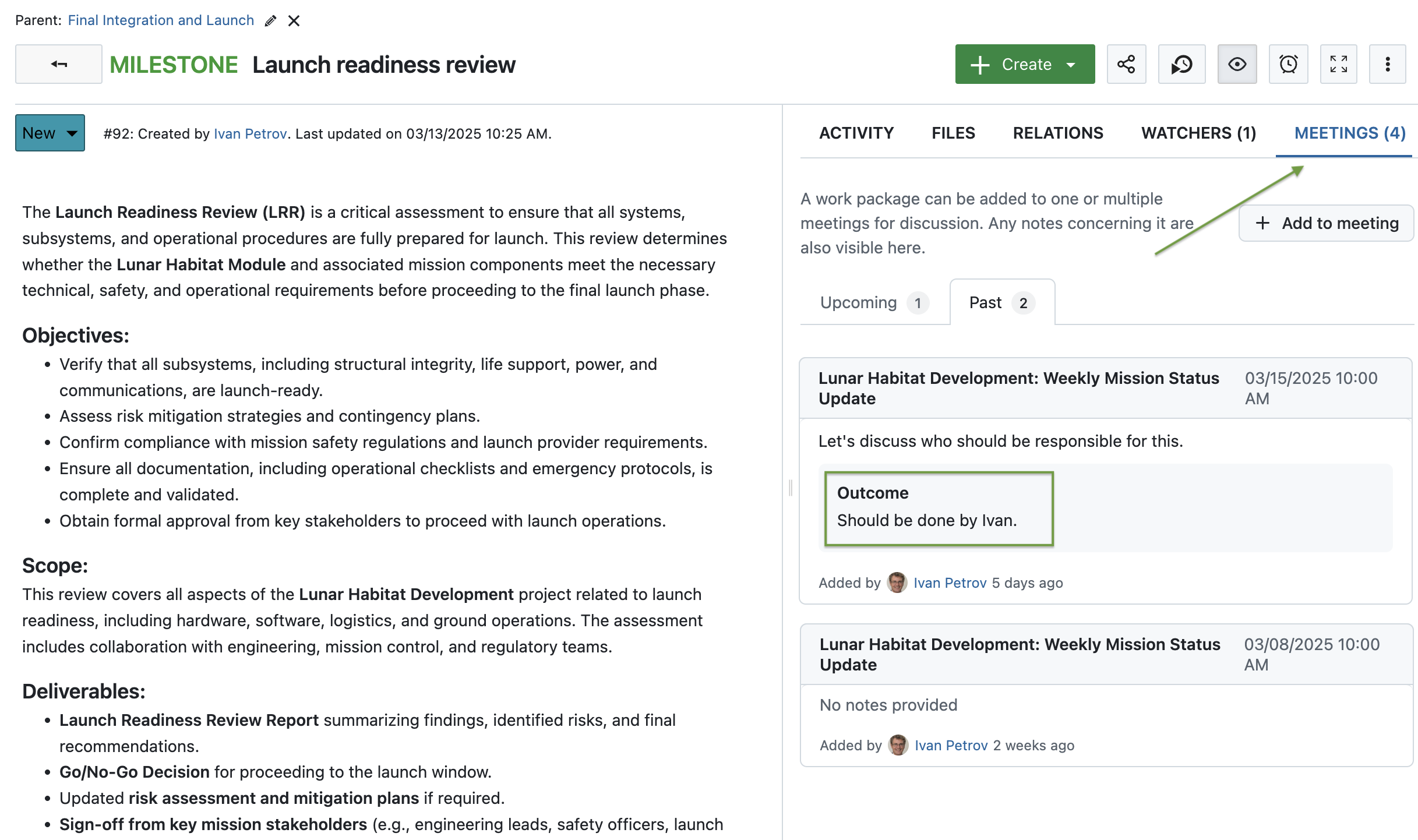
When the meeting starts, participants can set the meeting status to in progress. This adds a + Outcome button on each agenda item or work package listed. By clicking it, users can document what was discussed or decided during the meeting. In this example, the scientific group decided that Ivan should be responsible for the Milestone to launch the readiness review:

Screenshot showing a meeting in OpenProject, the status is “in progress”, the first agenda item shows a + Outcome button and the second one an already documented outcome: “Should be done by Ivan.”

As mentioned above, adding an outcome to a work package in a meeting automatically adds it to the Meetings tab on the work package as well:

Screenshot showing the Meetings tab of the work package that was linked in the example meeting, with two past meetings, one with a documented outcome displayed.

3. When the meeting is closed

With the release of version 15.4, users can now click on an agenda item and move it to the next meeting, as long as it is part of a meeting series like in our example. This is very helpful for teams working with recurring meetings. For example, if Ivan – the person responsible for the work package – is not participating at that meeting, their colleagues can move this work package to the next meeting, when Ivan will be back.

When the meeting is over, the status can be set to “closed”. Currently, this has no further impact except that, like with the “open” status, no outcome can be added. Please note that a meeting can be re-opened again, so no harm will be done if you accidentally close a meeting too early.

Tip

We continue developing updates for the Meetings module. In a future release, participants of recurring meetings will also be able to move all agenda items without outcomes to the next meeting(see this feature). Also, a meeting agenda items backlog for recurring meetings is planned (see this feature).

Generate PDF documents from a work package description

The third great feature we want to highlight in this article is an improvement to PDF exports. Previously, you could only generate PDFs that included the entire work package, including attributes like the assignee in a table format at the beginning of the document. Now, you can also export only the work package description — formatted specifically for use in German contracts. While this is a very specific use case that is appreciated by our German customers, e.g. in the public sector, it can also be helpful for other users.

The main aspect here is, again, automating tasks that used to cost a lot of time and nerves when done manually. With OpenProject, we aim to provide users with work packages that include all important information for all stakeholders at all times. This way, we also want to give users the possibility to create beautifully styled PDF files for contracts, approval notices, project orders and other formal documents.

To do so, the “Download PDF” option on work packages has now been renamed to Generate PDF and offers expanded customization options. Clicking it opens an interface where you can tailor your document — for example, by enabling hyphenation or adding a footer text.

Most importantly, you can now choose between two templates:

  • Attributes and description: This template creates a document similar to the one used before version 15.4, including a table showing the work package’s attributes, along with the description.
  • Contract: Choosing this template creates a PDF designed in the style of a German contract, and includes only the work package description.

We will continue working on this feature and plan to add other templates.

Our CEO Niels Lindenthal published a blog article called “Beyond documents” about this feature when it was still in development. Read this article to learn about our motivation on developing features like this. If you want to know how to use the feature to generate PDF files based on work package descriptions, please see our documentation.


OpenProject 15.4: Migration, installation, updates and support

Follow the upgrade guide for the packaged installation or Docker installation to update your OpenProject installation to OpenProject 15.4. We update your hosted OpenProject environments (Enterprise cloud) today, March 19, 2025.

You will find more information about all new features and changes in our Release notes or in the OpenProject Documentation.

If you need support, you can post your questions in the Community Forum, or if you are eligible for Enterprise support, please contact us and we are happy to support you personally.

Credits

A very special thank you goes to the City of Cologne, Deutsche Bahn and ZenDiS for sponsoring released or upcoming features. Your support, alongside the efforts of our amazing Community, helps drive these innovations. We also thank Klinikum Chemnitz for their active and enthusiastic feedback during the design process of the new automatic scheduling mode.

Also, a big thanks to our Community members for reporting bugs and helping us identify and provide fixes. Special thanks for reporting and finding bugs go to René Schodder, Abhiyan Paudyal, Gunter Ohrner and Markus K..

Last but not least, we are very grateful for our very engaged translation contributors on Crowdin, who translated quite a few OpenProject strings! This release we would like to particularly thank user greench, for an outstanding number of translations into Turkish.

Would you like to help out with translations yourself? Then take a look at our translation guide and find out exactly how you can contribute. It is very much appreciated!

As always, we welcome any feedback on this release. 💙
  •  

FreshRSS 1.26.1

This is a bugfix release for 1.26.0, addressing some regressions 🐛

A few highlights ✨:

  • Fix regression with cURL HTTP headers breaking conditional HTTP requests
  • Fix regression with saving states of user queries
  • Fix regression with dynamic OPML

This release has been made by @Alkarex, @FromTheMoon85, @marienfressinaud, @math-GH
and newcomers @abackstrom, @BryanButlerGit, @culbrethj, @EricDiao, @Karvel, @ViPeR5000

Full changelog:

  • Features
    • Add cURL version to page about system information #7409
  • Bug fixing
    • Fix regression with cURL HTTP headers breaking conditional HTTP requests #7403, FreshRSS/simplepie#33
    • Fix regression with saving states of user queries #7400
    • Fix regression with dynamic OPML #7394
    • Fix update of the user’s last activity on login action #7406
    • Fix setting category option Maximum number of articles to keep per feed #7416
    • Fix priority field when processing a new feed from an extension #7354
  • Deployment
    • Fix regression with 64-bit timestamps on 32-bit platforms #7375
    • Fix back-compatibility with cURL 7.51 (we require cURL 7.52+ for CURLPROXY_HTTPS) #7409
  • UI
    • Use case-insensitive sort for categories #7402
    • Improve dark mode of Origine theme #7413
    • Added API password indicator #7340
  • I18n
    • Fix (es, fa, sk): do not translate XPath code #7404
    • Fix date bug in Finish #7423
    • Add Portuguese from Portugal #7329
    • Improve Hungarian #7391
  • Misc.

  •  

OpenProject: The open source alternative to Jira

Jira is a well-known agile project management tool. For many, Jira is a household name for issue tracking software. However, Jira is not open source. OpenProject is - and offers quite similar features. On top of that, OpenProject provides both a cloud or on-premises edition. Jira has chosen to focus on the cloud side of things and has terminated the self-hosted option. Let’s compare Jira and OpenProject.

Hosting

Jira shifted its focus to the cloud edition and has discontinued the on-premises offer. This move marks a shift in focus towards the cloud edition. Jira users who self-host their software had been requested to make plans to move to the cloud or data center, as support for self-hosted Jira is no longer available since spring 2024. Since then, many Jira customers already migrated to an alternative or are still looking for an easy way to do so.

OpenProject continues offering both the cloud and on-premises editions. OpenProject Enterprise on-premises edition enables companies to install OpenProject on their own servers and offers additional Enterprise add-ons and security features, as well as support. It provides the flexibility of self-hosting while ensuring a high level of security and extensibility with additional features.

Tip

In February 2025, an open source developer wrote a migration script for Jira to OpenProject – the OpenProject Jira importer. Read more about it on our blog article A Community-driven solution for your Jira exit: The OpenProject Jira importer, or navigate directly to the migration tool on GitHub.

Open source

OpenProject is an open source software and as such provides independence and complete autonomy. Its source code is publicly available on GitHub. It allows users to modify code and create new plug-ins for maximum flexibility. Being open source means that users can customize and tailor it to their needs, making it an attractive option for businesses looking for a flexible and adaptable project management solution. With OpenProject, users can take full control of their project management process and make it fit their unique workflows.

Jira is a proprietary software, which means that the software code cannot be reviewed, so the users are dependent on the vendor for reliability, code adjustments and upgrades. This also means that certain features require third-party plugins and can significantly increase maintenance costs.

Data security

Data security is an important aspect when choosing a project management tool. Both OpenProject and Jira treat the subject with the seriousness it requires.

Large companies often have strong data privacy and data security guidelines which might prohibit the use of web-based solutions, making use of Jira cloud solutions potentially problematic. Furthermore, the location of data storage must be considered. Jira uses AWS storage services. While storing customer data in the European AWS region is possible, it must be actively requested.

For OpenProject data security is a top priority, our processes meet all requirements of the EU General Data Protection Regulation. Whether you decide to use the cloud or a self-hosted edition, you can be sure that your data is safe. All our customer data for the cloud edition is hosted and kept in the EU. For the self-hosted edition, you have absolute control over your data.

Features

OpenProject and Jira both offer comprehensive and customizable project management tools that offer a range of features to support agile, classic, and hybrid project management. They both provide similar capabilities for issue tracking, backlog maintenance, reporting, user management and more. It should be noted that with Jira, some of the functionalities or more advanced versions of such functionalities come through integrating one or more plugins. This can mean additional maintenance efforts, not to mention additional costs.

Let’s take a look at how some of the features compare.

Issue & task tracking

Both Jira and OpenProject offer sophisticated issue tracking with custom fields and workflow customization.

Jira

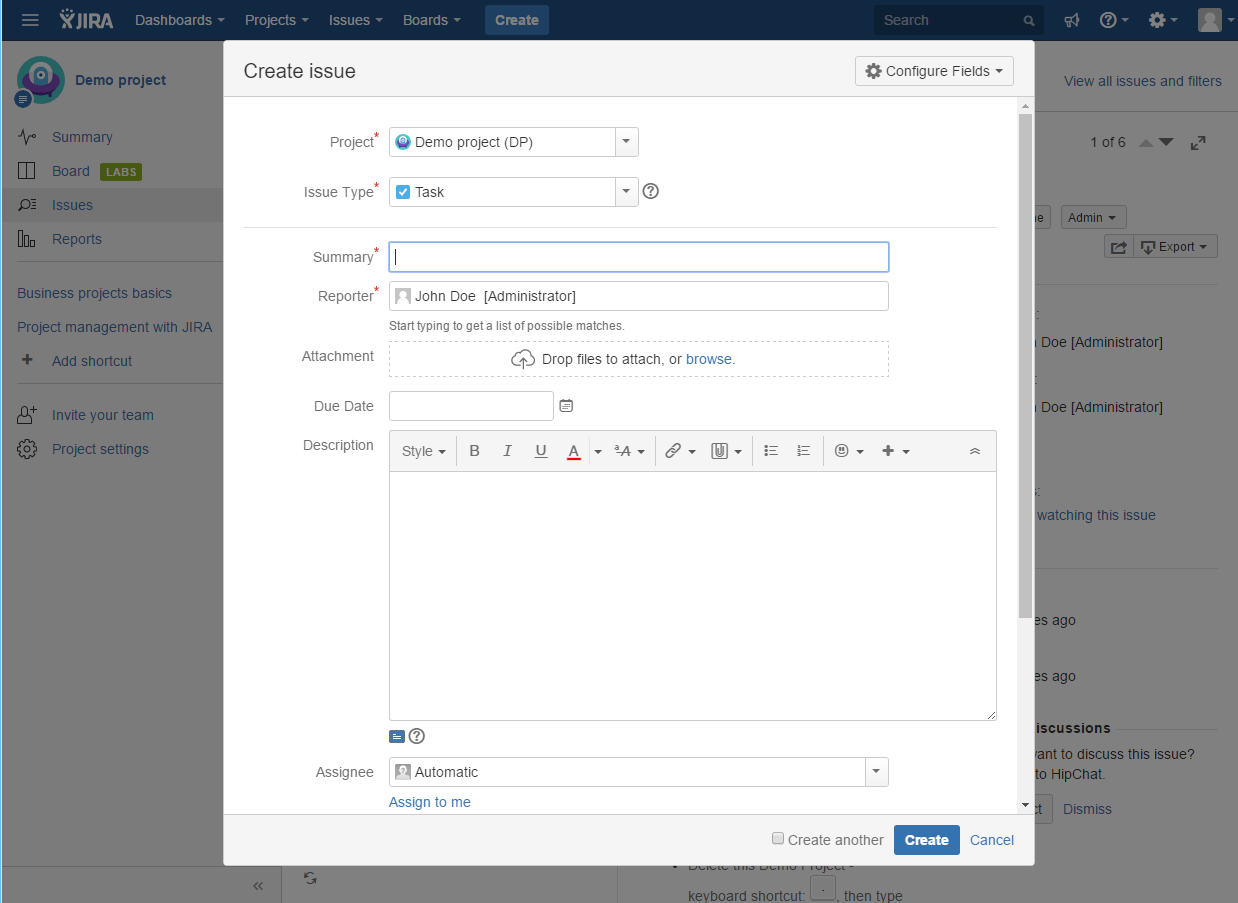
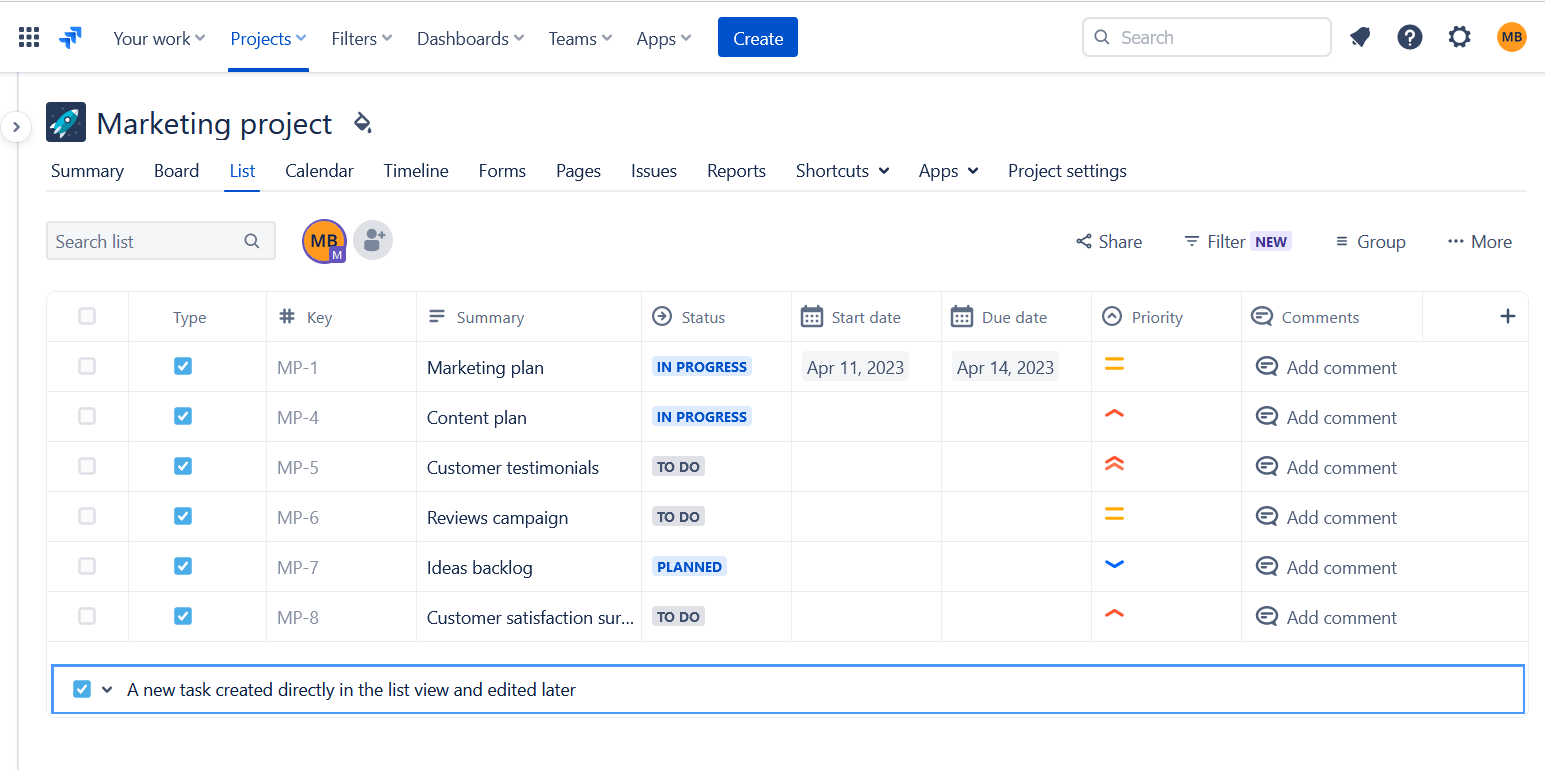
In Jira users can create new issues either directly in the list view of the existing issues or in a popup window. The displayed fields can be configured, and the view can be customized to users’ needs. It is possible to specify workflows for different issue types.

IssueTracking-Jira1Image: Issue tracking in Jira Jira issues list viewImage: A list view of issues in Jira.

OpenProject

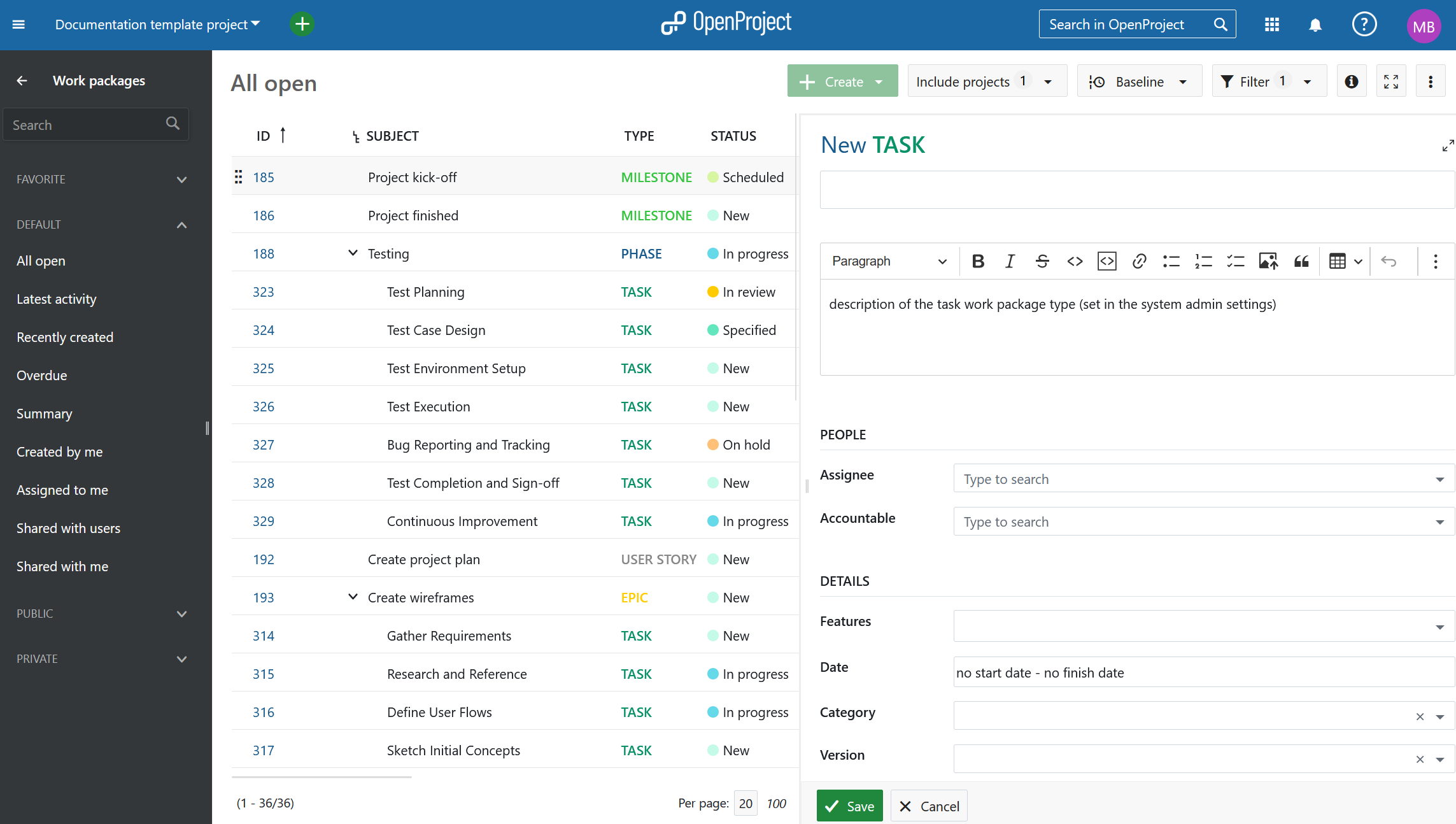
In OpenProject you can create new issues from the work package table. Similar to Jira, the displayed attributes can be configured for each issue type. On top of this, you can display help texts to assist users in setting the correct attribute values. You can adjust the workflow for each issue type, as well as for the author and assignee of a work package.

Work Package CreateImage: Create a work package in OpenProject. OpenProject issues list viewImage: A list view of work packages in OpenProject.

Project planning with Gantt charts

Managing a project plan is a critical component for successful project management.

Jira

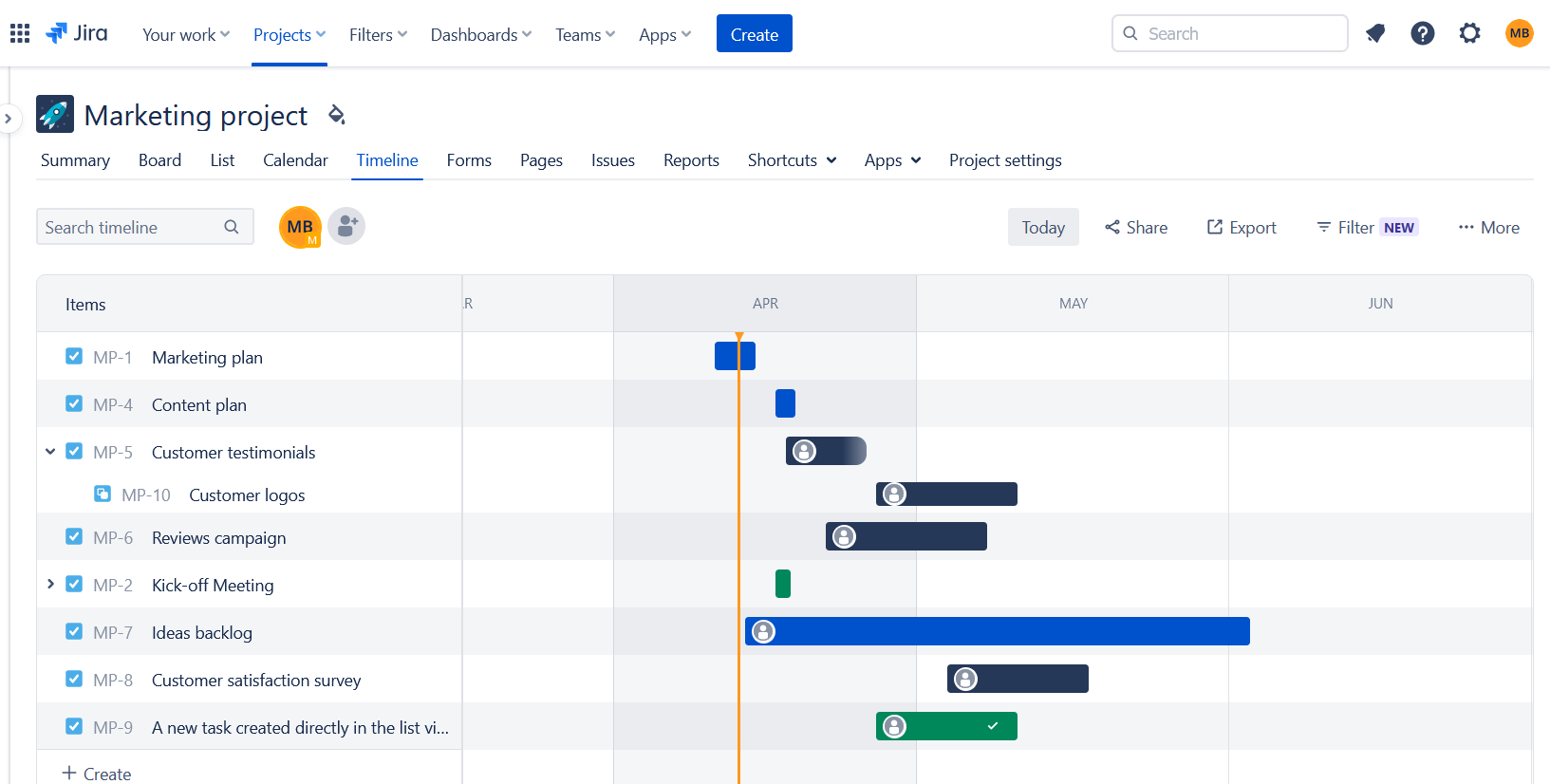
The core version of Jira previously did not include a Gantt chart. This has now been compensated be the timeline function that displays the project time plan. Sophisticated Gantt chart options are available via installing additional plugins.

Jira timeplanImage: A time plan in Jira.

OpenProject

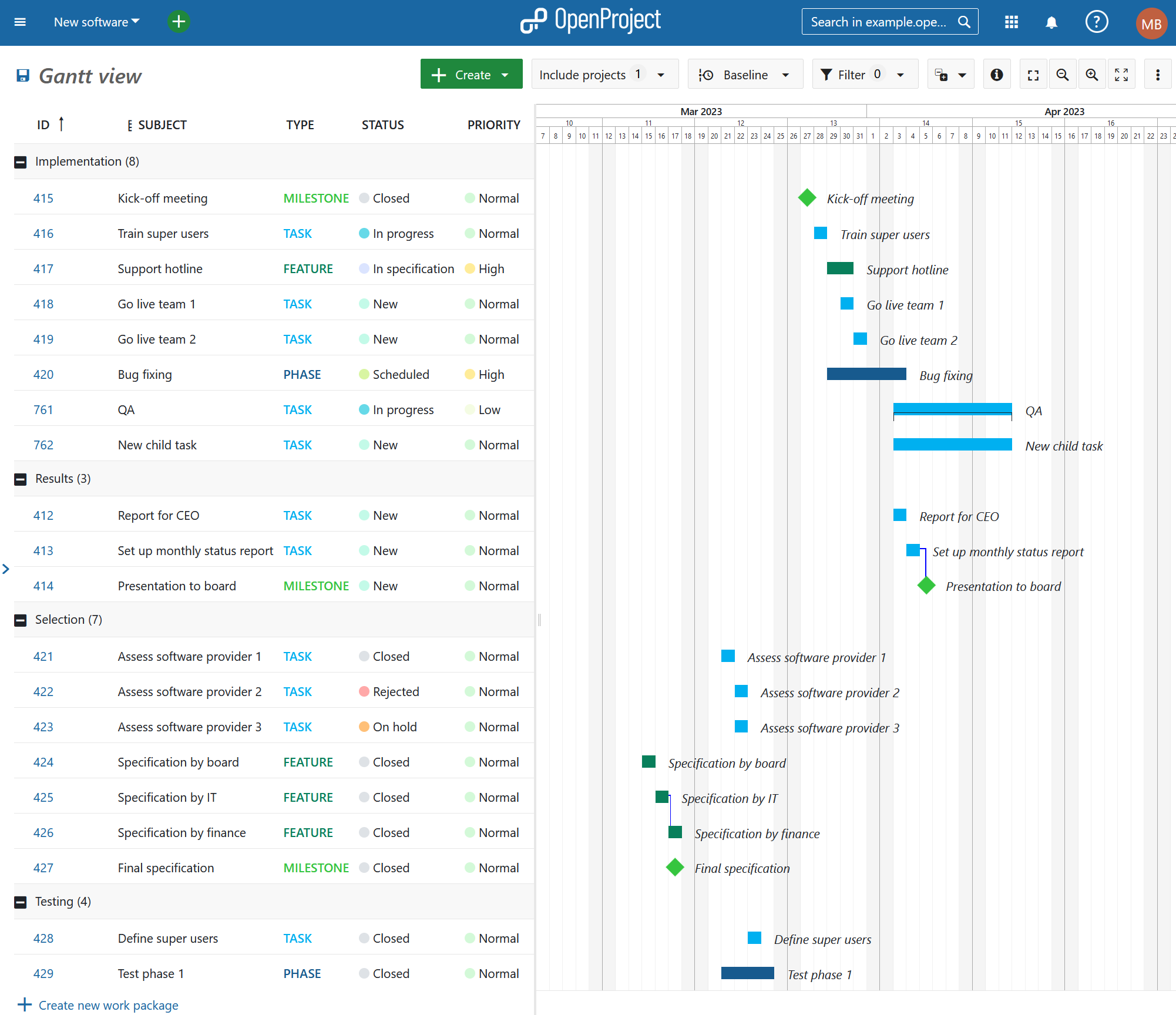
OpenProject enables creating and managing project plans using Gantt charts, both for single projects, as well as multi-hierarchy projects. The dynamic and interactive Gantt chart in OpenProject can be displayed on the work package table. This allows a seamless transition from the list view to the Gantt chart view. Start and due dates can be easily updated by either setting the dates in the list view or using drag & drop in the Gantt chart. Thereby, you can choose between top-down and bottom-up planning. You can also create and visualize dependencies in the Gantt chart. Project managers can create and visualize the progress, even for complex Gantt charts which span multiple projects. It is also possible to add a baseline comparison to also display planning changes.

OpenProject Gantt chart designImage: A Gantt chart time plan in OpenProject.

Time and cost tracking

An essential feature for any larger project is the ability to track the time, as well as the costs spent on a project.

Jira

Jira supports time tracking, including the detailed specification of working times and hours. In the basic version, the time spent on an issue can be logged in the detailed view of a task but is not displayed in the list of all the tasks. More advanced time tracking options are available through various add-ins. Jira does not support cost tracking in the basic version. However, it is possible to download add-ins in the Atlassian marketplace for cost tracking.

OpenProject

You can enable time and cost tracking for each project separately within OpenProject. Additionally, OpenProject allows users to track costs - both personnel costs as well as unit costs. Furthermore, you can create budgets within projects to compare planned and realized costs. You can create and save detailed time and costs reports filtered and grouped based on your needs. A sophisticated permission model allows users to restrict the data that users can see. This includes for example whether a user can only see and edit own tracked time.

Log time list viewImage: A time tracking overview in OpenProject.

Conclusion: OpenProject vs Jira

In conclusion: Jira is a very powerful application with more than 2,000 add-ons and a large following. It is highly customizable. However, this flexibility comes at a price: Many add-ons come with a significant price tag which adds up. Also, going forward, Jira is putting its cloud version first, deprioritizing server products.

OpenProject is open source, it offers very similar features all from the same source without additional expense. The decision between the cloud or on-premises editions is entirely up to you. OpenProject is the best open source Jira alternative.

Do you need a demo or want to switch?

If you want to take a glance at OpenProject or test all features thoroughly you can create a free OpenProject trial.

Take a look at other customers who have decided to switch to OpenProject from Jira and read about their experience.

If you consider moving from Jira to OpenProject, there is a way to import tickets from Jira to OpenProject. First, you can export your tasks from Jira into an Excel file and then import these tasks via an Excel plugin into OpenProject. Additionally, there is the user-built OpenProject Jira importer, as mentioned in the beginning of the article. If you would like to discuss your specific case, you can always get in touch with us.

  •  

Agile administration made easy: Digitalize internal tasks with OpenProject

Agile methods make administrations more effective - but without the right software, good ideas often remain good ideas. Modern task management makes it possible to control processes efficiently and react flexibly to changes. OpenProject offers exactly this possibility: a customizable open source solution that ensures full control over data with a high level of functionality. Cost-effectively.

In this article, you can learn…


Making digital administration work: Cutting complexity, boosting efficiency

Endless Excel lists, lost emails, and overflowing inboxes—does that sound familiar? Many administrative teams struggle with outdated tools and rigid workflows that slow down rather than support their daily work. Digitalization is supposed to help, but too often it brings complicated, expensive, and impractical solutions.

We understand—many people don’t want to hear about digitization anymore. Too many initiatives have promised improvement but ended up adding more complexity instead. The real question is: How can digital tools actually simplify work in administration — without creating new obstacles?

OpenProject offers a pragmatic approach here. The open source project and task management software helps to clearly structure tasks and make processes more efficient. Without burdening employees with unnecessary complexity. Freedom of design for administrators, simple and perfectly tailored application for employees.

Introducing agile processes with efficient task management

Digital task management is a key building block on the path to greater agility in administration. Every day, numerous tasks, approvals and processes are created in public administrations that need to be coordinated. Without a clear structure, this leads to lags, extra work and a lack of transparency. Professional task management ensures that:

  • responsibilities are clearly defined,
  • all tasks can be tracked at all times,
  • work processes run efficiently and transparently.

Agile working does not mean chaos, but flexibility with a basic structure at the same time. Administrative staff can react more quickly to changes and adapt their work to current requirements. Instead of constantly adapting rigid processes, agile structures can create more efficient workflows that grow dynamically. This enables a sustainable, future-proof way of working in administration.

What features does task management software need in administration?

For task management in administration to function simply and efficiently, the software must have the following features:

  • Easy to use: Only administrators have to deal with technical details - for everyone else, operation is uncomplicated and intuitive.
  • Flexible methods: Personalized composition of agile and classic methods - in a modular system, suitable for the working methods of the respective administration.
  • Tasks in work packages: All information collected in one place, with clear responsibilities and traceable progress.
  • Data protection and compliance: Security and GDPR compliance must of course be guaranteed.
  • No vendor lock-in: Public administrations must retain full control over their data at all times.

Five stars for OpenProject - perfect for task management in administration

The demands on modern administrations are increasing at every turn: More tasks, more regulations - and more digitalization. OpenProject is a solution that was developed precisely for these challenges. No more Excel spreadsheets like “xxx_new-2”, just centralized task management supported by agile processes.

Let’s put OpenProject to the test and take a closer look at the five requirements mentioned above:

Feature Description
⭐ Easy to use for all employees - Administrators can set up the instance with the help of extensive configuration options, so that it is easy to use for users.
⭐ Structured workflows with clear responsibilities - Tasks are assigned transparently, so everyone knows who is responsible for what.
- Status updates and automatic notifications ensure that the entire workflow remains traceable.
⭐ Flexibility with agile and traditional methods - Whether Kanban, Scrum, or Gantt charts – OpenProject supports various ways of working.
- Government teams can use hybrid methods and gradually introduce agile processes.
⭐ Data protection and digital sovereignty - OpenProject is open source, giving public administrations full control over their data.
- GDPR compliance and secure hosting options ensure maximum security.
⭐ Future-proof and sustainable solution - No dependency on proprietary vendors, as OpenProject is open, extensible, and customizable.
- Regular updates and an active community drive continuous development.

Tip

openDesk - your secure office and collaboration suite: Do you already know openDesk? The office and collaboration suite bundles proven open source tools explicitly for digital administrative work - including OpenProject for efficient task management and agile processes. Learn more about openDesk.

Features for agile administration with OpenProject - an overview

Successful digital administrative work requires more than just task management. OpenProject offers a wide range of features that are specially tailored to the needs of public administrations, such as:

  • Agile Boards - Manage tasks and processes visually, prioritize them flexibly and maintain an overview.
  • Meetings - Plan meetings in a structured way, link them to work packages and thus easily integrate agile methods such as dailies.
  • Date alerts and notifications - Never miss important dates again and be informed in good time.
  • Individual actions and workflows - Define automated processes for recurring tasks and make workflows more efficient.
  • Time and cost tracking - Track working hours and budgets accurately to manage projects and resources optimally.

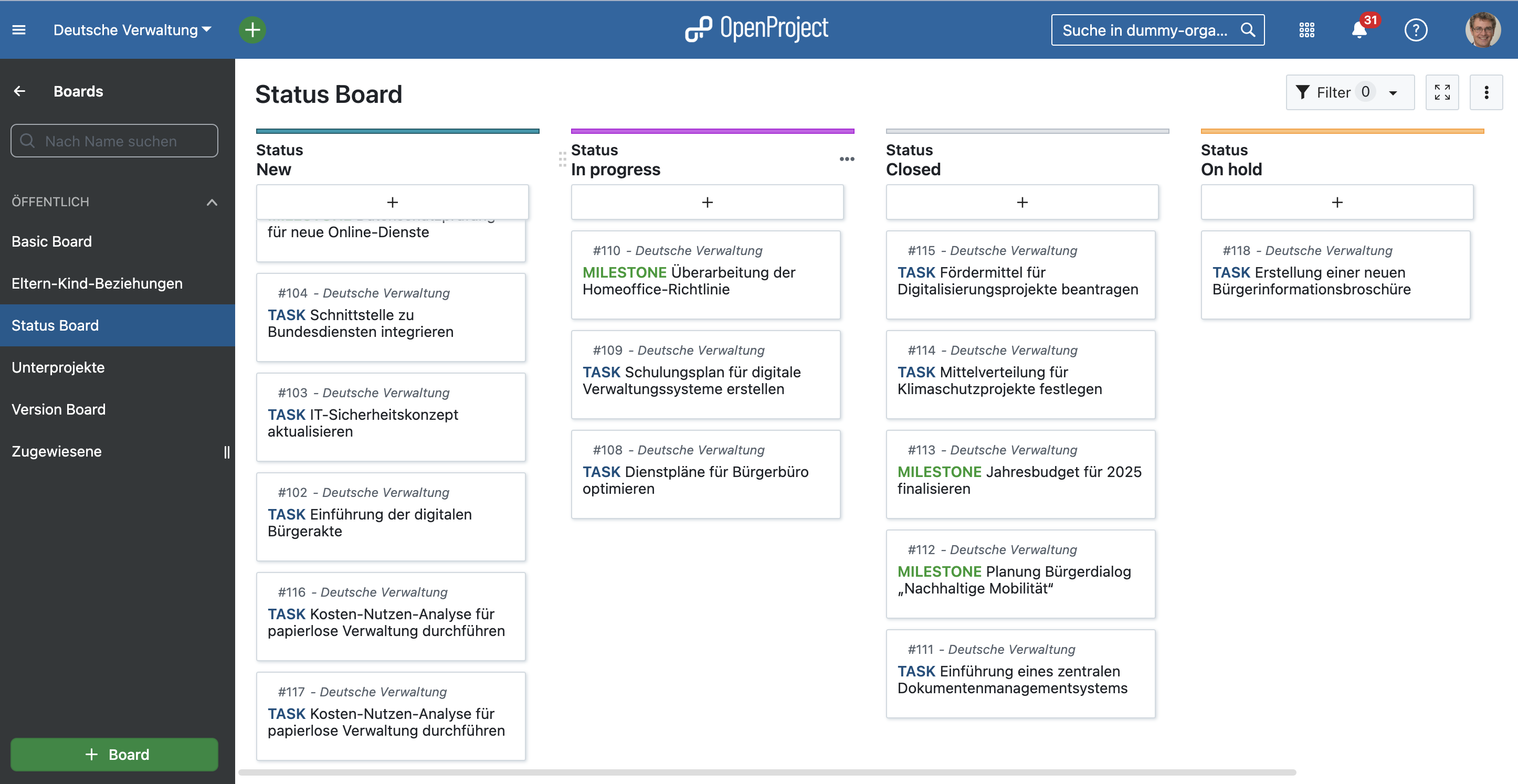
Here’s an example status board created in OpenProject:

OpenProject screenshot showing a status board with work packages from a public administration

Tip

Did you know? OpenProject is your best choice, if you do not exclusively use either agile or classic project management features. It offers a high range of customization and flexible administration. Read about your best mix with hybrid project management here.

European public administrations successfully work with OpenProject

OpenProject has been a popular choice for project and task management in the public sector long before the launch of openDesk. We’ve already outlined several reasons for this. Now, take a look at concrete real-world examples. We’ve spoken with customers and created case studies to provide transparency on the typical challenges faced by public administrations and how exactly OpenProject – and its key features – offers a solution.

How do public institutions in Germany use OpenProject?

You can find the following and more case studies on this page about project management for the public sector.

FITKO (Federal IT Cooperation)

“With OpenProject as part of openDesk, we have a centralized, flexible platform that greatly facilitates our work as the office of the Federal IT Standardization Board – from meeting planning, execution, and documentation to the centralized management of federal IT standards. The software supports us in collaboration and the coordination of our initiatives.”
Tobias Schuh, IT Standards Coordinator at FITKO (Federal IT Cooperation)

FITKO faces the significant challenge of coordinating and streamlining numerous tasks and stakeholders. With the introduction of openDesk, FITKO members now have access to a centralized and secure office and collaboration suite that enables just that. Read more in FITKO’s case study with OpenProject.

FITKO Logo and laptop

City of Ravensburg

“OpenProject enables us to plan long-term and reliably without overburdening our staff. As a municipality, OpenProject has finally given us the opportunity to properly manage our resource planning. The platform provides high reliability and transparency regarding workload distribution.”
Eric Fischer, former Process and Project Manager in Digitalization at the City of Ravensburg

The City of Ravensburg is just one of many municipalities relying on OpenProject. Since 2023, Ravensburg has been using OpenProject primarily for traditional project management, utilizing features like Gantt charts and the time and cost module. One major challenge before introducing OpenProject was making employees’ workloads visible at all. Now, it is possible to track workloads precisely and, most importantly, in time to redistribute tasks when necessary. Read more in the case study on City of Ravensburg and OpenProject.

City of Ravensburg with logo

Conclusion: Start agile now - at your own pace

The best way to get to know OpenProject? Just give it a try! You can test OpenProject free of charge for 14 days - no strings attached. Discover for yourself how intuitive and powerful digital task management can be for your administration.

Would you like an individual introduction or in-depth training? No problem! We offer customized training and consulting to provide you and your team with the best possible support.

  •  

News from the Product Desk: New automatic scheduling mode

Tip

Update on March 19, 2025: This feature is now released in version 14.5.

An upcoming version of OpenProject will introduce automatic scheduling for work packages. This highly-requested feature will make the process of setting up complex predecessor/successor relations a lot more practical for users who rely on OpenProject for complex project setups.

This blog post describes the upcoming changes and how they might affect you.

Note

The upcoming changes will not overwrite existing dates for any existing work packages but can change the scheduling mode. Please read on more more details. Don’t have much time? Skip directly to the summary.

Why we need this change

Especially in large projects with many assignees and stakeholders, scheduling can be a complex task. In the current version of OpenProject (15.3), there are two ways to schedule: a manual mode in which you can freely enter fixed dates which are never affected by relations, and a default mode where the dates are sometimes automatically adjusted, derived or constrained by relations. Whilst the current approach is functional, it is not always consistent.

For example, in default (non-manual) mode, a predecessor is able to push a successor to the future but unable to pull a successor earlier in time. This means that if, for example, a predecessor ends later than initially planned, it will push the follower back by as many days. However, if the predecessor ends earlier than initially planned, the follower stays where it was. Users rightly reported that this behaviour was inconsistent.

This behaviour does not affect work packages that are manually scheduled: users are already able to make the successor’s dates unaffected by those of the predecessor by choosing manual scheduling for the successor.

The upcoming changes will address this inconsistency and make scheduling more dependable.

Two scheduling modes: Manual and automatic

An upcoming version of OpenProject will introduce two distinct scheduling modes for work packages: manual and automatic.

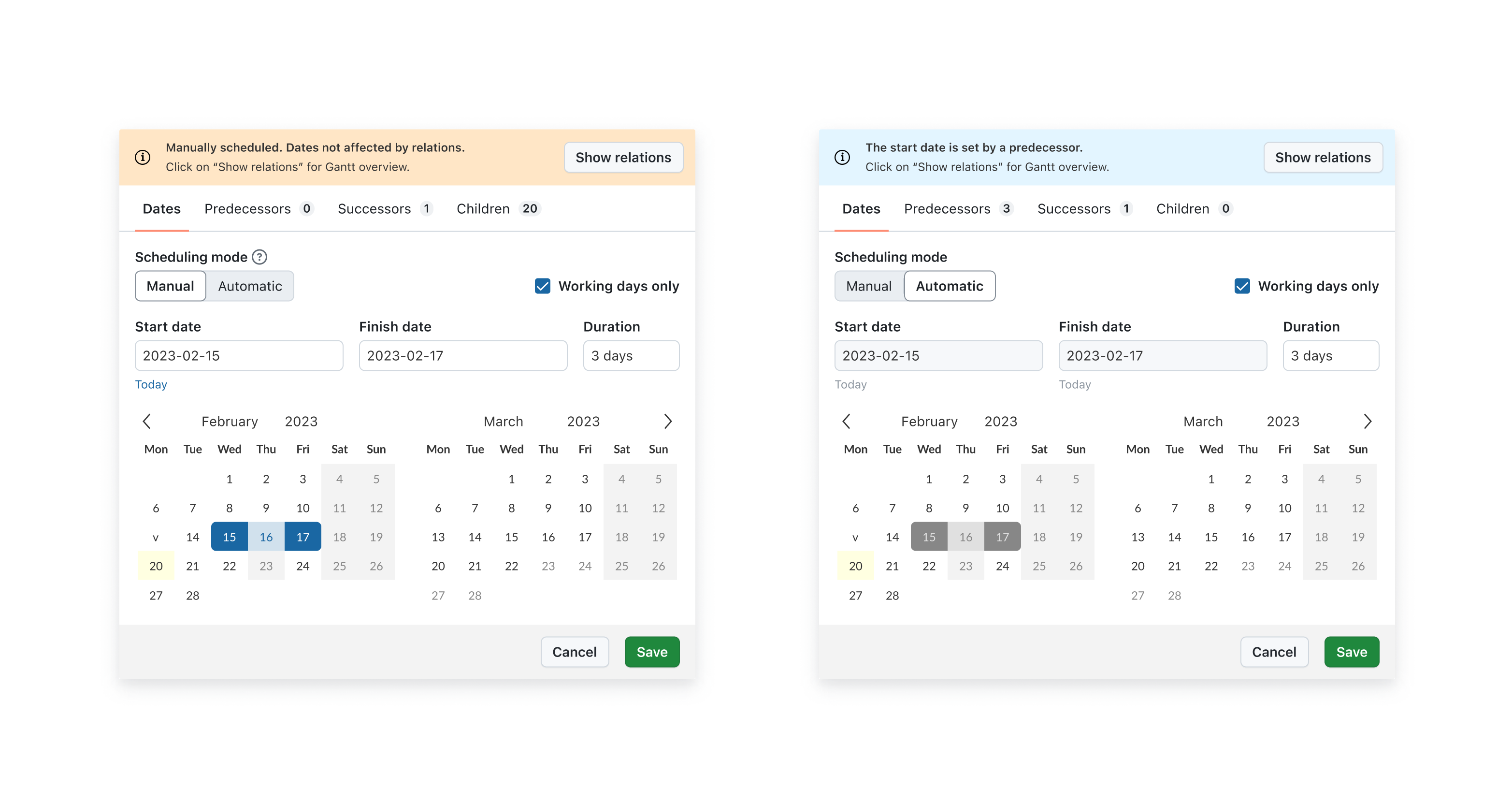
New scheduling modes: Automatic and Manual

  • Manual Mode: In this mode, users have the freedom to select dates at their discretion. This flexibility allows project managers to set timelines based on specific needs, deadlines, or external factors that may influence project delivery. Manually scheduled work packages behave as they do today: they can still have predecessor, successor, parent or child relations but these relations will not affect the manually input dates.

  • Automatic Mode: In automatic mode, it is not possible to manually enter a start date. This means that when a task is scheduled, the date picker will automatically calculate the appropriate start date based on the nearest predecessor. You can still enter a duration (and effectively change the finish date). This makes it possible to create a dependable chain of automatically scheduled work packages that automatically adjust to planning changes.

Note

Automatic scheduling mode will only be available to work package that have predecessors or have children.

Enhanced context in automatic mode

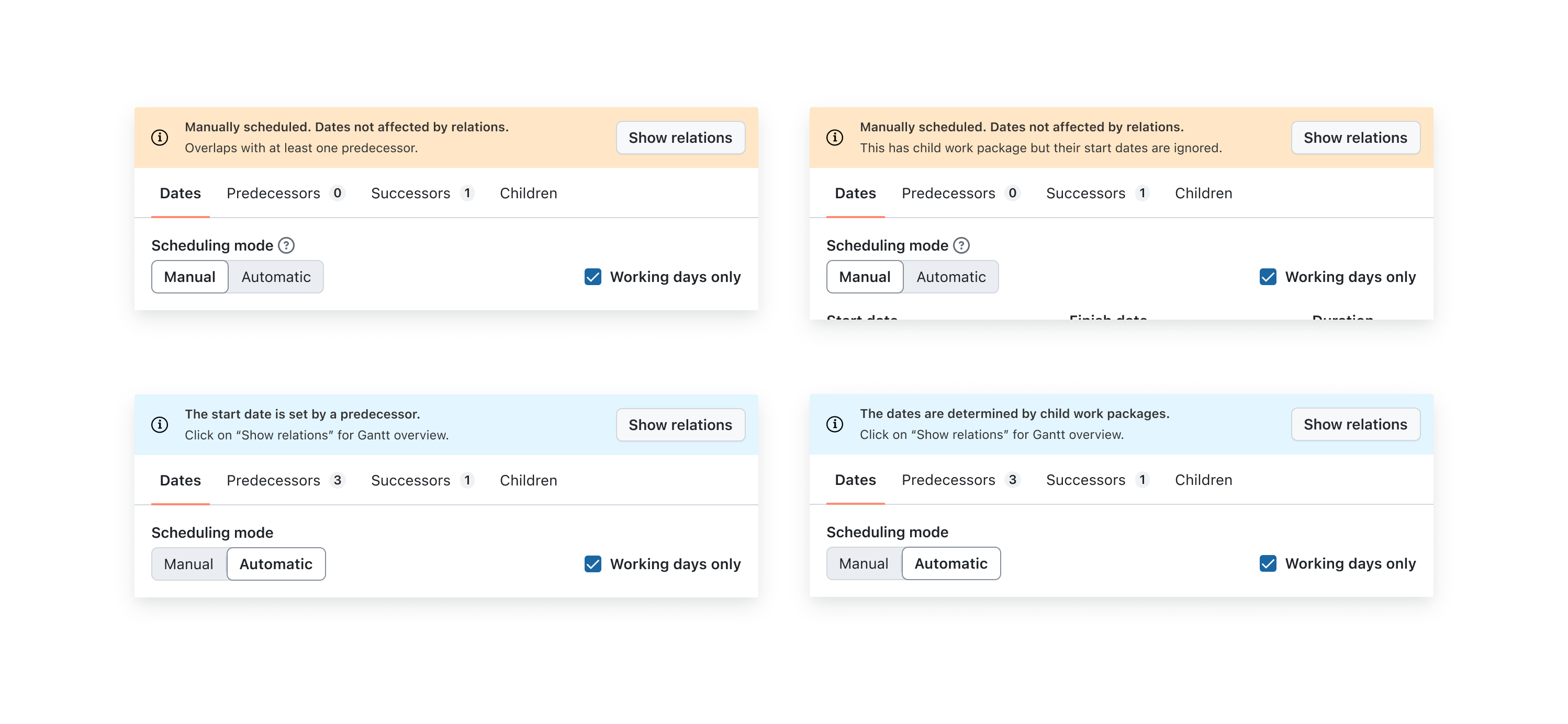
The work package date picker in OpenProject already gave you helpful context. With the upcoming release, they will provide even more precise context in both automatic and manual modes:

Date pickers banners are even more useful

The context includes information about the task’s scheduling, such as:

  • Which related work package is determining the start date in automatic mode (predecessors or children)
  • If there is a significant gap between the predecessor and successor when the successor is in manual mode
  • If there is an overlap of dates with the predecessor and successor in manual mode

This improvement is designed to enhance user understanding and confidence in the scheduling process by making things more transparent.

Improved navigation with tabs

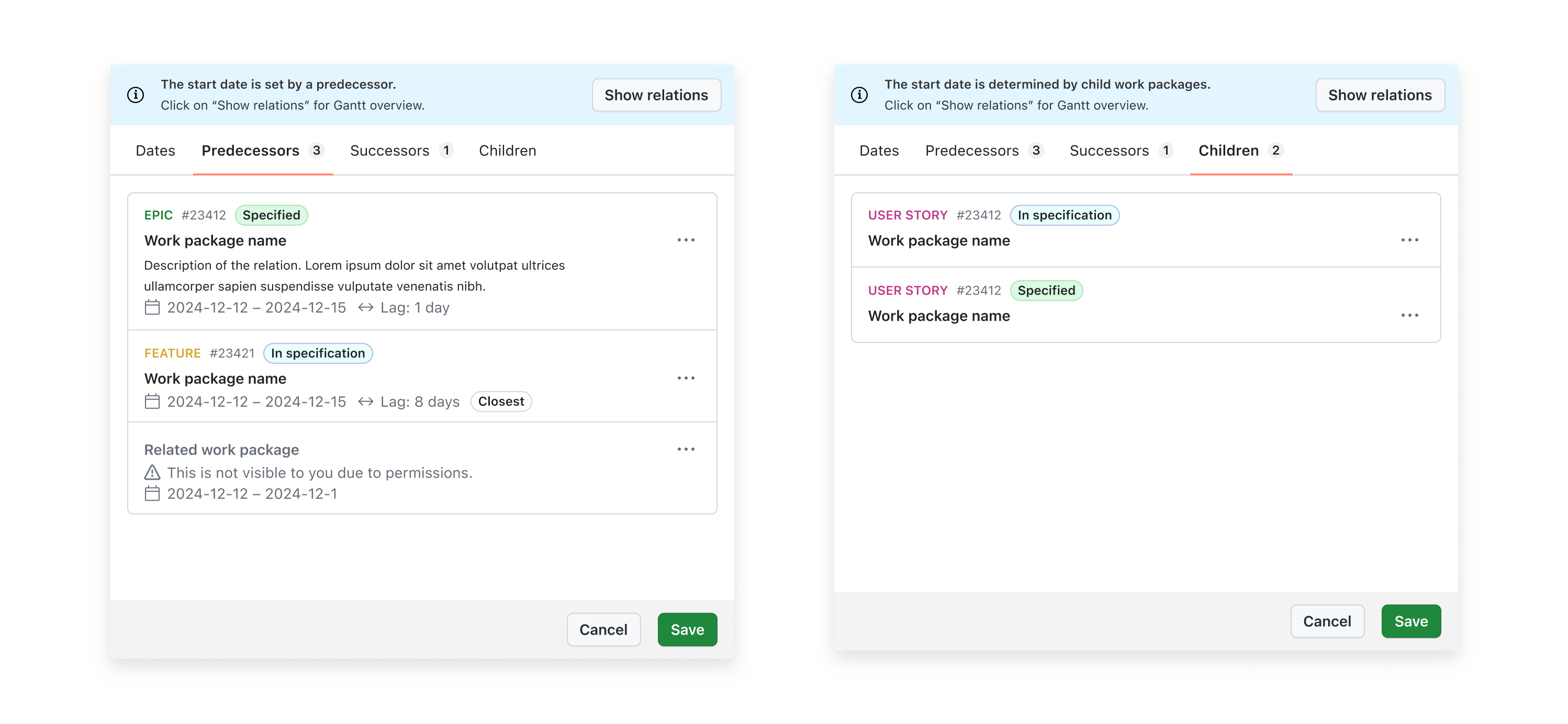
Another enhancement is the introduction of tabs within the date picker.

New tabs in the date picker show existing relations

There will be three new tabs that display existing relations in addition to the default Date tab:

  • Predecessors: Tasks that must be completed before the current one can begin. In automatic mode, the closest predecessor from which the current work package derives its dates is marked with a “closest” label.
  • Successors: Tasks that will commence after the current one is finished. In automatic mode, the start dates of these are affected by the current work package’s finish date.
  • Children: Sub-tasks that fall under the current work package. If a work package has children, it will by default be in automatic scheduling mode. The start and finish dates of the parent will cover the dates of all containing children.

This structure allows users to quickly navigate through related tasks, making it simpler to understand project dependencies and manage timelines effectively.

Default setting for new work packages

By default, new work packages will be set to manual scheduling. This change allows users to begin by setting their own dates, which can be particularly beneficial in the initial planning stages of a project. It ensures that project managers have the flexibility to establish timelines that best suit their workflow from the outset. Switching to automatic mode remains a one-click operation in the date picker.

Single date mode

Along with automatic scheduling, an upcoming version of OpenProject will bring another feature to the date picker: single date mode.

Currently, all work packages except milestones have two date fields: start date and finish date. In other words, the date field is always a range. Of course, you do not always have set both dates, and you can also set the two dates to be the same. But in many cases, you don’t need two fields; a simple finish date is enough to signal a deadline or a delivery date.

By default, new work packages will only ask for a finish date

To enable this, the date field for work packages in an upcoming version will by default only ask for the finish date. This simplifies things for users who don’t need both, but this is just the default; the user can in a single click go from single date mode to range mode (like today) by clicking on the + Start date button or adding a duration. The date picker will then behave as is does today. Of course, if the user wants single date mode with just a Start date instead of a Finish date, this is possible too.

Work packages in single date mode work exactly like work packages do today when only one date is entered and the other left empty. This will therefore not involve a change in behaviour and scheduling, simply a change in the default behaviour and UI of the date picker.

In summary

Here is a summary of changes coming in an upcoming version:

  • The date picker now offers two scheduling modes: manual and automatic scheduling.
    • Dates can be selected freely in manual mode and will not be affected by relations.
    • The start date is automatically derived in automatic mode based on predecessors or children; the duration can still be manually input.
  • In automatic mode, the date picker banners will give more helpful context about what the start date is derived from.
  • The date picker will include tabs that list predecessors, followers and children.
  • Scheduling mode for new work packages will be manual by default.
  • New work packages will default to a single date mode with finish date only; users can easily switch to range mode by adding a start date or duration.

Your feedback

As an open source software company, we value the ideas and feedback of our user Community. This upcoming changes are directly a result of user feedback. If you have opinions about these changes or have feature requests, feel free to join our Community instance and share your thoughts on this feature. We hope you’re looking forward to this improvement as much as we are looking forward to releasing it.

  •  

OpenProject integration app for Nextcloud released in version 2.8.0

The OpenProject integration app for Nextcloud reached version 2.7.2 earlier and was updated to version 2.8 today! ✨ This update ensures full support for the latest Nextcloud version 31, which was also released today.

This release requires OpenProject version 13.2 or newer. Update to the newest version of the app through your Nextcloud app center to take advantage of the latest enhancements and fixes.

Changes of the release 2.7.2:

  • Fixed fatal error related to group folders
  • UI/UX improvement: consistent element sizes in Create work package modal
  • UI/UX improvement: accomodate long subject of a work package

Changes of the release 2.8.0:

  • Support Nextcloud 31
  • Correct encoding of the avatar url
  • Expose OpenProject API endpoints as OCS endpoints

Thanks, Nextcloud, for our continued partnership! 💙

  •  

FreshRSS 1.26.0

In this release, we have restarted to focus on features. A long-awaited feature has been added, namely sorting articles by various criteria: received date (existing, default), publication date, title, link, random.

A few highlights ✨:

  • Add order-by options to sort articles by received date (existing, default), publication date, title, link, random
  • Allow searching in all feeds, also feeds only visible at category level with &get=A, and also those archived with &get=Z
    • UI accessible from user-query view
  • New shortcuts for adding user labels to articles
  • Several improvements and bug fixes

This release has been made by @Alkarex, @b-reich, @hkcomori, @math-GH, @UserRoot-Luca
and newcomers @a6software, @aftix, @bl00dy1837, @brtmax, @Roan-V, @ShaddyDC, @UncleArya

Full changelog:

  • Features
    • Add order-by options to sort articles by received date (existing, default), publication date, title, link, random #7149
    • Allow searching in all feeds, also feeds only visible at category level with &get=A, and also those archived with &get=Z #7144
      • UI accessible from user-query view
    • Add search operator intext: #7228
    • New shortcuts for adding user labels to articles #7274
    • New About page with system information #7161
  • Bug fixing
    • Fix regression denying access to app manifest #7158
    • Fix unwanted feed description updates #7269
    • Ensure no PHP buffer for SQLite download (some setups would first put the file in memory) #7230
    • Fix XML encoding regression in HTML+XPath mode #7345
    • Improve cURL proxy options and fix some constants #7231
    • Fix UI of global view unread articles counter #7247
    • Hide base theme in carrousel #7234
  • Deployment
    • Reduce superfluous Docker builds #7137
    • Docker default image (Debian 12 Bookworm) updated to PHP 8.2.26 and Apache 2.4.62
    • Docker alternative image (Alpine 3.21) updated to PHP 8.3.16
  • UI
    • Add footer icons to reader view #7133
    • Remove local reference to font Open Sans to avoid bugs with some local versions #7215
    • Improve stats page layout #7243
    • Smaller mark as read button in mobile view #5220
    • Add CSS class to various types of notifications to allow custom styling #7287
    • Various UI and style improvements: #7162, #7268
      Security
    • Better authorization label for OIDC in the UI #7264
    • Allow comments in force-https.txt #7259
  • I18n:
  • Misc.

  •  

OpenProject 15.3: Schedule recurring meetings

Today, we have released OpenProject 15.3. Among other changes, you can now create meeting series. This is a major update to our meetings module and a big improvement for organizing your recurring appointments within OpenProject. With this blog article, we will take a little tour to see how exactly you can do that.

Let’s take a quick look at the most important feature changes first:

This blog post explores recurring meetings, highlighting key improvements and how they can help teams stay organized. For more details on other changes, features and bug fixes in 15.3, check out our release notes.

Recurring meetings: Overview of changes in OpenProject 15.3

OpenProject 15.3 introduces over 20 improvements to the Meetings module. The most notable change is the Recurring meeting option, now available alongside One-time meetings and Classic meetings. So what was previously called Dynamic Meetings is now split into Recurring and One-time Meetings.

The OpenProject Meetings module, dropdown menu for creating a new meeting: One-time, Recurring, Classic

Image: The OpenProject Meetings module, with a dropdown menu for creating a new meeting: One-time, Recurring, and Classic.

In the past, if you wanted to set up regular meetings in OpenProject, you had to manually copy existing meetings for each new occurrence. This process was time-consuming and made it harder to keep track of recurring discussions.

With OpenProject 15.3, this changes: You can now schedule recurring meetings using templates. Instead of copying meetings manually, you set up a template once, define the schedule (e.g., every day, every working day, weekly), and OpenProject automatically creates future meetings for you.

Most important updates regarding Meetings:

  • When creating a new meeting, you now have the option to choose a Recurring Meeting (or a One-time Meeting).
  • The Classic Meeting still exists, but we will sunset that option once it becomes fully obsolete.
  • The sidebar on the left has changed. It now shows existing meeting series, in addition to preset filters like My meetings or Recurring meetings.
  • To switch between upcoming and past meetings, you now find buttons on top of each meeting overview page.

Here’s an example overview page of the updated Meetings module, filtered for ‘My meetings’:

The OpenProject Meetings module, filtered for ‘My meetings’, showing upcoming meetings structured into today, tomorrow, later this week and next week or later

Image: The OpenProject Meetings module, filtered for ‘My meetings’, showing upcoming meetings structured into Today, Tomorrow, and Next week or later. An additional section that is not shown in this example would be Later this week.

Example: Scheduling a monthly team meeting on Thursdays at 10:00

Let’s say your team holds a team meeting every four weeks on Thursday at 10:00 AM.

Previously:

  • You had to manually copy the meeting for each new meeting.
  • Setting up a consistent structure (agenda, participants) required manual effort.
  • It was difficult to track and manage recurring meetings in a clear overview.

Now with recurring meetings:

  1. Create a new meeting and select Recurring meeting.
  2. Set the recurrence to Weekly.
  3. Adjust the Interval to 4 – this means the meeting repeats every 4 weeks.
  4. OpenProject will display: Every 4 weeks on Thursday at 10:00.
  5. Choose when the meetings series ends:
    • Never
    • After a specific date
    • After a set number of occurrences

Tip

Please note that you can create flexible meeting schedules by combining a frequency (daily or weekly) with an interval (e.g., 4, meaning every 4 days or every 4 weeks). More advanced monthly options are currently not available yet. If you want to cast your vote on this feature, please see https://community.openproject.org/work_packages/61522.

Your options when creating a new recurring meeting – Project, title, Location, Dates, Duration, Frequency, Interval and end of the series

Image: Your options when creating a new recurring meeting – Project, Title, Location, Dates, Duration, Frequency, Interval and End of the series.

Meeting templates

Use templates to prefill each recurring meeting occurrence with some general agenda items and sections. We at OpenProject for example structure our weekly all-hands meeting in sections for each department, a “Good News” section, one for customer and user feedback, and so on. This way, the meeting is always structured in the same way and, for a specific date, attendants only have to add their agenda items or work packages to the respective sections.

Of course, you can adjust the template anytime and also edit each meeting occurrence so that it differs from the template.

The OpenProject Meetings module, showing an empty template agenda and a note that you are editing a template that every new occurrence of a meeting in the series will use

Image: The OpenProject Meetings module, showing an empty template agenda and a note that you are editing a template that every new occurrence of a meeting in the series will use.

Meeting series

Once you created a recurring meeting, it will be displayed in the left side menu under Meeting series. Here, you can switch again between upcoming and past, while the default view is upcoming meeting occurrences, divided into Open and Planned. OpenProject opens the agenda of the next meeting for you as soon as the previous has started. This way, you can already start adding agenda items to the next meeting during your appointment, which can be quite helpful. Additionally, you can open any planned meeting by clicking on the Open button in the list. This action moves the occurrence up and lists it under Open. Open meetings are clickable, so that you can change the agenda.

Here is a screenshot showing the team meeting series from our example above:

Example meeting series: Marketing monthly, two occurrences are displayed under “Open”, three under the section “Planned”

Image: Example meeting series: Marketing monthly, two occurrences are displayed under Open, three under the section Planned.

More to come: Agenda item outcomes (Meeting minutes)

While Recurring meetings improve scheduling, we’re already working on the next major enhancement: Agenda item outcomes (Feature work package).

With this update, you’ll be able to take minutes, note decisions, and create follow-up work packages from agenda items in meetings. Regarding recurring meetings, agenda items without outcomes might be transferred to an upcoming meeting. This will be another major improvement to provide users with a structured and efficient meetings module.


OpenProject 15.3: Migration, installation, updates and support

Follow the upgrade guide for the packaged installation or Docker installation to update your OpenProject installation to OpenProject 15.3. We update your hosted OpenProject environments (Enterprise cloud) today, February 19, 2025.

You will find more information about all new features and changes in our Release notes or in the OpenProject Documentation.

If you need support, you can post your questions in the Community Forum, or if you are eligible for Enterprise support, please contact us and we are happy to support you personally.

Credits

A very special thank you goes to the City of Cologne, Deutsche Bahn and ZenDiS for sponsoring released or upcoming features. Your support, alongside the efforts of our amazing Community, helps drive these innovations.

Also, a big thanks to our Community members for reporting bugs and helping us identify and provide fixes. Special thanks for reporting and finding bugs go to Luka Bradesko, Max Mutzge, Lars Geiger, Rudi B., Alexander Aleschenko, Alex Fantini, and Peter Wafzig.

Last but not least, we are very grateful for our very engaged translation contributors on Crowdin, who translated quite a few OpenProject strings! This release we would like to highlight

  • greench, for an outstanding number of translations into Turkish.
  • Kuma Yamashita, for a great number of translations into Japanese.
  • Willers-ICT, for a great number of translations into Dutch.
  • Vlastislav Dockal, for a great number of translations into Czech.

Would you like to help out with translations yourself? Then take a look at our translation guide and find out exactly how you can contribute. It is very much appreciated!

As always, we welcome any feedback on this release. 💙
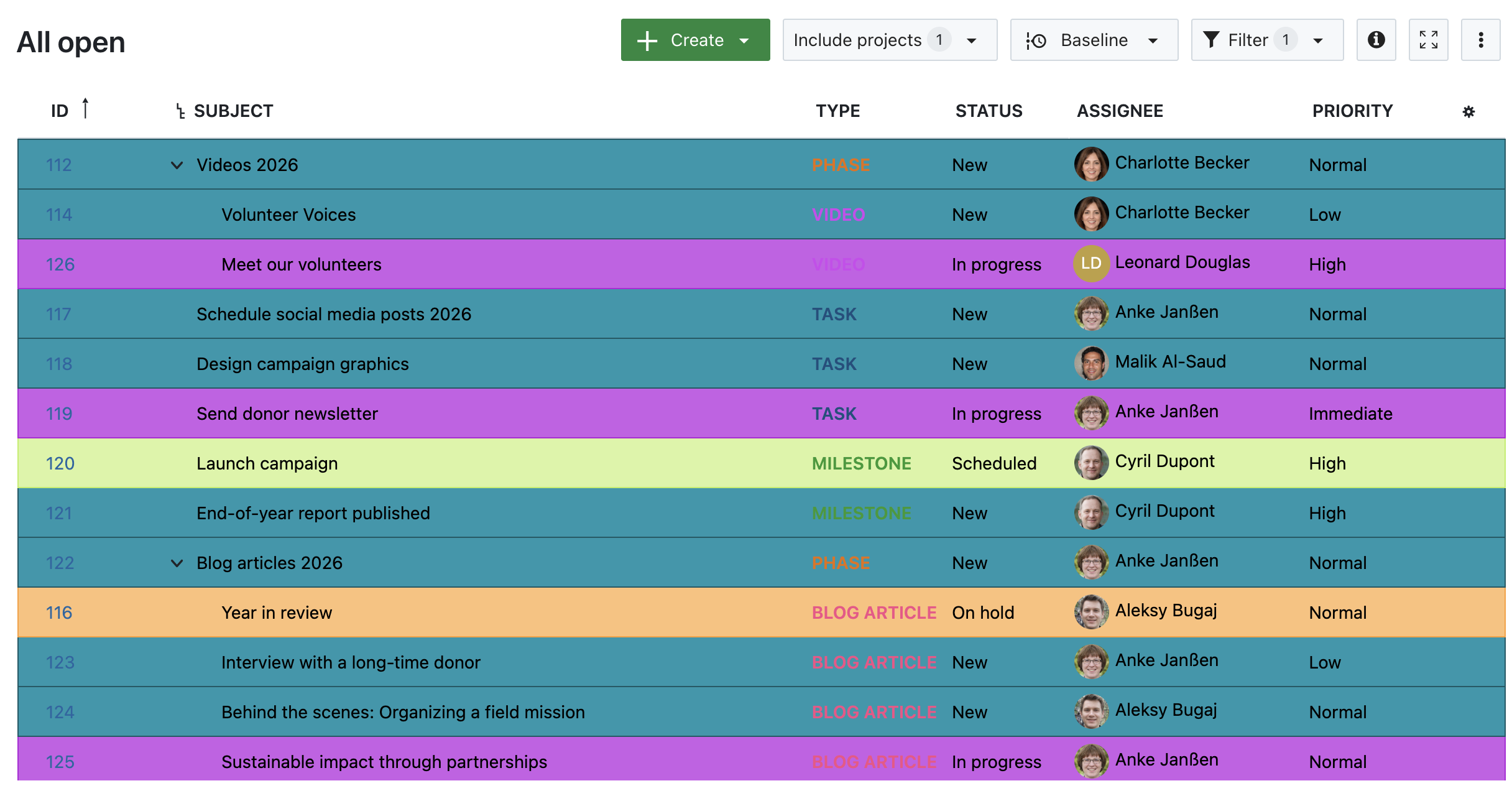
  •  

OpenProject Roadmap 2025: Highlights of upcoming features and developments

Transparency is a cornerstone of OpenProject’s open source values. By sharing our roadmap openly, we invite you to see where the software is heading, align your workflows with upcoming features, and actively contribute to the development process. At openproject.org/roadmap, you can continuously track which features are planned for which dates — while keeping in mind that plans may evolve.

This article provides a focused summary of our current priorities for 2025, looking beyond individual features to highlight overarching goals. Discover what’s planned for OpenProject in 2025!

Overview: Current focus topics for developing OpenProject

Here is a brief overview of the key areas we’re focusing on to make OpenProject even more valuable in 2025:

  1. Project portfolio management
  2. Team collaboration
  3. Integrations and API solutions
  4. User experience and accessibility
  5. Mobile app

Let’s take a closer look at each of these topics, highlighting exemplary features and why they’re planned for this year.


OpenProject’s focus on project portfolio management

Managing multiple projects efficiently is a critical challenge for many organizations. Our focus on project portfolio management in 2025 is planned to help you maintain clarity, prioritize effectively, and make strategic decisions across your portfolio.

Roadmap 2025: Planned portfolio management features

One of the exciting upcoming features regarding project portfolio management is the project lifecycle with stages and gates. These represent specific phases (stages) and critical decision points (gates) in a project lifecycle. By integrating these into the system, project portfolio managers will be able to better track and manage projects as they progress through different stages.

Preview OpenProject 2025: Project lifecycle with stages and gates - administration

Image: Preview OpenProject 2025 – Project lifecycle with stages and gates - administration. Please note that the feature is still in development and this is just a preview.


OpenProject’s focus on team collaboration

Collaboration is the foundation of successful project management. In 2025, we’re planning enhancements to help teams communicate, coordinate, and work together seamlessly.

Roadmap 2025: Planned collaboration features

Meetings play an essential role in project collaboration – for companies of all sizes. That’s why we’re excited to continue improving our dynamic meetings module this year. Some key features will be the ability to take meeting minutes during the meeting as well as recurring meetings.

Preview OpenProject 2025: Recurring meetings

Image: Preview OpenProject 2025 – Recurring meetings. Please note that the feature is still in development and this is just a preview.


OpenProject’s focus on integrations and API solutions

Integrations and API solutions remain a priority to ensure OpenProject works seamlessly with other tools in your ecosystem. These planned improvements aim to make workflows smoother and more connected.

Roadmap 2025: Planned integrations

The Nextcloud integration for OpenProject has played a central role in file management for years. We are very happy about this collaboration and look forward to developing further integrations with valued open source partners such as Element and XWiki soon.

Find out more about integrations for OpenProject.


OpenProject’s focus on user experience and accessibility

Making OpenProject more intuitive and accessible is an ongoing goal. We aim to ensure that every user, regardless of their technical background or abilities, can benefit from the software. In 2023, we started introducing the Primer design system and continued applying it last year. In 2025, we will continue applying standardized components to missing pages and improving accessibility, with a special focus on the Scrum module. Learn more about the Primer design system for OpenProject.


Mobile app

In 2025, we continue developing our mobile app, which is not yet publicly available. While most of our developers are focused on the web app, we are excited about the progress of our mobile app. Stay tuned for updates as we work toward delivering a powerful mobile experience.

The OpenProject mobile app Home screen in an alpha version

Image: The OpenProject mobile app Home screen in an alpha version. Please note that the app is still in development and this is just a preview.


Your feedback, ideas, and wishes for our roadmap

Your opinion matters: Are these planned features useful to you? Is anything missing that you really wish for? We would love to hear from you.

As an open source company, we work in the open. So if you would like to participate in OpenProject, join our Community instance to request features, report bugs, and get early access to upcoming releases. See this guide to our Community instance to learn how exactly you can contribute.


Stay connected

Apart from using our Community instance, there are other ways to stay informed about OpenProject:

  •  

OpenProject 15.2: Set reminders for work packages

We are very happy to announce the release of OpenProject 15.2. With this update, users are now able to set reminders for work packages to never forget about a task again. Another great features are:

… as well as a continued update of page headers and subheaders.

In this blog article, we’ll examine the feature of setting reminders for work packages along with the feature of exporting time tracked in work packages now as PDF. To learn more about the other features and bug fixes included in version 15.2, please check out our release notes.

Set reminders for work packages

With OpenProject 15.2, you can stay on top of your tasks with the new Reminder feature. Need a nudge about a work package at a later time? Simply open the work package, click the new Reminder icon, and set the date and time for your reminder. When the moment comes, you’ll receive a notification in your notification center, ensuring you never miss a critical task.

Screenshot of a work package, the new reminder icon is highlighted

Simply click on the Reminder icon and specify when you would like to be notified:

Screenshot of the Reminder settings

We expect this feature to help many users to organize themselves even better and to keep the notification center free of outdated reminders. Maybe it has happened to you that you don’t mark notifications as read because you want to edit or view the corresponding work package later. However, this causes your notification center inbox to grow over time and become more and more cluttered.

In addition, it can often happen in your daily work that you have a work package open which you would like to look at again later – today, or days or weeks later. This is especially true in management positions if you want to monitor the progress of a task.

With the new reminder feature, you can now focus on your most urgent work and let OpenProject remind you of the work packages that will become relevant at a later point in time.

Export timesheets as PDF

Time tracking - and reporting in a nicely styled document – grows more and more important for many companies and freelancers. Until now, you could export your OpenProject timesheets to Excel.

With OpenProject 15.2, exporting time reports just got more flexible! You can now also generate PDF timesheets in the Time and Costs module. Simply set up your report filters, click the Export PDF timesheet button, and download a polished, easy-to-share PDF report.

Important

Please note that for now, the PDF export focuses exclusively on time entries and does not include cost data.

Here’s an example:

Screenshot showing the time and costs module with a highlighted ‘Export PDF timesheet’ button

… And this is how the generated PDF will look like:

Screenshot showing the exported timesheet from OpenProject to PDF


OpenProject 15.2: Migration, Installation, Updates and Support

Follow the upgrade guide for the packaged installation or Docker installation to update your OpenProject installation to OpenProject 15.2. We update your hosted OpenProject environments (Enterprise cloud) today, January 22, 2025.

You will find more information about all new features and changes in our Release notes or in the OpenProject Documentation.

If you need support, you can post your questions in the Community Forum, or if you are eligible for Enterprise support, please contact us and we are happy to support you personally.

Credits

A very special thank you goes to the City of Cologne and ZenDiS for sponsoring parts of this release. Your support, alongside the efforts of our amazing Community, helps drive these innovations.

Also, a big thanks to our Community members for reporting bugs and helping us identify and provide fixes. Special thanks for reporting and finding bugs go to Stefan Weiberg.

Last but not least, we are very grateful for our very engaged translation contributors on Crowdin, who translated quite a few OpenProject strings! This release we would like to highlight

Would you like to help out with translations yourself? Then take a look at our translation guide and find out exactly how you can contribute. It is very much appreciated!

As always, we welcome any feedback on this release. 💙
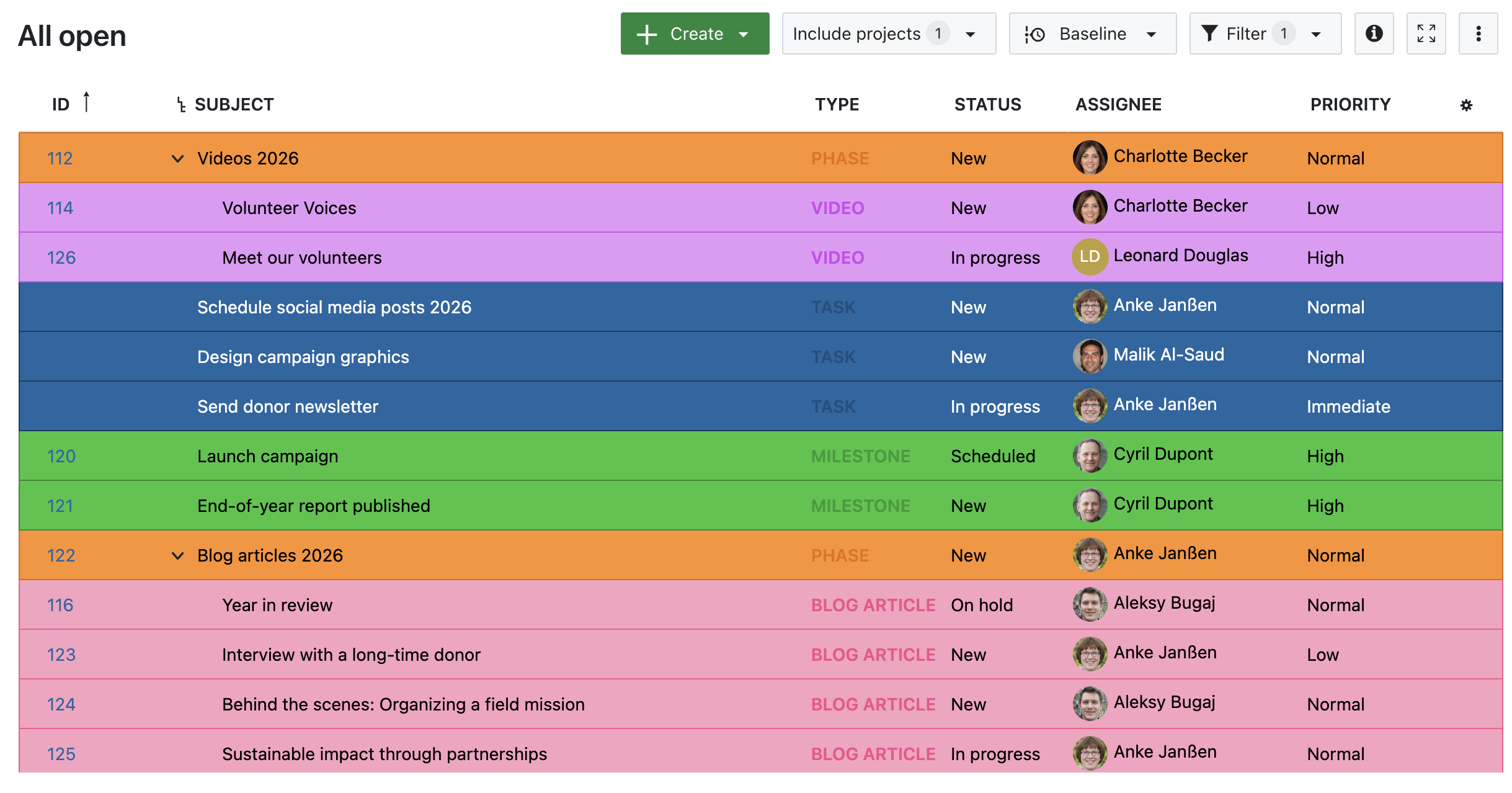
  •  

FreshRSS 1.25.0

In this release, the coding focus has been on moving to PHP 8.1+ and refactoring the integration of the SimplePie library (which was long due). At the same time, plenty of new features have been added. Enjoy! 🎄

Breaking changes 💥:

  • Require PHP 8.1+ (and improved support of PHP 8.4+)
  • Require PostgreSQL 10+ or MariaDB 10.0.5+ or MySQL 8+

A few highlights ✨:

  • Add support for regex search (regular expressions)
    • ⚠️ Advanced regex syntax for searches depends on the database used (SQLite, PostgreSQL, MariaDB, MySQL),
      but FreshRSS filter actions such as auto-mark-as-read and auto-favourite always use PHP PCRE2 syntax.
  • Allow dynamic search operator in user queries, like search:UserQueryA date:P1d
  • New feed mode HTML+XPath+JSON dot notation (JSON in HTML)
  • Better HTTP compliance with support for HTTP response headers Cache-Control: max-age and Expires
  • New unicity policies and heuristic for feeds with bad article IDs (reduce the problem of duplicated articles)
  • New option to automatically mark new articles as read if an identical title already exists in the same category
  • Add ability to remove content from articles with CSS selectors, also when not using full content
  • New condition option to selectively retrieve full content of articles
  • New UI feature to download a user’ SQLite database or a database SQLite export (to be produced by CLI)
  • Supported by Capy Reader (Android, open source)
  • Many bug fixes, UI improvements, and a lot more

This release has been made by @aledeg, @Alkarex, @Art4, @ColonelMoutarde, @Frenzie, @math-GH, @ramazansancar
and newcomers @DevGrohl, @UserRoot-Luca, @aarnej, @andrey-utkin, @bhj, @christophehenry, @davralin, @drego85, @ev-gor, @killerog, @kwarraich, @minna-xD, @mtalexan, @oshaposhnyk, @patHyatt

Full changelog:

  • Features
    • Add support for regex search (regular expressions) #6706, #6926
      • ⚠️ Advanced regex syntax for searches depends on the database used (SQLite, PostgreSQL, MariaDB, MySQL),
        but FreshRSS filter actions such as auto-mark-as-read and auto-favourite always use PHP PCRE2 syntax.
    • Allow dynamic search operator in user queries, like search:UserQueryA date:P1d #6851
    • New feed mode HTML+XPath+JSON dot notation (JSON in HTML) #6888
    • Better HTTP compliance with support for HTTP response headers Cache-Control: max-age and Expires #6812, FreshRSS/simplepie#26
    • Support custom HTTP request headers per feed (e.g. for Authorization) #6820
    • New unicity policies and heuristic for feeds with bad article IDs #4487, #6900
    • Fallback to GUID if article link is empty #7051
    • New option to automatically mark new articles as read if an identical title already exists in the same category #6922
    • New reading view option to display unread articles + favourites #7088
      • And corresponding new filter state &state=96 (no UI button yet)
    • Add ability to remove content from articles with CSS selectors, also when not using full content #6786, #6807
    • Update phpgt/cssxpath library with improved CSS selectors #6618
      • Support for :last-child, :first-of-type, :last-of-type, ^=, |=
    • New condition option to selectively retrieve full content of articles
      #33fd07f6f26310d4806077cc87bcdf9b8b940e35, #7082
    • Allow parentheses in quoted search #7055
    • New UI feature to download a user’ SQLite database or a database SQLite export (to be produced by CLI) #6931
    • New button to delete errored feeds from a category #7030
    • Better import of Inoreader user labels #6791
    • Rebuild feed favicon on cache clear #6961
    • New sharing with Bluesky #7116
    • New sharing with Telegram #6838
  • Bug fixing
    • Fix searches with a parenthesis before an operator like ("a b") or (!c) #6818
    • Fix auto-read tags #6790
    • Fix CSS selector for removing elements #7037, #7073,
      #7081, #7091, #7083
    • Fix redirection error after creating a new user #6995
    • Fix favicon error in case of wrong URL #6899
    • Use cURL to fetch extensions list (allows e.g. IPv6) #6767
    • Fix XML encoding in cURL options #6821
    • Fix initial UI scroll for some browsers #7059
    • Fix menu for article tags in some cases #6990
    • Fix share menu shortcut #6825
    • Fix HTML regex pattern during install for compatibility with v mode #7009
    • More robust creation of user data folder #7000
  • API
    • Fix API for categories and labels containing a + #7033
      • Compatibility with FocusReader
    • Supported by Capy Reader (Android, open source) capyreader#492
    • Improved UI for API #7048
    • Allow adding multiple feeds to a category via API #7017
    • API support edit multiple tags #7060
    • API return all categories also those without any feed #7020
  • Compatibility
  • Deployment
    • Docker: dev image freshrss/freshrss:oldest updated to Alpine 3.16 with PHP 8.1.22 and Apache 2.4.59 #6711
    • Docker alternative image updated to Alpine 3.21 with PHP 8.3.14 and Apache 2.4.62 #5383
    • Update Dockerfiles to newer key-value format #6819
    • Docker minor improvement of entrypoint #6827
  • SimplePie
  • Security
    • Apache protect more non-public folders and files #6881, #6893, #7008
    • Add privacy settings on extension list retrieval #4603, #7132
    • Fix login in unsafe mode when using a password with special XML characters #6797
    • Fix login in e.g. Brave browser by avoiding synchronous XHR #7023
    • Fix invalid login message #7066
    • Modernise windows.open noopener (to avoid flash of white page in dark mode) #7077, #7089
  • UI
    • Searchable My Labels field #6753
    • Add subscription management button to reading view #6946
    • New option for showing label menu in article row #6984
    • Move to next unread label on mark as read #6886
    • Improved article footer for small / mobile screens #7031
    • Improve Web accessibility: fix aria-hidden bug, and use HTML5 hidden #6910
    • Default styles for <pre> and <code> #6770
    • Refactor the sharing menu to use a <template> instead of duplicated HTML code #6751, #7113
    • Refactor the label menu to use a <template> #6864
    • Rework UI for authors #7054
      • Avoid Unicode escape of authors in HTML UI #7056
    • Improved subscription management page #6816
    • Improve user query management page #7062
    • Restore JavaScript form validation compatibility with Web browsers using older engines (SeaMonkey) #6777
    • Reorganise some options #6920
    • New shortcut ? to show shortcut page and help #6981
    • Use of consistent colours in statistics #7090
    • Various UI and style improvements #6959
  • Extensions
    • New extension hook simplepie_after_init #7007
  • I18n
  • Misc.

  •  

Looking back: OpenProject's highlights of 2024

Another year is almost over! Given the current difficult economic and political situation around us, we are more than grateful and proud of this successful year in which OpenProject has once again grown and made great progress. This is in particular due to our amazing team working hard to continuously improve this open source software in many ways, the fantastic users and customers and of course a vibrant and very engaged Community that support us throughout the year.

Let’s take some time to look back: What happened at OpenProject 2024? Spoiler alert – we released almost 30 new versions this year! With so many changes and updates, a summary of the highlights is particularly valuable. So please sit back and join us on a little journey through the last 12 months in this article. There is a high probability that you will discover (or rediscover) a feature that will help you achieve your 2025 goals. 🏆

Quick navigation:

28 new versions released in one year

From January 17 to December 11, 2024, 28 versions were released for OpenProject. Of these, 2 were major, 10 minor and 16 patch releases. Comparing to the previous year: In 2023, there were only twelve releases in total, less than half as many as this year. This is due to our decision at the beginning of 2024 to release one minor/major release every month. The reason for this is to provide users with finished features and improvements directly – even if they are small. In addition, our team has grown, enabling us to develop faster and to get user feedback more quickly – to then be able to quickly react to it.

After one year of monthly releases, we are very interested to know: As an OpenProject user or administrator, what do you think of this monthly cycle? Do you appreciate getting new features much quicker? Please write us your feedback or exchange ideas with other users in our Community Forums.

Highlight features of 2024

With all these new versions, let’s take a closer look at our highlight features that were released in 2024:

Starting December 2023: A OneDrive/SharePoint integration (Enterprise add-on)

In December 2023, we introduced a OneDrive/SharePoint integration as an Enterprise add-on. This integration allows you to link files and folders from OneDrive or SharePoint directly to work packages in OpenProject. It simplifies access to important project documents by keeping everything in one place. You can add a specific folder for each project with automatically managed permissions. This also enables to create project templates with a pre-defined folder structure and linked file templates.

Furthermore, we have continued to improve this integration during the year, by adding

  • project folders,
  • a connection validation ,
  • and the ability to activate storage for multiple projects at once.

For more information on setting up and using this feature, please refer to our OneDrive/SharePoint Integration Guide. To get an overview of all OpenProject’s integrations, take a look at our new integrations overview page.

Starting February 2024: Custom project lists

We would like to thank the City of Cologne for sponsoring great updates on project lists in 2024.

In February 2024, we introduced features to filter and save custom project lists. This allows you to create personalized views of your projects by applying filters and saving these configurations for quick access. It helps project portfolio managers keep on top of things, especially when handling numerous projects.

In July 2024, we enhanced project portfolio management by allowing users to mark project lists as favorites and share them. You can now easily access frequently used project lists by marking them as favorites, streamlining your workflow. Additionally, sharing project lists with the entire instance is available in the Community edition, while sharing with specific users or groups is offered as an Enterprise add-on, fostering better collaboration.

For complete information on how to set up and use project lists, check out our user guide.

March 2024: A GitLab integration

In March 2024, we introduced a GitLab integration, which was developed from a Community plugin. This feature allows you to link GitLab merge requests and issues directly to work packages in OpenProject, streamlining collaboration between development and project management teams. By connecting these elements, you can monitor development progress and maintain a unified workflow.

For more information on setting up and using this feature, please refer to our GitLab Integration Guide. To get an overview of all OpenProject’s integrations, take a look at our new integrations overview page.

Starting April 2024: Progress reporting across work package hierarchies

In April 2024, we enhanced progress reporting across work package hierarchies. This improvement provides a cohesive overview of estimates, effort, and progress, especially beneficial for multi-project management. By linking progress tracking with time entries and extending it across hierarchies, you gain a clearer picture of your project’s status.

In June 2024, we enhanced progress reporting again by allowing time entries to be recorded in days, in addition to hours. This flexibility enables teams to log work and remaining work in the unit that best fits their workflow, improving accuracy in time tracking. Administrators can define the number of hours that constitute a working day to align with organizational standards.

Later in October 2024, we made this feature more flexible, by allowing manual editing of the % Complete field and introducing new settings for progress calculation, giving administrators greater control over progress tracking.

Learn more about progress tracking and reporting with OpenProject.

May 2024: PDF export of Gantt charts (Enterprise add-on)

In May 2024, we introduced the PDF export of Gantt charts as an Enterprise add-on. This feature allows you to export your Gantt chart views to PDF format, facilitating easy sharing and printing of project timelines. It enhances project documentation and communication by providing a portable format for your schedules. Later in the year, we improved this feature by adding options for paper size selection and date zoom levels, offering more flexibility in your exports.

Read all about OpenProject’s Gantt charts in our user guide.

August 2024: A dark mode

In August 2024, we introduced a dark mode to enhance user experience. This feature provides an alternative visual theme with light text on a dark background, reducing eye strain in low-light environments and offering an aesthetically pleasing interface. Users can enable dark mode by navigating to My account > Settings and selecting Dark under the Mode option. This setting applies individually, allowing each user to choose their preferred display without affecting the entire instance.

Screenshot of the Community global page in dark mode

September 2024: Restore local backups in text editor

In September 2024, we introduced the ability to restore local backups within the WYSIWYG text editor. This seems like a small feature, but is very valuable as it allows users to recover unsaved content changes in work package descriptions or wikis. So this feature prevents data loss due to accidental closures or crashes. By clicking the clock icon in the editor’s header, you can access and restore previous versions of your content, each marked with a timestamp and word count. This enhancement ensures that your work is safeguarded and easily retrievable.

See our user guide for information on editing and updating a work package.

November 2024: Emoji reactions and more in the new Activity tab

In November 2024, we unveiled a redesigned Activity tab for work packages, enhancing communication and collaboration. The new design offers a cleaner, more structured interface, aligning with GitHub’s Primer design system. Key improvements include:

  • Real-time updates: Comments and notifications now load instantly, eliminating the need for page refreshes.
  • Emoji reactions: Users can respond to comments with a selection of eight emojis, making interactions more engaging.
  • Fixed comment box: The input field is anchored at the bottom for easy access.
  • Filtering and sorting: Options to filter by all activities, comments only, or changes only, and to sort by newest or oldest first.

December 2024: Custom fields of type hierarchy (Enterprise add-on)

Our last bigger release in 2024 included an Enterprise add-on to create custom fields of type hierarchy. It allows users to structure data further into multi-level selections within custom fields, making it easier to categorize and manage complex information in work packages. Whether you’re organizing locations, structuring teams, or categorizing products, this feature adds clarity and precision to your workflows.

See this blog article to read some examples on how to use custom fields type hierarchy.

Design improvements in 2024

If you have been following OpenProject and our updates for a while, you will know that we started a major design change last year. In September 2023, we reported that we wanted to adopt the design system Primer from GitHub and that we would be incorporating it into the application in many small iterations.

In the course of 2024, we have already updated some parts to the new design. In addition to the more modern, user-friendly design, we have improved features in some places at the same time, such as the dropdown function in the relations tab on work packages.

Have you noticed these design changes? How do you like them?

In 2025, we will continue to adapt further areas of OpenProject to the Primer design system. Thank you for your patience and understanding that such changes can only be implemented step by step. This way, we have capacities for new great features, bug fixes and further innovations in addition to the design adjustments.

Launch of openDesk 1.0

OpenProject is driven by values around open source and data sovereignty. Therefore, it is very important to us to collaborate with other great open source software providers. On the one hand, we do this in the form of providing integrations, as we have done so far with Nextcloud, for example, with further integrations planned with XWiki and Element on our roadmap.

But these software providers have something else in common with OpenProject: We are all part of openDesk, your secure office and collaboration suite.

During the Smart Country Convention in Berlin this October, openDesk 1.0 was officially launched. We are excited about this big step and look forward to the first in-depth user experiences.

Company and culture at OpenProject 2024

We are immensely proud of how well OpenProject as an organization and we as a team have developed and grown in 2024. We were able to attract a large number of exceptional people and also win some of them back.

Our new team members

The best part of growth are the new team members who strengthen and professionalize the team. In 2024, our team has grown again – a warm welcome to every new team member!

  • Jen, Marketing & Community Manager US
  • Cécile, Senior Software QA Engineer
  • Ivan, Senior Software Engineer
  • Simon, Support Specialist
  • Judith, Senior Software Engineer
  • Giuseppe, People & Organization Manager
  • Dorothee, People & Organization Manager
  • Tobias, Senior Software Engineer
  • Oleksii, App Developer
  • Bruno, Senior Software Engineer
  • Alex, Senior Software Engineer
  • Jan, Senior Software Engineer
  • Vanessa, Team & Accounting Assistant

The OpenProject team from above, forming the OpenProject logo

Note

Interested in seeing your name on this list next year? We at OpenProject are happy to welcome new colleagues who are passionate about open source. Click here to see our vacancies.

Team meetups and official events

We also had some wonderful team highlights in 2024. The most important is probably our annual team offsite. As much as we welcome and have embraced remote working, it’s also nice to get together with the team in person from time to time. This year we met in Berlin at Wannsee for our company offsite and worked, laughed, spent time together and strengthened our bond.

In this Video (Youtube) you can get a little insight into our offsite 2024.

Furthermore, we attended several conferences again this year, such as the Univention Summit, FOSDEM (watch our talk at FOSDEM 2024), Nextcloud Community and Enterprise days, the Smart Country Convention and the Open Source Experience. These fairs are always a great opportunity to get in touch with our users and the Community.

Roadmap for 2025

Of course, we have some exciting updates on our roadmap for 2025. Please feel free to check back at www.openproject.org/roadmap to see which features are planned for which approximate time frame. Please also keep in mind that we develop in an agile way and that plans are always subject to change.

One topic in particular will be on our minds in 2025: As requested by many users, we have been working on a mobile app for some time now, which is scheduled for release in the course of the coming year. We will publish more detailed information as soon as the scope and release date become clearer.

Stay up to date regularly, it’s worth it! We particularly recommend subscribing to our newsletter, which informs you about new versions and features at least once a month.

Feel free to visit and subscribe to our social networks to get all the information directly:


Thank you 💙

That was our summary of 2024. What did you particularly like? Where would you like to see changes? Please do not hesitate to contact us and give us honest feedback. We would also like to take this opportunity to refer you to our Community forums, where you can exchange ideas with other users about OpenProject.

If you would like to contribute to OpenProject, please visit our Contributions guide that we recently created, as so many of you asked how to support us. You can help by translating OpenProject, by reporting bugs or submitting feature ideas. You can also help by contributing to our documentation. And of course, if you spread the word, link to our website or give us a testimonial for us to publish, this also helps a lot.

Many thanks to everyone who has accompanied and supported us again this year! To our great Community, which supports us in so many ways with bug reports, translations and more. To our sponsors, who enable growth and innovation. And to our team, who did a great job again in 2024 and contributed to becoming the leading project management software for data conscious organizations. True to our vision, to achieve great things for the good of society.

And with that, we wish you a good break between the years and a powerful start to the new year 2025! 🌟

  •  

How to add sub-tasks to your work packages (Enterprise add-on)

With the release of OpenProject 15.1, the design of the Relations tab for work packages has been improved, but some customers miss the feature of being able to create corresponding sub-tasks (children) or other related work packages directly. Don’t worry: we are already working on a feature that will soon make it possible to create relations directly from the Relations tab again.

In addition to that, there is a clever workaround for displaying a table of related work packages:

How to: Add a table of related work packages to a work package form (Enterprise add-on)

While the redesigned Relations tab improves clarity and usability, you can use a clever workaround to display related work packages directly within a work package form. This approach allows you to maintain an overview of related tasks or items at a glance.

Steps for admins to configure the table:

  1. Navigate to Administration > Work packages > Types.
  2. Choose the work package type you want to configure (e.g. Epics) and access the Form configuration tab.
  3. Click on +Group and select Add table of related work packages.
  4. Specify in the filter the relation you want to be displayed (e.g. Children) and sort your table as you like.
  5. Name your new group.
  6. Click Apply and then Save your changes.

Example screenshot: How to add a table of related work packages in the administration

With this setup, users can view all related work packages directly on the form, providing a clear and centralized overview of connections and dependencies. This is how the work package could look like with the set-up that we described above:

Table of related work packages displayed on a work package

For more details, check out our documentation.

When will I be able to add children directly in the Relations tab of a work package?

We are already working on a feature to make it possible again to add children directly in the Relations tab of a work package. As the holiday season approaches, it will be included in a release early 2025. As we work in an agile way, we constantly update OpenProject. This allows us to enable features almost right away. Thank you for your understanding and your patience. We hope that the workaround that we described above will help you in the meantime.

Tip: Visit our Community instance to test features on advance

On our Community instance, we do not only develop our product out in the open, but also deploy a new version a few days or even weeks in advance of the official release. Check out our guide to the Community instance to learn more.

  •  

OpenProject 15.1: Custom fields of type hierarchy

We are excited to announce the release of OpenProject 15.1! This update introduces custom fields of type hierarchy (Enterprise add-on), allowing you to structure complex data into multiple levels. Particularly beneficial for larger organizations, this feature streamlines workflows and improves data clarity.

In this blog article, we’ll explore three practical examples of how hierarchical custom fields can be used. For a complete list of all features and bug fixes included in version 15.1, please check out our release notes.

List of important features with OpenProject 15.1

Let’s start with a list of the key features of OpenProject 15.1:

In the linked release notes sections, you will find all information on these highlight features for OpenProject 15.1.

In this blog article, we will take a closer look at the new Enterprise add-on and examples on how to use custom fields of type hierarchy.

Custom fields of type hierarchy (Enterprise add-on)

The new custom field type hierarchy introduces multi-level selections make it much easier to organize and navigate complex data in work packages. This feature allows users to structure items into multiple levels, streamlining data categorization and improving clarity.

With hierarchical custom fields, users can assign short identifiers (e.g., “B” for Berlin) to levels, creating a logical and accessible framework. For example, you can use this feature to categorize workspaces with precision, ensuring detailed data is well-organized and easy to manage.

In our system admin guide, you can learn how to create new custom fields of type hierarchy.

But how can you make the most of this new capability? Let’s explore three use cases where hierarchical custom fields can add real value.

Example 1: Location details and room numbers

In real estate management, keeping track of detailed location information across multiple properties can be a complex task. Hierarchical custom fields in OpenProject simplify this by creating structured levels for properties and their components. For example:

  • Level 1: Property – “Greenwood Apartments”
  • Level 2: Building – “Building A”
  • Level 3: Floor – “3rd floor”
  • Level 4: Room – “Room 305”

With this structure, a maintenance task could be assigned to Greenwood Apartments > Building A > 3rd floor > Room 305. This ensures that the team knows exactly where to focus their efforts, reducing the risk of misunderstandings.

This approach is not only helpful for property management but also for companies with multiple sites or regional offices. By using a custom field to hierarchically structure locations, it becomes easy to specify location-based work packages, such as events.

Below is an example screenshot of a work package type ‘Event’ that includes the custom field ‘Location’, as described above:

Example screenshot of a work package for a christmas party

Example 2: Organizational structures

Managing workflows in large organizations can be complex, especially across departments, teams, and locations. Hierarchical custom fields make it easier to categorize and track tasks at any level. For example:

  • Level 1: Organization – TechSolutions Inc.
  • Level 2: Location – Australia
  • Level 3: Department – Engineering
  • Level 4: Team – Frontend Engineering

If you have multiple ‘Frontend Engineering’ teams in different locations, the hierarchy field specifies exactly which team is responsible, such as the one in Australia. This avoids confusion, ensures tasks are directed to the correct group, and improves transparency.

Here is an example of how an admin could use custom fields type hierarchy to structure and specify the different Engineering teams:

Custom field type hierarchy example screenshot showing three locations with each three sub-items

… And this is how this custom field would look like in the fourth level:

Custom field type hierarchy example screenshot showing four levels to describe a team of Frontend Engineering

Example 3: Product Categorization

In product development, clear categorization is critical to organizing and aligning projects. Hierarchical custom fields help structure products so teams can easily navigate them. For example:

  • Level 1: Product Line – Electronics
  • Level 2: Product Category – Laptops
  • Level 3: Model/Version – ProBook X200

With this hierarchy in place, a task like “Update firmware” can be assigned specifically to the product line Electronics > Laptops > ProBook X200. Admins can adjust these fields as product lines evolve, making the structure both robust and adaptable.


OpenProject 15.1: Migration, Installation, Updates and Support

Follow the upgrade guide for the packaged installation or Docker installation to update your OpenProject installation to OpenProject 15.1. We update your hosted OpenProject environments (Enterprise cloud) today, December 11, 2024.

You will find more information about all new features and changes in our Release notes or in the OpenProject Documentation.

If you need support, you can post your questions in the Community Forum, or if you are eligible for Enterprise support, please contact us and we are happy to support you personally.

Credits

A very special thank you goes to Deutsche Bahn and City of Cologne for sponsoring parts of this release. Your support, alongside the efforts of our amazing Community, helps drive these innovations.

Also, a big thanks to our Community members for reporting bugs and helping us identify and provide fixes. Special thanks for reporting and finding bugs go to Bill Bai, Sam Yelman, Knight Chang, Gábor Alexovics, Gregor Buergisser, Andrey Dermeyko, Various Interactive, Clayton Belcher, Александр Татаринцев, and Keno Krewer.

Last but not least, we are very grateful for our very engaged translation contributors on Crowdin, who translated quite a few OpenProject strings! This release we would like to highlight

Would you like to help out with translations yourself? Then take a look at our translation guide and find out exactly how you can contribute. It is very much appreciated!

As always, we welcome any feedback on this release. 💙
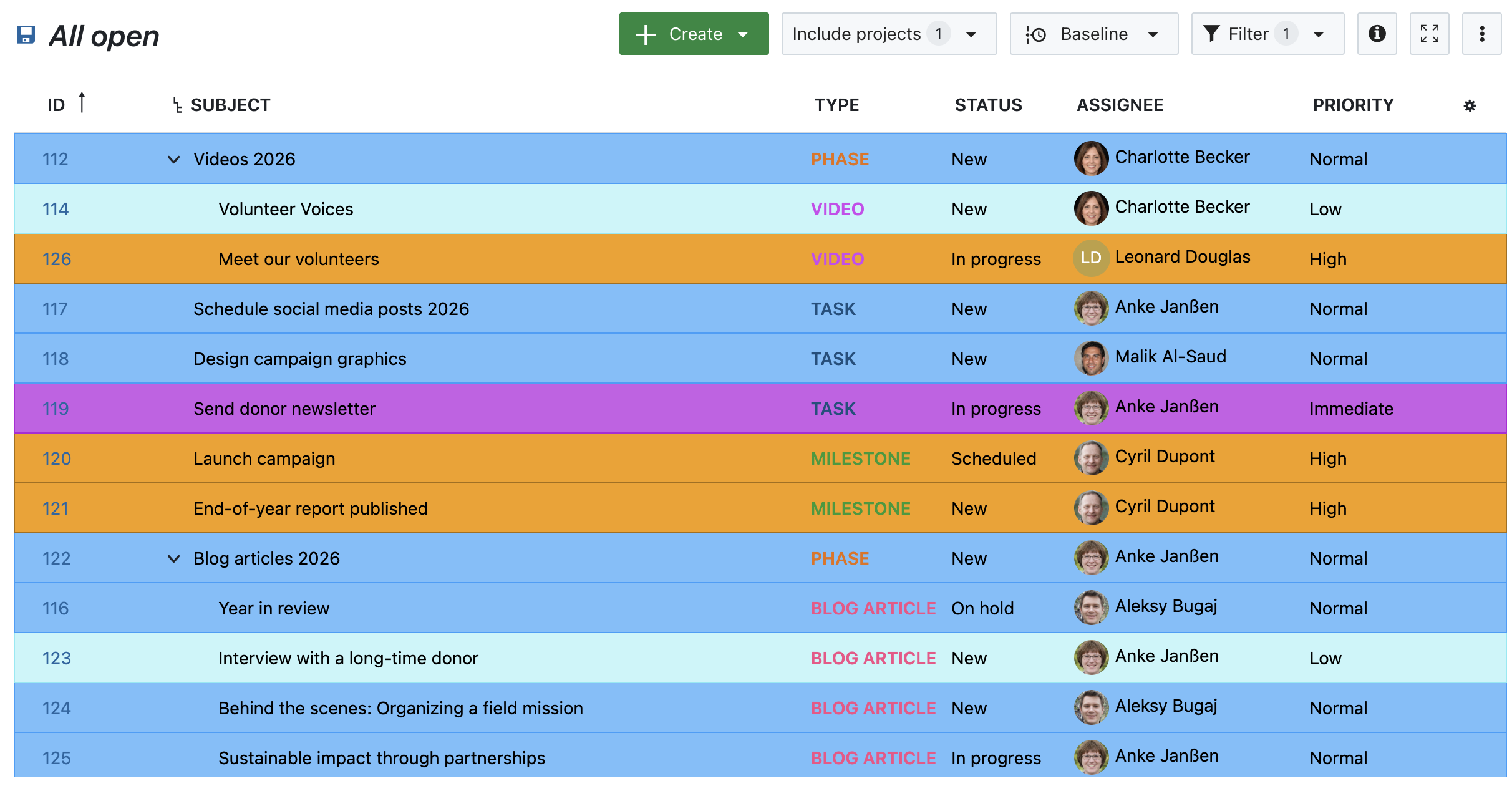
  •  
❌