❌

Reading view

Text Shortcuts You Should Be Using on iPhone and Mac

Apple's autocorrect on iPhone and iPad always aims to help when you're typing a message, but it's by no means perfect, and some of the replacements it continually spews out can be frustrating. Fortunately, Apple's software includes a feature called Text Replacement that allows you to specify what word or phrase replaces the specific text you type in.
On my way
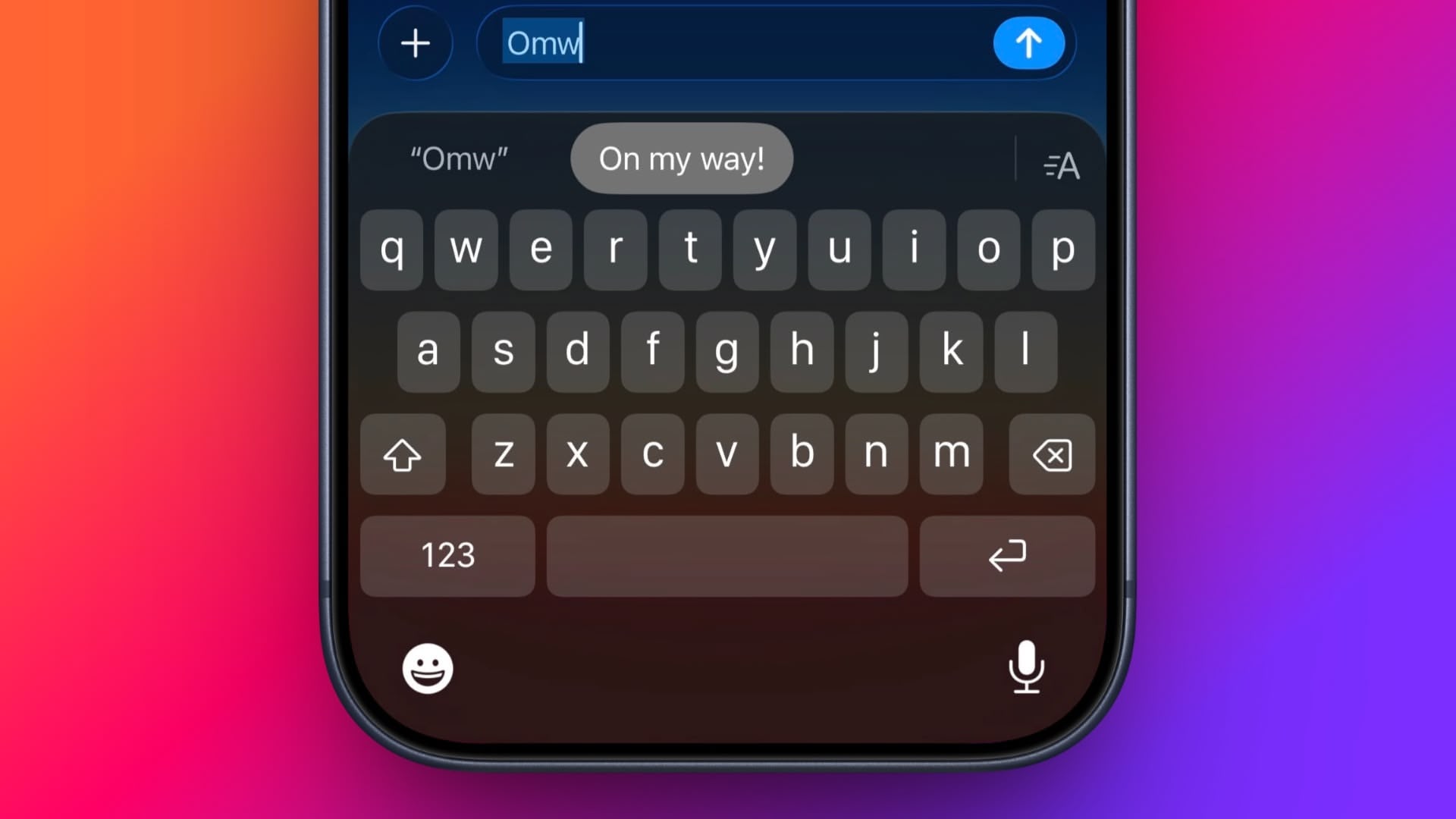
Even if you haven't set up Text Replacement, you can try it out with Apple's pre-set example: In any app that accepts text input, type "Omw" followed by a space, and it will change to "On my way!" automatically.

The following steps guide you through the process of setting up your own handy shortcut phrases with text replacements on both iOS devices and Mac.

How to Set Up Text Replacement on iPhone


  1. Launch the Settings app on your iPhone or iPad.

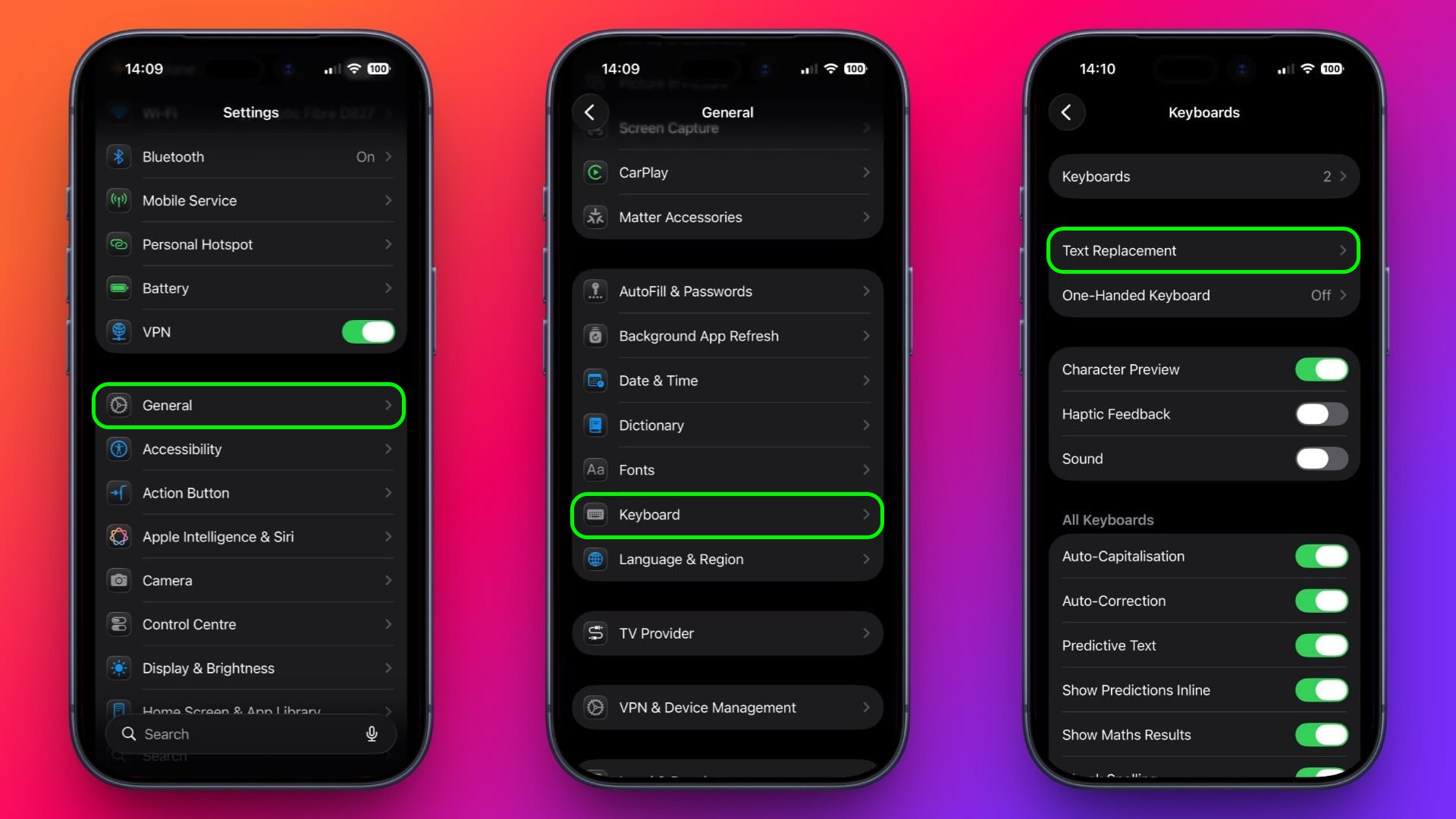
  2. Tap General ➝ Keyboard.

  3. Tap Text Replacement.
    settings
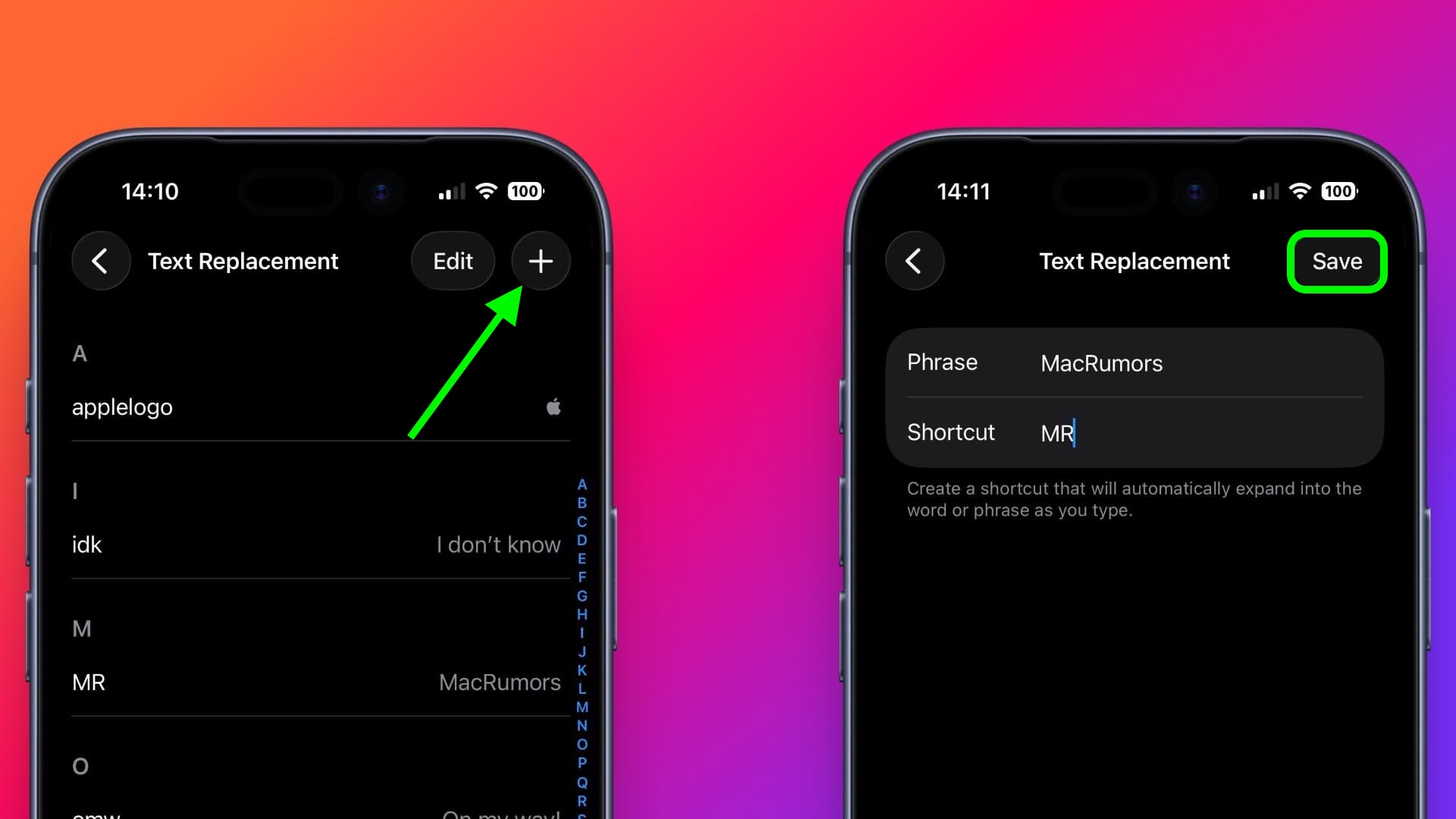
  4. Tap the plus (+) button in the top-right corner of the screen.

  5. On the next screen, fill in the "Phrase" field with the text you want to appear every time you type your shortcut.

  6. In the "Shortcut" field, input the text of your choice that you want to be replaced by the phrase above.

  7. Tap Save in the top-right corner to finish.
    settings

How to Set Up Text Replacement on Mac


The following steps work on Macs running macOS Ventura and later.
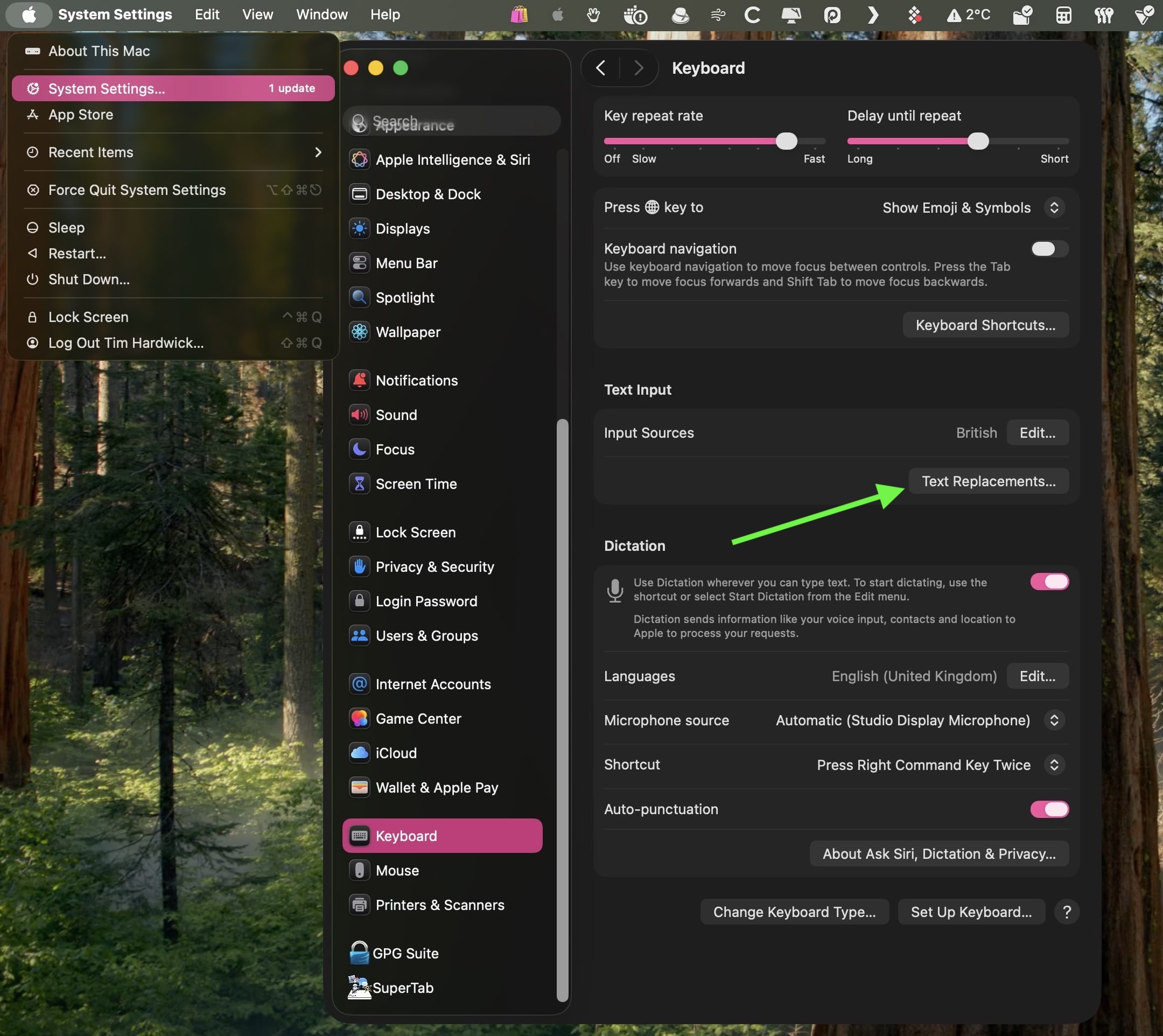
  1. On your Mac, click the ο£Ώ logo in the top-left corner of the menu bar at the top of the screen and select System Settings....

  2. Scroll down and select Keyboard in the sidebar.

  3. Under "Text Input," click Text Replacements....
    settings
  4. Click the + button to add a text replacement.

    settings
  5. In the "Replace" column, enter the text that you want replaced with something else.

  6. In the "With" column, type the replacement text that you want it to change to.

    settings
If you're using the same Apple account across all of your Apple devices, any Text Replacements that you add on your Mac will be automatically synced to your iPhone and/or iPad, and vice versa.
This article, "Text Shortcuts You Should Be Using on iPhone and Mac" first appeared on MacRumors.com

Discuss this article in our forums

  •  

macOS Tahoe Finder Bug Underscores Apple's Slipping UI Polish

Apple released macOS Tahoe last September, but despite two point updates since then, it is still struggling to resolve an embarrassing interface issue in Finder that appears to have been introduced with its Liquid Glass redesign.


If you updated your Mac to macOS Tahoe and you prefer to work in Finder's column view, there's a good chance you've been frustrated by the glitch, which developer Jeff Johnson has been admirably tracking over on his blog.

finder
Scroll bar blocking column resize handles (Original image: Jeff Johnson)

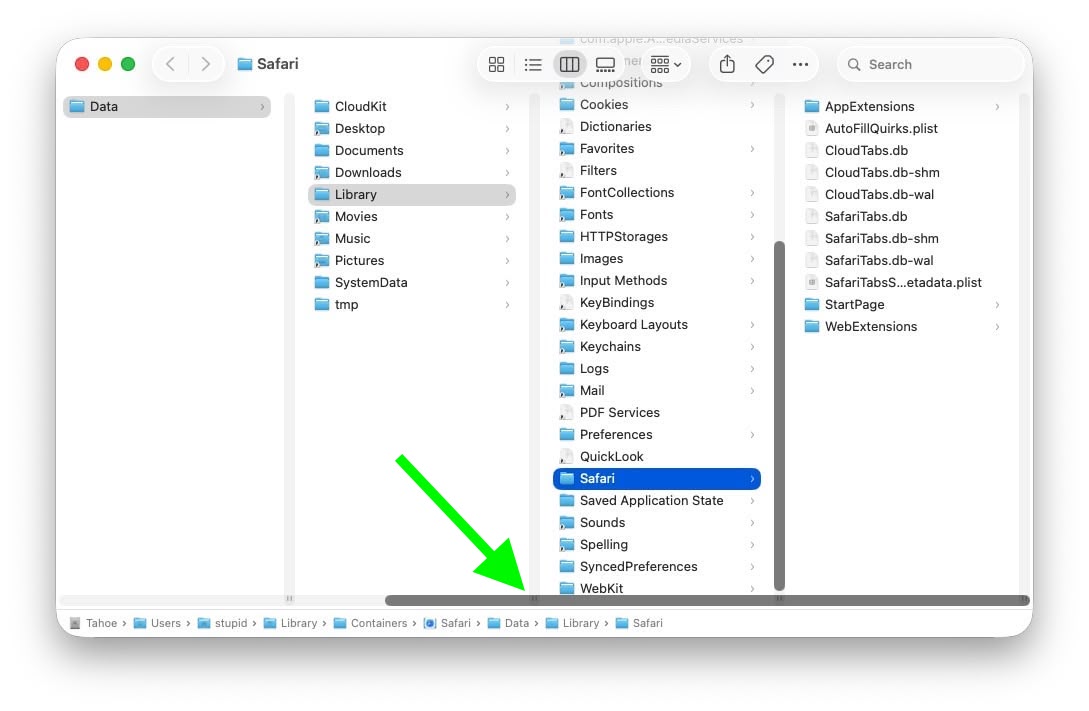
At the bottom of each Finder column are handy little resize handles allowing you to expand or reduce each column as you see fit. But in macOS 26 and macOS 26.2, when scroll bars are set to "always show," the horizontal scroll bar at the bottom overlaps and covers those handles, so you can't click them to adjust column widths the way you could in earlier macOS versions like Sequoia.

finder
Scroll bar occluding column content (Original image: Jeff Johnson)

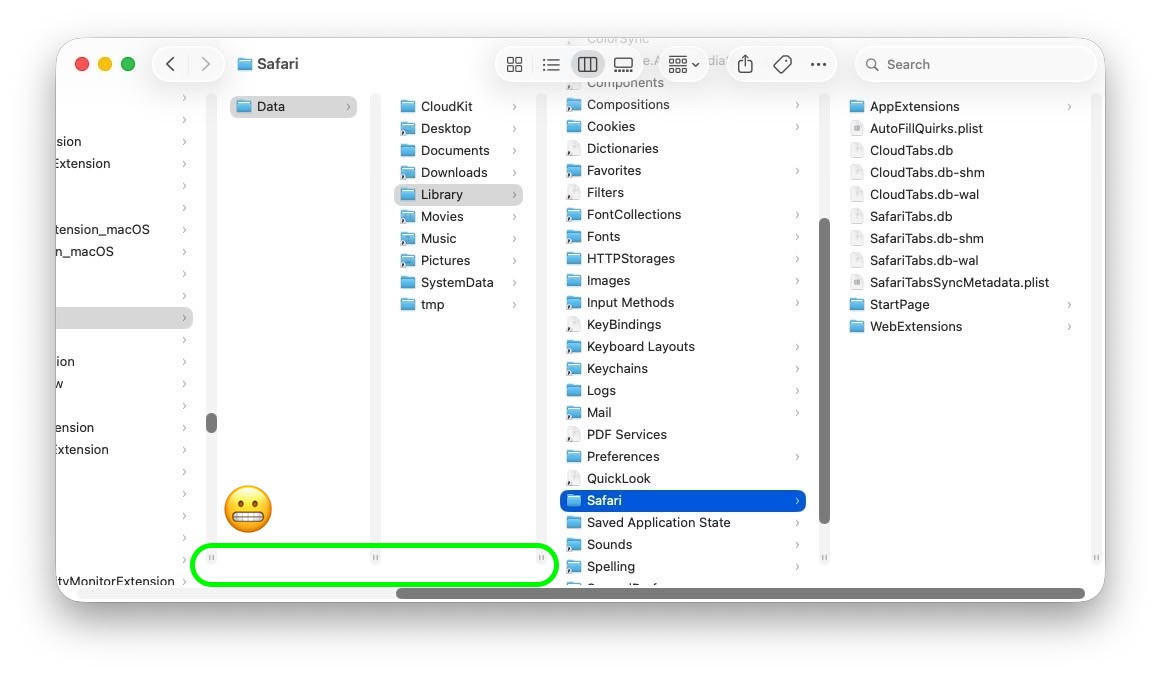
With the recent release of macOS 26.3, Apple attempted a fix. The vertical scrollers were shortened so the resizing widgets now sit above the horizontal bar and are technically clickable again. Unfortunately though, as Johnson points out, the horizontal scroll bar still overlaps file names in the view, causing it to regularly obscure content. Moreover, if you hide the path bar and status bar, the layout leaves a weird amount of empty space below the scrollers, making the whole thing look unfinished (see image below).

finder
Column resize handles suspended in mid-air (Original image: Jeff Johnson)

Johnson's take is basically that while the most disruptive bug is less bad now, the overall column view layout still feels half-baked – especially for anyone who keeps scroll bars always visible.

As Daring Fireball's John Gruber points out, it's an embarrassing fudge for a company that used to pride itself on pixel-perfect settings across its Mac operating system.

At this point, it's unclear when Apple will manage to iron out the UI irregularities introduced by Liquid Glass. macOS Tahoeβ€Œ 26.4 is likely to be released in March or April, and could introduce some new Siri features, though at least some of the capabilities that we were expecting may have been delayed, depending on who you believe. The update is also expected to introduce new emoji characters.
This article, "macOS Tahoe Finder Bug Underscores Apple's Slipping UI Polish" first appeared on MacRumors.com

Discuss this article in our forums
  •  

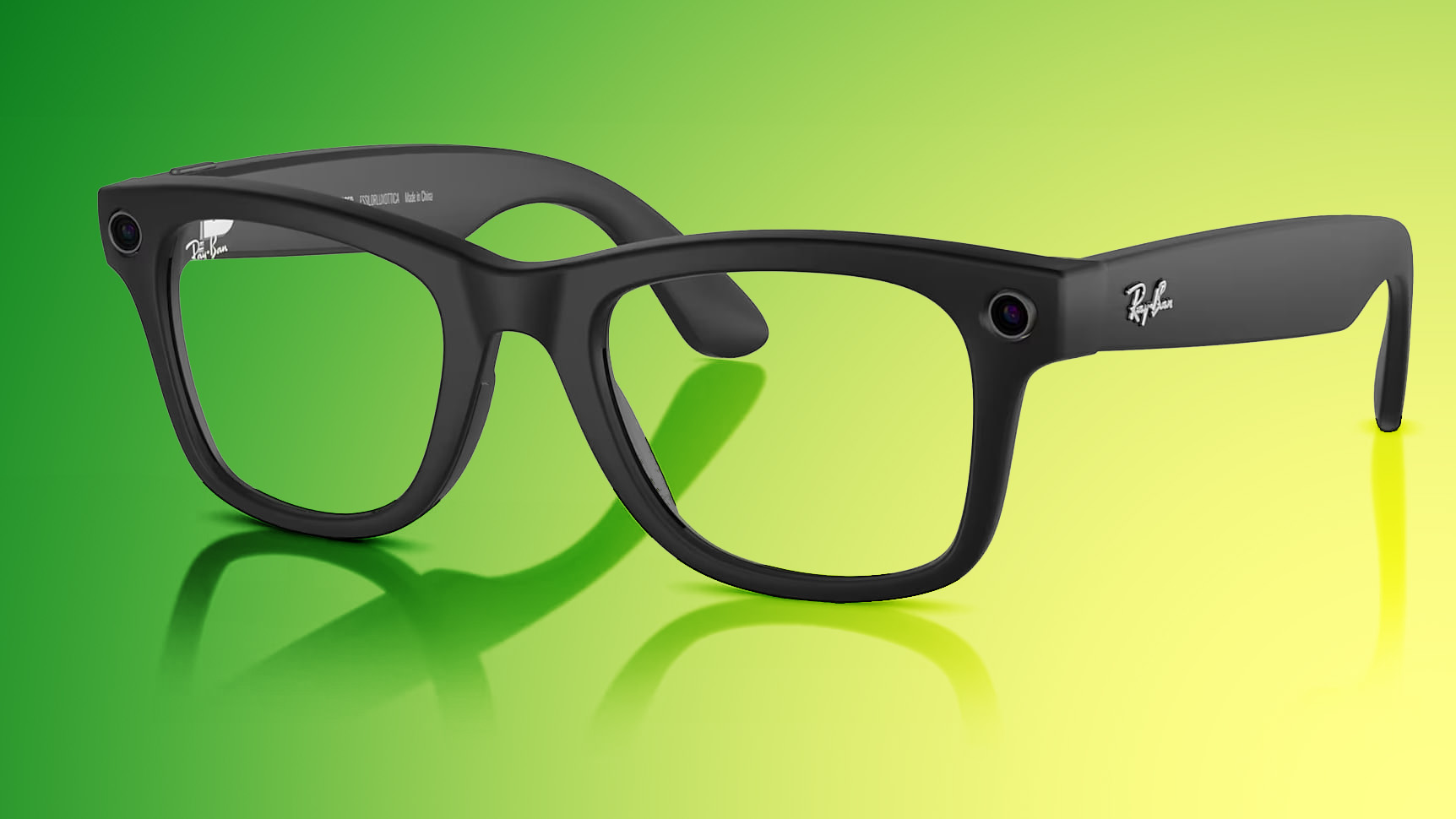
Meta Plans 'Name Tag' Facial Recognition for Ray-Ban Smart Glasses

Meta plans to add a facial recognition feature to its Ray-Ban smart glasses as soon as this year, reports The New York Times ($).


According to people involved in the plans who spoke to the publication, the feature is internally called "Name Tag," and would let wearers identify people and get information about them via Meta's artificial intelligence assistant. Mark Zuckerberg reportedly wants the feature to differentiate the devices and to make the AI assistant in the glasses more useful.

According to an internal document seen by NYT, Facebook's parent company has been in discussions since early last year about releasing the feature, which carries obvious civil liberty and privacy risks. Based on the document, dated to last May, the company originally planned to release Name Tag to attendees of a conference for the blind – which did not happen – before releasing it to the general public.

The internal memo also said the "political tumult" in the United States was good timing for the feature's release. NYT quoting from the document out of Meta's Reality Labs:

"We will launch during a dynamic political environment where many civil society groups that we would expect to attack us would have their resources focused on other concerns."
The plan is a turnaround for the company – five years ago, Facebook shut down its facial recognition system for tagging people in photos on its social network, citing a need to find "the right balance" for a technology that raises privacy and legal concerns.

This isn't the first time it has considered adding facial recognition to a consumer product either. Technical challenges and ethical concerns reportedly prevented the feature from making it into Meta's first version of its Ray-Ban smart glasses, which have proven successful since they debuted in 2021. EssilorLuxottica, which works with Meta to make the glasses, said this week that it sold more than seven million units in 2025.

Meta is still said to be exploring who should be recognizable through the technology. Possible options reportedly include recognizing people a user knows via a Meta platform, and identifying people whom they may not know but who have a public account on a Meta site like Instagram. What Name Tag reportedly won't allow users to do is look up literally anyone they encounter.

In a statement given to NYT, Meta said:
"We're building products that help millions of people connect and enrich their lives. While we frequently hear about the interest in this type of feature – and some products already exist in the market – we're still thinking through options and will take a thoughtful approach if and before we roll anything out."
Meta's smart glasses have already been used to identify people in public. In 2024, two Harvard students used Ray-Ban Meta glasses alongside the facial recognition service PimEyes to identify strangers on the Boston subway, and later posted a video of the experiment that went viral. Meta responded by emphasizing that the glasses included a small white LED on the top-right corner of the frame to signal when recording is taking place.

Meta is apparently also working on so-called "super-sensing" glasses that continually run cameras and sensors to keep a record of someone's day.

According to a Bloomberg report last year, Apple is planning to launch a set of smart glasses by the end of this year. The glasses will be comparable to Meta's Ray-Bans and Google's Android XR glasses, "but better made."

Apple's smart glasses are expected to include cameras, microphones, and AI capabilities, and will have the ability to take photos, record video, provide translations, give turn-by-turn directions, and more. However, they won't have augmented reality capabilities.
This article, "Meta Plans 'Name Tag' Facial Recognition for Ray-Ban Smart Glasses" first appeared on MacRumors.com

Discuss this article in our forums

  •  

AppleCare+ Coverage Launches in Indonesia

Apple today announced the launch of AppleCare+ coverage in Indonesia, bringing the option of additional hardware protection and technical support to customers across the country.


Most Apple products come with a one-year limited warranty that covers hardware failures and manufacturing defects, and up to 90 days of complimentary technical support. AppleCare+ extends coverage for devices like iPhone, iPad, Mac, Apple Watch, Pro Display XDR, and Apple TV, including accidental damage protection for incidents like drops and spills, battery replacement when capacity drops below 80 percent, and 24/7 priority access to support.

"AppleCare brings peace of mind and mind to our customers, with comprehensive protection for their products and support from Apple experts," said Kaiann Drance, Apple's vice president for Worldwide iPhone Product Marketing. "Today's launch is part of our ongoing commitment to expand access to AppleCare coverage and deliver the best experience for our customers around the world."
AppleCare+ in Indonesia extends Apple's paid support and repair coverage through its network of Apple Authorized Service Providers. Customers can use mail-in or in-store repairs for supported Apple products, and Mac users may be eligible for onsite service. Global repair coverage also allows customers traveling abroad to obtain service through Apple's international network, subject to local parts and service availability.

AppleCare Protection Plan coverage can be purchased when ordering a qualifying device and within 12 months of purchase. Customers in Indonesia can learn more about AppleCare+ options in their country by visiting Apple's regional AppleCare+ webpage.
This article, "AppleCare+ Coverage Launches in Indonesia" first appeared on MacRumors.com

Discuss this article in our forums
  •  

Live Activities Taking Over Your Apple Watch? Here's the Fix

In watchOS 26, the Smart Stack for your Apple Watch is pretty clever. The collection of widgets can be pulled up with a scroll of the Digital Crown, and shows you relevant information throughout your day. But sometimes, its eagerness to help can be a bit much, especially when it comes to Live Activities.


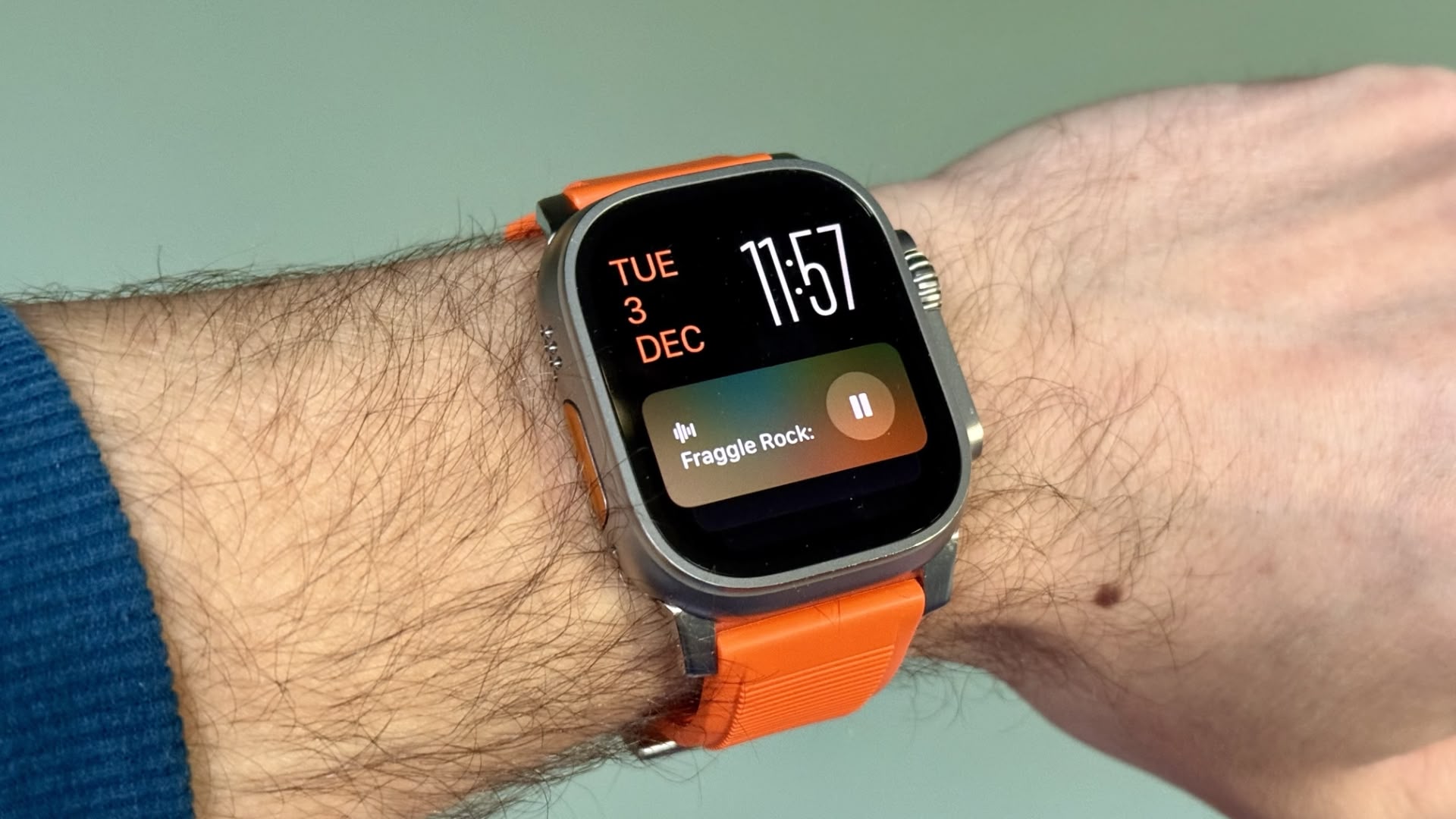
You're probably familiar with this scenario: You raise your wrist expecting to see your customized watch face, but it's been replaced by media playback controls because someone's watching your Apple TV, or a timer you set earlier for cooking that still has ages left to run. Live Activities in the Smart Stack can clearly be useful, but having them automatically take over your display isn't always ideal. Here's how to take back control:

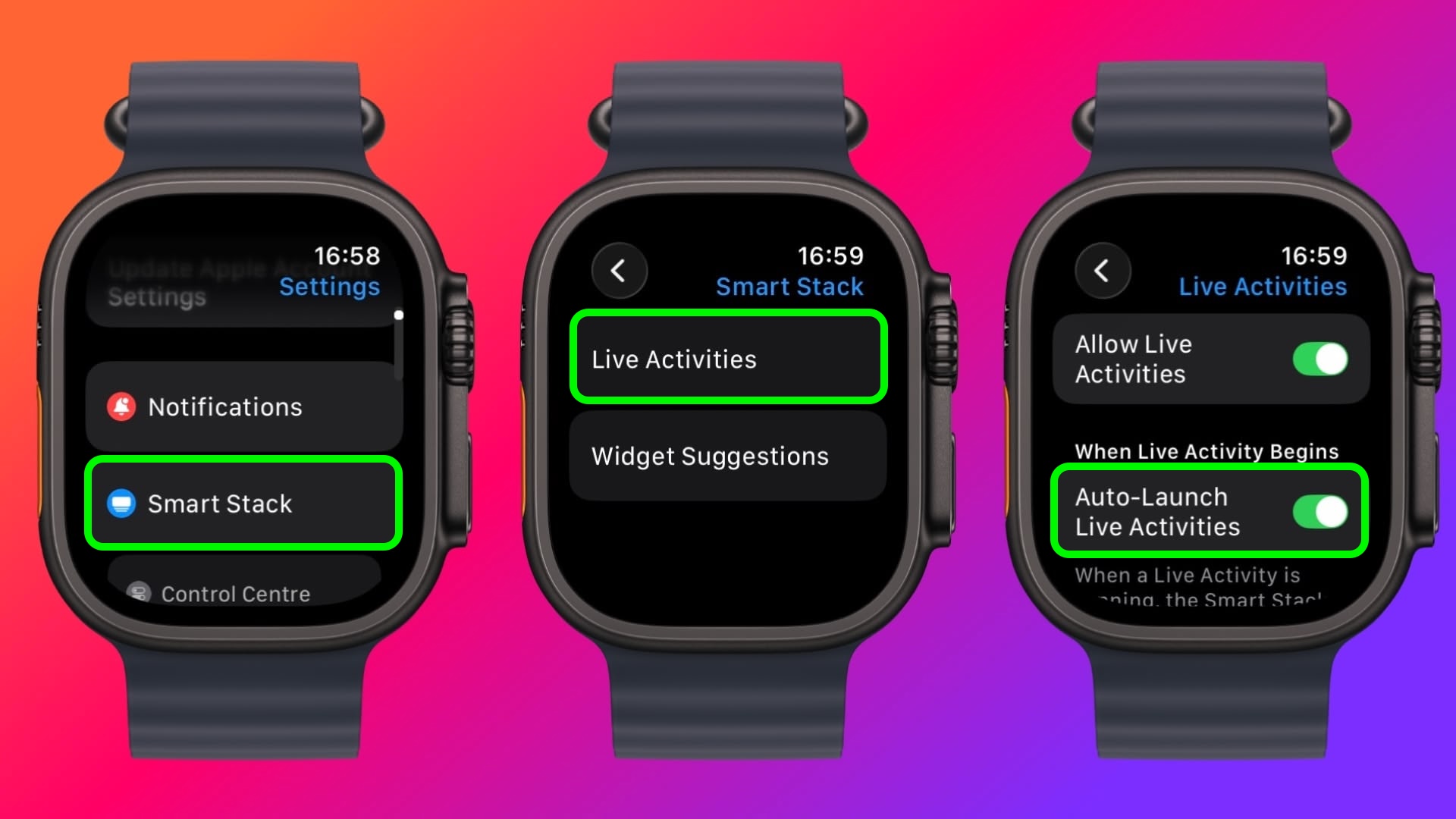
  1. Open Settings on your Apple Watch.

  2. Tap Smart Stack.

  3. Select Live Activities.

  4. Toggle off the switch next to Auto-Launch Live Activities.

settings

After disabling auto-launch, Live Activities will still be available in your Smart Stack when you want them – you'll just need to manually scroll to see them instead of having them pop up automatically.

If you want more granular control, you're in luck. From the same settings screen you can control which Apple apps display Live Activities. Using the Watch app on your iPhone, you can also manage Live Activities settings for third-party apps. This lets you keep the notifications you find useful while preventing the less important ones from interrupting your watch face.

Pro Tip: If it's just those persistent media controls that bug you, head to Media Apps in the same settings menu and turn off Live Activities completely, or alternatively under "Auto-Launch," select Off or Smart Stack for a more focused watch face experience.
This article, "Live Activities Taking Over Your Apple Watch? Here's the Fix" first appeared on MacRumors.com

Discuss this article in our forums
  •  
❌